Although it is fairly easy to get a single Minecraft server up and running in our Proxmox Homelab, you might have a need for multiple servers and maybe some Bedrock and some Java versions. Instead of running multiple LXC Containers, we can run multiple Minecraft Servers in a single LXC container and administer them from a central point thanks to Crafty Controller. Today, as part of our Build your Own Homelab series, we are looking at a tool to make those multiple Minecraft servers a lot easier.
Step 1: Get the install script
After using the easy-to-use Turnkey Linux LXC Template for the previous Minecraft server, today we are going to our (other) best friend, helper-scripts.com. Search for crafty. There should only be one option for Crafty Controller. Select it and read through the instructions, particularly, take note that we are going to need to run a command inside the created LXC Container to get the credentials. The command to install the LXC can also be found on the page, in our case it is:
bash -c "$(curl -fsSL https://raw.githubusercontent.com/community-scripts/ProxmoxVE/main/ct/crafty-controller.sh)"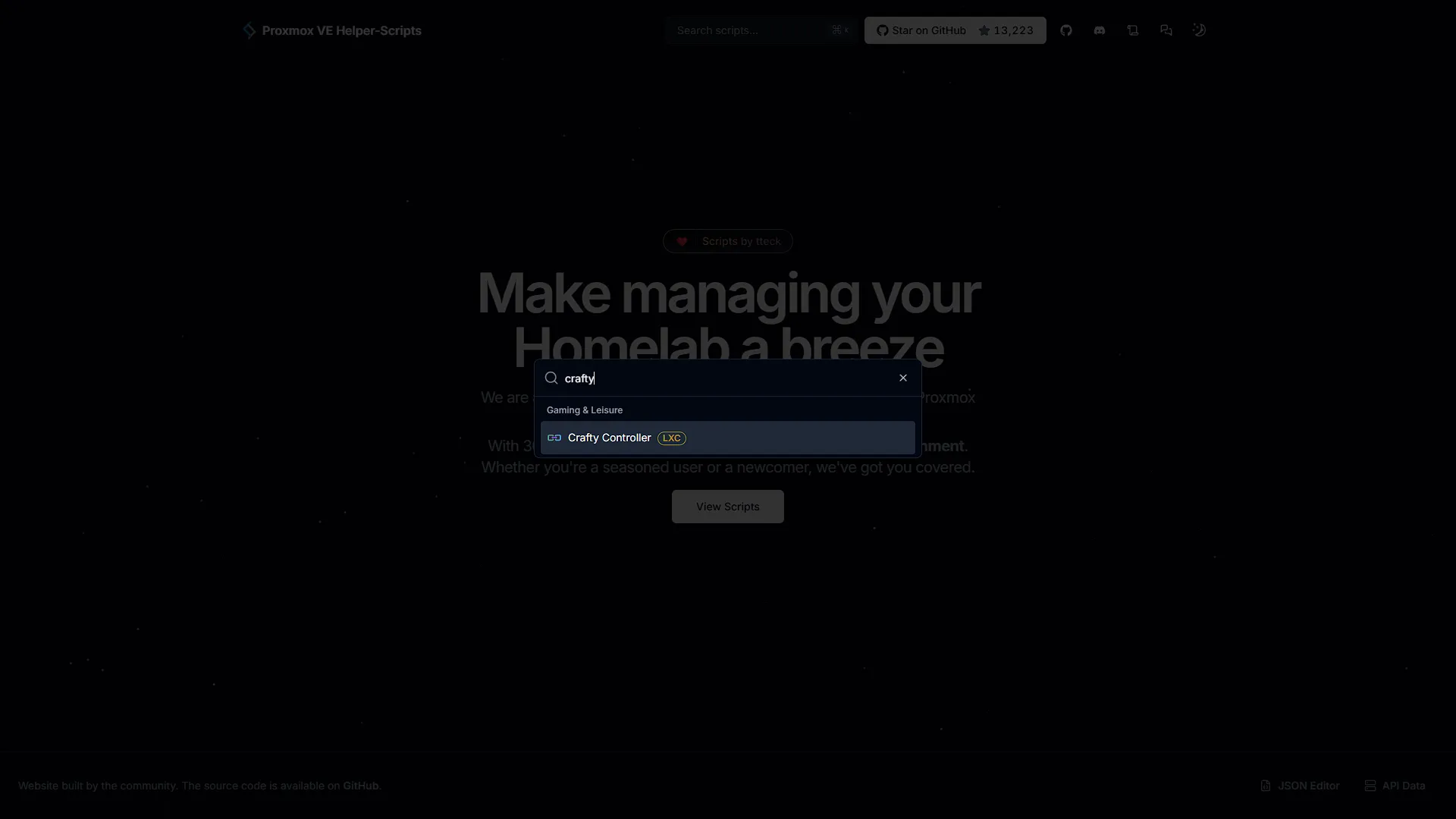
Step 2: Install the LXC Container
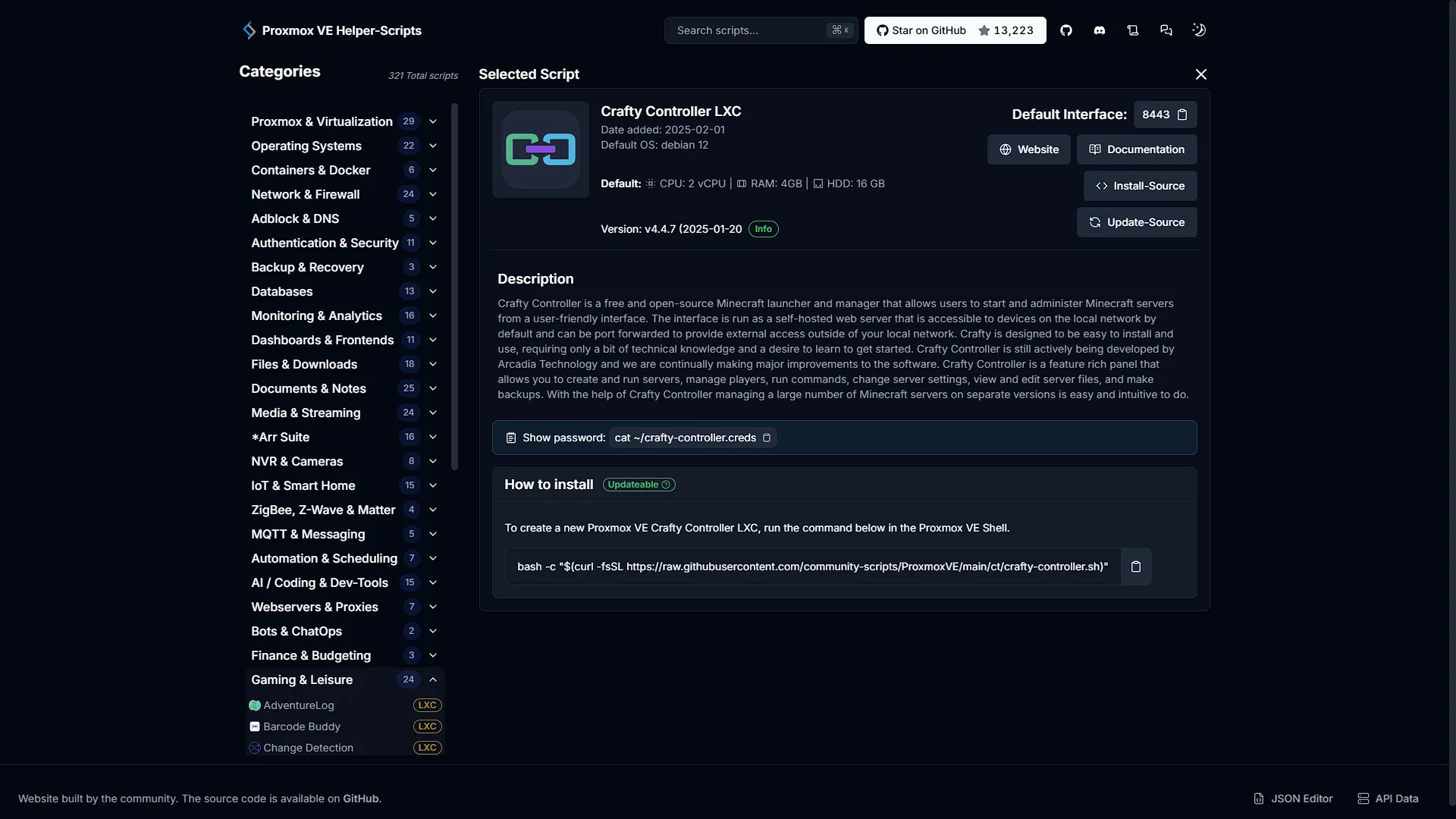
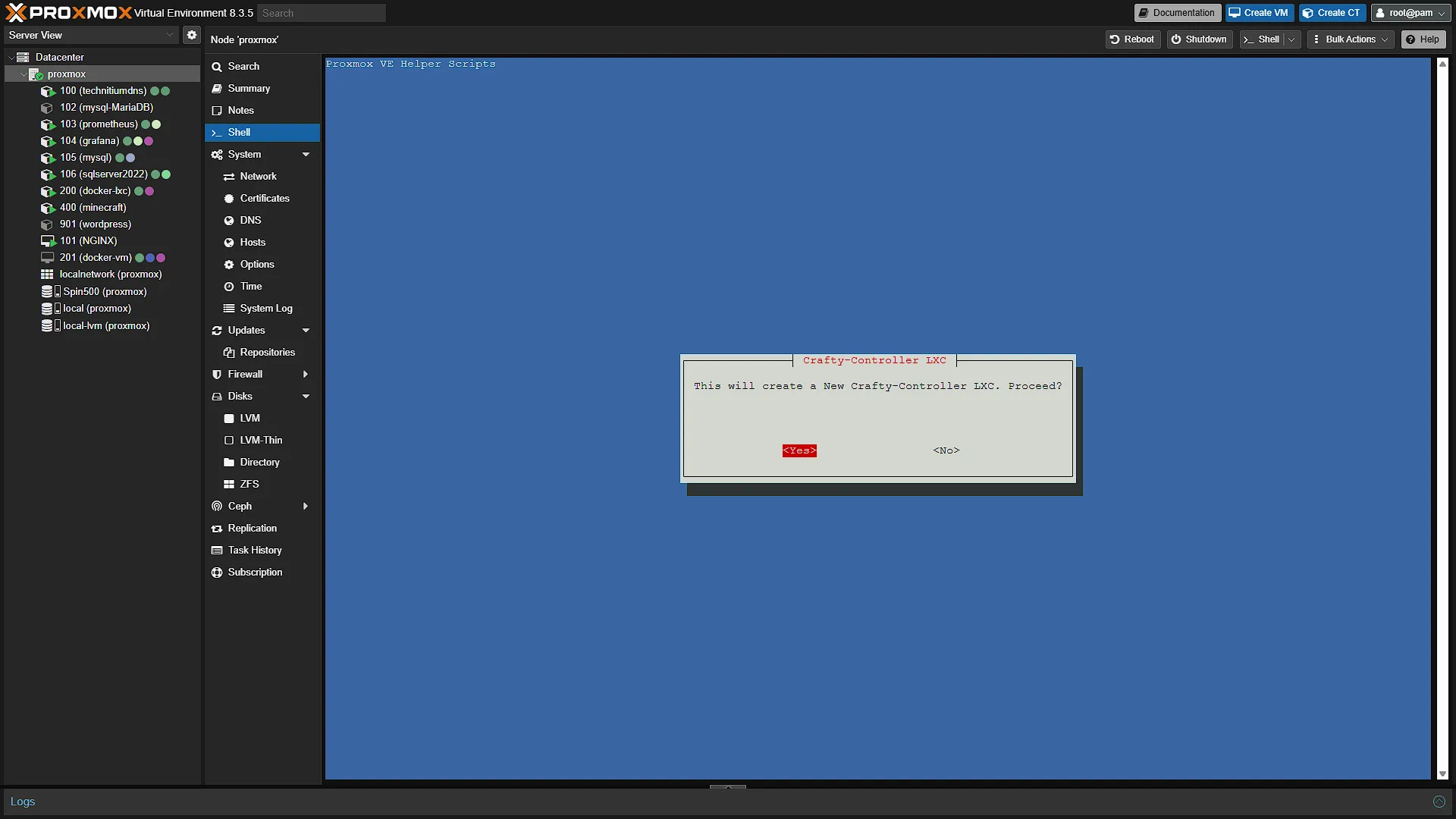
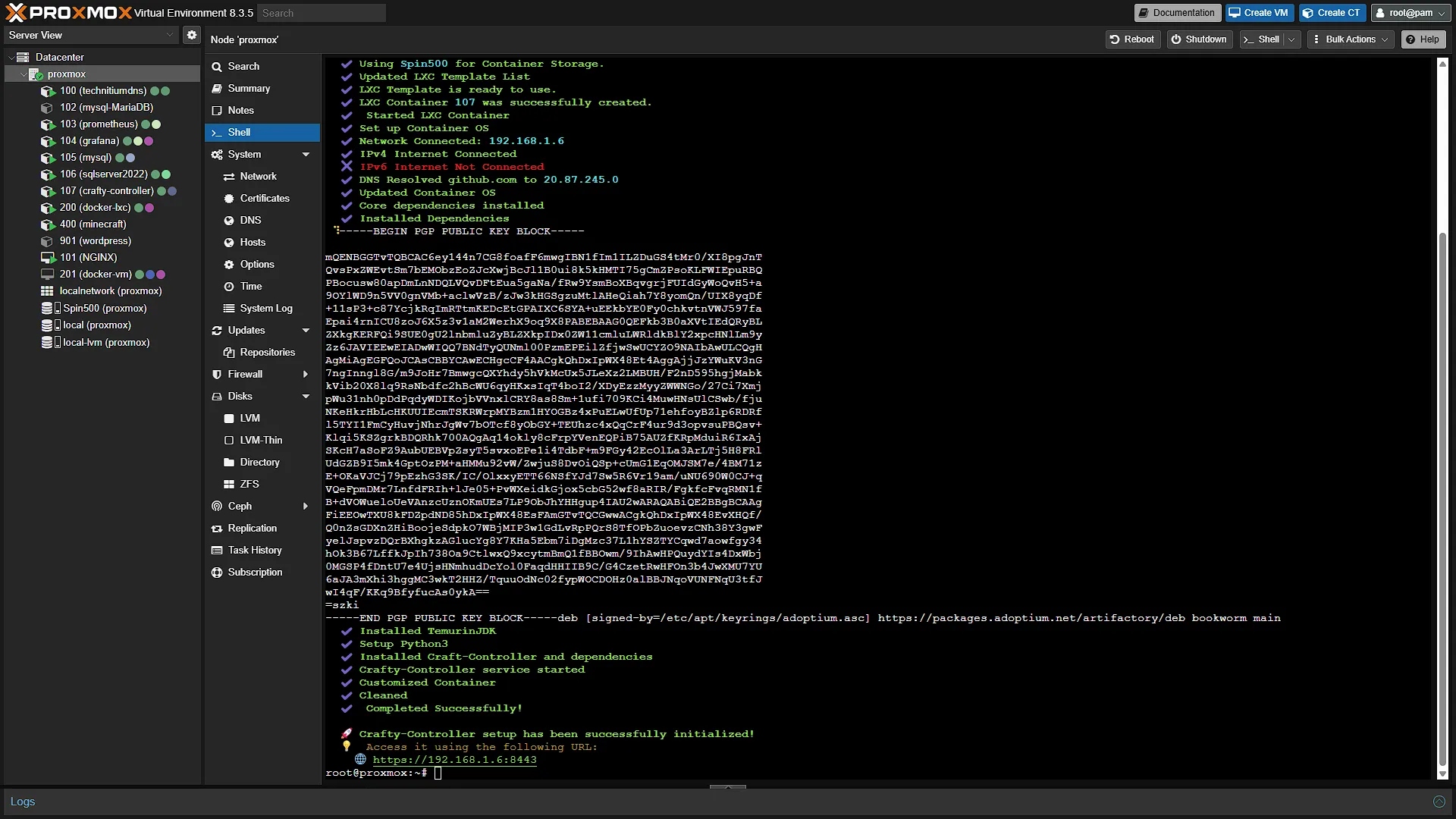
Next we need to get a new container up and running. As always, open a new browser window and navigate to your Proxmox installation. Log in and in the left navigation pane expand Datacenter. Select the Proxmox node you want to install Crafty Controller on and click on  . This will open the integrated shell in the main window. Paste the command from Step 1 and press Enter. Installation will start, so go through the steps:
The first step will confirm that we are going to create a new Crafty Controller LXC Container. Select yes and continue
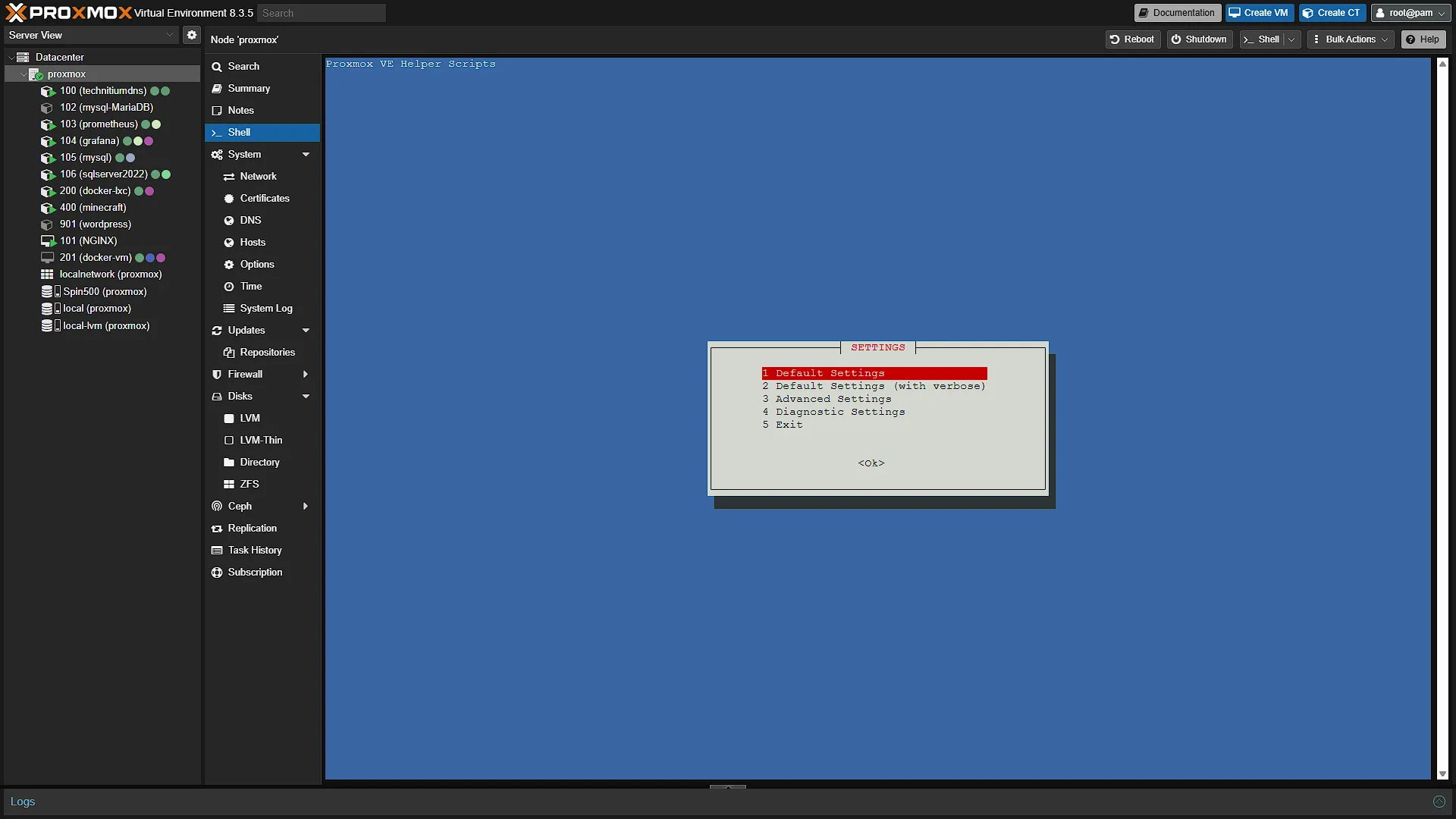
The second step will give the option of default or advanced settings. Feel free to go through the advanced settings, but for us the default will be fine.
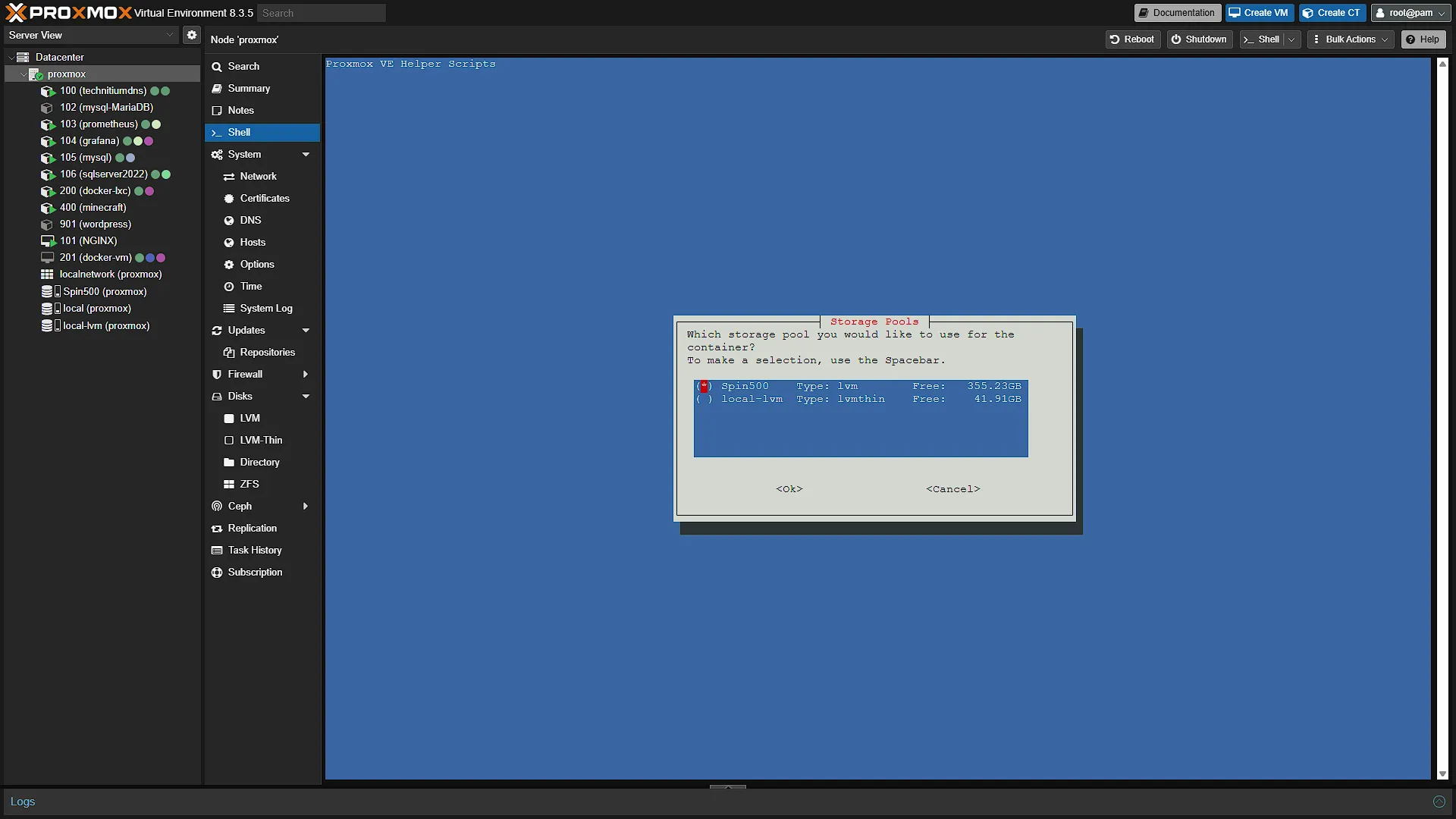
The third step will confirm on which drive to install Crafty Controller. This screen will only appear if you have multiple drives or storage locations.
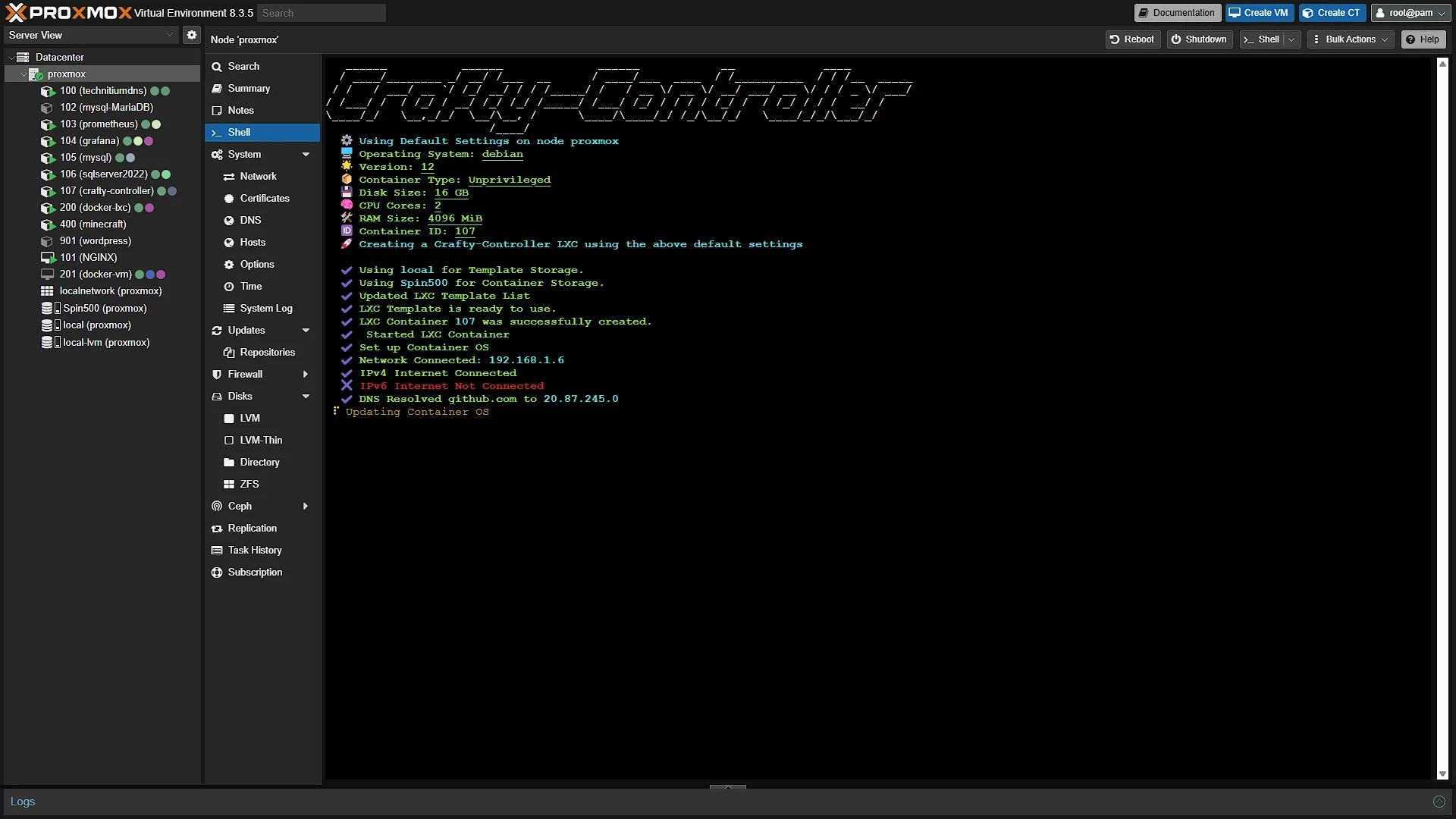
The install will start and take some time to complete. The installation will also ask for patience in certain steps, but patience is definitely worth it in this case.
Once the installation is complete, take note of the IP address and port. Open a new browser window and go to this address. In our case that was:
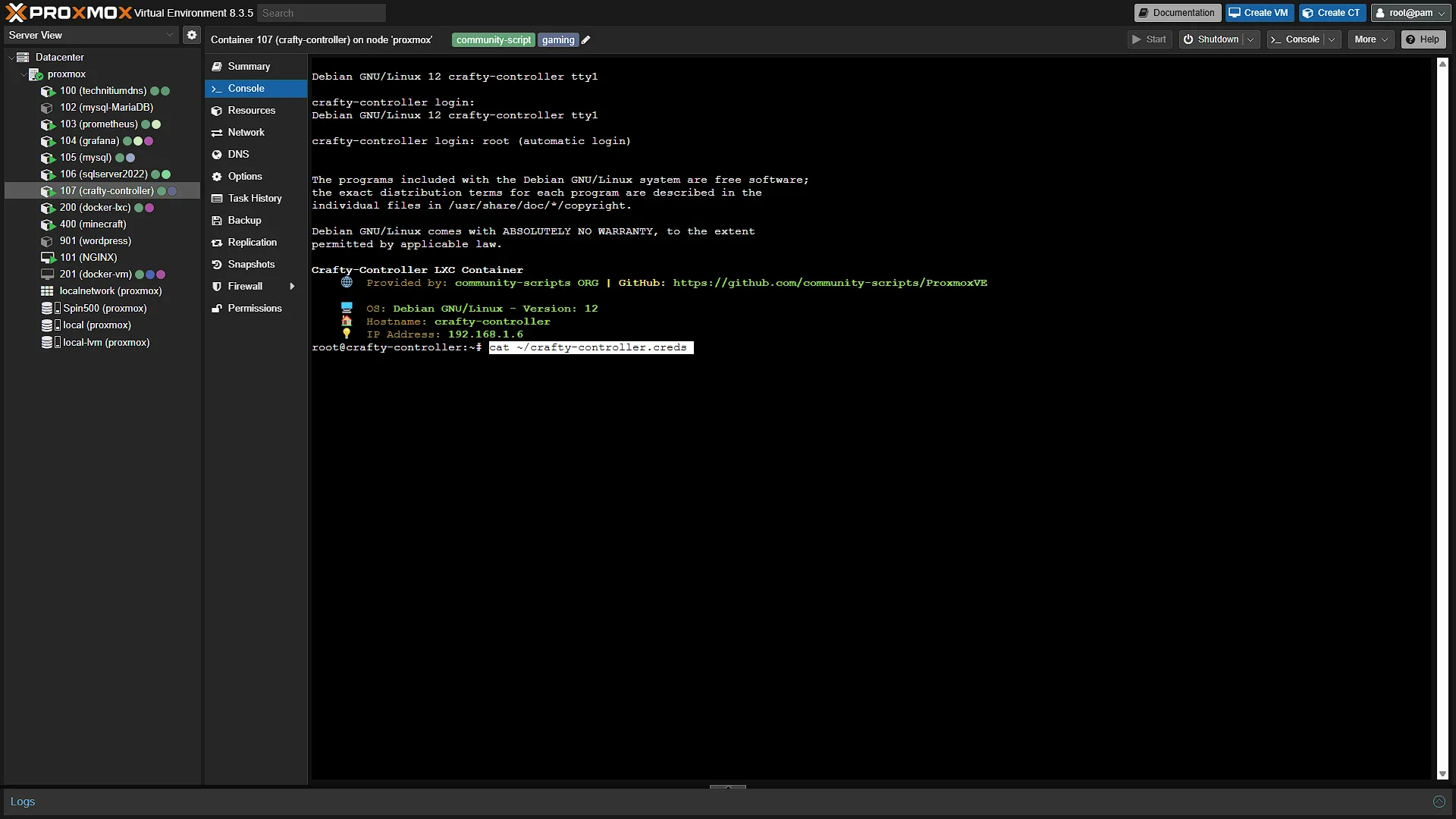
https://192.168.1.6:8443/However, we don't have the login credentials yet. Remember that command on the help-scripts page? First, in the left navigation pane, select the newly created crafty-controller LXC instance and then click on  in the middle navigation to open the integrated console. Run the command to get the credentials
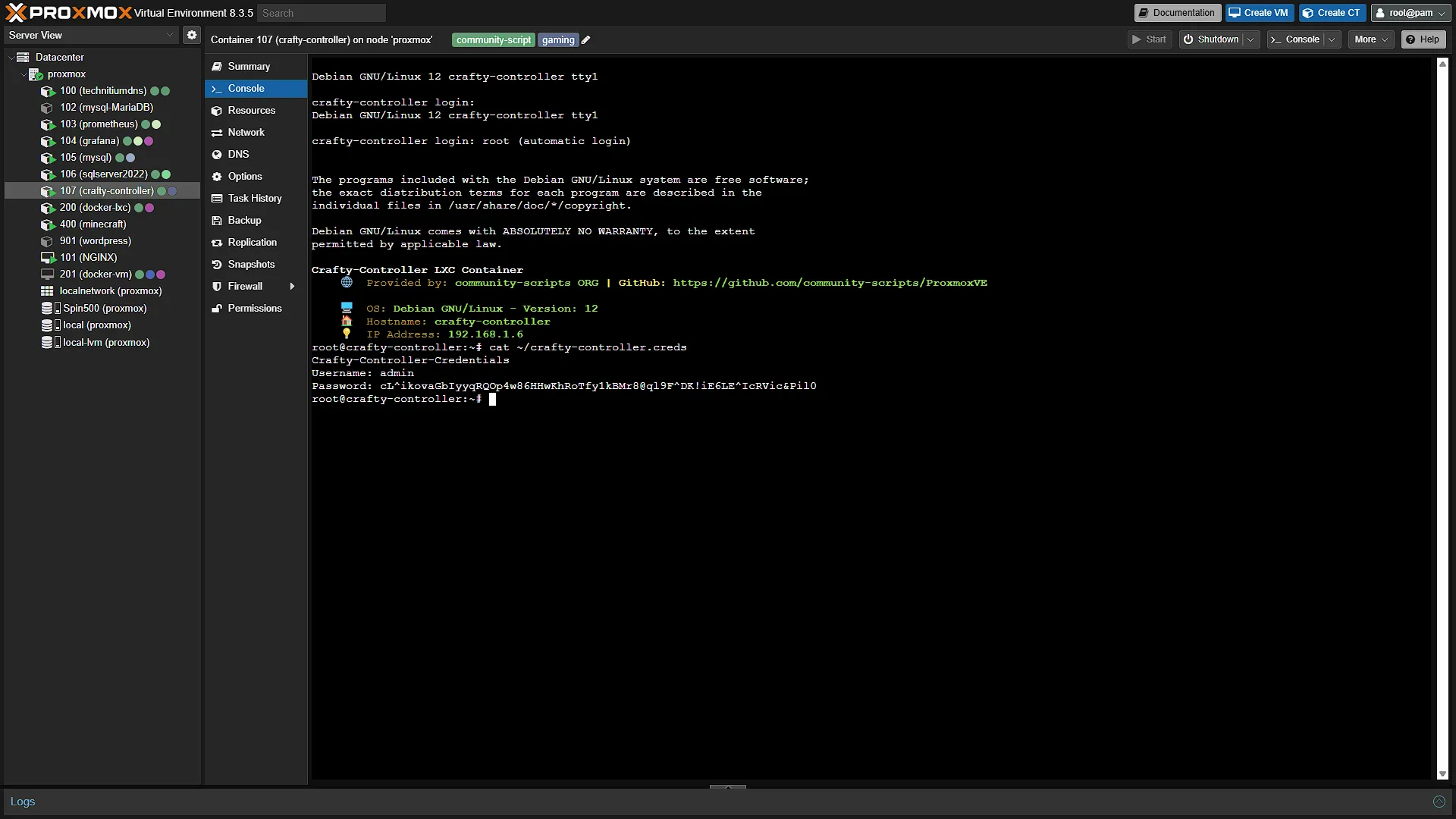
cat ~/crafty-controller.credsThe credentials will be displayed in the window, so copy and paste to log in to your Crafty Controller browser window
Step 3: Configure Crafty Controller
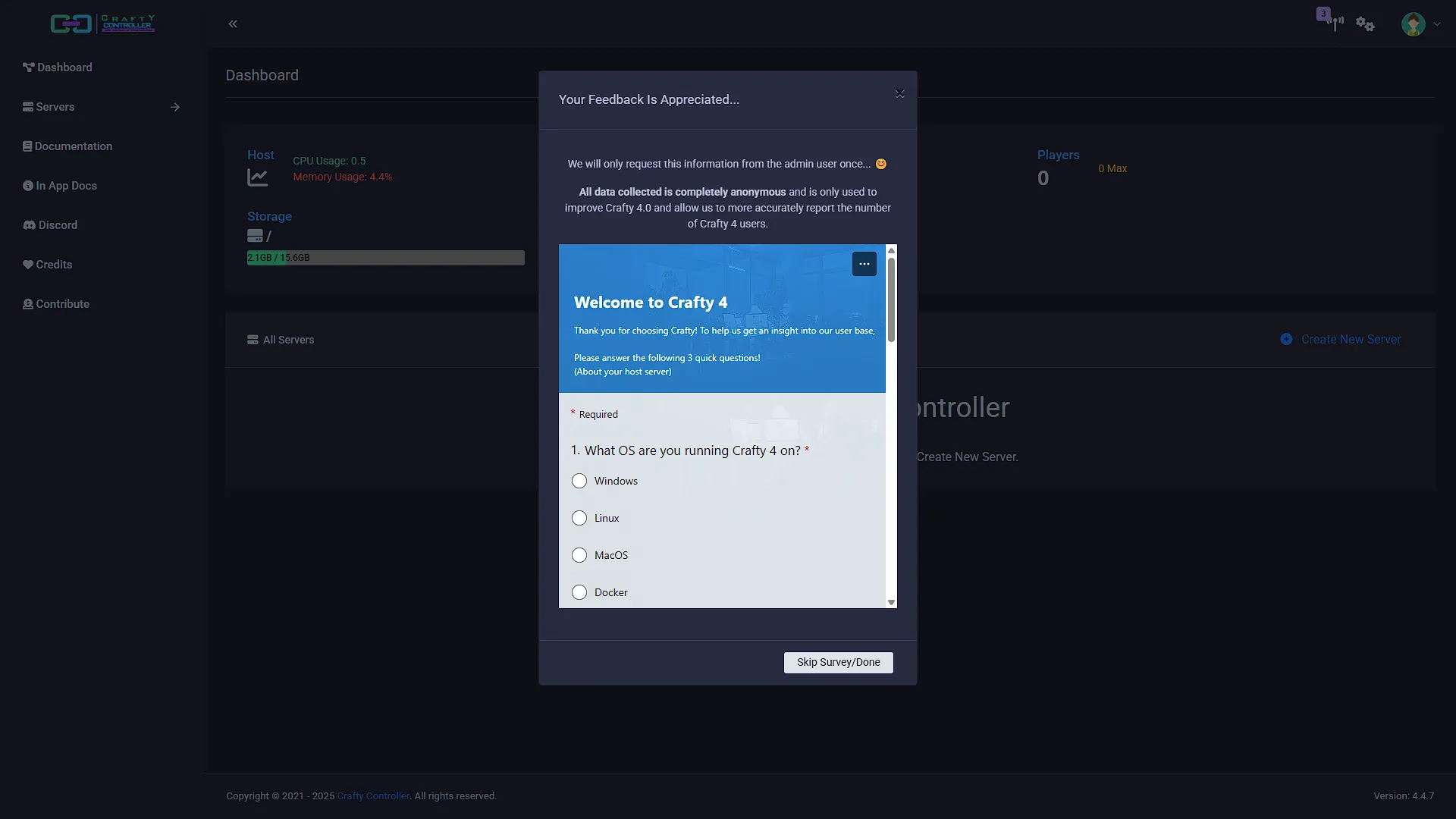
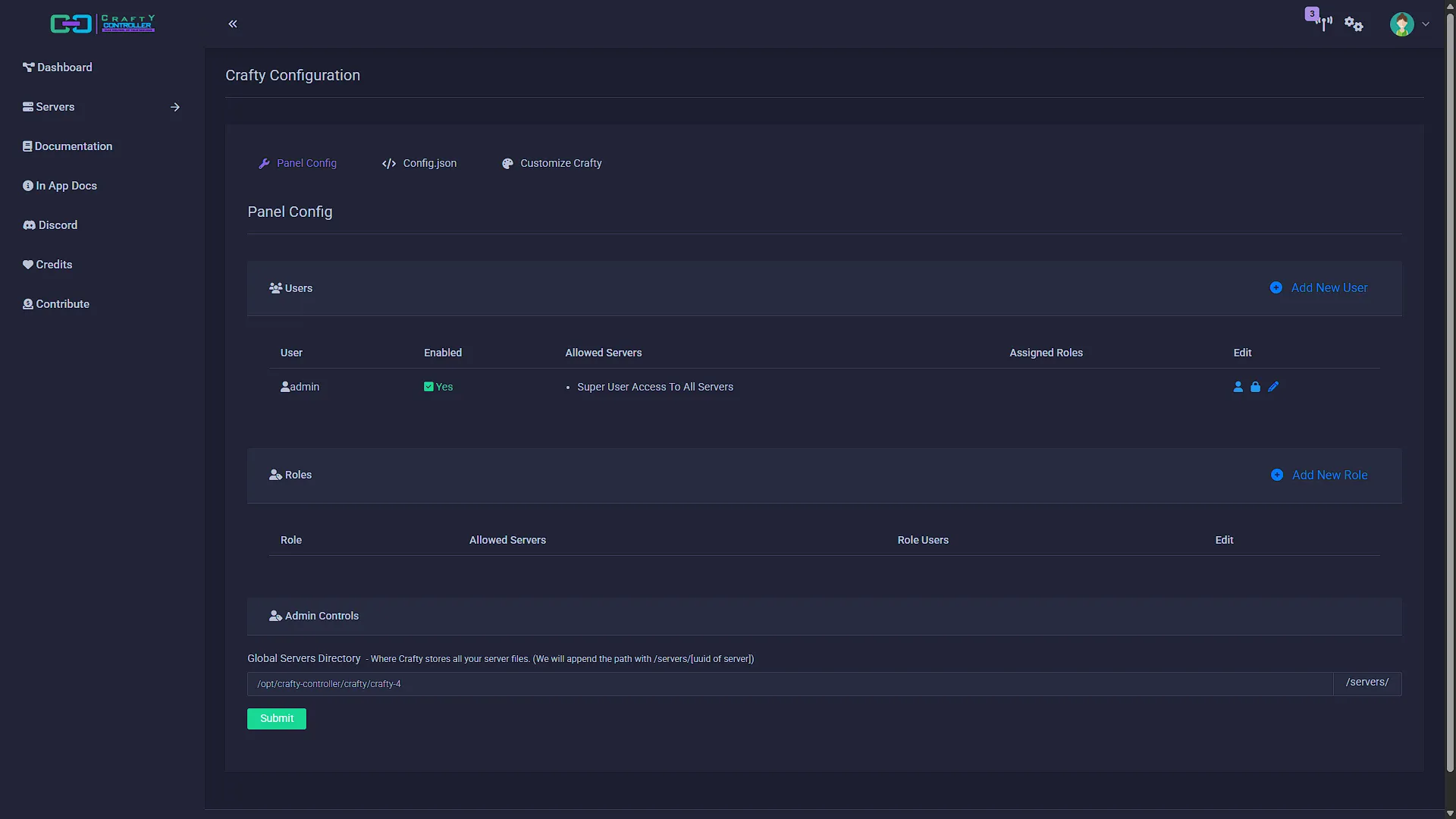
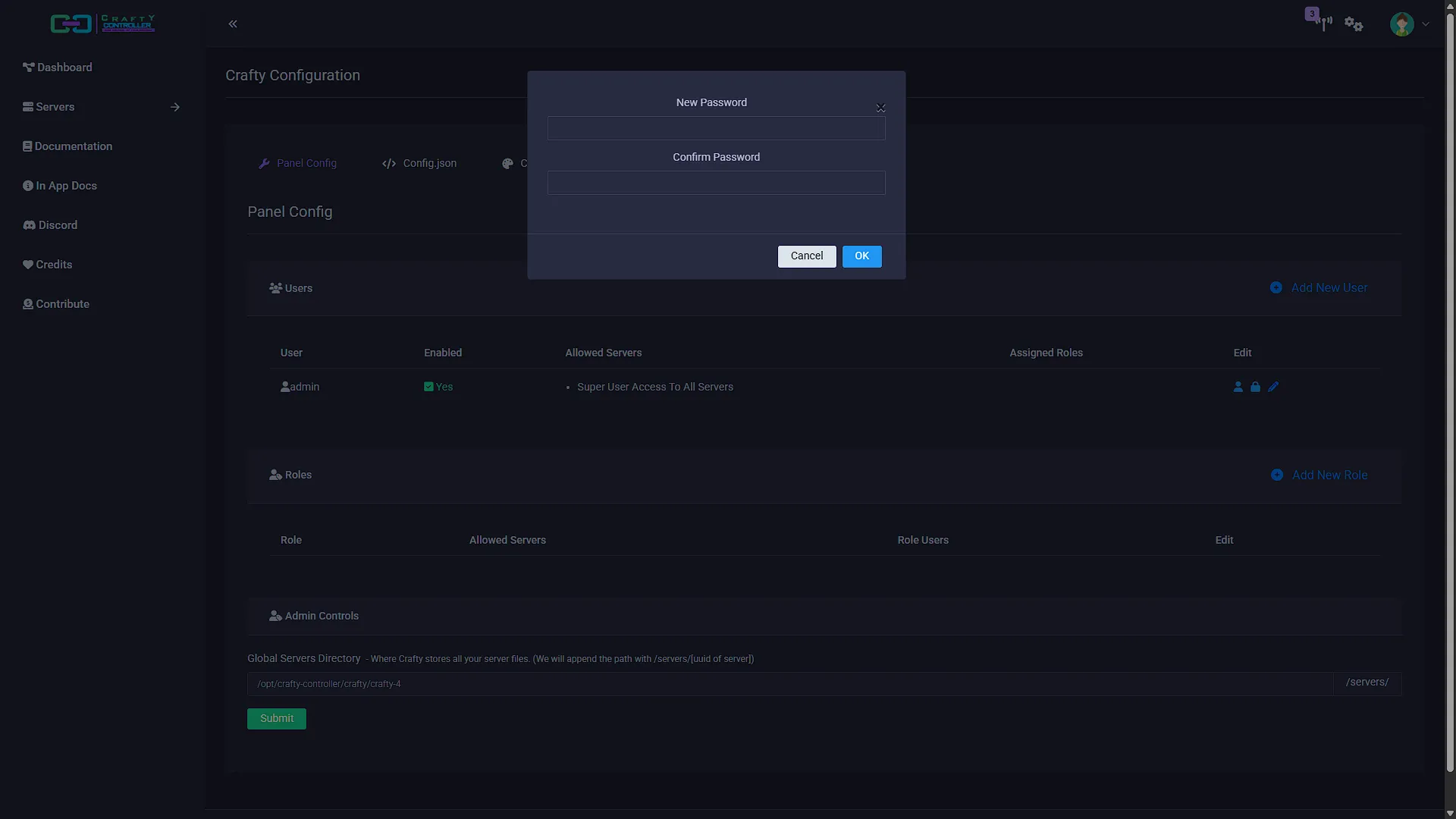
Now that you have the login credentials, log in to Crafty Controller. The first time you log in you will be greeted with a survey. You are welcome to complete or skip it. The first order of business should be to change that admin password, because no-one is going to remember it. Click on the settings icon in the top right which will bring up the settings page, including users and roles. Next to the admin user, click on the Change Password icon. This will allow you to select a new password.
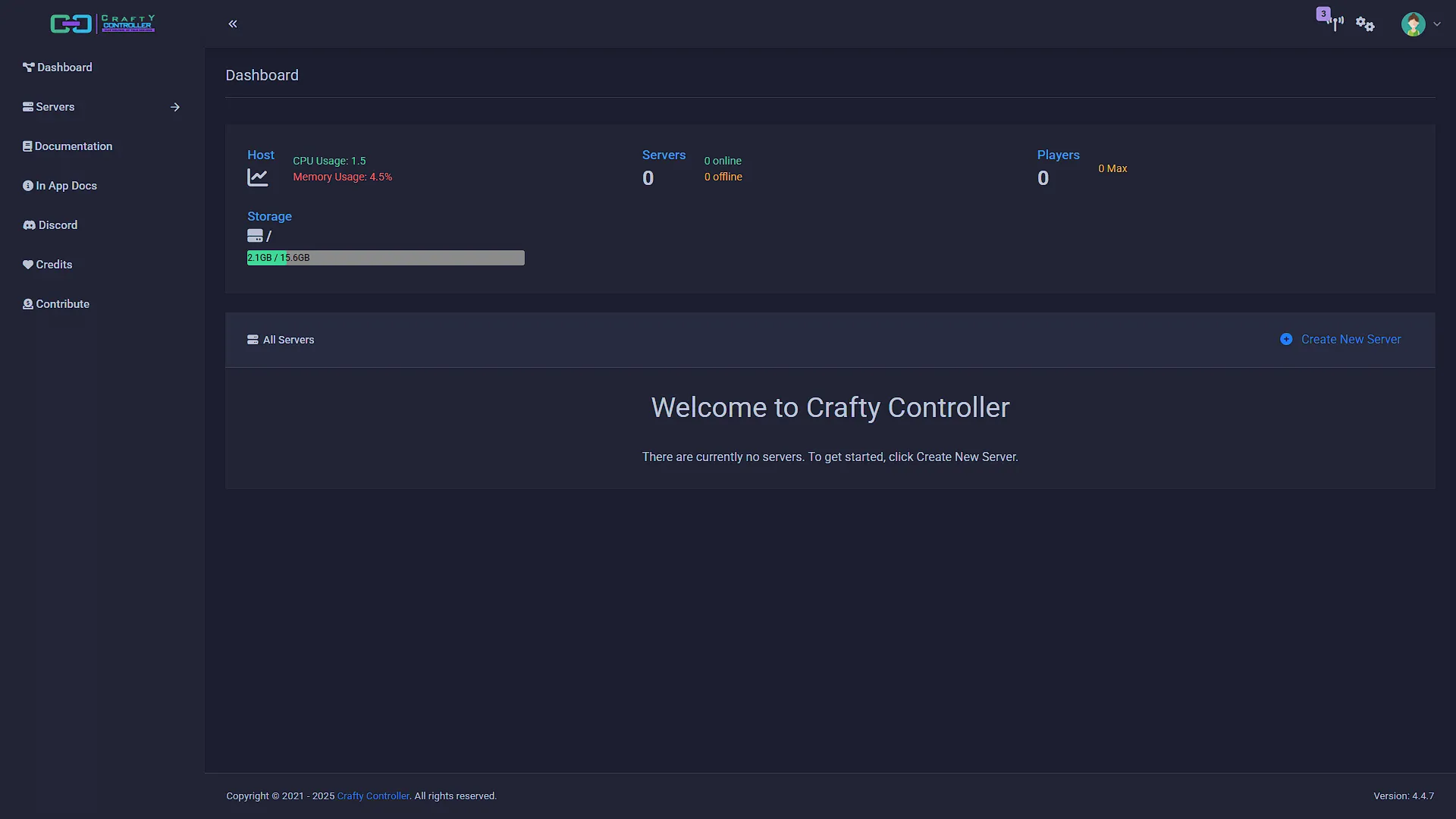
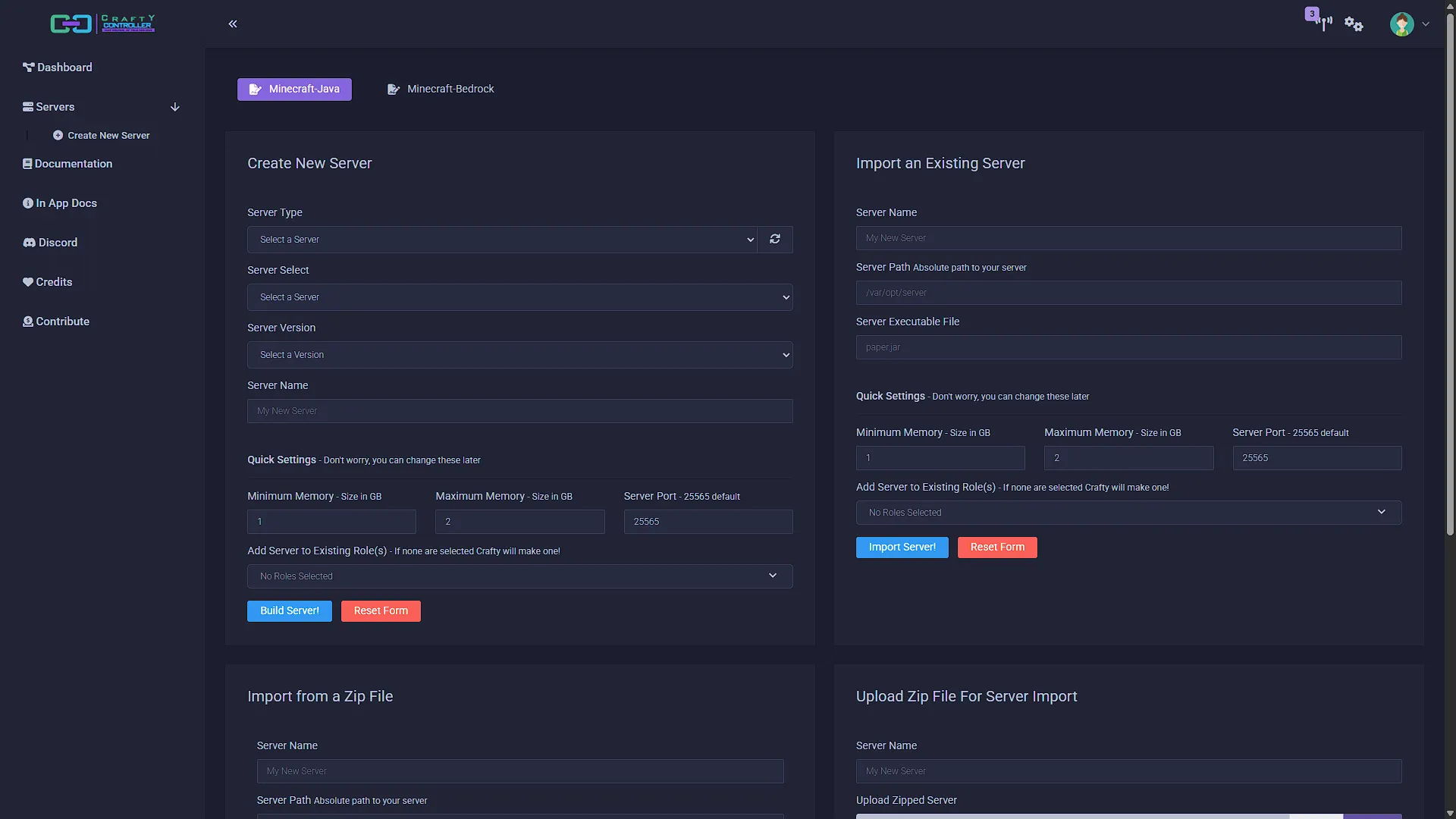
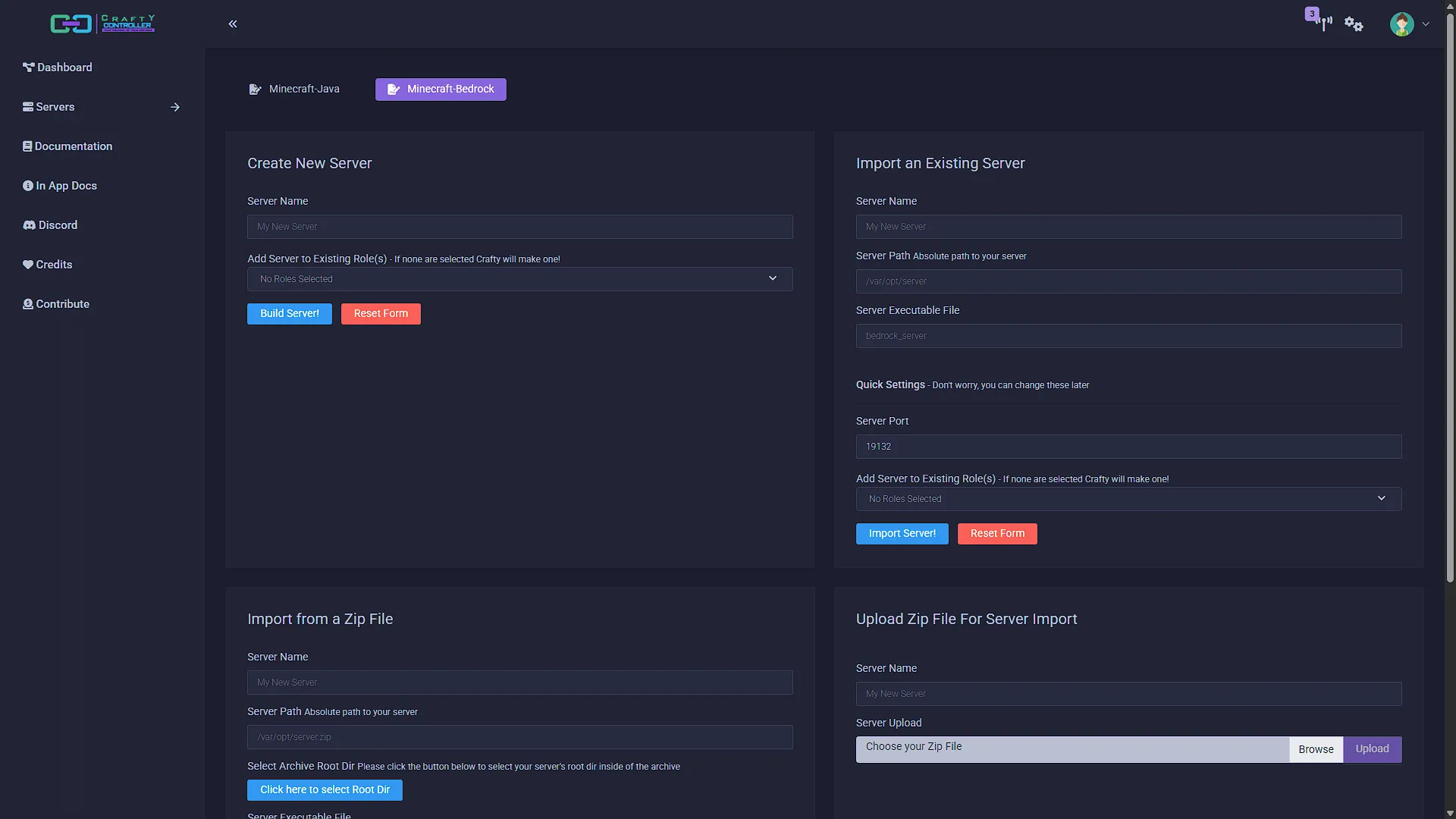
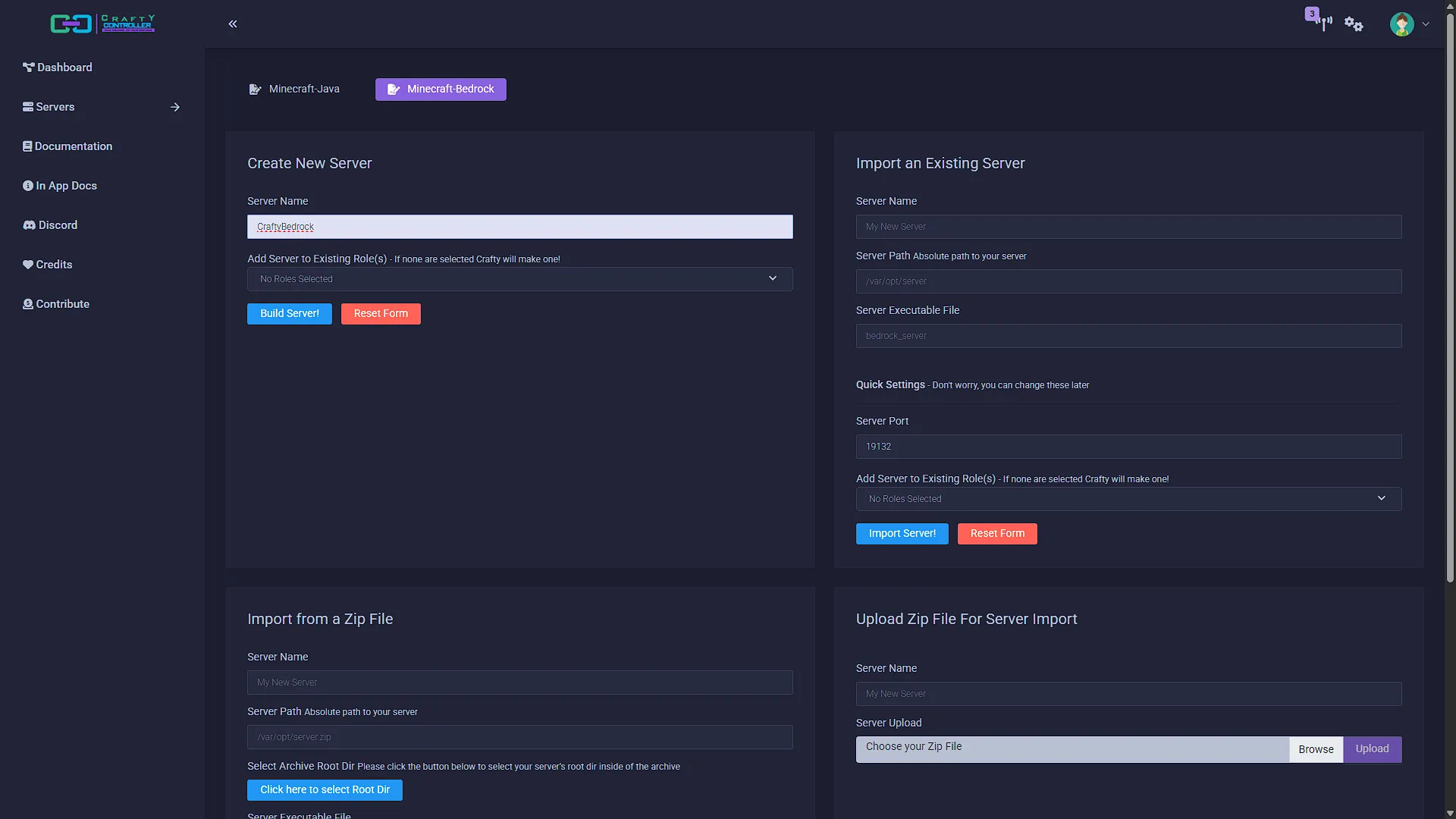
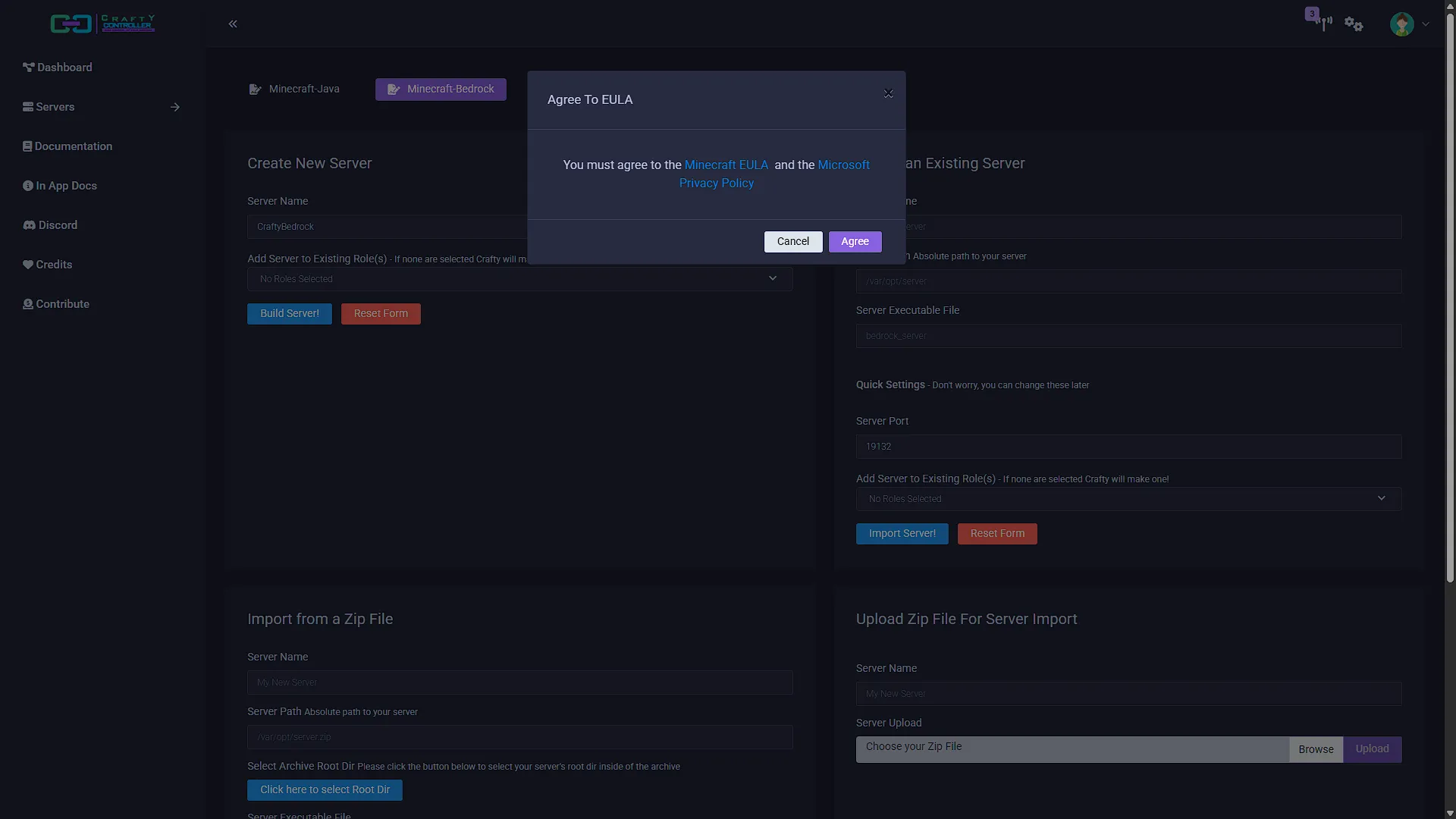
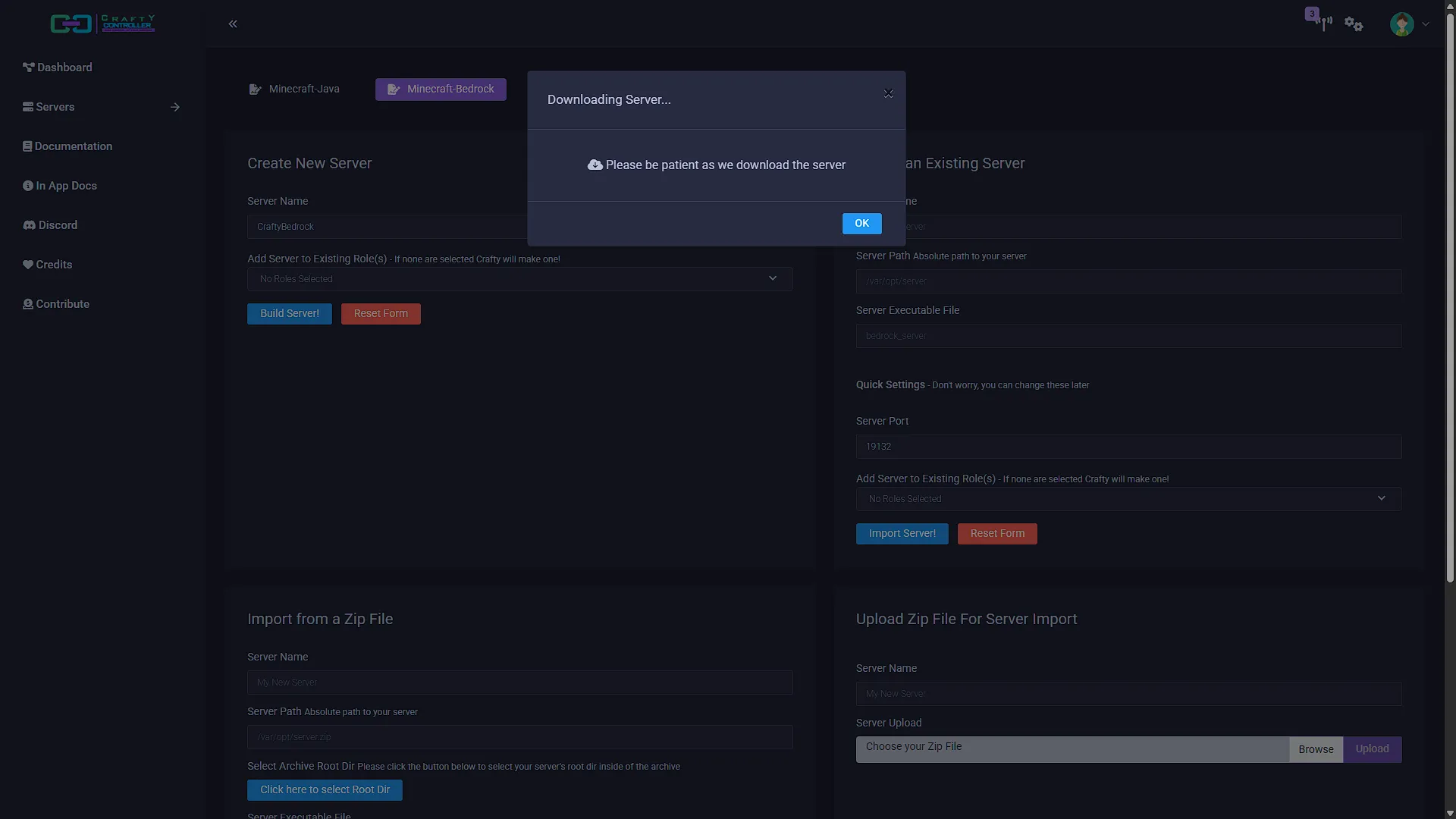
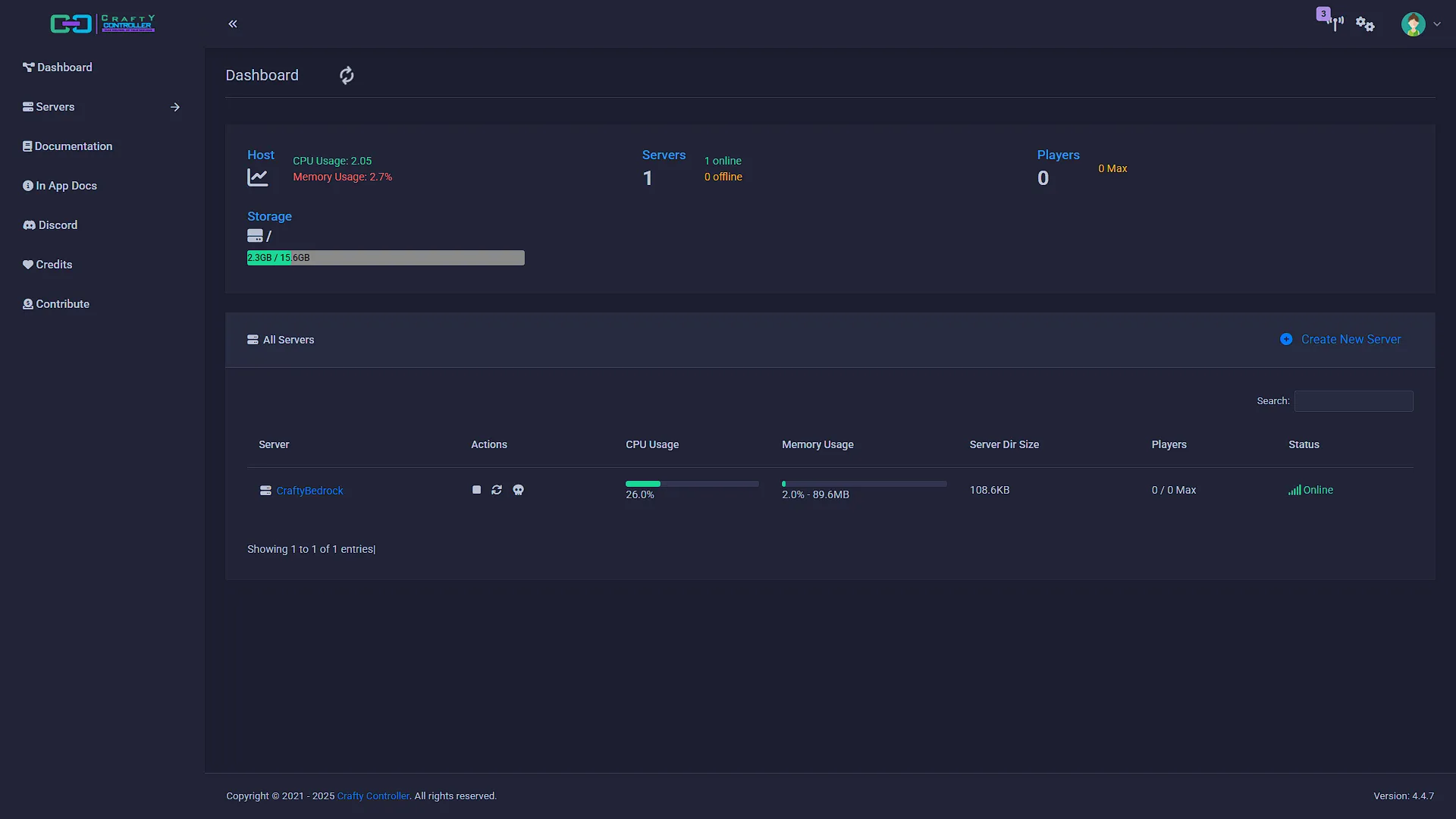
Once the password has been changed, it is time to create our first Minecraft server. On the main dashboard, in the servers section, click Create new server. We have two options: Minecraft-Java and Minecraft-Bedrock. We are going to create a Bedrock version server in this tutorial, but Java works the same. Enter a name under the Server Name field and click Build Server!. The build should be fairly quick, but first you will need to accept the End user license agreement (Eula).
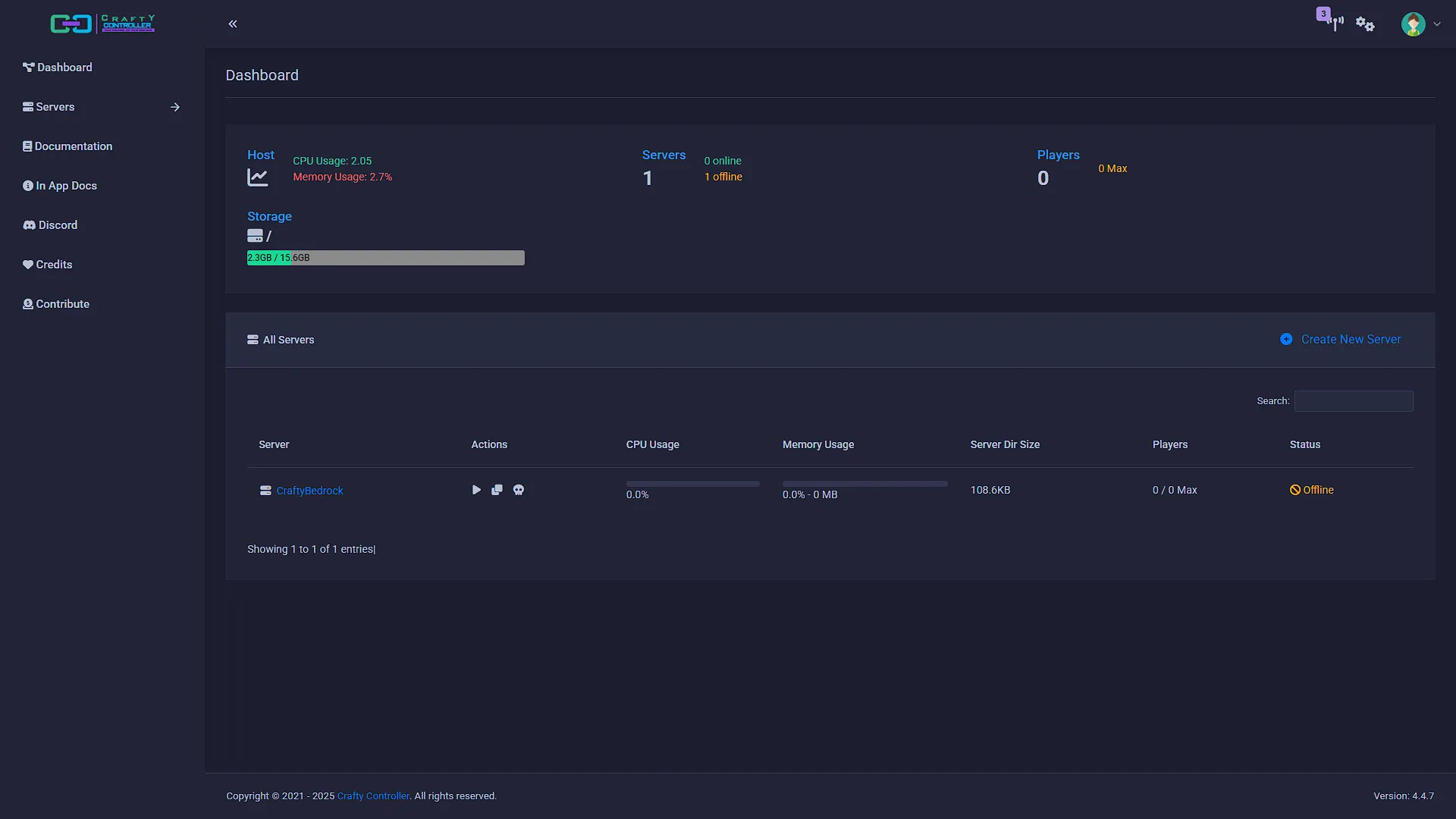
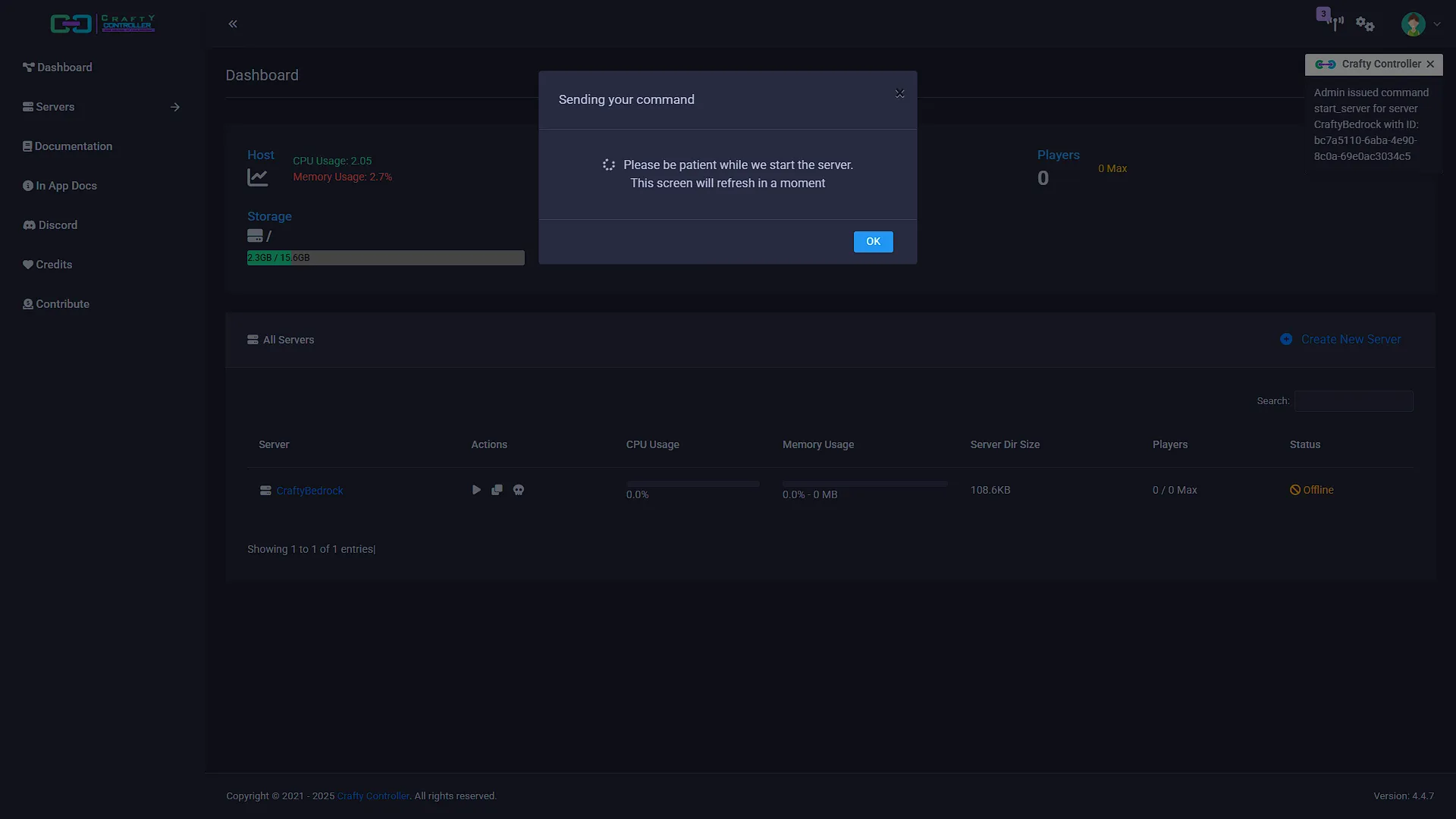
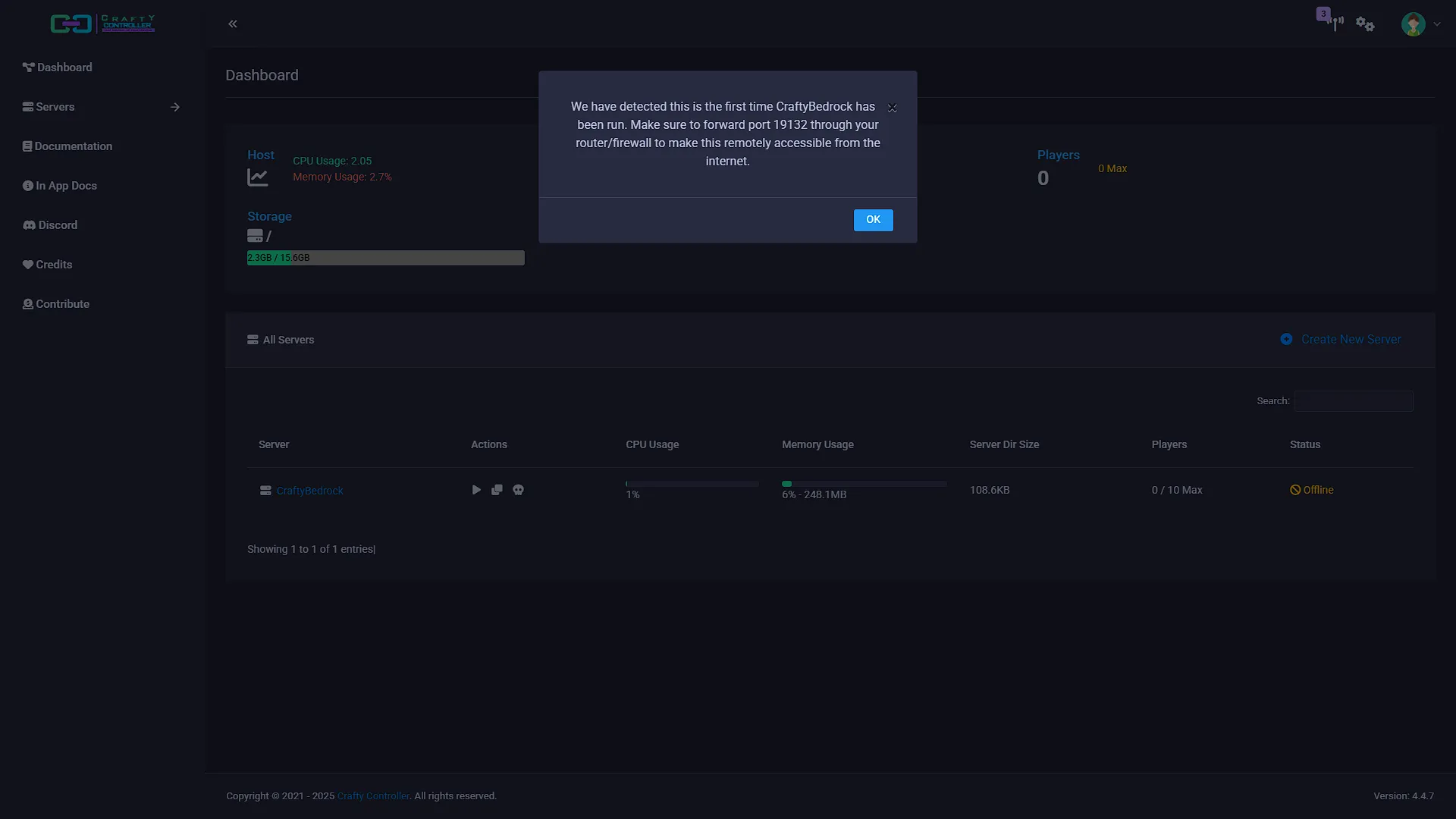
Once the install completes, the new server will be in the server list on your dashboard. But, the server is not started yet, so click the Start button next to it. You will be prompted to forward a port for outside access - this is the port on which the Minecraft server is running. Take note of this port as we need to connect to the IP address of the Crafty Controller LXC Container with the port mentioned in the popup to connect to our Minecraft Server.
Optional After the Walkthrough: Multiple Servers and Measured Tuning
Crafty installation and server creation above remain the primary steps. When adding a second server, check its listening address, port and transport. Conflicts occur when servers need the same address/port/protocol combination. Java TCP and Bedrock UDP can use the same numeric port without that alone creating a conflict; two Bedrock instances sharing the same address and UDP port cannot.
Inspect both IPv4 and IPv6 port settings where the server supports them. Changing only the displayed main port may leave another listener conflicting. Keep the Crafty administration endpoint separate from player-facing game ports, and do not forward it publicly simply to allow players into a world. Test a LAN connection before troubleshooting public forwarding.
JVM tuning applies to Java servers, not the native Bedrock server. Use the Java version required by the actual Minecraft server release. If trying a documented JVM flag set, reserve memory for Crafty, the operating system and other servers rather than allocating all guest RAM to the Java heap. There is no fixed flag set or 4 GB allocation that guarantees lag disappears.
Compare server logs and workload before and after one change. Chunk generation, storage latency, mods and player activity can all influence symptoms. Use Crafty's backup facilities with the game's consistency requirements, verify where archives are stored, and test a restore before a game-version upgrade.
Geyser/Floodgate is an optional cross-edition project with its own supported versions, authentication and port configuration. It is not a checkbox that makes every existing Java/Bedrock world or console connection compatible. Complete the basic server and backup tests before adding that extension, and keep the original configuration available for rollback.
Further reading: Crafty documentation, Geyser documentation.
Conclusion
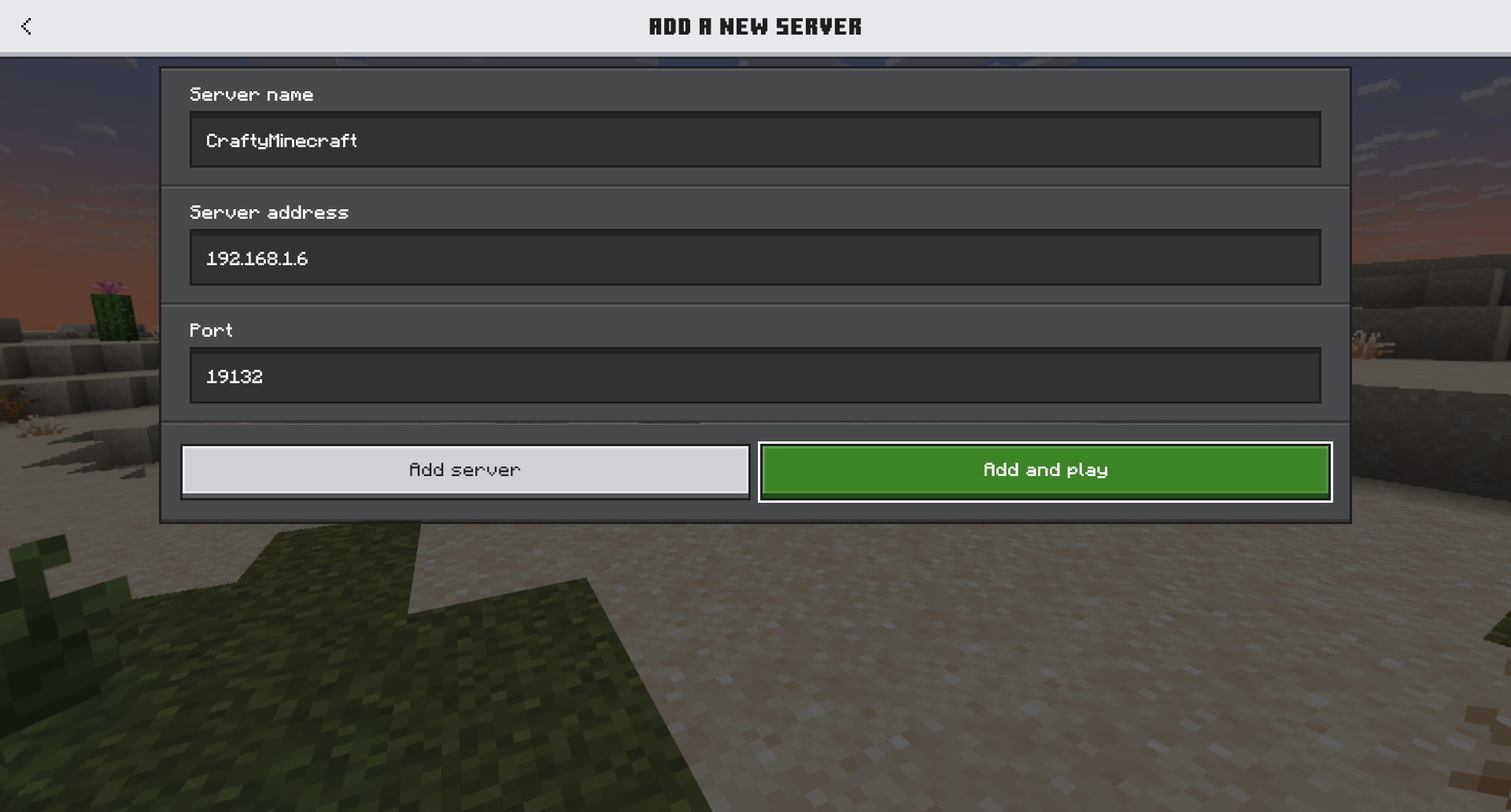
We now have a very quick and easy way to create new Minecraft servers, whether for Java or for Bedrock. We also have an easy way to manage our servers as well as change the config of our Minecraft servers. We can easily take a backup of our server, as well as manage tasks like automatically start or shutdown our server. And to connect we just need to add the IP address and port as per the previous instructions: