Yesterday we had a quick look at getting a custom domain name, in our case to use for our homelab. Today we will take our custom domain name and use that in our homelab. This is necessary for us to access multiple services, but keep each one's name separate. If you have been following with our Build Your Own Homelab series, we are going to create a link for our ntfy instance, so that we can stop using a dynamic dns setup for our ntfy. We are going to use our already purchased domain - techdecode.online. Although the main record for our domain points to this blog, we are going to use subdomains for our home services.
Step 1: Set up DNS Entries
Depending on where you chose to purchase your domain from, access your domain settings and look for a section called DNS records. This is the section where a domain name (ex. techdecode.online) gets linked to a computer IP address (ex. 102.214.8.146). You should already have a few entries in your DNS Records, most notably a few nameserver records (NS Records) and probably an Address record (A Record) that links your main domain to an IP Address.
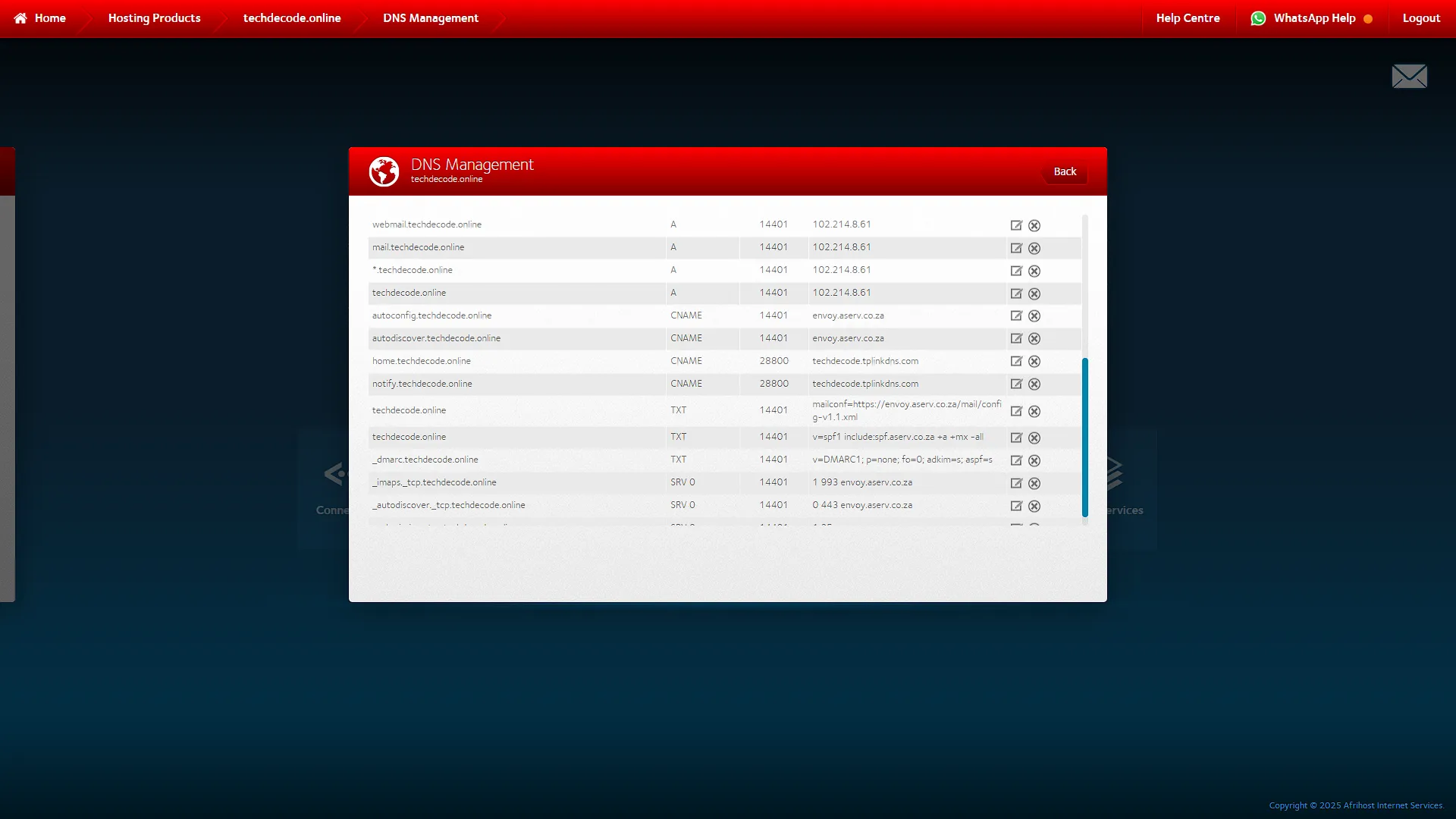
There should be a section where you can add a new record. The type depends on your internet connection to your homelab. In our case, our IP address changes frequently (dynamic IP address) so we use a Dynamic DNS Service to update our IP address and get a Dynamic DNS URL to access our homelab. In our case, that is techdecode.tplinkdns.com. So in our case, we are going to create a Canonical Name (CNAME) record for our homelab. Select the type as CNAME, add the record name to something like home, or in our case, notify. Then add the content as the Dynamic DNS Address, in our case techdecode.tplinkdns.com.
If your internet connection has a fixed IP address, you can instead use an Address (A) record. In the content part, instead of a dynamic DNS entry, you will use the IP address of your internet connection.
Either way, that means that if you go to the subdomain home, (in our case home.techdecode.online) you will be redirected to your homelab. We set up two subdomains:
home.techdecode.online
notify.techdecode.online
both of which will take us to our homelab. But currently nothing is going to happen as we have not set up what needs to happen.
Take note: DNS Entries can take up to 24 hours to take effect. So if it does not work immediately, give it some time.
Step 2: Set up nginx
Now that we will get to our homelab if we go to notify.techdecode.online, we need to tell our homelab what to do with that information. So, open a new browser window and go to our Proxmox login. Log in and expand Datacenter in the left navigation pane. Select the previously installed nginx Virtual Machine and click on  to open an integrated console in the main window area. Log in if asked to log in.
It is normally easier to run as a super user (administrator) so elevate your access rights with
sudo suYou will probably be asked for a password again, confirm and continue.
Now that we are a super user, we need to add a new nginx config file. First go to the nginx configuration directory:
cd /etc/nginx/sites-available/Now we need to create a new file for use. We are going to create a new file with the same name as the actual full domain, so in our case notify.techdecode.online:
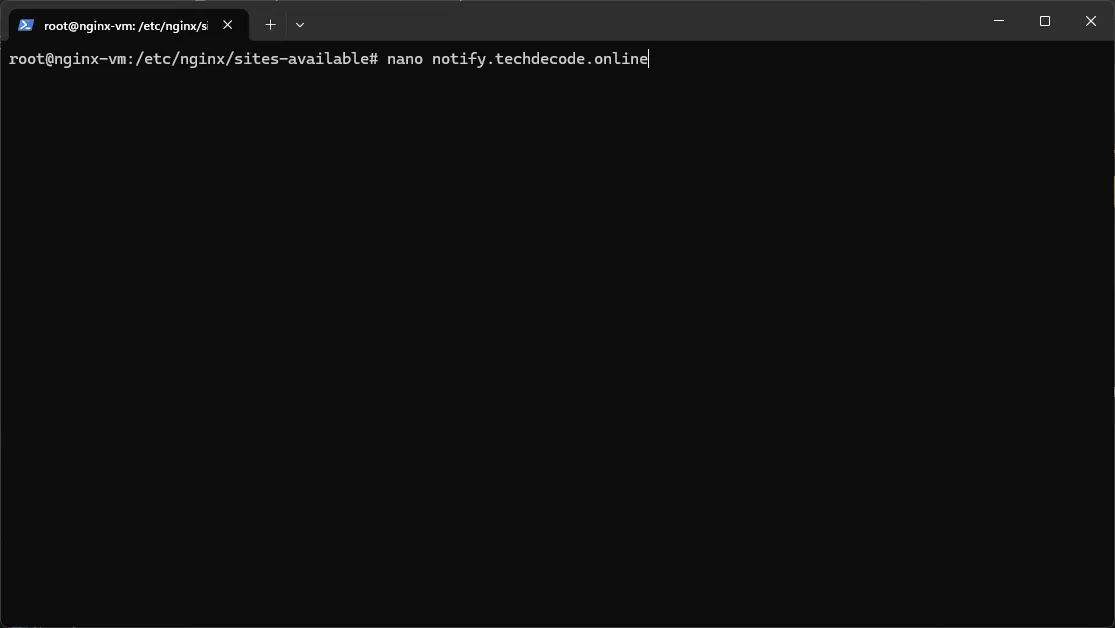
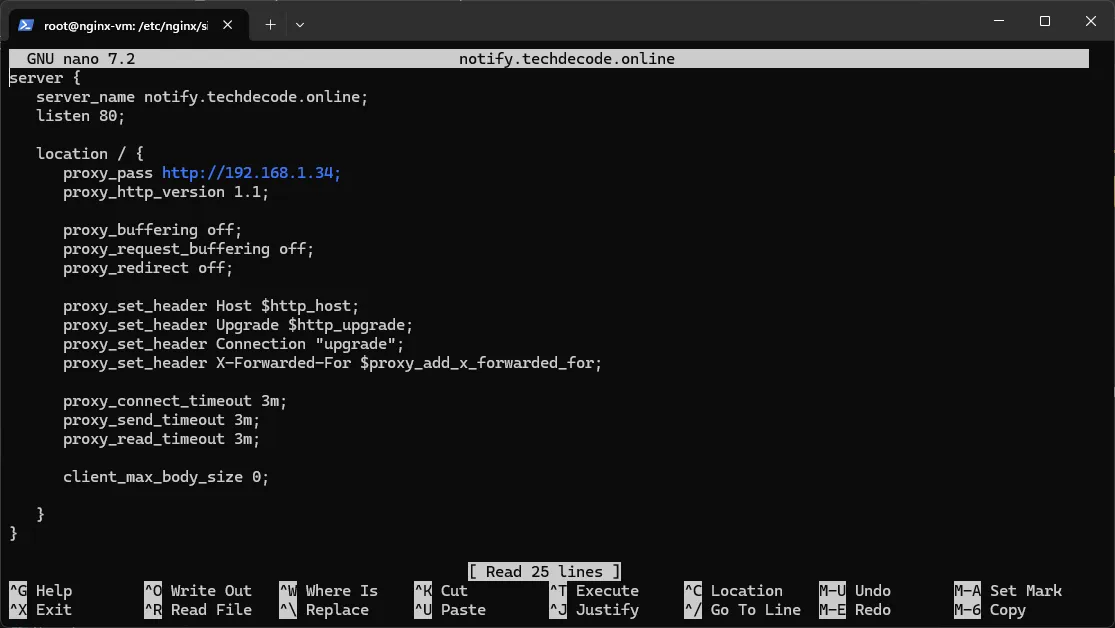
nano notify.techdecode.onlineIn the editor that opens, we need to add the same configuration as we did when we exposed ntfy to the outside web, but change the domain name to our new domain name:
server {
   server_name notify.techdecode.online;
   listen 80;

   location / {
      proxy_pass http://192.168.1.34;
      proxy_http_version 1.1;

      proxy_buffering off;
      proxy_request_buffering off;
      proxy_redirect off;

      proxy_set_header Host $http_host;
      proxy_set_header Upgrade $http_upgrade;
      proxy_set_header Connection "upgrade";
      proxy_set_header X-Forwarded-For $proxy_add_x_forwarded_for;

      proxy_connect_timeout 3m;
      proxy_send_timeout 3m;
      proxy_read_timeout 3m;

      client_max_body_size 0;

   }
}
Save with Ctrl+S and exit with Ctrl+X. We now just need to create a symlink (shortcut) to this newly created file in the directory where configs are loaded:
ln -s /etc/nginx/sites-available/notify.techdecode.online /etc/nginx/sites-enabled/Once done, we can check that the config is correct with:
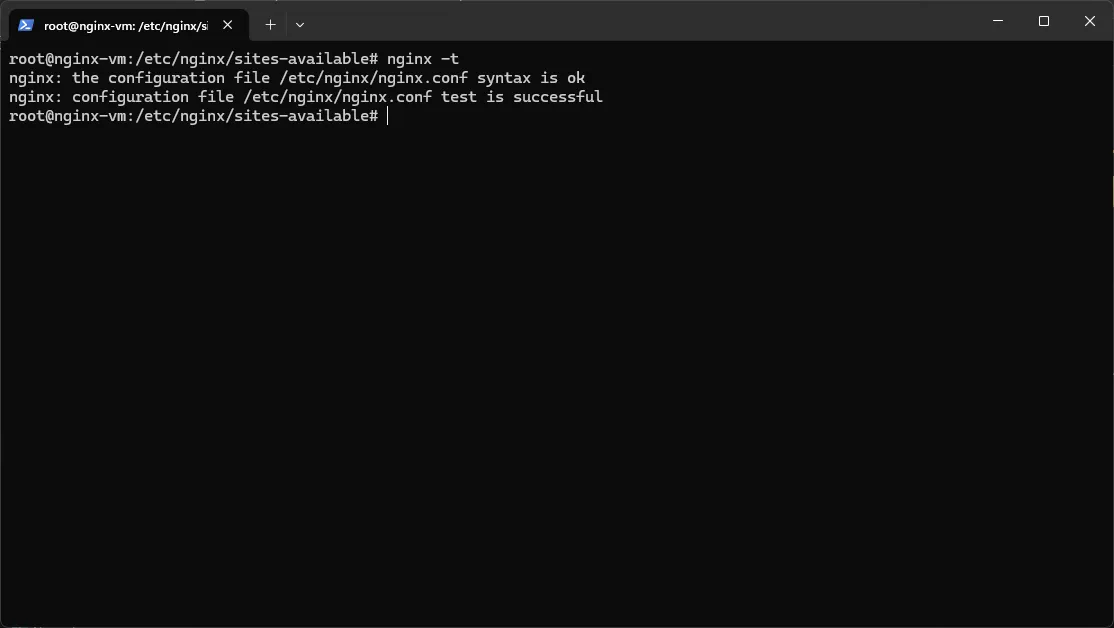
nginx -tIf everything is fine, we can reload the nginx config with:
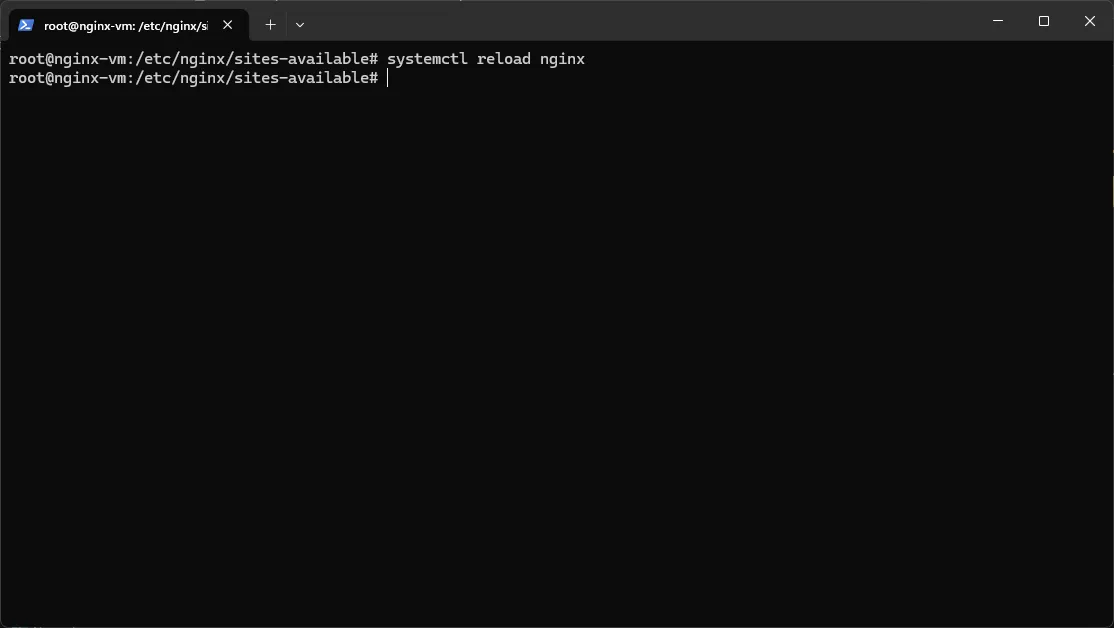
systemctl reload nginx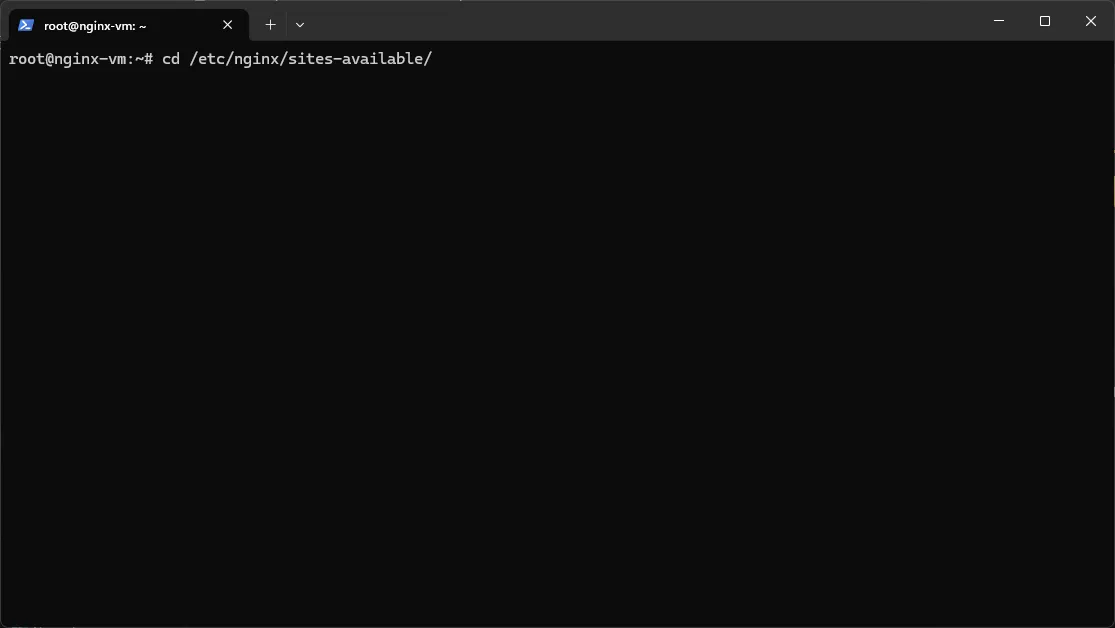
Step 3: Install a Security SSL Certificate
We previously installed Certbot, a client that helps us install Let's Encrypt certificates in our nginx virtual machine. We can now use this previous install to get a certificate for our newly created domain. From the command console, run the command:
certbot --nginxYou will see a list of all the domains that are set up in your nginx:
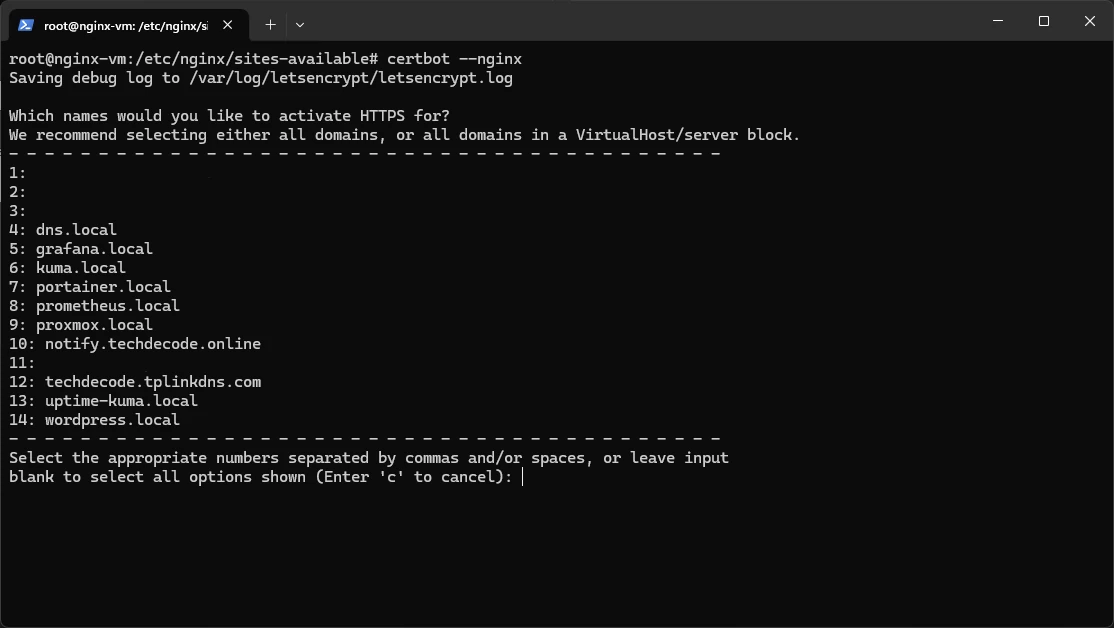
In our example, we need to select 10, so type the corresponding number and press enter. Certbot will issue the new certificate AND update your nginx config to use that certificate. It is as easy as that.
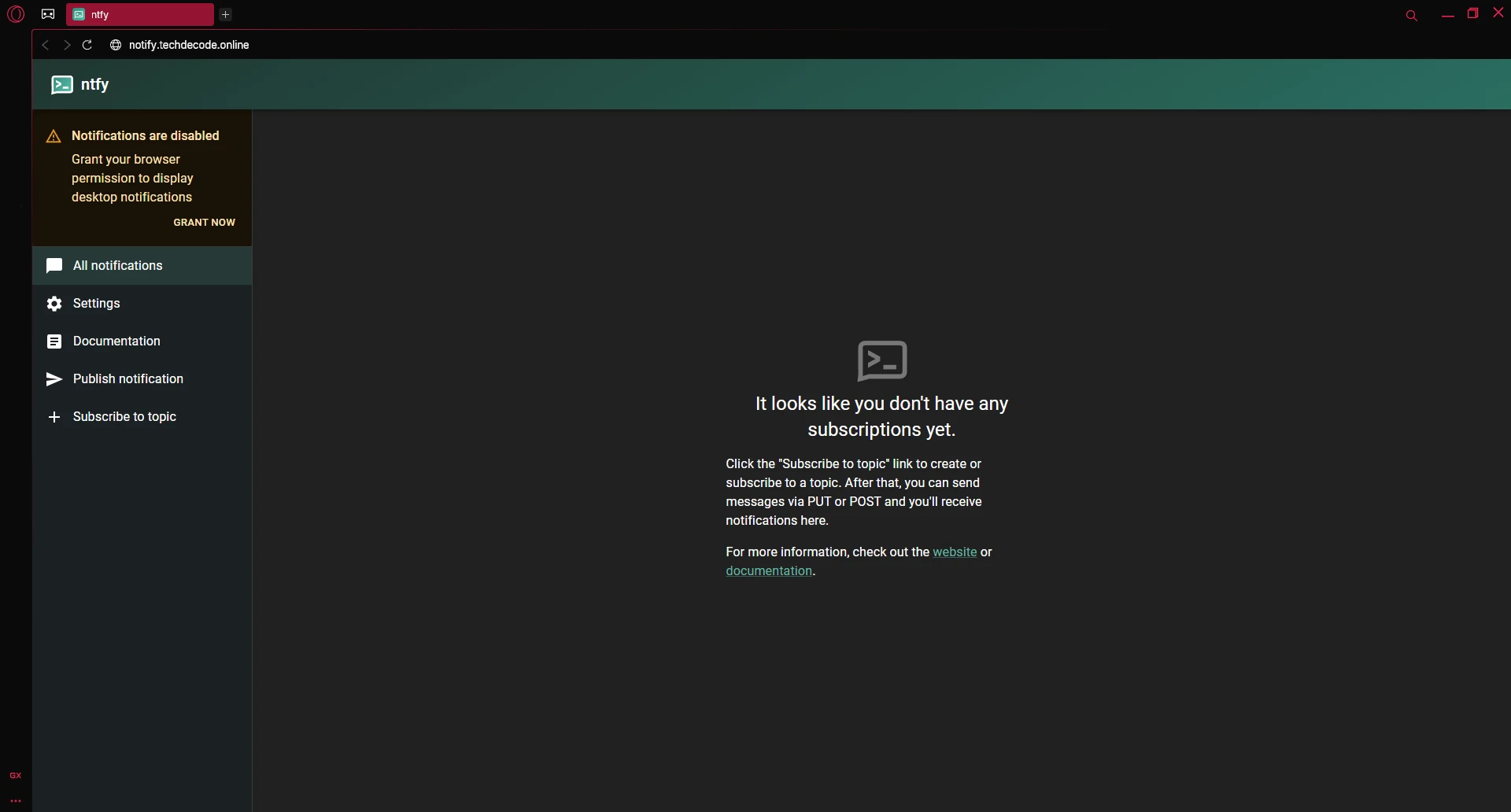
Now if we go to our new domain notify.techdecode.online, we will firstly be redirected to https and we will see our ntfy service:
Optional After the Walkthrough: Names, Certificates and Internal Access
The main path maps notify.techdecode.online through the chosen Dynamic DNS name to the existing NGINX and ntfy installation. Keep those working backend values. A CNAME supplies a DNS alias; it does not configure NGINX, grant application access or install an HTTPS certificate.
A wildcard DNS entry is an optional naming convenience. It applies according to DNS wildcard matching rules, rather than guaranteeing that every name at every nesting depth resolves. Each intended service still needs the matching NGINX route and suitable certificate. A wildcard DNS record and a wildcard certificate are separate choices with separate configuration requirements.
If the public hostname works on mobile data but fails on home Wi-Fi, test for a NAT-loopback limitation. Split-horizon DNS can make that same hostname resolve internally to the active NGINX address. Use the actual proxy and Technitium addresses from your installation; do not change either guest's address to match an unrelated example.
Creating a local authoritative zone for your public domain can shadow other public records. Plan how ordinary website, mail and other subdomains will resolve before adding it. A conditional forwarder alone does not automatically create the local A-record override you want. Check the behaviour of the specific Technitium zone/override arrangement and test both the new internal answer and unrelated public names.
Keep the public hostname in the browser when testing internal HTTPS so certificate name verification still applies. Compare the DNS answer inside and outside, then confirm both reach the same intended application. Once the setup works, record the public DNS alias, internal override, NGINX server name and backend as one small dependency list. That makes future address changes easier to diagnose.
Further reading: DNS wildcard rules, RFC 4592, Technitium DNS project.
Conclusion
Now that we have access to a domain name that we can use to set up separate services, we can install multiple services and expose each one we want to with its own name to the outside web. We can also secure them with SSL certificates from Let's Encrypt. We are no longer limited to just using one domain name, like a dynamic DNS name to access our services. We are now finally ready to get a secondary layer of abstraction installed, namely a VPN server. This is helpful to keep private services private without exposing them to an outside domain name alias. Stay tuned for the next instalment.