Now that we have the basics of our home lab up and running (check out the entire Build Your Homelab series), including an NGINX reverse proxy that is properly isolated, our own Technitium DNS and some rudimentary monitoring with Prometheus and Grafana, we can start installing some goodies for our home lab. Most of the apps and services we going to install will run as a docker container. This is not a problem as we have two options for running Docker in our Proxmox environment. We can install either an LXC container or a VM. The choice of which to use is up to each user (check out the differences between LXC and VM) so we will cover the installation of Docker via both options. This article will cover Docker in an LXC Container and a future article will cover Docker in a VM.
What is Docker?
Docker is a platform that allows developers to build, package, and run applications in lightweight, portable containers. These containers bundle everything an application needs—code, runtime, libraries, and dependencies—ensuring it runs consistently across different environments. Unlike traditional virtual machines, Docker containers share the host operating system, making them more efficient and faster to start. This makes Docker a popular choice for software development, testing, and deployment, enabling developers to streamline workflows and improve scalability. Read our in-depth article on Docker. But yes, in short, Docker is a virtualisation platform that we are running in Proxmox, a virtualisation platform. So this makes me feel like

Step 1: Get Docker LXC Command
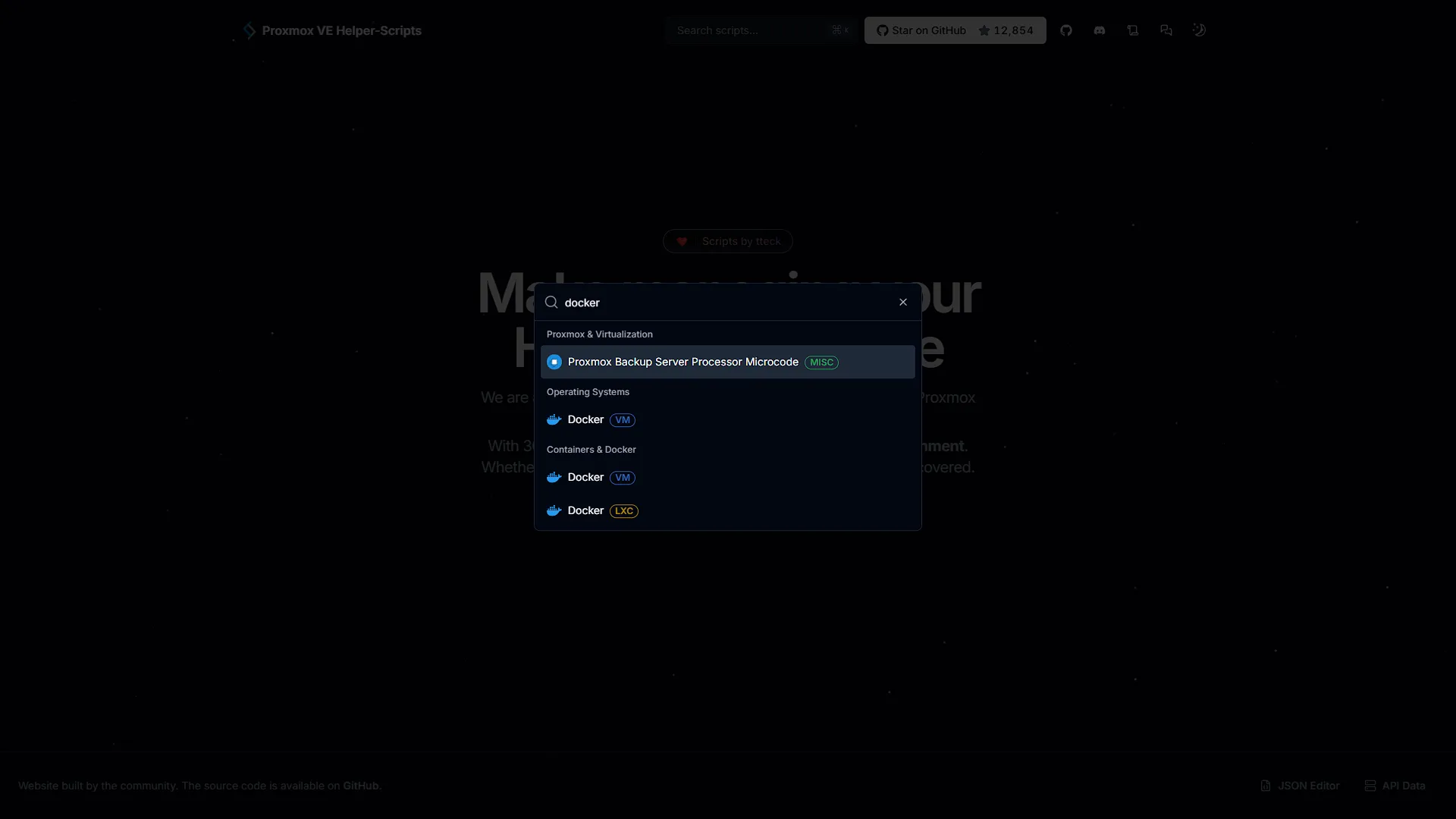
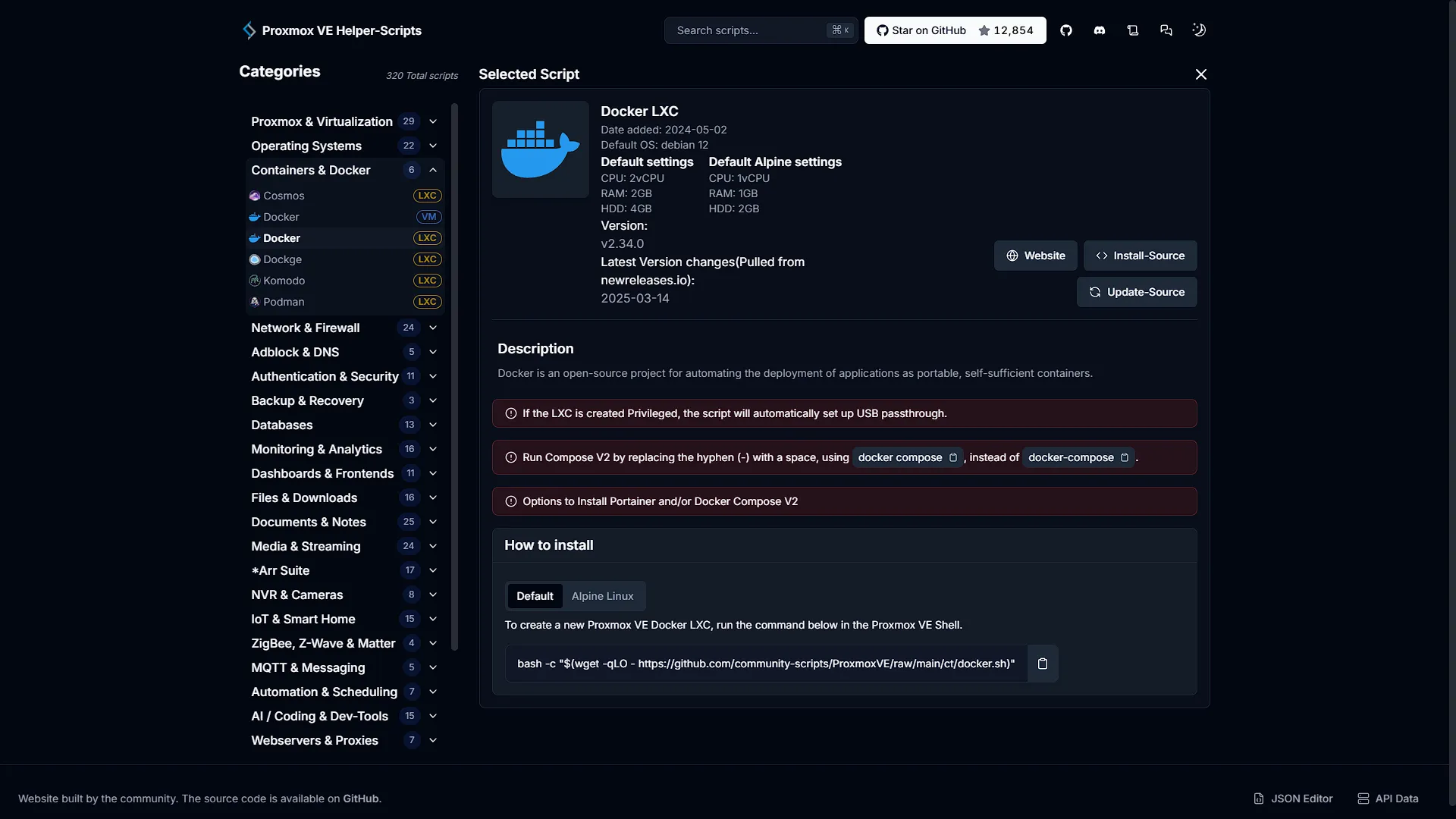
Once again, we are going to use the amazing helper-scripts.com. When searching for Docker, we will be given two options. One is an LXC and one is a VM. We need to choose the LXC option. Once on the screen, we need to also select whether we want to use the default config or the lightweight Alpine Linus version. Again, this is your choice, we are going with the default. So we need to copy the command:
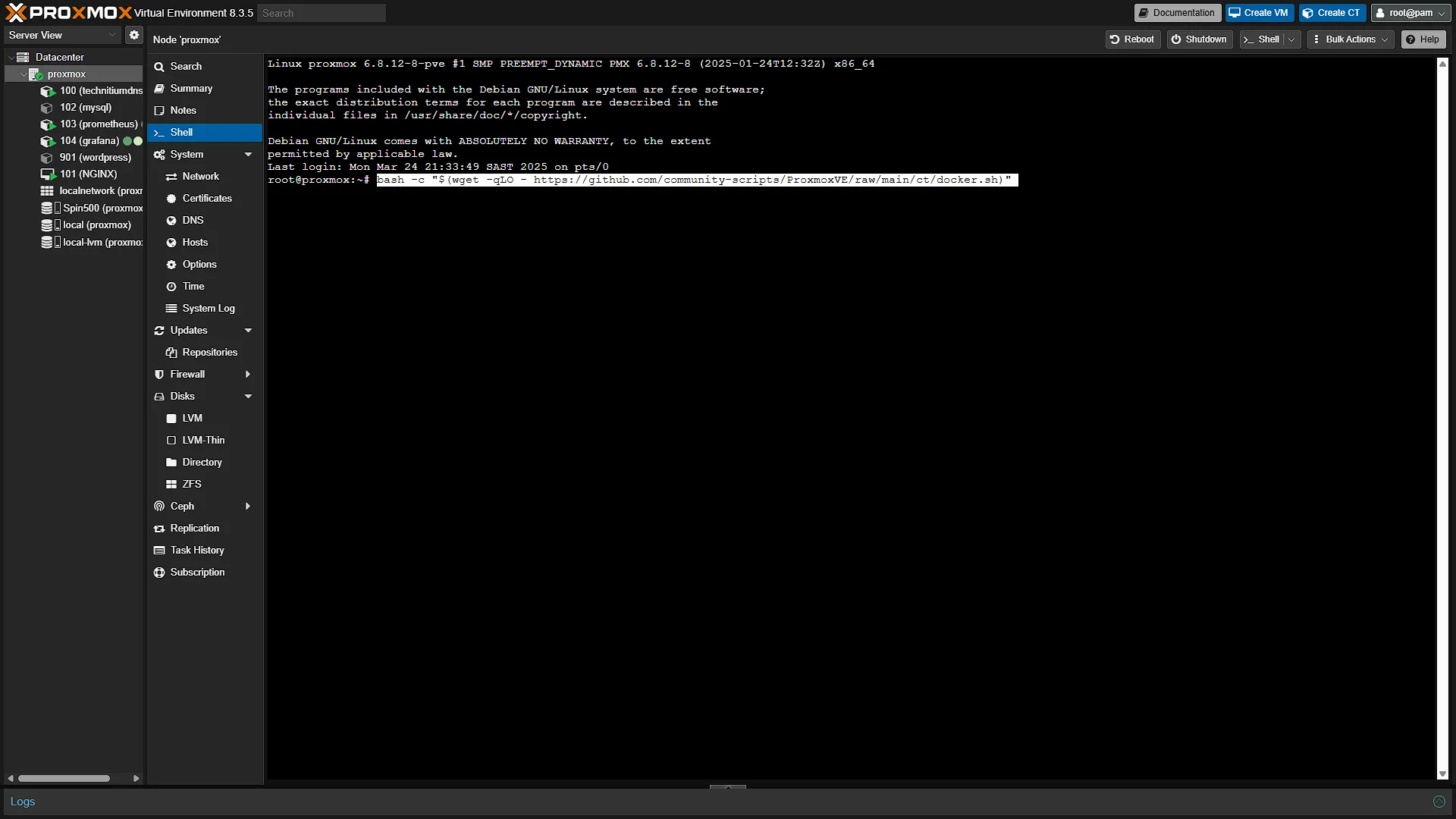
bash -c "$(wget -qLO - https://github.com/community-scripts/ProxmoxVE/raw/main/ct/docker.sh)"Open up your Proxmox node at the IP Address set up during installation and log in. In the left navigation pane, expand Datacenter, and select the Proxmox node we want to install the Docker LXC on. In the middle navigation pane, select  . In the integrated shell window that open in the main window, paste the command and press enter. We are not going to use the default installation as 4Gb of disk space will be filled fairly quickly if you have a lot of containers running, so we are going to do a manual installation.
Step 2: Docker LXC Container Installation
Once in the integrated shell, paste the command that you need to run and press enter. The installation will start and you will be taken through the installation steps:
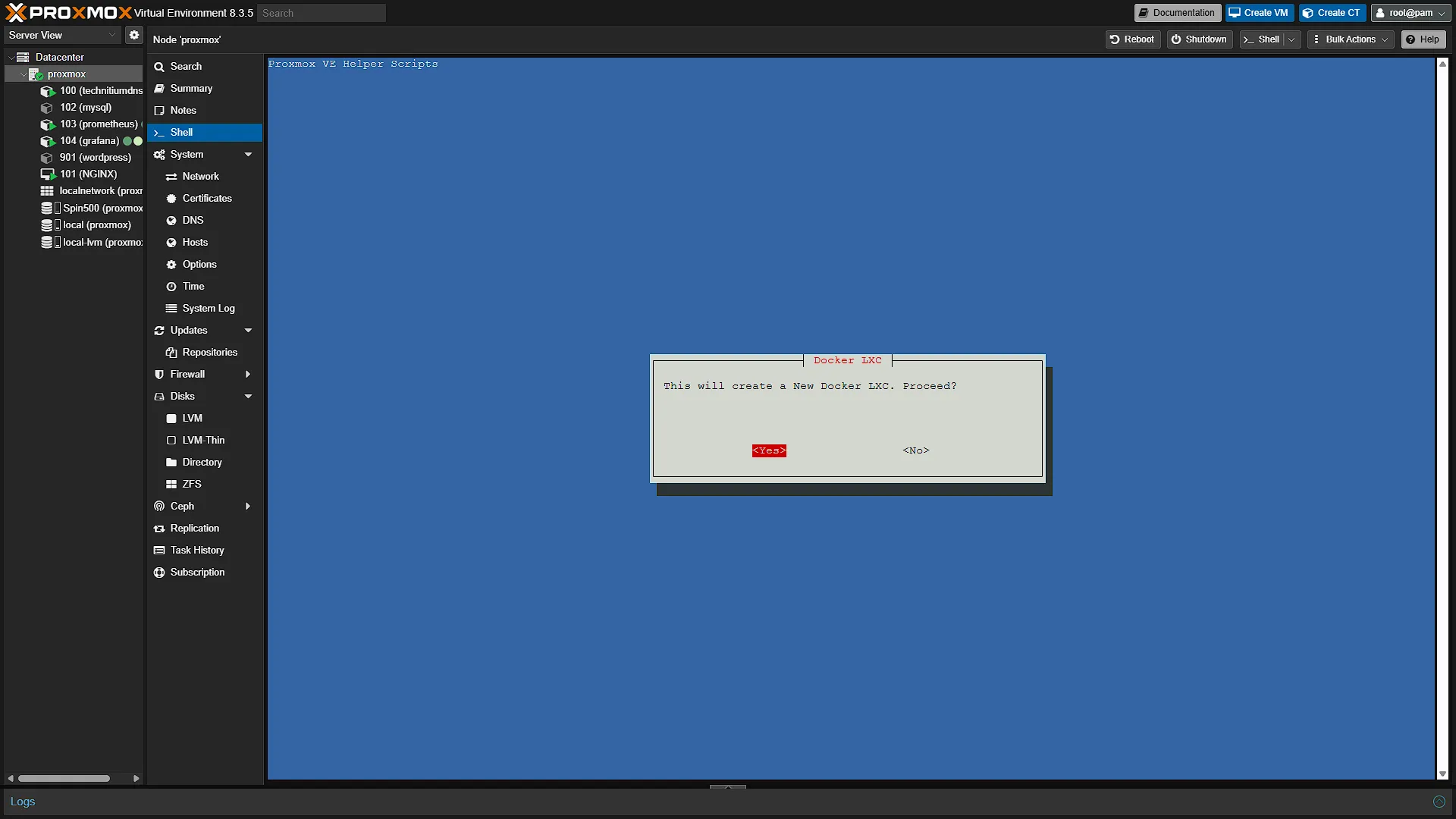
The first screen is just an informative screen informing you that you are about to create a new Docker LXC. Press enter on<Yes>
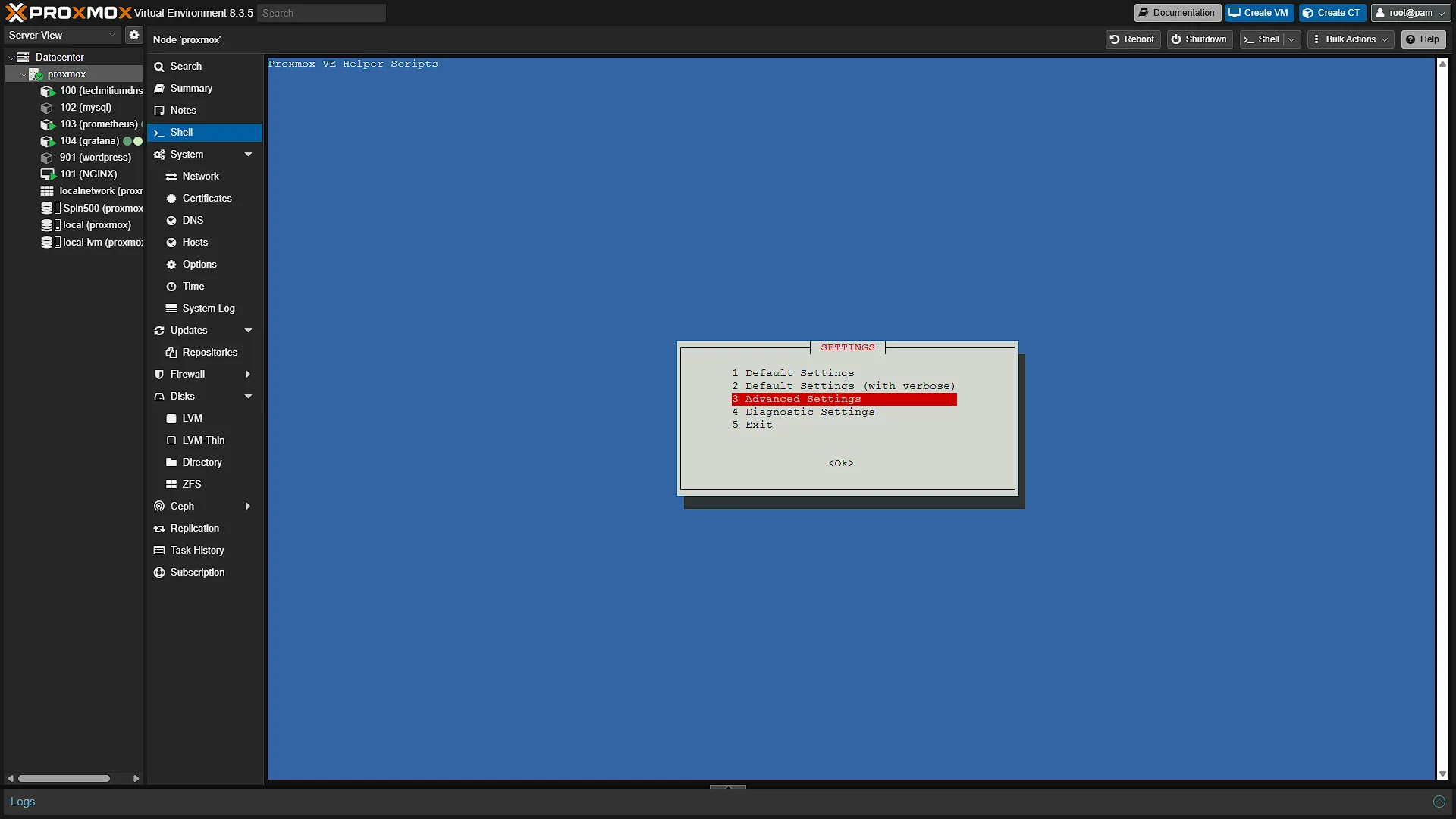
SETTINGS - Select the third option, Advanced Settings and press enter. We need to change the default settings this time round to include a bigger disk and change the container ID
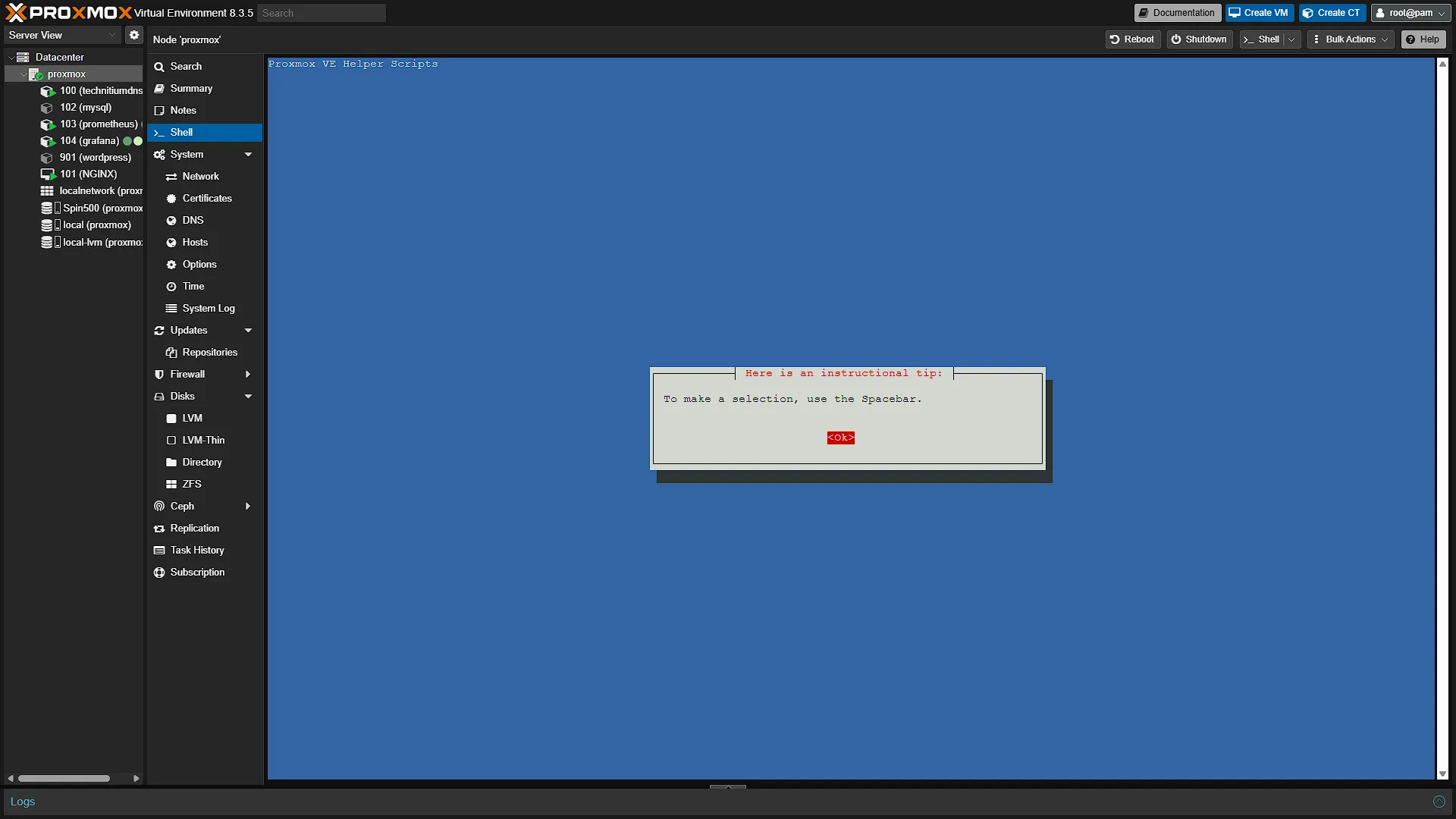
TIP - The next screen will inform you that spacebar needs to be pressed to make a selection.
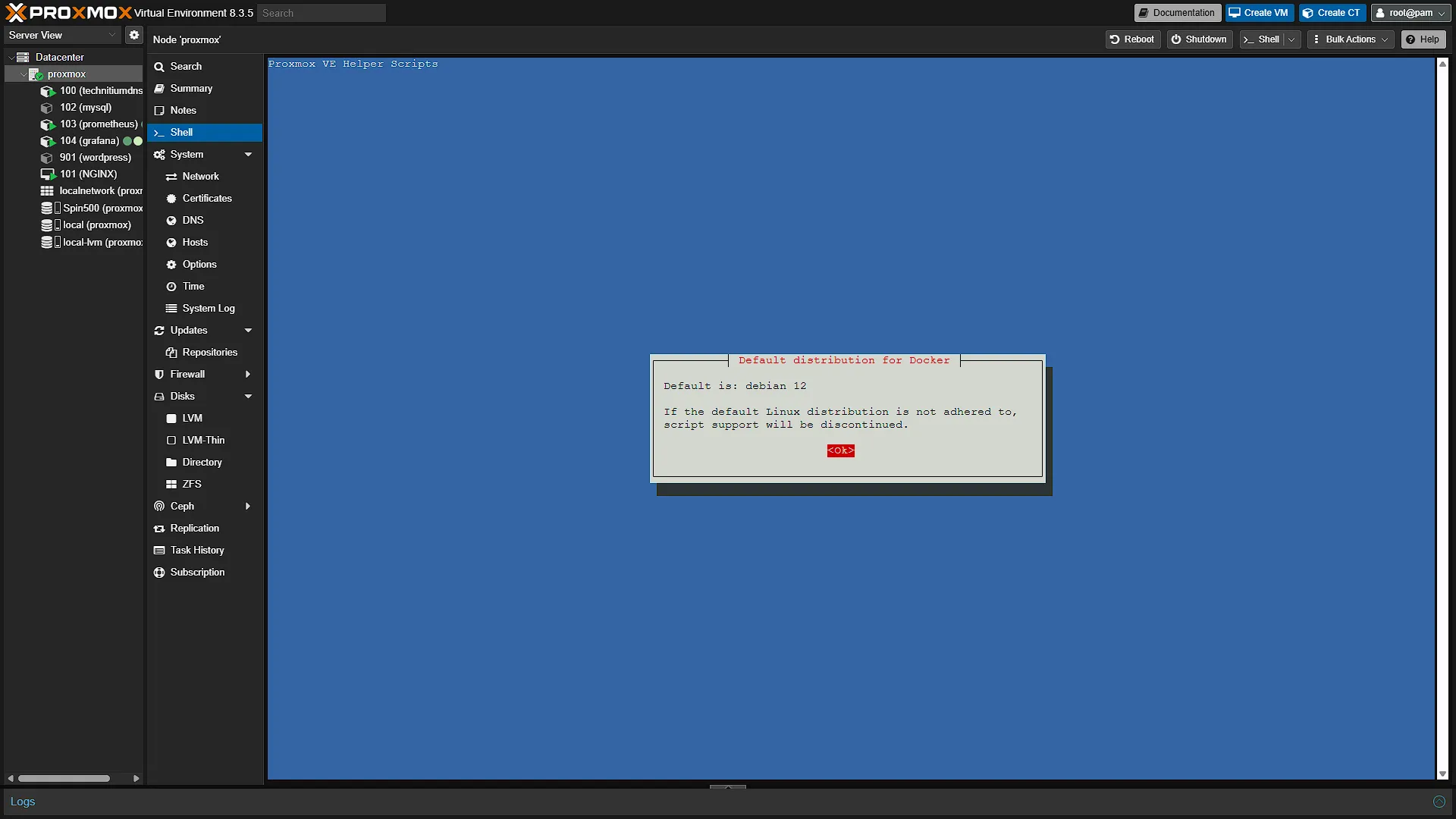
DEFAULT DISTRO - The next screen will just inform you what the default Linux Distribution is. Press enter to continue.
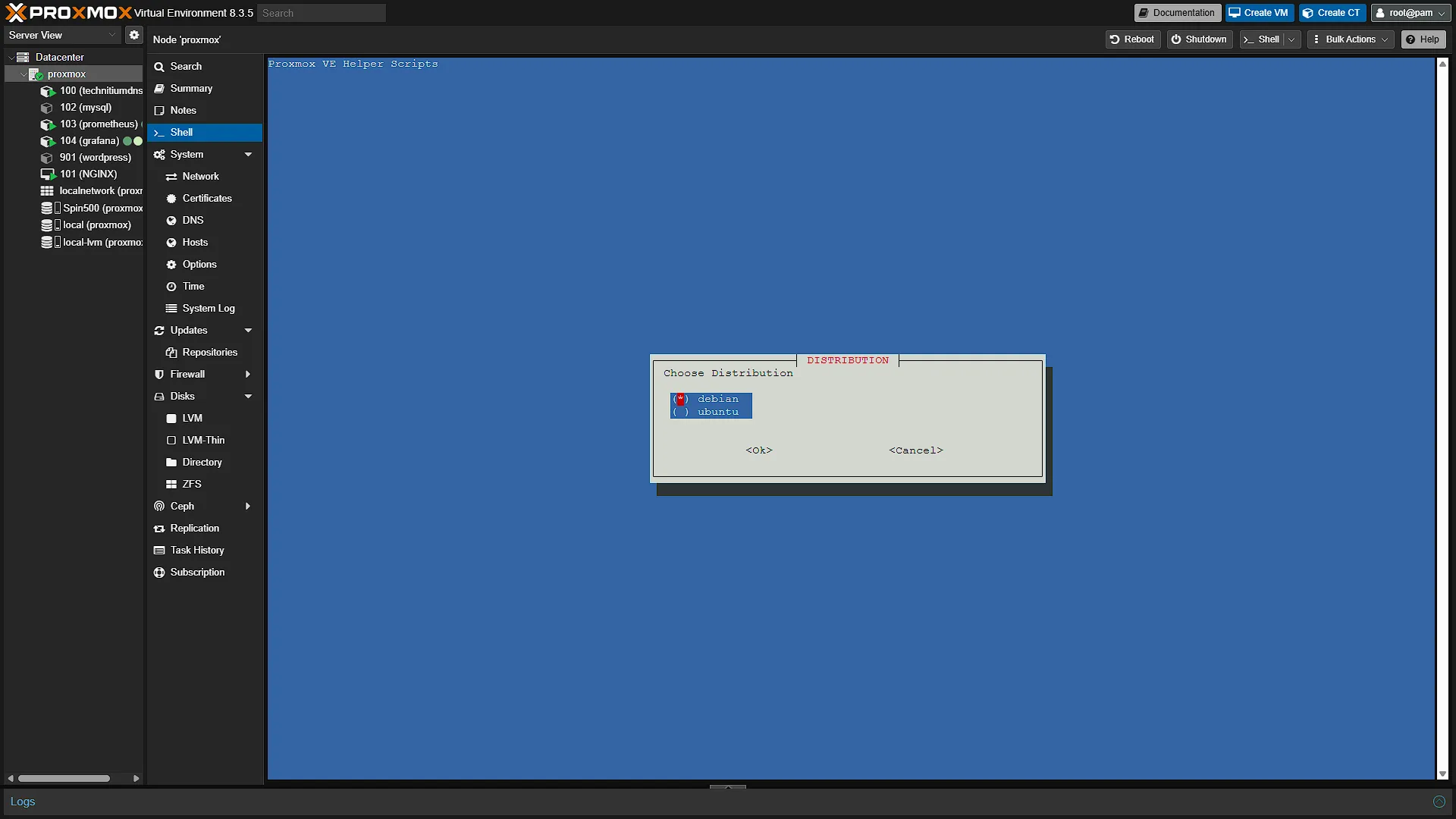
DISTRIBUTION - Now we can select the Linux Distro we want to use. We are sticking to Debian after the previous warning.
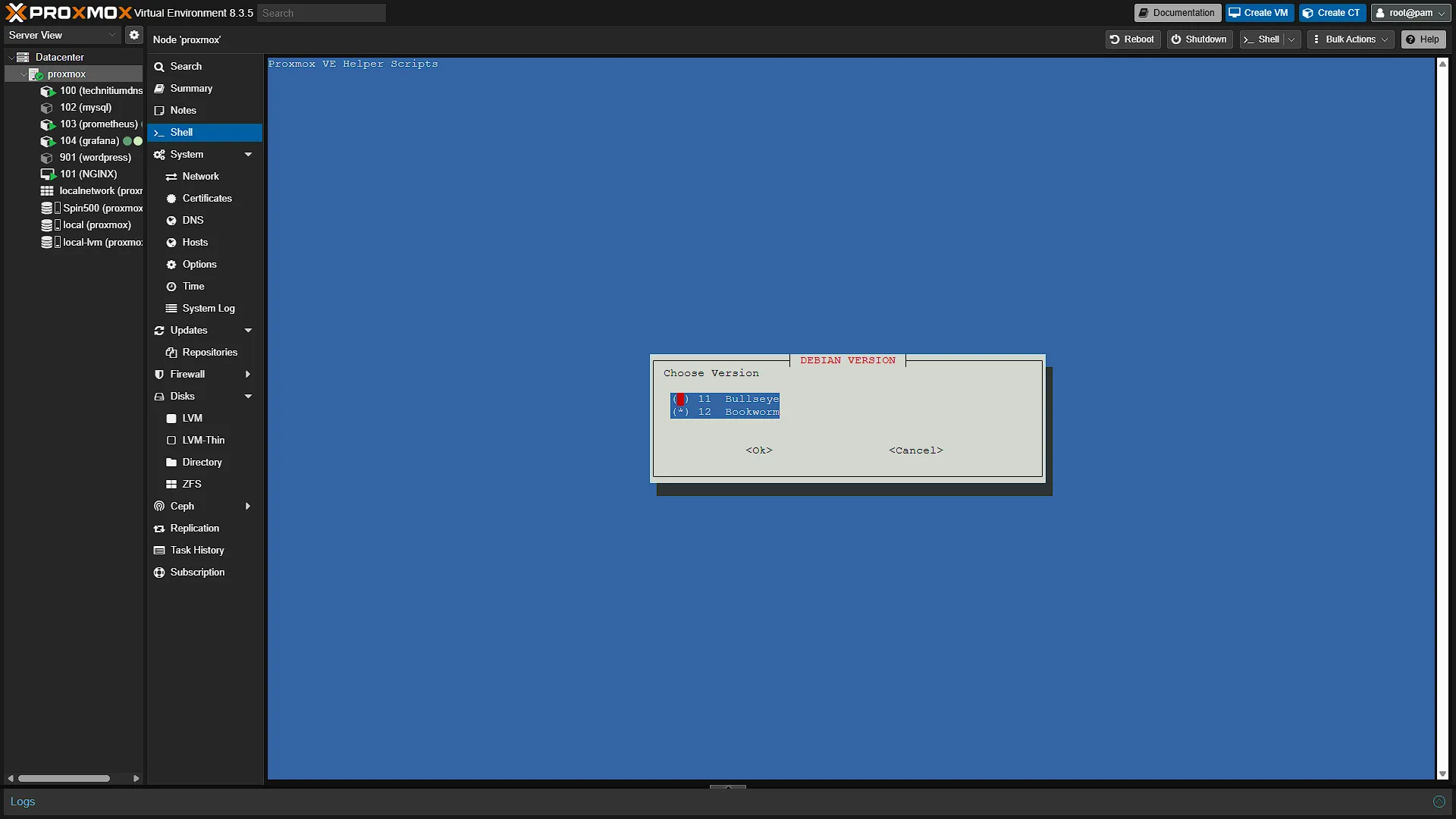
DEBIAN VERSION - This will be Ubuntu Version if you selected Ubuntu in the previous step. Select a version with Spacebar and press Enter to continue. We are sticking to the default settings and using Debian version 12.
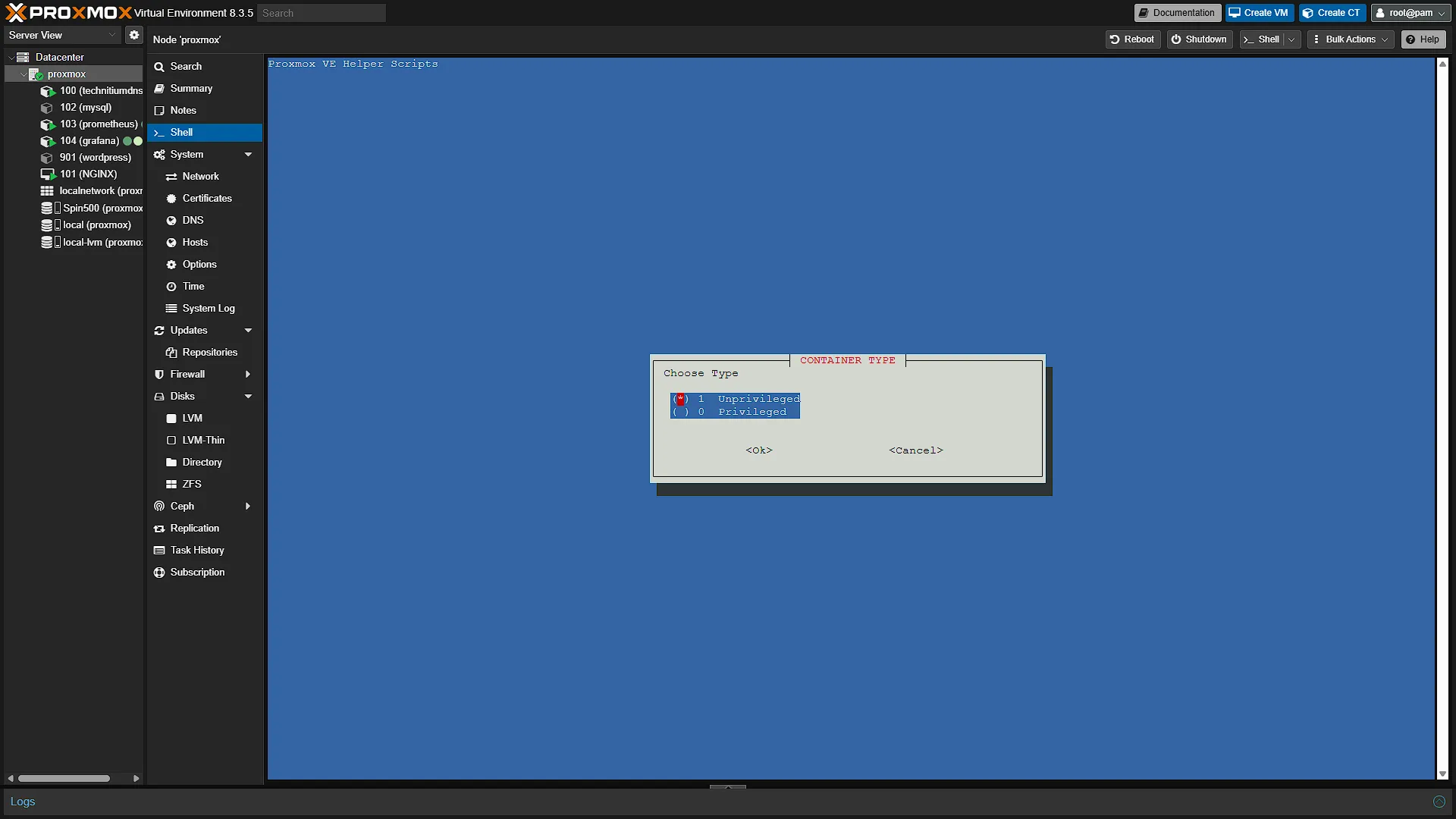
CONTAINER TYPE - If you read the information on helper-scripts.com, you will know that a privileged container will have USB passthrough by default. We don't need it (yet) so we are stocking to Unprivileged.
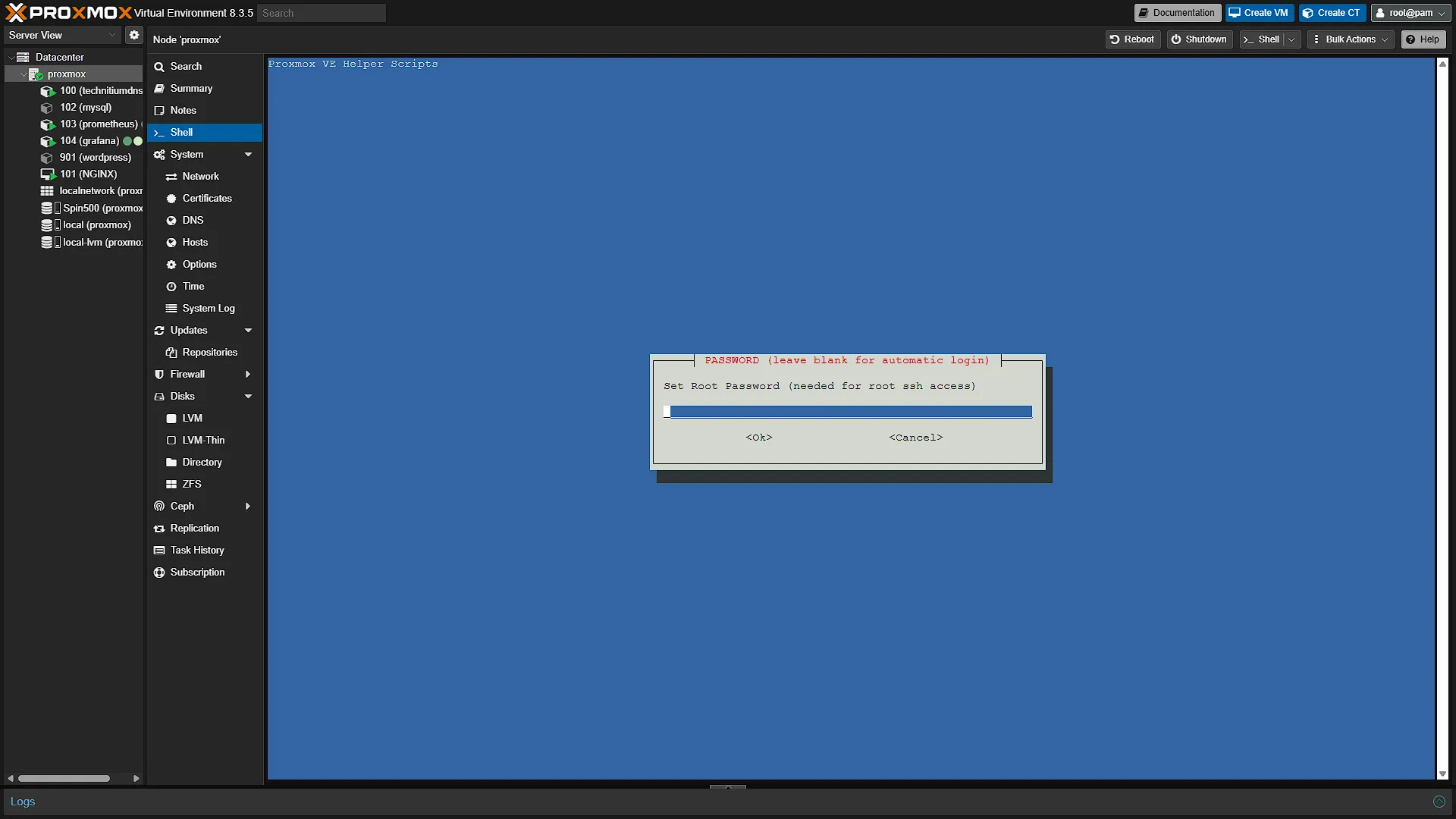
PASSWORD - Now you need to set a root password. You can also leave it blank to automatically log in to the LXC container if you want.
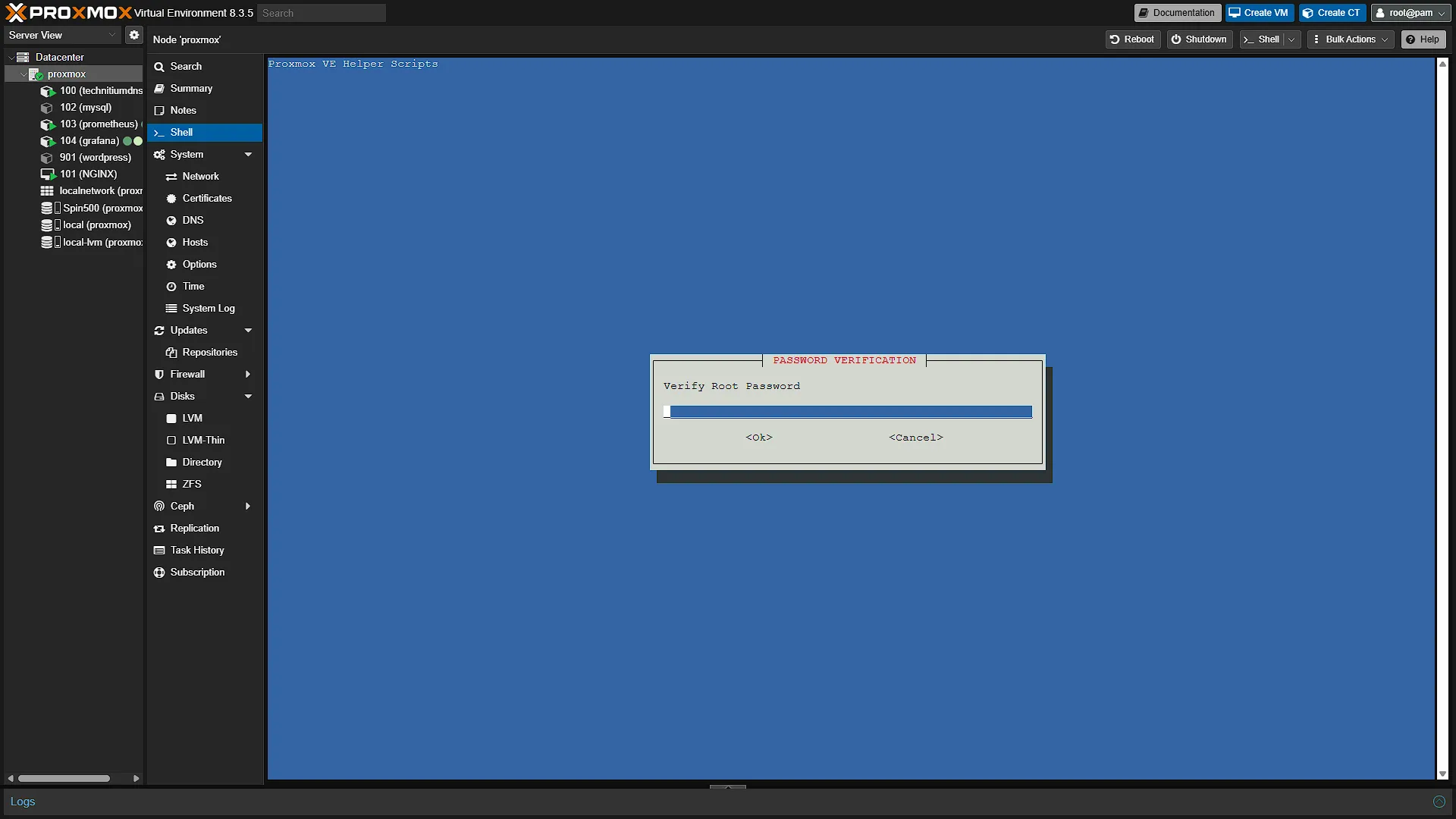
PASSWORD VERIFICATION - If you entered a password in the previous step, re-enter it now and confirm both are the same.
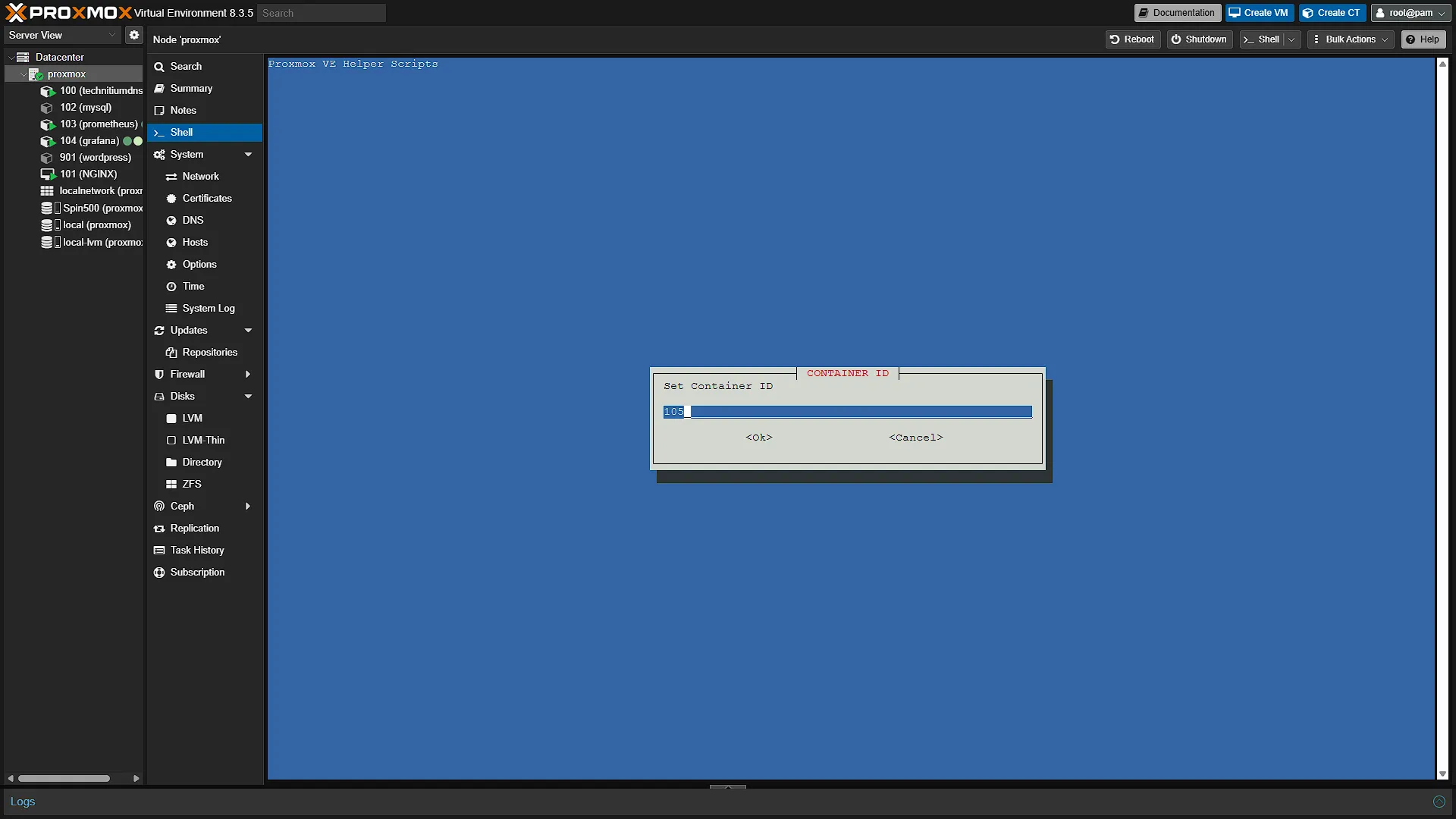
CONTAINER ID - We can now select a container ID. Container ID's normally go from 100 to 999, so select any ID you want. We are going to add our Docker LXC on ID 200. This is one of the few things one cannot edit after creation, so we need to run an ADVANCED SETTINGS install to get the ID we want.
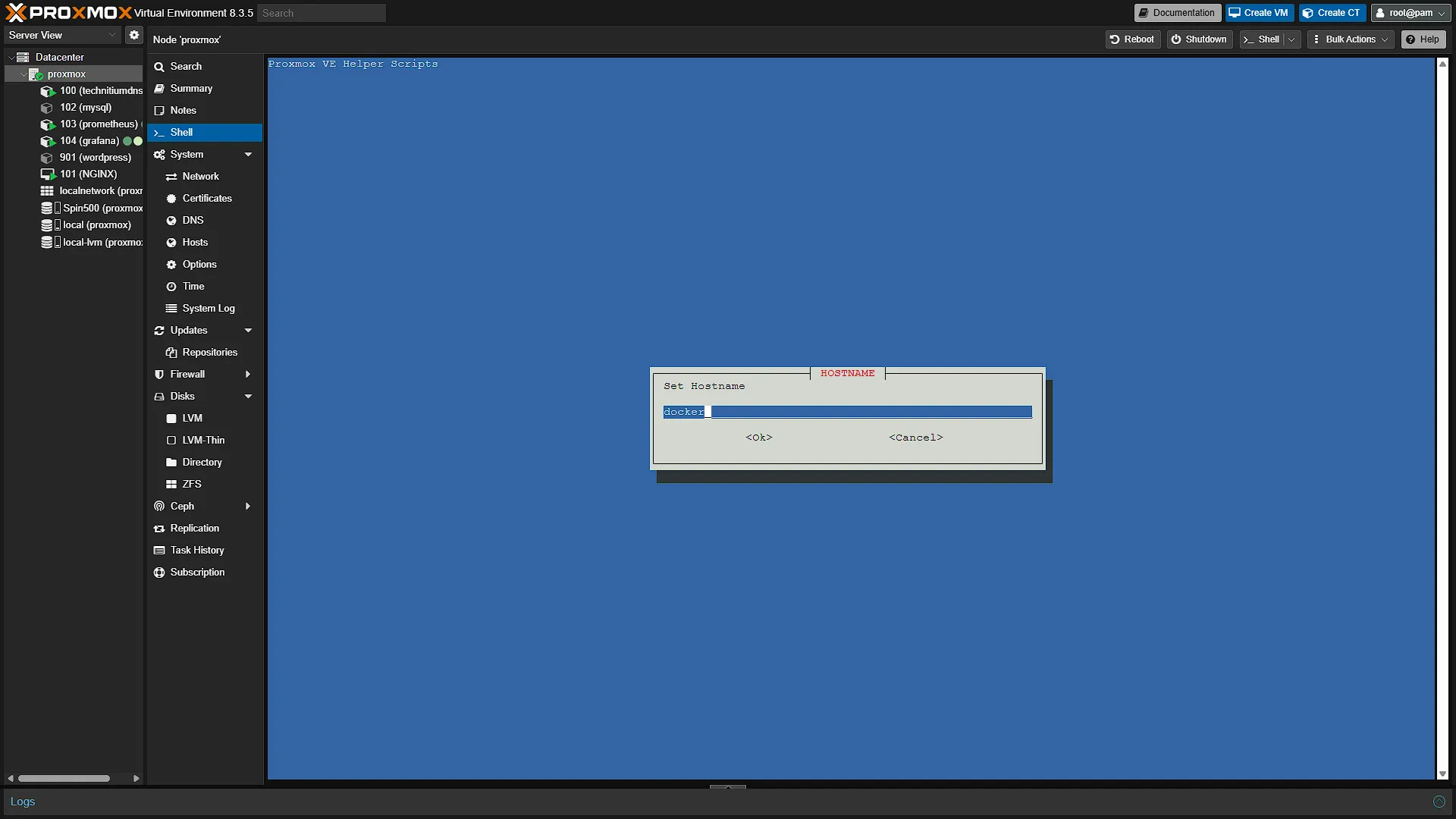
HOSTNAME - Select the hostname that this LXC container will identify itself with. The default is docker, and that is fine as is.
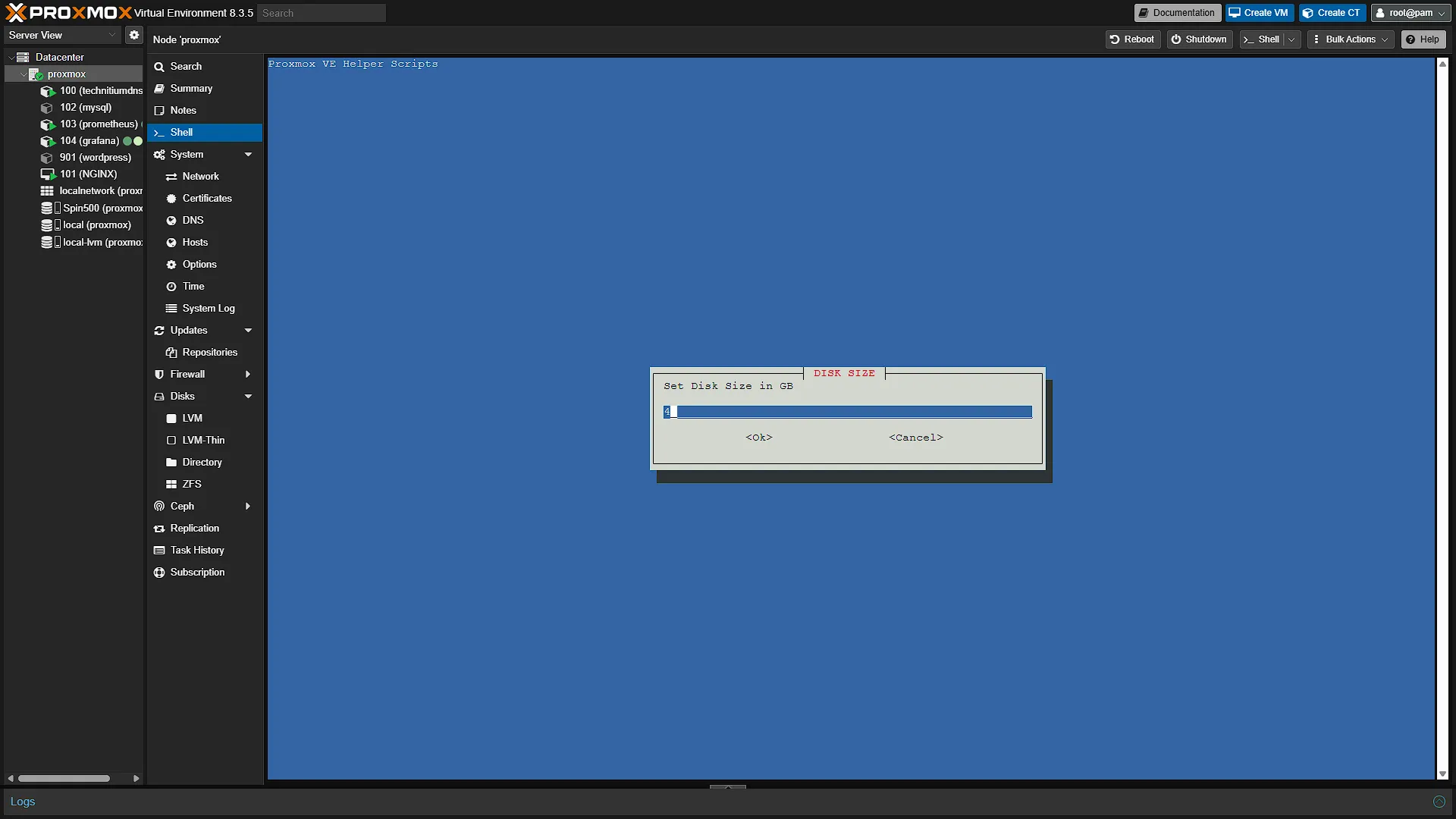
DISK SIZE - Set the disk size in GB. This is one of the reasons we are in Advanced Mode. Yes, it is possible to resize an LXC disk after creation, but why not change it now. The default 4Gb is enough if you ware going to run one or two containers that are not storing much. We are going to run all of our containers here, and we have enough space, so we are increasing this to 40Gb
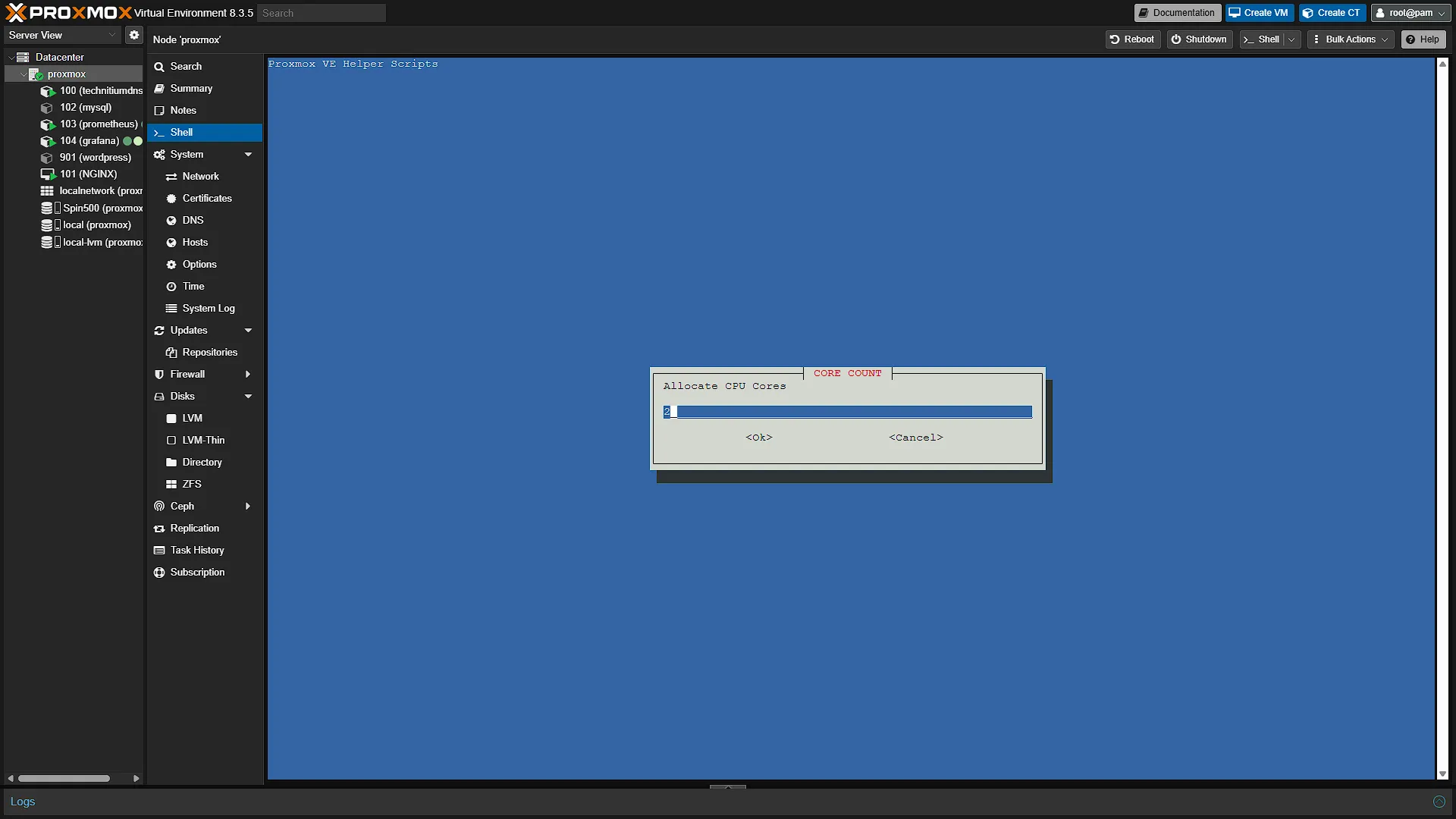
CORE COUNT - Here we assign the (maximum) CPU cores the installation can use. We are going with 4 so that we have enough processing power for all the containers. This can easily be edited after container creation, so no need to worry too much.
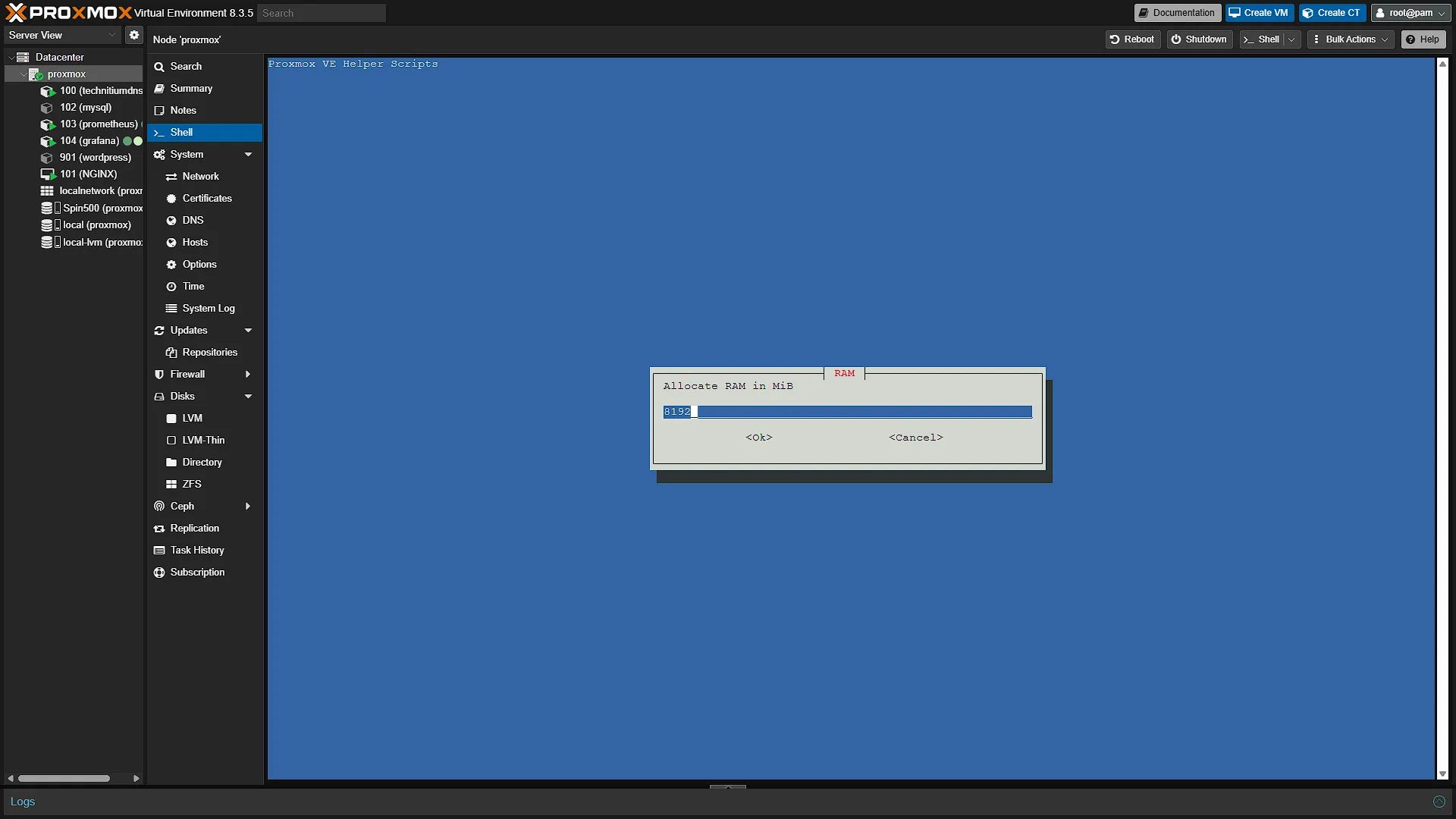
RAM - Assign the maximum allocation for RAM Memory. This is also easily edited after creation.
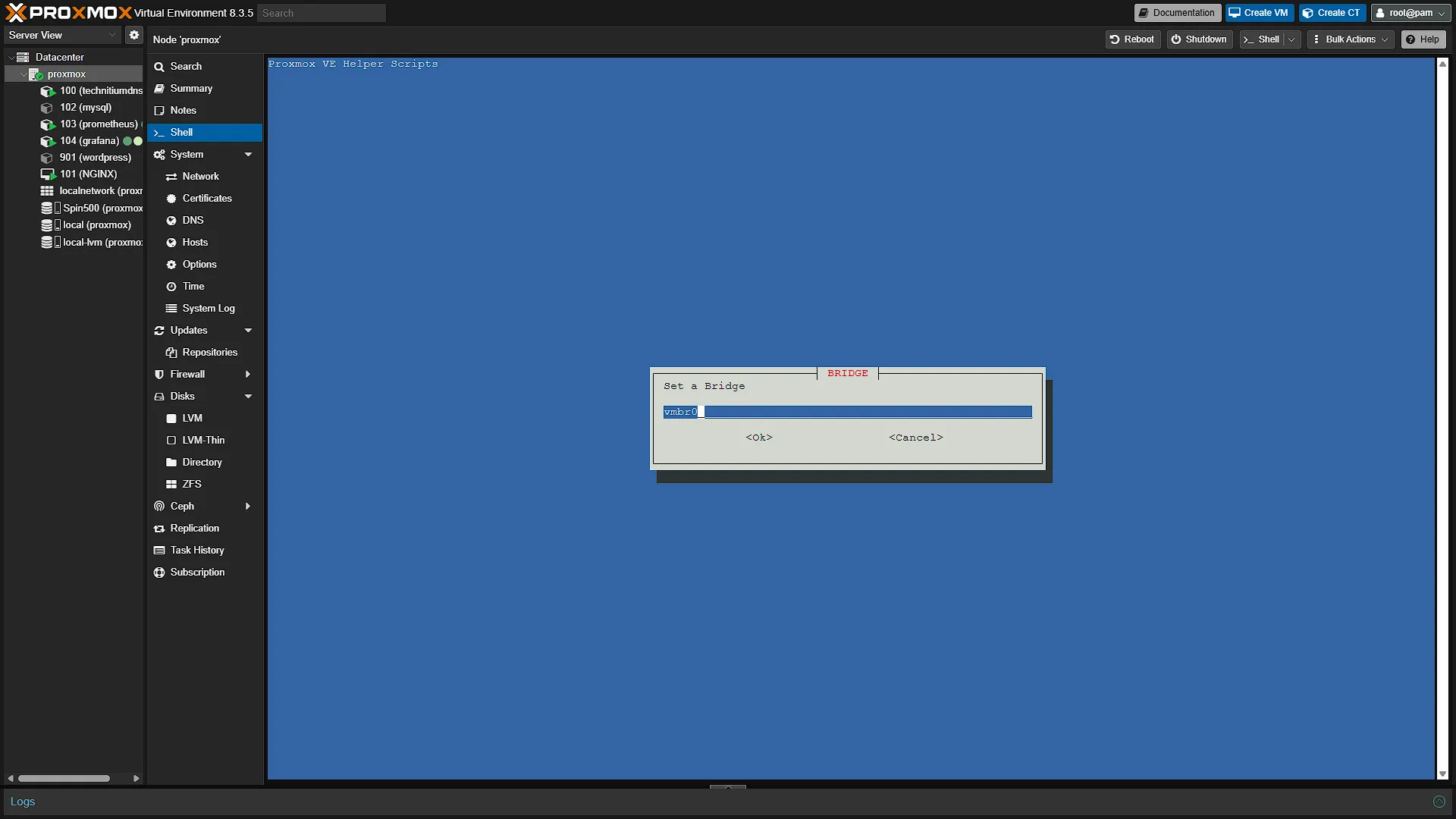
BRIDGE - The bridge is a network bridge for this LXC container. Leave as default and press enter.
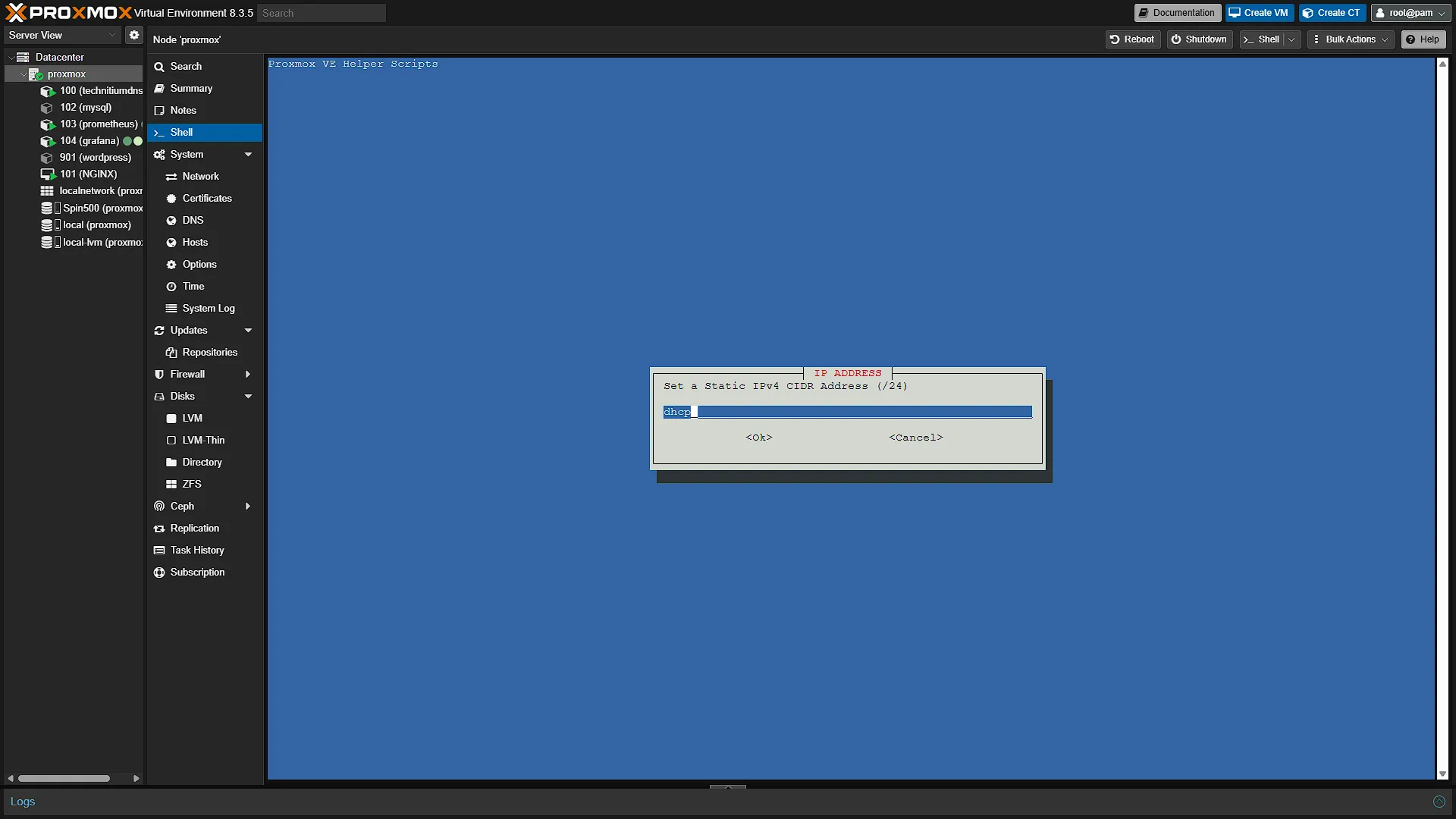
IP ADDRESS - Here we can assign a static IP address for this container. It might be easier to assign a static IP. If you want to rather leave the IP Address assigning to the Router, just leave as the default dhcp option and press enter.
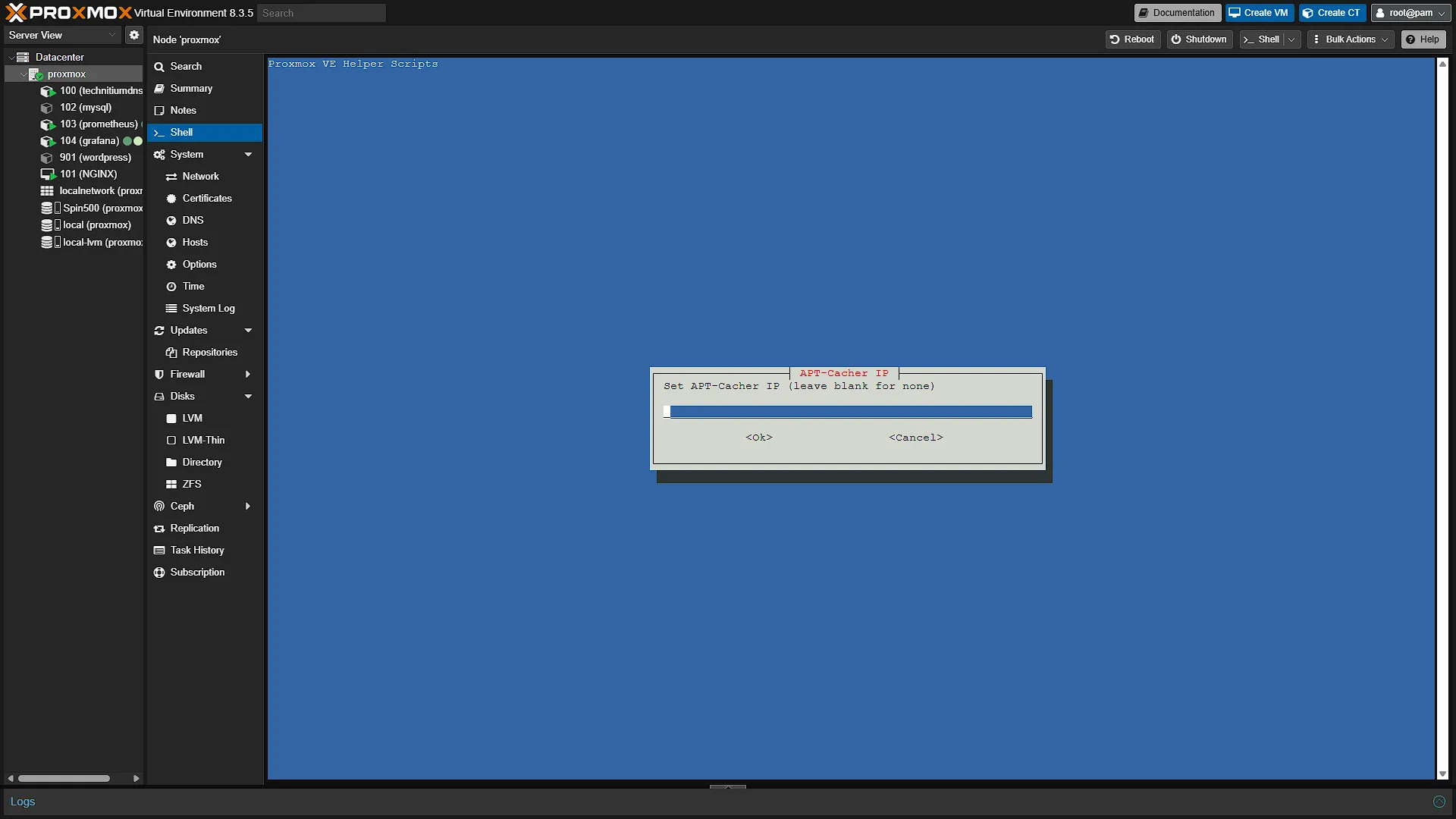
APT-CACHER IP - This can be left as default (blank), just press enter.
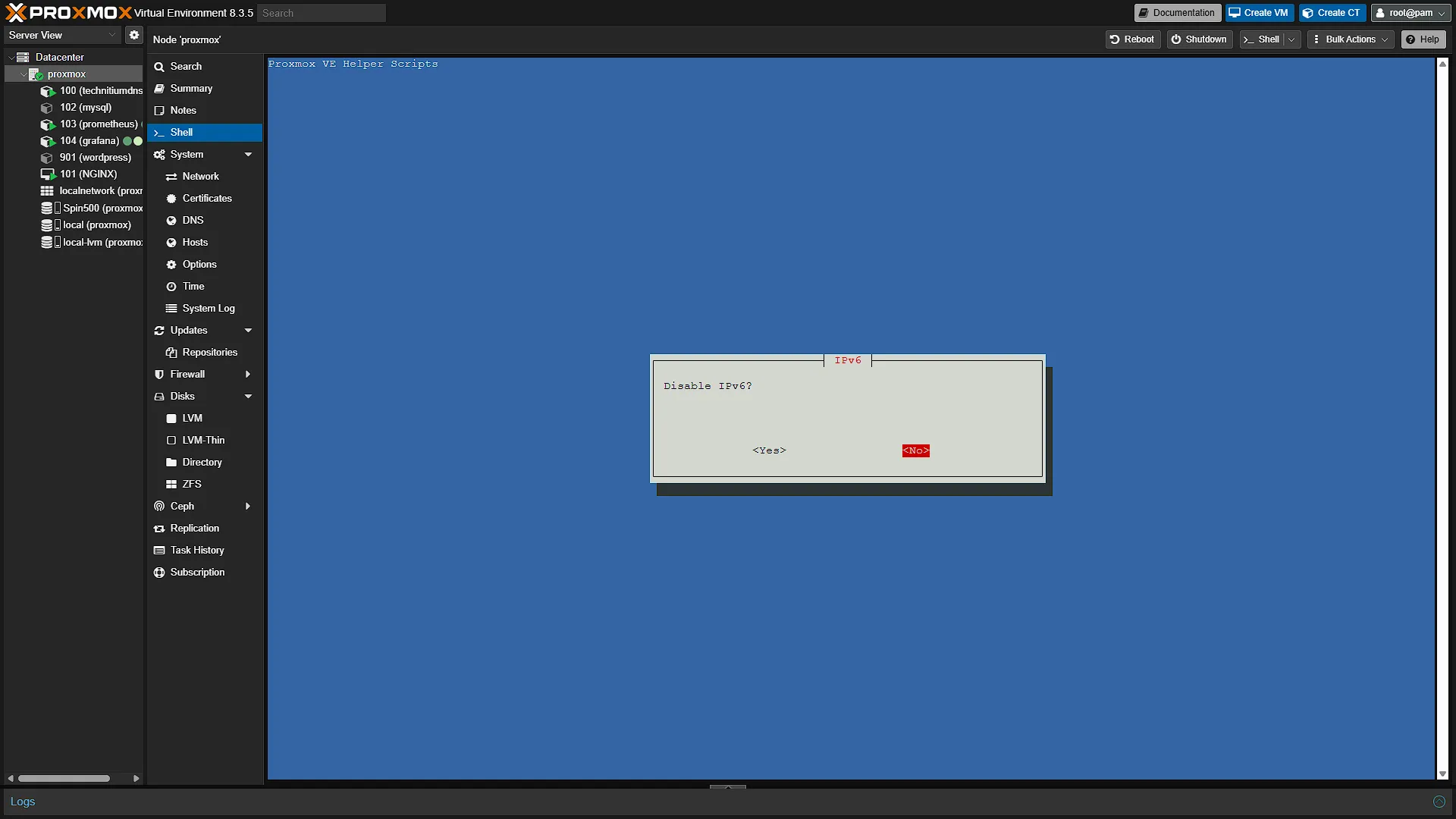
IPV6 - The option to disable IPv6 is up to you. We are not going to disable it, so that if we want to use IPv6 on our network in the future, we don't have any issues with this container.
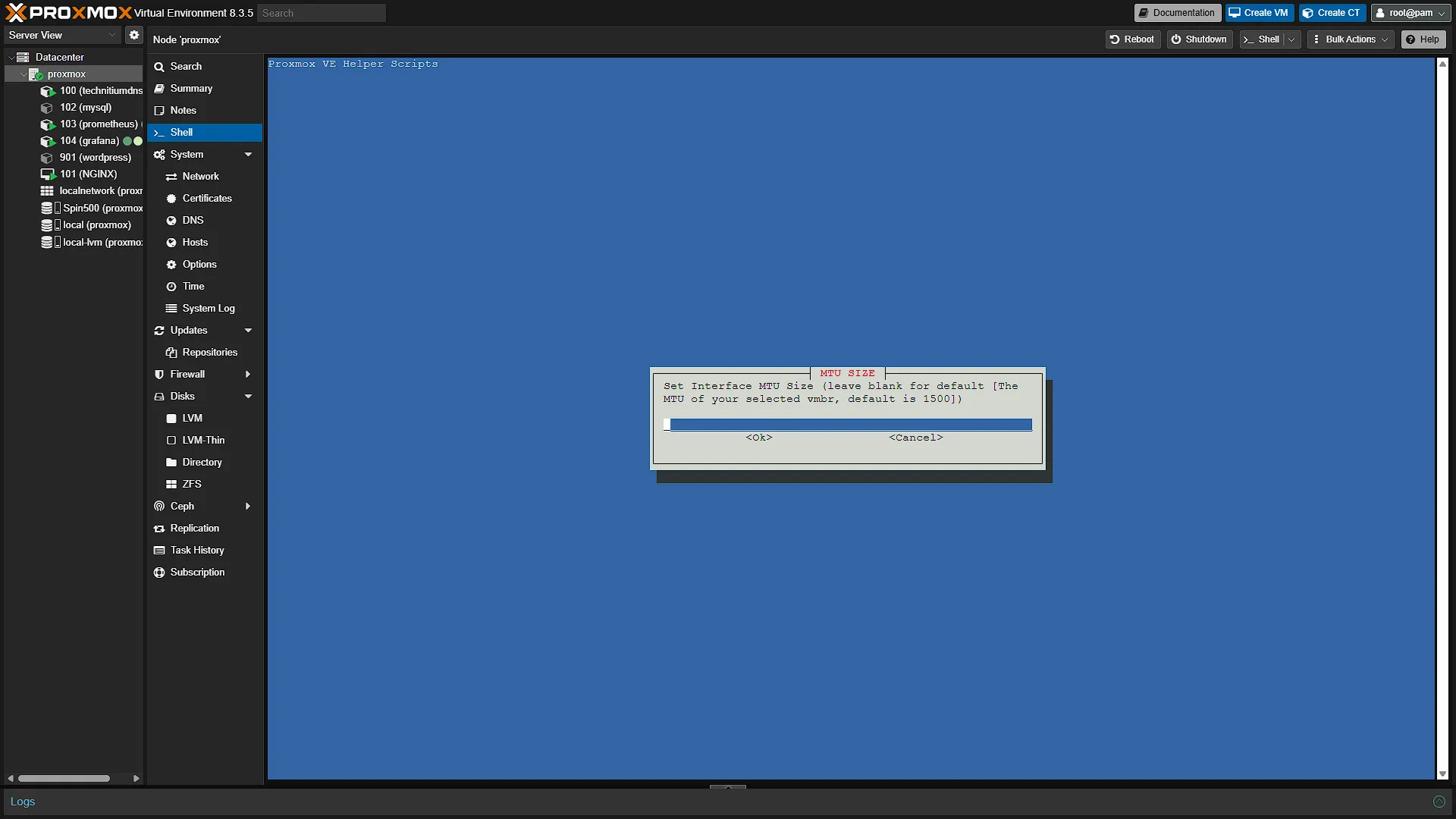
MTU SIZE - Just leave the default MTU size (blank) and press enter.
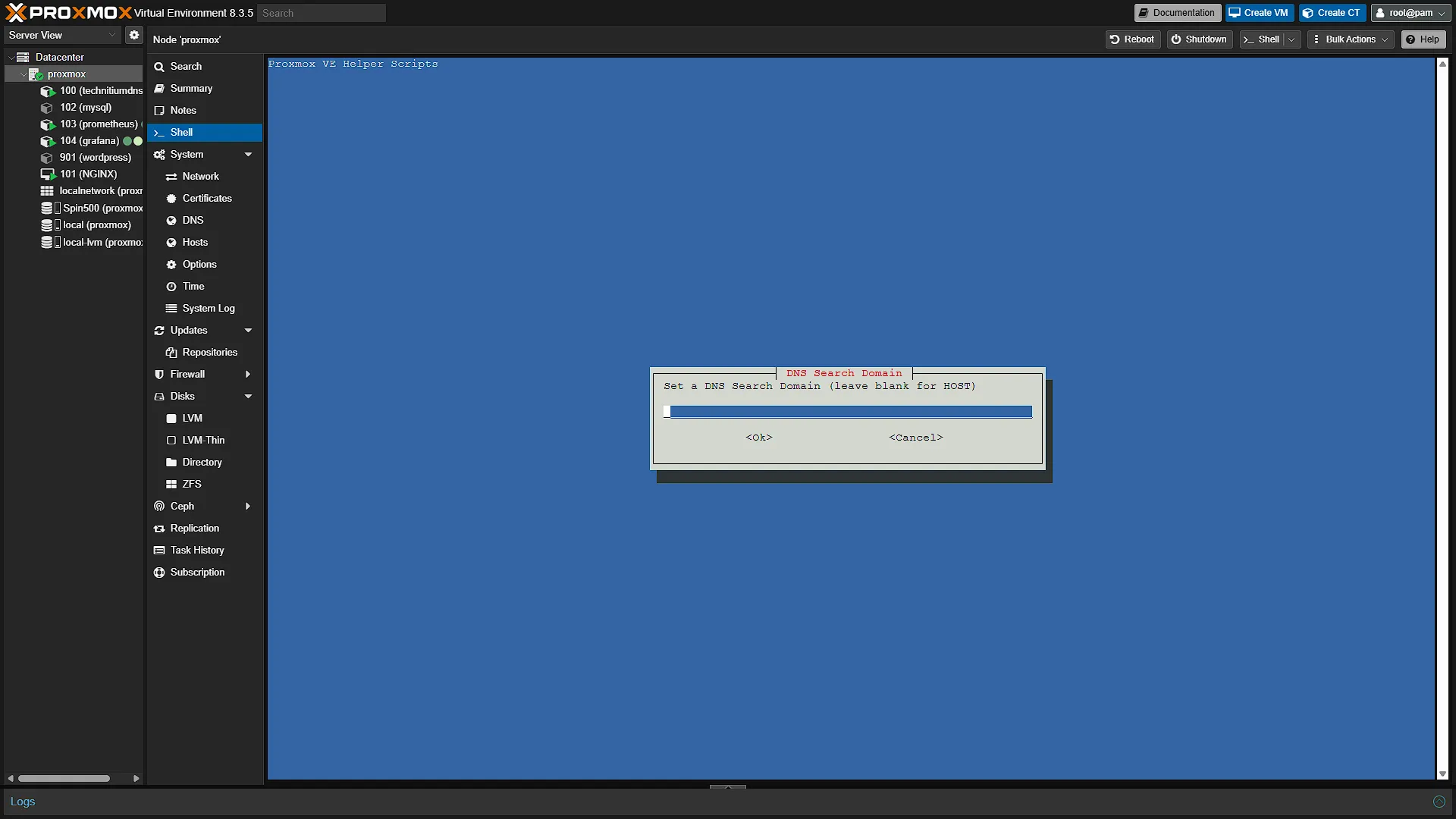
DNS SEARCH DOMAIN - If you want a default DNS search domain, you are welcome to add it here. Otherwise just leave it blank (which will take the settings of the host - ProxMox) and press enter.
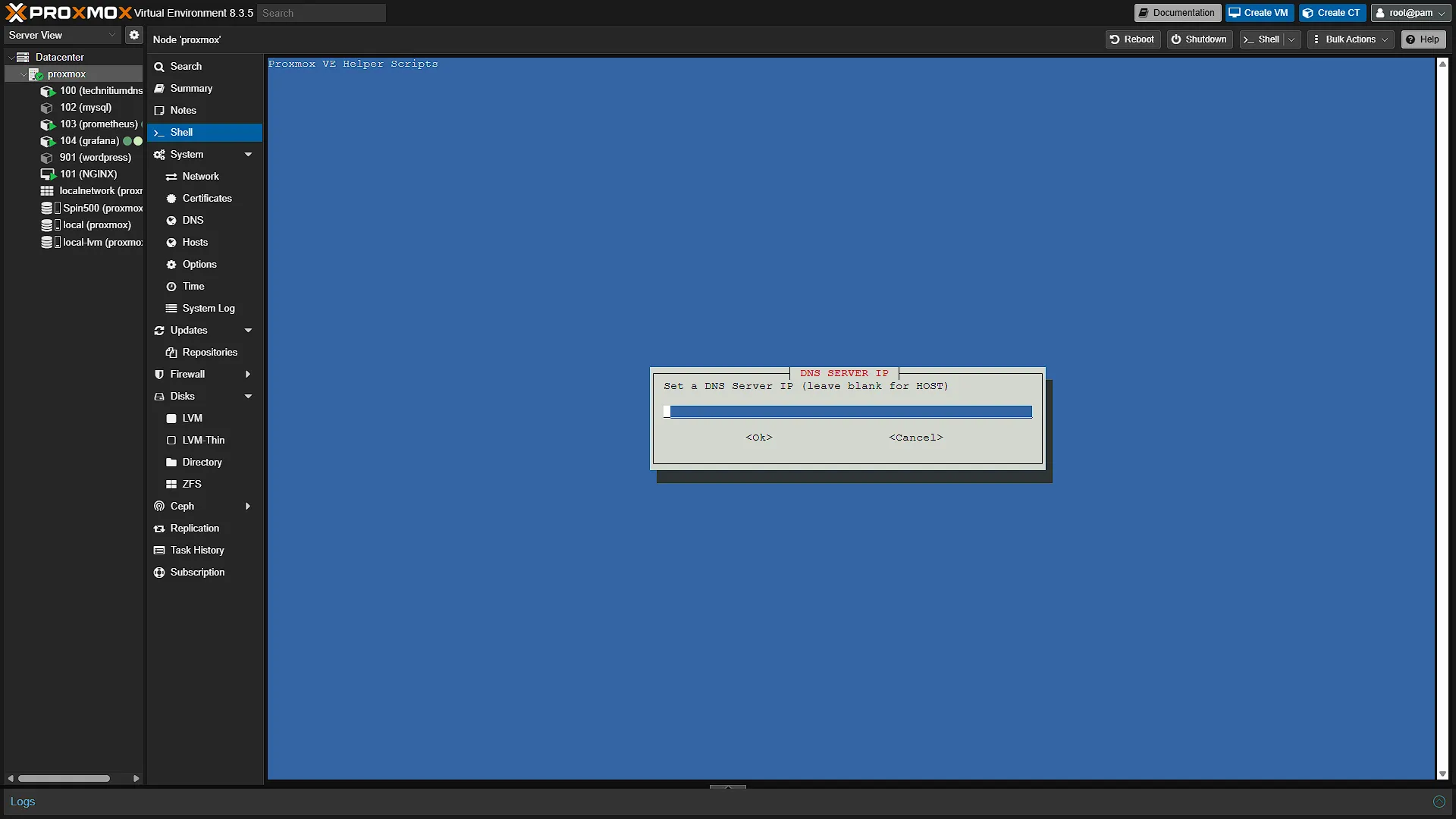
DNS SERVER IP - Same as the previous, you can add a default IP for DNS queries, or just leave it blank to use the host's settings.
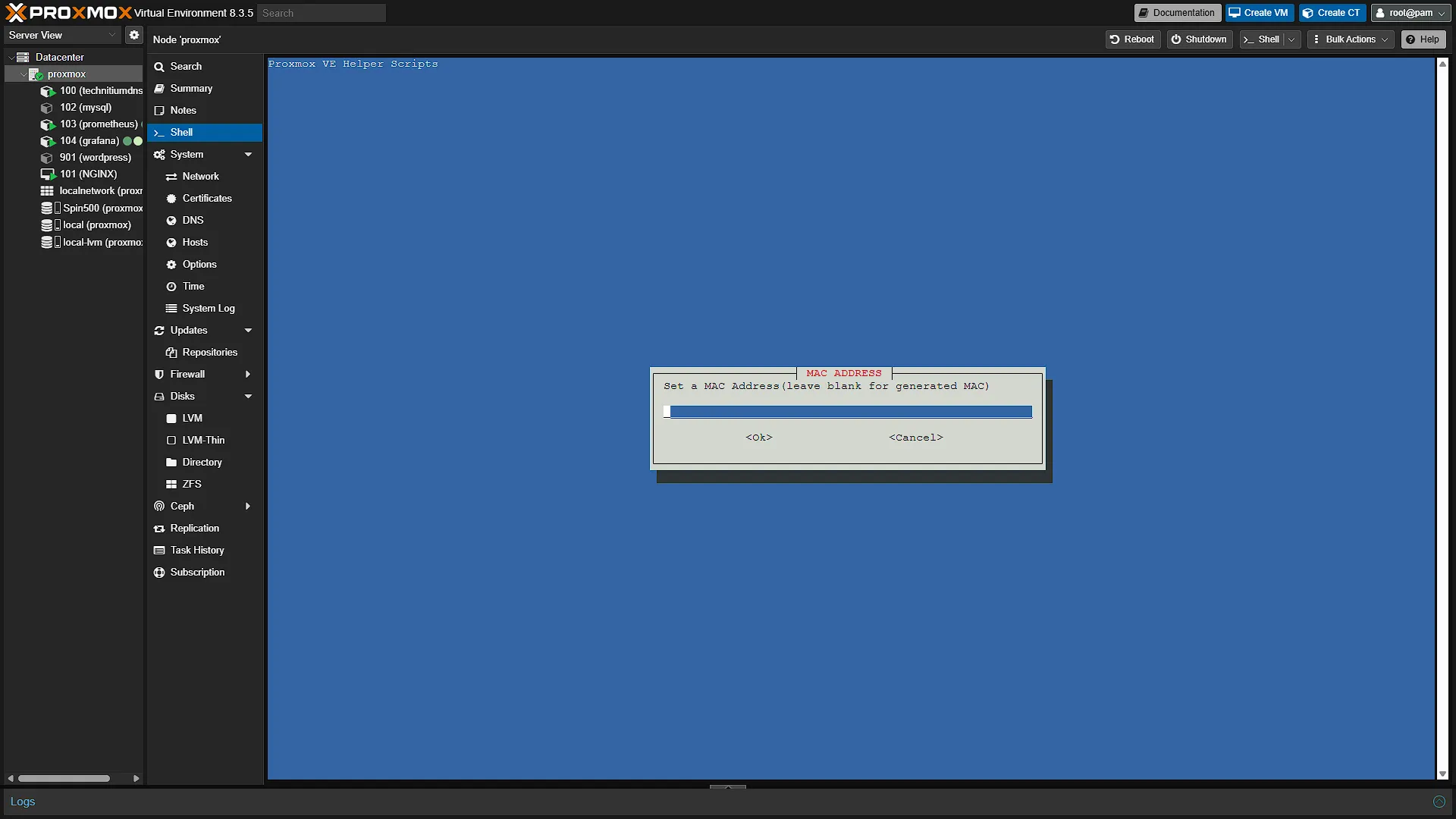
MAC ADDRESS - You can set a static MAC address, or leave as blank to generate a new one.
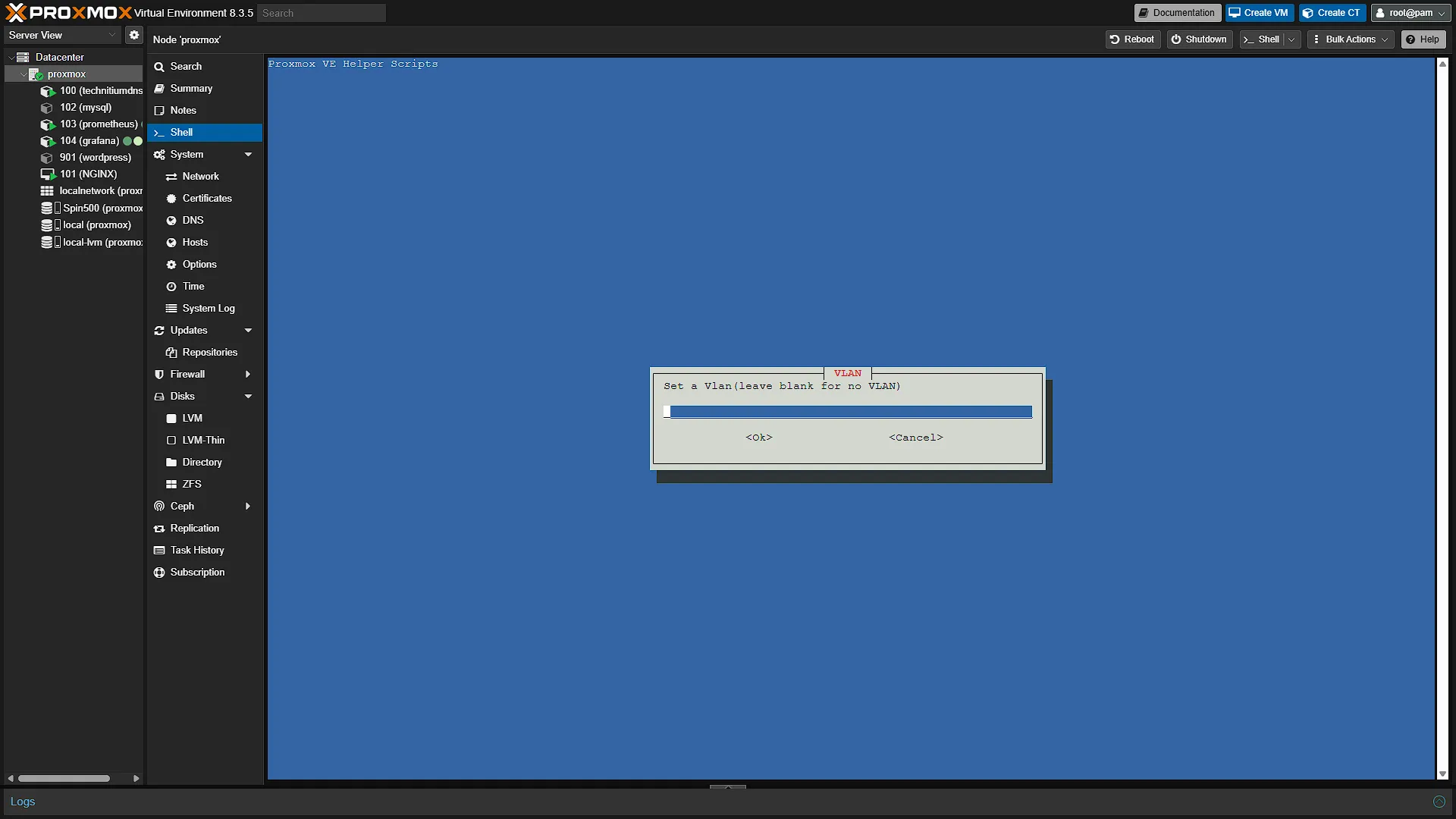
VLAN - If you are unsure of this option, just leave it blank and press enter. If you want this LXC to run on a separate VLAN, you can enter the VLAN ID here and press enter.
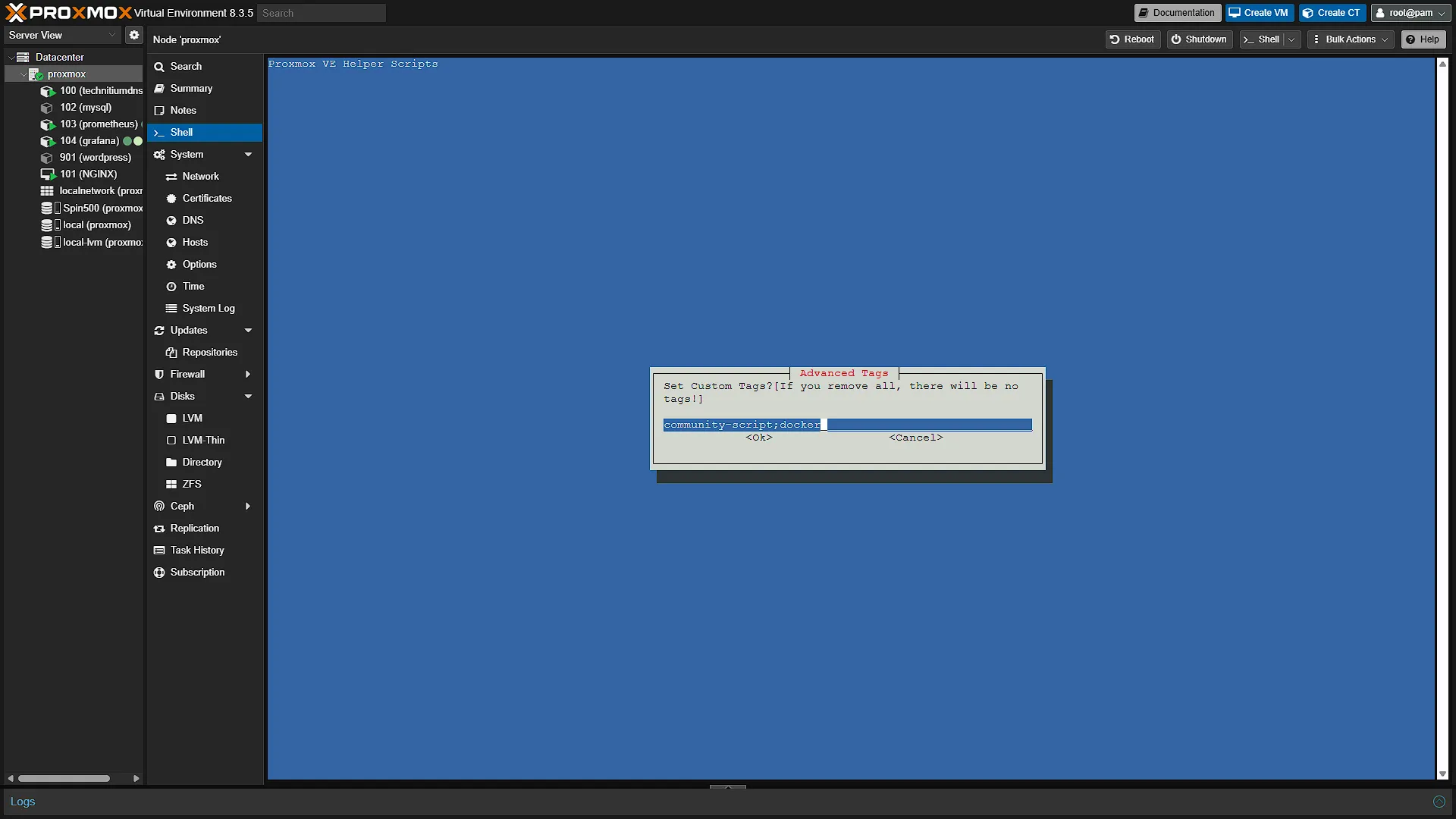
ADVANCED TAGS - You can edit the tags of this container. This does not do anything, so you can remove, change or leave as is.
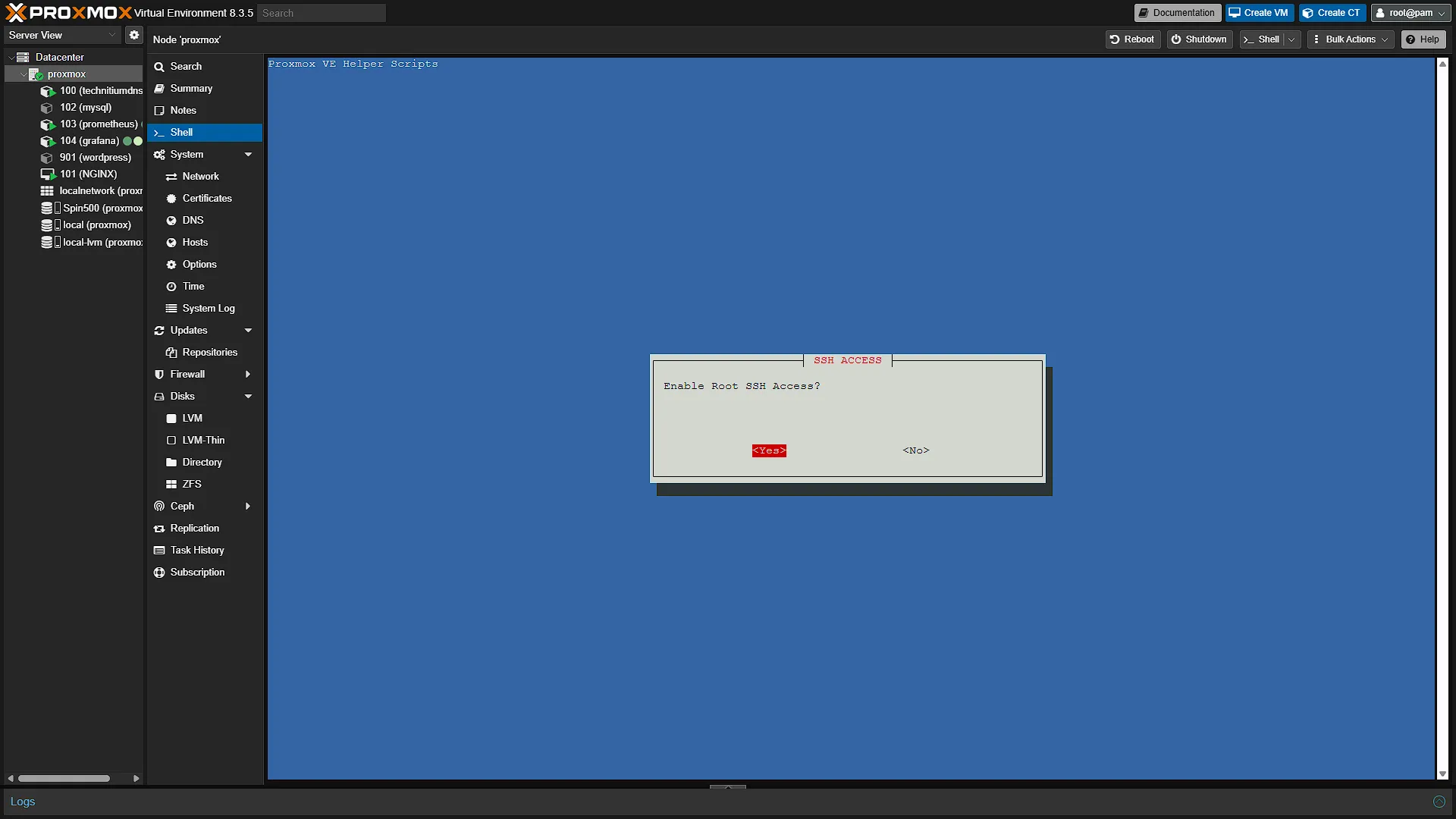
SSH ACCESS - If you want to access the LXC via a shell running SSH (like you would with the integrated Console in ProxMox), select Yes and press enter.
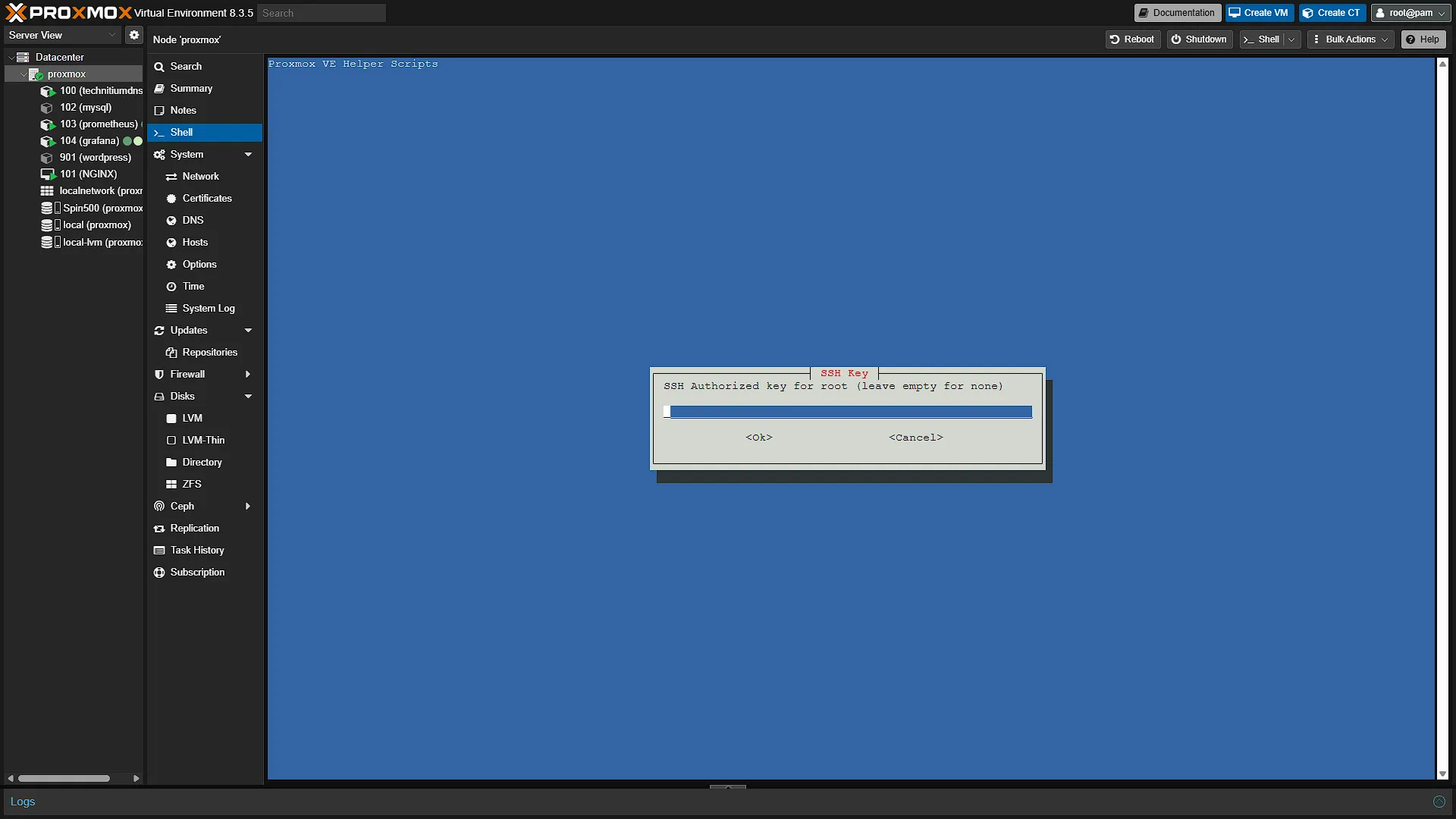
SSH KEY - If you have an SSH key that you want to use for authentication, paste it here or leave blank if you want to use username and password authentication.
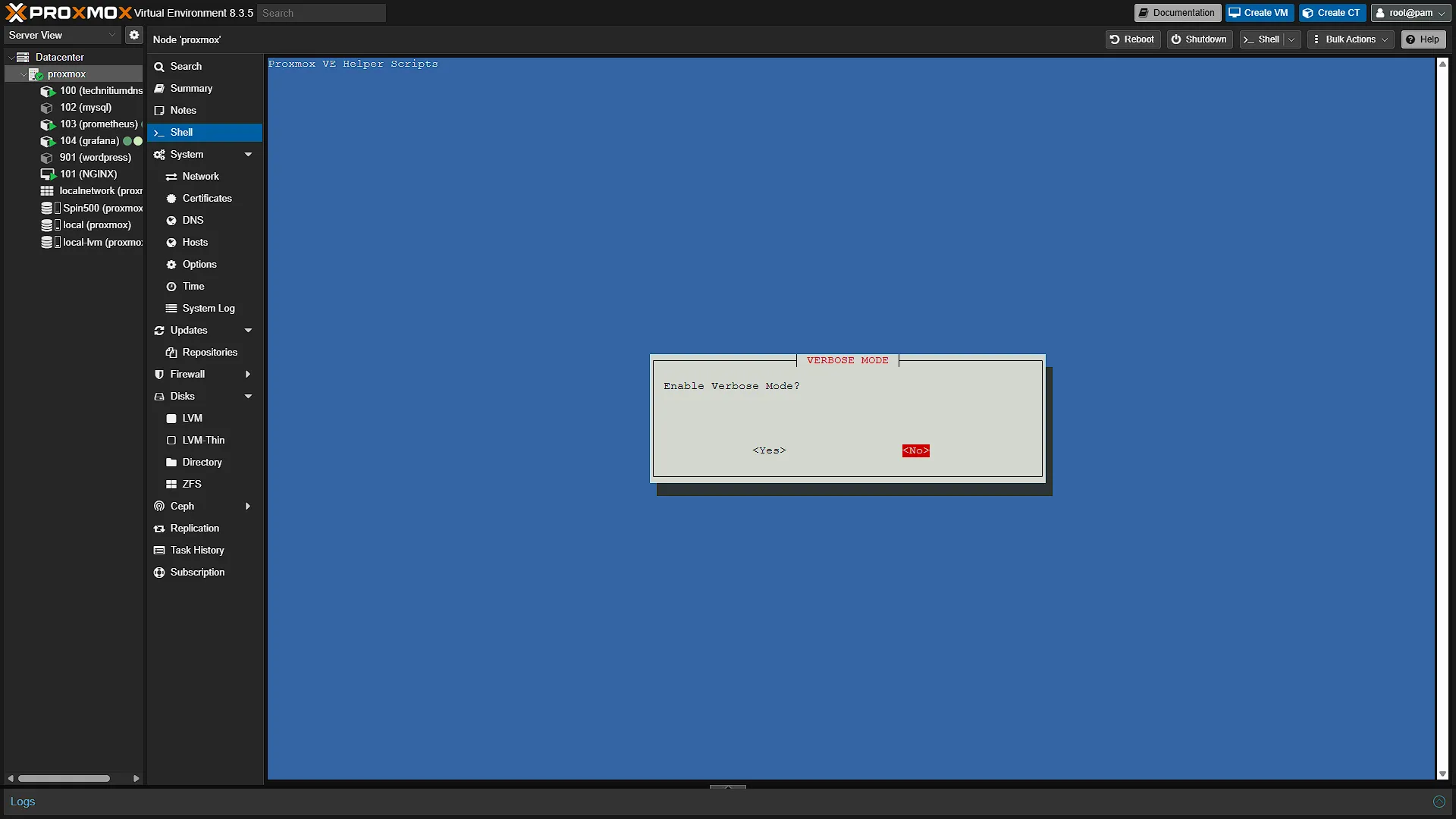
VERBOSE MODE - This will give a more detailed information as the services are busy installing. Either option is fine.
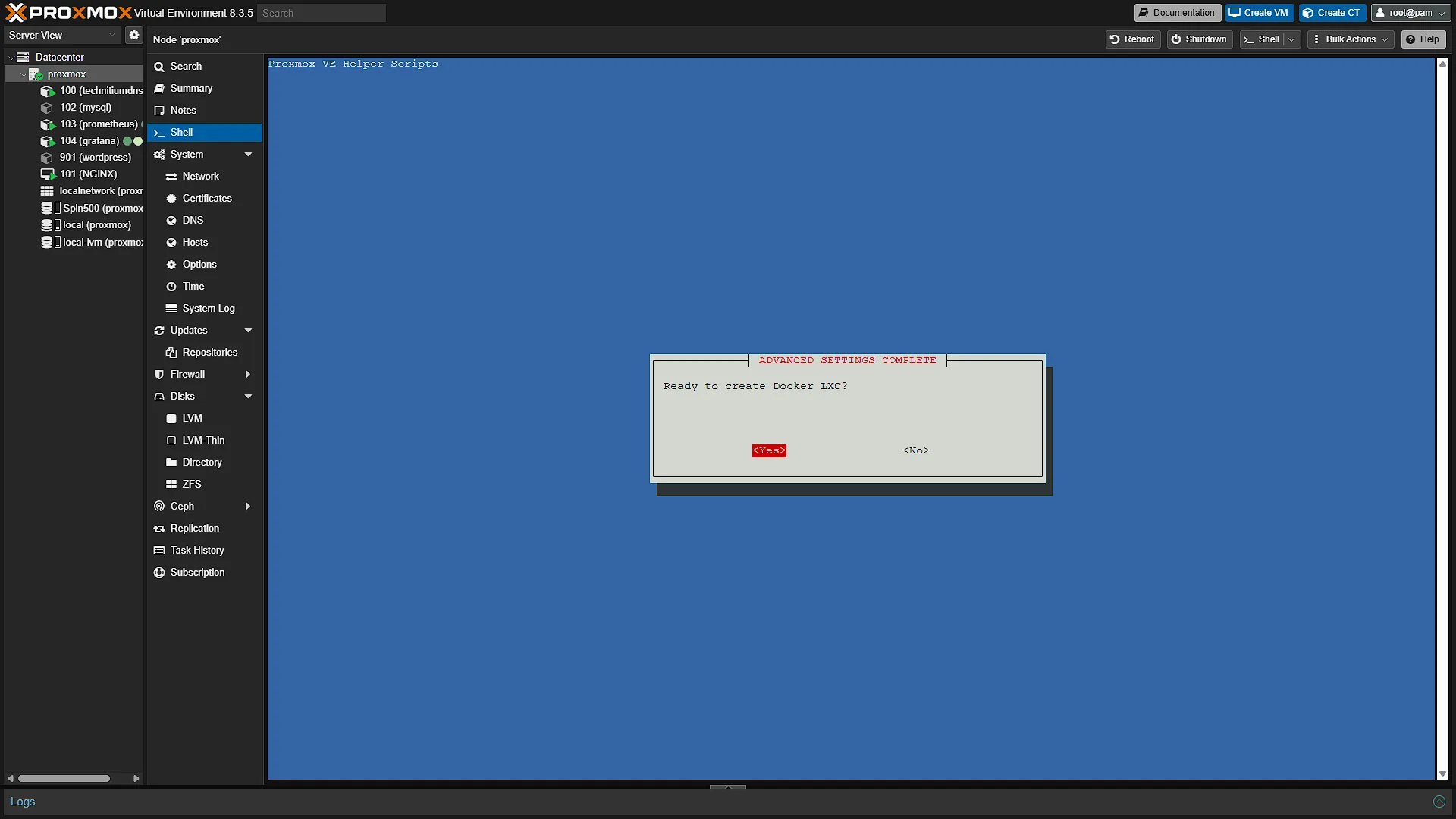
ADVANCED SETTINGS COMPLETE - If you are ready to create the Docker LXC, select yes and press enter.
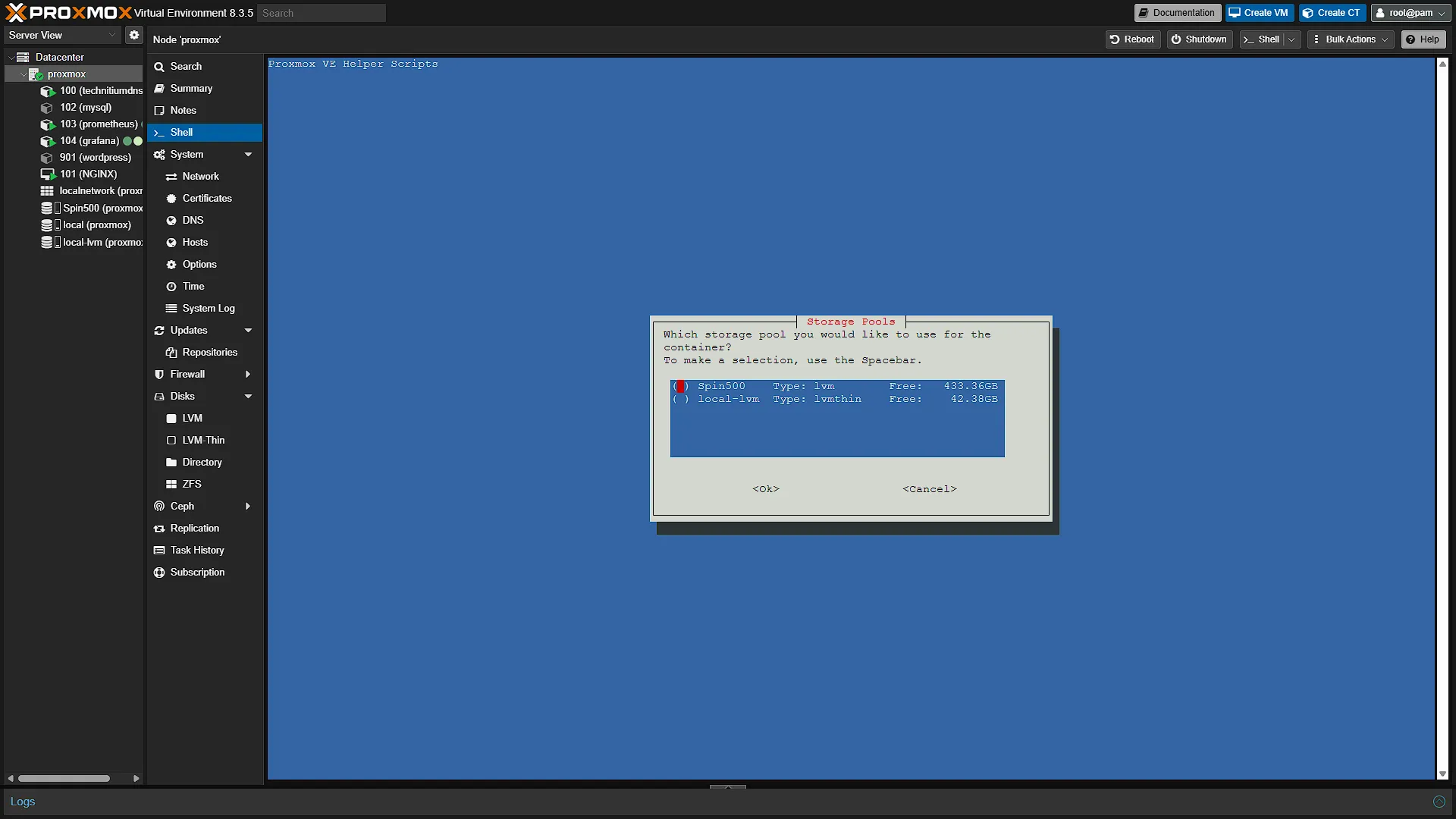
STORAGE POOLS - You will be prompted to select a disk (if you have more than one). Select the disk where you want to add the storage and press enter.
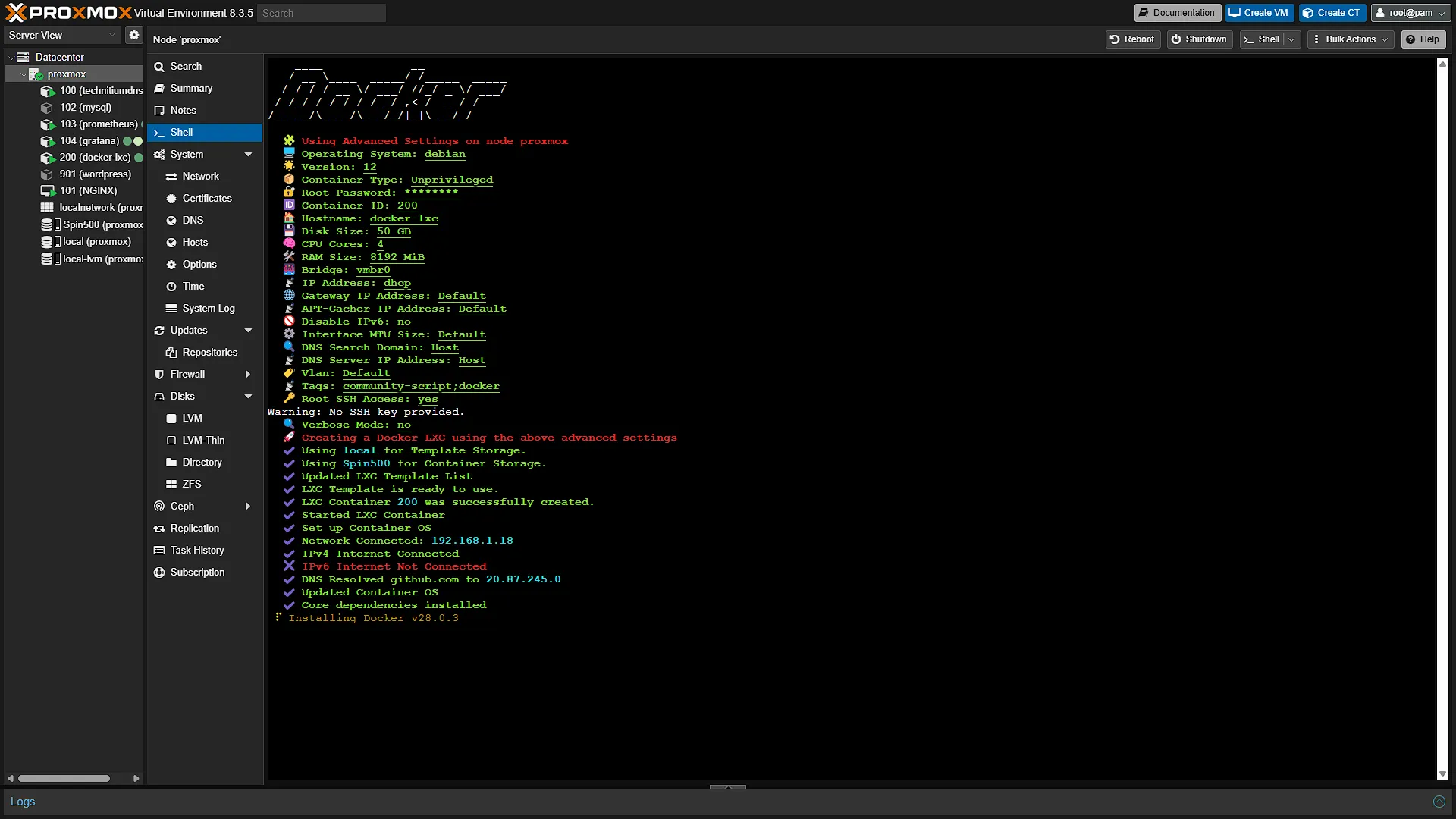
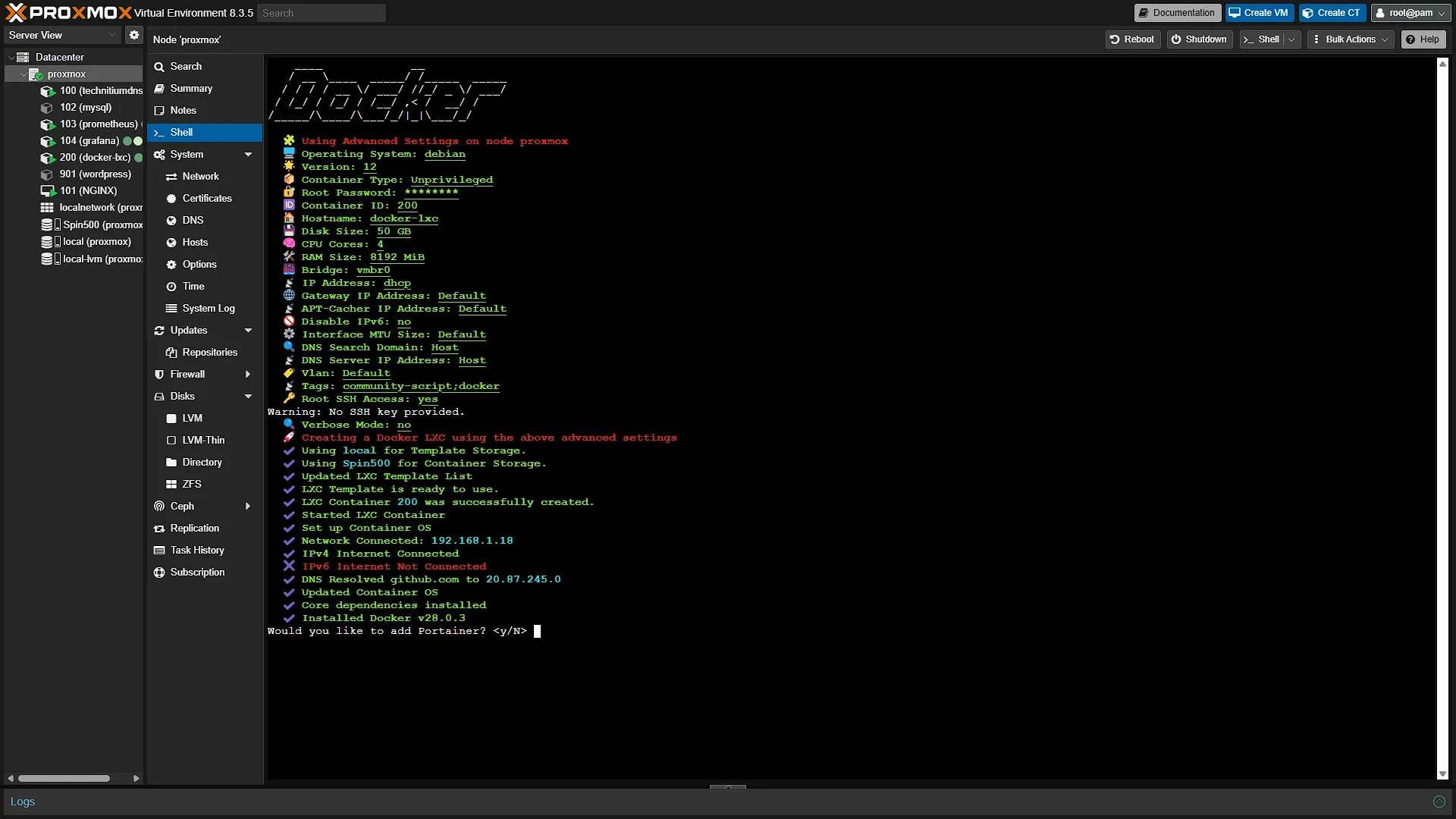
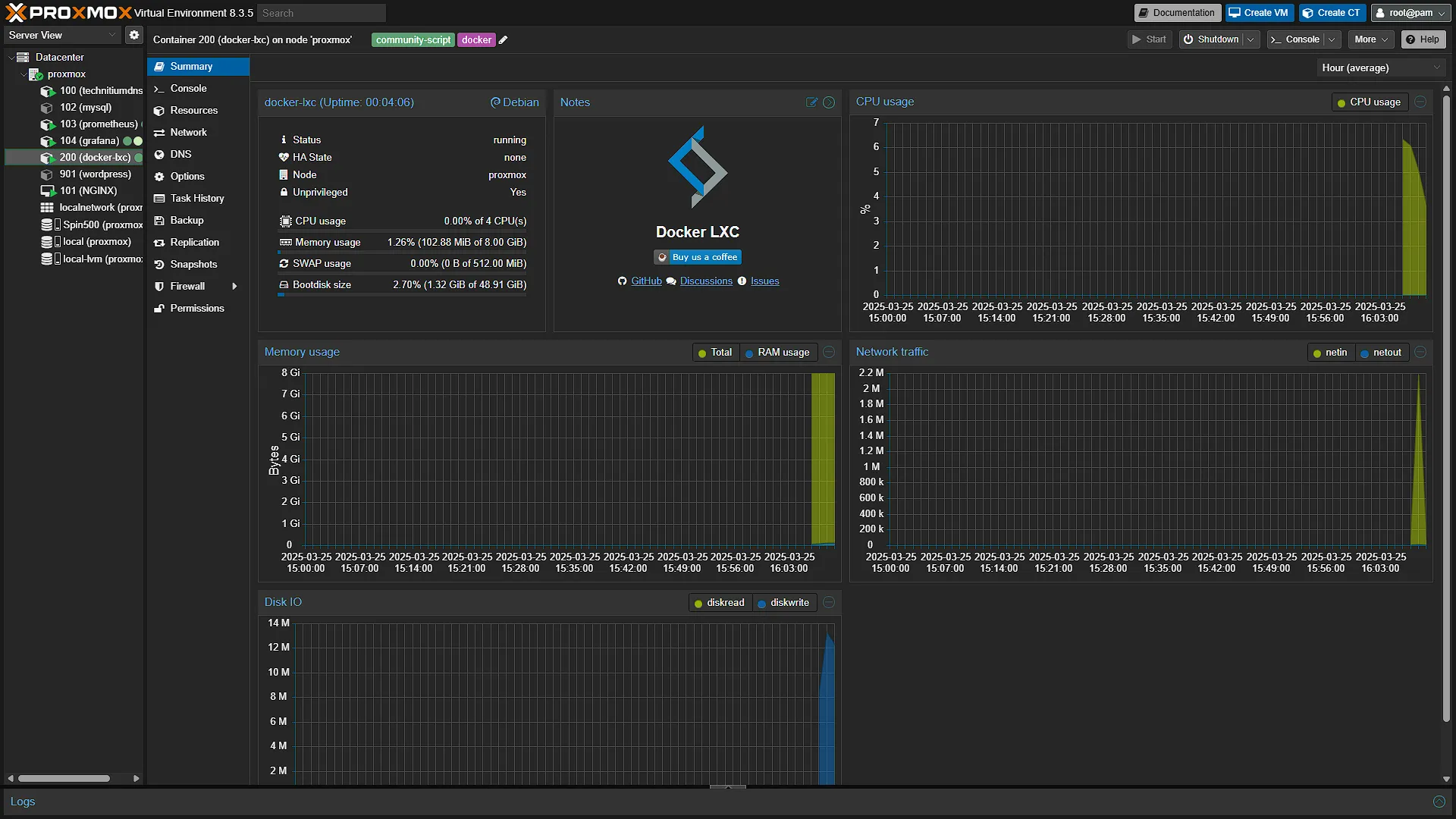
The installation will now run and take a short time to complete. Once the installation is complete, you will see the IP address of the new LXC Container. Once done you will be prompted to install Portainer as well as Portainer Service. You are welcome to install it, we will manually install Portainer in a future article, so if you want to skip ahead, select Y for both options.
Optional After the Walkthrough: Docker LXC Boundaries and Storage
The helper-created Docker LXC remains the installation demonstrated here. LXC shares the Proxmox host kernel; Docker then runs application containers inside that guest. This can be useful in a lab but has different isolation and compatibility boundaries from a VM with its own kernel. Proxmox recommends a QEMU VM for Docker application containers; Part 16 provides that alternative without requiring you to undo this completed walkthrough.
Inspect the helper's actual container configuration before changing features. Nesting and related options depend on the helper revision and guest setup. The keyctl feature is not a universal explanation of how OverlayFS works, and changing a guest to privileged is not a routine fix for every Docker error. Read the specific error and compare the running guest configuration first.
Use docker info to identify the actual storage backend. A Proxmox storage called LVM-thin is not itself the guest filesystem, and different Docker releases can use different image-storage mechanisms. Check host capacity, guest filesystem capacity and Docker usage separately. Removing an unused image does not shrink every layer of allocated guest storage or provide an application backup.
Device access, including a GPU render node, is an optional extension. Establish which host device the application needs and the guest permissions required before adding a mapping. Sharing the kernel does not make every device automatically accessible. Keep the basic Docker test working before attempting passthrough, and document each change so it can be reversed.
Before adding important application data, identify the persistent volumes or bind mounts and test their backup/restore independently. A restart policy restarts an eligible container; it does not rebuild deleted data or guarantee the application is ready.
Further reading: Proxmox FAQ, Docker storage.
Conclusion
With Docker successfully installed in an LXC container on our Proxmox environment, we now have a solid foundation for running and managing our home lab applications. This setup allows for efficient resource usage while maintaining flexibility in containerized deployments. In the next article, we’ll cover installing Docker in a Proxmox VM, providing another approach for those who prefer full virtualization. Stay tuned as we continue expanding our home lab with powerful tools and services!