In our previous article, we looked at installing Docker via an LXC Container in our Proxmox Homelab. This article will be an alternative to that article as we only need one option to run Docker, with this article focusing on running Docker in a full Virtual Machine. The choice of which to use is up to each user (check out the differences between LXC and VM)
As we previously looked at what Docker is and how it works, we can summarise it as a way for apps and services to be packed into a container in such a way that it will always run exactly the same. This is due to the app or services' dependencies, code and executables being contained in the package, meaning it will be the same everywhere we run it. Docker is also a type of virtualisation (as well as containerisation), so yes, it is a lot like Proxmox, although Proxmox has more functionalities and can create full Virtual Machines as we are doing today.
Step 1: Get the Docker VM Command
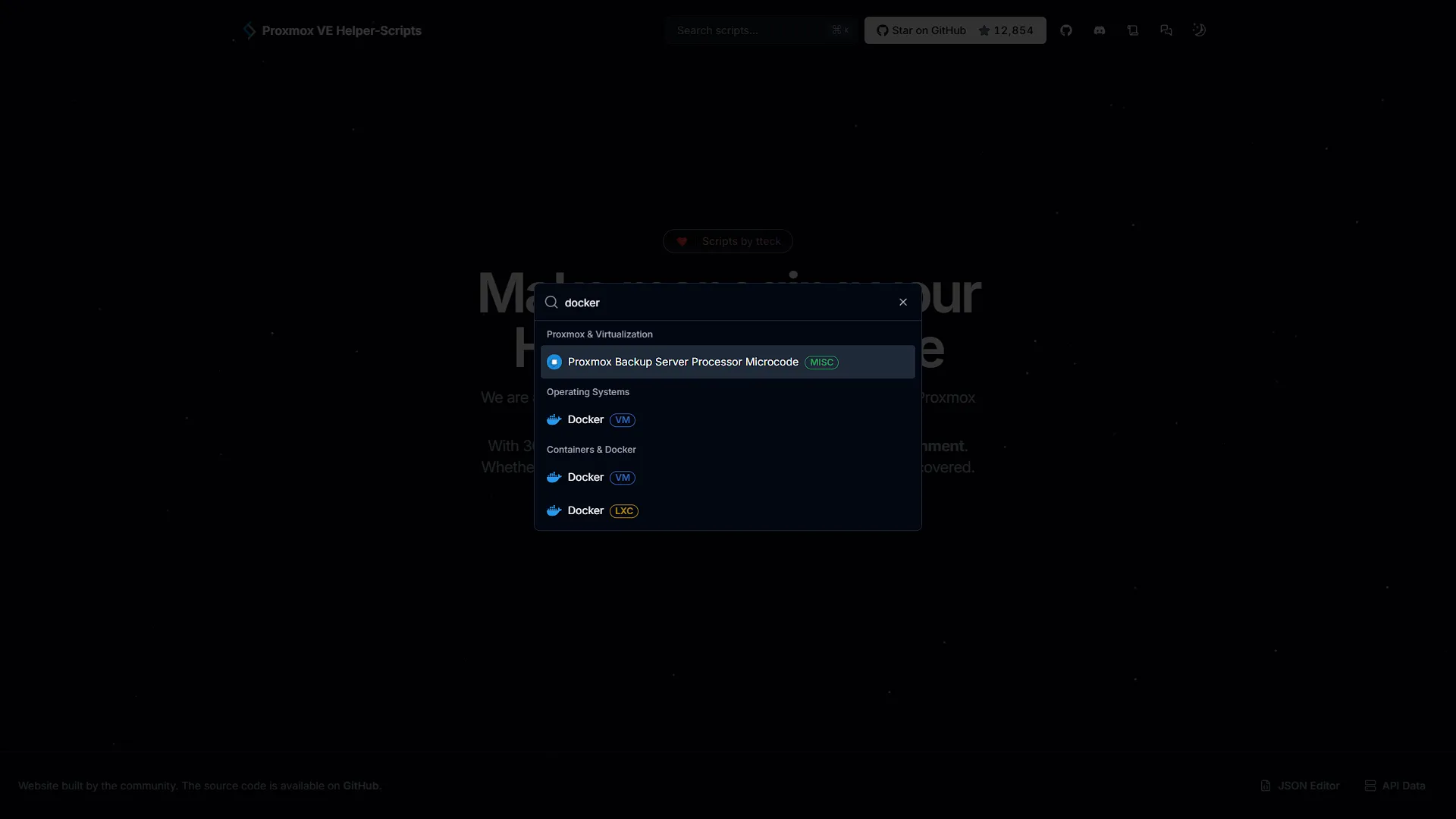
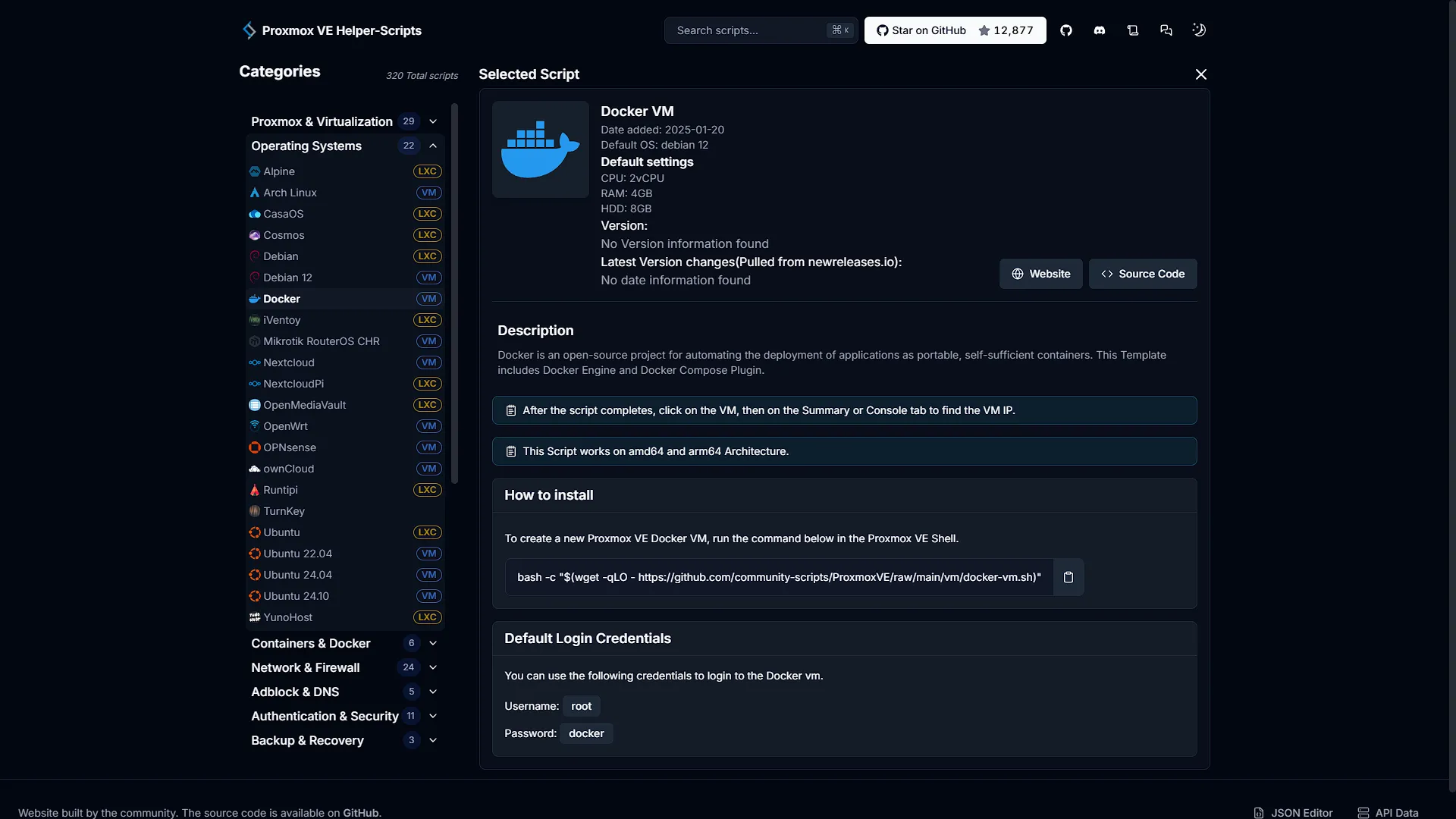
Although it is possible to create any VM you want, with its own Operating system ISO (like we did in our first VM), today we are going to take a shortcut and use our good old helper-scripts.com again. This will simplify the deployment process a lot and make it easier to understand. Firstly, go to helper-scripts.com and search for Docker. You will see two options, one for a VM and one for an LXC. Today we are going for the VM option. Open it. You will see the command we need to run, as well as default credentials and default resource values. We are going to change these default resource values during installation today, but remember that all of these values can be changed after install as well. The only value that is fixed, is the container/VM ID.
Step 2: Set Up the Docker VM
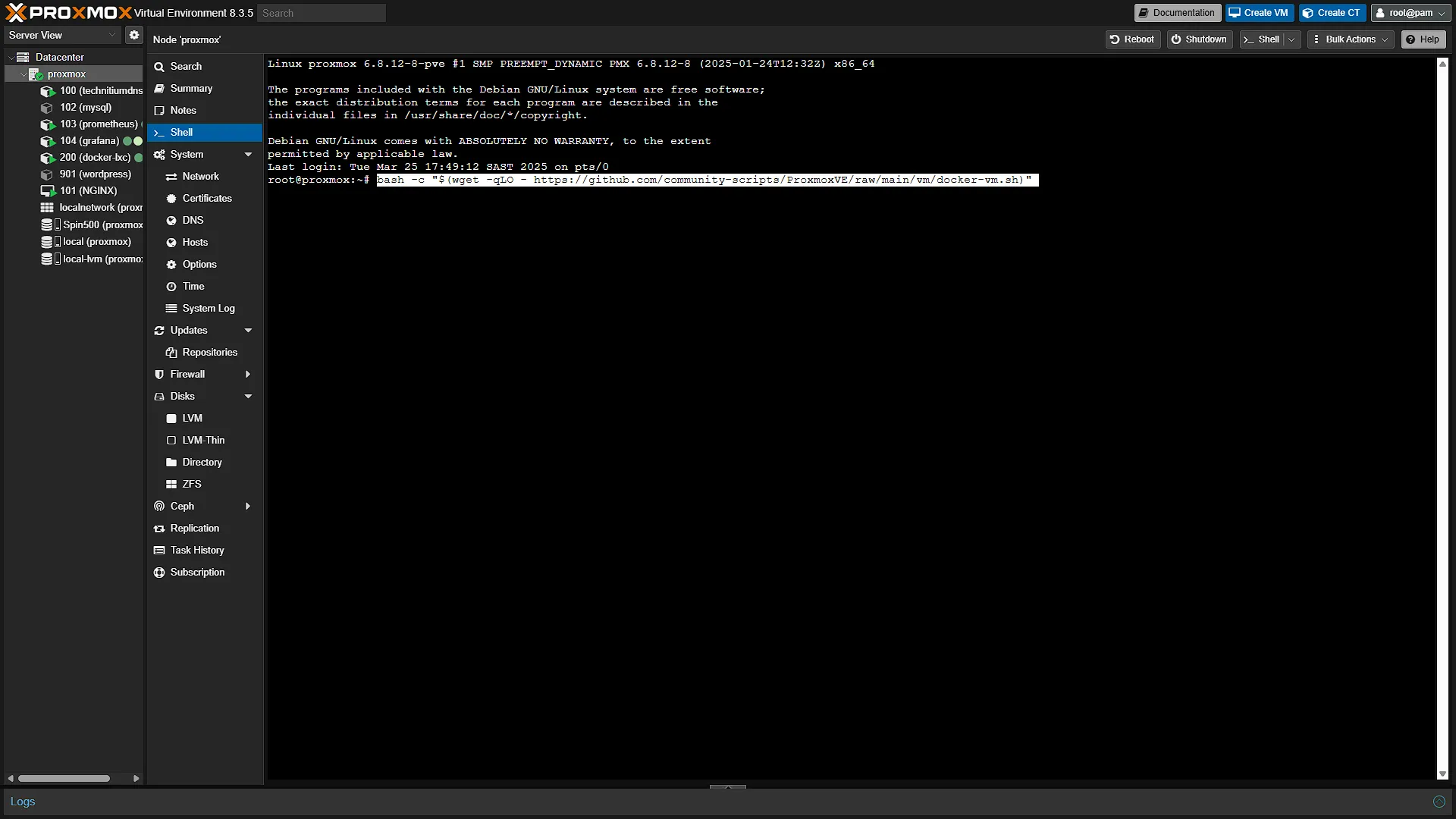
Once you have the command copied, open your Proxmox web interface and log in. In the left navigation pane expand Datacenter and select the Proxmox node you want to create the VM on. Once selected, in the middle navigation pane, click  . Paste the command from helper-scripts.com and press enter. The installation process will begin and we will go through a couple of steps:
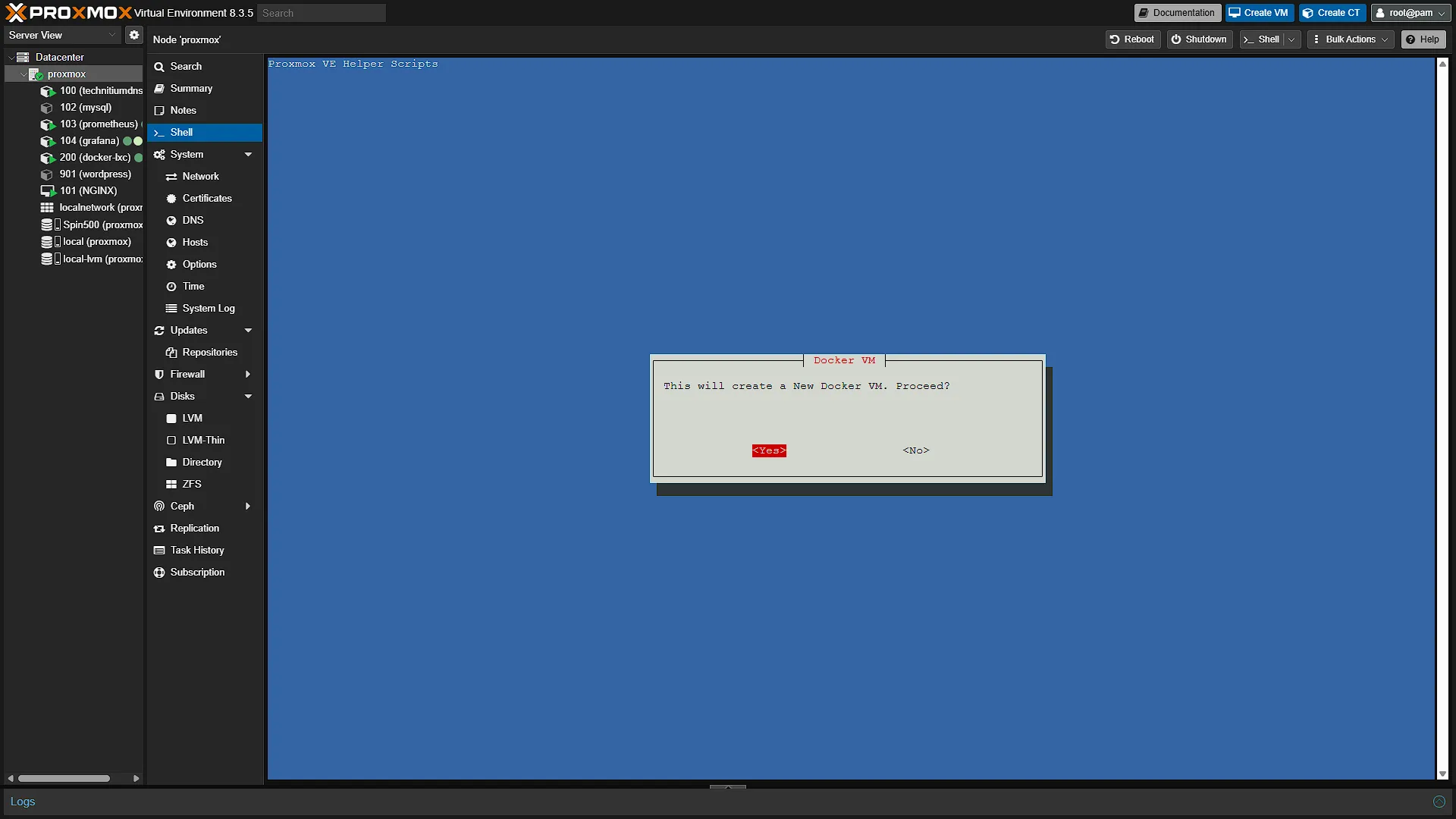
CONFIRMATION: The first screen is just an informative screen informing you that you are about to create a new Docker Virtual Machine. Press enter on <Yes>
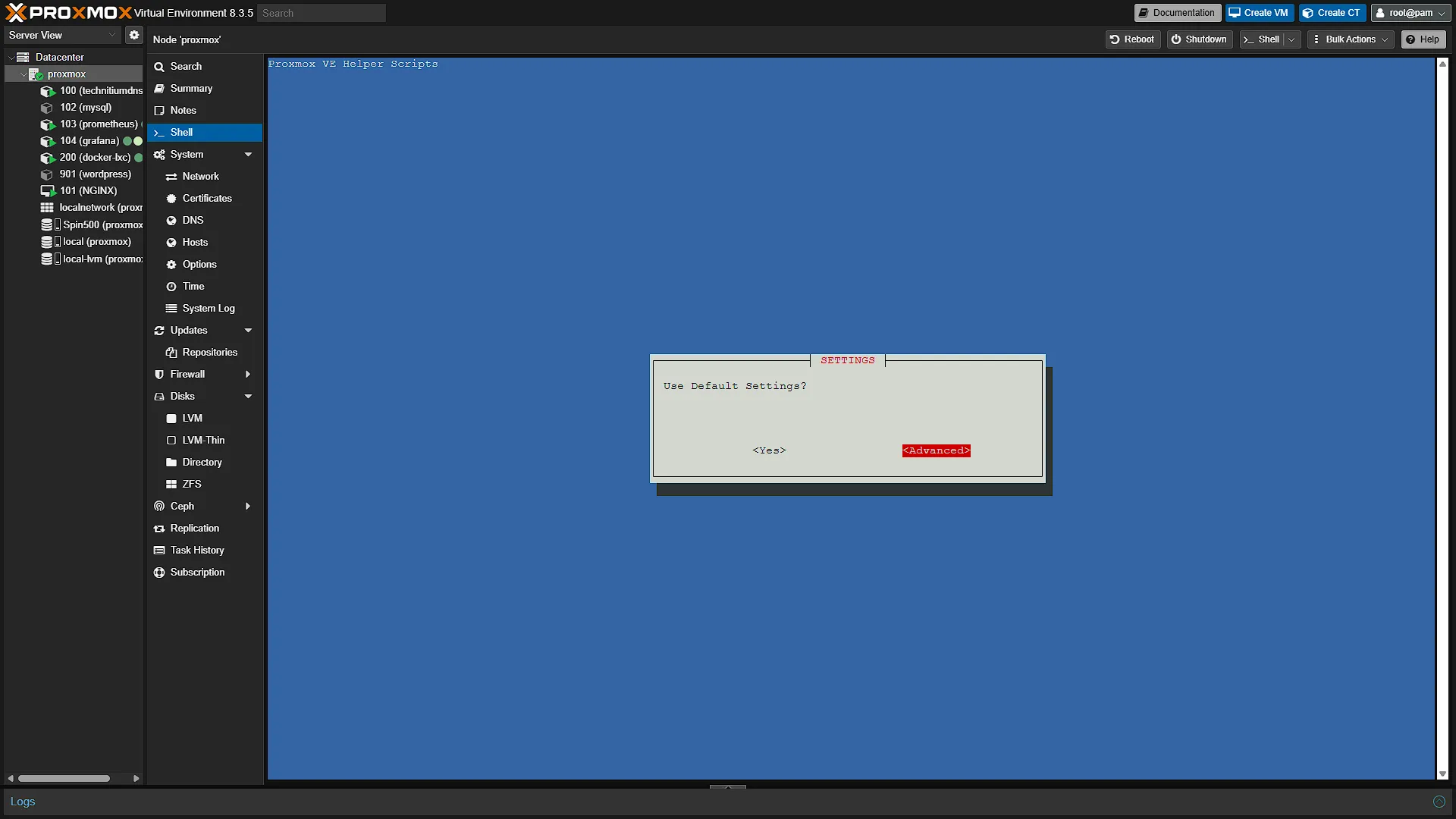
SETTINGS: Being asked if we are going to use Default Settings, select <Advanced> and press enter.
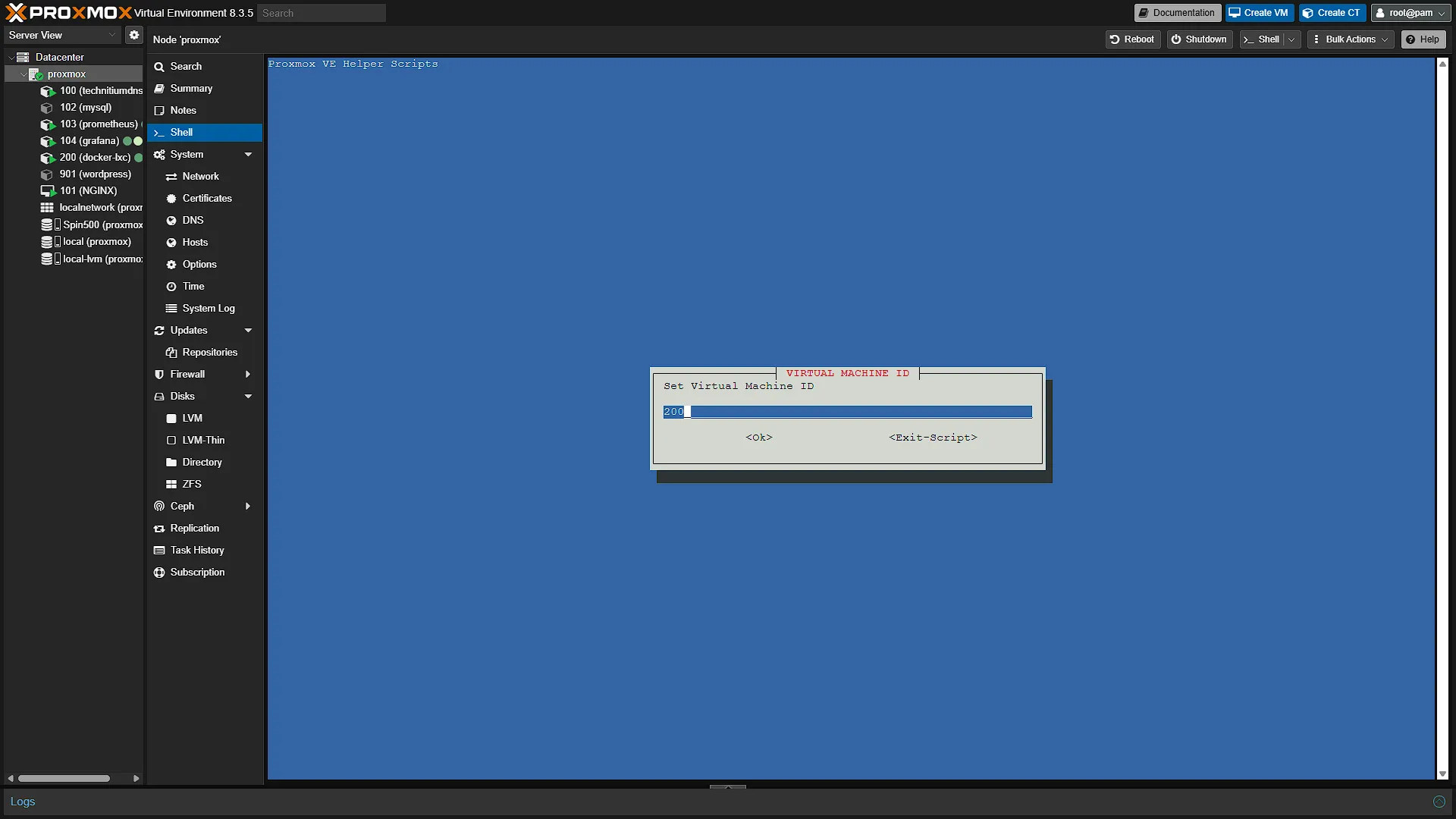
VIRTUAL MACHINE ID: We can now select a Virtual Machine ID. IDs normally go from 100 to 999, so select any ID you want. We are going to add our Docker VM on ID 200 (Same as our LXC Demo, so please select if you are using an LXC or VM). This is one of the few things one cannot edit after creation, so we need to run an ADVANCED SETTINGS install to get the ID we want.
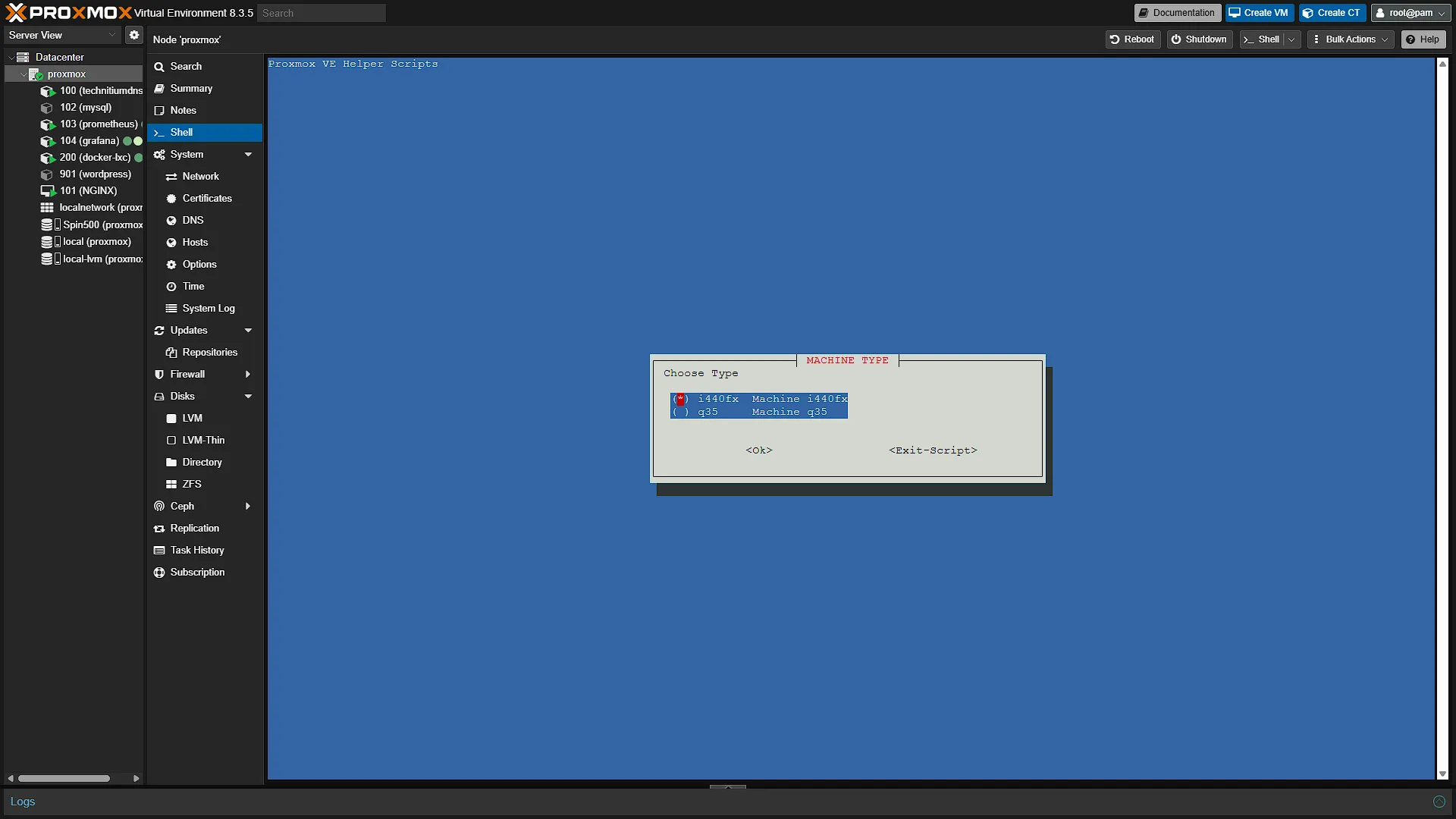
MACHINE TYPE: Select the top option i440fx with spacebar and press enter. We will go into more detail about the differences in a future article, but the differences are negligible to be honest.
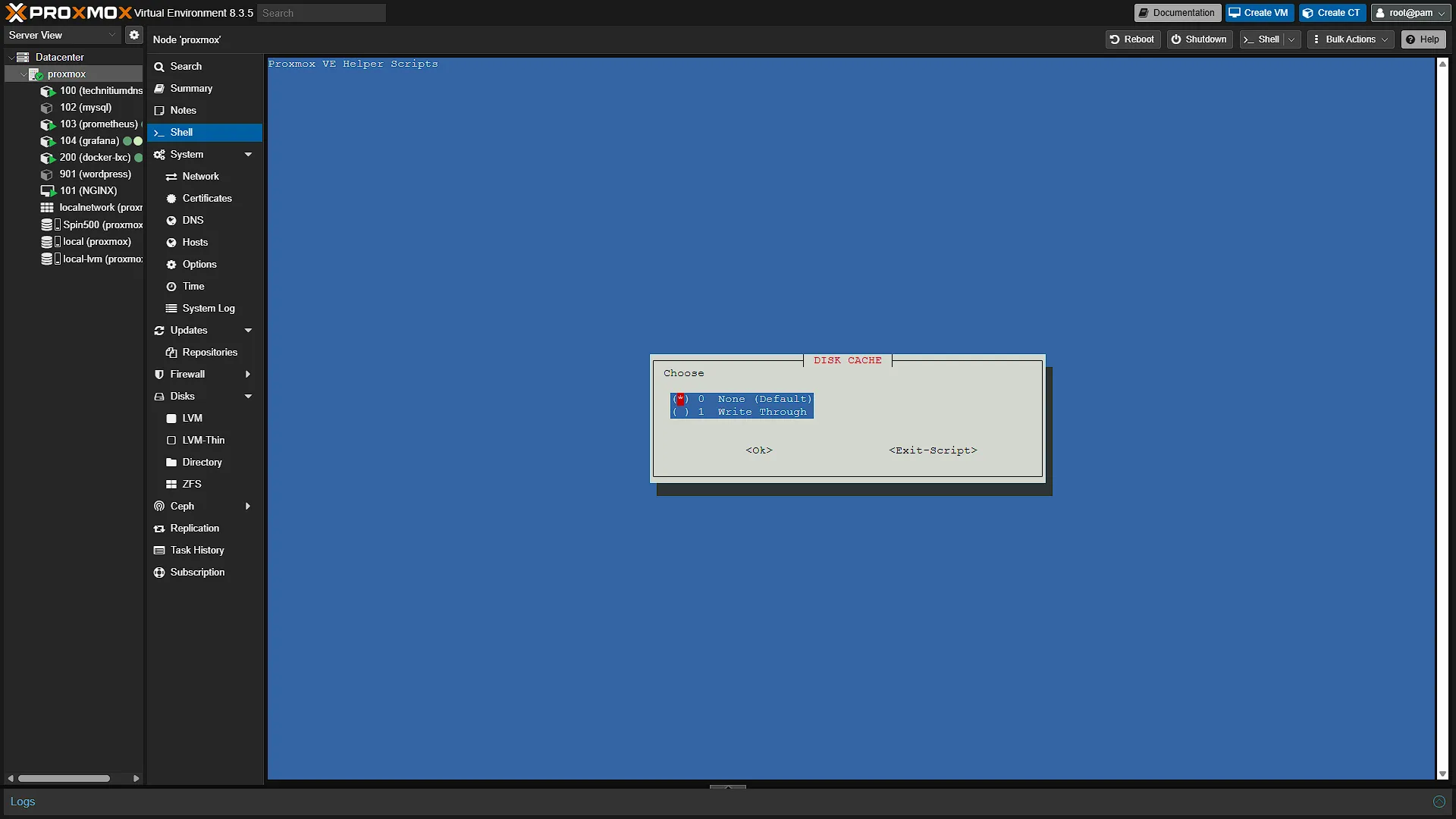
DISK CACHE: Select the top option None (Default) with spacebar and press enter.
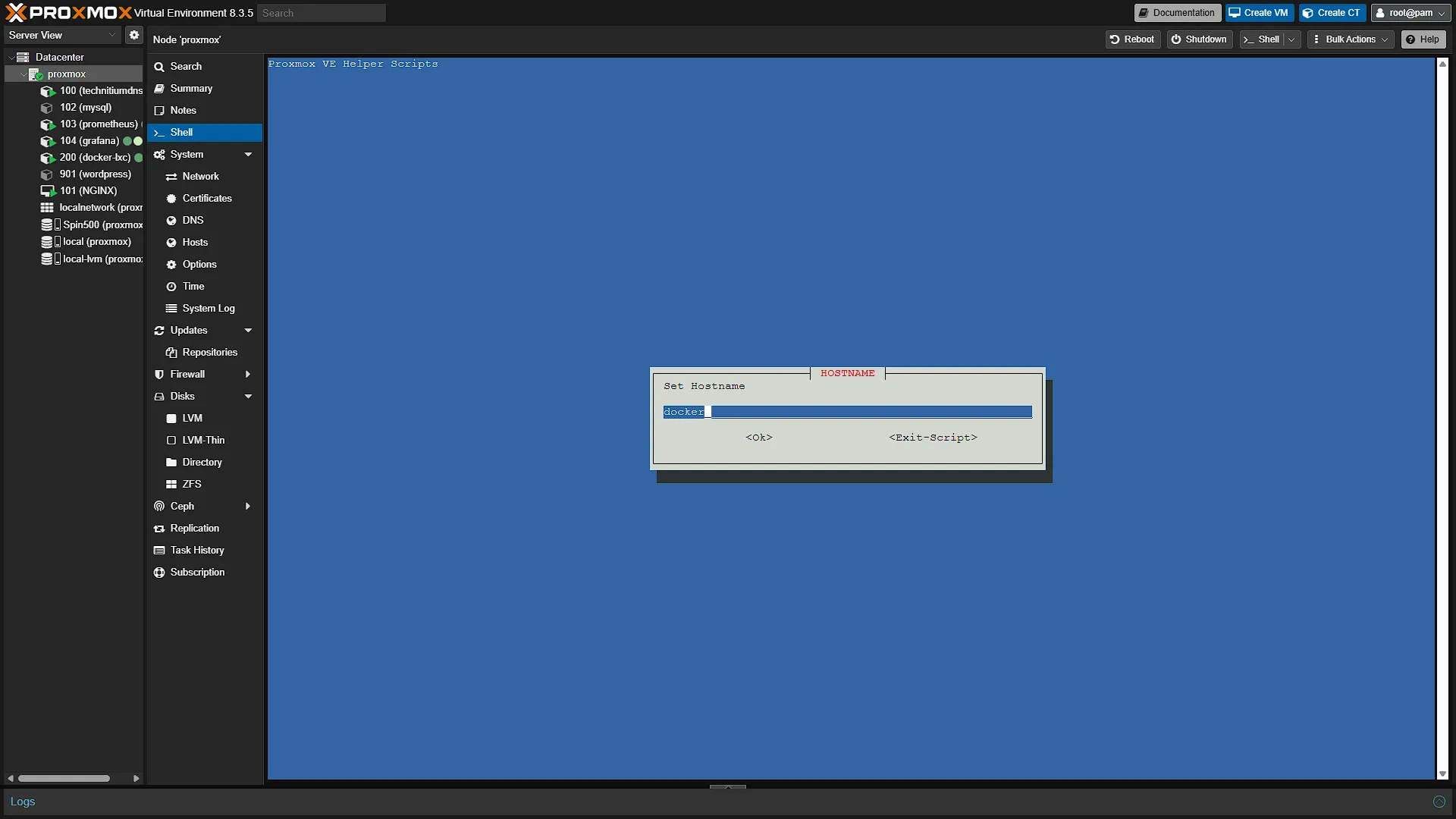
HOSTNAME: Select the hostname that this VM will identify itself with. The default is docker, and that is fine as is.
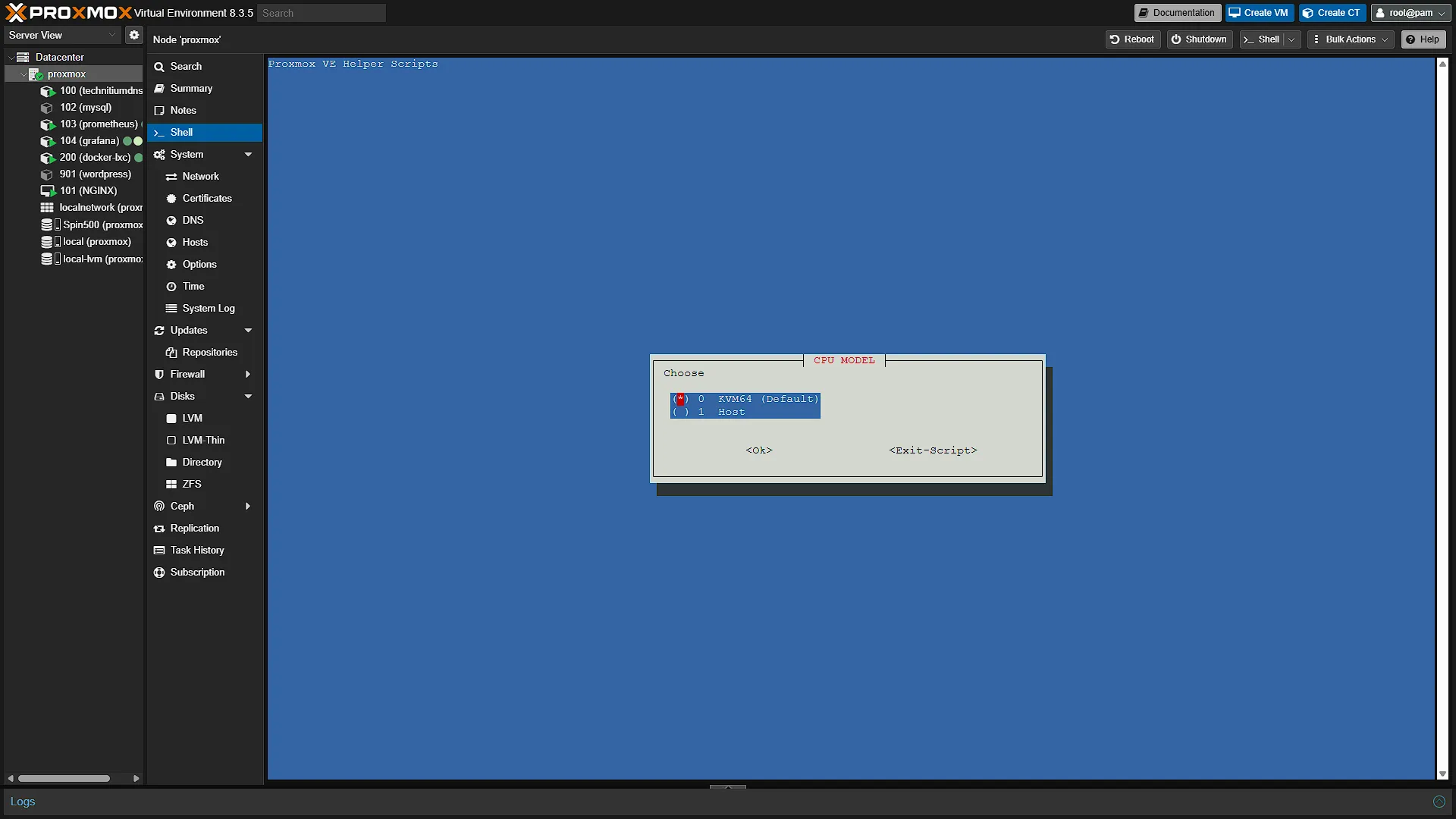
CPU MODEL: Is this VM going to use virtualisation (option 0 - KVM64) or have full access to the entire machine's CPU (Option 1 - Host). We like to isolate resources, so go with KVM
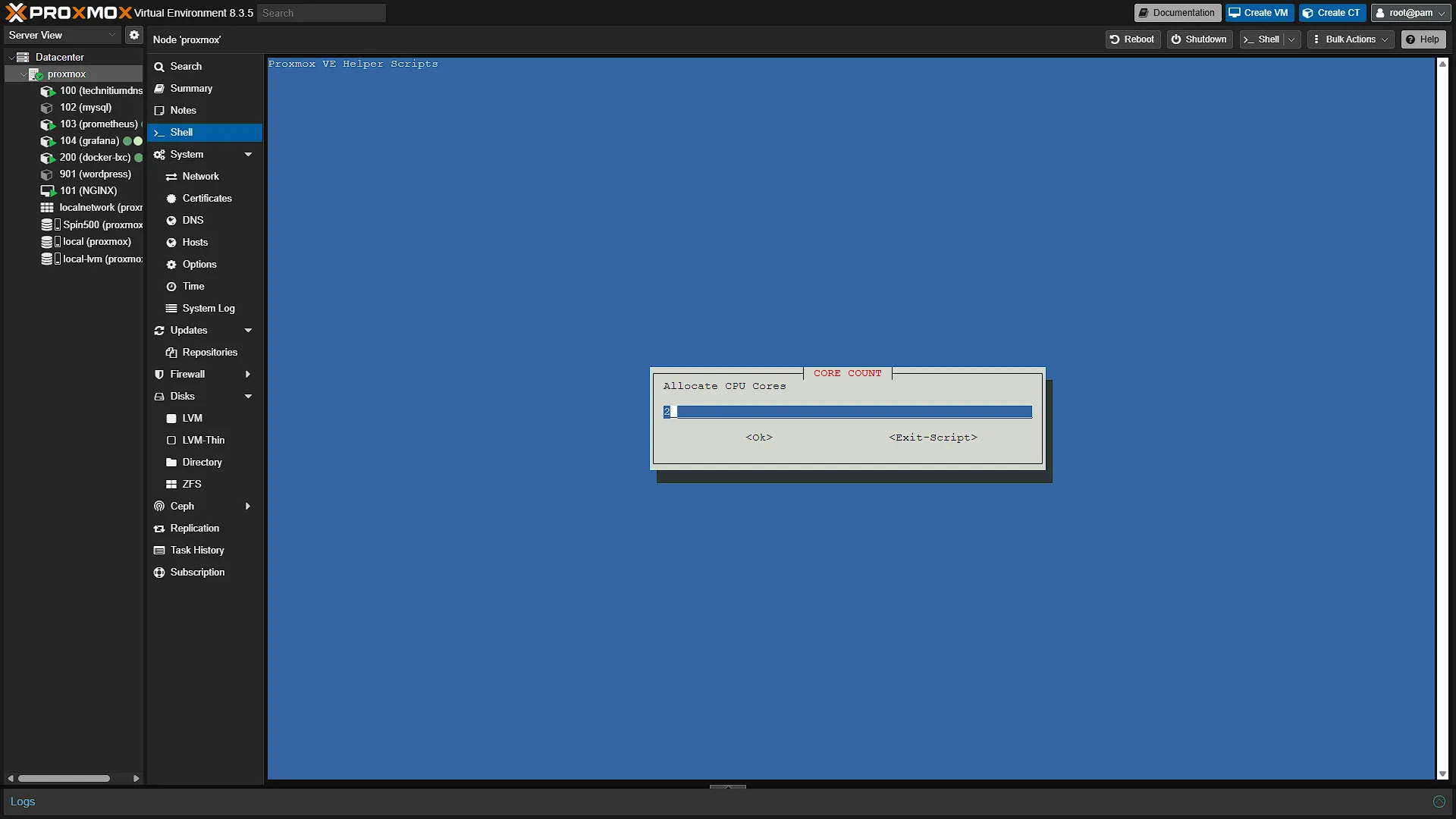
CORE COUNT: Here we assign the (maximum) CPU cores the installation can use. We are going with 4 so that we can run multiple Docker Containers without problems.
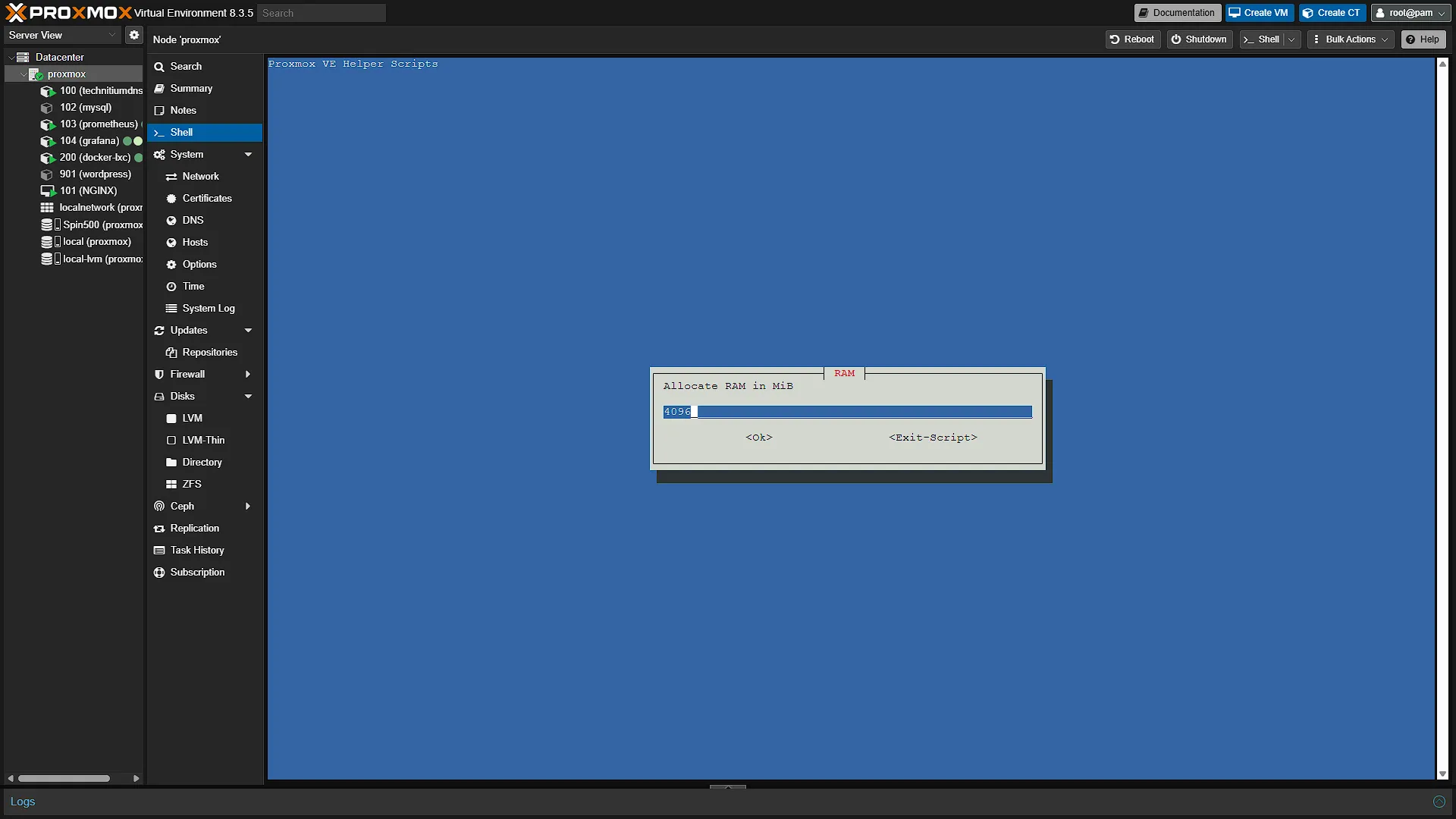
RAM: Assign the maximum allocation for RAM Memory. We are going with 8GB.
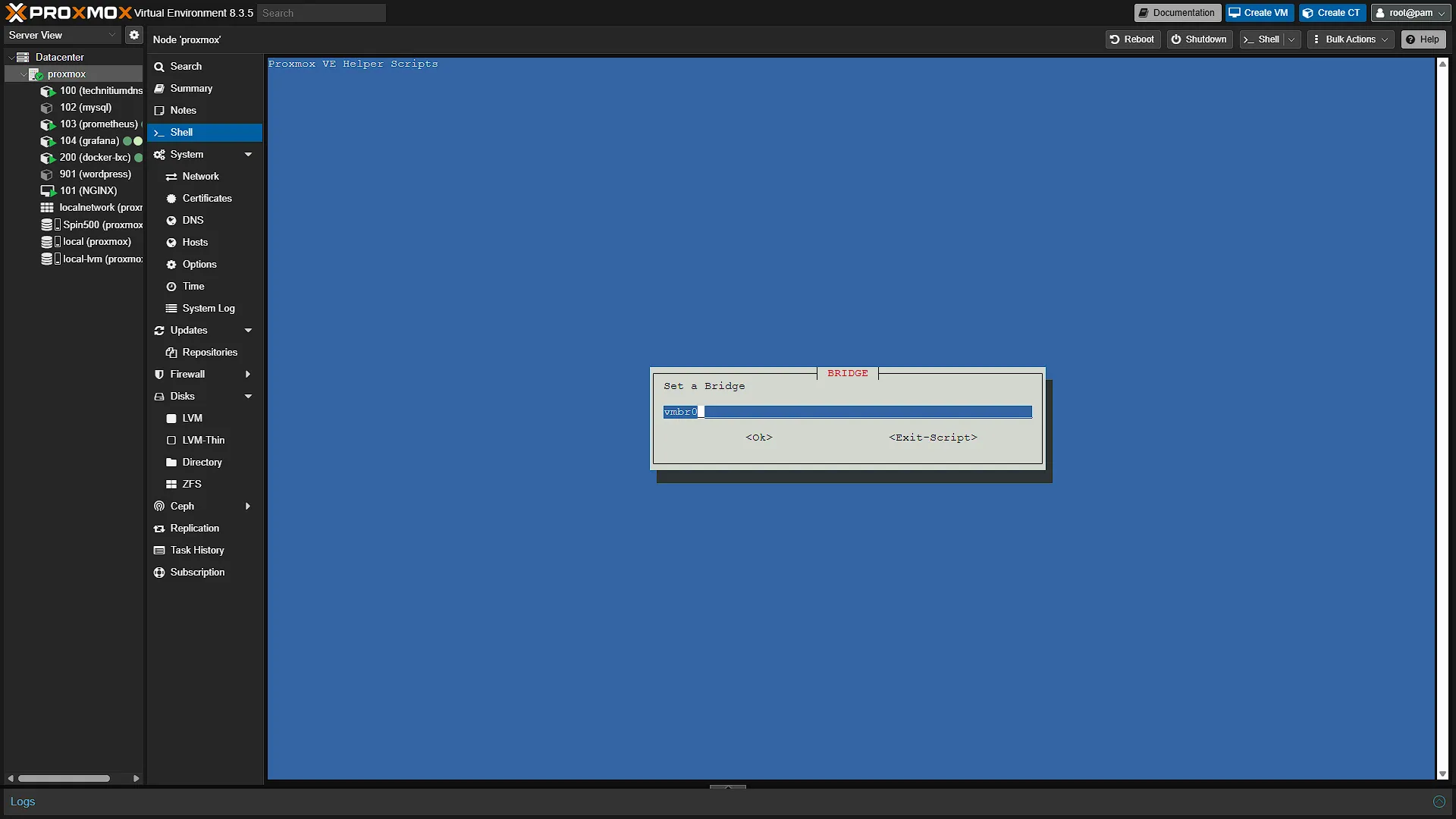
BRIDGE: The bridge is a network bridge for this VM. Leave as default and press enter.
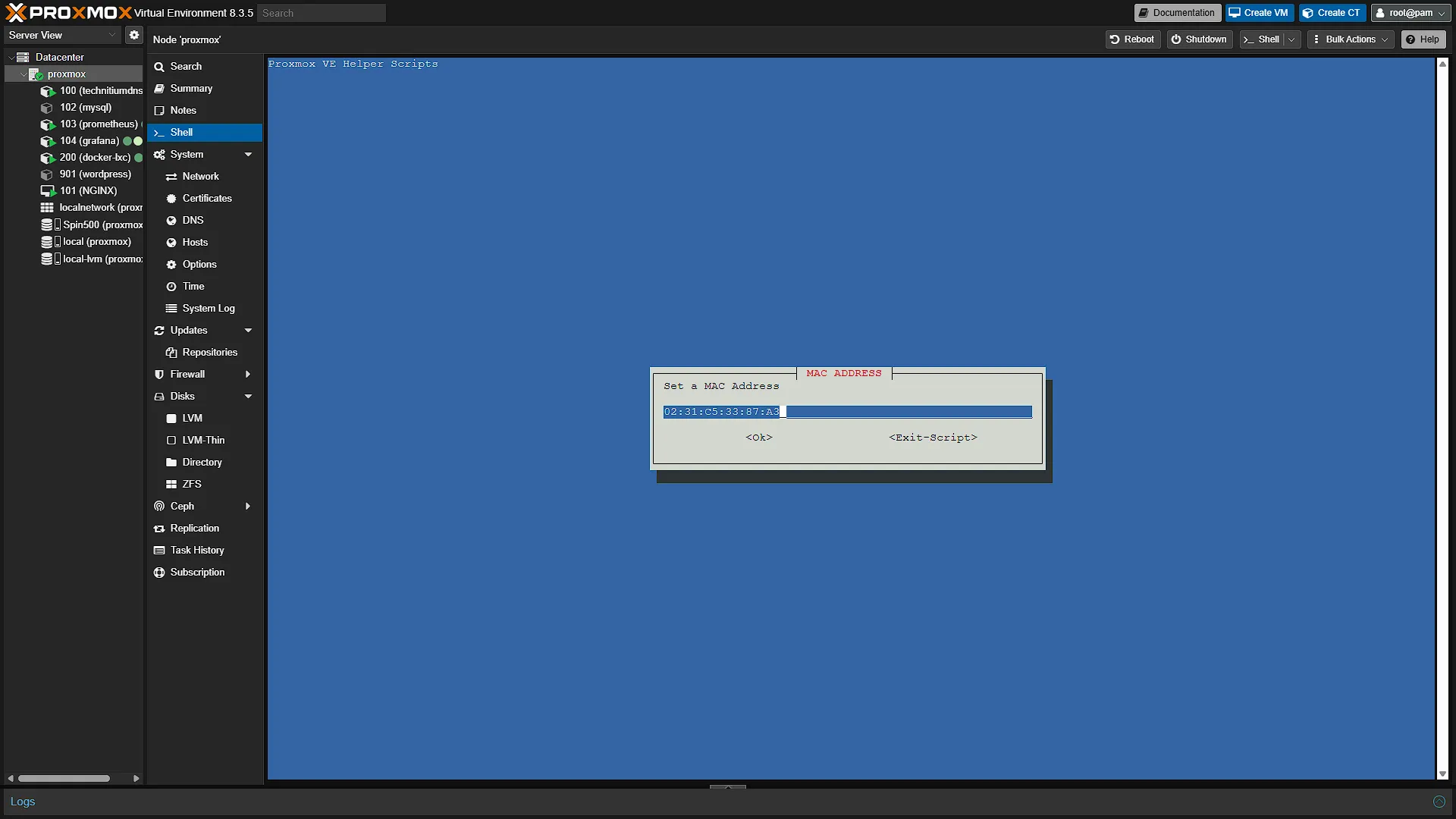
MAC ADDRESS: We need to add a MAC Address for this network Interface. Leave it with the populated value and press enter.
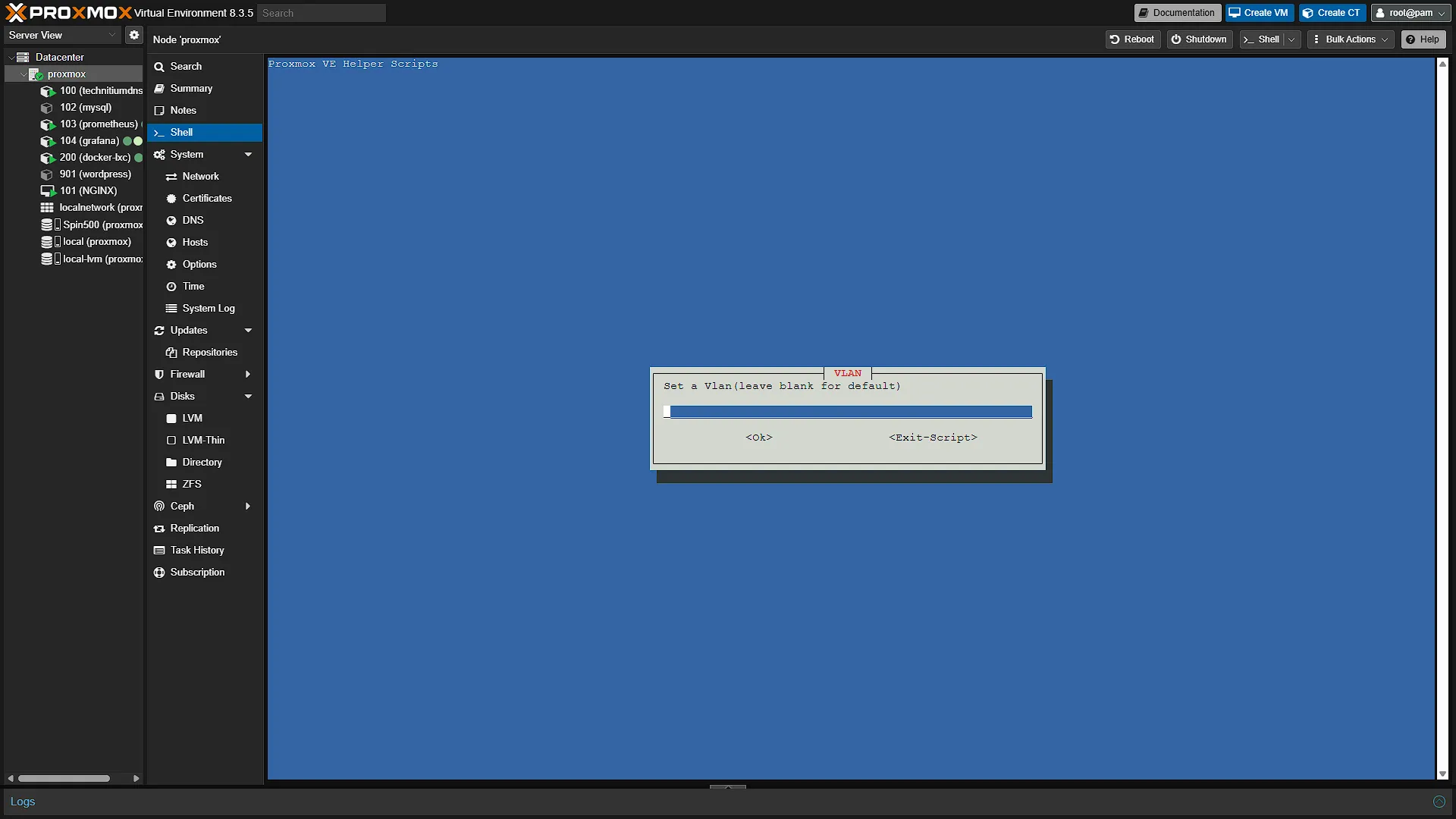
VLAN: If you are unsure of this option, just leave it blank and press enter. If you want this VM to run on a separate VLAN, you can enter the VLAN ID here and press enter.
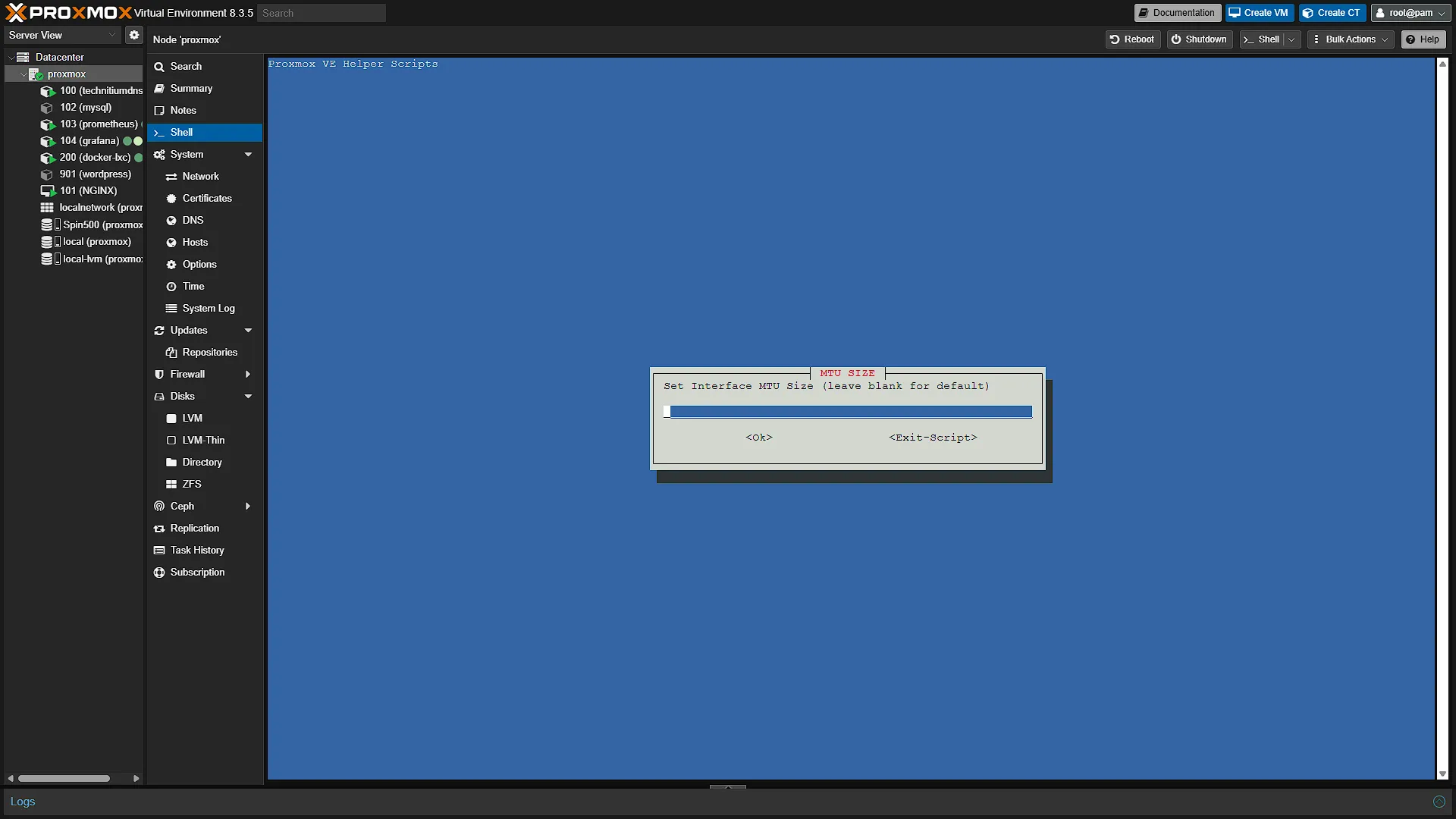
MTU SIZE: Just leave the default MTU size (blank) and press enter.
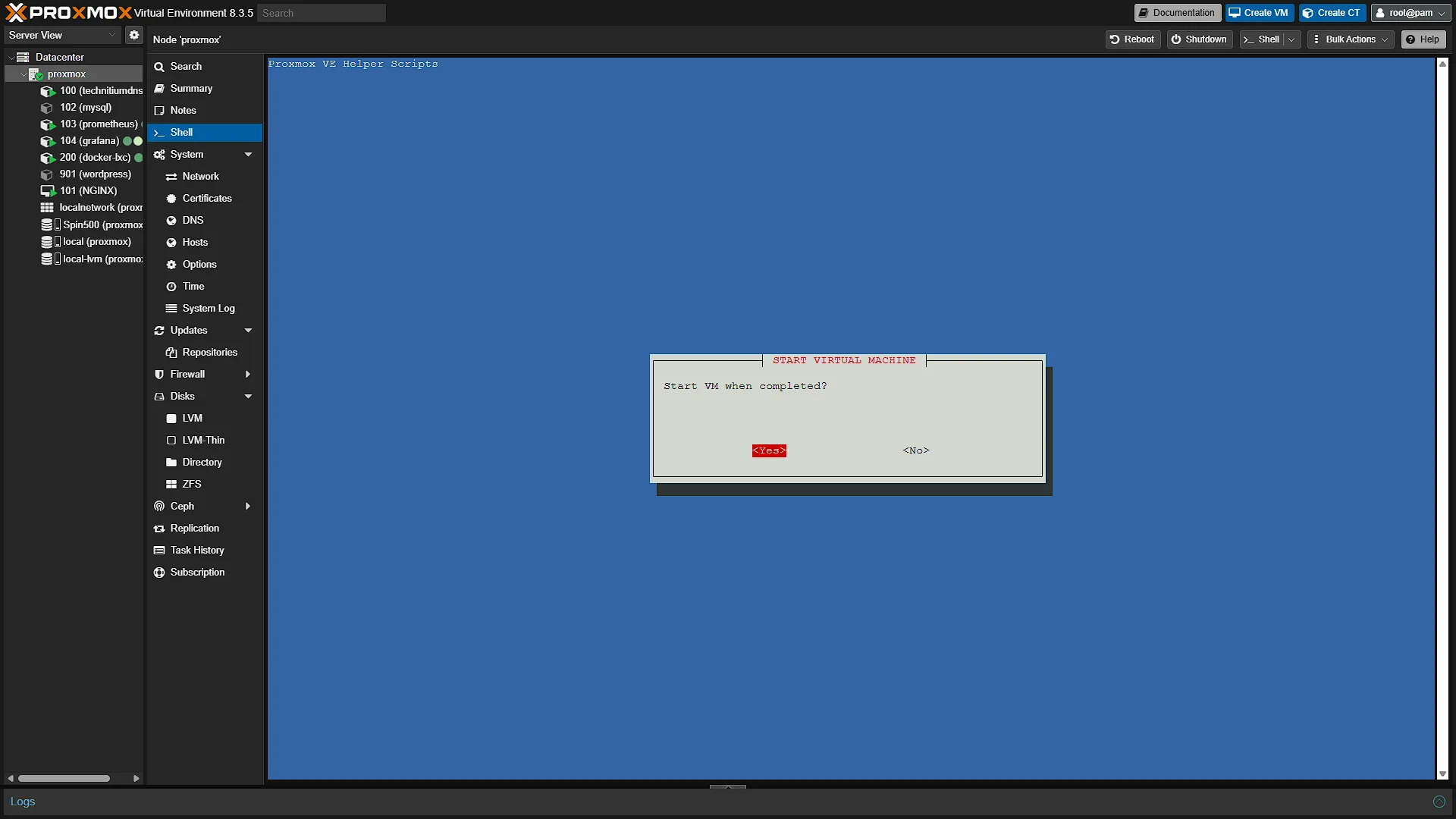
START VIRTUAL MACHINE: Do we want to start the VM once completed. Yes we do. Select yes and press enter.
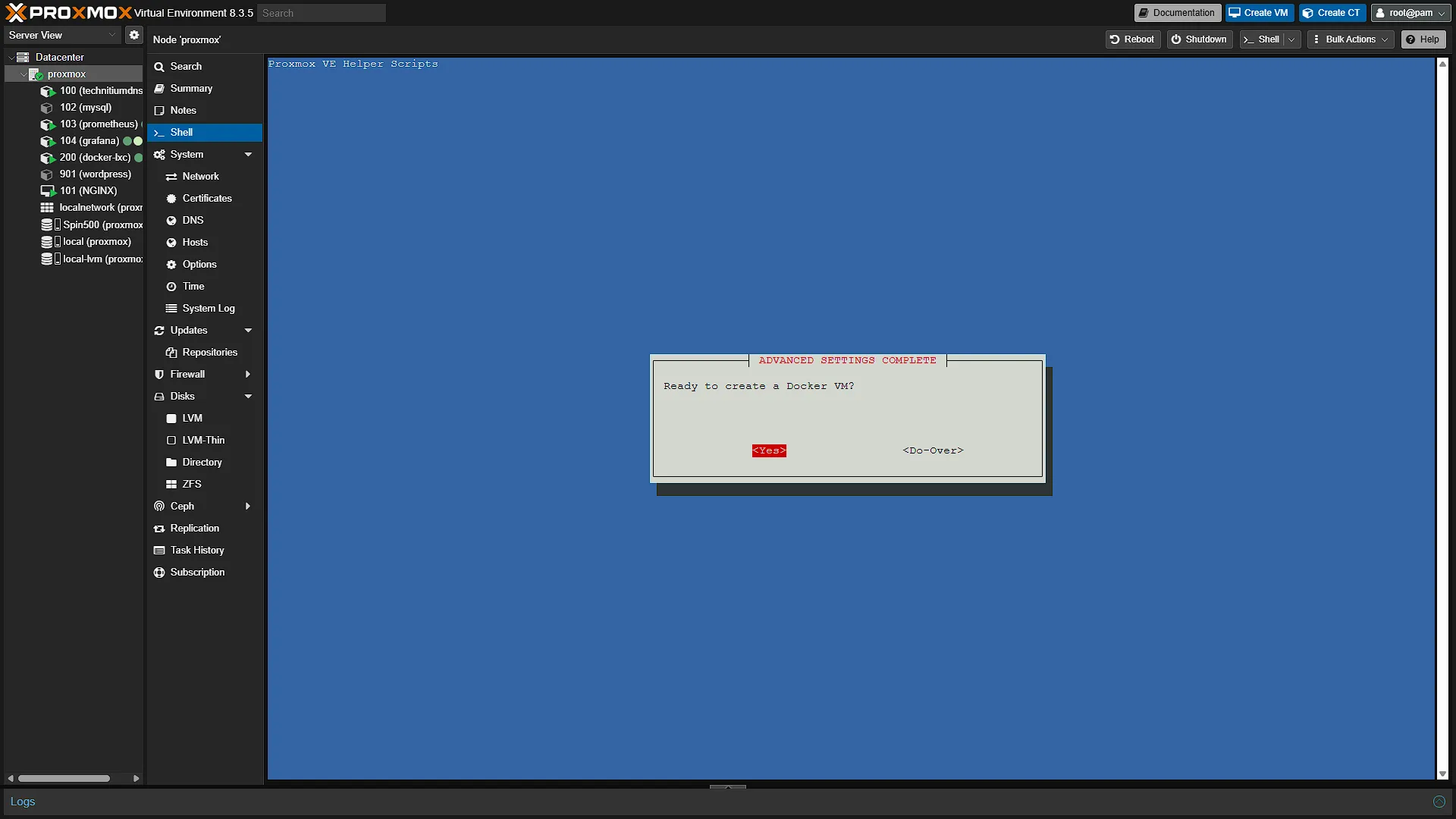
ADVANCED SETTINGS COMPLETE: This is just a confirmation that we are ready to create the VM. Select Yes and press Enter.
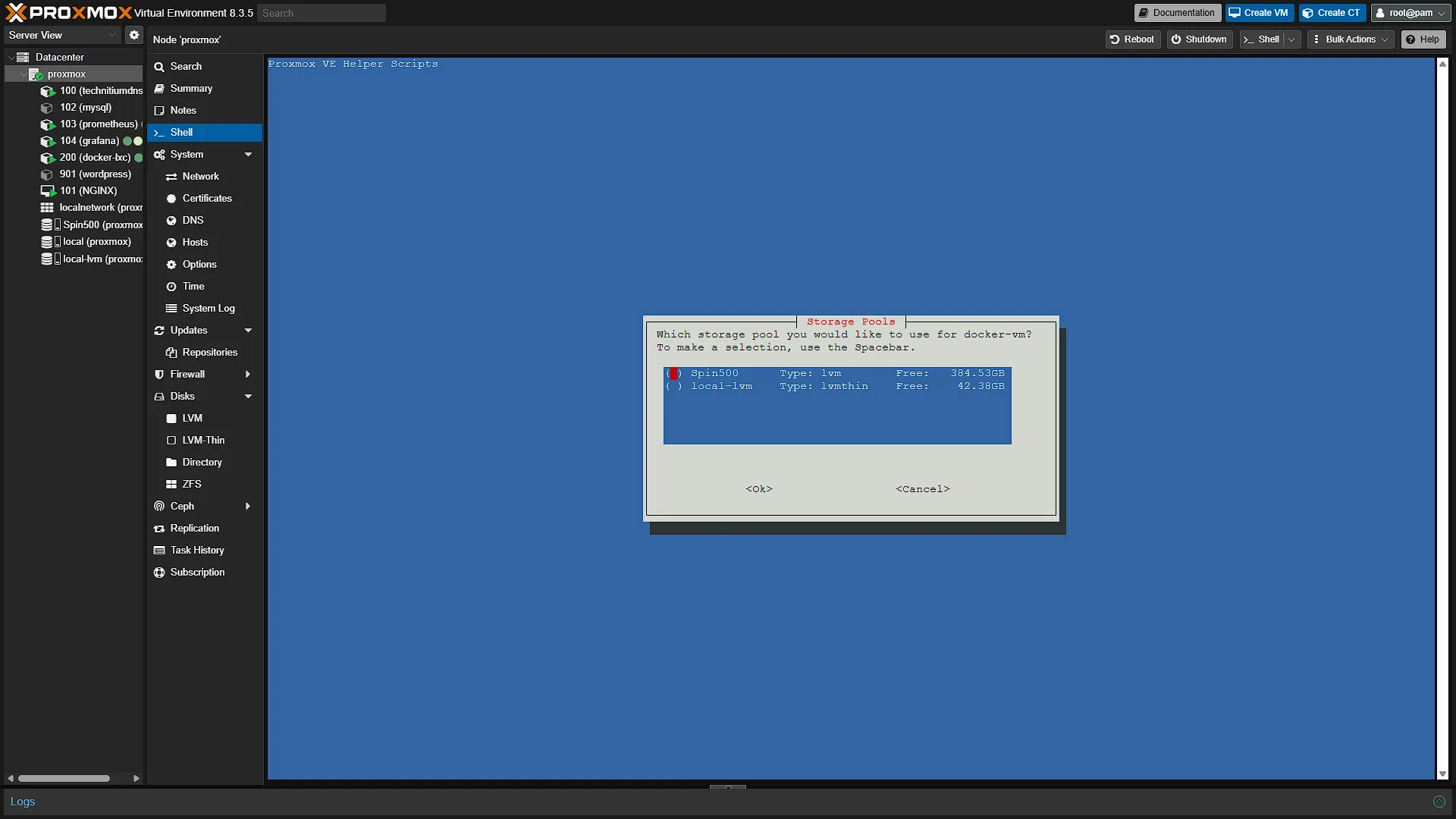
STORAGE POOLS: You will be prompted to select a disk (if you have more than one). Select the disk where you want to add the storage and press enter.
The installation will commence and take a bit of time to complete. Once done, we will be able to change the disk size allocation of this VM, seeing as we did not get that option with the Advanced Settings
Optional After the Walkthrough: Disk Growth and Deployment Choices
Keep the demonstrated VM hardware settings for this installation. The LXC in Part 15 and VM here are alternatives; if copying their example ID, make sure it is not already in use. A VM has its own kernel, while an LXC shares the host kernel. Choose based on workload requirements and isolation rather than assuming a fixed performance advantage or memory figure for every system.
Disk growth is optional. First back up the VM and record its current virtual-disk size, partitions and mounted filesystem. The Proxmox Resize Disk dialog asks for an increment, not necessarily the desired final capacity. Enlarging that virtual disk does not guarantee that the guest partition, logical volume and filesystem have all grown.
lsblk -f
findmnt /
df -h /
These read-only checks help identify the layout inside the guest. Do not assume the root filesystem is /dev/sda1. It may be on another device or an LVM logical volume. Follow the resize procedure for that actual layout and filesystem; ext4 and XFS do not use the same expansion command. The separate resource-adjustment guide provides further context.
After expansion, check both the guest filesystem and Docker's available space, then perform a small application write. If the guest still reports the old capacity, diagnose the remaining partition or volume layer before repeating a resize. A failed filesystem operation should not be answered with another guessed device name. Keep the backup until the VM and applications have been verified after a reboot.
Resource comparisons are best made with the same actual workload. Allow space for Docker images, temporary unpacking and persistent application data, and retain enough host memory for Proxmox and other guests.
Further reading: Proxmox VM disk resize.
Conclusion
We have now gone through the options to get Docker installed on a VM as well as running in an LXC Container. Whichever option you choose, we can now start deploying Docker Containers to our Homelab. This enables us to run a myriad of apps and services at home which would normally cost a subscription fee, or risk our data being leaked. Running our services and apps at home ensures privacy and data safety, is free, and above all is a lot of fun! We hope you are enjoying our Build your own homelab series so far, stay tuned for a lot more instalments of the series.