Now that we have a way of running Docker Containers in our Proxmox environment, we can start running some fun and interesting services and apps. Whether you are running Docker via an LXC Container, or running Docker on a dedicated VM, the steps from now on will stay the same. The choice of which to use is entirely up to you, based on the differences of an LXC container and a VM in Proxmox. If you are following along with our Build Your Own Homelab series, you will know we try to make each step as easy as possible for users of any experience levels to follow along. With this in mind, we have to get a way to make Starting and Running Docker Containers easier. That is where Portainer comes in.
What is Portainer
Portainer.io is a lightweight, open-source container management platform designed to simplify the deployment, monitoring, and maintenance of containerized applications. It provides an easy-to-use web interface for managing Docker, Kubernetes, and other container environments without needing complex command-line interactions. Portainer allows users to create, configure, and monitor containers, networks, and volumes, making it ideal for both beginners and experienced developers. Whether running on a single server or in a large-scale orchestration setup, Portainer streamlines container management, helping users deploy applications efficiently and securely. So let's get Portainer up and running in our Homelab
Step 1: Get the install script for Portainer.
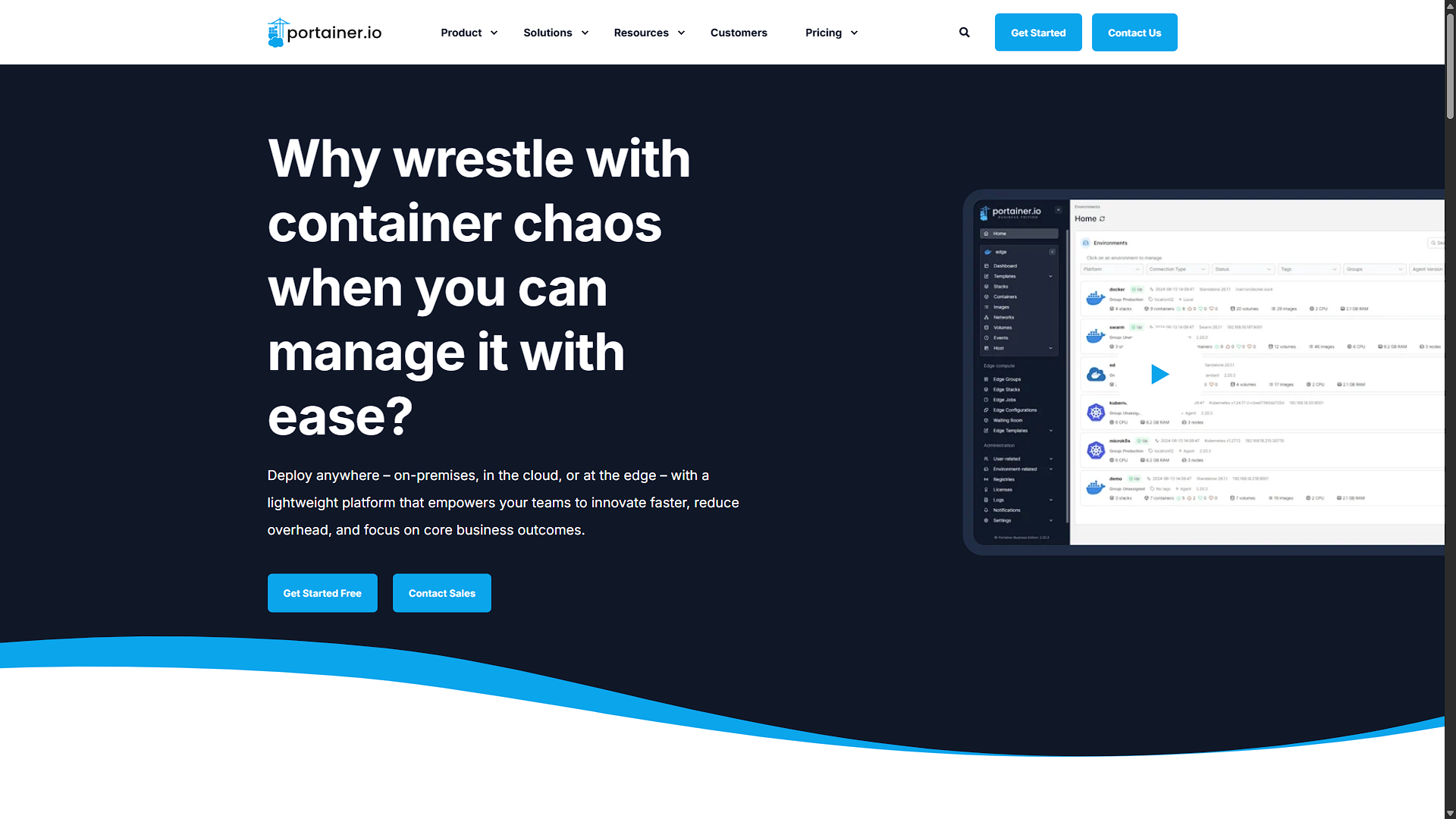
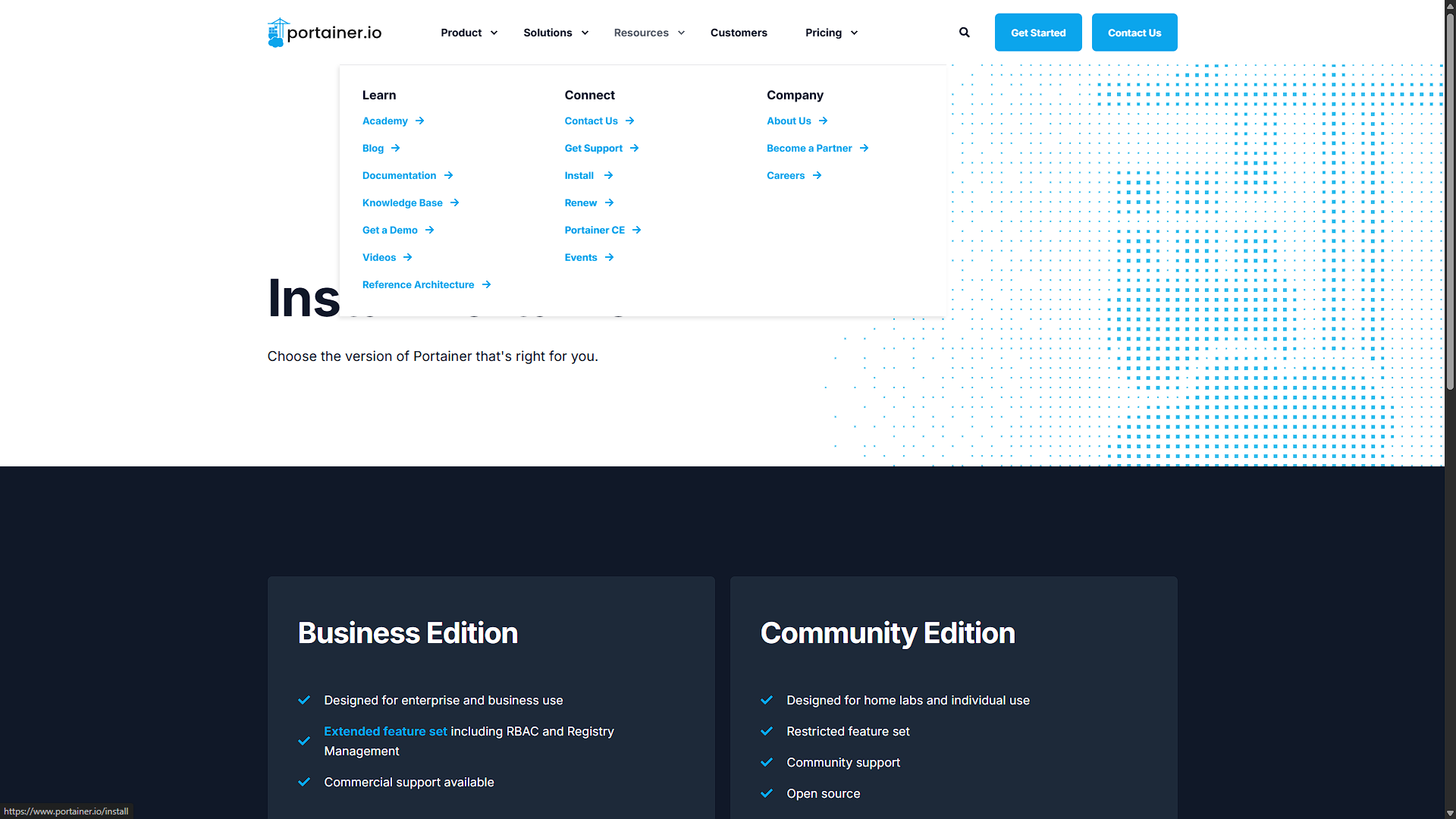
First up we need to get the correct installation instructions for Portainer. Portainer runs as a Docker container, but because it will simplify the creation of Docker containers, this time will be the only time that we really need to run a Docker command in the command line. Because there are so many install options, we need to make sure to get the correct one, as well as get the latest install commands. For this, we will need to go to https://portainer.io. You will see there are quite a bit of mention of pricing and subscription models, but don't worry, we are going to use the Community Edition (CE) which is free. From the homepage, navigate the top menu to Resources, and then under Connect, click on Install. We will be provided with the choice of installing the Business Edition (BE) or Community Edition (CE). Select the community edition as we want the free version for our home lab.
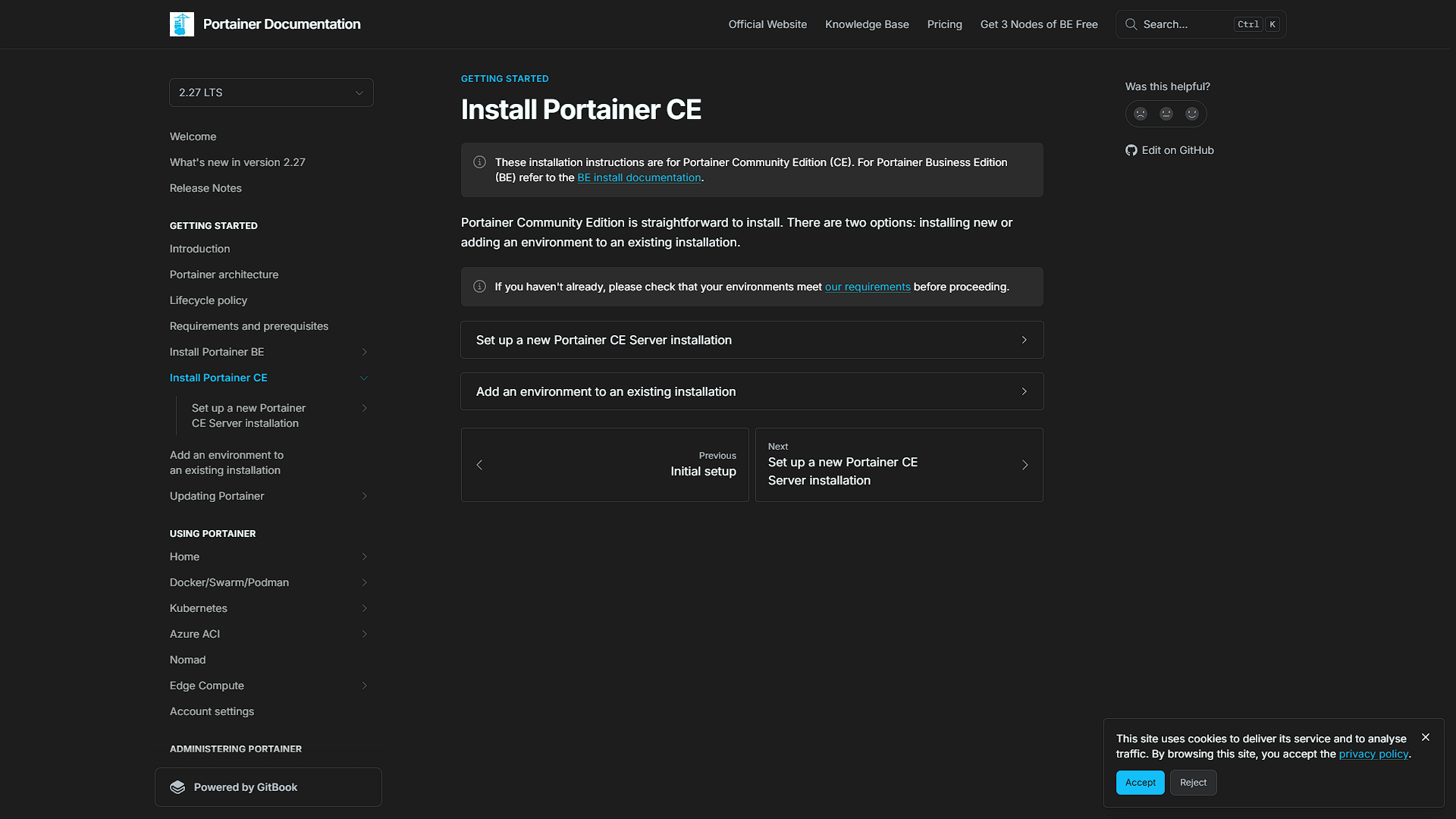
The next page will give us the options of installing a new Portainer CE Server Installation or to Add an environment to an existing installation. We only need one server installation which we can then connect to multiple hosts running Docker to manage all of them. Seeing as we don't have a server yet, we need to select the first option. Should we ever create more LXC containers or VMs that run Docker, we can select the second option to install the Portainer service so that we can monitor all our Docker hosts from one Portainer server location.
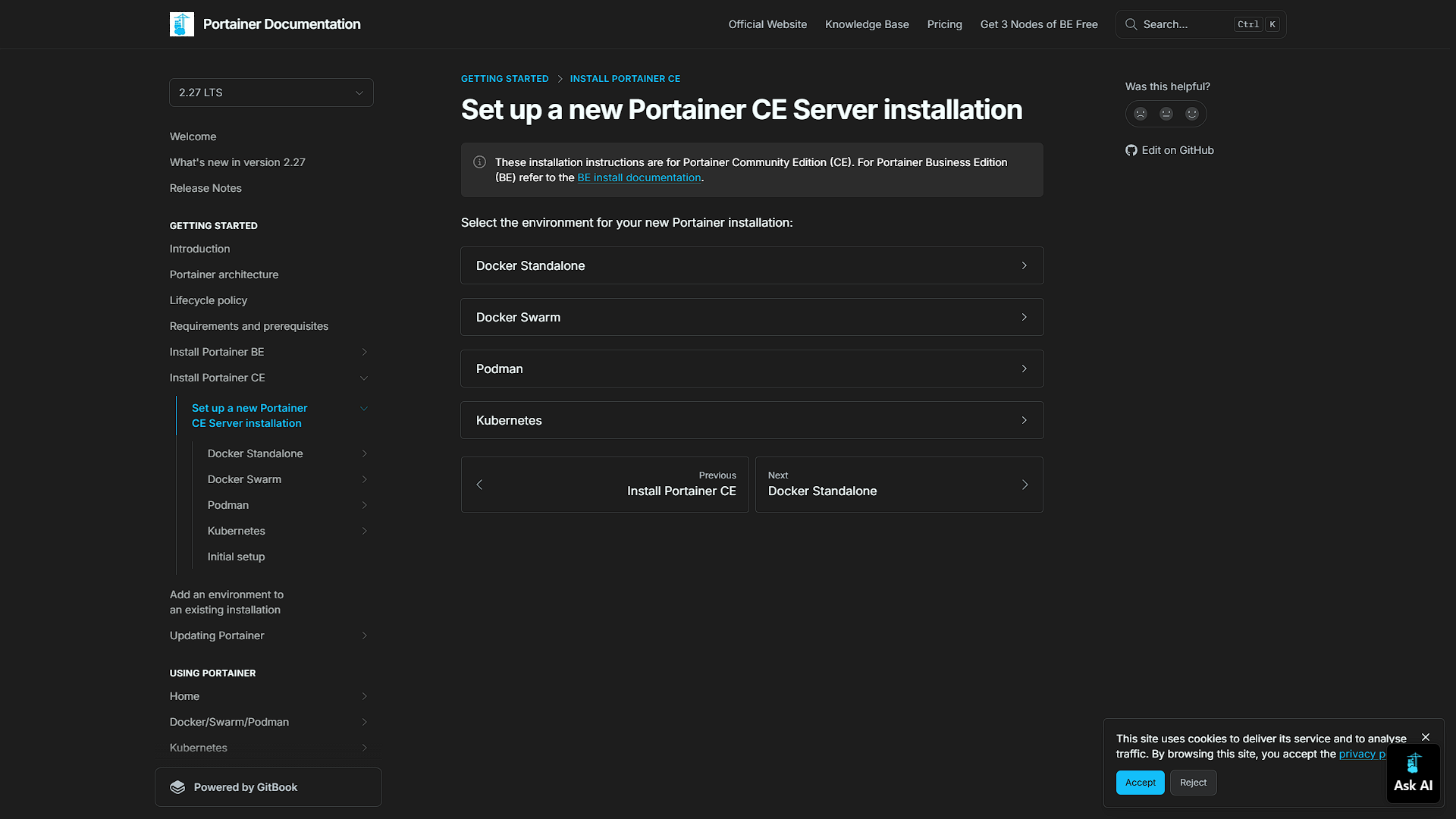
The next screen will prompt us which type of Docker installation we have. Select Docker Standalone.
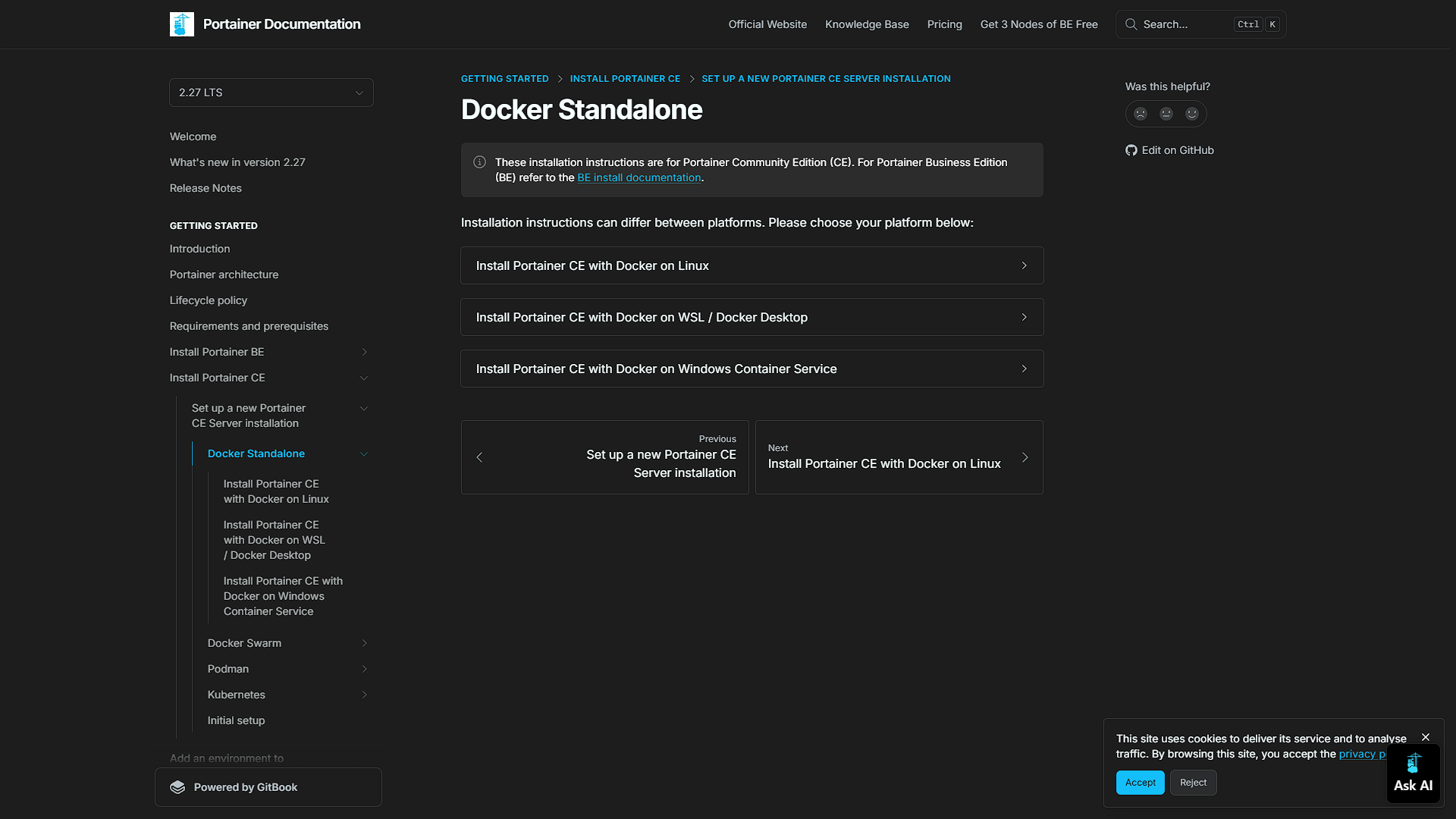
We now need to select the operating system we are using Docker on. In our case for Proxmox (both the LXC and/or VM route) we are running Linux, so select Install Portainer CE with Docker on Linux.
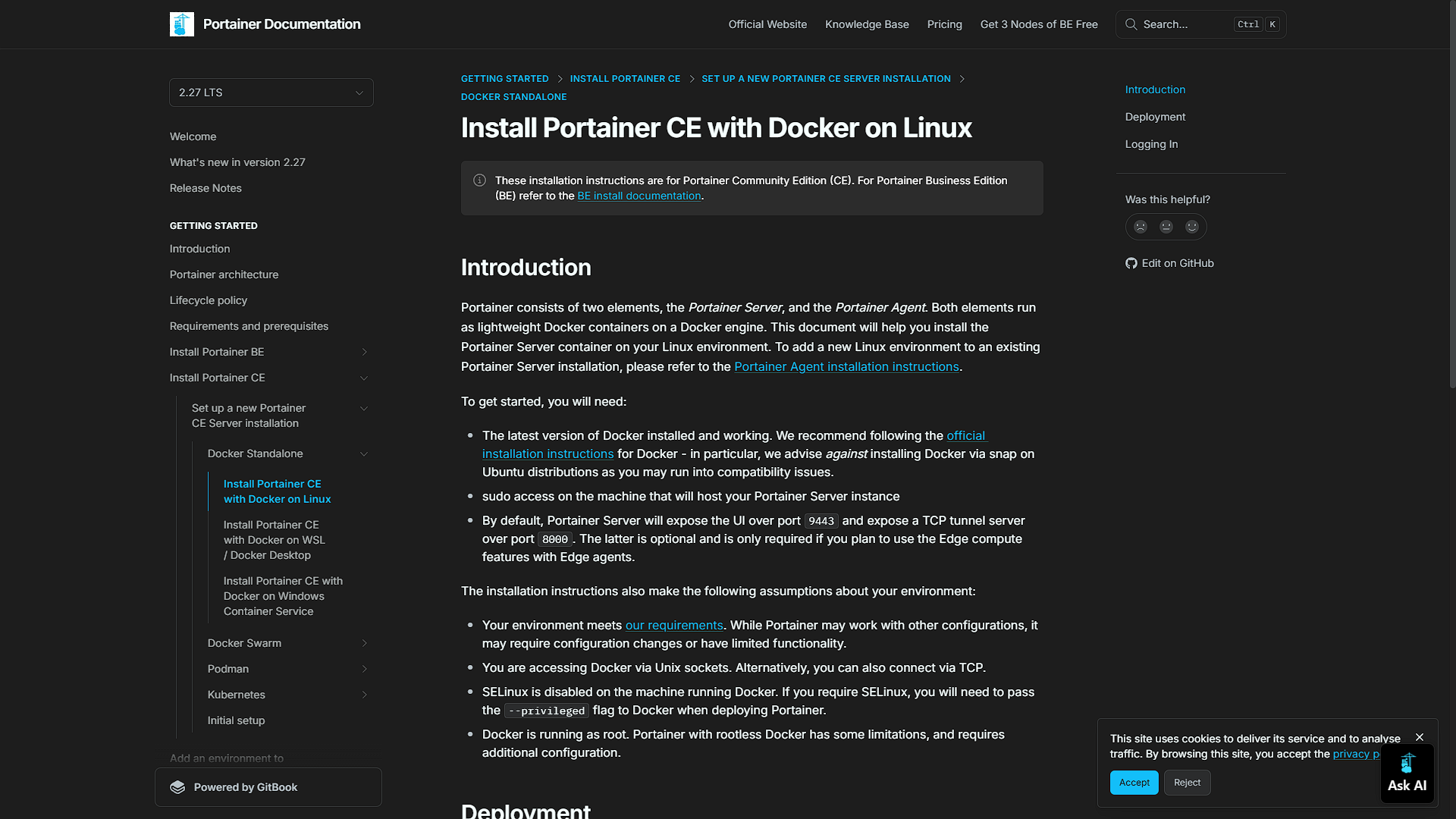
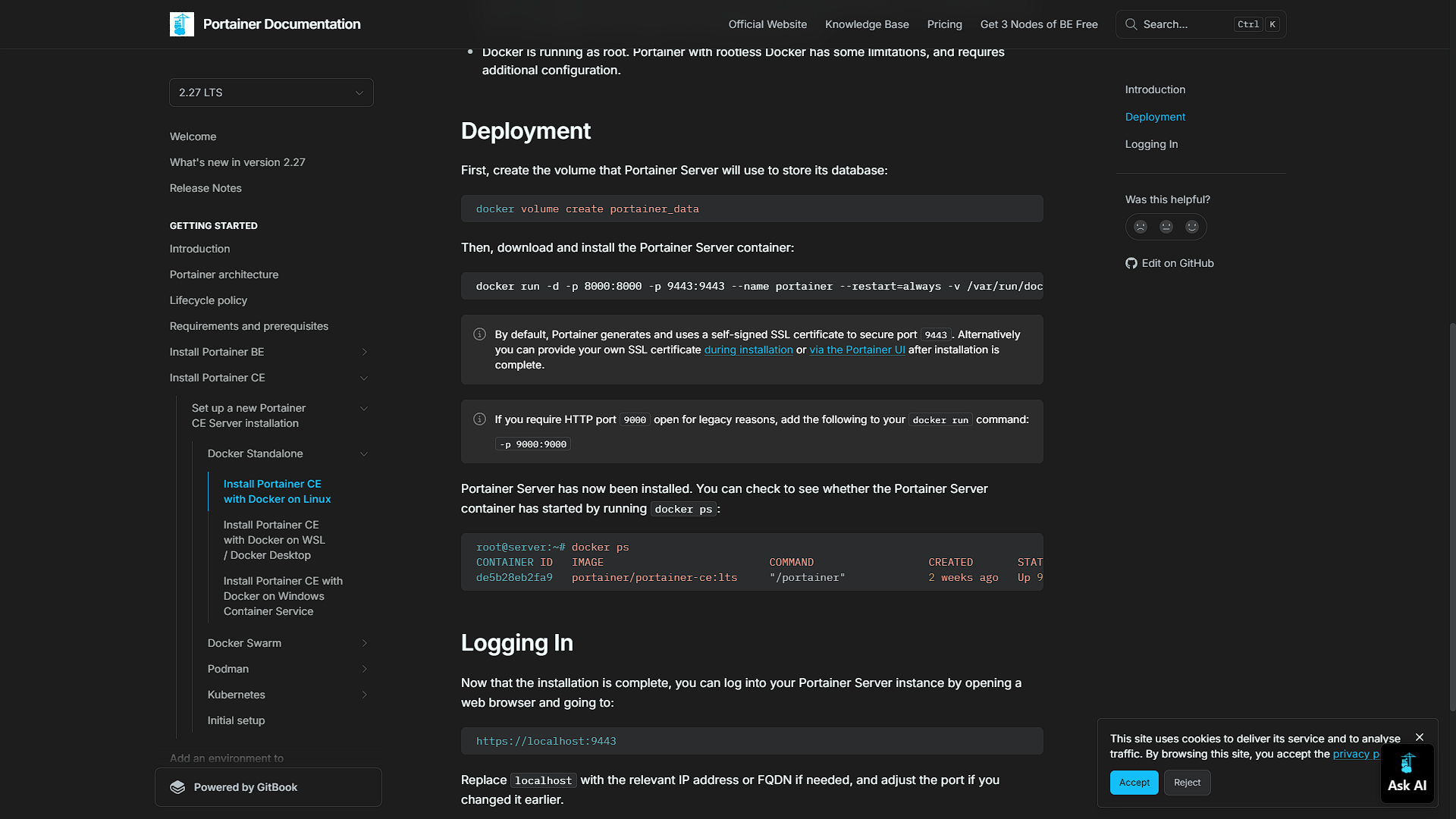
Finally we get to the install instructions. It might be worthwhile reading the Introduction part of the document as it might contain information related to your install.
Step 2: Create a new Portainer Container
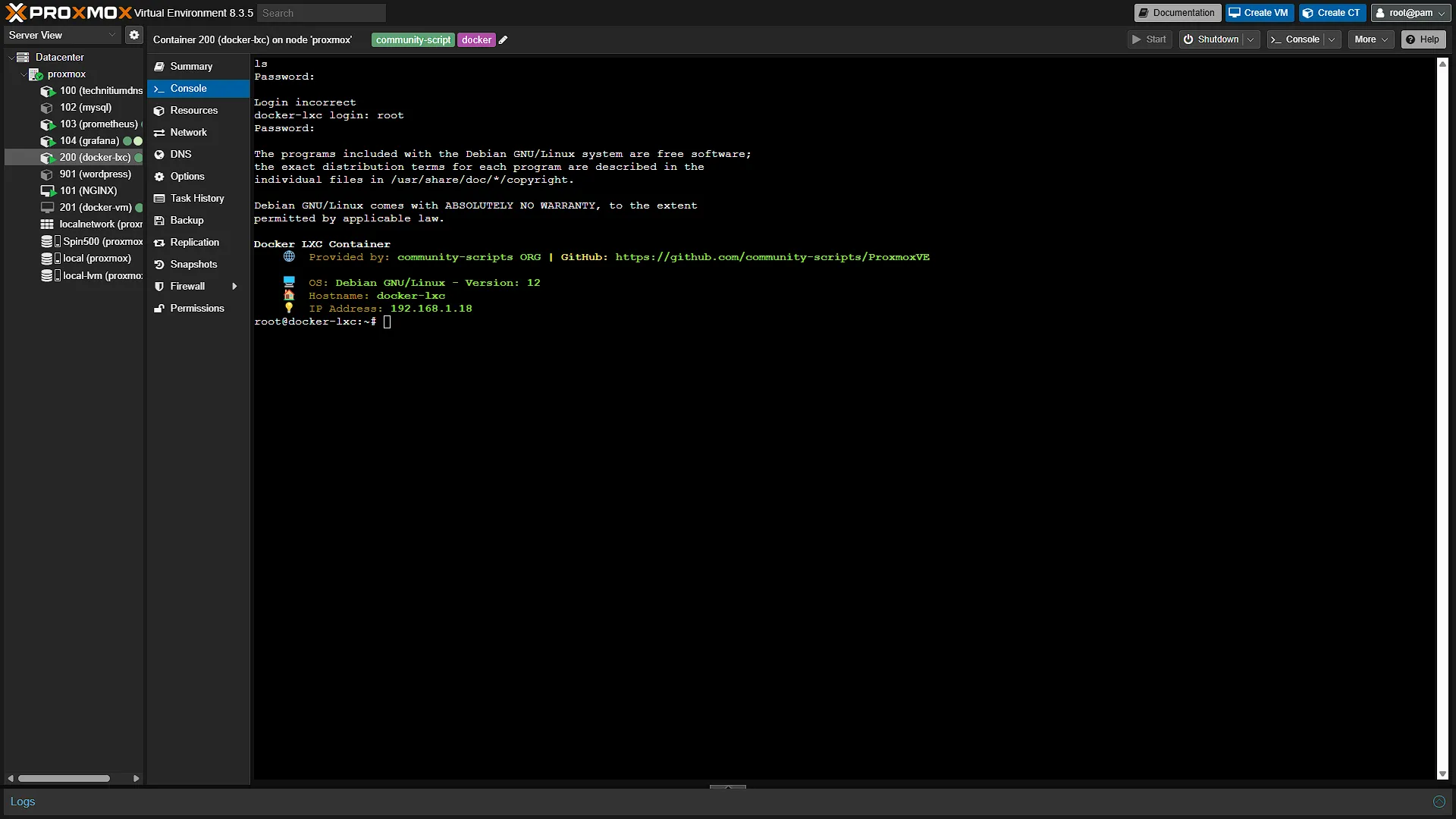
First, we need to access our Docker host. So we will need to access our Proxmox installation. Open your web browser and go to your Proxmox URL. Log in and once logged in, in the left navigation pane, expand Datacenter, then expand the Proxmox node running Docker and select the Docker host. Depending on if it is a VM or LXC Container, in the middle navigation pane, either select  or
or  . Once in the console, it is as easy as running the following commands:
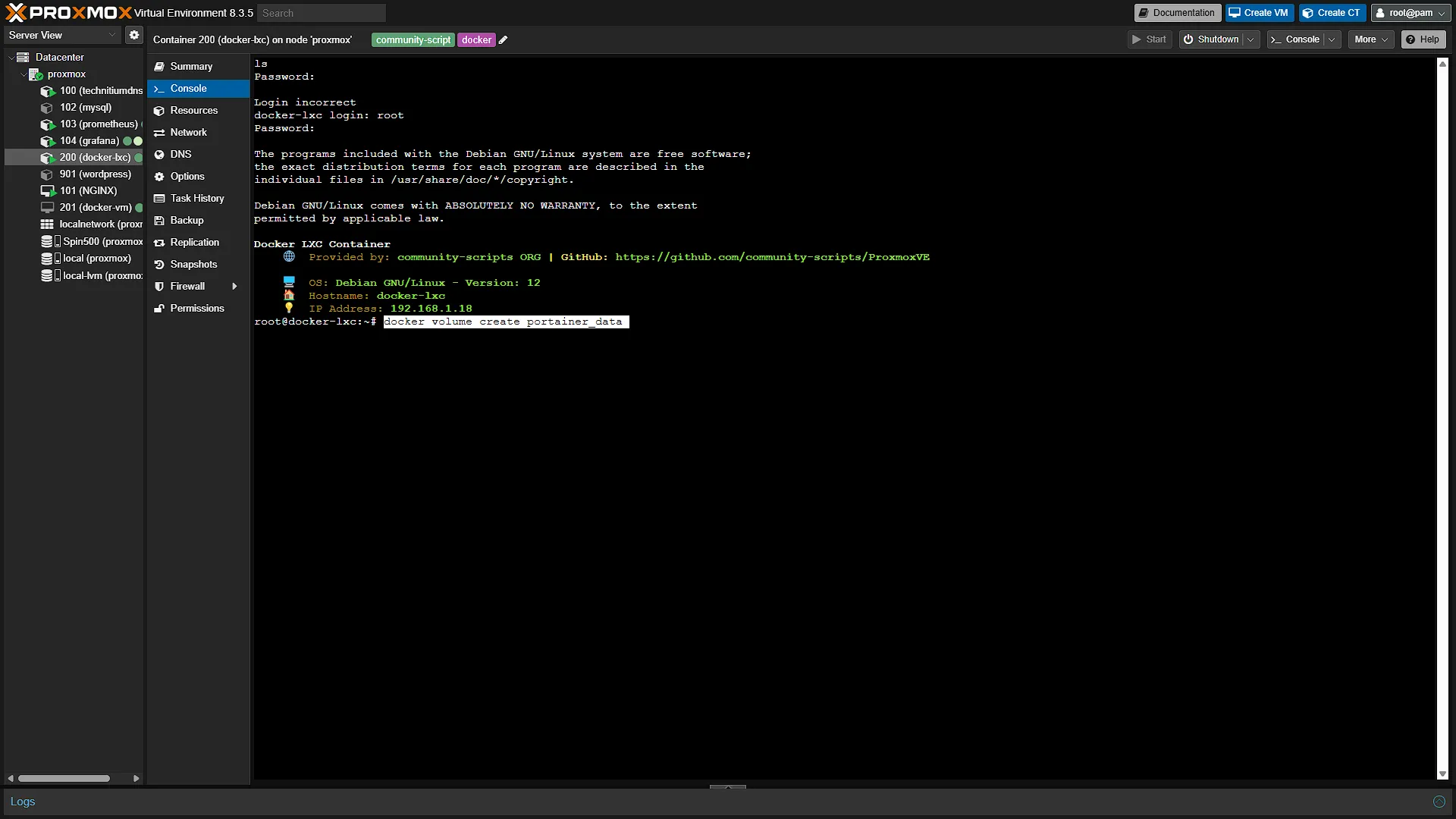
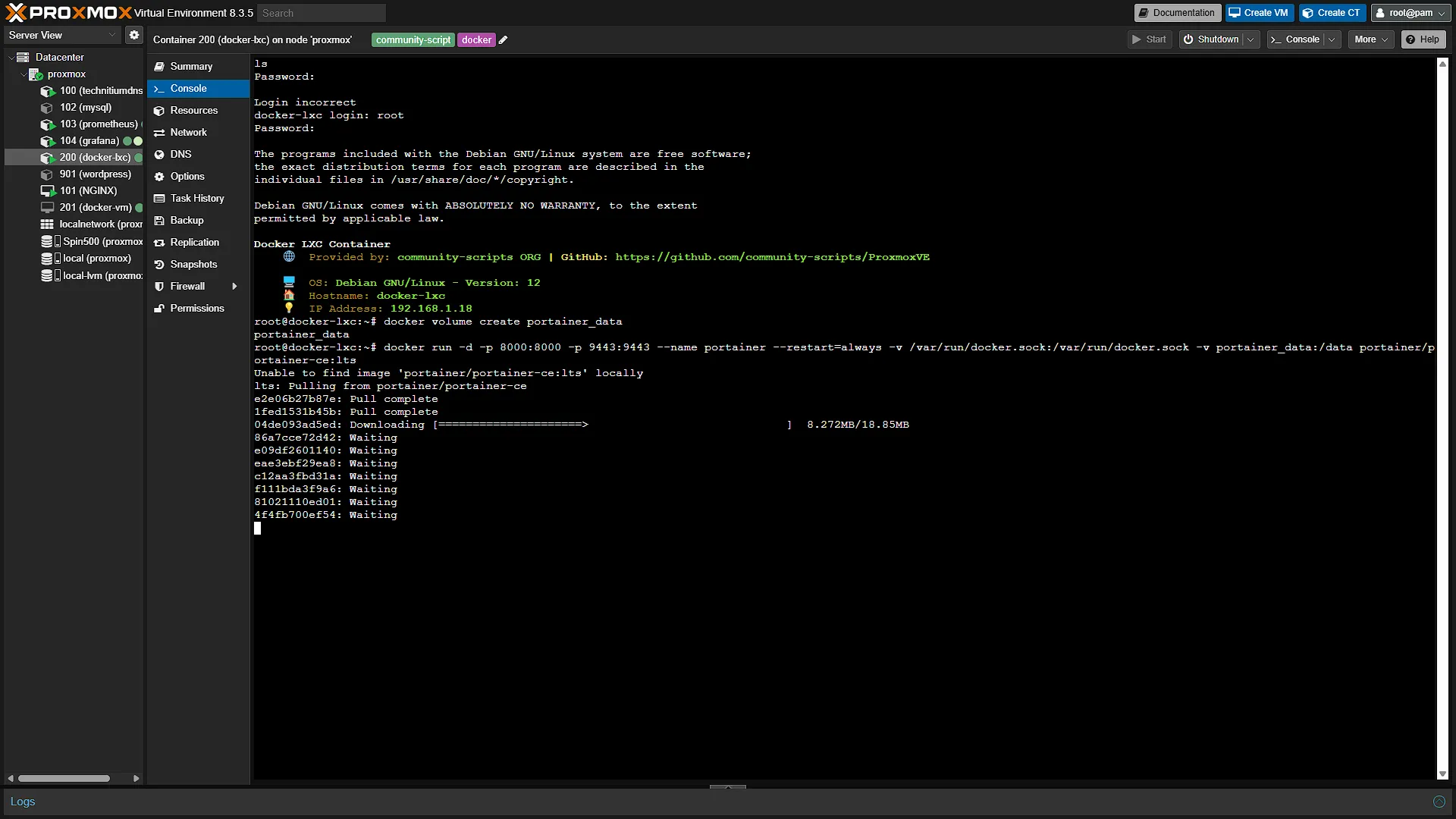
docker volume create portainer_dataThis will create a new volume for Docker to store data. Once the volume is created, just run
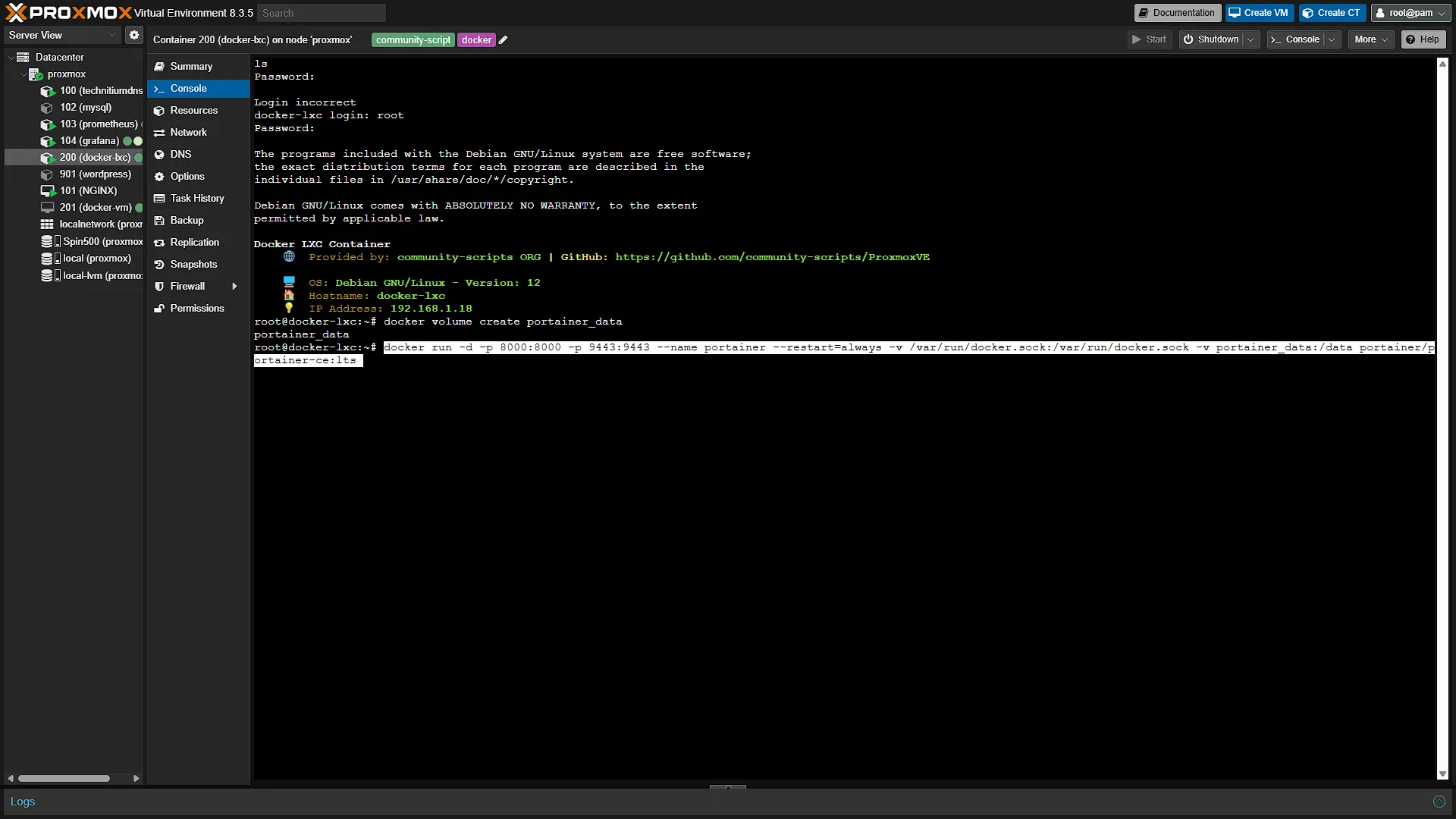
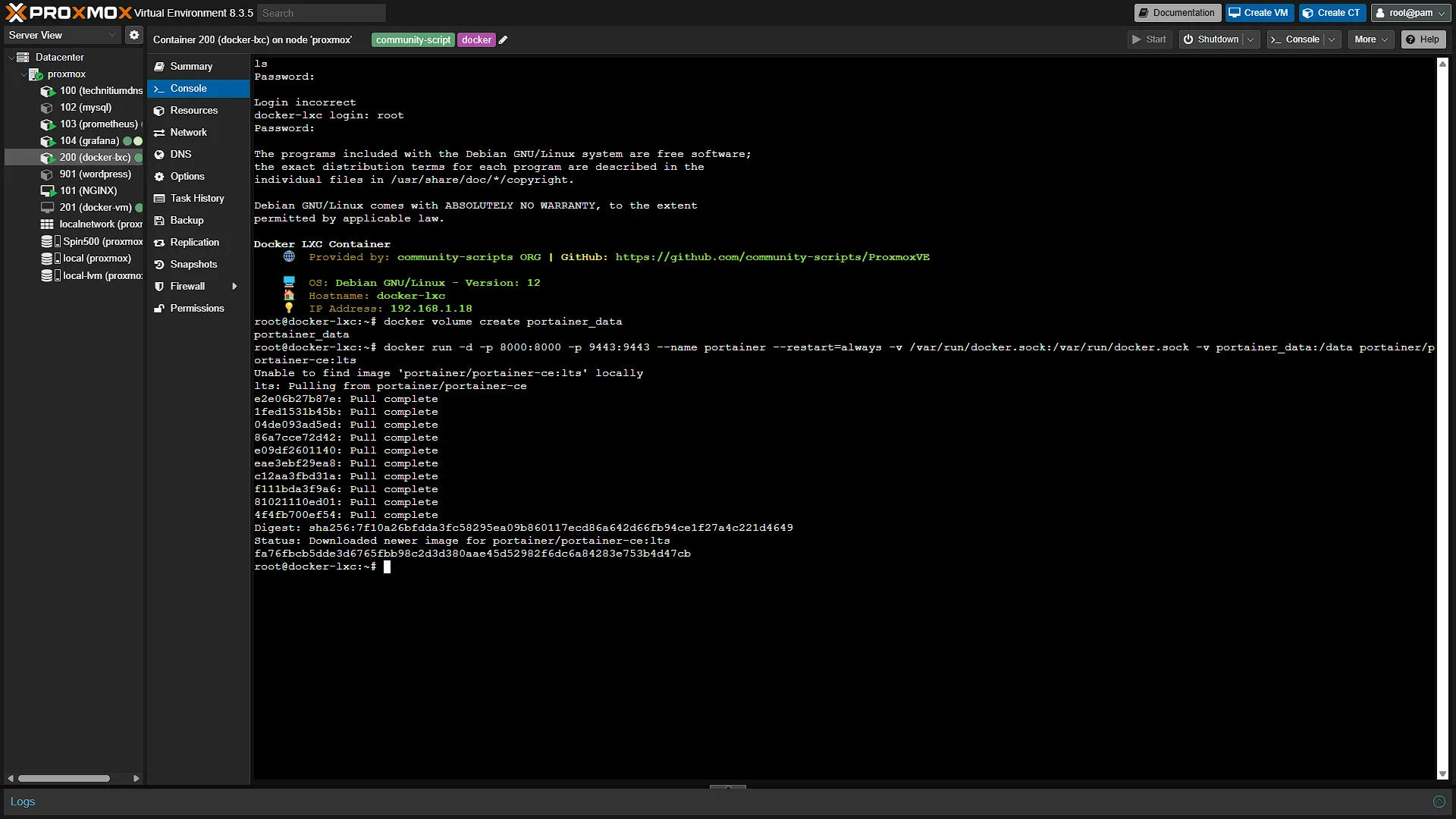
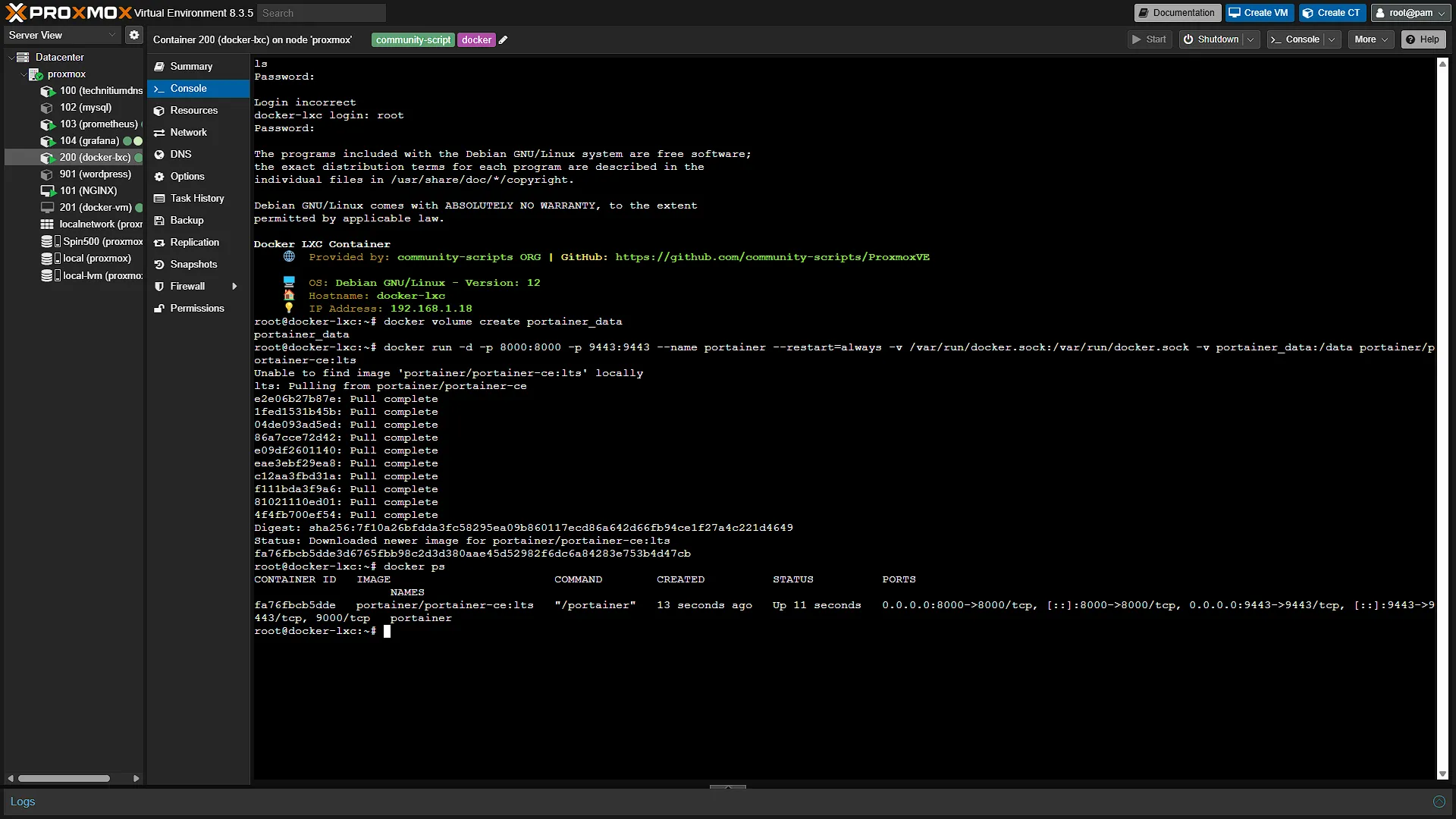
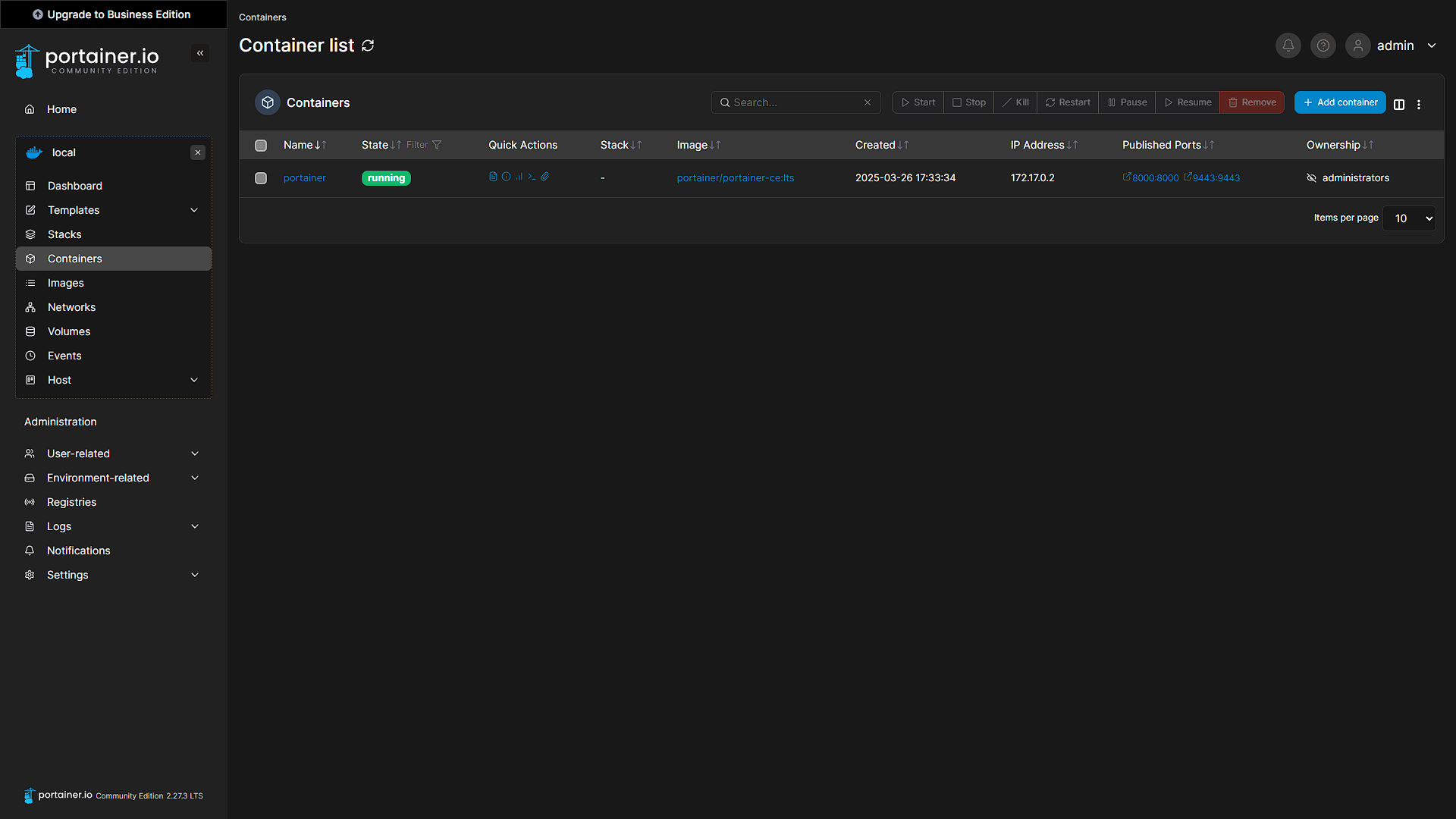
docker run -d -p 8000:8000 -p 9443:9443 --name portainer --restart=always -v /var/run/docker.sock:/var/run/docker.sock -v portainer_data:/data portainer/portainer-ce:ltsThe install will start and be fairly quick. This is one of the amazing things of Docker, it is really fast to get services up and running. Anyway, once the installation is complete, you will see a container id, like fa76fbcb5dde3d6765fbb98c2d3d380aae45d52982f6dc6a84283e753b4d47cb in our case. To make sure that Portainer is running, you can run the normal Docker command to check:
docker psAnd that is all there is to it. We now have Portainer up and running that we can access at port 9443 on the IP Address of the docker host, in our screenshots it will be: 192.168.1.18:9443
Step 3: Access Portainer
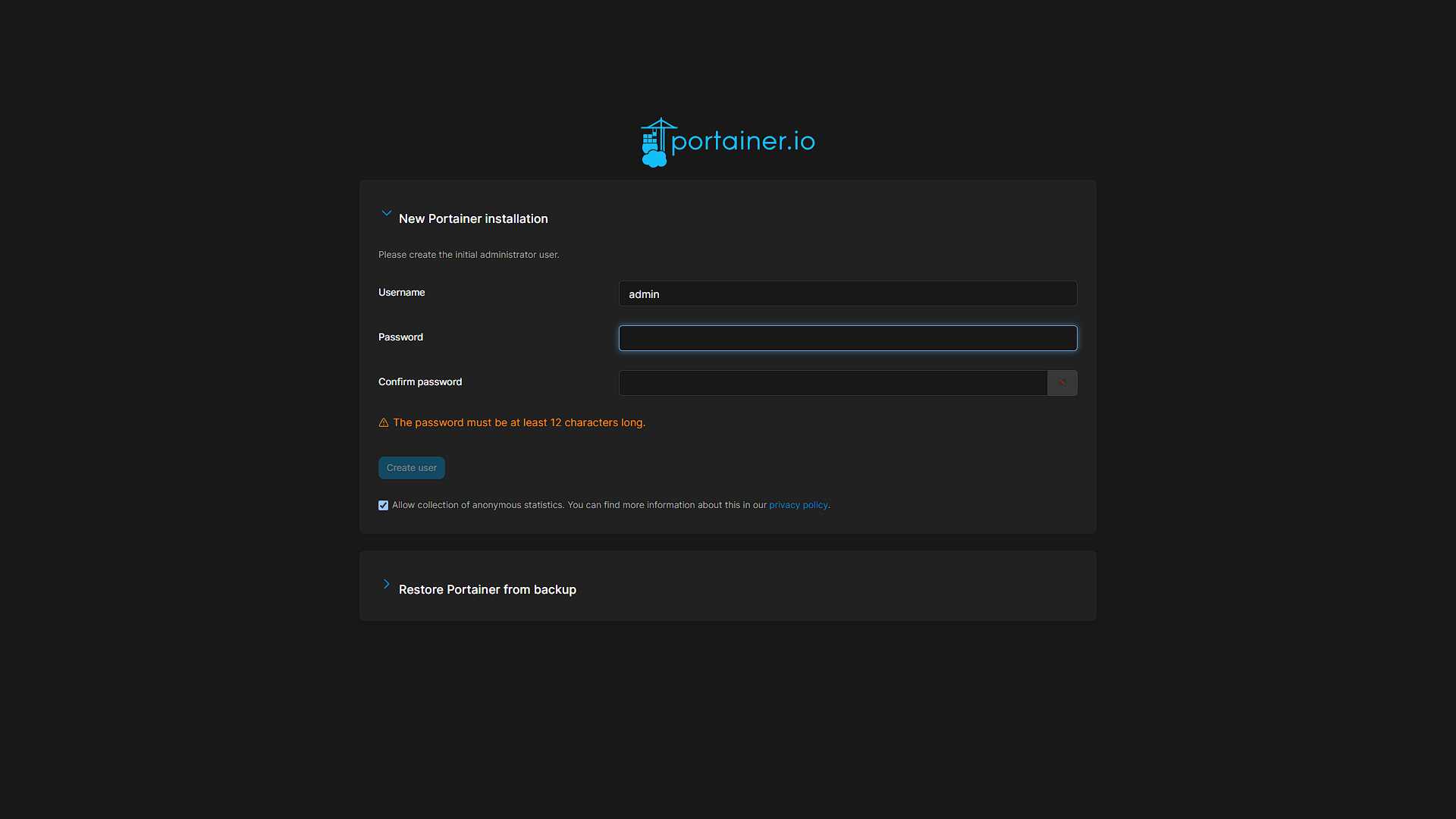
The last step will be to access Portainer so that we can select a default password. It happens from time to time that Portainer will shut itself down (for security reasons) if a user takes too long to access it before a default password is set. If this is the case, just reboot your Docker LXC or VM in Proxmox, this is the quickest (especially if you have no other containers, like we have). Once done, go to the IP address of the Docker host, on port 9443, running https, in the screenshots: https://192.168.1.18:9443. Your browser will probably give you some warning about the security certificate, we can just ignore the warnings for now. We will get a proper reverse proxy set up in our NGINX config after we also installed Watchtower.
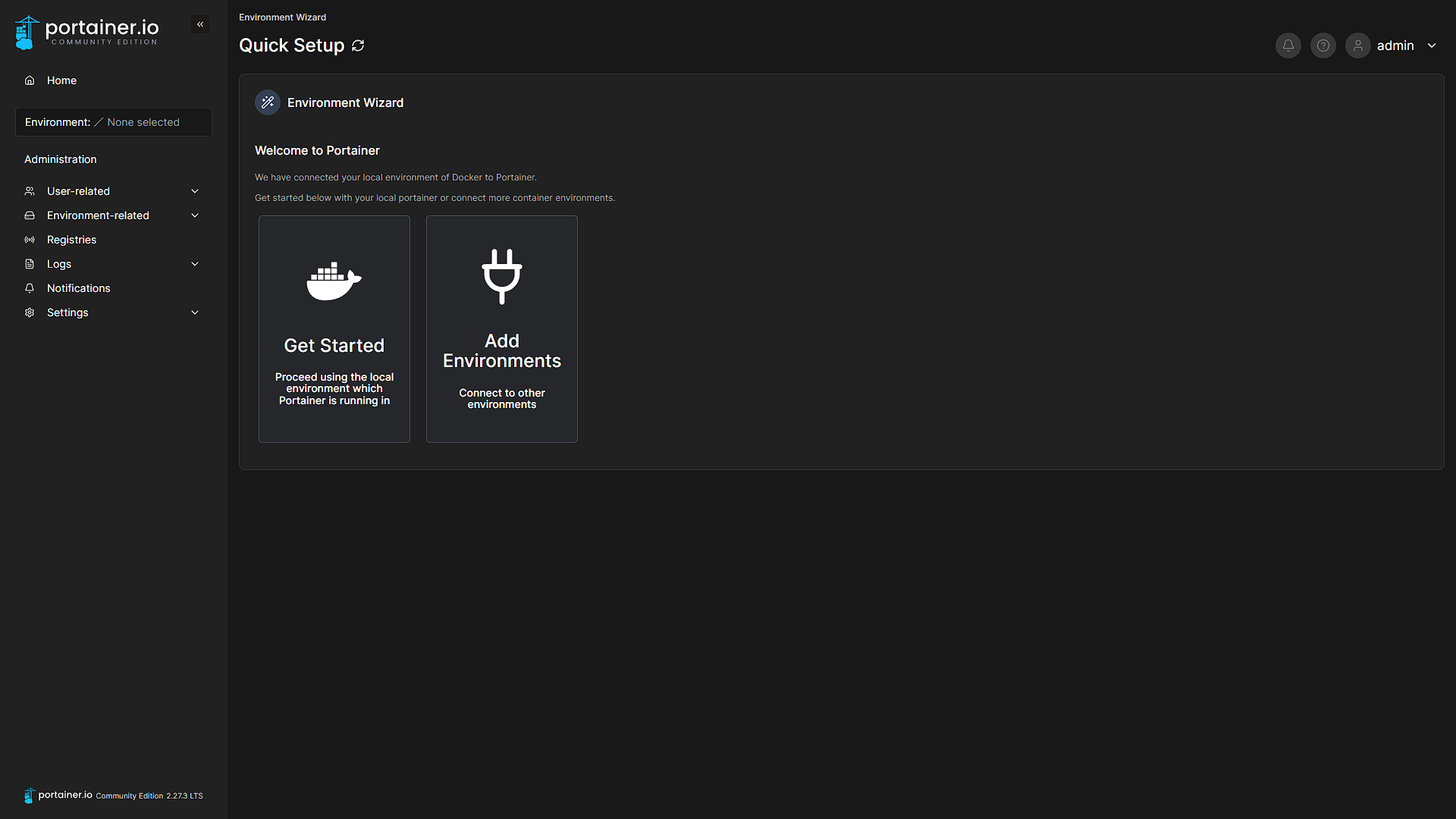
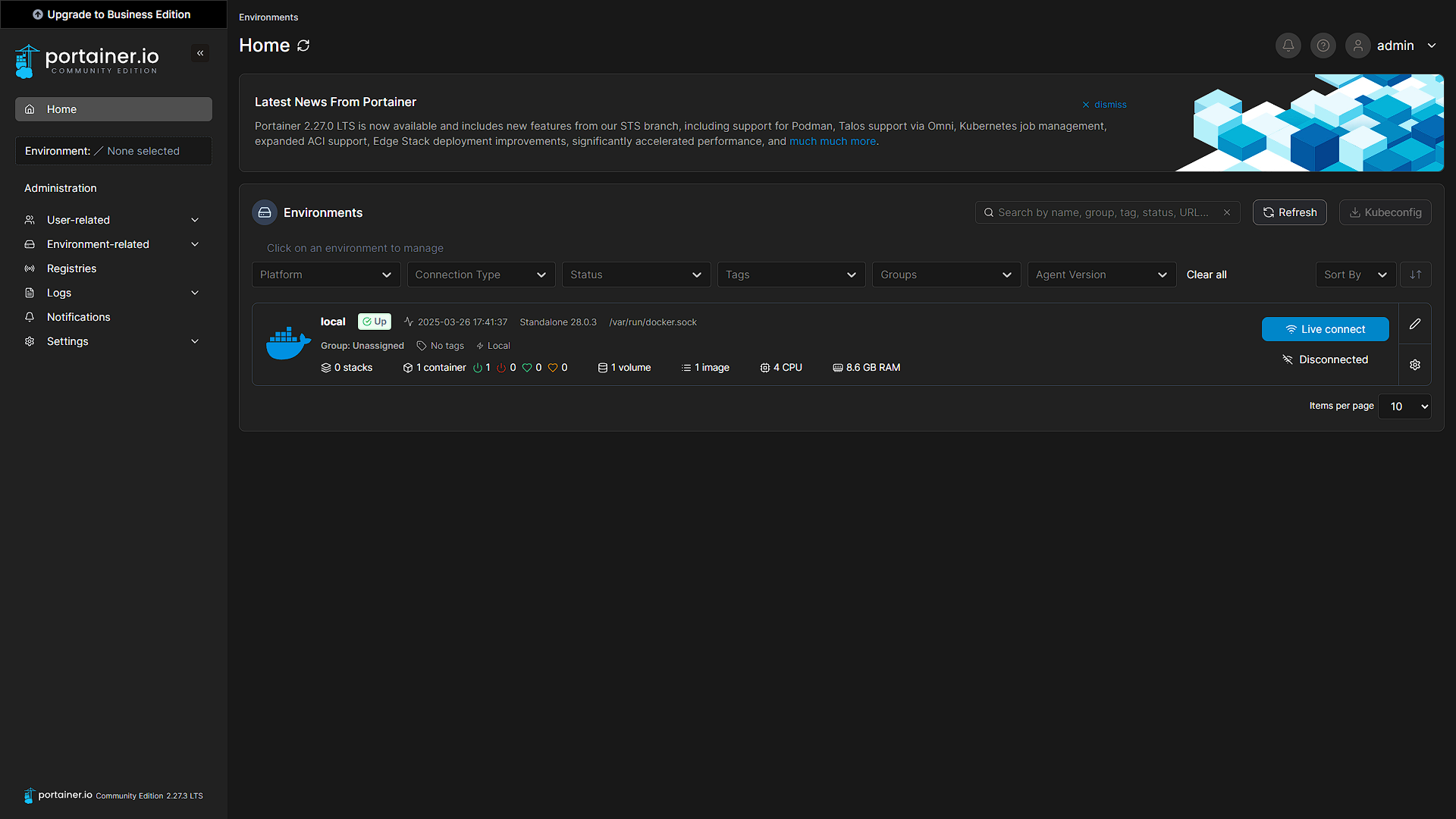
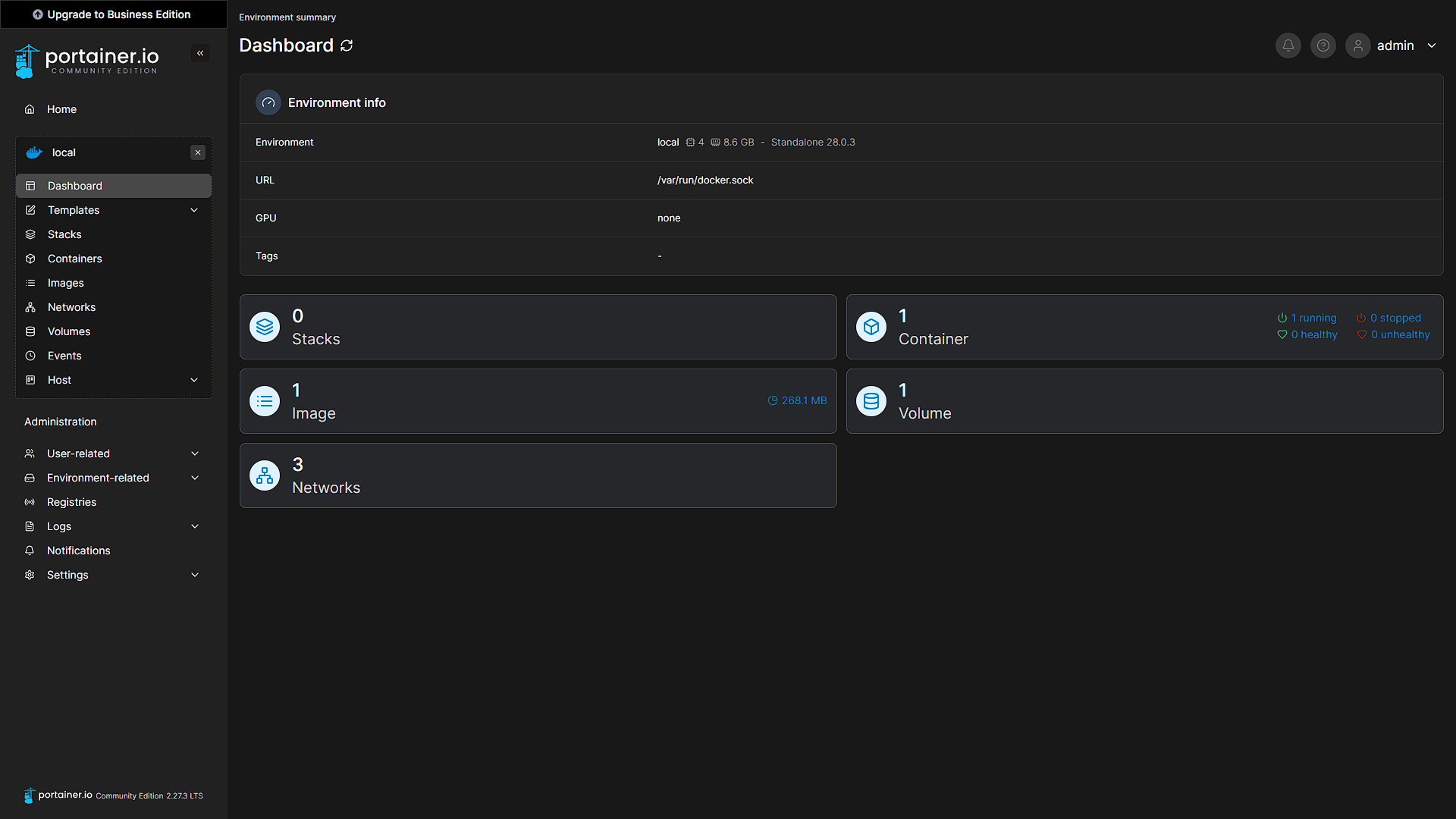
Once on the Portainer screen, you can select a new password for the Admin user. Once logged in, you will see a notification that the local Docker environment has already been added. You are welcome to poke around a bit, we are going to use Portainer extensively for our future Docker Container Installs.
Optional After the Walkthrough: Stacks, Agents and Recovery
The original Portainer container, ports and portainer_data volume remain the main installation. A Stack is an optional way to define several application services together. Save the Compose definition and environment configuration before deploying; a variable entered in Portainer is still a credential that must be protected, not encrypted secret storage merely because it is in an environment field.
Compose depends_on sets startup relationships. Its simple form does not wait until a database is ready for queries. Applications need suitable retry behaviour or supported health-check conditions. After deploying a stack, inspect each service log and exercise the actual application rather than accepting a green running-container count as the entire test.
For an additional Docker host, use the Agent command appropriate to the installed Portainer server version and match the Agent version as documented. Keep its management endpoint on the trusted LAN or VPN. The Docker socket and host mappings provide powerful management access; do not expose the Agent port to the internet as part of this series.
Portainer upgrades are separate maintenance work. Back up Portainer's own data using its supported process, record the running image and original creation options, and read the upgrade guidance before recreating it. Reuse the correct persistent volume and required flags. Do not paste a simplified stop/remove/run sequence that silently changes the existing deployment.
Portainer's configuration backup is not a backup of every managed application. Each application may store data in its own named volumes, bind mounts or external database. Inventory those paths and test an application restore separately. When rollback involves a changed database schema, restoring an old image alone may be insufficient; retain compatible application data and configuration too.
Further reading: Docker Compose startup order, Portainer update guidance.
Conclusion
We now have a graphical way of getting Docker Containers up and running. This can be easier for most users, however, we will also have the alternative command line installs available for all our services and apps we are going to install. Portainer will make the install a lot easier and less messy for the majority of users and installs, so we have it up and running to make our future installs quicker and easier. Now we just need a way to update our Docker Containers, so let's have a look at that next.