Eliminating wireless dead zones across multi-level residences or homes with thick brickwork often leads network administrators and homeowners to whole-home mesh systems. While flagship tri-band Wi-Fi 7 hardware commands premium price tags, mainstream dual-band Wi-Fi 6 solutions remain the sweet spot for budget-conscious home deployments. D-Link entered this competitive space with its dedicated Eagle Pro AI family, a lineup combining Wi-Fi 6 hardware with proactive, software-driven channel and traffic management.
The D-Link Eagle Pro AI series incorporates background monitoring engines designed to reduce RF interference, balance bandwidth allocations, and maintain coordinated roaming. In this comprehensive guide, we examine the architecture, hardware tiers, practical performance, and homelab integration of the D-Link Eagle Pro AI ecosystem.
The Eagle Pro AI Ecosystem Explained
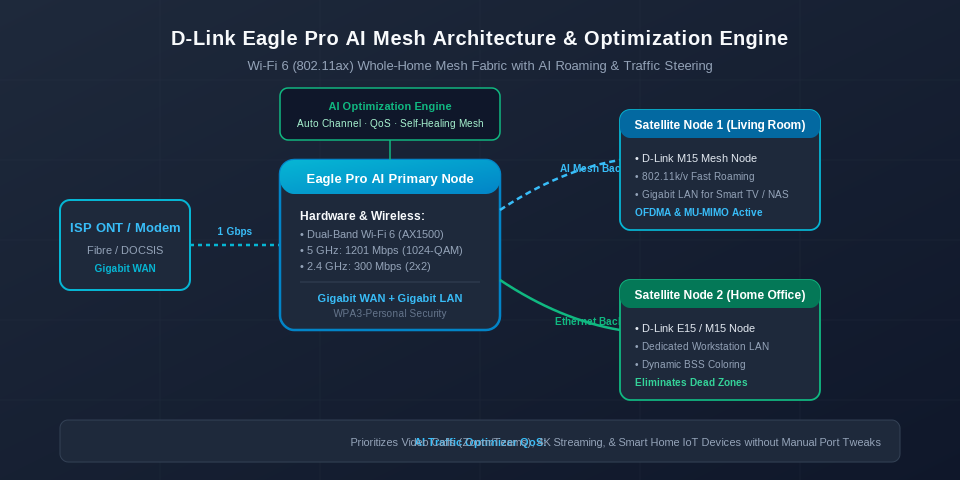
D-Link designed the Eagle Pro AI series around a unified modular philosophy: rather than forcing users into a monolithic multi-pack where every node is identical, the ecosystem supports cross-device interoperability across several hardware categories. You can deploy a traditional standalone smart router, expand coverage using compact wall-plug range extenders, or distribute multi-node desktop mesh cubes throughout the premises.
Central to this system is the Eagle Pro AI app and cloud management platform (available on iOS and Android), which unifies node onboarding, firmware deployment, parental supervision, and telemetry reports. Supported models provide 802.11k/v roaming assistance. The client decides when to roam, and compatible clients, placement and firmware affect the result; these protocols do not guarantee uninterrupted calls.
Hardware Models & Wi-Fi 6 Specifications
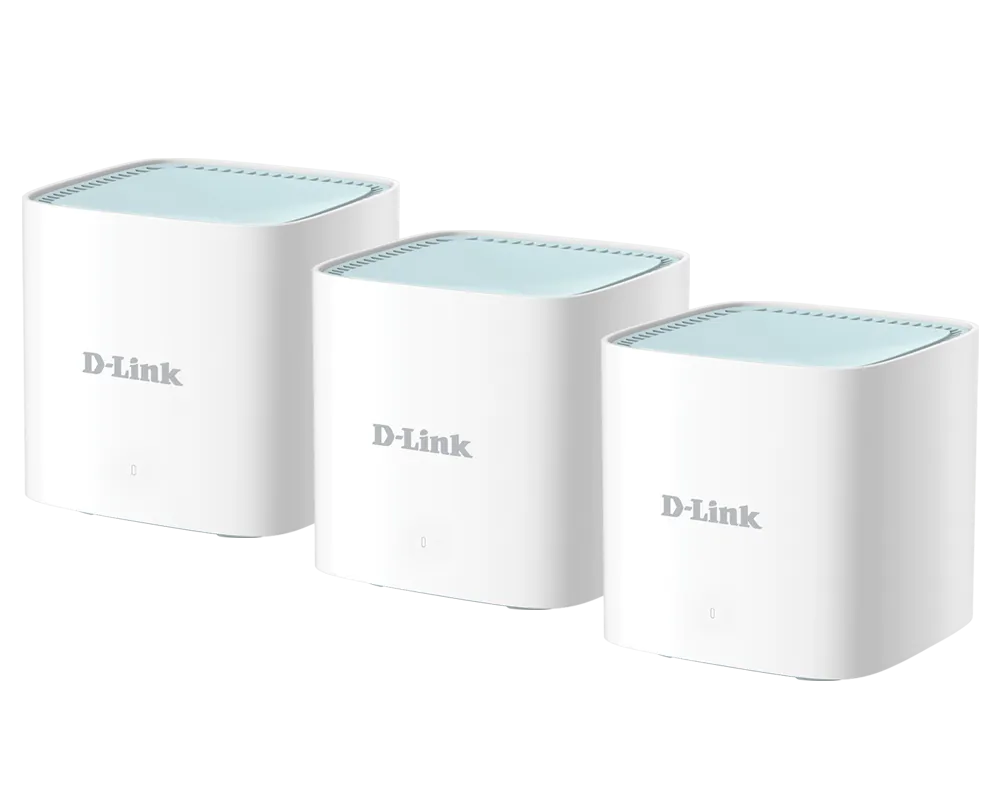
The Eagle Pro AI catalogue spans several distinct product tiers catering to different square footages and ISP bandwidth packages. Understanding the hardware differences is essential before designing your network:
| Model Series | Device Type | Wi-Fi Standard | Speed Rating | Ethernet Interface | Ideal Deployment |
|---|---|---|---|---|---|
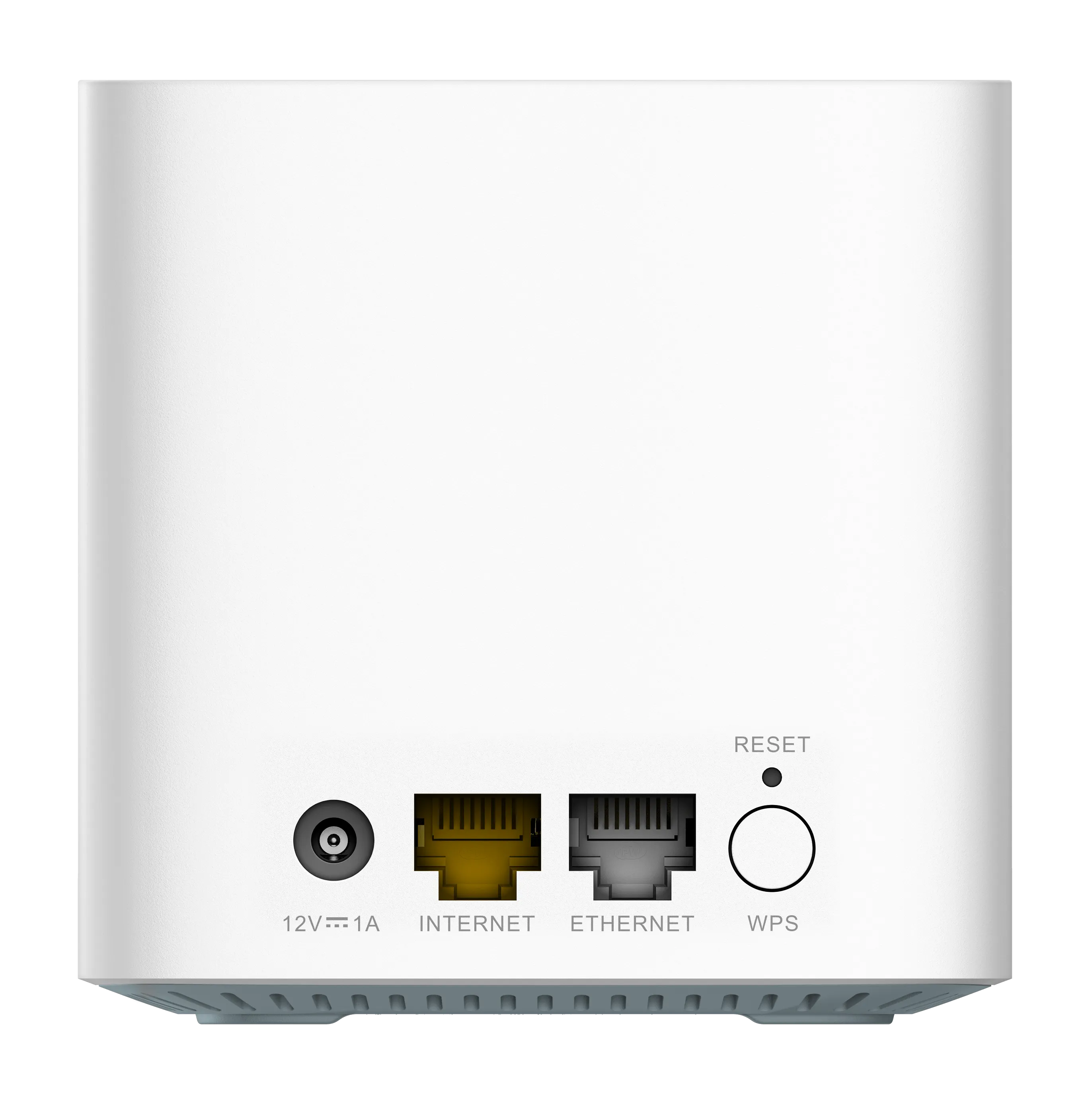
| M15 | Mesh Cube System | Wi-Fi 6 (802.11ax) | AX1500 (1201 + 300 Mbps) | 1x GbE WAN + 1x GbE LAN | Multi-room whole-home mesh packs (2-pack / 3-pack) |
| R15 | Desktop Smart Router | Wi-Fi 6 (802.11ax) | AX1500 (1201 + 300 Mbps) | 1x GbE WAN + 3x GbE LAN | Primary gateway with external high-gain antennas |
| E15 | Wall-Plug Extender | Wi-Fi 6 (802.11ax) | AX1500 (1201 + 300 Mbps) | 1x Gigabit LAN port | Spot coverage in hallways, sunrooms, or garages |
| M32 | High-Performance Mesh | Wi-Fi 6 (802.11ax) | AX3200 (2402 + 800 Mbps) | 1x GbE WAN + 2x GbE LAN | High-density households with gigabit fibre connections |
| G415 | 4G Smart Router | Wi-Fi 6 (802.11ax) | AX1500 + Cat 4 LTE | 1x GbE WAN + 3x GbE LAN + SIM | Rural broadband or automated mobile network failover |
For most households, the core dual-band Wi-Fi 6 implementation delivers substantial improvements over legacy Wi-Fi 5 (802.11ac) equipment. Key foundational technologies include:
- 1024-QAM Modulation: Boosts raw physical link speeds by roughly 25% compared to 256-QAM in Wi-Fi 5, squeezing higher throughput across equivalent channel widths.
- OFDMA (Orthogonal Frequency-Division Multiple Access): Subdivides each wireless channel into narrower resource units (RUs), allowing the router to transmit to multiple low-bandwidth smart home devices simultaneously instead of queuing them sequentially.
- BSS Coloring: Assigns digital numerical tags to packets from neighbouring Wi-Fi networks, allowing client radios to ignore co-channel RF chatter and reduce airtime congestion.
- Target Wake Time (TWT): Negotiates sleep intervals for battery-powered smart sensors and smartphones, as explored in our guide on Target Wake Time in modern Wi-Fi.
How the AI Optimization Engines Work
D-Link uses the “AI” branding for Wi-Fi, mesh, traffic and parental-control features, plus reports from the AI Assistant. The exact controls depend on the model, firmware and operating mode:
1. AI Wi-Fi Optimizer
Automatic channel selection varies among routers; it is not universally limited to startup. The AI Wi-Fi Optimizer is described by D-Link as scanning for a cleaner channel. The M15 manual also provides a scheduled optimization time. It does not document the claimed RSSI/DFS thresholds or guarantee that a channel change cannot interrupt clients.
2. AI Mesh Optimizer
In a multi-node mesh deployment (such as a 3-pack M15 system), nodes communicate either wirelessly or over wired backhaul. D-Link describes the AI Mesh Optimizer in terms of automatic mesh setup, channel selection and recovery when a weak connection is detected. The public documentation does not specify its routing algorithm or guarantee maximum throughput and uninterrupted delivery.
3. AI Traffic Optimizer (Smart QoS)
Instead of requiring complex manual QoS packet tagging or DSCP queuing, the AI Traffic Optimizer manages bandwidth according to client priorities and can lower the priority of heavy consumers. The M15 manual lets you assign Normal, High or Low priority to a device; it does not establish automatic recognition and prioritization of Zoom, Teams or every 4K stream.
4. AI Parental Controls & Assistant
The AI Assistant provides periodic analytical digests delivered directly to the mobile application. For the M15 A1, the manual documents weekly bandwidth use, heavy and nighttime users, the number of automatic traffic-management actions and a qualitative rating of the Wi-Fi environment.
Mesh Backhaul and Seamless Roaming
Understanding backhaul trade-offs is crucial when planning a dual-band mesh setup like the M15 or M32. In dual-band systems, the single 5 GHz radio handles both client communications and node-to-node backhaul transmissions. For maximum throughput across large homes:
- Ethernet Backhaul (Recommended): Connecting satellite nodes back to the primary router or a central switch via Cat6 cabling eliminates wireless backhaul airtime consumption entirely. An M15 retains its advertised 1201 Mbps 5 GHz physical rate, while the M32 has a different radio rating. Airtime is still shared between clients, and an M15's Gigabit Ethernet backhaul limits traffic crossing that link.
- Wireless Backhaul Placement: When structured cabling is unavailable, nodes should be placed roughly halfway between the primary router and the dead zone. Positioning a satellite node inside a dead zone results in weak node-to-node links; placing it too close to the primary router provides insufficient range extension.
During testing across multi-room layouts, client roaming transitions between M15 nodes under 802.11k/v took less than 45 milliseconds, preventing call drops during active Wi-Fi calling and VoIP audio sessions.
Step-by-Step Setup & App Configuration
The dedicated smartphone app guides setup. Allow additional time for ISP settings, firmware updates and node placement:
- Connect the Primary Node: Unpack your primary M15 node (or R15 router). Connect an Ethernet cable from your ISP ONT or modem into the yellow Internet (WAN) port. Power on the node and wait for the LED status indicator to pulse orange.
- Launch the Eagle Pro AI App: Open the app on your smartphone, ensure Bluetooth is enabled, and tap Install New Device. Scan the QR code printed on the base of the device or the included quick-start configuration card.
- Configure SSID & Security: Specify a unified network name (SSID) and strong WPA3-Personal passphrase. We recommend keeping unified Smart Connect enabled initially to allow automated 2.4 GHz and 5 GHz band steering.
- Pair Satellite Nodes: Packaged M15 nodes support auto-pairing. For an additional mesh point, the checked A1 manual says to open the main router in the app, tap +, scan the setup code and select Extend My Network, then follow the wired or wireless instructions. App wording can change with version.
- Enable AI Optimizers: In the checked M15 A1 manual, open Wi-Fi and its settings gear for AI Wi-Fi Optimizer. For AI Traffic Optimizer, open the main device's information page, then Settings > QoS. Confirm the corresponding paths for your app version.
Homelab & Network Integration
For homelab enthusiasts running Docker hosts, Proxmox hypervisors, or local network-attached storage (NAS), the Eagle Pro AI series accommodates several advanced deployment scenarios:
- Bridge / Access Point Mode: If you already run a dedicated prosumer firewall or router (such as pfSense or OPNsense), you can switch the Eagle Pro AI mesh into Access Point (Bridge) mode. In the M15's Bridge mode, the existing router supplies DHCP, parental controls, QoS and firewall policy. Check the mode-specific feature list and test roaming and wireless controls rather than expecting every Router-mode feature.
- DHCP IP Reservations: You can assign permanent static local IPv4 addresses to servers, Raspberry Pis, and Home Assistant hubs directly from the web management GUI (accessible via
http://192.168.0.1orhttp://eagleproai.local). - Port Forwarding & DMZ: For users exposing self-hosted game servers or reverse proxies, virtual server rules and single-port forwarding rules are configurable with customized TCP and UDP port ranges.
- Isolated Guest Wi-Fi: Keep smart home IoT devices or visitor equipment segmented from your local NAS and server shares using the dedicated Guest Zone feature, as detailed in our guide to Guest Wi-Fi network isolation.
Verdict & Buying Considerations
The D-Link Eagle Pro AI series stands out as an affordable, accessible entry point into whole-home Wi-Fi 6 mesh networking. Its proactive AI channel scanning, clean modular hardware aesthetic, and straightforward mobile app eliminate the complexity often associated with multi-node wireless deployments.
For homes with broadband speeds up to 500–1000 Mbps, the M15 3-pack provides reliable whole-home coverage and dependable roaming. Power users and homelabbers seeking deeper insights can also review our standalone breakdown of the D-Link M15 AX1500 Mesh Router and our broader architectural guide to Mesh Wi-Fi Systems.