ntfy sends notifications through an HTTP publish-and-subscribe service. A script publishes to a topic; a phone, browser or other client subscribes to it. It is useful for homelab maintenance because a backup job or uptime check can report an event without you opening every dashboard. The value comes from trustworthy triggers and tested delivery, rather than simply producing more alerts.
ntfy Software and the Hosted Service
ntfy.sh is the project's hosted service. The open-source server can also run on your infrastructure. Hosted service limits and account features differ from a private server's configuration, so decide which deployment you are using before copying authentication instructions.
A publicly accessible topic without access controls is not a private inbox. A difficult-to-guess name is not authorization: anyone who learns it may be able to read or publish. For a hosted demonstration, send only harmless test content and follow the service's current topic-access documentation before using operational information.
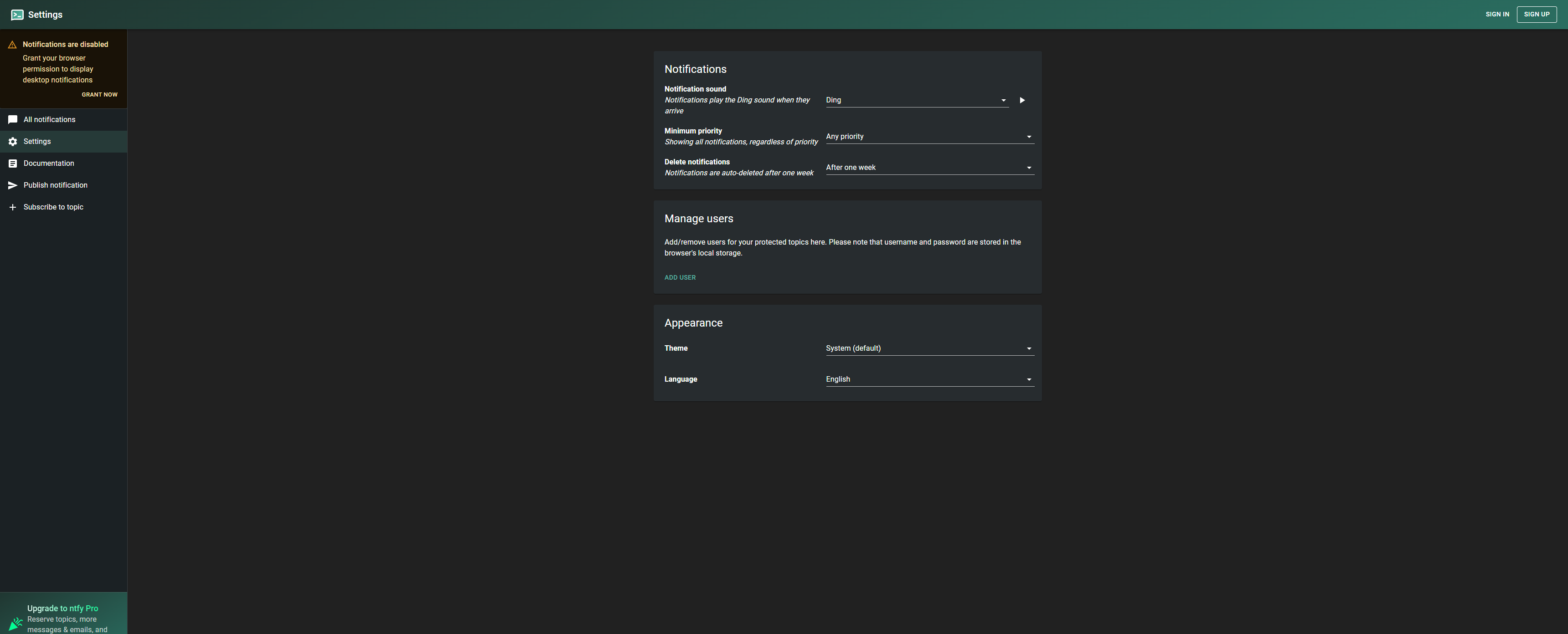
Our Build Your Homelab series includes a longer installation path. This standalone example starts with a local authenticated server so you can verify permissions before configuring remote phone access or a public proxy.
Create a Private Local Test Installation
On a Linux host with Docker Engine and Compose, create a dedicated directory with config and data subdirectories. Save this as compose.yaml. The latest tag moves: inspect the ntfy GitHub releases page and pin the tested release before relying on production updates.
services:
  ntfy:
    image: binwiederhier/ntfy:latest
    command: serve
    restart: unless-stopped
    ports:
      - "127.0.0.1:8095:80"
    volumes:
      - ./config:/etc/ntfy:ro
      - ./data:/var/lib/ntfy
Save this as config/server.yml. The persistent directory holds authentication and message-cache databases. The loopback host binding limits initial HTTP access to the host; it does not make a remote phone capable of reaching that endpoint.
listen-http: ":80"
base-url: "http://127.0.0.1:8095"
auth-file: "/var/lib/ntfy/user.db"
auth-default-access: "deny-all"
cache-file: "/var/lib/ntfy/cache.db"
cache-duration: "48h"
mkdir -p config data
docker compose config --quiet
docker compose up -d
docker compose logs --tail=100 ntfyThese commands assume authorized Docker access; otherwise use sudo consistently. If the server cannot write its database, inspect the container user and directory permissions. Avoid granting write access to everyone. The installation documentation also covers native binaries; launching one requires ntfy serve, not just its filename.
Separate Publishers and Readers
Create two normal users and grant each the access it needs to one topic. The CLI prompts for passwords; choose different strong values. A backup script should not receive an administrator token for convenience. The configuration documentation explains that administrators bypass topic-specific restrictions.
docker compose exec ntfy ntfy user add publisher
docker compose exec ntfy ntfy user add reader
docker compose exec ntfy ntfy access publisher homelab-alerts write-only
docker compose exec ntfy ntfy access reader homelab-alerts read-only
docker compose exec ntfy ntfy access
In a browser on the server, subscribe to homelab-alerts using the reader account. For a remote server, use an authenticated SSH tunnel forwarding your computer's port 8095 to the server's loopback port 8095. This is a private test path; a phone needs a reachable private-network/VPN address or secured HTTPS deployment.
curl --fail --user publisher -H "Title: Delivery test" -d "Harmless private test message" http://127.0.0.1:8095/homelab-alertscurl prompts for the password when only a username is supplied. For an unattended script, generate a token for the restricted publisher, protect it in the job's secret storage, and use documented bearer-token publishing. Never paste a real token into shared code or screenshots. Set an appropriate expiry and plan renewal or revocation.
Test Permissions and Delivery Separately
- Publish a harmless message and confirm its exact content on the subscribed client.
- Try publishing without credentials; the private topic must reject it.
- Confirm the reader cannot publish and neither normal user can access an unrelated topic.
- Restart the server and repeat login/publishing checks to confirm authentication survives.
- Test a client with its screen locked and while its network changes, rather than relying only on foreground delivery.
Cache retention is separate from guaranteed phone delivery. A message can reach the server while a device is offline, muted or unable to subscribe. A client reconnecting after cache expiry may not recover that message. Consult the phone subscription guidance for permissions, battery behavior and channel settings.
High priority does not automatically bypass Do Not Disturb; device permissions and channel configuration matter. Self-hosted iOS notifications can involve an upstream poll request through ntfy.sh so the phone wakes and fetches the actual message from your server. Review that dependency before describing a deployment as entirely independent of outside infrastructure.
When a test fails, identify the missing stage: did the script finish, did the HTTP request succeed, does the message appear in the subscribed topic, and did the operating system display it? Each answer narrows a different fault. Repeatedly increasing priority cannot repair an unreachable server, an expired token or a subscription to the wrong topic.
Make Each Operational Alert Useful
A backup notification should report the job's actual result after completion. Include machine, job name, result and log location. Avoid passwords, personal records and full command output. A successful publish proves acceptance, not that a backup is restorable or a person read it.
Suppress repeated alerts for an unresolved condition and send recovery messages when it clears. Use an external availability check for the notification server: it cannot announce an outage through its own failed path. Treat this as operational messaging rather than the sole channel for safety-critical alarms.
For example, design a backup job to notify on a nonzero exit status and attach a short error summary. Test that branch with a disposable deliberately failing job. Then check that a successful job does not produce the same failure message. This tests the alert logic without inventing a claim about your server's disk health or remaining UPS runtime.
Plan Remote Access and Maintenance
For remote use, configure a valid HTTPS endpoint, change base-url to that endpoint, and test publishing and subscriptions through it. Setting base-url does not install certificates, open routes or configure a proxy. Keep deny-all as fallback. Trust proxy headers only when requests arrive through your controlled proxy.
Back up configuration and authentication with a consistent SQLite backup or brief planned stop. Protect backups because account and token data are sensitive. Decide whether cached messages and attachments should be retained, then test restoration in an isolated instance. Before updates, record the version, read release notes and repeat permission and phone-delivery tests.
Keep a recovery note identifying the server, topic naming convention and jobs that depend on it. If a token is rotated, update and test every affected sender rather than waiting for the next failure. The publishing documentation explains supported headers and APIs as you add jobs.