
We have looked at a lot of different apps that you can run on your home network, from meal planning with Mealie to Media and Streaming with Jellyfin. We have also looked at getting everything up and running on one machine in your network with the help of Docker. Docker runs applications in containers that share the host kernel and can run separately on one computer (or Raspberry Pi) on your network. But managing all of these containers can be tedious, and also just getting one up and running can be a stretch for an inexperienced user. Today we look at a solution that will simplify your Docker container management called Portainer. Portainer is a web-based GUI for managing Docker containers, so let's get into more details.
What is Portainer, anyway?
Portainer is a web-based interface that simplifies the management of Docker containers. Now, don't let "Docker containers" scare you. Think of them like pre-packaged software applications. Docker makes it easy to run these applications consistently across different devices. Portainer provides a user-friendly way to manage these applications without needing to use complex command-line instructions, making it ideal for beginners as well as advanced users.
How Does Portainer Work?
Portainer runs as a Docker container itself and provides a graphical dashboard accessible through a web browser. From this dashboard, you can:
- Create, start, stop, and remove containers
- Manage images and volumes
- Monitor resource usage
- Set up networking between containers
- Deploy stacks using Docker Compose
Portainer acts as a control panel for your Docker environment, reducing the number of routine command-line operations. You still need to understand the configuration and storage behind the interface.
Why Use Portainer in Your Home Network?
If you’re running a home network, you might already be using Docker to host applications like:
- Media servers (e.g., Plex, Jellyfin).
- Home automation (e.g., Home Assistant).
- File sharing (e.g., Nextcloud).
- Game servers (e.g., Minecraft).
- Development environments (e.g., WordPress for testing).
Portainer makes it easy to manage these applications without needing to remember Docker commands. Here’s how it helps:
- Simplifies Management: No more memorizing
docker runcommands. Portainer provides a point-and-click interface. - Centralized Control: Manage all your Docker containers from one place.
- Resource Monitoring: Keep an eye on how much CPU, memory, and storage your containers are using.
- Access Control: Keep separate user accounts and check the access controls available in your edition. Granular role-based access control is a Business Edition feature; CE should not be presented as providing the same role set.
If you run a home server, a Raspberry Pi, or a NAS device, Portainer can help you manage your self-hosted applications more efficiently. Here are a few use cases where Portainer is particularly useful:
- Self-Hosting Applications – Running services like Nextcloud, Home Assistant, or Jellyfin becomes much easier with Portainer's GUI-based container management.
- Network Segmentation – You can manage Docker networks and which containers attach to them. This is different from configuring your physical router, VLANs or a complete household firewall policy.
- Resource Monitoring – Portainer provides insights into CPU and memory usage, helping you optimize performance.
- Simplified Deployment – You can deploy reviewed Compose files through a web editor, upload or repository. Templates can reduce typing, but you still need to understand and adapt ports, volumes and environment settings.
Alternatives to Portainer
While Portainer is a powerful tool, there are a few alternatives worth considering:
- Docker CLI – The standard command-line interface for Docker, offering full control but requiring command-line knowledge.
- Cockpit with Podman – A GUI-based alternative that integrates well with Podman for managing containers without Docker.
- Rancher – A more advanced alternative for managing large-scale containerized environments, best suited for Kubernetes users.
Where Portainer Shines:
Portainer's strength lies in its simplicity. It provides a user-friendly interface that makes Docker accessible to everyone. Docker Compose also works with Portainer stacks; it is a way to describe applications rather than simply a competing interface. For home networks, where ease of use is important, Portainer is often the best choice.
Step-by-Step Guide to Installing Portainer
Ready to get started? Here’s how to install Portainer on your home network:
Prerequisites:
- A machine running Docker (e.g., a Raspberry Pi, a NAS, or a PC).
- Basic familiarity with the command line.
Installation Steps:
- Pull the Portainer Image
docker pull portainer/portainer-ce:lts - Create a Volume for Portainer Data
docker volume create portainer_data - Run the Portainer Container
docker run -d -p 9443:9443 --name portainer \
  --restart=always \
  -v /var/run/docker.sock:/var/run/docker.sock \
  -v portainer_data:/data \
portainer/portainer-ce:lts- Access the Portainer Web Interface Open your browser and go to
https://localhost:9443orhttps://<your-server-ip>:9443. - Create an Admin User Current new installations require a setup token from the server logs. Use
docker logs portaineron the host, findsetup_token=, and enter the token on the setup page before creating the administrator account. Complete setup promptly; the documented first-run window is five minutes. Then select the local Docker environment.
This example targets a new Linux Docker host using the standard Unix socket. Check supported versions and architecture first, and avoid creating a second container with an existing portainer name or reusing an old data volume without understanding its contents. Rootless Docker and SELinux-enabled deployments need their corresponding instructions.
Port 9443 serves HTTPS with a generated self-signed certificate. Confirm you are connecting to your own server before completing setup; you can configure a suitable certificate afterward. localhost refers to the machine running your browser. From another computer, use the Portainer host's actual LAN address. Keep this management port on an appropriately restricted network and do not forward it to the public internet as part of an ordinary homelab setup.
The example omits port 8000 because the local installation does not need the optional Edge Agent tunnel. Add the required Edge connectivity only when deploying that feature. The lts image tag follows the supported LTS channel but is still a moving tag; record the deployed version and review release notes before updates.
This kinda makes one wish you could use portainer to get portainer up and running...
Considerations Before Using Portainer
- Security: Since Portainer manages Docker, which has root-level access, ensure your Portainer instance is secured with a strong password.
- Resource Usage: While Portainer is lightweight, running too many containers on a low-powered device (like a Raspberry Pi) can strain your system.
- Learning Curve: Portainer simplifies Docker, but you’ll still need to understand basic concepts like containers, images, and volumes.
Conclusion
Portainer is a game-changer for anyone looking to manage Docker containers on their home network. It’s easy to install, simple to use, and perfect for non-technical users who want to run applications like media servers, home automation systems, or personal clouds. While there are alternatives like Docker CLI, Docker Compose, and Rancher, Portainer stands out for its user-friendly interface and lightweight design.
By following the step-by-step guide above, you can install Portainer and start managing your Docker containers in no time. Whether you’re a beginner or an experienced user, Portainer makes Docker management accessible and hassle-free. So why not give it a try and take control of your home network today?
Visit the official Portainer Website.
Managing Several Hosts
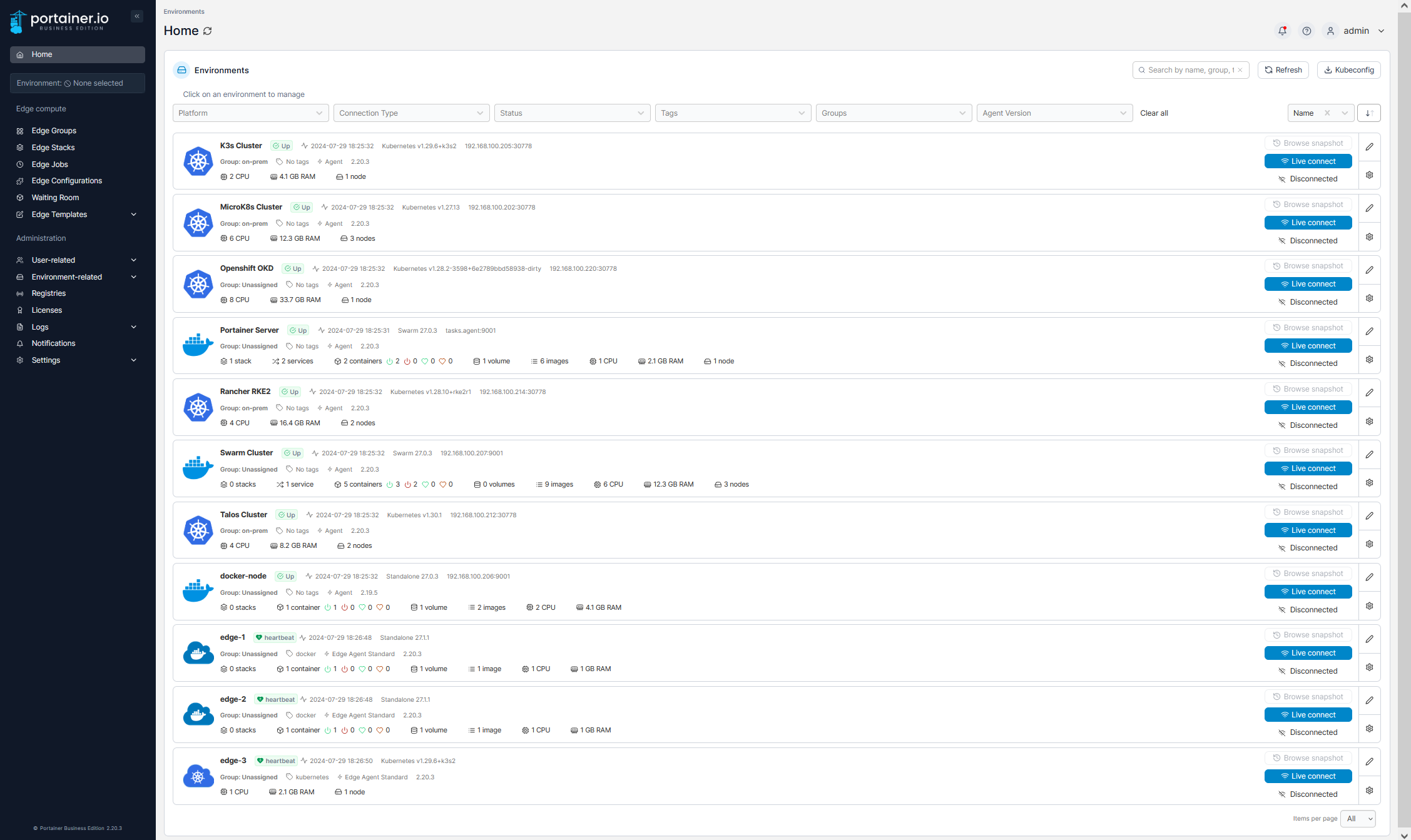
A Portainer Server can manage several compatible environments. On another Docker host, an Agent or Edge Agent connects that environment to the central interface. This does not turn several ordinary machines into one shared-storage cluster: workloads and their data still belong to their configured hosts unless you deliberately add a clustering/storage design.
The traditional Agent uses port 9001, which needs to be reachable from Portainer Server. The current documentation describes it as a legacy option and recommends Edge Agent for most use cases. Consult the generated installation command for your environment and version rather than exposing an agent port to the internet. Docker access gives the agent substantial control over the host.
Traditional Agents are claimed by a Portainer instance through a handshake and key exchange. The publisher describes additional mutual-TLS protection for Edge Agents; the two connection methods should not be collapsed into a claim that every agent automatically uses the same mTLS configuration. Review the required reachability and credentials for the chosen method.
Compose and Git-Backed Stacks
A stack groups services described in a Compose file. Keeping that definition in Git can make changes easier to review and recover. Choose the repository, branch or reference and actual Compose path, and supply appropriately scoped credentials for a private repository. Keep application passwords out of the repository.
GitOps updates can poll the repository or use a webhook. Polling checks at the configured interval rather than at the instant every commit is made. Image re-pull and forced redeployment are separate settings, so a commit should not be assumed to update every image or produce a safe database migration. Test application changes and preserve backups before enabling automatic deployment.
Relative-path volume handling is documented as a Business Edition feature. A ./data path in a Compose file is not proof that an arbitrary Git repository's files will appear at the intended host location in CE. Plan persistent paths and inspect the resulting mounts. Also avoid maintaining competing versions of the same stack through both manual changes and Git unless you understand which version will overwrite the other.
Backups and Day-to-Day Checks
The portainer_data volume stores Portainer's configuration database, not every managed application's data. The built-in Portainer backup includes its database and stack definitions, but excludes application volumes, bind-mount data and containers. Back up each database and file service using its own appropriate procedure, alongside Portainer's configuration and any Compose definitions needed for recovery.
Before removing or recreating a container, identify where its persistent data lives. A container image can usually be downloaded again; an unbacked-up database volume cannot. Keep an independent backup and test restoring a small application. Check logs, network reachability and a real application operation after changing a stack, rather than relying only on a running status.
The Docker socket is an administration interface. Access to a conventional root-running Docker daemon can amount to control of the host, so protect Portainer accounts and restrict its management endpoints. A web GUI makes those operations easier to find, but does not make destructive actions harmless.
Choosing the Interface
Portainer remains attractive for the approachable visual workflow described here. Choose the manager around the actual requirements: one host or several, a Compose-first workflow, user access, recovery and the edition you intend to run. Compare those requirements directly with each project’s supported features.
The Docker CLI and Compose remain useful ways to inspect and recover a deployment. Cockpit's Podman application offers another container-management approach, while Rancher focuses on Kubernetes management. These alternatives have different scopes; adopting Kubernetes solely to replace a small homelab Docker interface can add considerable work.
For installation and operation, consult the official CE Linux guide, first-run token instructions and backup scope.