
You have an email address using your own website name, such as [email protected]. You can send messages, but some land in spam or show a warning. How does the person receiving them know that your email service really has permission to use your name?
That is where SPF, DKIM and DMARC help. They are three checks that email services use to spot messages pretending to come from your domain. A domain is a name such as example.com, the part after the @ in that email address.
Think of SPF as an approved-senders list, DKIM as a digital seal, and DMARC as the check that connects those proofs to the sender name readers see. We will explain each, then show how to check your settings. Our BillionMail guide covers running an email platform on your own home equipment.
What Do Email DNS Records Do?
DNS, short for Domain Name System, is the internet's directory. It stores instructions that help other systems find your website and handle your email. Each saved instruction is called a record. You manage these records through the company hosting your domain's DNS.
Different records do different jobs. Being able to receive a message does not automatically mean that your outgoing messages have the right identity checks.
| Name you may see | What it means in everyday language |
|---|---|
| MX | Where should incoming email for this domain be delivered? |
| A/AAAA and PTR | Which computer address belongs to a server name, and which name belongs to an address? PTR is the reverse lookup. |
| SPF | Is this computer allowed to send for the domain being checked? |
| DKIM | Does this message carry a valid digital seal from the domain that signed it? |
| DMARC | Does a successful SPF or DKIM check also match the domain in the sender address readers see? |
A server is simply a computer providing a service, such as sending or receiving email. These records help check identity. They do not create a mailbox or make the message private. Cloudflare's email DNS guidance explains why your exact records depend on your email provider.
SPF: Your Approved-Senders List
SPF stands for Sender Policy Framework. Imagine giving a receptionist a list of couriers allowed to collect your letters. SPF serves a similar purpose: the receiving email service checks whether the sending computer is on the relevant domain's approved list.
There is one important detail. Email has a visible From address, which readers see, and a behind-the-scenes return address used for delivery-failure notices. The latter is also called the envelope sender, bounce address or MAIL FROM. SPF normally checks the domain in that behind-the-scenes address. It can differ from the visible From address.
Your provider supplies a line of text to save as a TXT record, a DNS record containing text instructions. For each name being checked, there should be only one SPF record starting with v=spf1. Other kinds of TXT record can sit beside it. If you add another sending service, follow its instructions to update the existing SPF record where needed, rather than creating a competing second one.
Include every service that sends for you: your ordinary mailbox, a newsletter service, website forms and automated alerts. Test each separately. A successful email from your laptop does not prove that your backup system's alert uses the same settings.
Optional: understand an SPF record
v=spf1 ip4:192.0.2.44 -allThis example allows only the computer at 192.0.2.44 to send for the checked domain. -all says other computers are not authorised. This address is reserved for documentation, so do not copy this example into a working setup. Providers may use ~all for a softer failure result. The recipient's service still decides what happens to the email.
A provider may give you an include: instruction, which tells the check to consult that provider's list. SPF allows up to ten instructions that trigger DNS lookups during a check, counting nested lists too. That does not mean ten email addresses or ten sending computers. If a tool reports too many lookups, ask your provider to help review the complete record. These rules come from the SPF specification.
DKIM: A Digital Seal for Your Messages
DKIM, or DomainKeys Identified Mail, adds a digital signature to an outgoing message. Think of it as a seal that helps the receiving service check which domain signed it and whether the protected parts changed along the way.
It uses two matching pieces of information, called keys. The sending service keeps the private key secret and uses it to create signatures. The matching public key goes in DNS, where receiving services can find it and check them. Publishing the public key does not reveal the private one.
Your email provider normally handles the difficult parts. It gives you a DNS record to add, then may ask you to turn on signing in its settings. Adding the record alone does not necessarily switch signing on. Google's DKIM instructions show these as separate steps.
You may be asked for a selector. This is a label that tells receivers which public key to find. For example, the label relay2026 could produce the record name relay2026._domainkey.example.com. Use the label your provider supplies. It is not always default or google.
The record may be TXT, containing the key, or CNAME, which points to another DNS name managed by the provider. Follow the supplied record type and value exactly. Two sending services can use different selector labels for the same domain.
Optional: recognise DKIM details in a message
In a message's DKIM signature, d= identifies the signing domain and s= identifies its selector. These help when a checker cannot find a key. Follow your provider's advice when replacing old keys. The DKIM specification describes the underlying checks.
DMARC: Check That the Names Match
SPF and DKIM can succeed for a domain that has nothing to do with the sender address you see. DMARC checks that connection. Its full name is Domain-based Message Authentication, Reporting, and Conformance, but the useful question is simpler: does the proof belong to the sender's domain?
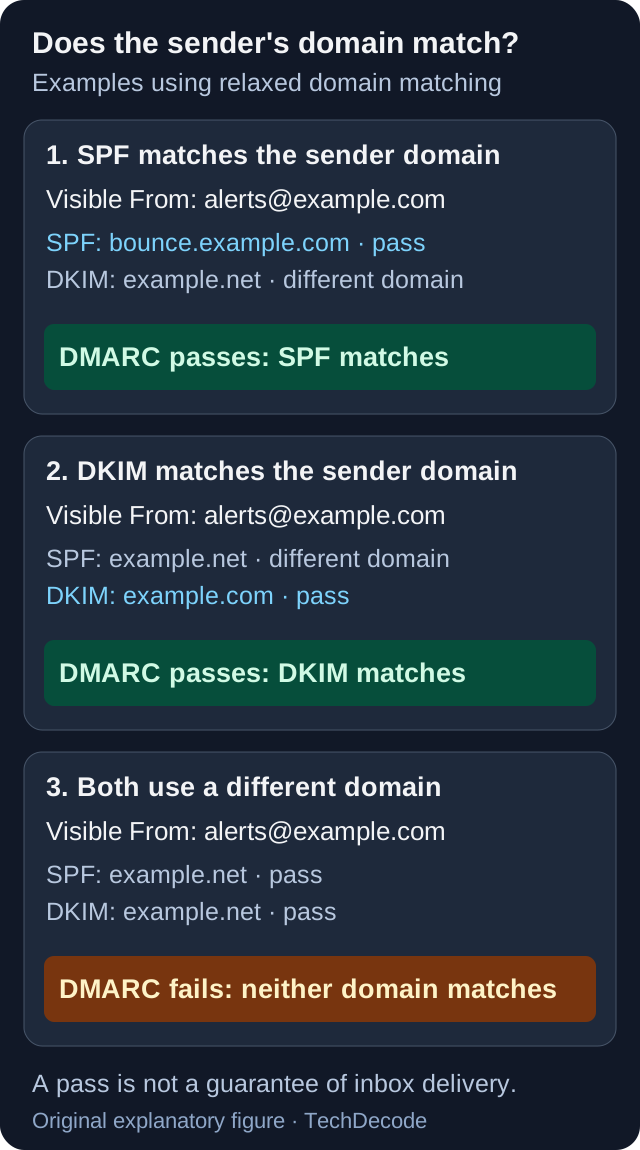
Suppose an email says it is from [email protected]. A valid DKIM signature from example.com matches that identity. A valid signature from an unrelated example.net does not. The technical word for this matching is alignment.
DMARC passes when at least one successful SPF or DKIM check also aligns with the visible From domain. It does not need both to qualify. Under the usual relaxed matching rule, a name such as bounce.example.com can match example.com. That extra part is a subdomain. A stricter setting requires exactly the same domain name.
DMARC also lets you publish a policy: instructions asking receiving services how to handle messages that fail this check. The main choices are:
p=none: monitor results without asking receivers to block failures because of DMARC.p=quarantine: ask receivers to treat failures as suspicious, for example by placing them in spam.p=reject: ask receivers to refuse failures.
Start by finding and fixing problems with your genuine messages. Moving straight to rejection could block your own newsletter or invoice emails if their setup is incomplete. Receivers also apply their own rules, so passing DMARC never guarantees an inbox place.
Optional: understand a monitoring record
v=DMARC1; p=none; rua=mailto:[email protected]This TXT record belongs at _dmarc.example.com. rua asks for summary reports at the address after mailto:. Replace that example address with a working destination you control or one supplied by your reporting service.
Google's rollout guidance recommends monitoring before stronger policies. Some older examples use pct to suggest applying a policy to only a percentage of messages. The May 2026 DMARC standard removes that setting. Do not rely on it to make a change safe.
Set It Up One Step at a Time
- List what sends your email. Include mailboxes, newsletters, forms, invoices and home-server alerts. An SMTP relay is another service that sends messages on an application's behalf. It needs checking too.
- Find your DNS settings and save a copy. The company where you bought the domain is its registrar. Another company may host its DNS. Make changes wherever the domain's active DNS is managed. Our domain-purchasing guide explains the difference.
- Get the exact records from each email provider. Add the correct SPF permissions and DKIM records. Leave incoming-mail MX records as your mailbox provider requires.
- Check the record names before saving. Some DNS editors add
example.comautomatically. If so, entering the full name again could accidentally create_dmarc.example.com.example.com. Follow your DNS host's instructions for its Name and Value fields. - Turn on DKIM and send test messages. Test every service on your list, then inspect the received messages using the next section. A provider's green setup badge is only part of the check.
- Read reports before tightening DMARC. Include occasional messages, such as monthly invoices, in your checks. Keep a copy of the previous settings in case a change needs correcting.
DMARC reports summarise which systems sent messages using your domain and how the checks went. They can be difficult to read directly, so a reporting service can help. If reports go to another company's domain, that destination may need an additional DNS permission. Your reporting provider should explain this; the reporting standard documents it.
Check Your Domain with MailSenpai
Enter a domain such as example.com in the tool below, without https:// or an email address, then choose Check. It reads publicly available email records. It does not change your settings or need your DNS login.
Check your email DNS
Enter your domain name below to check its email settings.
Provided by MailSenpai. If it does not load, open their full checker.
Treat results as clues about your setup. The checker tries common DKIM selector labels, but your provider may use a different one. A missing DKIM result therefore needs checking against your provider's instructions. MailSenpai's API documentation also describes a limit of 30 checks per hour per internet connection address, excluding recently cached results.
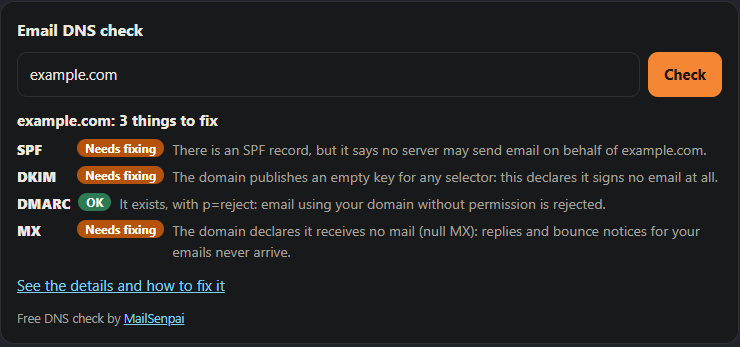
For example, our example.com check found an SPF record allowing nobody to send and a special MX record saying that the domain receives no email. Those can be sensible choices for a domain that is not used for mail. The null MX standard explains this. Do not change valid settings simply to turn every flag green.
Check a Real Email as Well
A DNS checker reads your published instructions. To see whether your email service actually follows them, send a test message to an inbox you can inspect. Repeat this from each sending service, including your website or alert application.
Open the received message's detailed information. These details are called headers. In Gmail, open the menu beside Reply and choose Show original. Look for the receiving service's SPF, DKIM and DMARC results. DMARC should pass for a correctly configured test message.
If it fails, compare the domains used for SPF and DKIM with the visible sender address. The diagram above shows why two successful checks can still use the wrong domain. If a relay uses its own return address, ask its support about a custom return domain or DKIM signing with your domain.
Optional: find the technical names in message headers
The receiver's check is often labelled Authentication-Results. smtp.mailfrom shows the address used for SPF, header.d the domain used for DKIM, and header.from the visible sender's domain. Use the results added by the receiving service you trust, rather than any earlier line saying pass. The Authentication-Results standard explains why earlier results cannot automatically be trusted.
Optional: check DNS using commands
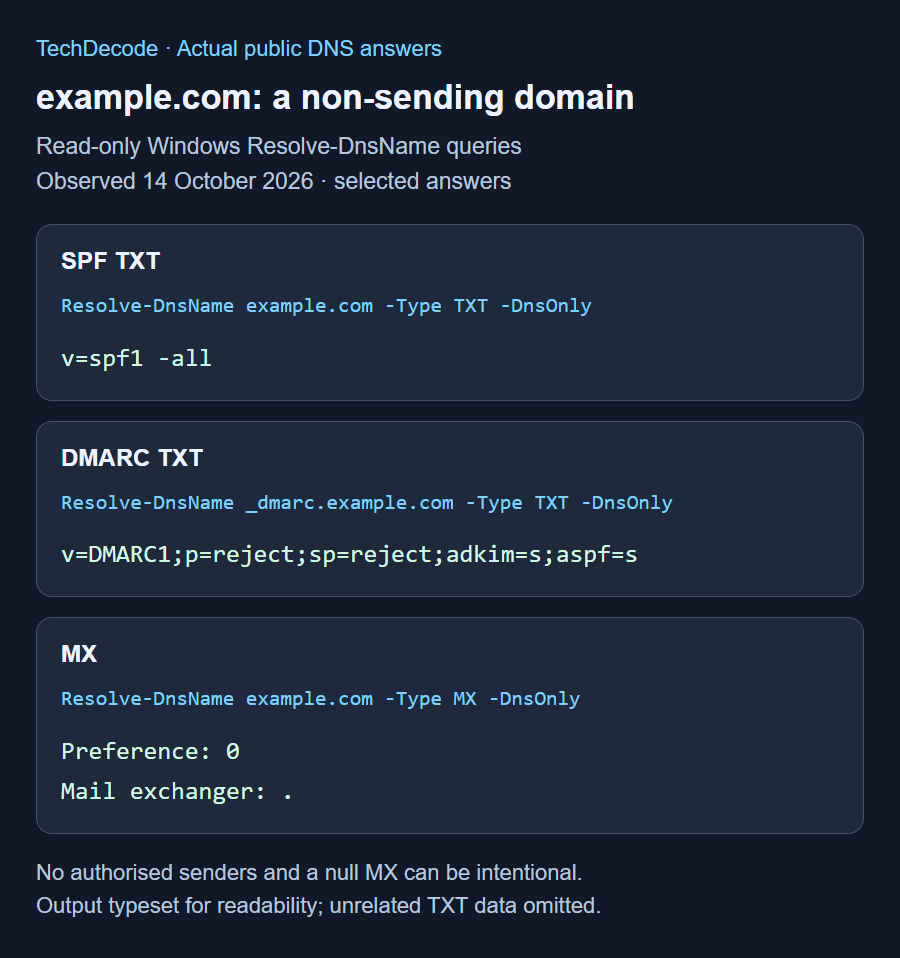
You can use commands instead of a website to read DNS. These examples look at example.com and change nothing. Replace it with your own domain, and replace the sample DKIM selector relay2026 with your provider's actual label.
On systems with the dig tool installed:
dig +short TXT example.com
dig +short TXT _dmarc.example.com
dig +short MX example.com
# Illustrative selector: use the real value from your provider or message.
dig +short TXT relay2026._domainkey.example.com
On Windows, open PowerShell and use Resolve-DnsName:
$mailDomain = 'example.com'
Resolve-DnsName -Name $mailDomain -Type TXT -DnsOnly
Resolve-DnsName -Name "_dmarc.$mailDomain" -Type TXT -DnsOnly
Resolve-DnsName -Name $mailDomain -Type MX -DnsOnly
# Illustrative selector: replace it before checking your own DKIM record.
$mailSelector = 'relay2026'
Resolve-DnsName -Name "$mailSelector._domainkey.$mailDomain" -Type TXT -DnsOnly
Our example DKIM lookup returned v=DKIM1; p=. The empty value after p= means the key has been withdrawn, so this answer cannot verify a signature. Your domain needs its own valid key. If your provider uses CNAME, check that pointer and the record it points to as well.
DNS systems keep temporary copies of answers, called a cache. TTL, or time to live, says how long an answer may be kept. After an edit, old copies can remain until their timers expire. If answers disagree, compare them with the DNS host that holds your domain's official records, called the authoritative host.
Common Problems and What to Try
| What you see | What to check next |
|---|---|
| SPF shows an error. | Check for two SPF records at the same name, typing mistakes or too many nested DNS lookups. |
| No DKIM record is found. | Check your provider's selector label, the record name and its type. Confirm that signing is switched on. |
| SPF and DKIM pass, but DMARC fails. | The successful checks may belong to another domain. Compare them with the visible From address. |
| Forwarded messages fail SPF. | Forwarding changes which computer delivers the message. An unchanged, valid DKIM signature matching your domain can still let DMARC pass. |
| A new DNS record seems missing. | Check that you edited the active DNS host, entered the correct name and allowed old cached answers to expire. |
| Everything passes, but the email goes to spam. | Identity checks are only part of delivery. Check unwanted-mail complaints, your sending service's reputation and the receiving provider's rules. |
Gmail's sender requirements are stricter for bulk senders, which need SPF, DKIM and DMARC alongside other requirements. Correct DNS does not replace sending wanted messages or providing appropriate unsubscribe options. For home-hosted mail, our BillionMail guide also explains internet-provider restrictions that can stop messages leaving your connection.
Your Final Checklist
- I know which services send using my domain.
- I have followed each provider's SPF and DKIM instructions.
- I have checked real messages from every sending service.
- DMARC passes because the successful check matches my sender domain.
- I review reports before asking receivers to block failures.
- I repeat these checks when adding or changing a sending service.
You do not need to memorise every code or acronym. Start with your provider's instructions, use the checker to spot possible problems, and confirm the result with real messages. Knowing which service sends what makes future changes much easier to manage.