With all the articles we have on home labs, we thought to take a step back to one of the first services you probably will/should install - running your own DNS server. A familiar option is the combination of Unbound and Pi-Hole (which, by the way, can run on supported Linux systems, not just on a Raspberry Pi). Today we want to look at a very good, single app solution that we think is a bit easier to manage than Unbound's config file edits. We consider Technitium's GUI a must-have option to explore for a homelab, whether you are a beginner or a pro. That is our recommendation, rather than a requirement that every household run its own DNS. First, let's recap the benefits and responsibilities before looking at installation.
Why Run Your Own DNS in a Home Network?
For many home network users and homelab enthusiasts, the idea of managing your own DNS might sound technical, but it comes with several benefits:
- Enhanced Control: By running your own DNS, you decide how domain names are resolved on your network. You can create custom names for devices, set up local shortcuts, or even block unwanted content.
- Privacy Choices: You control local logging and choose how external names are resolved. Forwarding still sends queries to an upstream provider, while direct recursion contacts external DNS servers. Self-hosting does not keep every query inside your house or make browsing anonymous.
- Useful Caching: A local server can reuse DNS answers while they remain valid, reducing repeated lookup work. That may improve lookup responsiveness; it does not increase your broadband speed, and a first uncached lookup can take longer than a cached answer from a public resolver.
- Customizability: You can fine-tune security settings, filter content, and manage network behavior to suit your specific needs.
Technitium DNS vs. Other Options
When it comes to self-hosted DNS solutions, there are a few popular choices. Here’s how Technitium DNS stands apart from some others:
- Technitium DNS:
- User-Friendly Interface: Offers a simple, web-based dashboard for managing your DNS settings.
- All-in-One Solution: Combines recursive resolution, authoritative zones, caching, domain blocking and logging in one application.
- Ease of Installation: Available for multiple platforms, it’s designed for users who may not have advanced technical expertise.
- Pi-hole:
- Specialized for Ad Blocking: Primarily known as a network-wide ad blocker, Pi-hole filters out unwanted domains.
- Focus on Filtering: Pi-hole includes a caching/forwarding DNS service and useful local DNS settings. Its official Unbound guide explains how to pair it with a recursive resolver. It is not limited to Raspberry Pi hardware; check its supported operating systems before installing.
- Unbound:
- High-Performance Resolver: Unbound is geared toward secure and fast recursive DNS resolution.
- Configuration Approach: Standalone Unbound commonly uses a configuration file. We find Technitium's tabbed GUI easier to approach, although appliance integrations can also provide interfaces for Unbound. Its capabilities include local data and response policy zones, not just plain recursion.
Each option has its strengths, but for users looking for an accessible DNS server with zone management and filtering in one interface, we think Technitium offers an excellent balance. That assessment does not imply that it replaces every feature or deployment role of BIND, Pi-hole and Unbound.
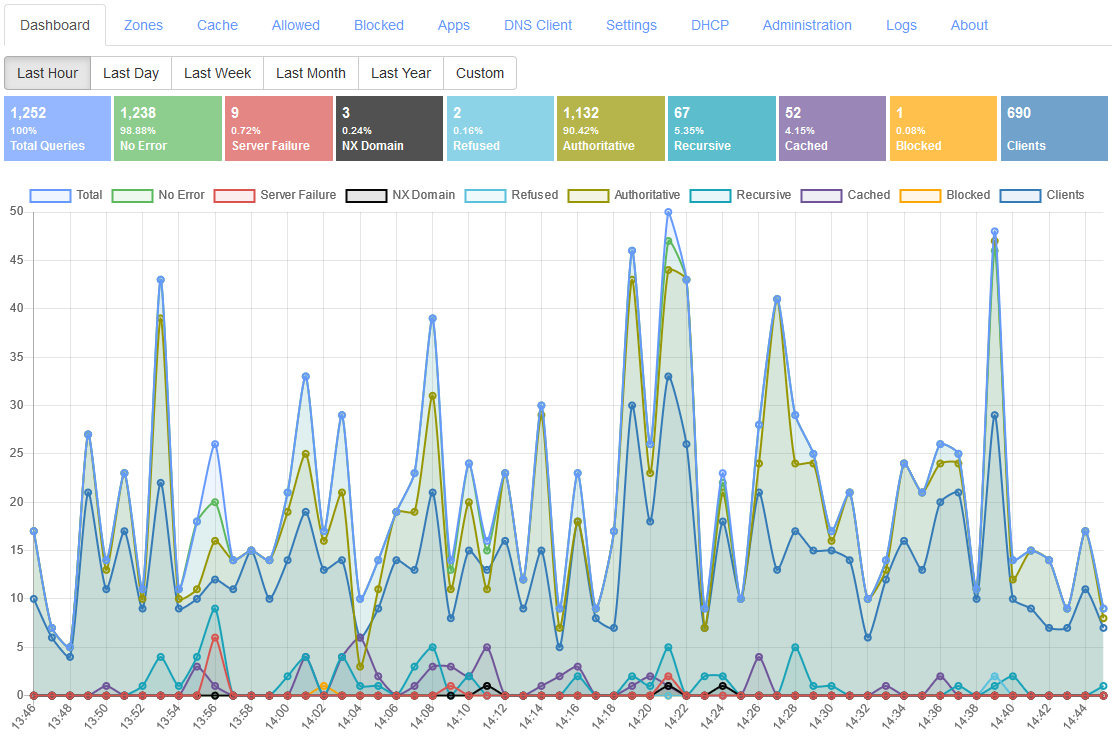
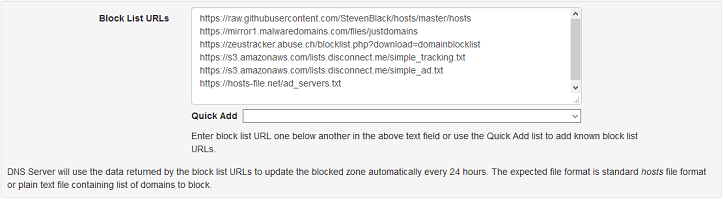
Getting Started: Step-by-Step Guide to Installing Technitium DNS
Start with one test device before changing DNS for your whole household. Keep a note of its previous automatic or manual settings so you can roll back.
- Choose an always-available host: Give it a stable LAN address, using a DHCP reservation or an appropriate static configuration. A laptop that sleeps is a poor choice for the resolver every device depends on.
- Download and install: Visit the Technitium DNS official website and use the instructions for your operating system. Native installation and Docker are alternatives; do not run both on the same address and port without planning for that conflict.
- Open the web interface: On the server itself, browse to
http://localhost:5380. From another computer, localhost refers to that computer, not the DNS host. Use the host's permitted management address or an SSH tunnel as described below. Set a unique administrator password before wider use. - Choose external resolution: Leave Forwarders empty for direct recursion, or configure the provider and protocol you intend to use. Verify connectivity before adding filters. Keep DNSSEC validation enabled unless you are diagnosing a specific, understood exception.
- Add one local zone: For a residential network, RFC 8375 reserves home.arpa. Create a Primary zone named
home.arpaand an A record such asprinterpointing to your printer's real, stable IPv4 address. Use an AAAA record only for an appropriate reachable IPv6 address. Creating a name does not configure the printer itself or open its firewall. - Test one client: Set that device's DNS to the server's LAN address and query both a public name and
printer.home.arpa. Check the response and server logs before changing your router's LAN/DHCP DNS advertisement. - Roll out carefully: Renew client leases or reconnect devices where needed. Review IPv6 router advertisements/DHCPv6 as applicable, browser secure-DNS settings and devices with hard-coded resolvers. Changing one router field does not ensure that every application uses Technitium.
- Add blocking and maintain: Start with a modest maintained blocklist, test the services you use and create narrow exceptions for false positives. Keep the service updated and local management restricted. A home resolver should not be an unrestricted public recursive service.
Considerations for Using Technitium DNS in Your Home Lab
Before you fully commit, keep these tips in mind:
- Backup Configurations: Export a settings backup and keep it off the DNS host. Check which zones, apps and other data your export includes, and test restoration. A second DNS server is useful redundancy, but it is not an independent backup.
- Monitor Behaviour: Watch failed queries, response times and resource use. A high NXDOMAIN count can have several causes, including ordinary discovery attempts or blocked names; it is not by itself proof of malware.
- Security: Restrict administration and recursion to intended clients, use strong credentials and update the software. Treat detailed query logs as household activity data: limit access and retention instead of collecting them indefinitely.
- Compatibility: Make sure all your devices are set to use your custom DNS server. Some devices might default to a predefined DNS, so check your network settings.
- Learning Curve: While Technitium DNS is designed to be user-friendly, take your time exploring its features. The more you learn, the more you can tailor it to your needs.
Deploying Technitium DNS Server in Docker Compose
This example is for a Linux Docker host providing ordinary DNS to your LAN, with Docker Engine 28 or newer. It does not enable a DHCP server or encrypted DNS listeners. It pins technitium/dns-server:15.6.1, a published release available when checked in October 2026; review releases before choosing a later image.
Set DNS_LAN_IP to an address actually assigned to the host and DNS_ADMIN_PASSWORD to your own long, unique password in a private .env file alongside compose.yaml. Do not commit that file or share its contents. Keep an existing ./config directory when updating an installation; replacing it with an empty directory would discard its persisted configuration.
services:
  technitium-dns:
    image: technitium/dns-server:15.6.1
    container_name: technitium-dns
    hostname: dns.home.arpa
    restart: unless-stopped
    ports:
      - "${DNS_LAN_IP:?Set the host LAN IPv4 address}:53:53/udp"
      - "${DNS_LAN_IP:?Set the host LAN IPv4 address}:53:53/tcp"
      - "127.0.0.1:5380:5380/tcp"
    environment:
      DNS_SERVER_DOMAIN: dns.home.arpa
      DNS_SERVER_ADMIN_PASSWORD: "${DNS_ADMIN_PASSWORD:?Set a unique admin password}"
      DNS_SERVER_RECURSION: AllowOnlyForPrivateNetworks
      DNS_SERVER_LOG_FOLDER_PATH: /var/log/technitium/dns
    volumes:
      - ./config:/etc/dns
      - ./logs:/var/log/technitium/dns
The project's Compose file documents these ports and persistent configuration path. The administrator environment variable initializes a fresh configuration; it does not reset an existing account's password on every restart. Change existing credentials through the supported administration interface. The server identity dns.home.arpa is not a substitute for creating any local DNS record you want clients to resolve.
Before starting, check what is listening on port 53 and on which address. Publishing only the host's LAN IP may allow the loopback stub to remain in place. systemd-resolved's manual explains its loopback listeners and DNSStubListener option. Do not disable the stub blindly: if the host still uses it through /etc/resolv.conf, that change can break host lookups. Resolve an actual binding conflict while preserving a working host resolver.
docker compose up -d
docker compose ps
On the Docker host, open http://localhost:5380 and sign in as admin with the password you supplied. For a remote host, an SSH tunnel lets you use that same local URL without publishing the console to the whole LAN. Replace the example user and address with your own SSH account and server:
ssh -N -L 5380:127.0.0.1:5380 [email protected]DNS queries are published on the chosen LAN address; administration is bound to loopback. Apply appropriate network/firewall restrictions as well. Docker's port-publishing documentation explains that binding a host address does not replace access control, and older Engine versions have a localhost-publishing caveat. Do not port-forward this home resolver or its console from the internet.
Recursion, Forwarding and Encryption
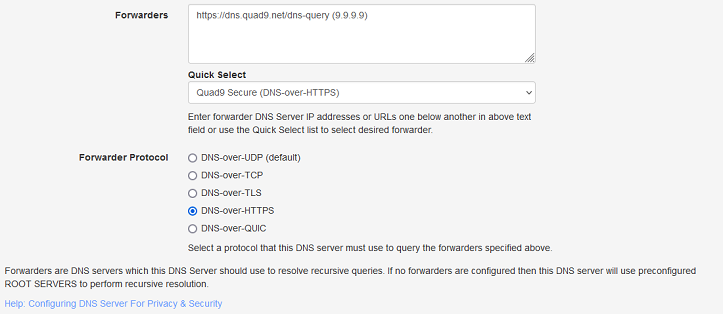
Technitium can resolve names itself or forward them to another resolver. Direct recursion follows referrals through the DNS hierarchy to the relevant authoritative servers; the root servers do not hold the final address for every website. The Forwarders screenshot illustrates the alternative: an HTTPS request to Quad9's resolver.
Those choices have different trust and connectivity requirements. Ordinary recursive queries are not automatically encrypted. An encrypted forwarder protects the server-to-provider connection, but the provider receives the queries and the client-to-server connection may still be ordinary UDP/TCP DNS. DNSSEC validates signed DNS data; it is not encryption and does not establish that a website is safe.
Technitium also supports hosting DoH, DoT and DoQ services. Publishing their ports alone does not configure certificates, enable the services or make clients use them. Leave them out of a first LAN deployment until you have a reason and follow the official protocol configuration guidance. Avoid changing forwarding, blocking and transport settings all at once, because that makes a failed lookup harder to diagnose.
Testing Resolution and Blocking
On a test client, query the server directly. Substitute its real LAN address and a local record you have actually created; the following addresses and names are examples.
nslookup example.com 192.168.1.10
nslookup printer.home.arpa 192.168.1.10
Then repeat an ordinary lookup without specifying the server, and check which resolver answers. A successful explicit query proves the server is reachable, but does not prove the device's normal DNS settings use it. If you have dig, test TCP as well as UDP when troubleshooting, since DNS requires both.
Enable a blocklist only after normal resolution works. Use a harmless domain present in that list to check the blocking result, then verify a service you want to allow. DNS blocking works at the domain level, so it cannot reliably remove ads served from the same hostname as wanted content. When an app breaks, inspect its queries and add a focused exception rather than disabling every list.
If the test fails, distinguish a timeout, a refused query, a blocked result and a resolver failure. Check the published address, client route, recursion permissions, server logs and upstream connectivity in that order. Do not assume that every failure means DNSSEC should be turned off. Restore the test client's previous settings if you need normal connectivity while investigating.
Clustering and Resilience
Native clustering arrived in Technitium 14, whereas version 13 introduced catalog-zone support. The author's clustering guide describes independent DNS nodes with synchronized configuration. Common settings, apps and allowed/blocked configuration can be shared, but zones must be enrolled in the special cluster catalog when you want them replicated. Caches and logs remain node-specific.
Clustering does not automatically give clients a floating DNS address or make a powered-off host answer. Configure clients to reach both intended resolvers, check that local names and filtering agree, and test loss of one node. Changes depend on the primary node; promoting a secondary is an explicit management operation. Keep any DHCP availability plan separate rather than assuming DNS clustering clones DHCP scopes.
Do not add a public resolver as a supposedly idle secondary if you depend on local names or consistent filtering: clients may query either configured server. Two containers on one host also share that host's failure risk. Independent devices can improve availability, while backups and a documented router/client rollback provide a way to recover from bad configuration.
Choosing the Right DNS Setup
| Setup | Why consider it? | What to plan |
|---|---|---|
| Technitium | Recursion, authoritative zones and filtering in a web console. | Stable addressing, client rollout, updates and configuration recovery. |
| Pi-hole with Unbound | A documented pairing of filtering and recursive resolution. | Two services, their ports and the forwarding path between them. |
| Standalone Unbound | A recursive resolver with local-data and policy options. | Configuration management and any filtering/reporting workflow you want. |
Compare the workflow you want to maintain, rather than assuming a longer feature list makes one product universally better. For example, Unbound can also serve DNS-over-HTTPS when built and configured appropriately; encrypted DNS is not exclusive to Technitium.
Conclusion
We still think Technitium offers a practical, accessible way to manage a home network, especially when a GUI and local zone management appeal to you. Start small, prove that one device can resolve both local and public names, and expand from there. The useful payoff is control you understand and can maintain: deliberate privacy choices, reliable local naming and filtering that does not get in the way of the services you want to use.