Wi-Fi channel choice affects how your network shares radio spectrum with nearby devices. Different generations add capabilities, but channel number, channel width and the actual radio environment still matter. Wi-Fi 6E introduced Wi-Fi 6 operation in the 6 GHz band; Wi-Fi 7 can also use that band, where the device and regional rules permit it.
The access point usually chooses or is configured with the operating channel, while clients must support and follow the connection they join. A router's maximum setting does not mean every phone can use it. Start with the connection problem you want to solve rather than select the largest channel width available.
Channel Number and Width
A channel number identifies a frequency arrangement within a band. Channel width describes how much spectrum the transmission occupies. A wider channel can increase the maximum physical data rate under suitable conditions, but it also uses more spectrum that neighbouring networks may need.
Number alone is insufficient for comparison. A 5 GHz access point displaying channel 36 with an 80 MHz width uses a bonded block containing the 20 MHz channels 36, 40, 44 and 48. Another access point displaying 44 at 80 MHz may use that same block. Their different displayed primary numbers do not establish independent, non-overlapping spectrum.
The Three Bands
2.4 GHz
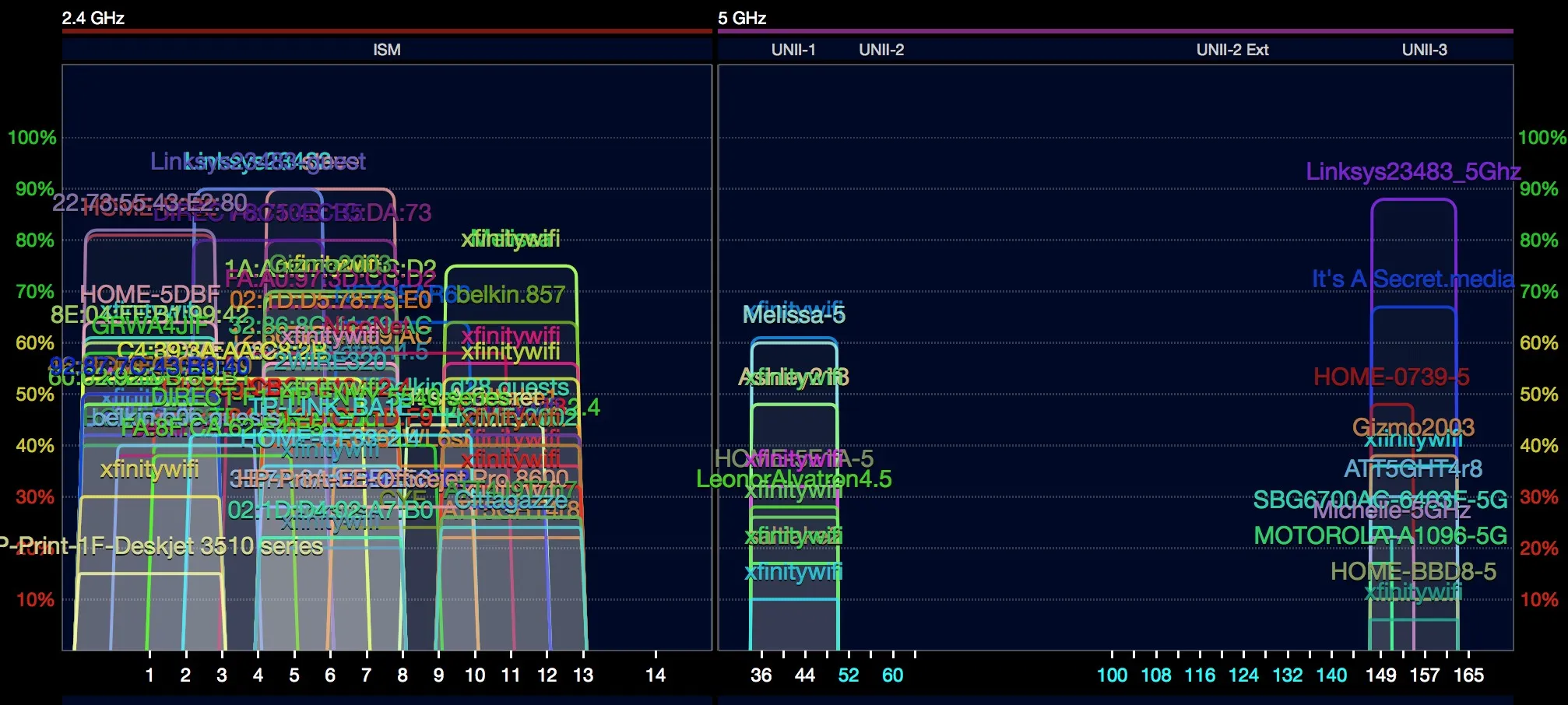
This band remains useful for range and older or low-cost clients. Most neighbouring channel centres are only 5 MHz apart, while a common Wi-Fi channel is about 20 MHz wide. In the usual 1–11 channel plan, 1, 6 and 11 provide the familiar separated choices.
Other regions allow additional channels, but that is not a reason to ignore the neighbouring layout. Cisco's RF reference guide explains why the 1/6/11 plan is widely used and why other overlapping arrangements need care. Start with 20 MHz in a busy home; it preserves scarce spectrum. Forty-megahertz operation is supported in some deployments, but is rarely a useful first choice around crowded networks.
5 GHz
There are more channel options than in 2.4 GHz, with 20, 40, 80 and sometimes 160 MHz operation. Available channel blocks, power and indoor/outdoor conditions depend on region and equipment. A single “36 through 165 everywhere” list is incomplete, especially where expanded 5 GHz allocations exist.
Dynamic Frequency Selection, or DFS, protects radar users on applicable channels. Access points must perform the required availability checks and respond to detected radar by vacating the channel. Cisco's DFS explanation shows how those events can interrupt clients. Non-DFS channels avoid that particular cause of disruption, but can be busier; DFS is not automatically a bad choice.
6 GHz
The widely quoted 59 channels of 20 MHz refer to a full 1,200 MHz allocation. They are not available in every country. HPE's 6 GHz planning guide distinguishes that allocation from the lower 500 MHz and its smaller channel count.
For South Africa, ICASA's 2023 announcement opened 5,925–6,425 MHz for Wi-Fi, and its 2026 frequency plan lists WAS/RLAN in that same range. Use locally approved equipment and its supported regional settings rather than apply a US channel table.
Six-gigahertz access needs suitable radios, drivers, operating-system support and security modes. A Wi-Fi 7 label alone does not guarantee a 6 GHz radio. Older 2.4/5 GHz clients cannot join the new band, but newer neighbours can still compete for its airtime. It is additional spectrum, not a promise of a permanently empty channel.
Choose Width for the Environment
| Width | Useful consideration |
|---|---|
| 20 MHz | Conserves spectrum; a strong starting point for crowded 2.4 GHz and dense multi-AP layouts. |
| 40 MHz | A middle ground when 5 or 6 GHz channel reuse matters more than peak rate. |
| 80 MHz | A common 5/6 GHz choice when clients support it and the occupied block works well locally. |
| 160 MHz | Needs wider usable spectrum and compatible clients; can reduce independent channel choices. |
| 320 MHz | Optional Wi-Fi 7 capability in 6 GHz, with very limited channel reuse; not universally supported. |
HPE's Wi-Fi 7 guide explicitly scopes 320 MHz to 6 GHz and identifies its optional support. Do not force that width simply because it is listed. Local signal quality, traffic demand, client capabilities and the available spectrum determine whether a wider setting supplies useful throughput.
Apple's router-setting guidance recommends 20 MHz for 2.4 GHz and automatic/all supported widths for 5 and 6 GHz. That is a sensible compatibility baseline; a carefully measured manual narrower setting can still suit a congested installation. Compare the actual result rather than treat one width as best for every network.
Contention and Interference Are Different
Networks on the same channel normally contend for airtime using Wi-Fi's access rules. They may detect each other's transmissions and wait, but hidden devices, weak signals and collisions can still cause retries. Same-channel operation is not harmless or free capacity.
Partially overlapping channels can produce a less coordinated interference problem. An apparently empty channel 3 in a busy 2.4 GHz chart may overlap nearby 1 and 6 transmissions. That makes a separated channel plan preferable in many homes, without implying every overlapping-channel choice causes an identical disaster.
Non-Wi-Fi devices can contribute interference too. A normal list of nearby Wi-Fi names does not measure every microwave, Bluetooth transmission or other radio source. Check the access point's airtime, retries and noise information where available, alongside signal and actual application behaviour.
Regional 6 GHz Channel Counts
For ordinary non-overlapping channel planning, HPE documents the following counts. These are allocation comparisons, not a guarantee that every device can use every channel or power class.
| Width | Full 1,200 MHz allocation | Lower 500 MHz allocation |
|---|---|---|
| 20 MHz | 59 | 24 |
| 40 MHz | 29 | 12 |
| 80 MHz | 14 | 6 |
| 160 MHz | 7 | 3 |
Preferred Scanning Channels, or PSCs, assist discovery; they are not inherently the least busy or fastest channels. Some 6 GHz deployments also use Automatic Frequency Coordination according to the local device class and regulations. AFC is separate from 5 GHz radar-based DFS, and the US LPI/standard-power terminology should not be treated as universal.
A Practical Improvement Sequence
- Record a baseline: Note the client, room, band, primary channel, actual width and a repeatable application task. Check whether a wired test also suffers; a channel change cannot fix an ISP bottleneck.
- Inspect the layout: Look at the widths and signal strengths of nearby radios, not only the number of network names on each channel. Several quiet networks may consume less airtime than one busy neighbour.
- Start from supported defaults: Keep the real country/region setting. Use automatic selection unless measurements show a problem or you are deliberately coordinating several access points.
- Change one variable: Compare a different separated channel or narrower width using the same device and task. Allow for reconnection and any required DFS check.
- Check at busy times: Repeat in the rooms that matter, and inspect retries, interruptions or latency during normal household use.
- Keep a record: Save the better configuration and revisit it after firmware changes, new neighbours or moving access points.
Multiple Access Points and Mesh
Nearby independently configured access points can use different non-overlapping blocks to reduce contention, with reuse elsewhere when sufficient separation permits it. Ensure the chosen widths actually occupy different blocks. There are limited channels; “never reuse one anywhere” is not a workable universal rule.
A wireless mesh or repeater may need common channels for its backhaul and may control channel settings centrally. Wired backhaul does not automatically mean every consumer mesh exposes independent manual channels. Follow the platform's supported controls and inspect both client and backhaul behaviour before changing radio settings.
Use Measurements with the Right Scope
A router's own radio statistics and a supported Wi-Fi scanning or survey tool can show nearby channels and signal levels. Tools have platform, hardware and permission limits, especially in 6 GHz; check their current documentation. A scanner's attractive channel score is not proof of performance in another room or at another time.
For useful comparisons, collect observations at the client locations and pair them with a repeatable local transfer or application task. Distinguish negotiated link rate from measured throughput. If the signal is weak everywhere behind a particular wall, placement or another access point may address the problem more effectively than another channel.
Conclusion
Choose channels and widths as part of a local, region-correct radio plan. Begin with supported settings, measure your actual clients and change one thing at a time. The best result is a stable connection for the tasks you need, rather than a universal channel number or the widest setting on the screen.