I know we are on the fifth instalment of the series already, but rather late than never. One of the first (if not the first) apps you can self host (run in your homelab) will probably be your own personal DNS server. Although we are already running a Wordpress site in our homelab, today we will look at running our own DNS server and how to set it up for the entire network, and lastly, we will create a zone and record to access our running Wordpress site through a link that we can remember rather than the IP address of the LXC Container. We will be using Technitium as our DNS provider of choice because the web interface for management makes it miles easier.
Step 1- Get the Technitium helper script
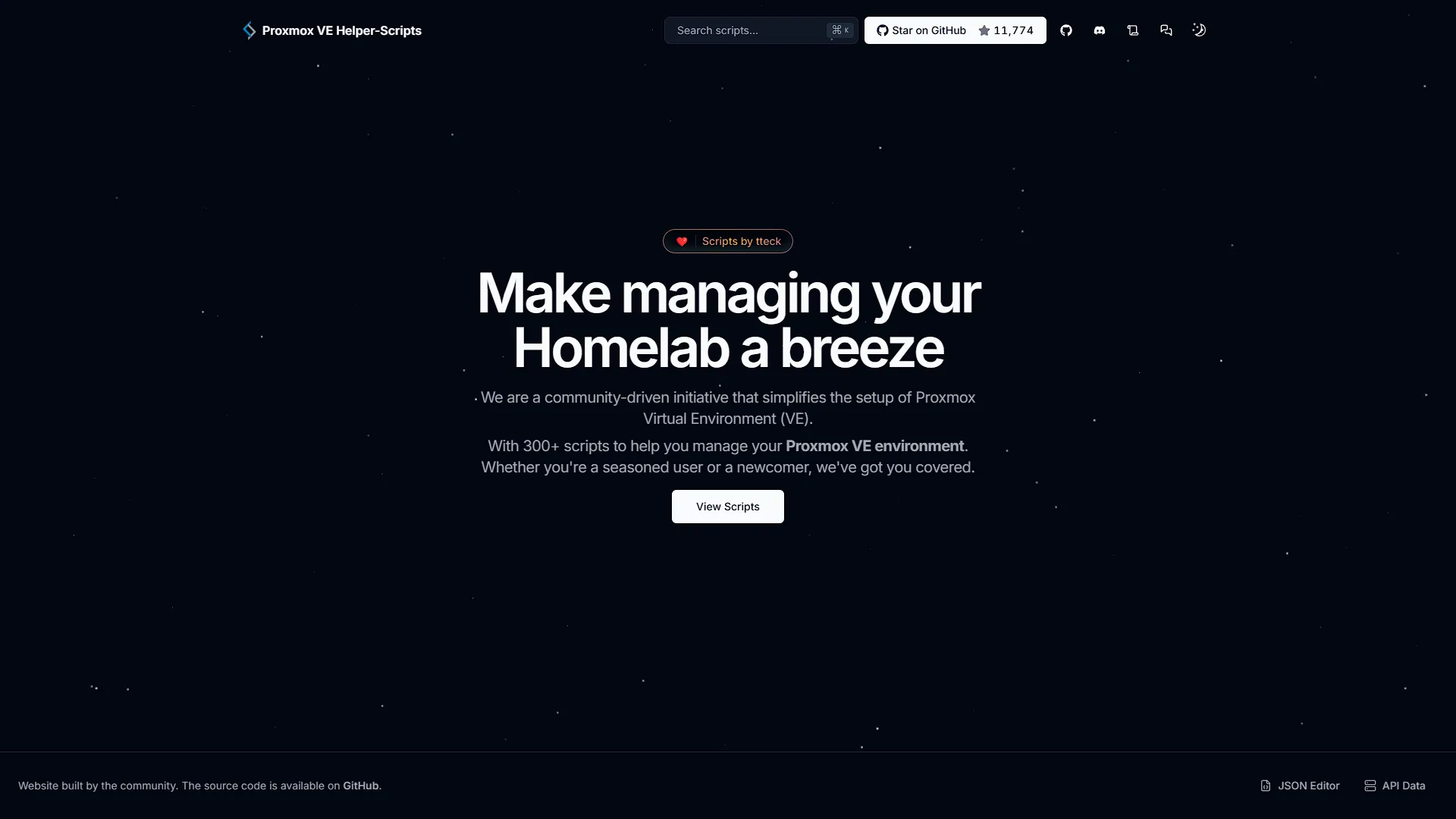
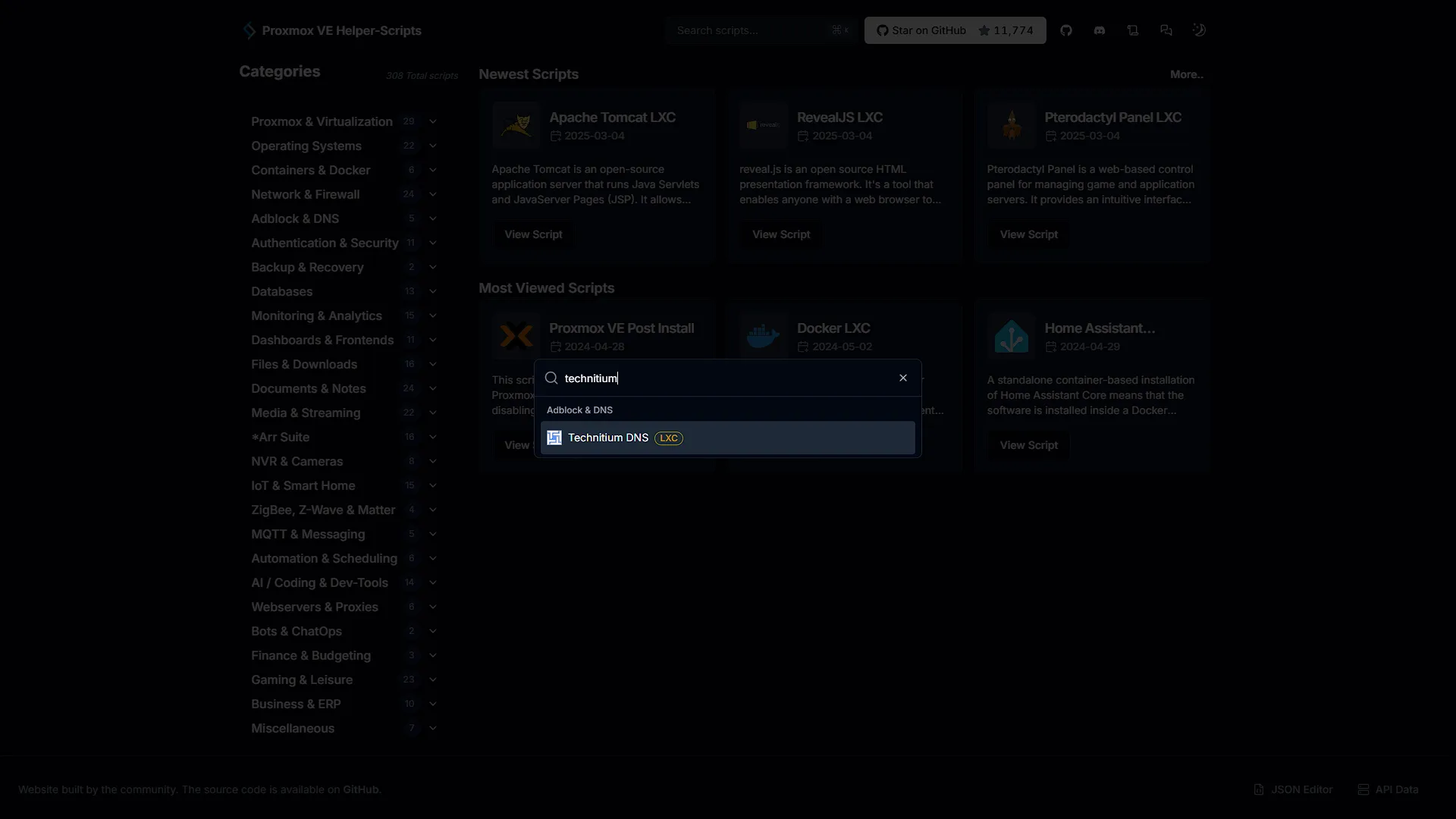
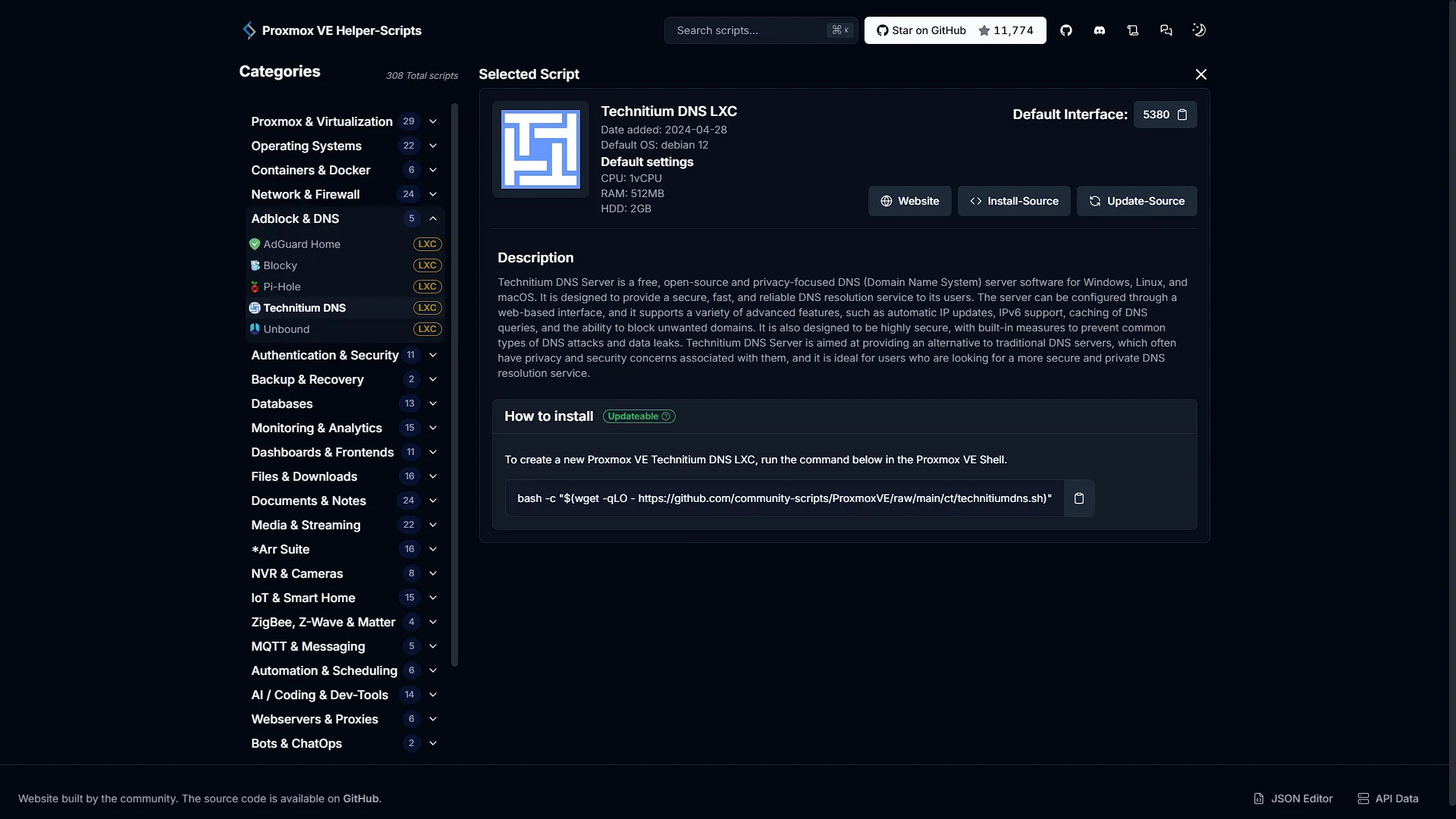
When we last installed the Wordpress LXC container, we used Turnkey Linux presets that is available via the Proxmox instance. However, there isn't a Technitium DNS Turnkey Linux container. That is not a problem though, as we have yet another source that we can use to help with the installs of Proxmox containers. This time it is the website helper-scripts.com This is just an alias for the actual site, https://community-scripts.github.io/ProxmoxVE/ On this website, search for technitium and click on the search result for Technitium DNS (LXC). From this page, you will see the command that needs to be run. Copy the command by clicking on  next to the bash command in the
 How to install section.
Step 2: Setup the container
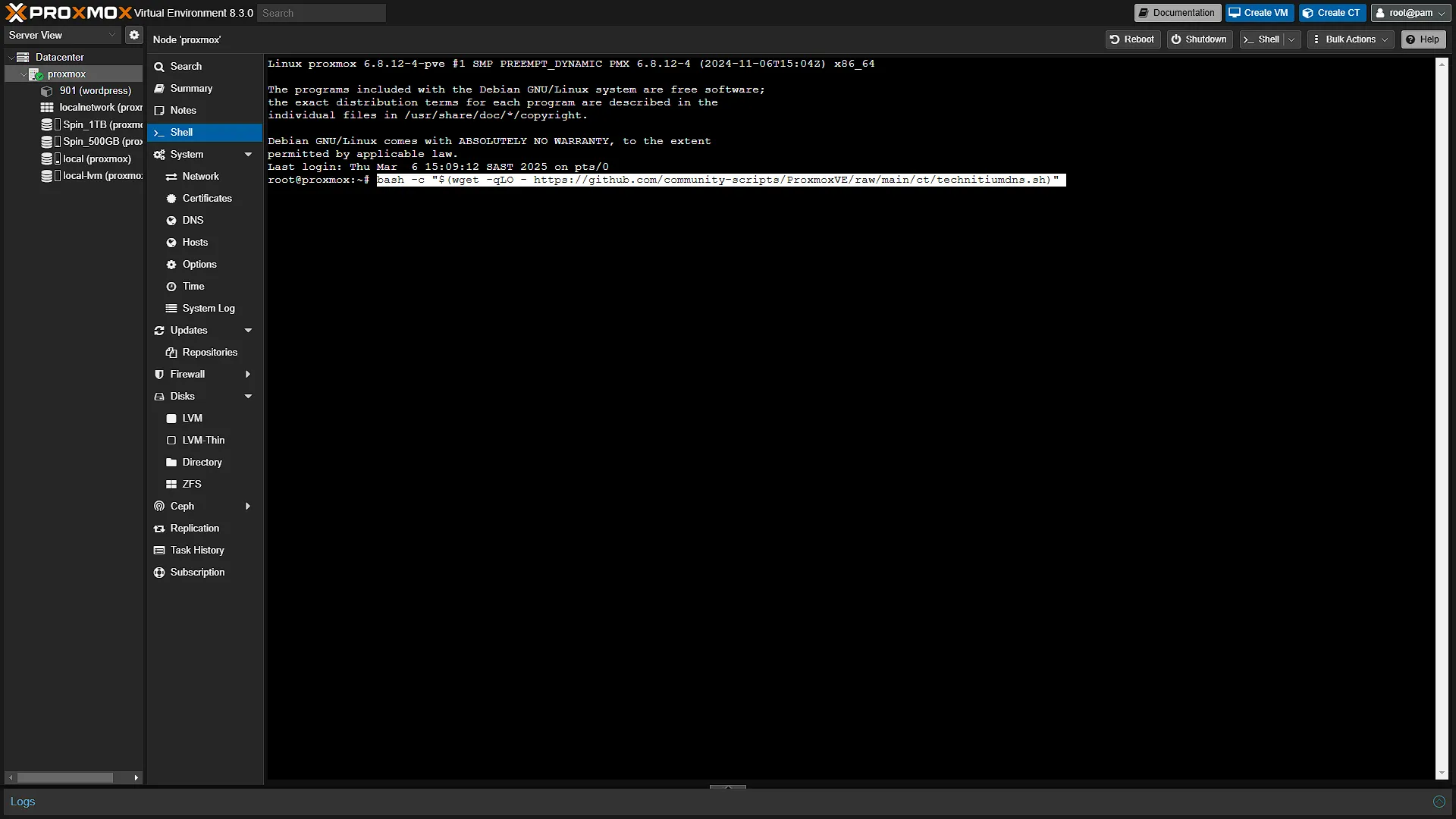
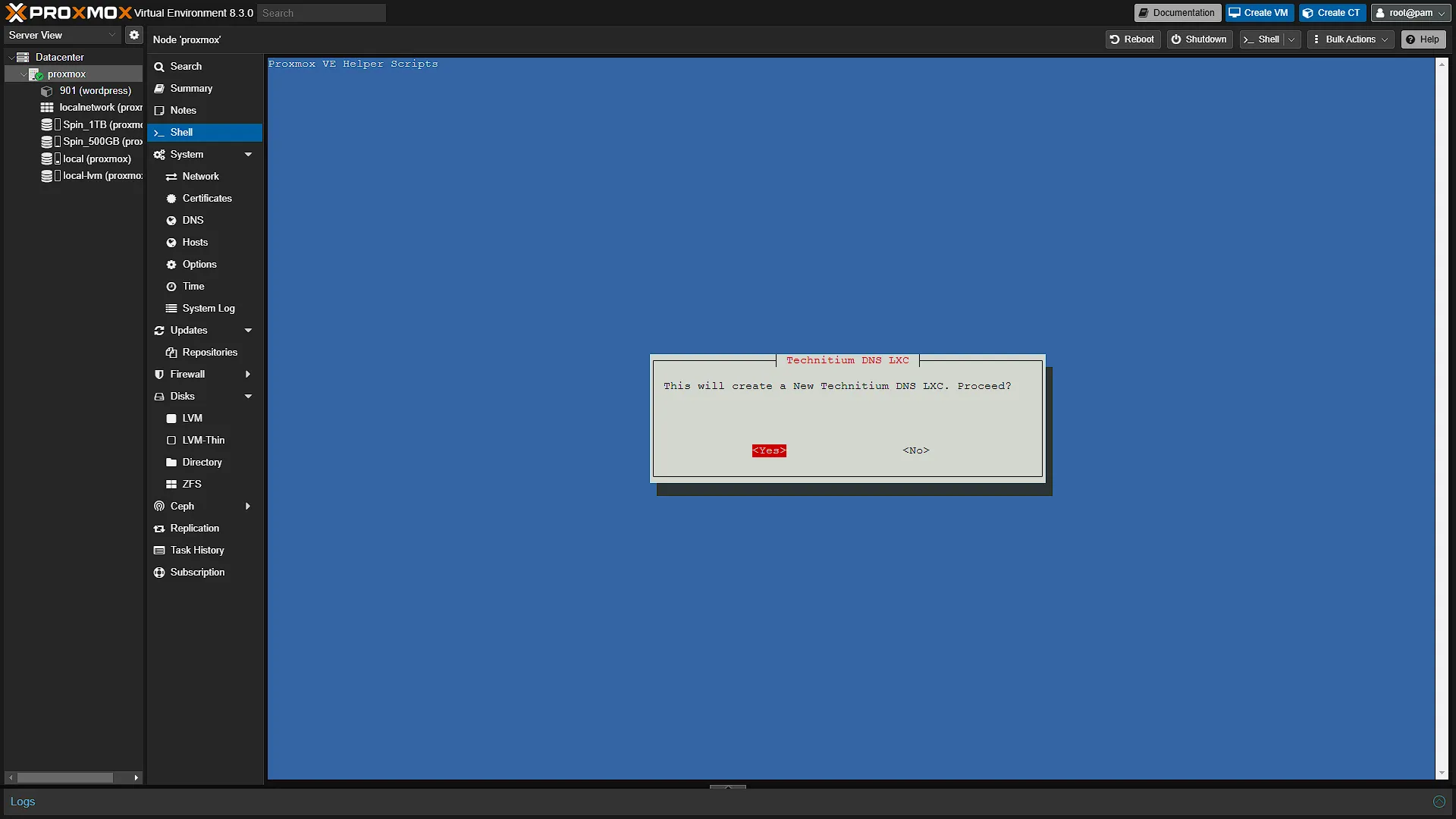
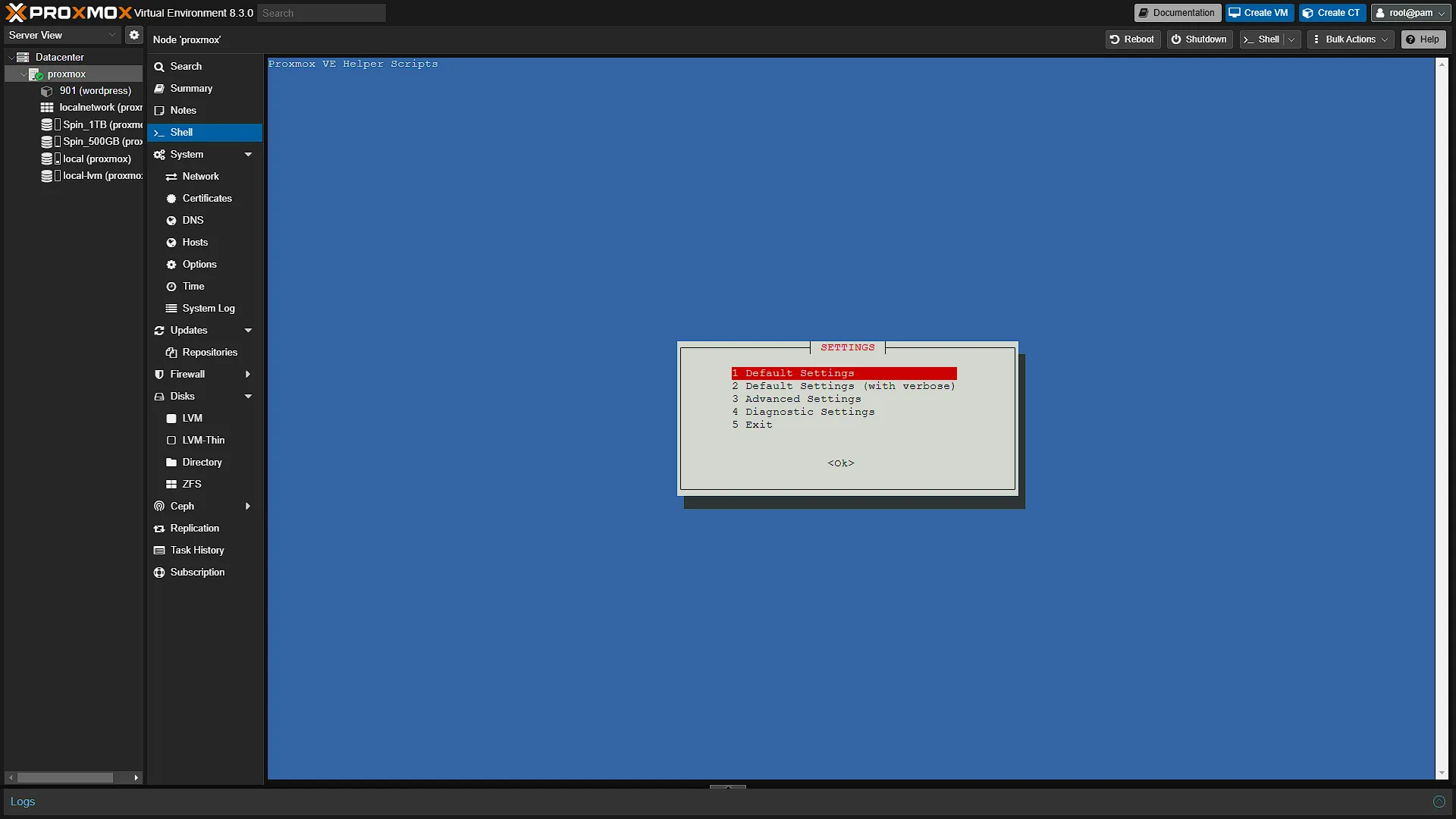
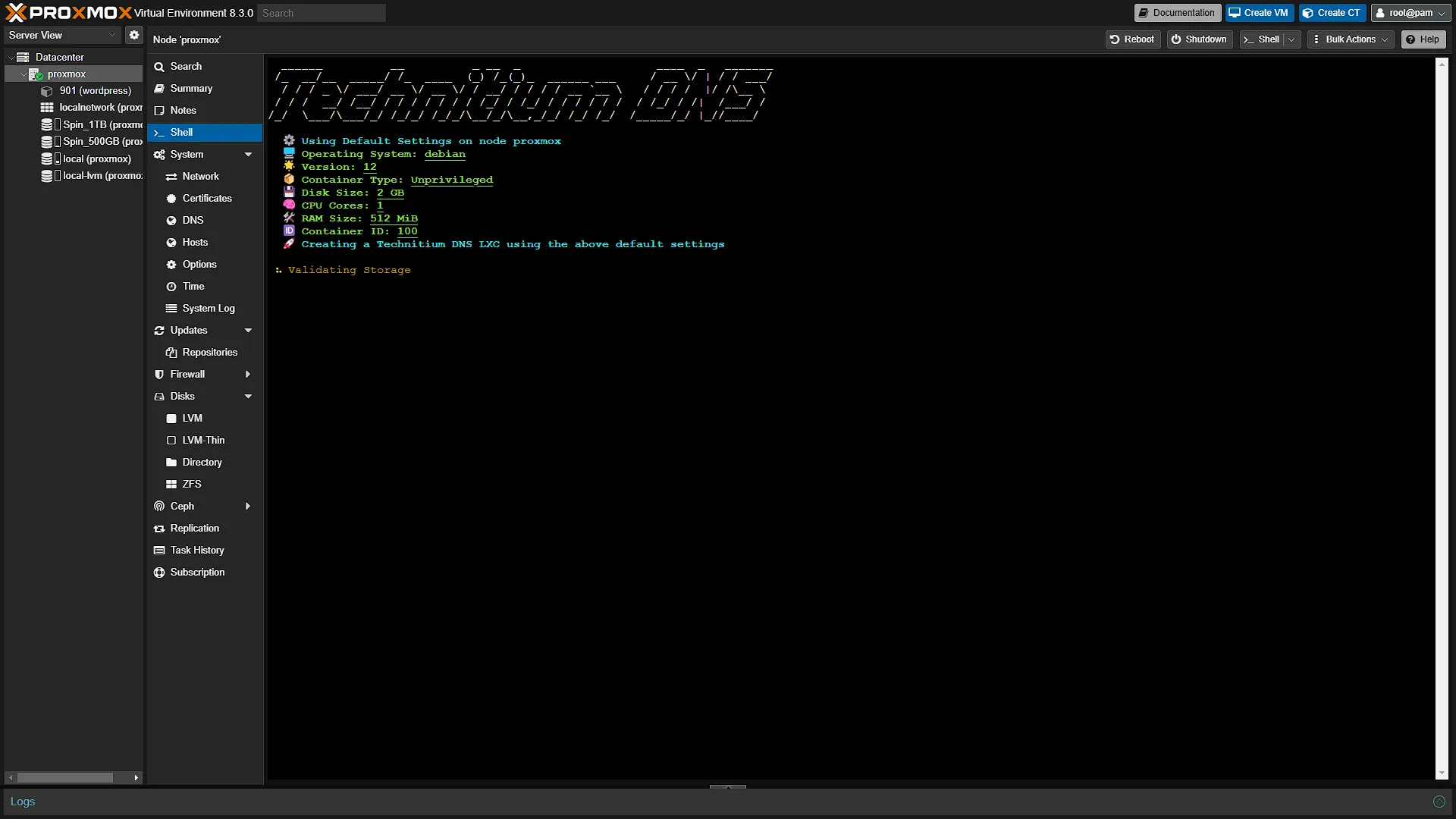
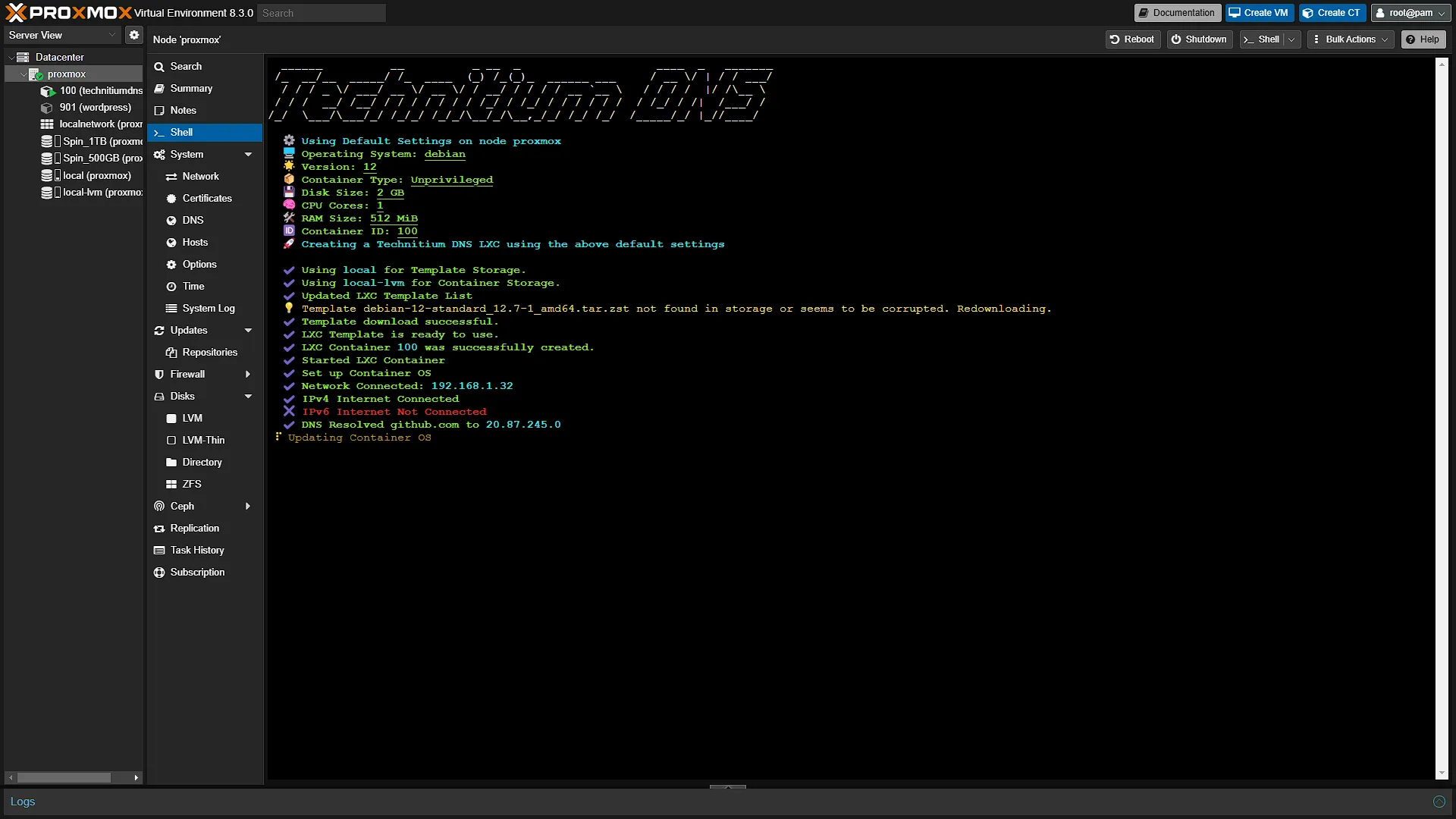
Now that we have the script command that needs to be run, we can log into our Proxmox instance via the web interface. In the left navigation pane, select the node (Proxmox). In the middle navigation page, select console to open a command console. Paste the command and press enter to run it. The setup will now start in the console window. The first screen will ask if you want to continue, select <Yes> by pressing Enter. we are going to install with the Default settings, so press enter on the next screen with Default Settings selected. If you want to change the disk size, RAM- or CPU allocation, you can run the Advanced Settings setup, but these are things we can change after the container is up and running, so it is easier to just leave as default and continue. The defaults are:
- Operating System: debian (Advanced can offer Ubuntu as well if you prefer)
- Container Type: Unprivileged. We will get into the details of privileged and unprivileged containers in a future article, but unprivileged is perfect.
- Disk Size: 2GB. More than enough, for a home setup at least. Should we need more space we can increase in the future.
- CPU Cores: 1. This is also enough to serve requests for multiple home users. Should we see CPU top out, we can increase this.
- RAM: 512 MB. Again, more than enough, we will use roughly 100MB on average, so not a problem. If you have RAM to spare, you can increase this later.
- Container ID: The first available container ID from 100 onwards will be used. This is not as easy to change later, so if you want a different ID, run Advanced Setup
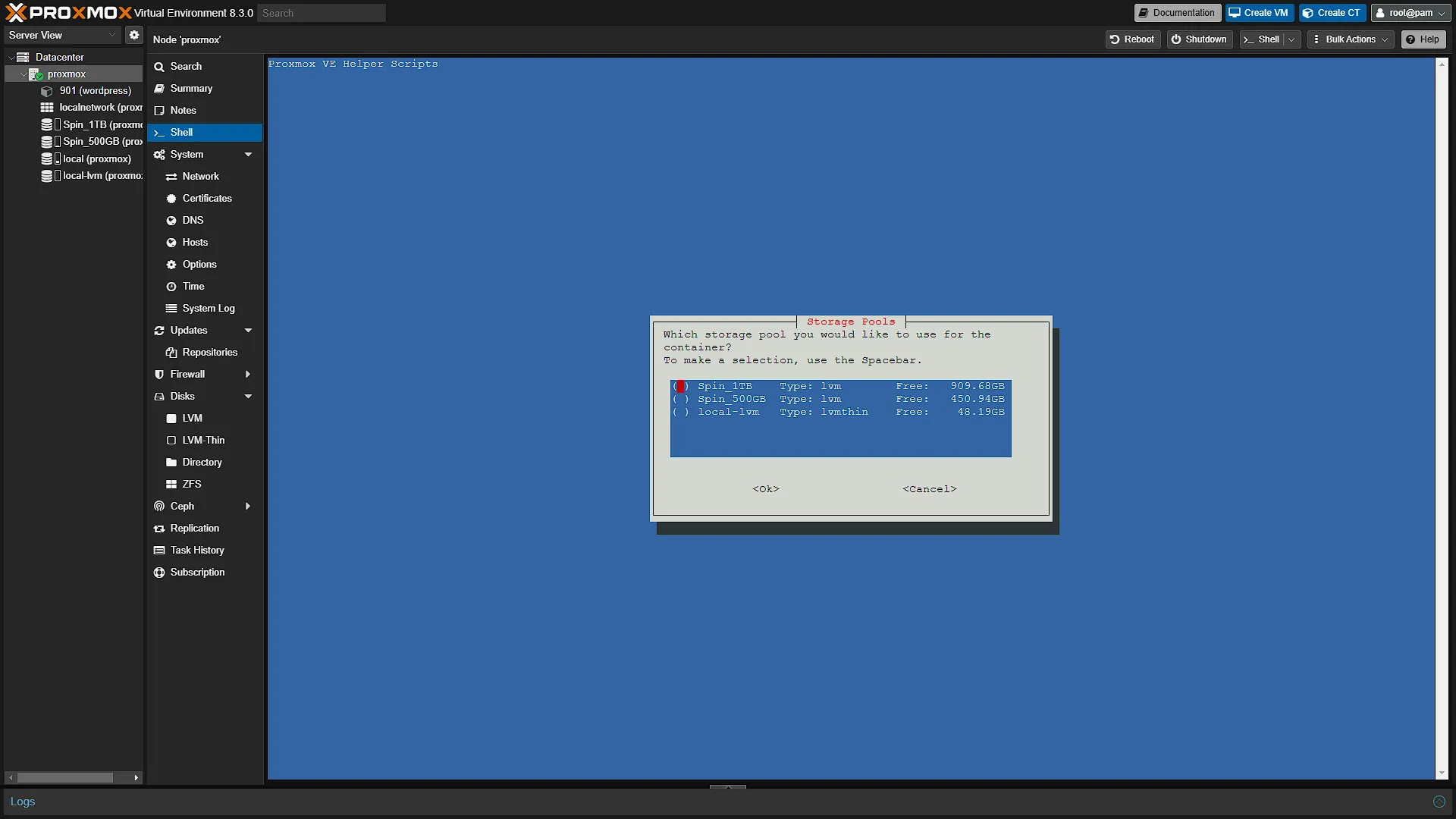
You will be prompted to select a storage disk, select any one you want and press Enter. We prompted for Solid state storage for the DNS. (Read our article explaining the differences between a SSD - Solid State Drive and a HDD - Hard Disk Drive)
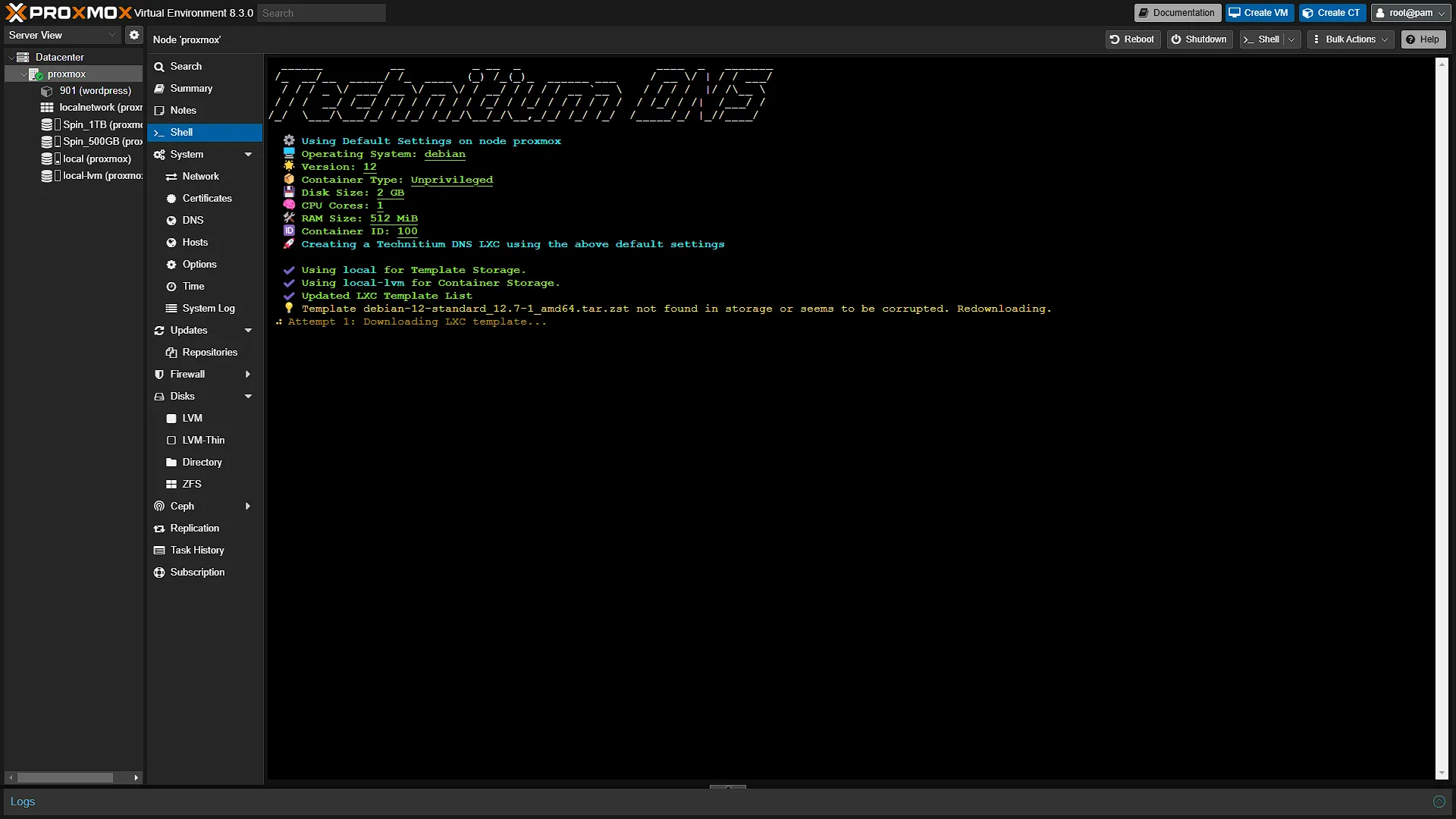
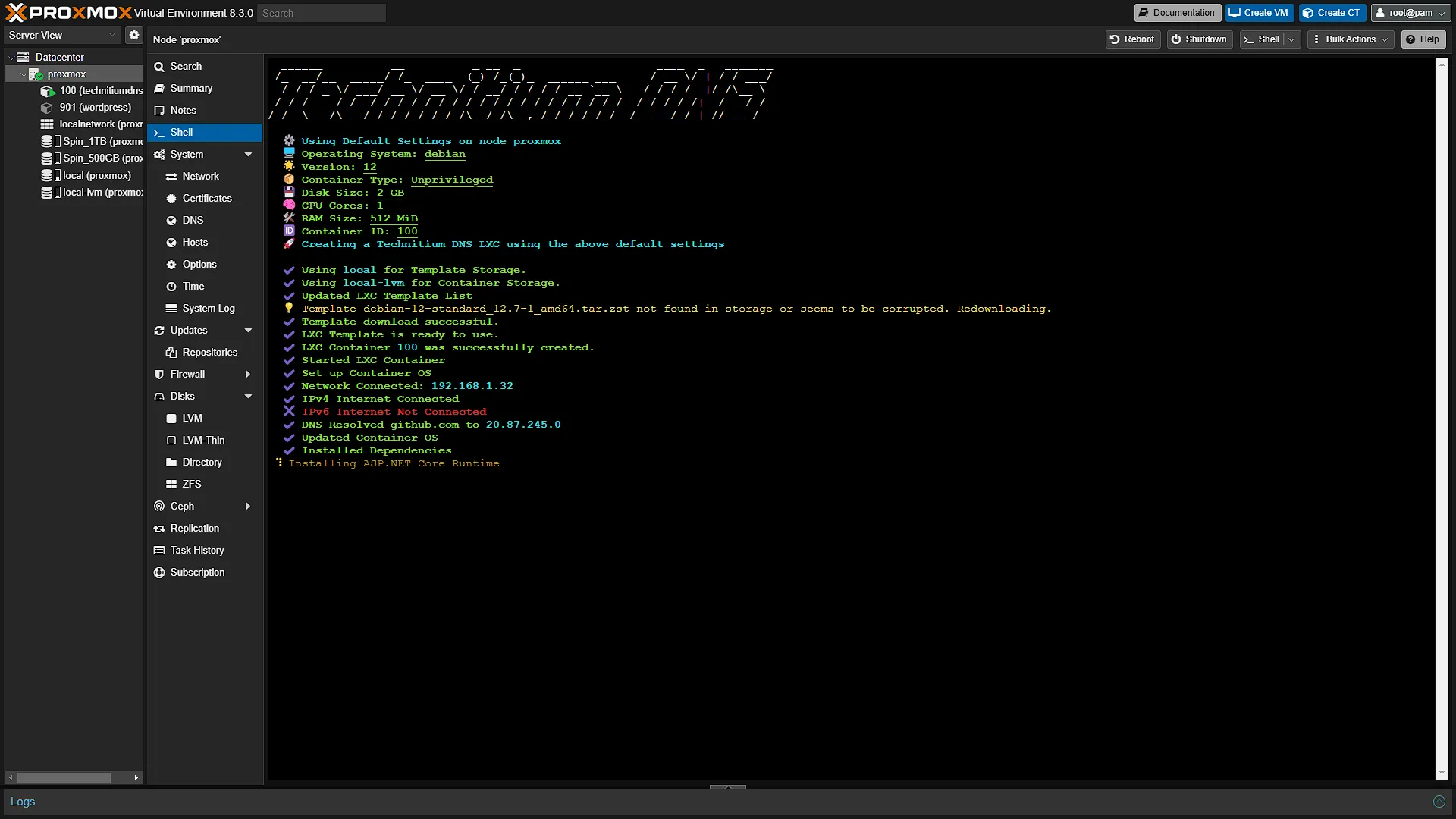
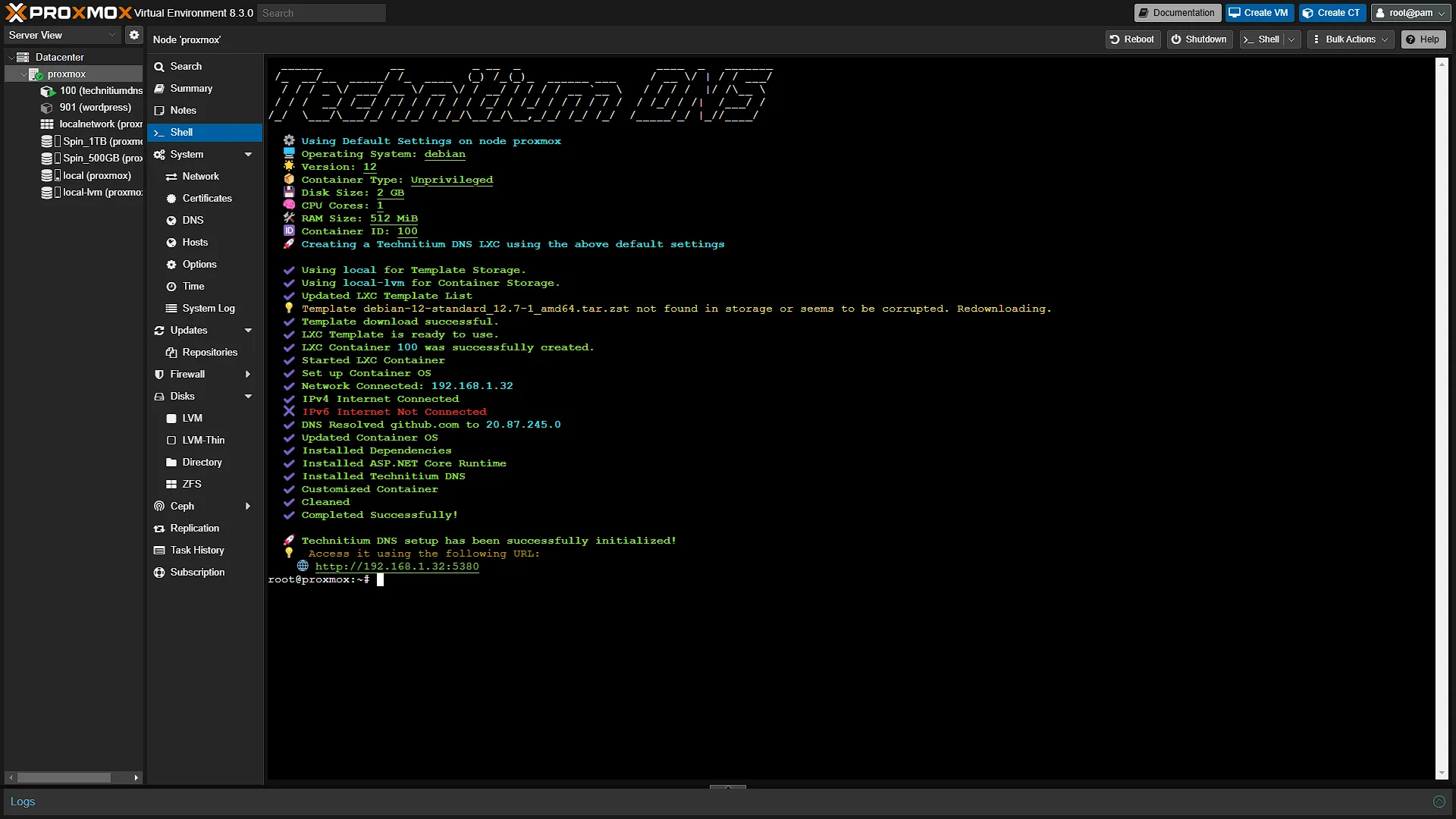
The installer will now download and install all the needed components. Once completed, you will be asked to access the DNS via a web address. In the screenshot below, the address is http://192.168.1.32:5380.
Step 3: Configure Technitium
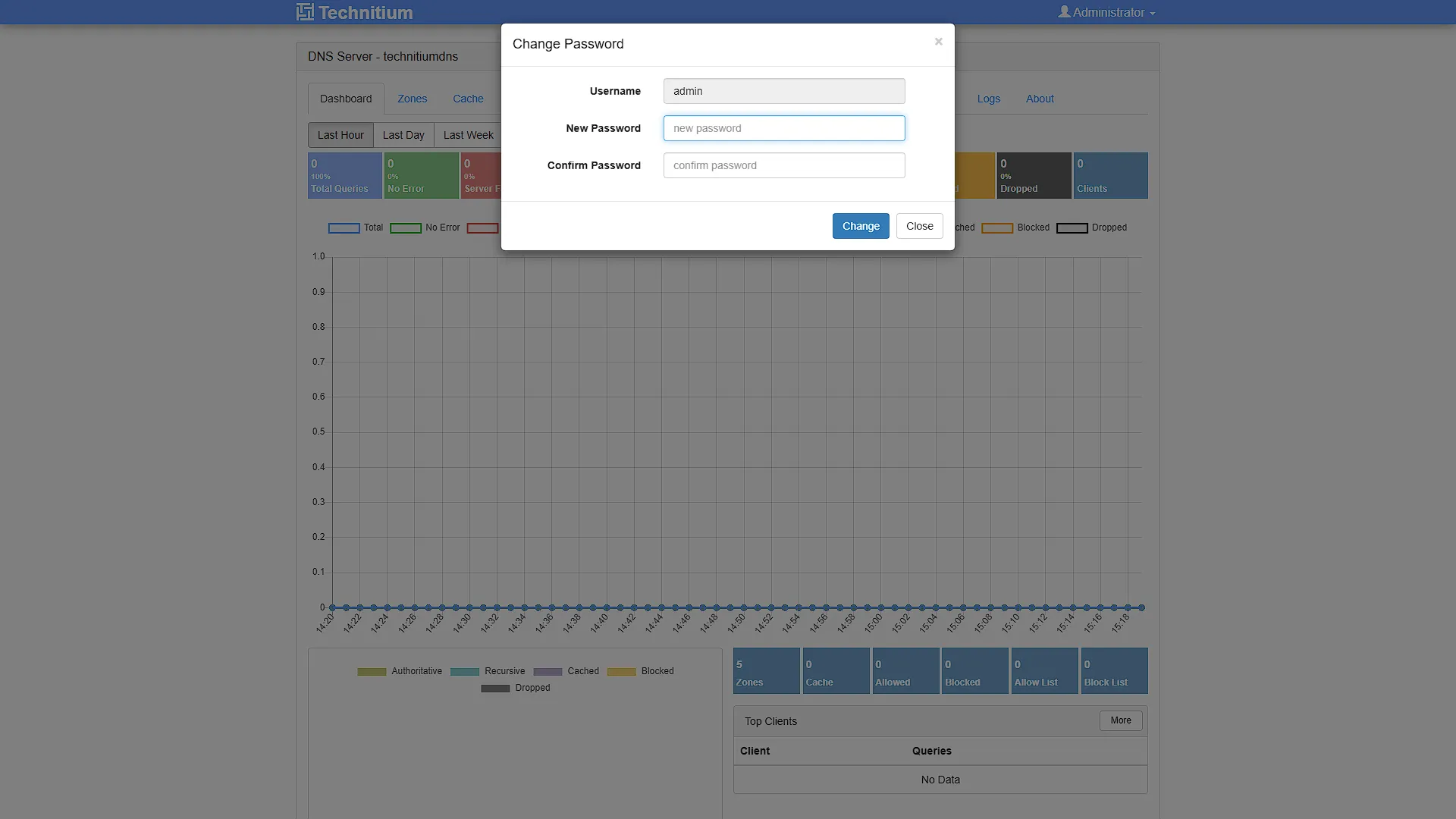
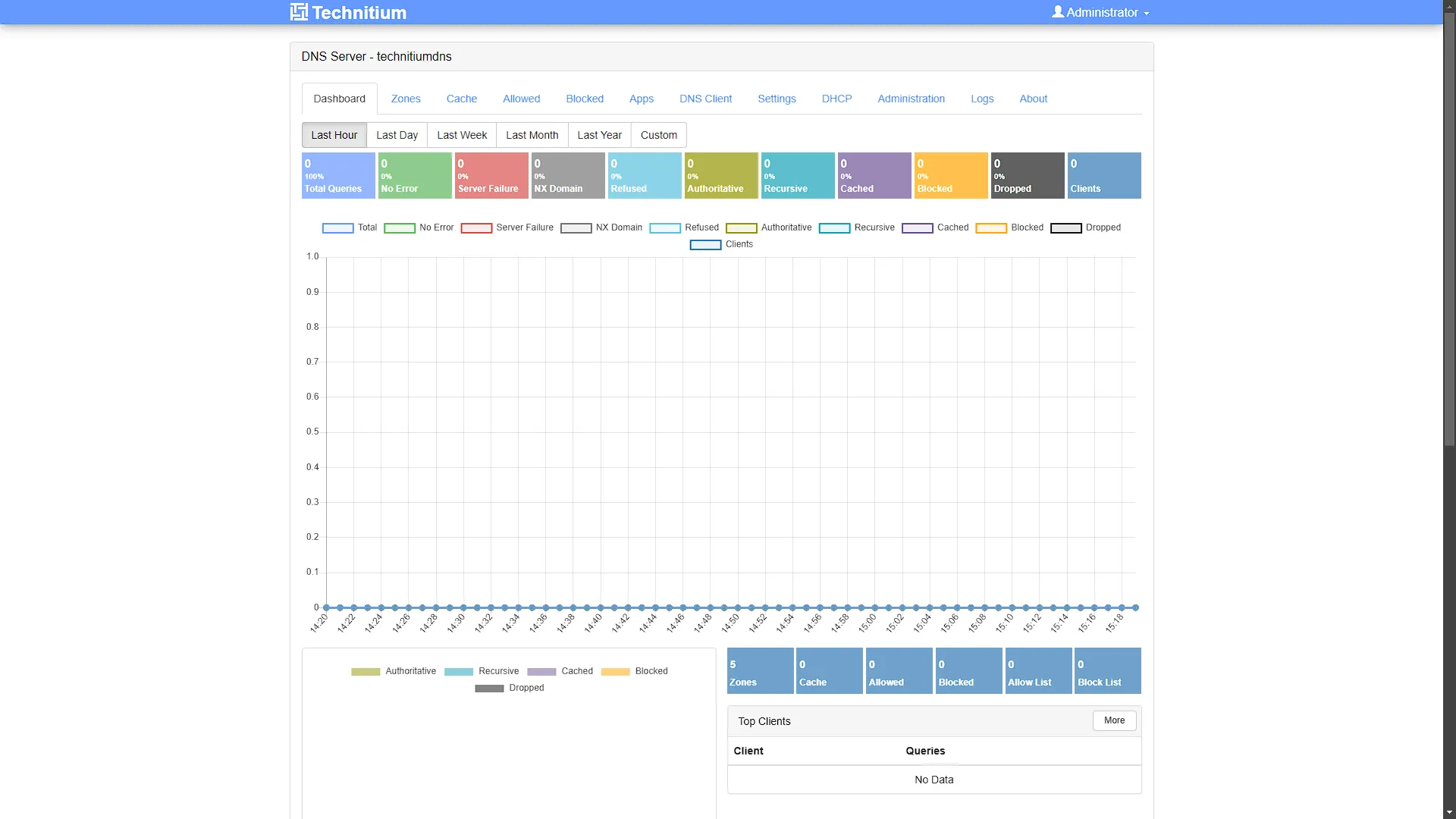
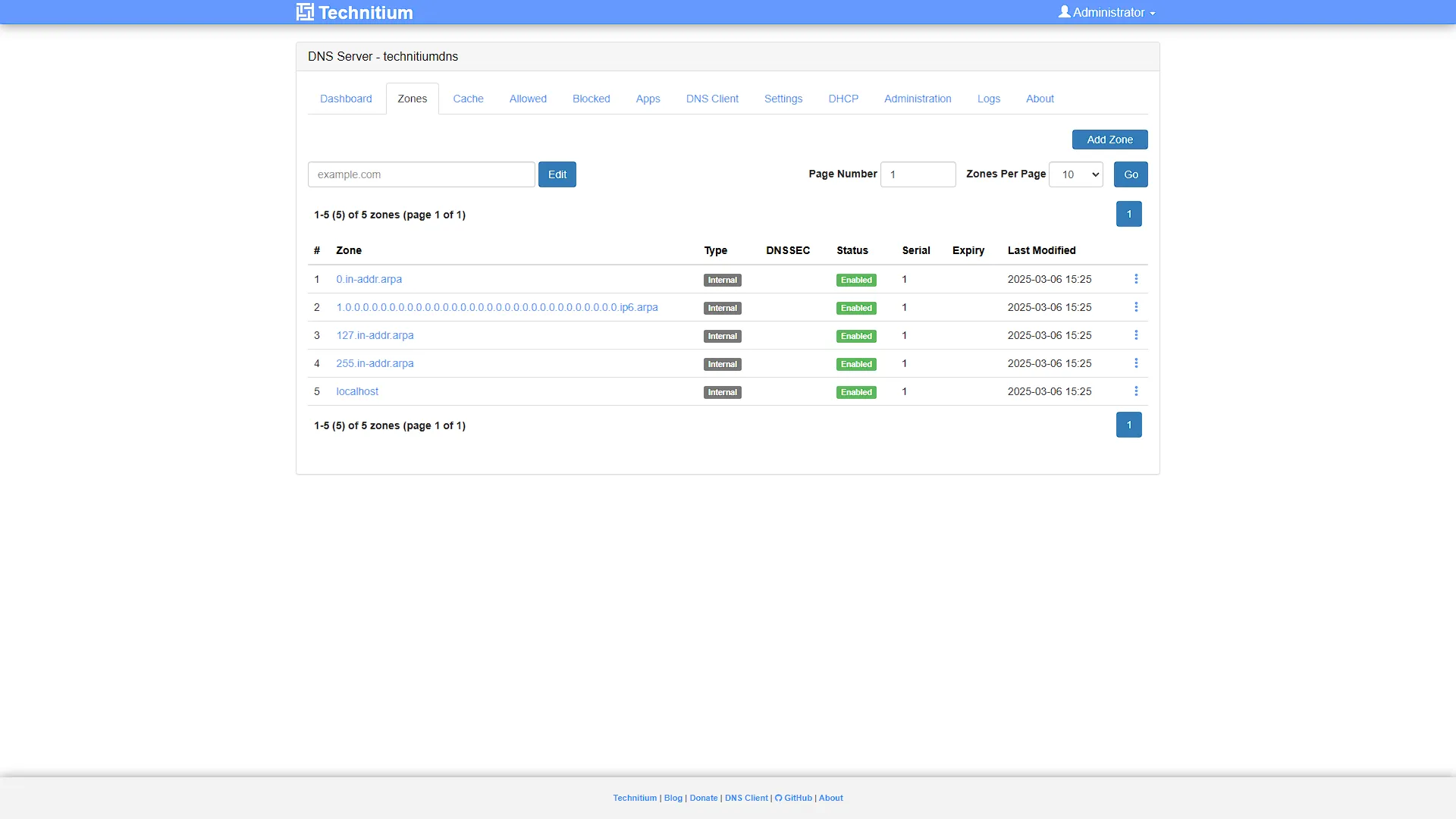
Now that you have the web address, go to that address in a new tab in your browser. You will immediately be prompted to create a new password for the admin user. Select a strong password and enter it both times, for the password and the confirm password. You will see the dashboard by default, at the moment there will be no data and no traffic. This is due to this Technitium DNS being up and running, but no-one is using it yet. We will configure that in step 4, but for now we want to add a "route" to translate a human readable address, like techdecode.online, to a machine IP address, in our Wordpress LXC Container's case 192.168.1.4. Click on the Zones tab at the top of the page. This will open all the zone. A zone is a top-level domain name, like techdecode.online. From a zone, you can add entries or records that points to subdomains, like subdomain.techdecode.online. But for now, click on  . For the details, need to fill in the Zone name. We will use
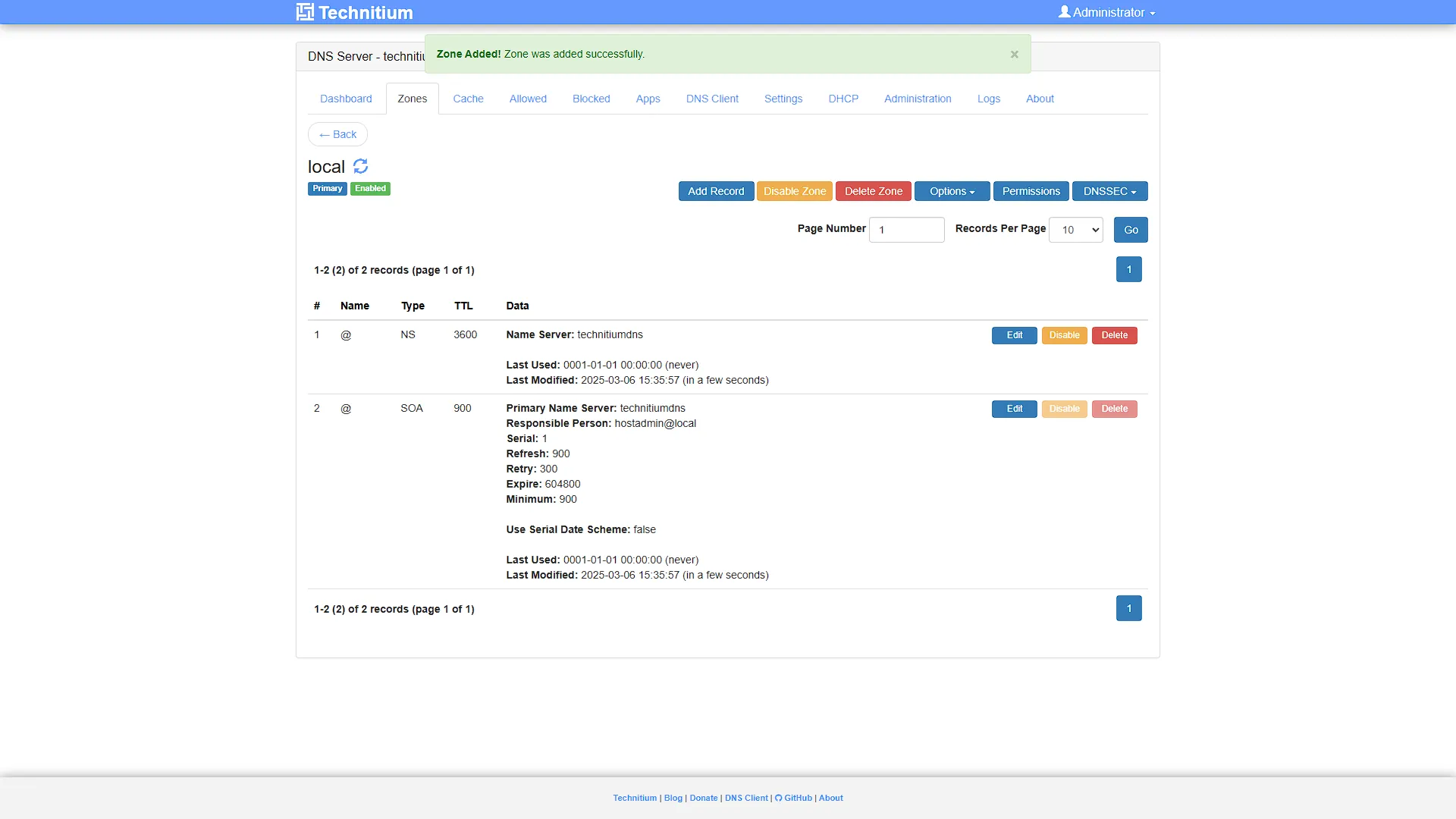
 local. This means that and web addressthat ends in a .local will be handled by this DNS Zone. We also need to add it as a Primary Zone. Once the zone is added, we need to add a record to it. So click on  . Fill in the following:
- Name needs to be the name before the .local. We are going to use wordpress so that we make the website address wordpress.local
- Type needs to be A. This means it is an anchor (Address) record.
- TTL can be left blank, meaning the record is valid for 3600 seconds. A machine will only resolve this address once in 3600 seconds - 1 hour.
- IPv4 Address needs to be changed to the IP address of our Wordpress site. In our case, 192.168.1.4
The rest can be left blank.
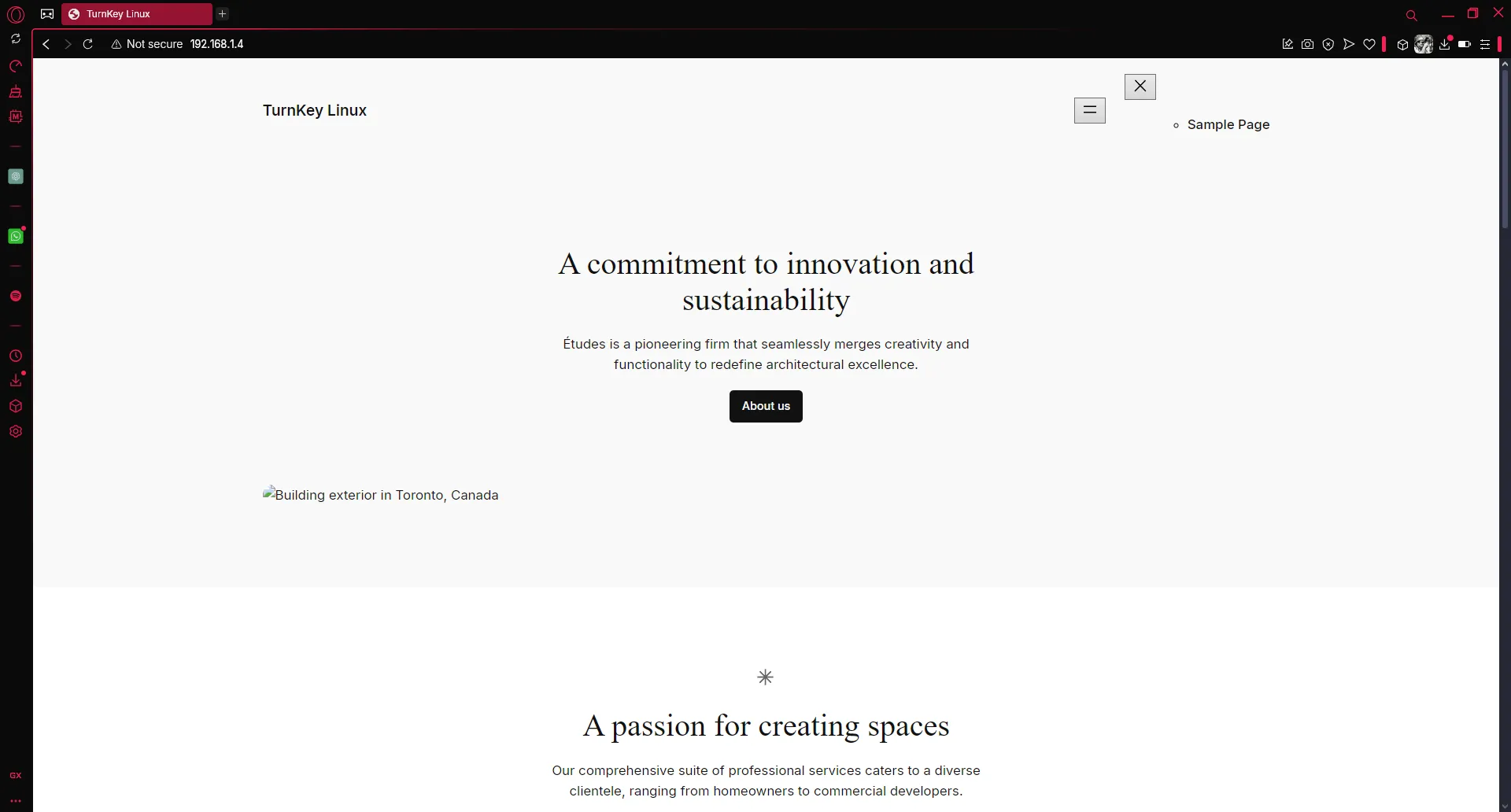
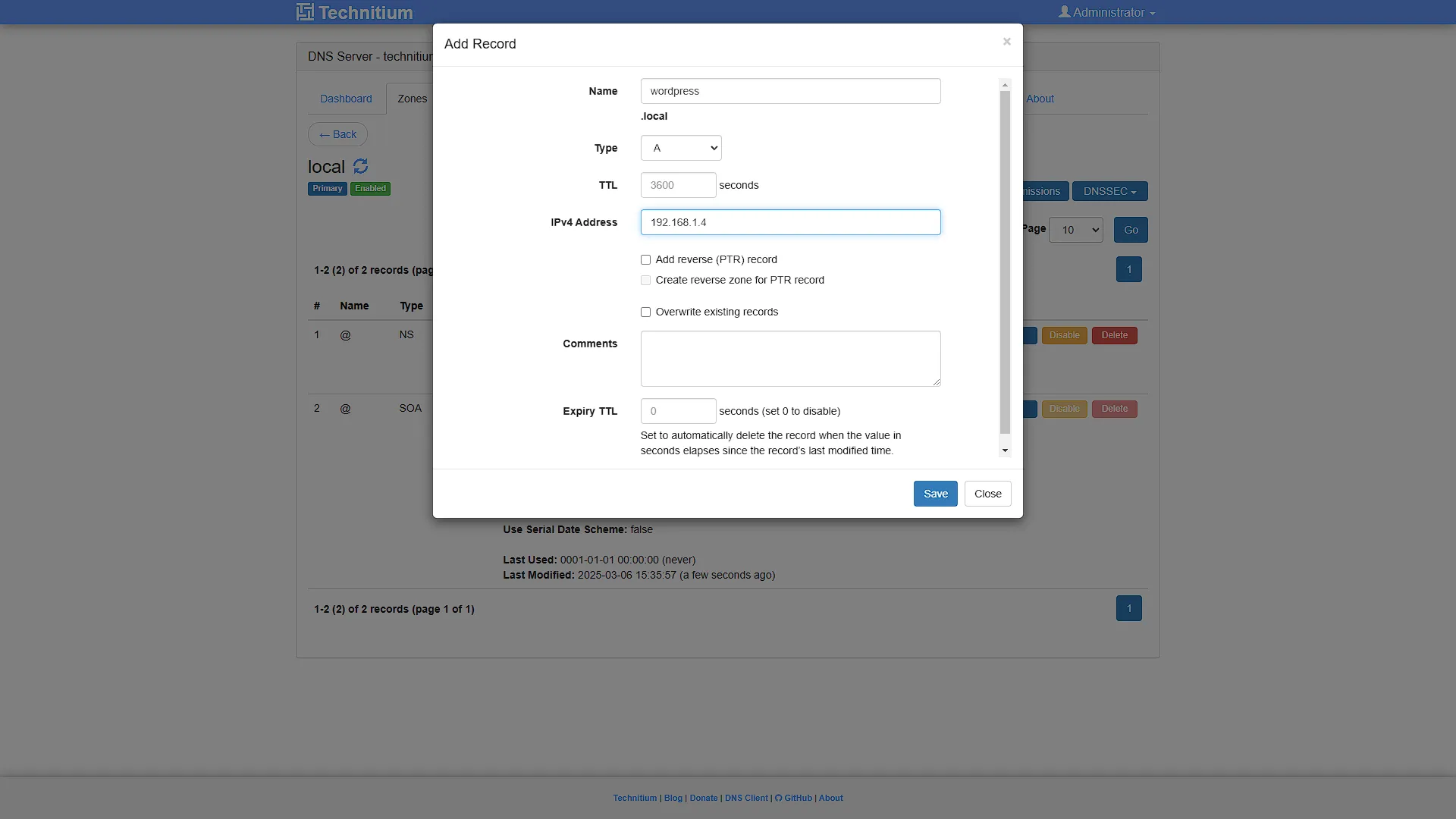
This means that we will be able to go to http://wordpress.local to view our wordpress site on all devices that uses this DNS server. So let's get the entire network to use it.
Step 4: Set up your network to use the DNS server
For this step, we will need to log into our router to change the default DNS server. This means that any machine connected to our network, will use the new DNS. Alternatively, you can set up every device's DNS server manually, but because there are so many different devices, and versions of operating systems, that falls outside of the scope of this article. We are running a TP Link Deco setup at home, so we will need to log in to the Deco App. Then we need to head on over to Advanced, then DHCP server to change the DNS server IP addresses:
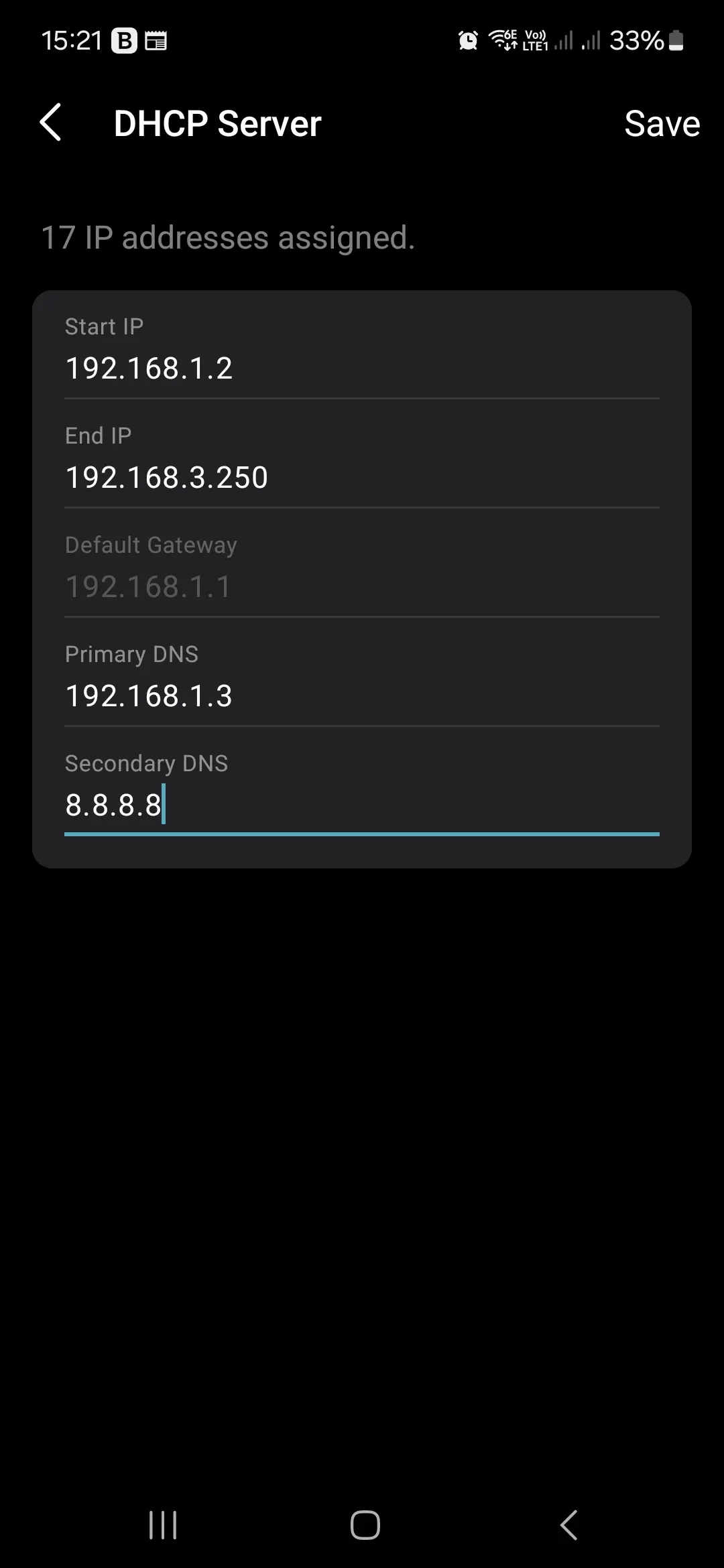
Consult the manual for your particular router to determine where to change the default (or auto) DNS settings.
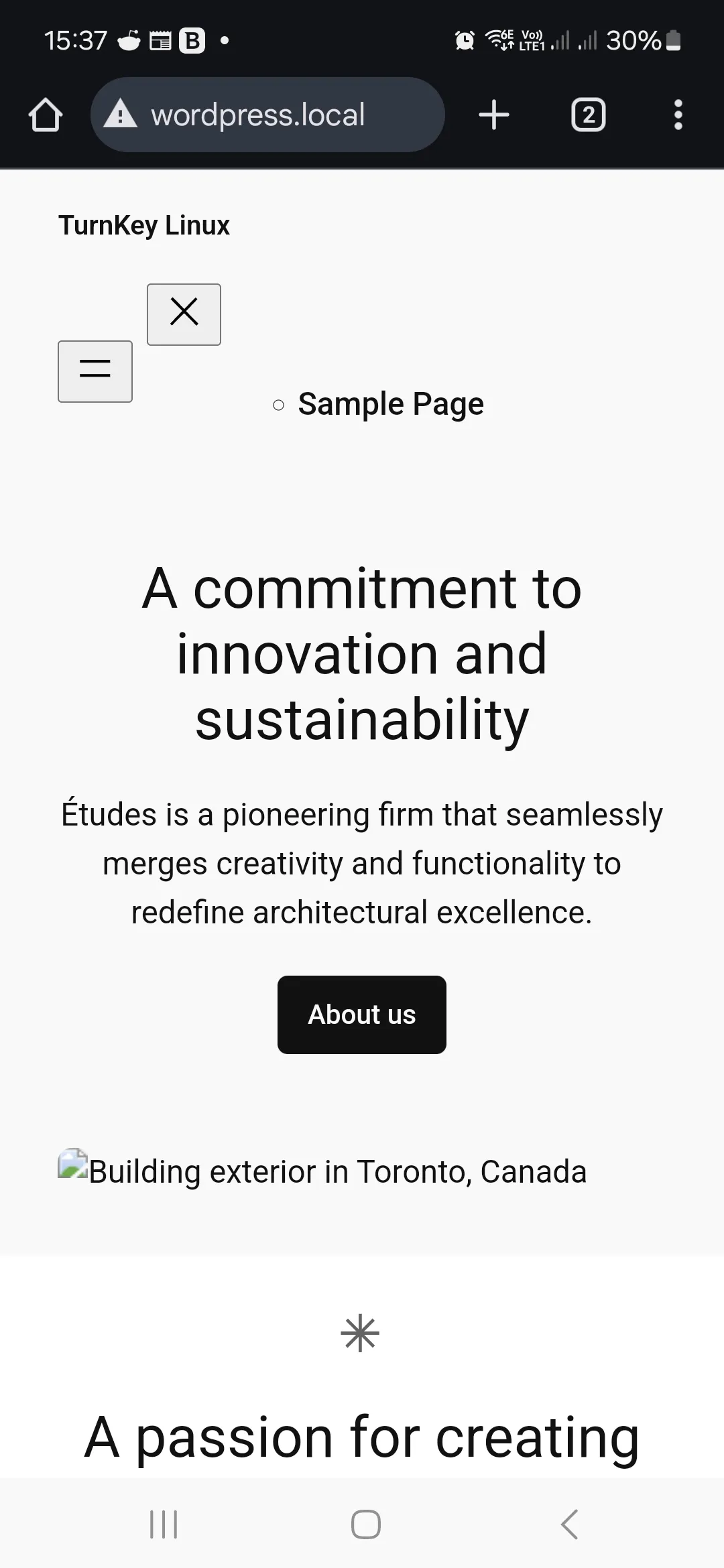
Now that the settings has been changed, disconnect and re-connect to your home network for you device connection settings to update. Accessing http://wordpress.local will now resolve to the Wordpress website IP address
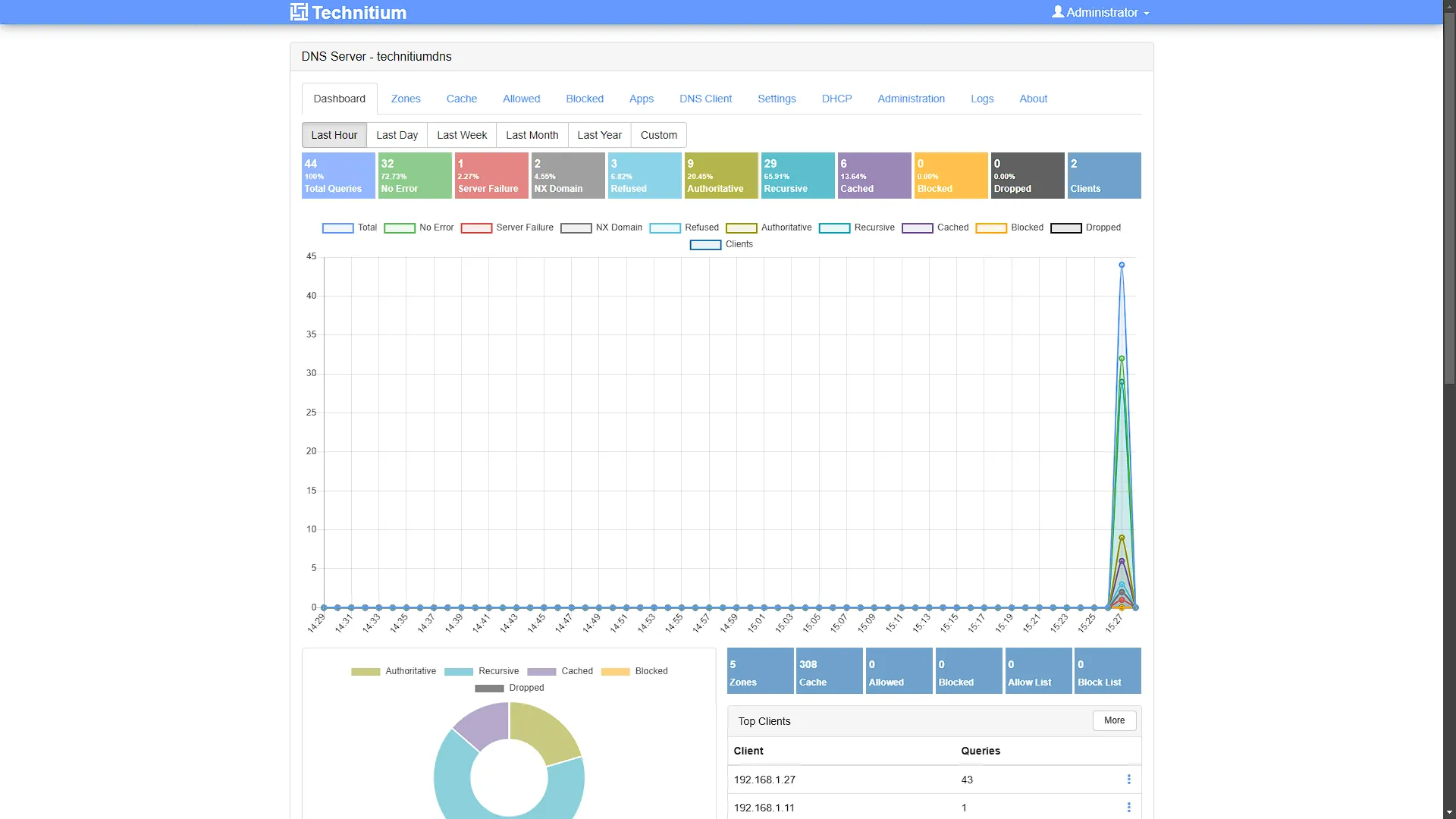
If you access the Technitium dashboard again, you will start seeing traffic through the DNS.
Optional After the Walkthrough: DNS Naming and Resolver Checks
Keep the demonstrated .local names while following this series: subsequent NGINX examples use dns.local and proxmox.local. However, .local also has a defined multicast-DNS meaning, so some devices may resolve it differently from a unicast query to Technitium. home.arpa is the standard residential-network namespace for a new naming plan. Switching an existing lab is a separate migration: update DNS records, proxy server_name values and saved client URLs together. Arbitrary .lan or .homelab names do not have the same standards status.
After changing router DNS settings, check a client's actual resolver address. Existing leases and caches can delay the change; there is no fixed propagation time that works for every router and operating system. Reconnect or renew the client lease when needed, then query an internal record through the configured resolver. A direct query to Technitium that succeeds while the browser fails suggests a client resolver, cache or encrypted-DNS setting rather than a missing zone.
Network-wide blocking and encrypted upstream queries are optional extensions. Begin with a small blocklist and verify both a blocked domain and an ordinary site. When an application breaks, inspect the query log and make a narrow exception based on its actual lookup; disabling all protection is not the only diagnostic step. Large overlapping lists can be harder to maintain and do not guarantee better results.
DNS-over-HTTPS or DNS-over-TLS protects the resolver-to-provider query in transit. It does not conceal every destination or prevent the selected provider from seeing queries. Client-side encrypted DNS can also bypass your local resolver and therefore your private records or blocklists. Keep an ordinary browsing test and an internal-name test in your checklist after each DNS change.
Further reading: RFC 8375 home.arpa, Technitium documentation.
Conclusion
In conclusion, setting up your own personal DNS server with Technitium offers both enhanced control and simplicity for your network. By following these steps—from deploying the Proxmox container using a trusted helper script, to configuring the DNS zones and records—you’ve not only created an environment that centralizes your network management but also transformed an IP address into a memorable, user-friendly domain. This setup makes accessing your WordPress site (and any future projects) seamless across all devices. Embracing this approach not only demystifies the inner workings of your home network but also paves the way for further customizations and advanced configurations in the future. Enjoy the newfound flexibility and efficiency in your digital workspace!