As some readers have noted, and commented, our previous article on installing MySQL in our Proxmox Homelab using the TurnKey Linux Template, actually installed MariaDB and not a vanilla implementation of MySQL. Although for most implementations of the actual databases there will be no difference, we decided to write an article on installing vanilla MySQL as well, that will show the easiest way to get MySQL installed that is not MariaDB (or any other variation of MySQL).
MySQL vs MariaDB
MySQL and MariaDB are both popular open-source relational database management systems (RDBMS) that share a common ancestry, but they have key differences. MySQL, originally developed by MySQL AB and later acquired by Oracle Corporation, is widely used in enterprise applications and benefits from strong commercial support. MariaDB, created as a fork of MySQL by its original developers, was designed to remain fully open-source and community-driven, offering better performance, additional features, and greater transparency. While both databases are compatible in many ways, MariaDB has introduced enhancements that set it apart from its predecessor.
MySQL and MariaDB maintain a high degree of compatibility, especially in their earlier versions, allowing users to switch between them with minimal effort. MariaDB was designed as a drop-in replacement for MySQL, meaning that most applications using MySQL can run on MariaDB without modification. Both databases support the same SQL syntax, client protocols, and storage engines, with MariaDB even including additional optimizations and new features. However, as MariaDB continues to evolve independently, certain new features and storage engine changes may introduce incompatibilities with MySQL, particularly in later versions. Users migrating between the two should carefully review version differences and test for potential issues.
Step 1: Get the Install Script
Again, we are going to use the amazing work from helper-scripts.com as this is again the easiest way we could find to get a MySQL instance up and running. And yes, we again want to install an LXC container due to the negligible resource overhead (waste). Go to https://helper-scripts.com and search for MySQL. There should only be one result, an LXC instance. Select it as we are going to use that one. Read through the instructions, particularly where we are going to need to get the user credentials after install with
cat mysql.credsThis is due to the password being auto generated. Anyway, the command we are looking for is the install command, which is:
bash -c "$(wget -qLO - https://github.com/community-scripts/ProxmoxVE/raw/main/ct/mysql.sh)"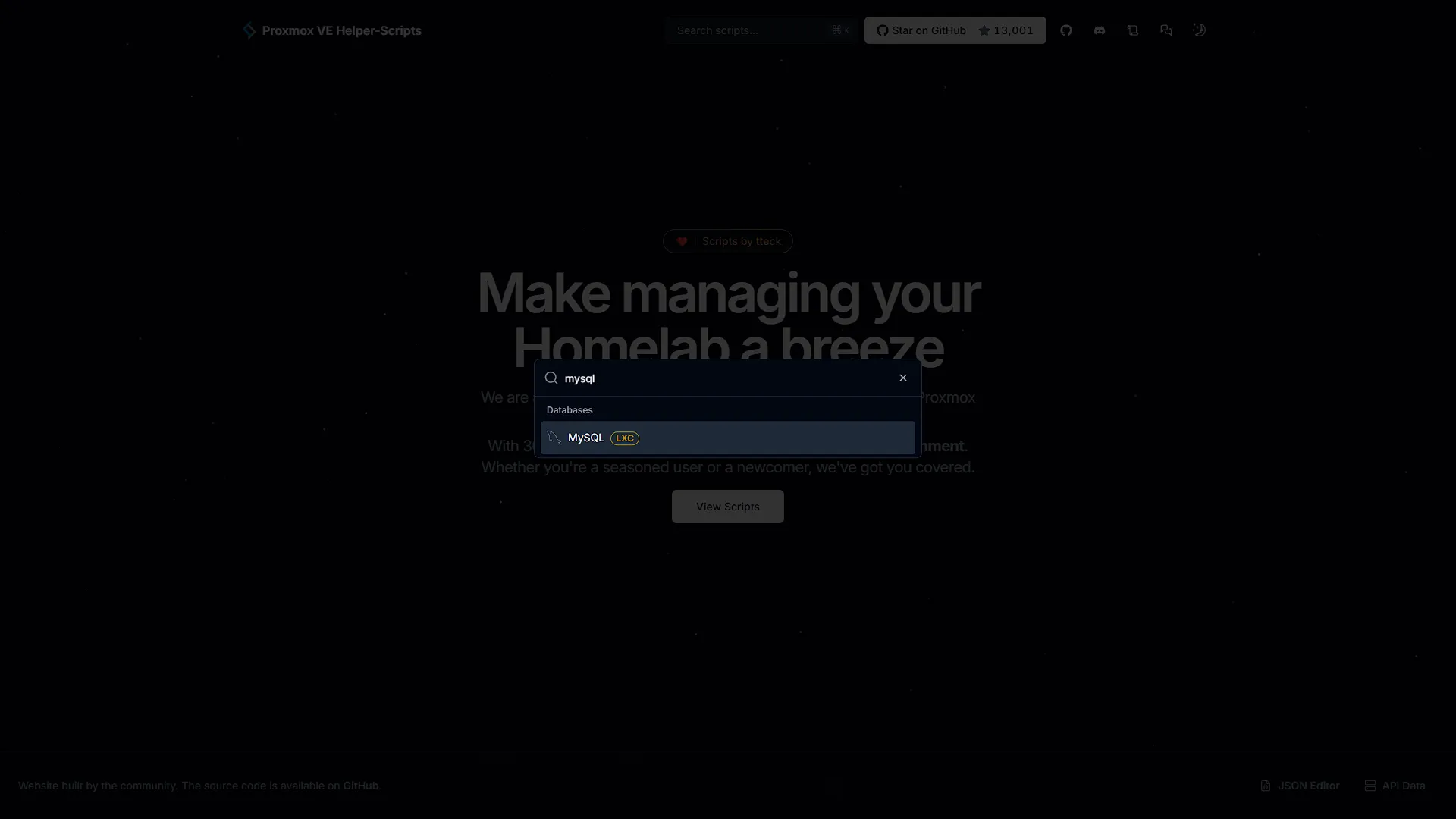
Step 2: Install MySQL
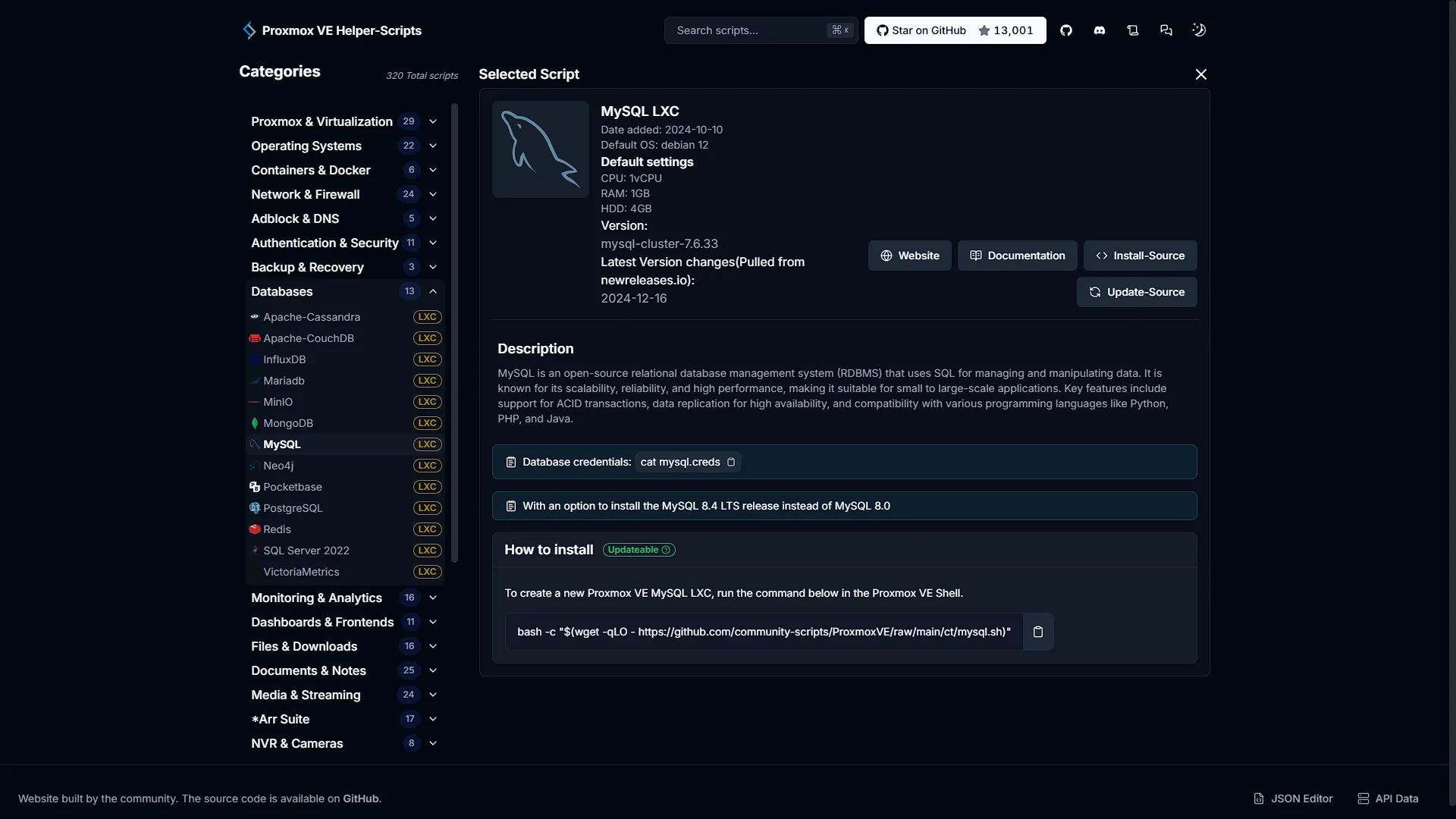
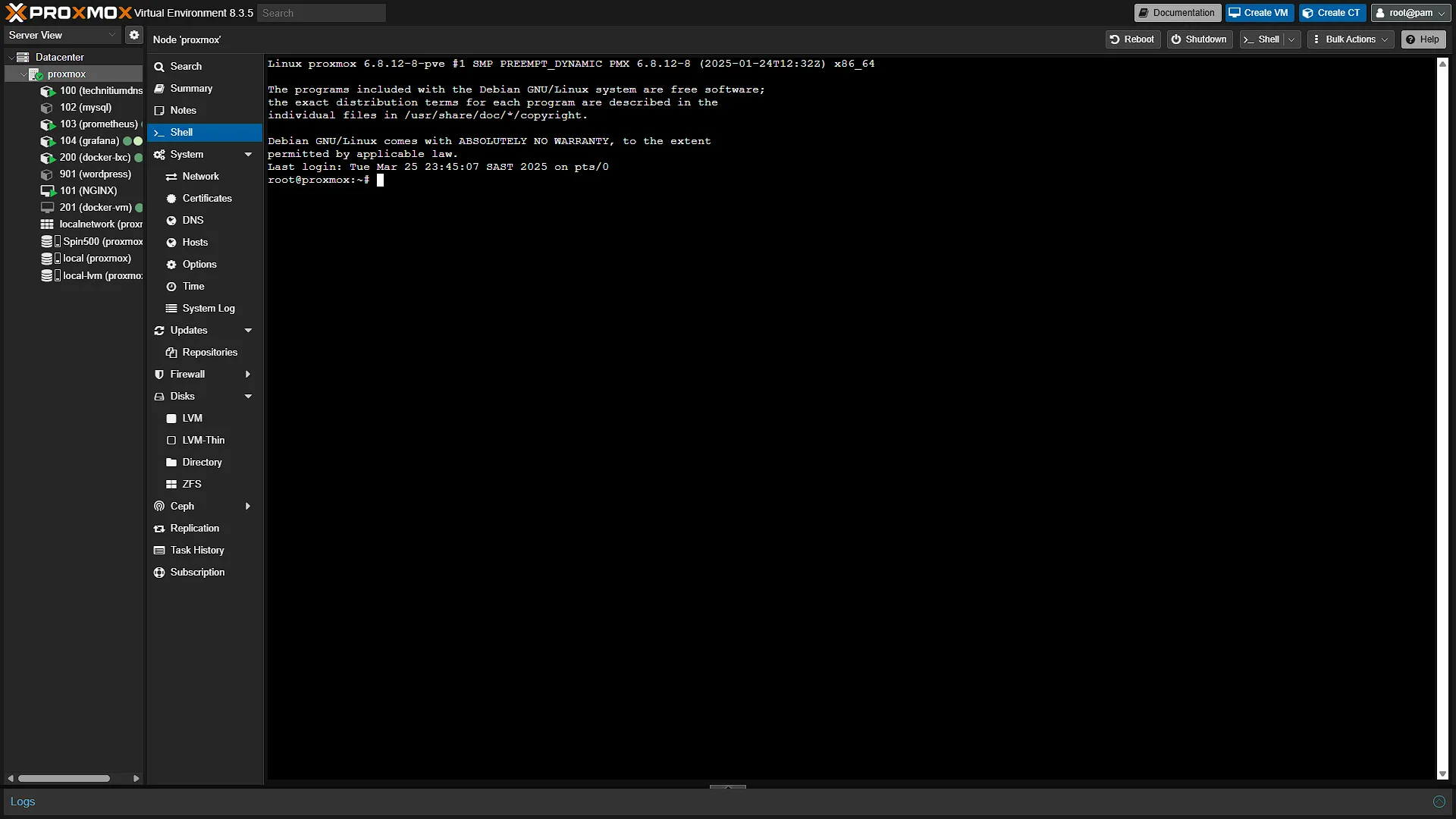
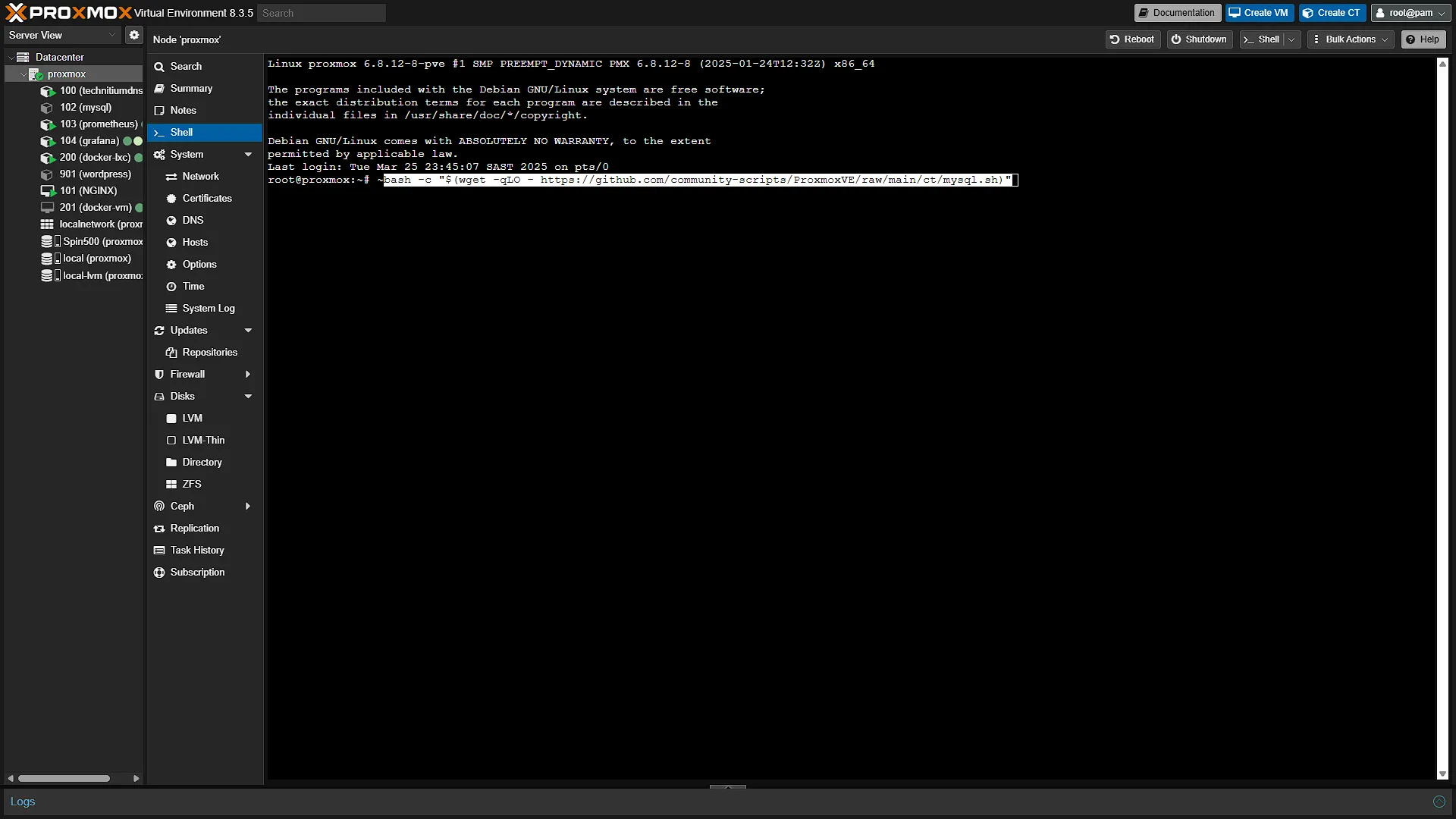
Now that we have the command, open your Proxmox instance interface in a new browser window and log in with your username and password as set up when installing it. Once logged in, in the left navigation pane, expand Datacenter and select the Proxmox node where we want to install MySQL on. In the middle navigation pane, click on  to open the integrated shell in the main window. In the main window, paste the install command:
bash -c "$(wget -qLO - https://github.com/community-scripts/ProxmoxVE/raw/main/ct/mysql.sh)"Installation will now begin
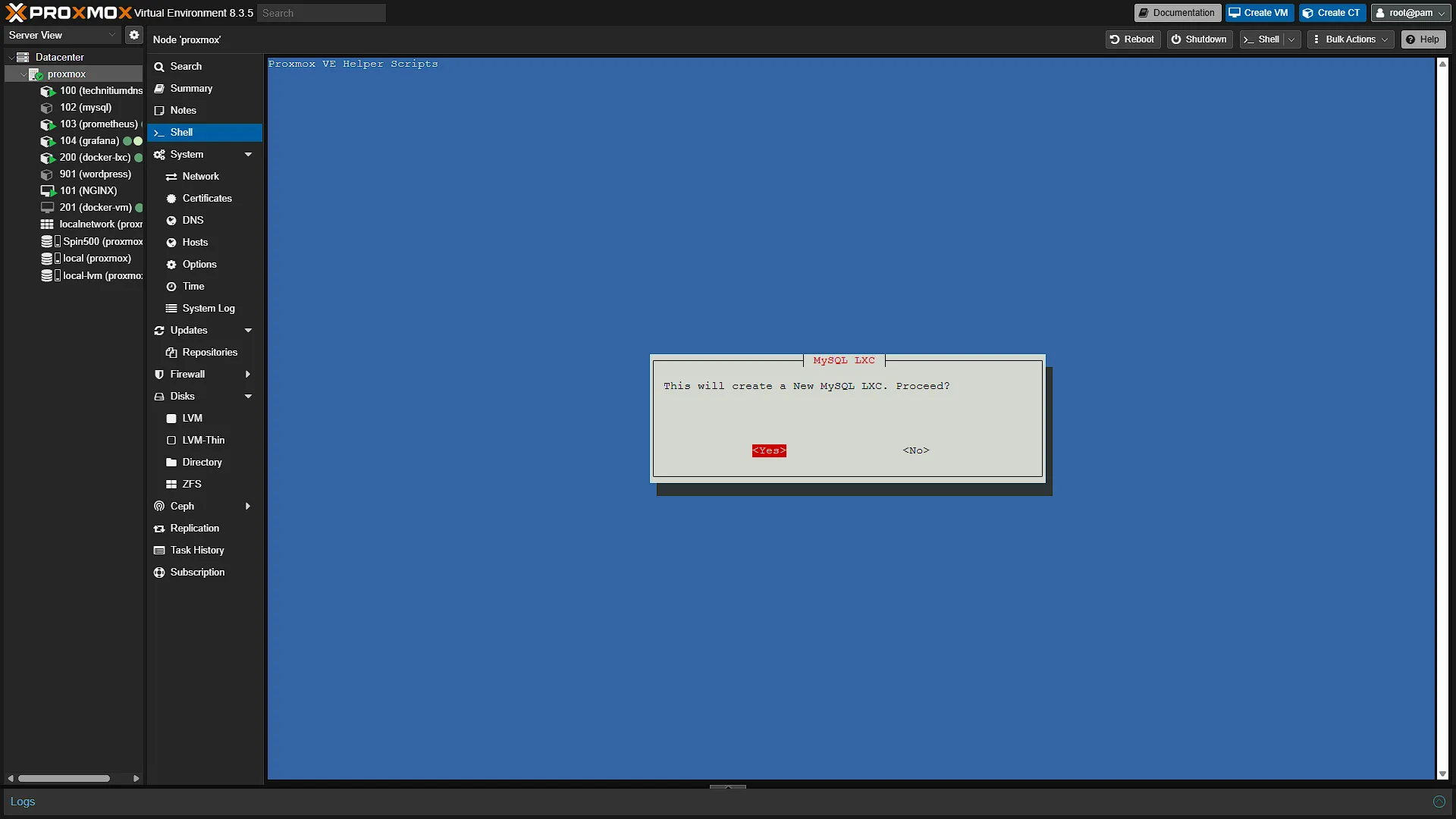
The first screen will be a confirmation, explaining that we are going to install a new MySQL LXC container. Select YES and continue.
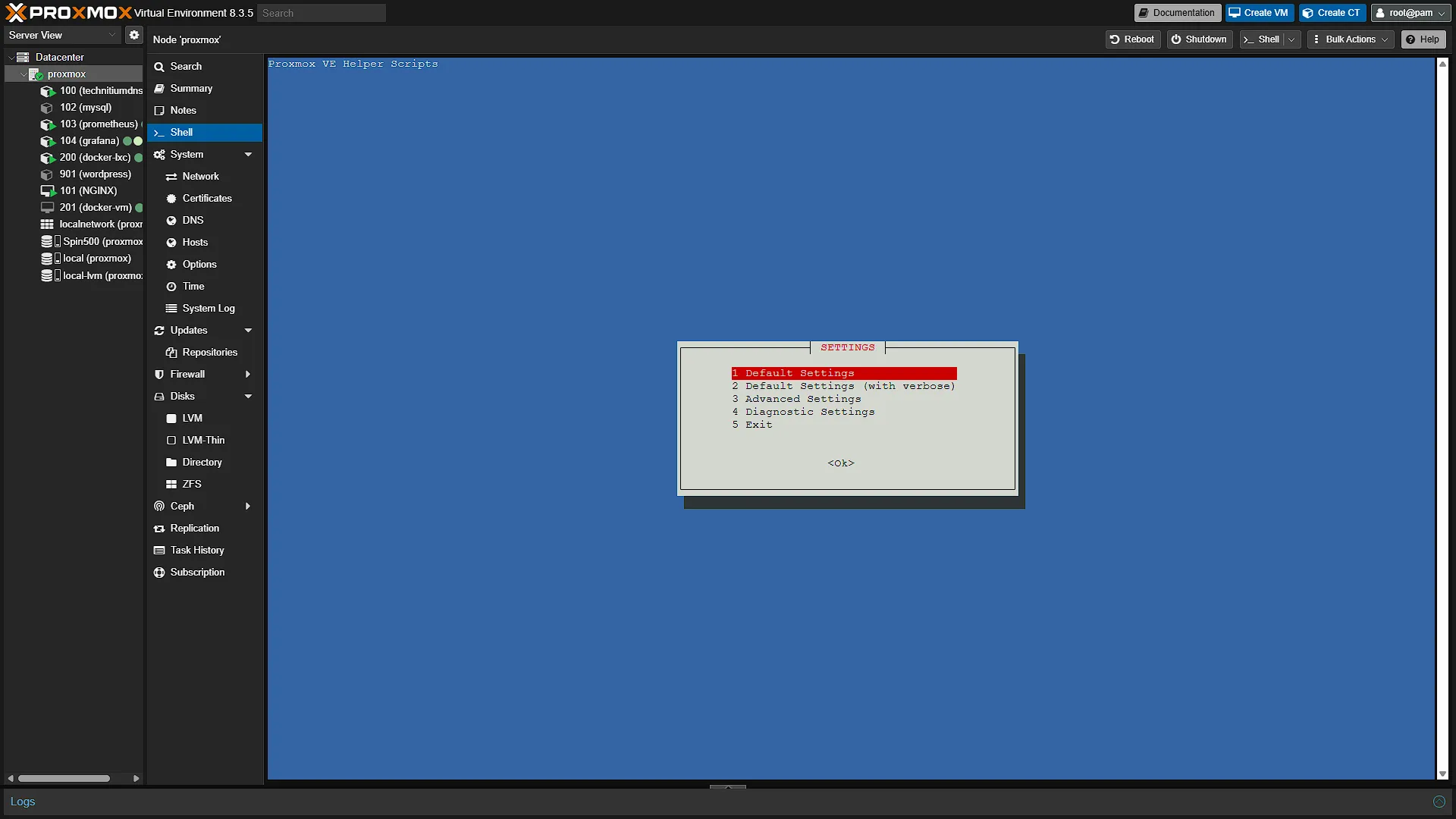
The second will be a screen where we can select the settings. If you want to change the settings, you are welcome, but we are sticking to the default and continuing. We will take a look at changing resource values for a container in a future article.
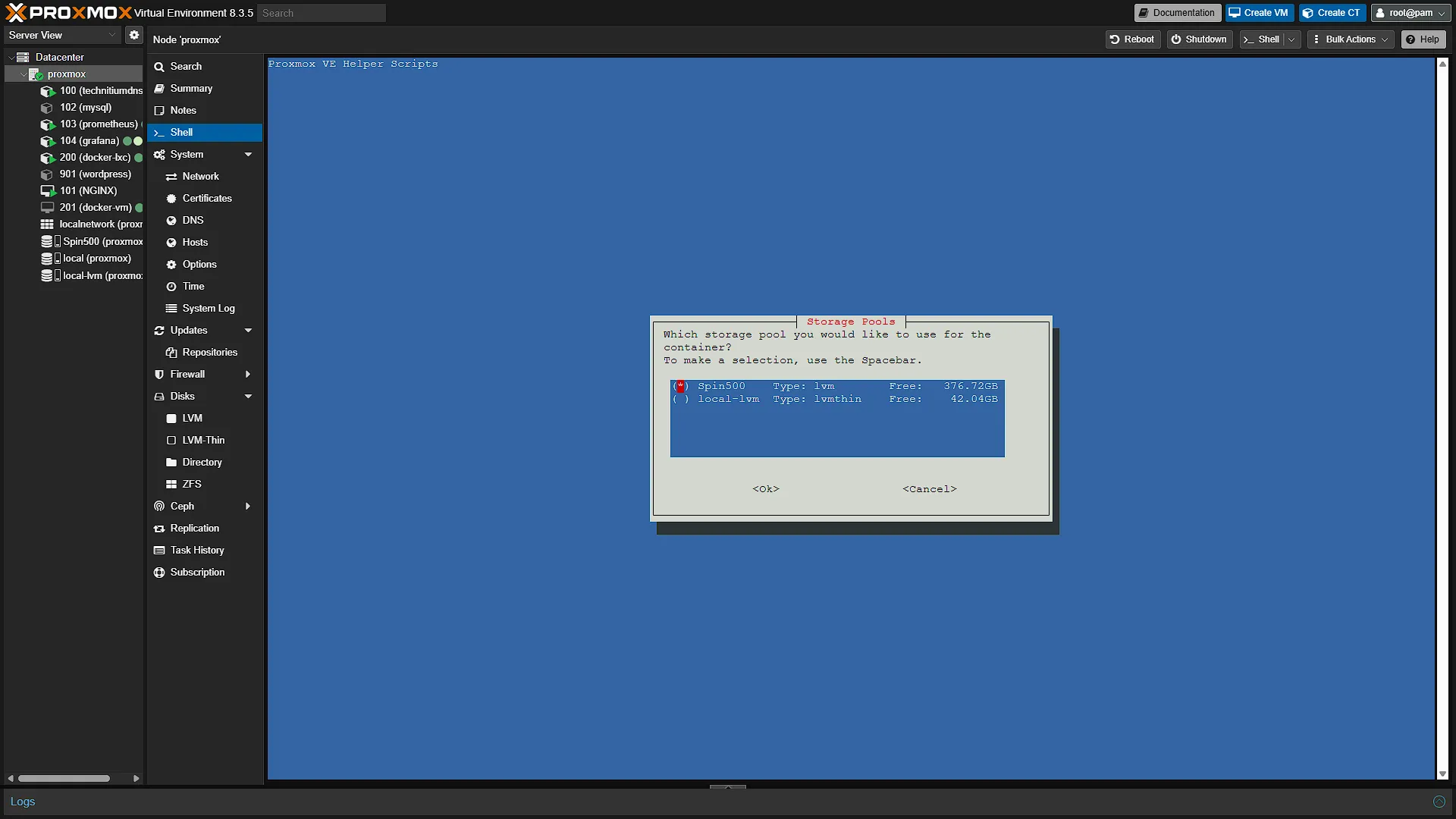
The third modal will ask us to select a disk to install MySQL. If you only have one disk, you will not see this screen. Either way, after this screen the install will start. It might take a few minutes.
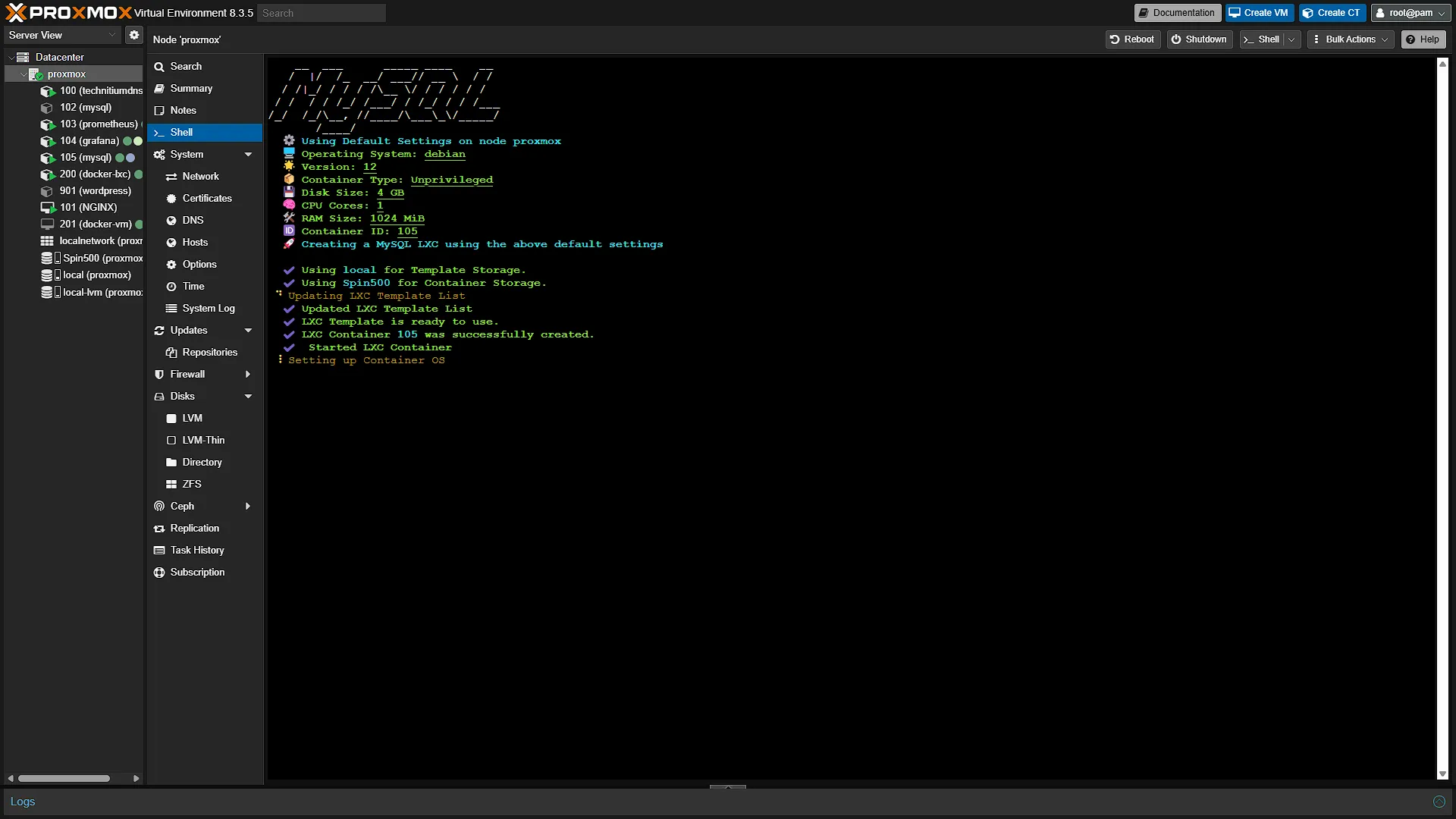
After a while you will be prompted if you want to install MySQL 8.4 LTS instead of 8.0 (which is the default for this helper script). Either is fine, so type y for 8.4 or n for 8.0. Installation will continue and you will be prompted again, this time if you want to install PhpMyAdmin. For the easiest way of getting MySQL set up, we strongly recommend installing PhpMyAdmin.
Once done, you will get the IP address (and port) that MySQL can be accessed from.
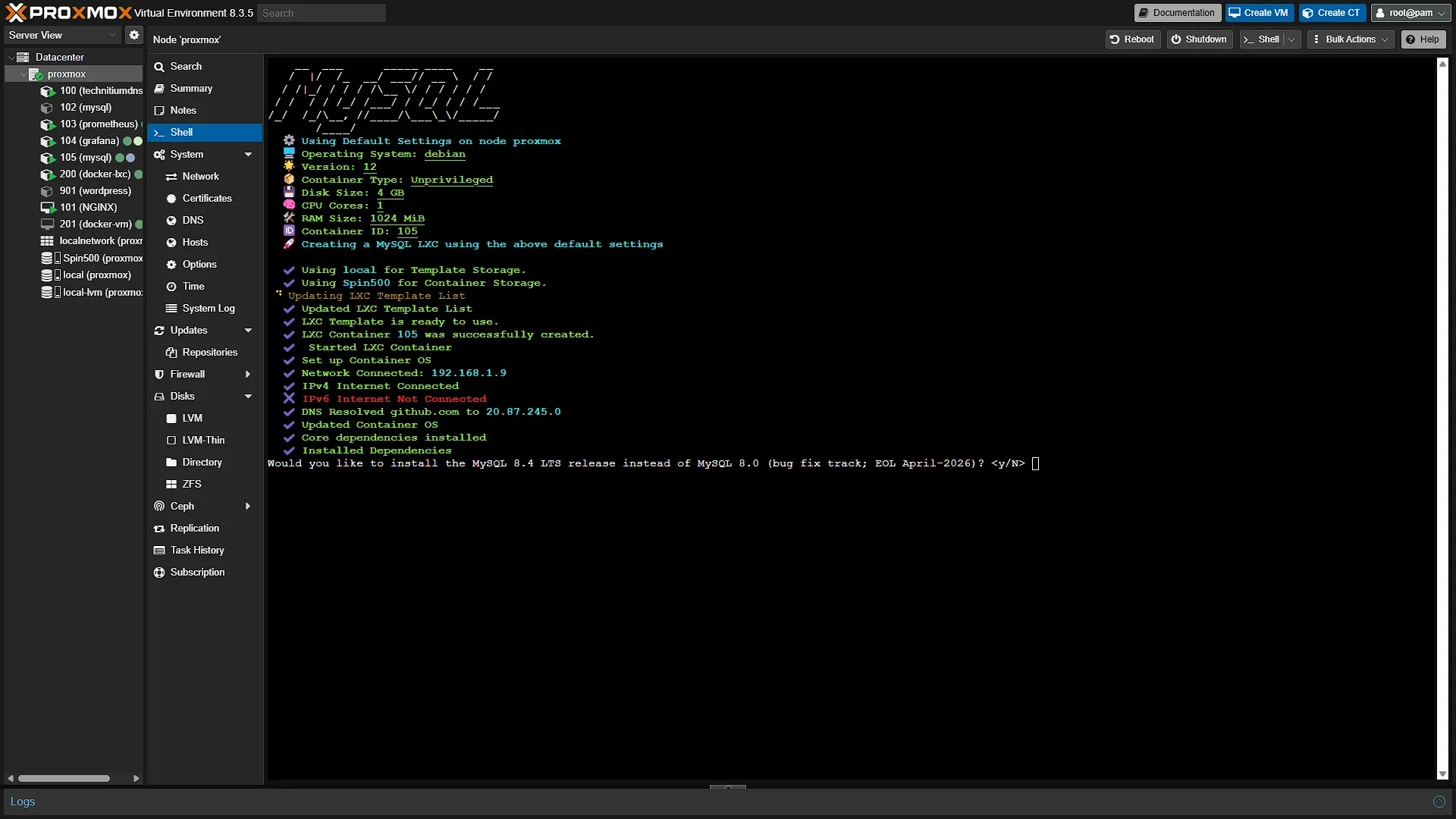
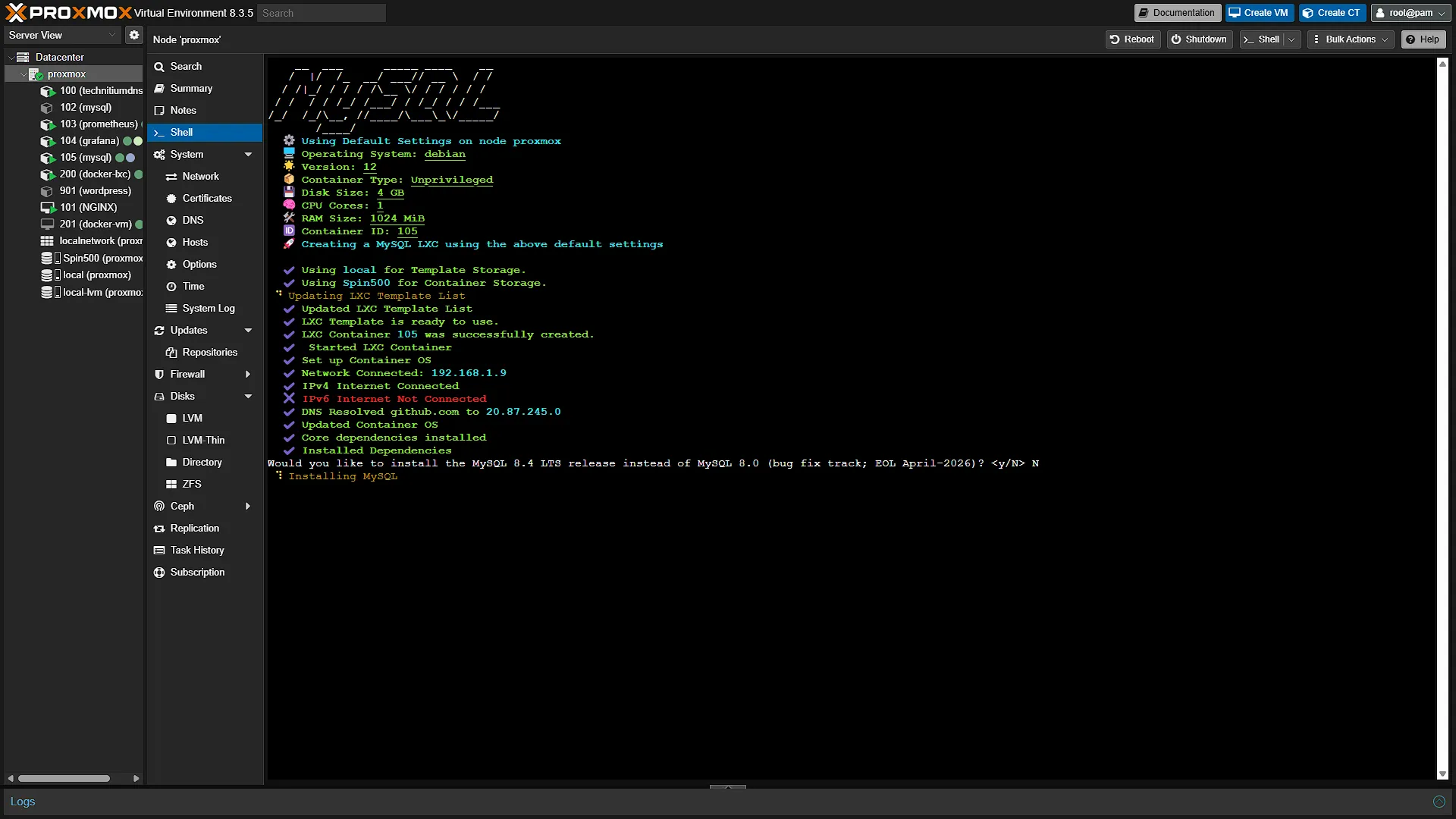
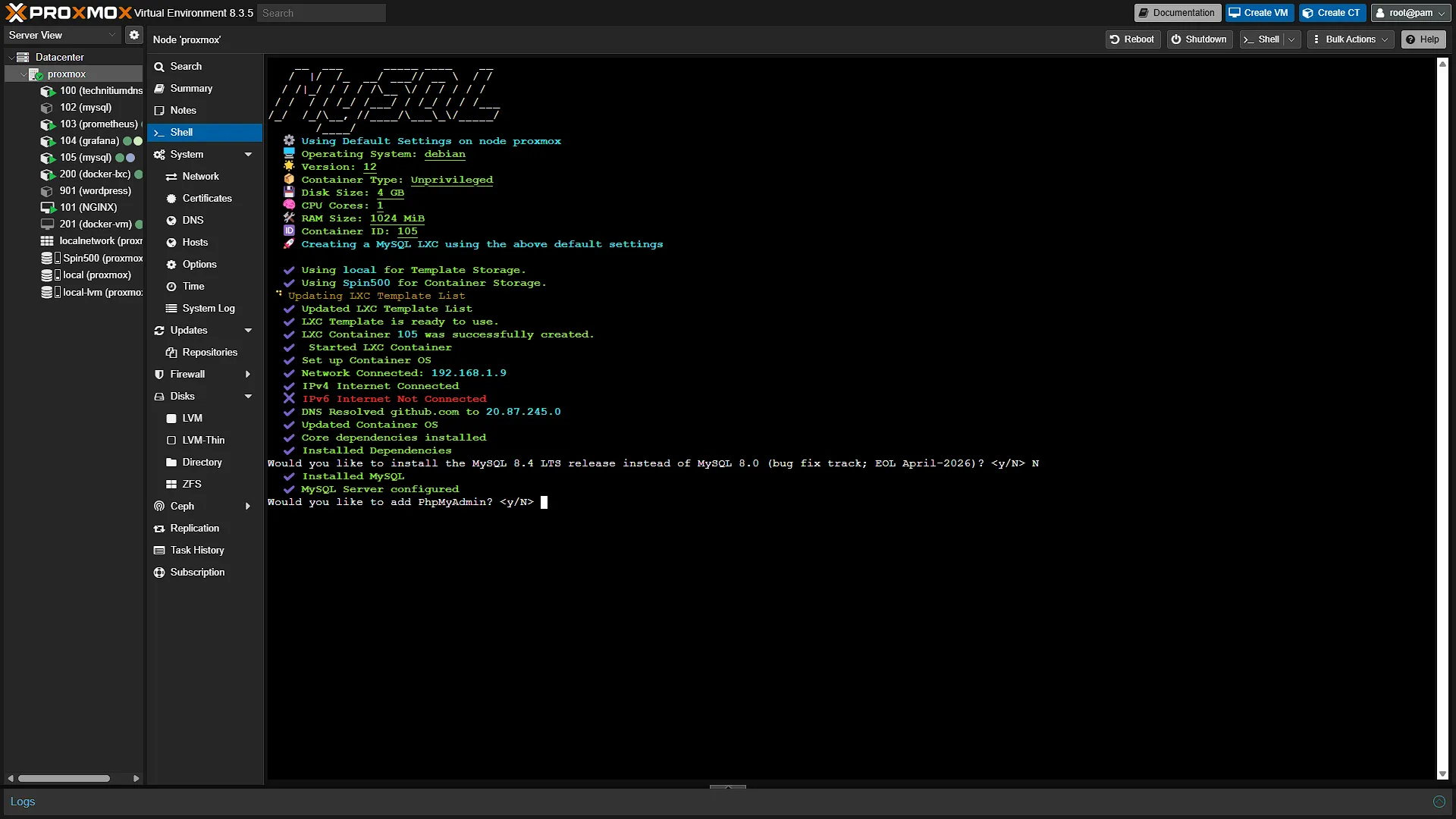
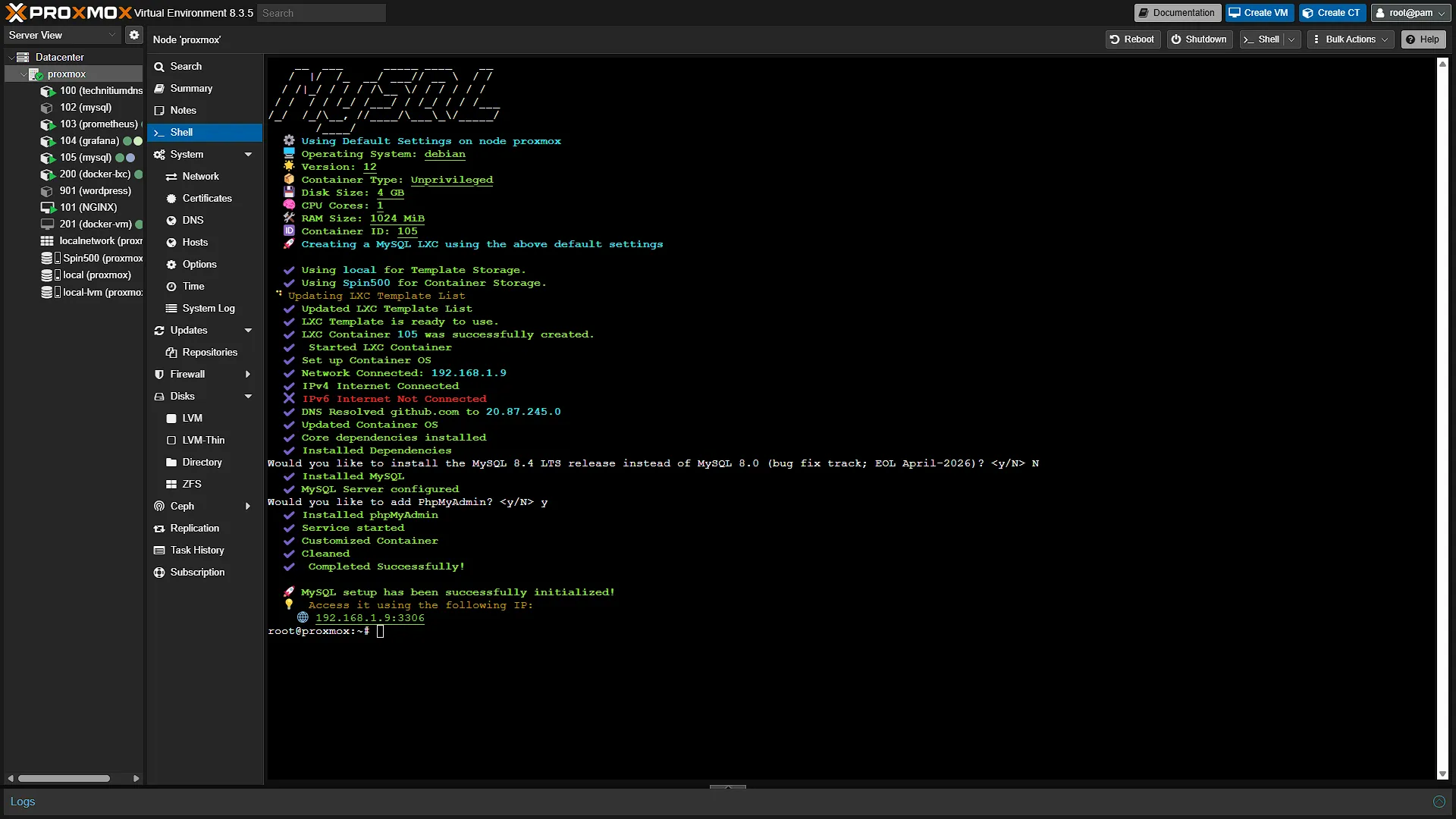
Step 3: Set Up MySQL
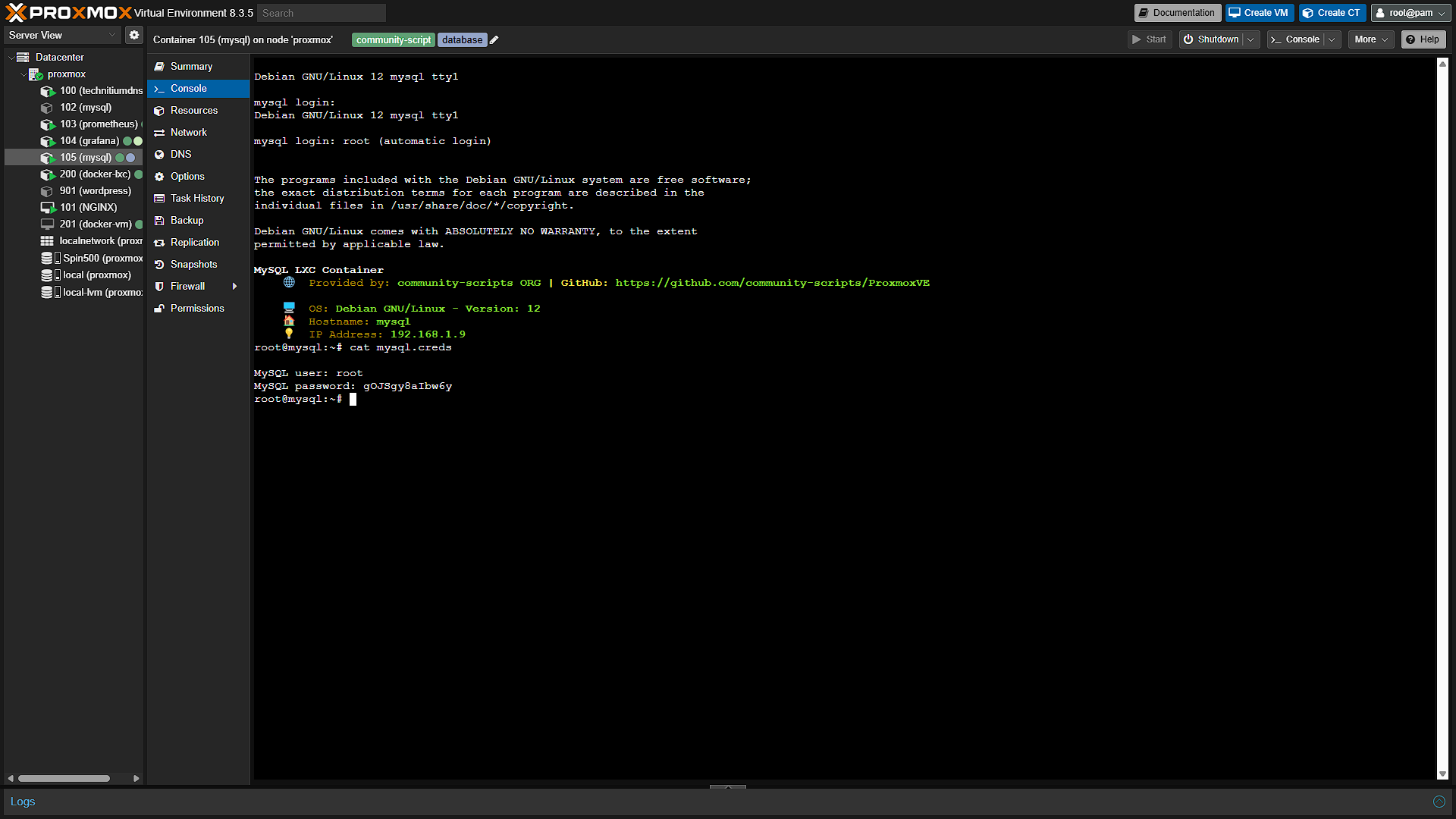
Before we can access MySQL and start using it, we need to do some admin first. This is why we originally installed PhpMyAdmin, as this will make the admin a lot easier to complete. Before we can access PhpMyAdmin, we first need to get the default user credentials that MySQL was installed with. So, in Proxmox again, select the newly created MySQL LXC Container in the left navigation window. Once selected, click on  in the middle navigation window. Once opened, run that command from the instructions on helper-scripts.com:
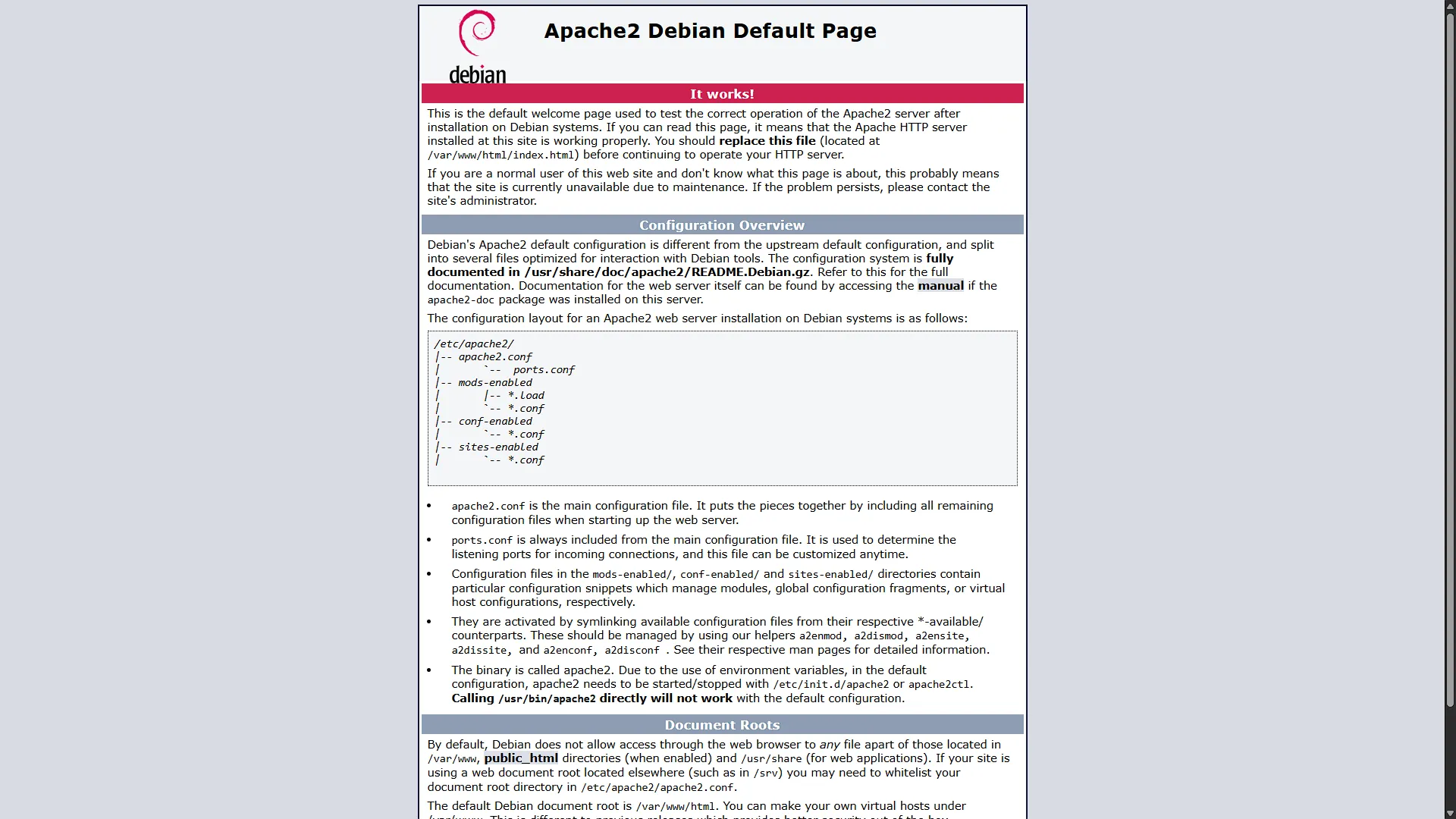
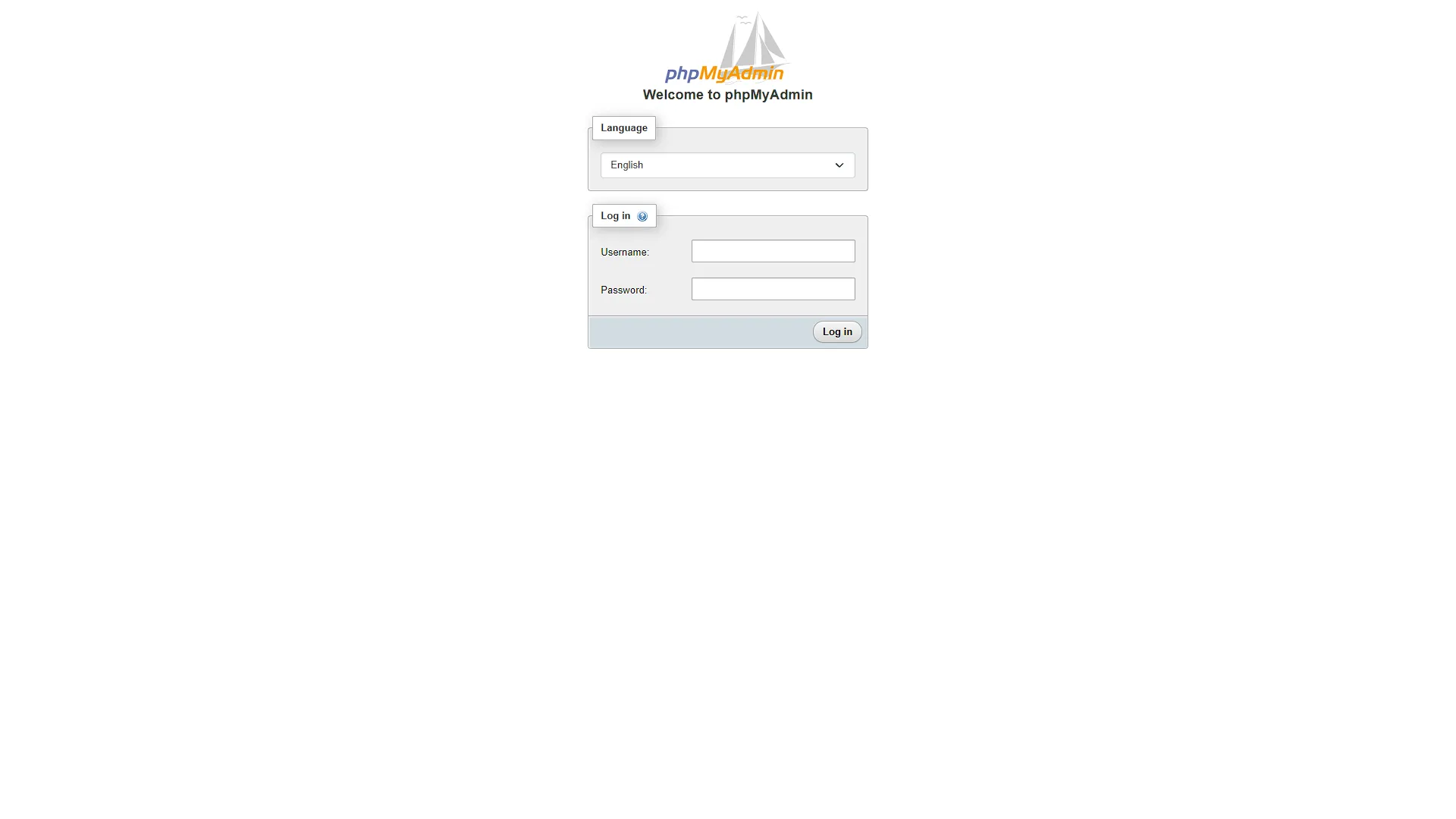
cat mysql.credsOpen a new browser window and connect to the IP address specified, without the port; in our case http://192.168.1.9. You should see a default Apache website page. Change the address in your browser and append phpMyAdmin to it, so that it is http://192.168.1.9/phpmyadmin. Log in with the credentials that are displayed from the cat command from the MySQL LXC Container. With a normal install, you will only be able to use username root to connect to the MySQL instance if you are connecting from the same IP Address, so only from localhost. This means that if we want a container or VM that has a different IP Address to access this MySQL instance, it will fail. So we will need to create a new user, or change root. We are creating a new one, but let's first create a new (test) database to make sure everything works
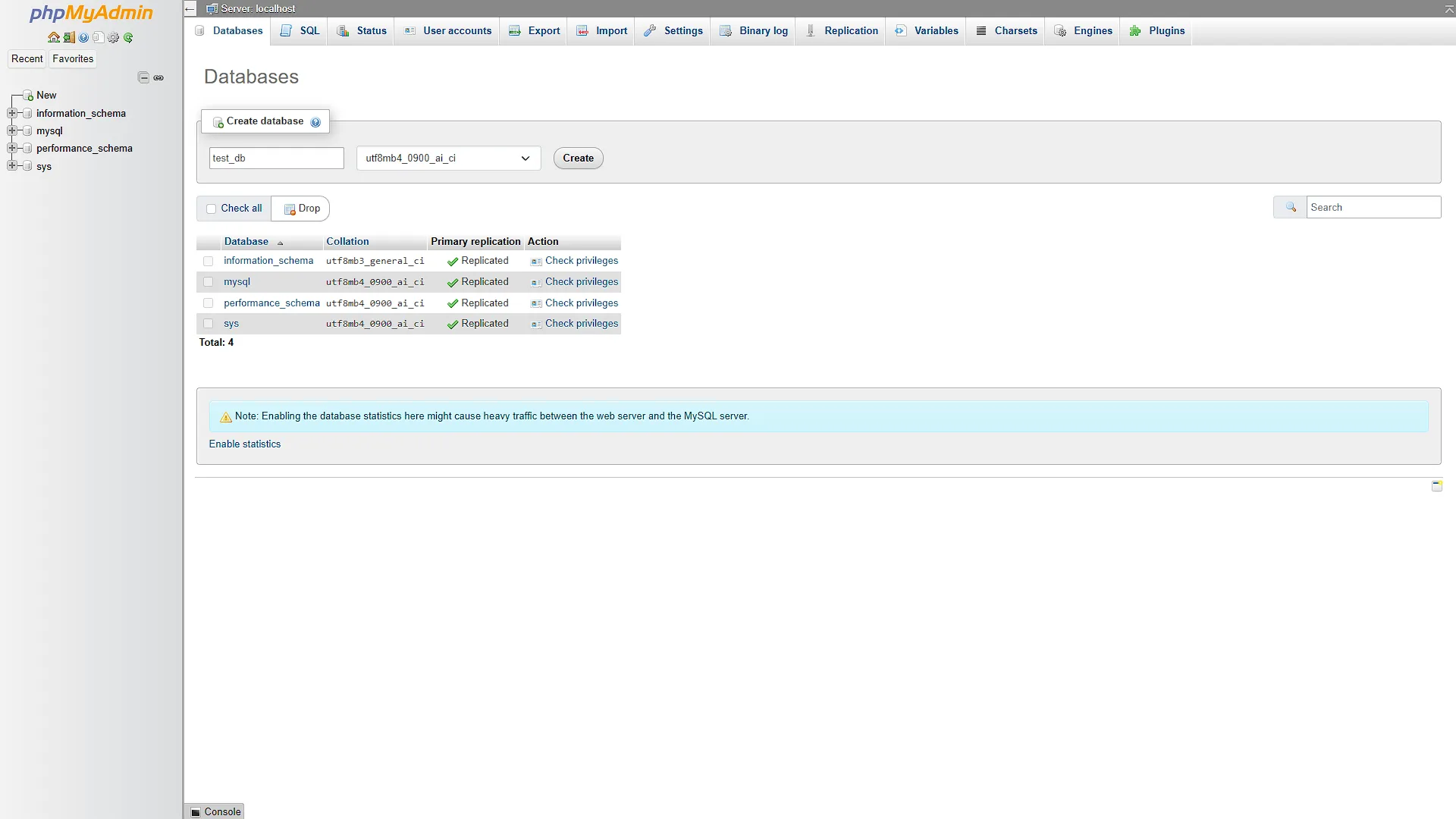
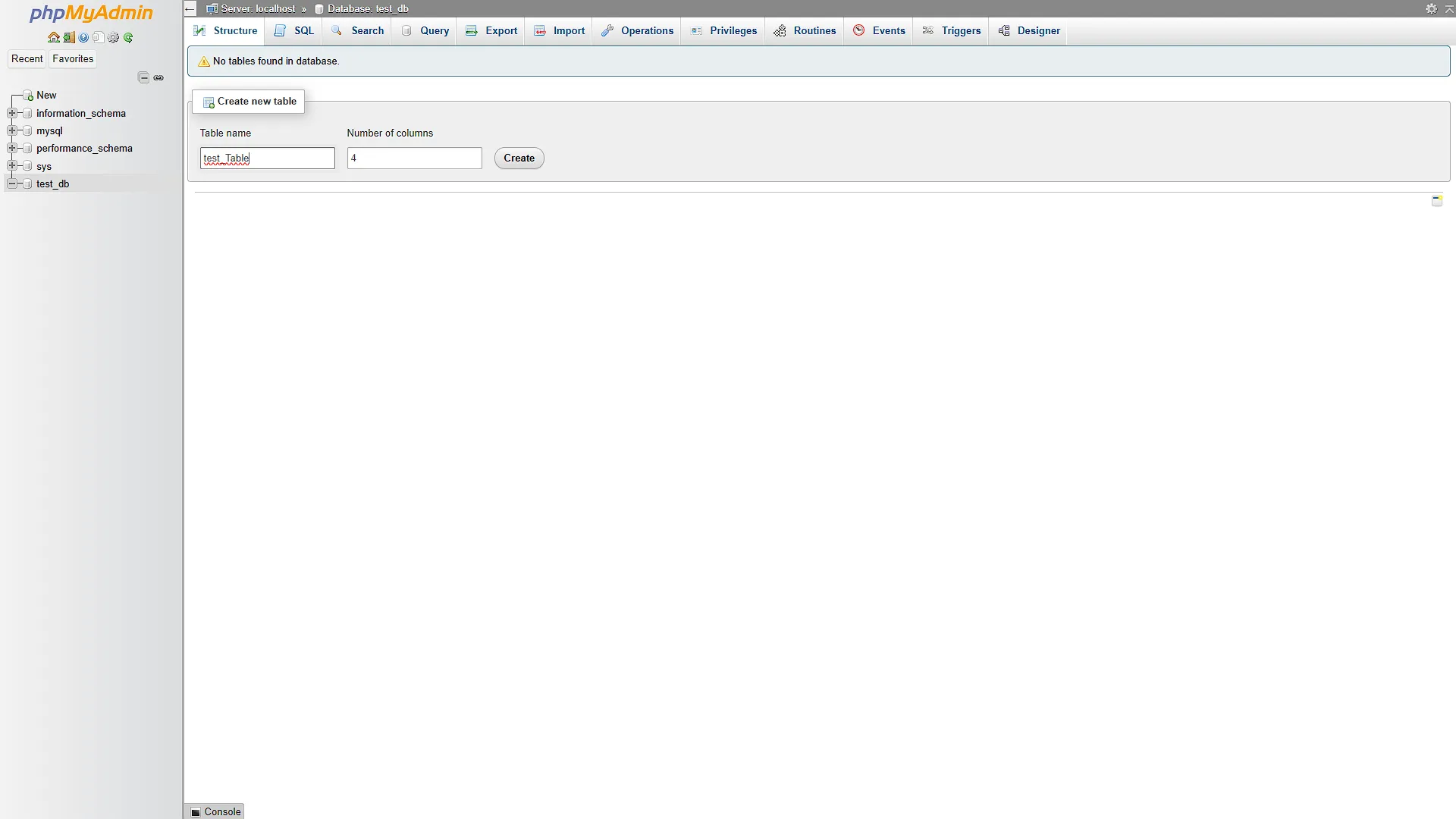
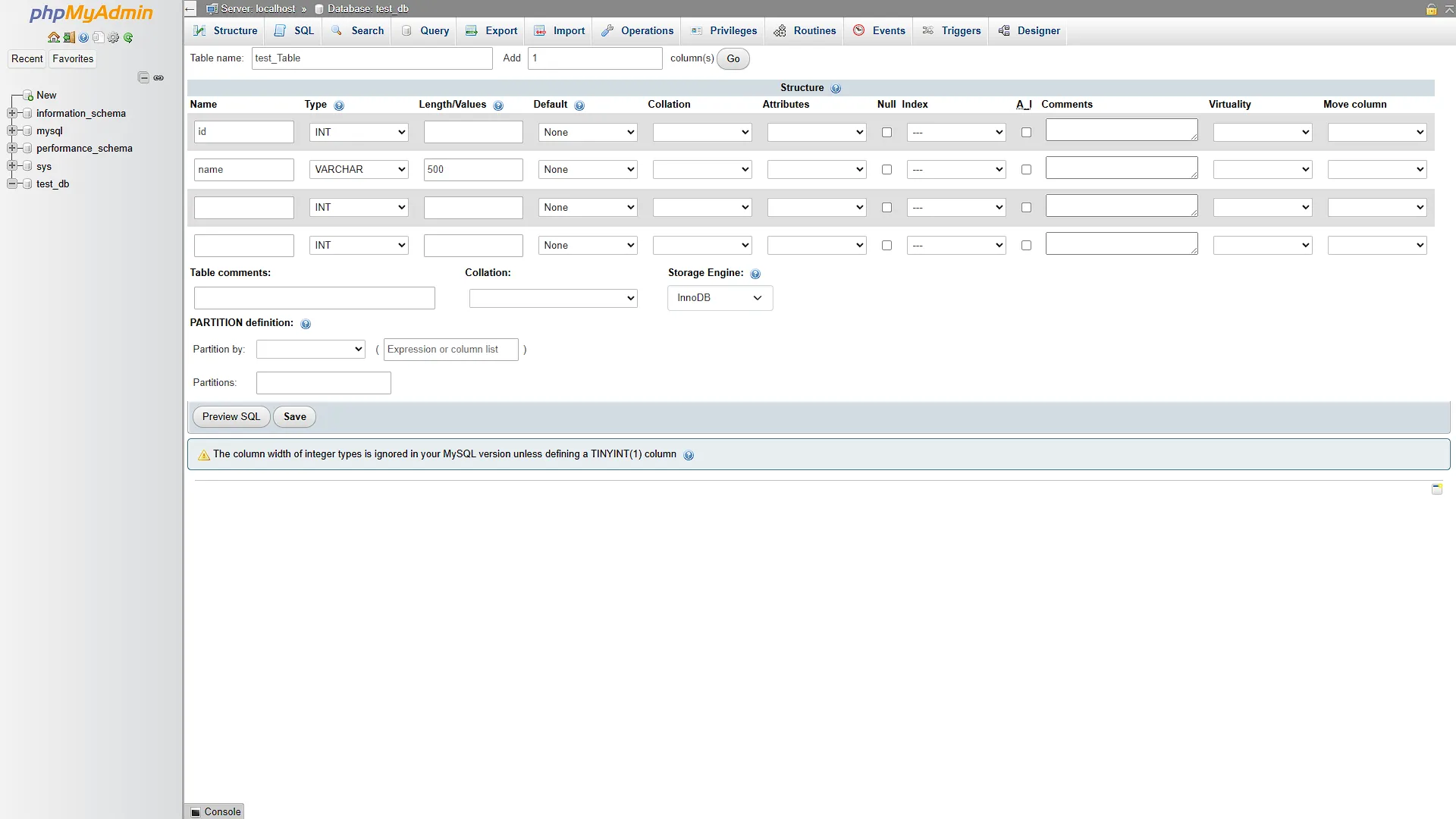
After logging in, in the top navigation menu, select Databases which will display all your databases. The ones that are displayed just after install are all system databases, so leave them as is. We want to create a new database, so in the Create Database section, add a name of a new database and click Create. Once created you will be prompted to add a new table to the database. You can add a test table if you want. After adding a table, you will be prompted to create fields in that table. Feel free to add some if you want.
Once the database has been created, we will need to create a new user to access this MySQL Instance. In the top navigation menu, select User Accounts. Select to create a new user account
Fill in the details of the new user account. When it comes to the grants, you can either select a wildcard grant, meaning access all databases, or to create a new database with the same name as the user you are creating. For now, we will just give full access. Scroll down and click Create to create the user and wait for it to be created. We can now access our MySQL instance with the newly created username and password
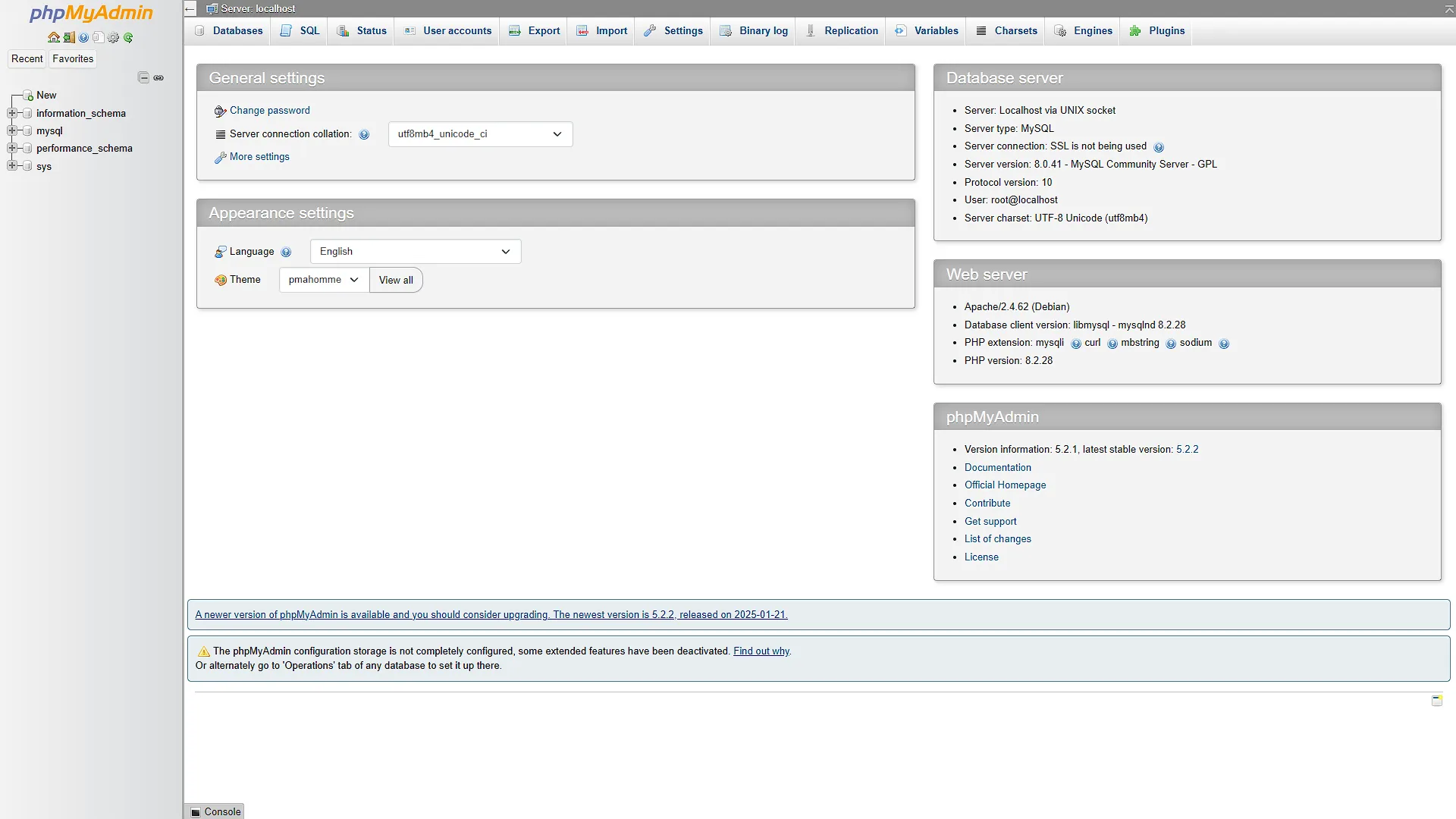
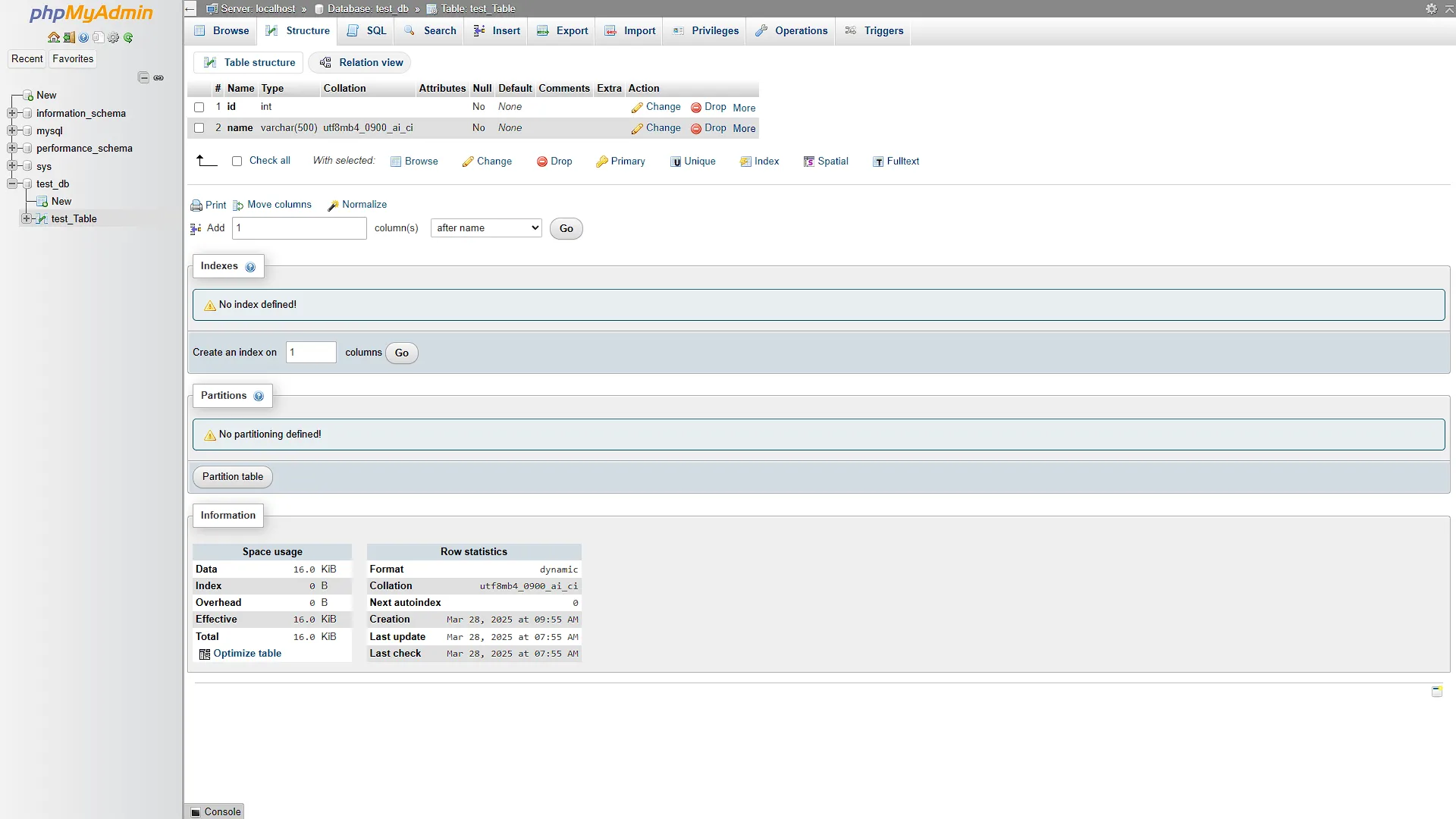
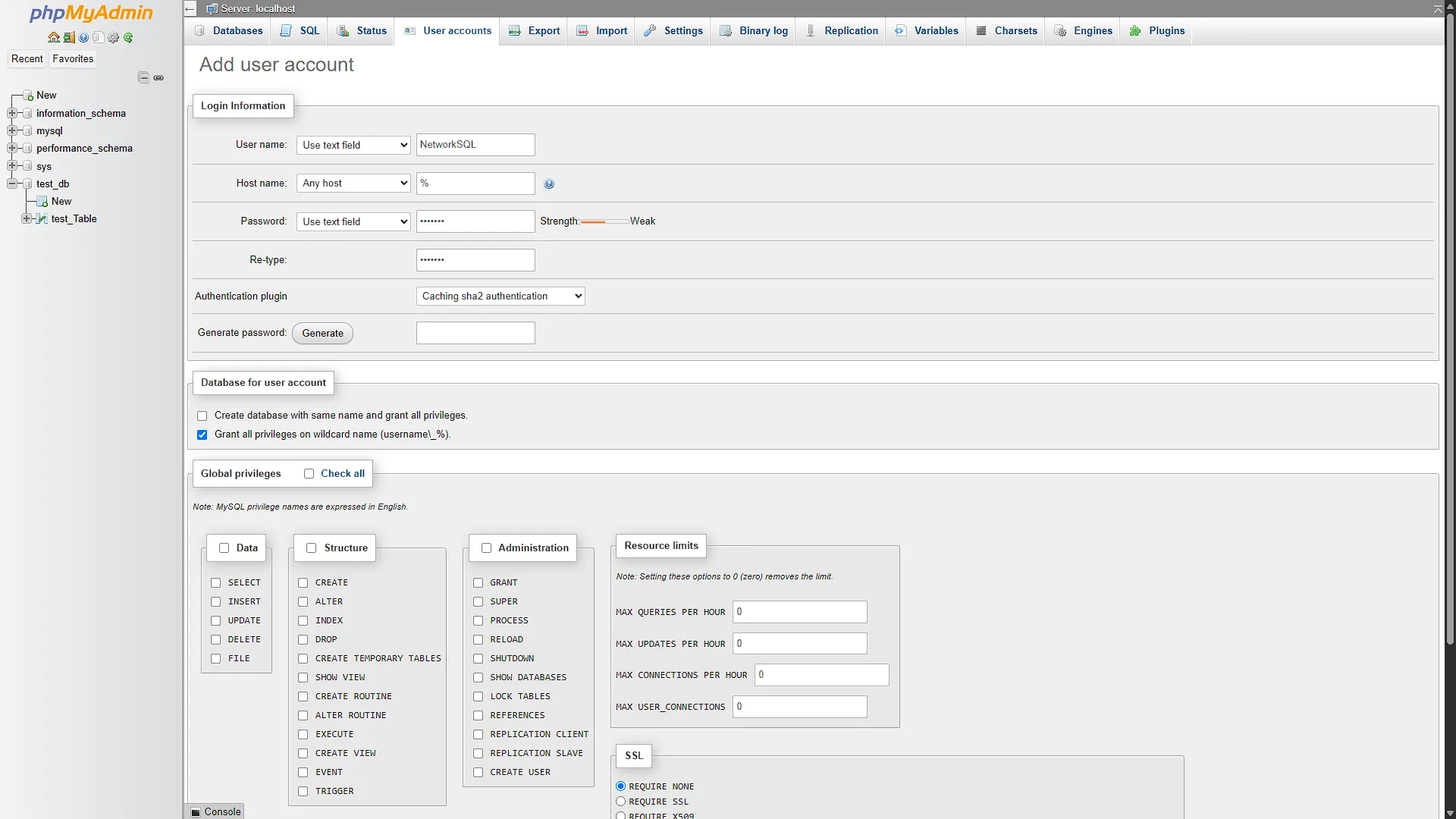
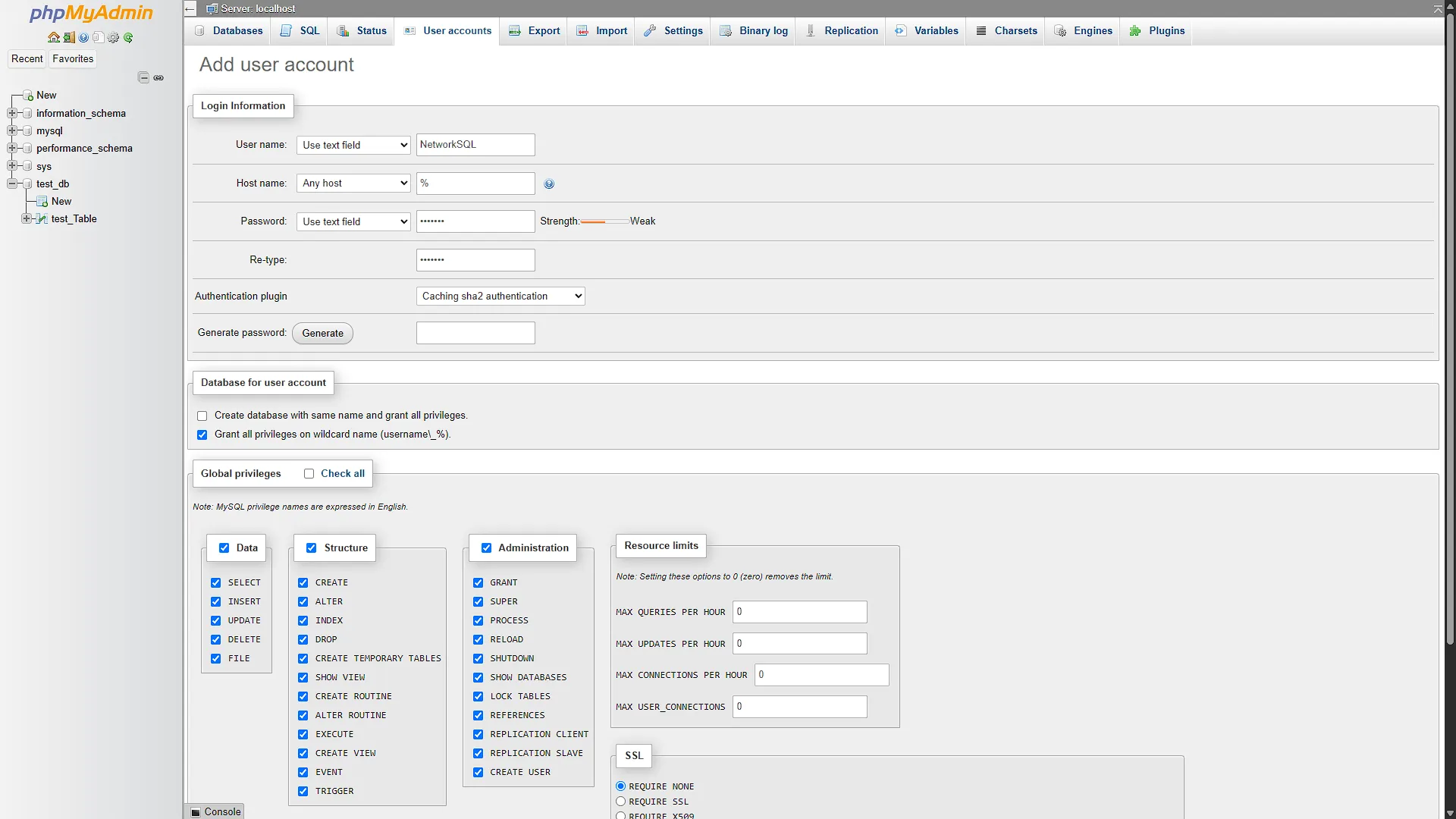
Step 4: Connect to MySQL
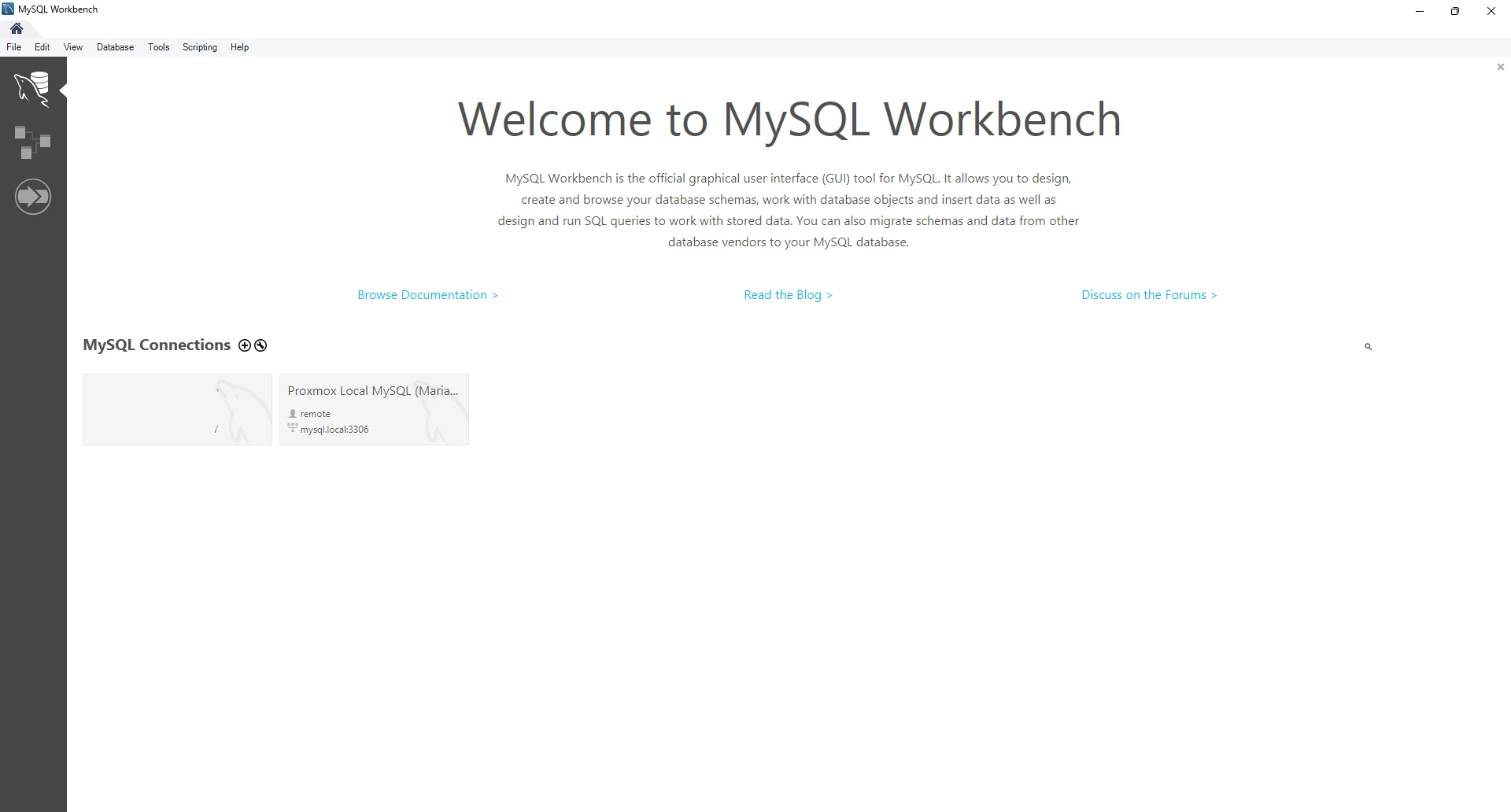
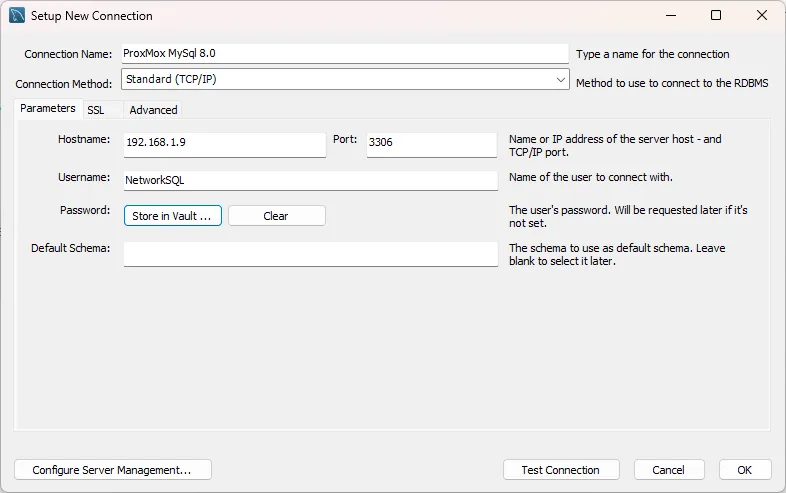
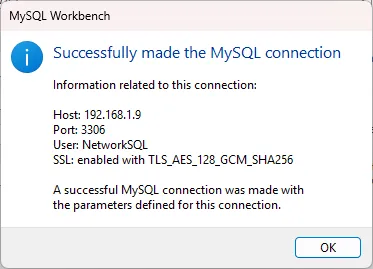
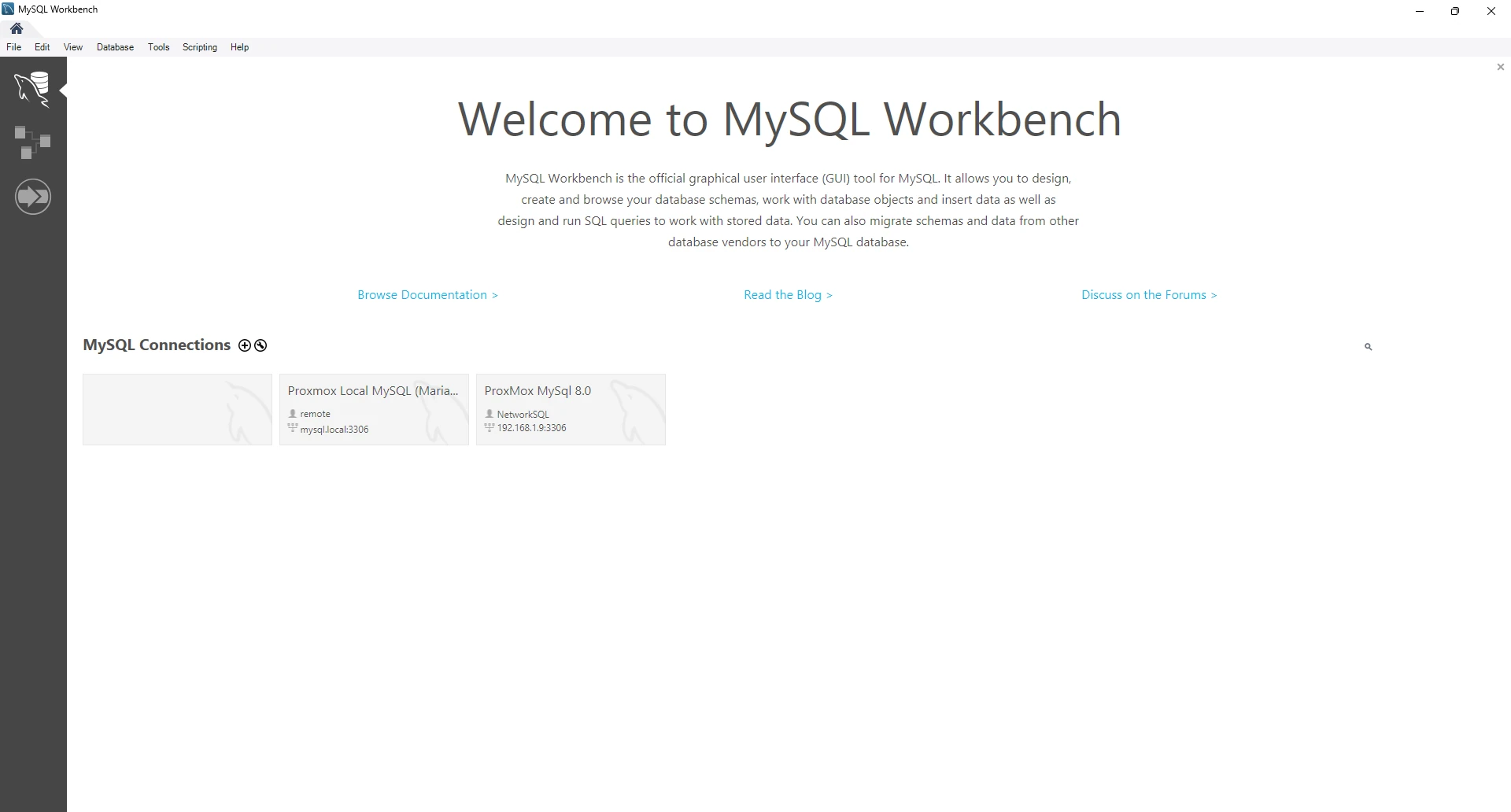
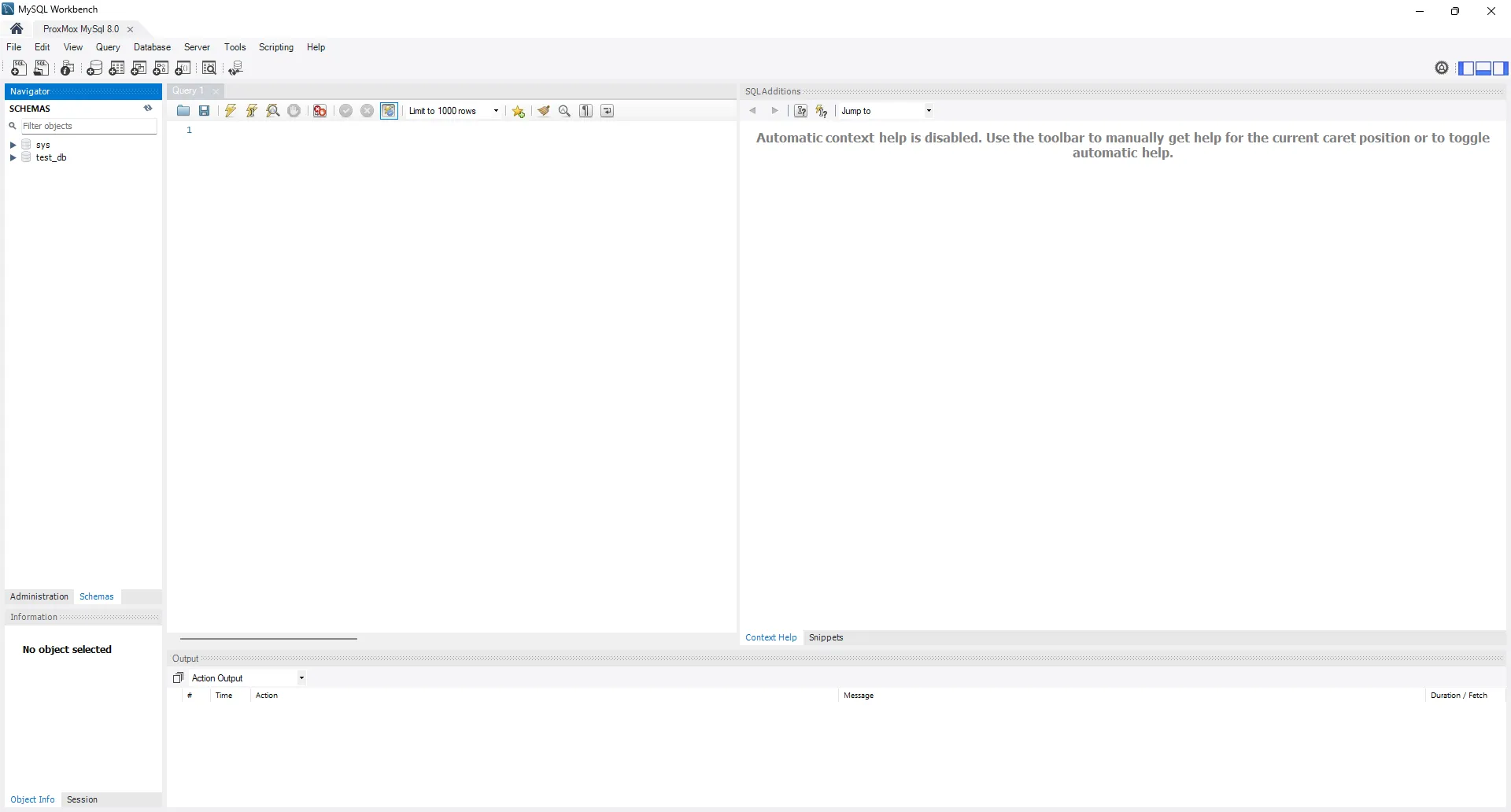
To test a connection to the MySQL Instance, we can use MySQL Workbench, which can be downloaded from https://www.mysql.com/products/workbench/. After installing, open the app to show all stored connections (if any). Click the plus icon next to MySQL Connections to add a new connection. Fill in the hostname as the IP Address of the MySQL LXC Container, and the port as the port that was displayed after install. The default port will be 3306. For the username, use the username we just created. Click on the Store in Vault button next to the Password field to save the password for the selected username securely. Once everything has been filled in, click on the Test Connection to test the connection. If all goes well, you will have the newly created connection in your list of MySQL Connections for easy access.
Optional After the Walkthrough: Version and Connection Troubleshooting
The MySQL helper selection and Workbench screenshots remain the demonstrated path. Identify the installed Oracle MySQL version before choosing a client or applying an authentication workaround. MariaDB and Oracle MySQL share much SQL syntax, but differ in features, authentication and upgrade behaviour. Treat an application's supported database versions as the compatibility requirement.
For a failed connection, separate TCP reachability from authentication. Check the installed server's listener and firewall before editing its bind address. A successful TCP connection followed by access denied points instead toward the account, password, allowed client host or authentication method. Do not change the listener to all interfaces when the existing remote connection already works.
MySQL's older mysql_native_password plugin is disabled by default in 8.4 and removed in 9.0. Recommending it as a universal Workbench fix can therefore cause a new failure. Prefer a compatible current client and the supported authentication method. If a legacy application requires an exception, evaluate that specific server/client combination and plan the migration separately.
Create an application account with the necessary permissions on its own database, and test from the real client machine. Keep the demonstration administrator connection available until the new account has passed its tests. Never use a published example password as an operational secret.
Back up data and grants with tooling appropriate to the installed database. Restore into a separate compatible instance, reconnect the application and inspect a sample of records before changing the working service. Part 7's MariaDB appliance can continue running independently; this article does not imply that its files can be copied directly into Oracle MySQL.
Further reading: MySQL native authentication compatibility.
Conclusion
We now have a vanilla MySQL LXC Container installed and ready for use. We can use this for log files from our Technitium DNS or any other container or service that needs a MySQL database for data storage. Although there are differences between MariaDB and MySQL, we have the option to use either now which fits for all users. We still need to have a look at SQL Server as well, and also what happens when we need to increase resources for our containers and VMs once we run out, so stay tuned for future articles.