Back in Part 5 of the Build Your Homelab series, we set up our own personal DNS server in Proxmox using Technitium DNS. Running your own Domain Name System (DNS) server is one of the most rewarding upgrades you can make to a home network: it lets you reach self-hosted services through clean domain names like wordpress.local or your own custom domain instead of memorising IP addresses, and it gives you network-wide control over DNS caching and domain filtering.
However, running a single DNS server inside a Proxmox container leaves a hidden single point of failure in your home network. Whenever you reboot your Proxmox host for a kernel update, shut it down to add hardware, or perform maintenance, your DNS container goes offline with it. If your router only points to that single DNS server, every phone, laptop, and smart device in the house immediately loses the ability to look up website names, making it look as though the internet itself has gone down.
In Part 5, our router screenshot showed Google's public resolver (8.8.8.8) in the Secondary DNS field. While that keeps general internet browsing alive if Proxmox is offline, it creates a different problem every single day: client operating systems do not treat a router's Secondary DNS field as a strictly idle backup. Phones and computers routinely query the secondary server alongside the primary one. Whenever a device asks 8.8.8.8 for one of your private homelab addresses, Google's server replies that the domain does not exist, causing intermittent "site cannot be reached" errors for your internal services.
The proper fix is to run a second, physically independent Technitium DNS server on a low-power Raspberry Pi and link the two servers together using Technitium's built-in Clustering feature. That way:
- If your Proxmox host is rebooting or offline for maintenance, your Raspberry Pi keeps both internet browsing and all of your local homelab domain names working seamlessly.
- You never have to maintain DNS records or blocklists in two places. You manage everything from a single interface on your primary server, and your Raspberry Pi synchronizes changes automatically in seconds.
Before You Start: Update Your Primary Technitium DNS Container
Technitium introduced native Clustering in Technitium DNS v14.0, and for two nodes to link together cleanly, both servers must run the exact same version of Technitium DNS. Because the official installer script we will run on the Raspberry Pi downloads the latest release (v15.6.2 at the time of writing), we should first update our existing Proxmox Technitium LXC container so the two versions match.
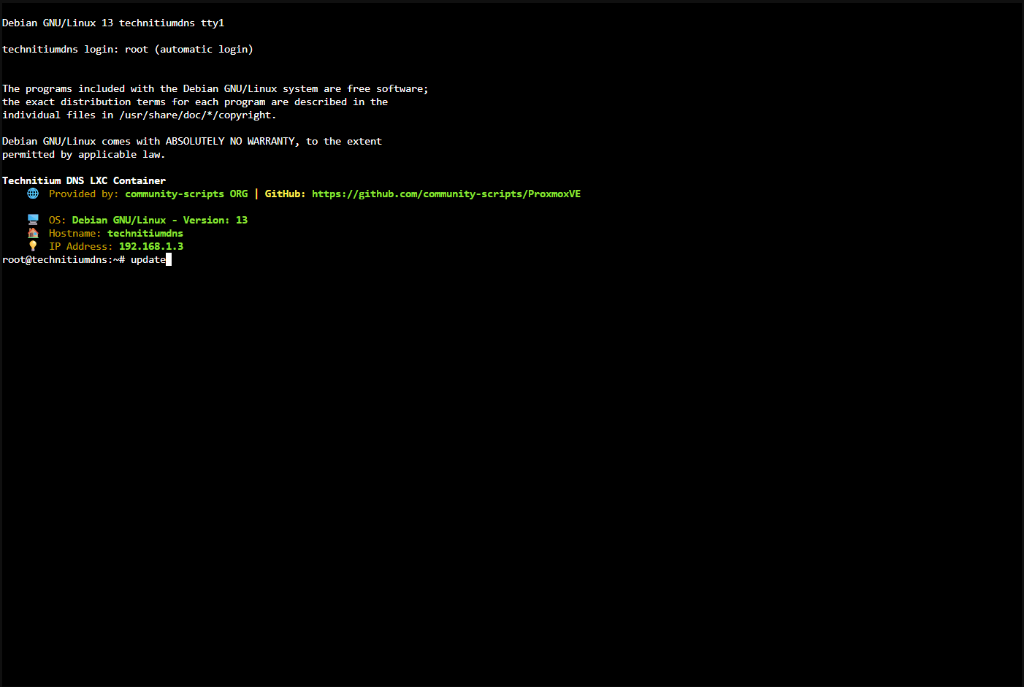
As we covered in Part 43: Updating Existing Helper-Scripts Containers, updating a Proxmox helper-script container takes a single command:
- Log in to your Proxmox web interface and select your existing Technitium DNS LXC container (
technitiumdns, running at192.168.1.3in our homelab). - Open the container's Console tab.
- Type the following command and press
Enter:
update
The helper script downloads the latest DnsServerPortable.tar.gz archive, deploys it to /opt/technitium/dns, updates the .NET runtime if required, and cleans up old packages automatically.
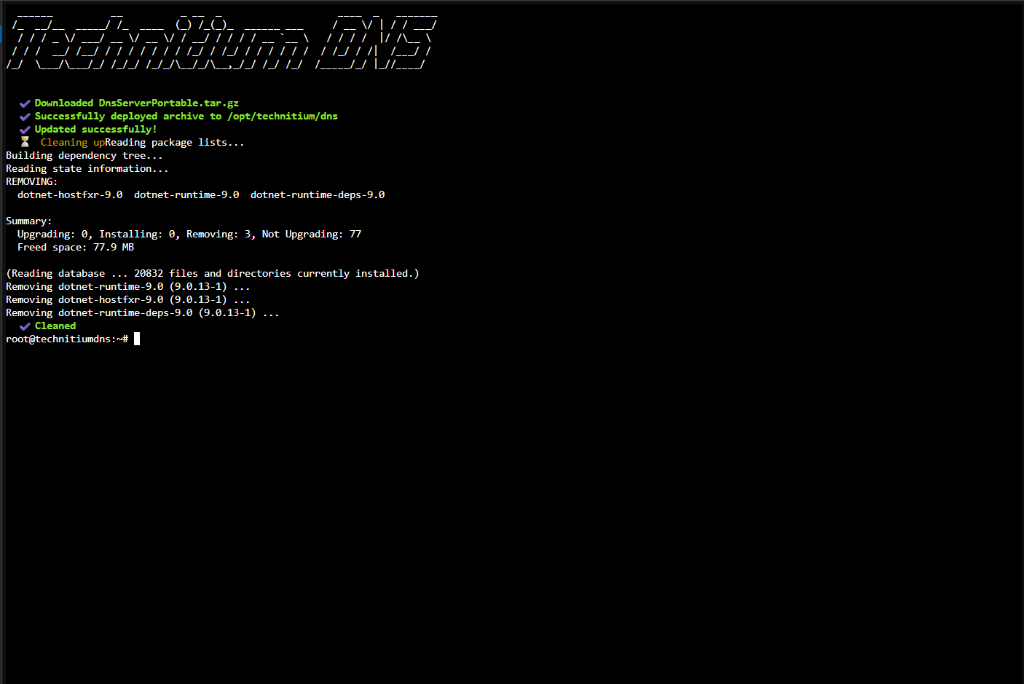
Once the update finishes, open your primary Technitium web console (http://192.168.1.3:5380 in our setup) and confirm you can log in. Keep a note of the administrator username (TechDecode in our setup, or admin if you kept the default name) and password, as you will need them when linking the Raspberry Pi.
Step 1: Flash Raspberry Pi OS Lite with Raspberry Pi Imager
Technitium DNS runs on any Raspberry Pi with an ARMv7 (32-bit) or ARM64 (64-bit) processor, which includes the Raspberry Pi 2, 3, 4, 5, and Raspberry Pi Zero 2 W (only the original ARMv6 Raspberry Pi 1 and original Pi Zero are unsupported by the underlying Microsoft .NET runtime). We are using a Raspberry Pi 4 for this guide.
Because this Raspberry Pi will sit quietly on the network as a dedicated server, we want the operating system with the least memory and CPU overhead. We do not need a desktop interface, graphical browser, or office suite eating up RAM and wearing out the storage drive.
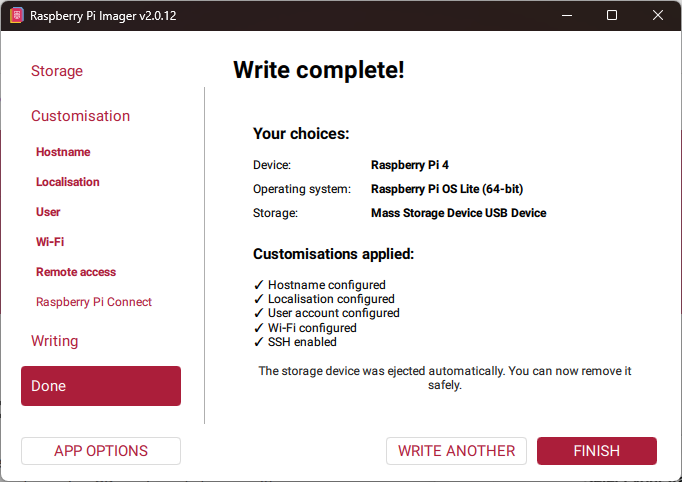
- Download and open Raspberry Pi Imager (
v2.0.12in our screenshots) on your computer and insert your microSD card or USB storage drive. - Under Device, select your Raspberry Pi model (Raspberry Pi 4 in our case).
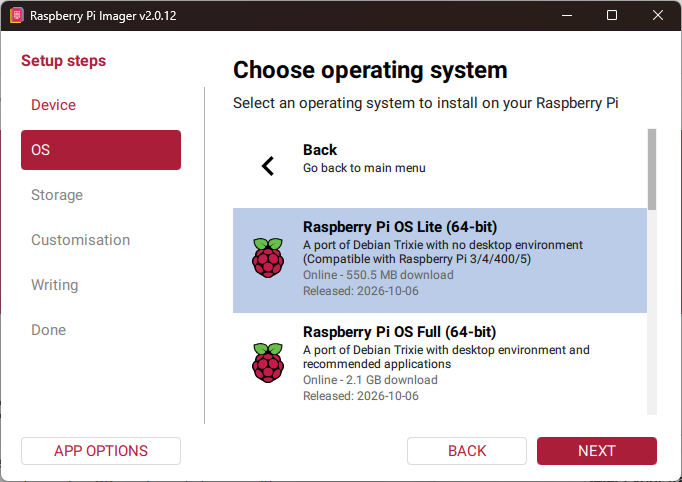
- Under OS, navigate to Raspberry Pi OS (other) and select Raspberry Pi OS Lite (64-bit). This is a lightweight port of Debian (
Debian Trixie) with no desktop environment, idling at roughly 100 to 130 MB of RAM. - Select your storage device under Storage, then proceed to the Customisation steps so you can set up the Pi headlessly (without ever needing to plug a monitor or keyboard into it):
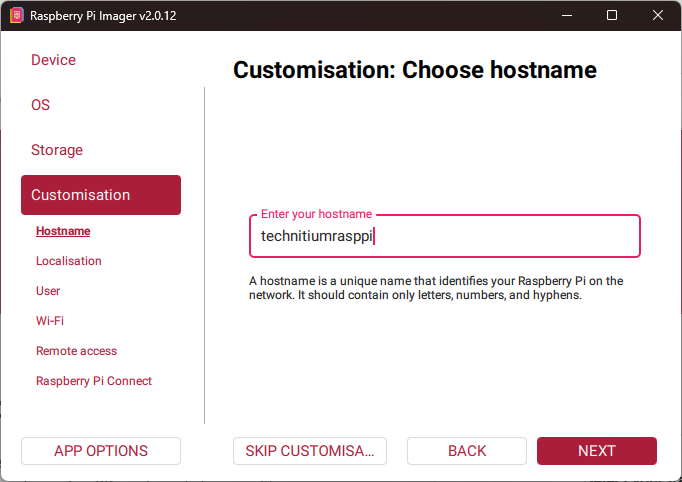
- Hostname: Enter a unique hostname that is different from your Proxmox container's hostname. Because our Proxmox LXC is named
technitiumdns, we named the Raspberry Pitechnitiumrasppi. Technitium Clustering requires each node in the cluster to have its own distinct hostname. - Localisation: Choose your time zone and keyboard layout.
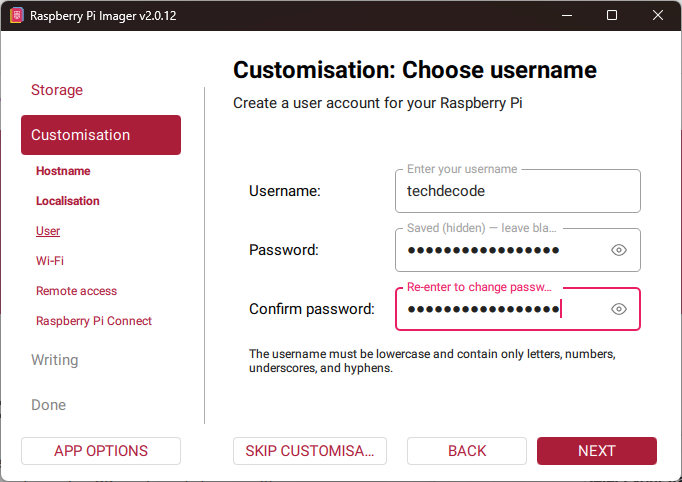
- User: Create your SSH login username (we used
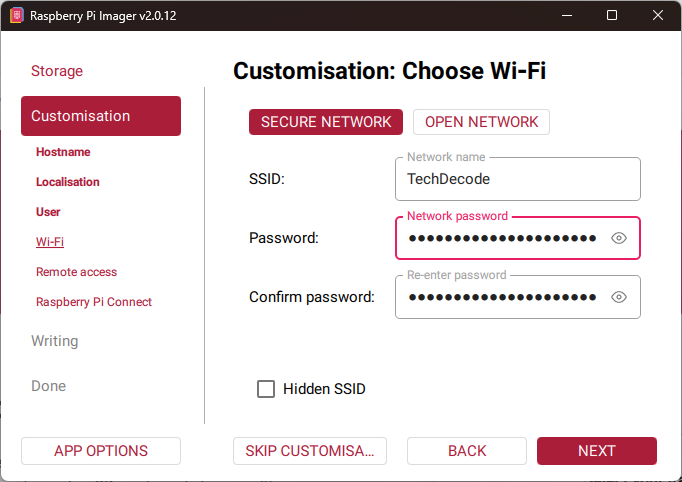
techdecode) and a strong password. - Wi-Fi: If your Raspberry Pi will connect over Wi-Fi, enter your network's SSID and password here. If you are plugging the Raspberry Pi into your router or switch with an Ethernet cable, you can skip the Wi-Fi step.
- Remote access: Enable SSH and choose password authentication (or your SSH key) so you can log in remotely over the network as soon as the Pi boots.
- Hostname: Enter a unique hostname that is different from your Proxmox container's hostname. Because our Proxmox LXC is named
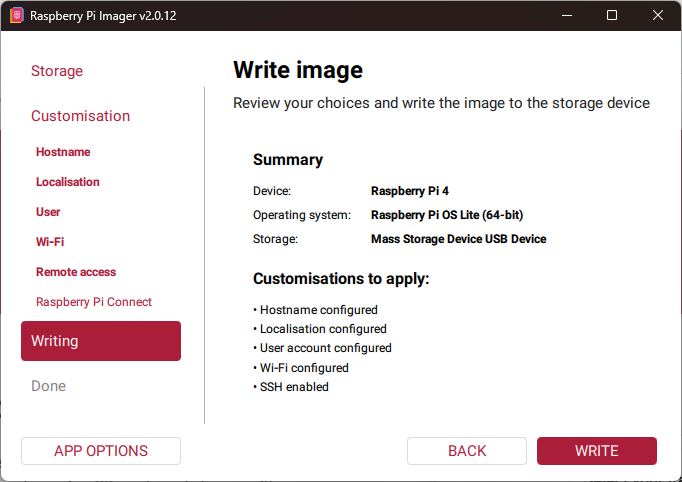
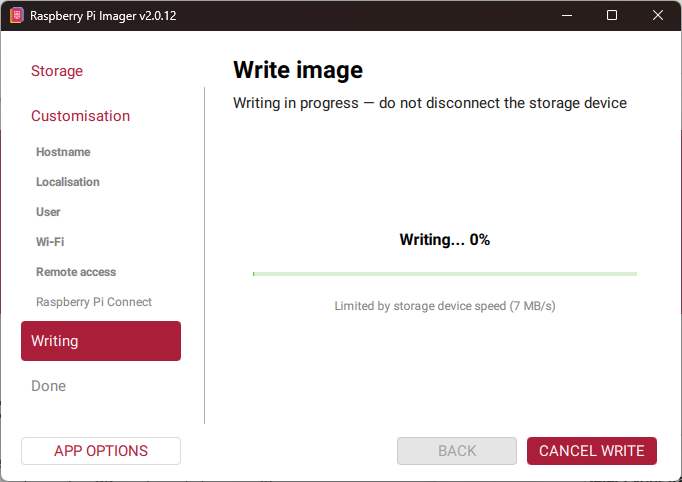
- On the Write image summary screen, review your selections and click WRITE. Once the write verification completes, move the storage device to your Raspberry Pi and power it on.
Give the Raspberry Pi a Static IP Reservation
Before installing Technitium DNS, make sure your Raspberry Pi has a permanent LAN IP address that will never change when your router restarts. A DNS server whose IP address changes mid-week will leave every device on your network knocking on the wrong door.
Once the Raspberry Pi boots and joins your network, open your router's management app (such as Address Reservation under Advanced > DHCP Server in the TP-Link Deco app) and reserve its IP address. In our setup:
- Primary DNS (Proxmox LXC
technitiumdns):192.168.1.3 - Secondary DNS (Raspberry Pi
technitiumrasppi):192.168.1.251
Step 2: Install Technitium DNS on the Raspberry Pi
Now that the Raspberry Pi is online at its permanent IP address (192.168.1.251), open a terminal (such as Windows Terminal, PowerShell, or macOS/Linux Terminal) and connect to it via SSH using the username and hostname (or IP address) you configured:
ssh [email protected]
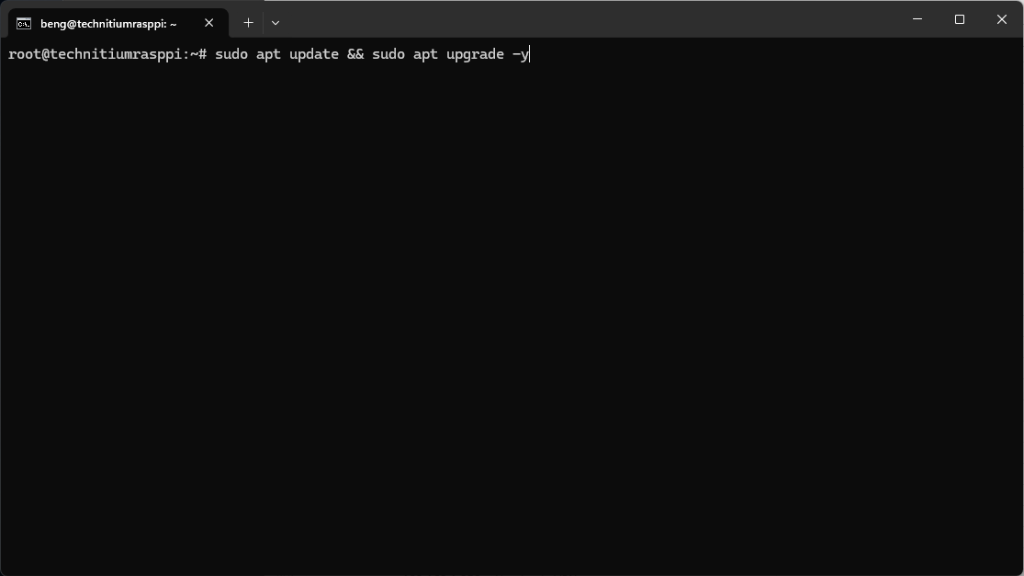
(If you run commands as root after logging in via sudo -i, your prompt will show root@technitiumrasppi:~# as shown in our screenshots, or you can stay as your standard user and prefix commands with sudo.)
First, update the Raspberry Pi's package lists and install any latest operating system updates:
sudo apt update && sudo apt upgrade -y
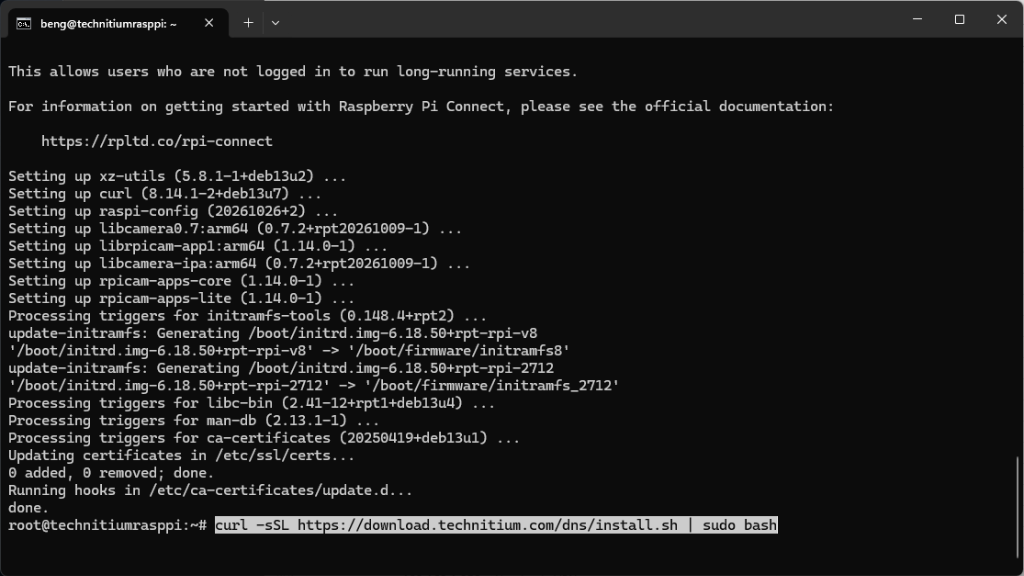
Once the upgrade finishes (done.), run the official Technitium DNS automated Linux installer script:
curl -sSL https://download.technitium.com/dns/install.sh | sudo bash
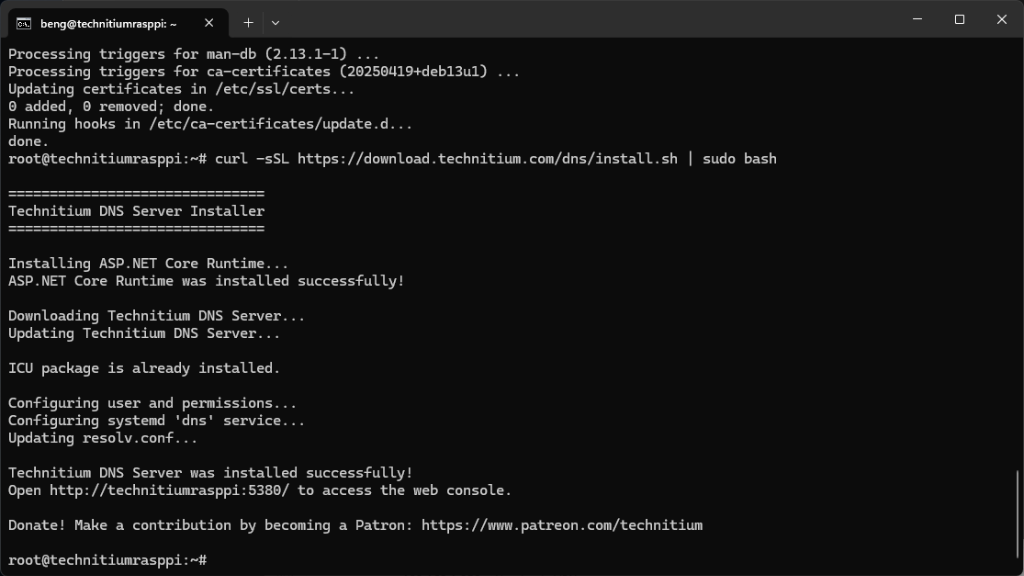
This single script handles every dependency automatically on Debian and Raspberry Pi OS:
- It installs the ASP.NET Core Runtime into
/opt/dotnet. - It downloads and extracts Technitium DNS Server into
/opt/technitium/dns, keeping configuration files in/etc/dnsand logs in/var/log/technitium/dns. - It verifies that the required
libicuinternationalisation library is installed (needed for international domain names). - It creates a dedicated system user (
dns-server), registers and starts thednssystemd service so Technitium starts automatically on every boot, and updates/etc/resolv.conf.
When the script finishes, you will see:
Technitium DNS Server was installed successfully!
Open http://technitiumrasppi:5380/ to access the web console.
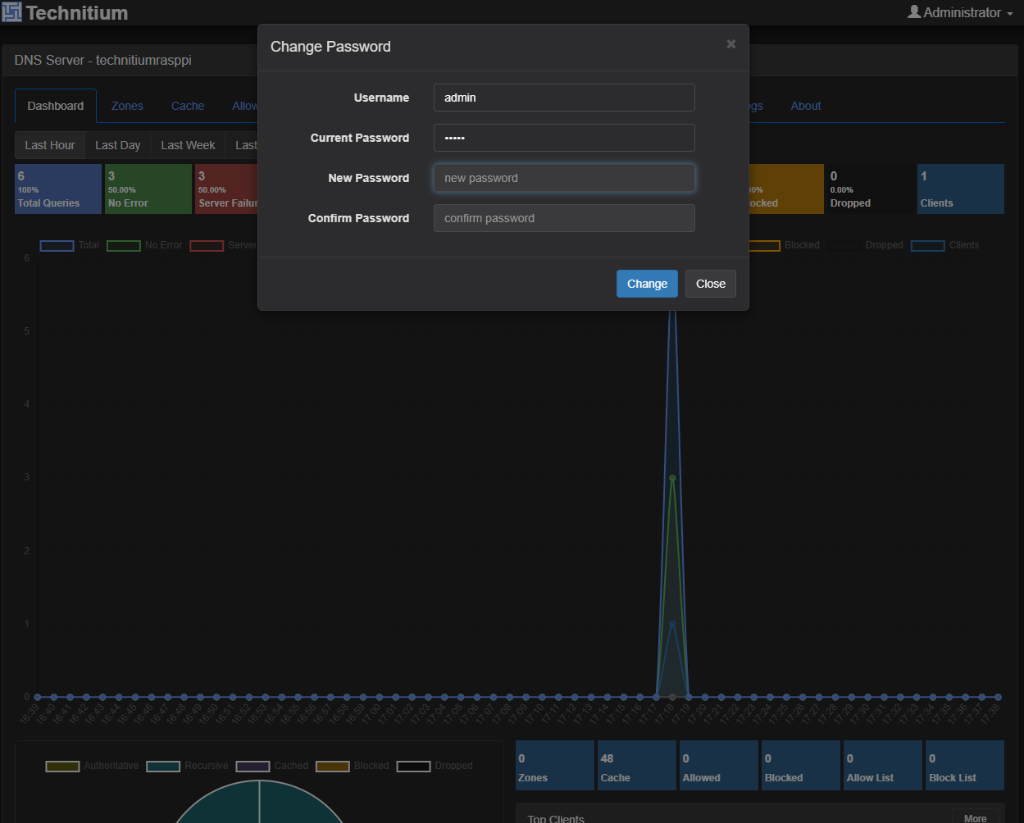
Open a browser tab and go to http://192.168.1.251:5380/ (or http://technitiumrasppi:5380/). On first login, Technitium immediately prompts you with a Change Password dialog for the default admin account. Enter a strong password, confirm it, and click Change.
Step 3: Initialize the Cluster on Your Primary Proxmox DNS Server
With both Technitium servers running the same version (v15.6.2), we are ready to link them.
In Technitium's clustering model, one server acts as the Primary node (where you make changes) and one or more servers act as Secondary nodes (which automatically synchronize configuration and zones from the Primary node over an encrypted TLS connection on port 53443).
- Open the web console of your Primary Technitium DNS server in Proxmox (
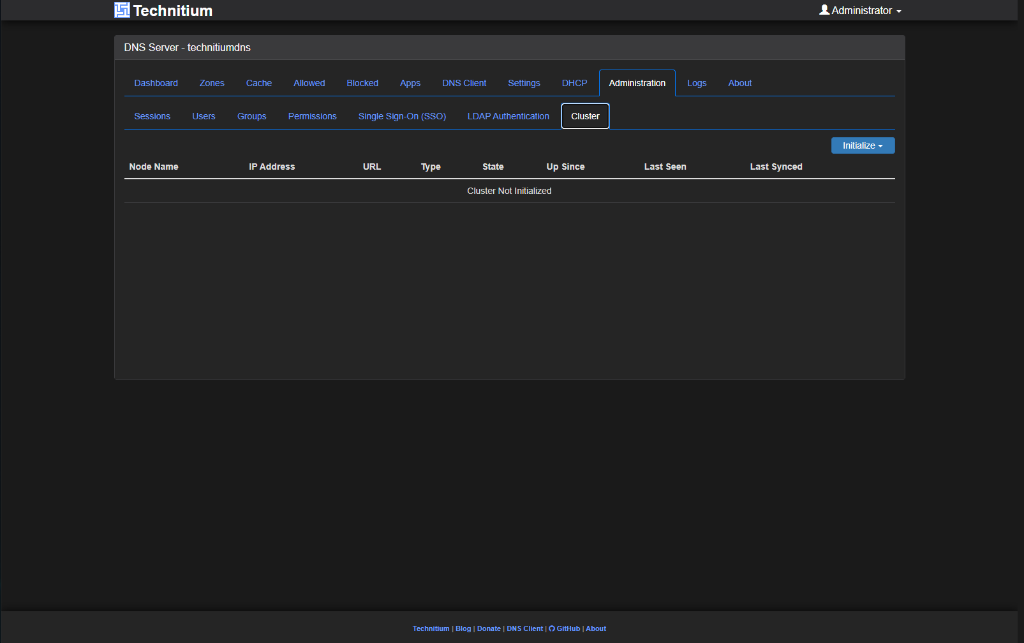
http://192.168.1.3:5380/). - In the top navigation bar, click Administration, then select the Cluster sub-tab. You will see
Cluster Not Initialized. - Click the blue Initialize button in the top-right corner and select Initialize New Cluster.
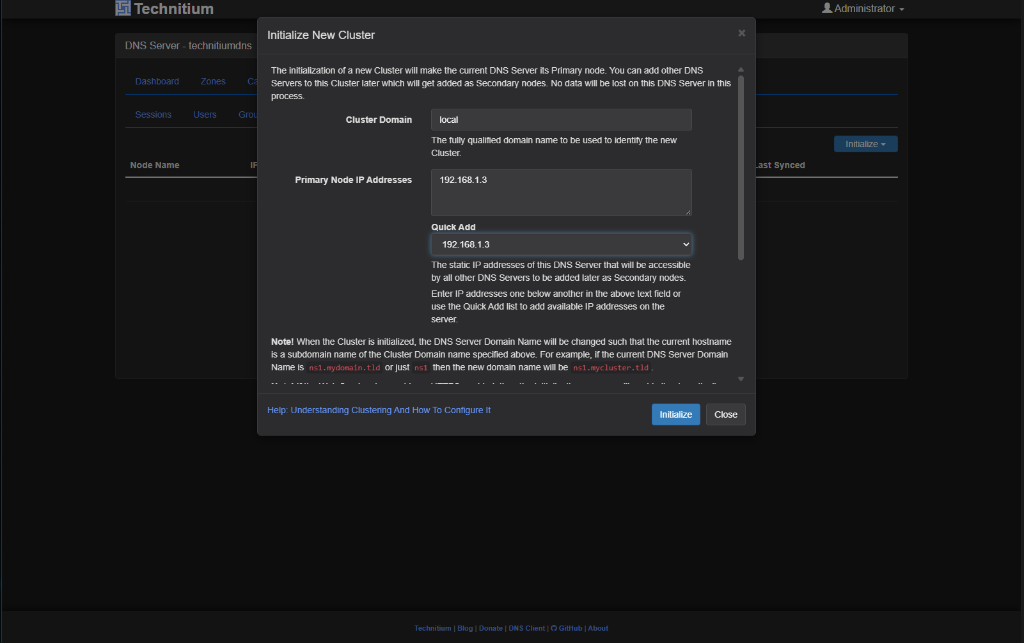
- In the Initialize New Cluster modal, fill in the two fields:
- Cluster Domain: Enter
local. This is the domain suffix used to identify the nodes in your cluster, and it matches thelocalzone we created back in Part 5. (If you built your homelab aroundhome.arpainstead, enterhome.arpahere.) - Primary Node IP Addresses: Enter your Primary Technitium server's static LAN IP address (
192.168.1.3in our setup, or select it from the Quick Add dropdown).
- Cluster Domain: Enter
- Click Initialize.
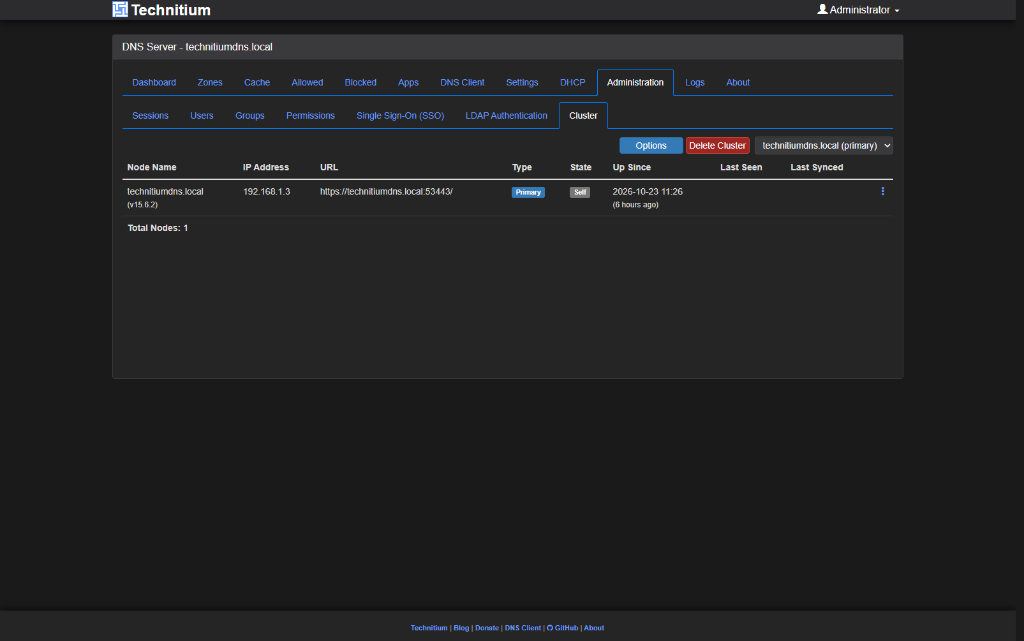
When initialization completes, notice three automatic changes on your Primary server:
- The server's identity in the top-left bar updates from
technitiumdnstotechnitiumdns.local. - The Cluster table now lists
technitiumdns.local (v15.6.2)at192.168.1.3with cluster URLhttps://technitiumdns.local:53443/, Type Primary, and State Self. - A node selector dropdown (
technitiumdns.local (primary)) appears in the top-right corner of the interface.
Step 4: Join the Raspberry Pi to the Cluster as a Secondary Node
Now switch over to the browser tab for your Raspberry Pi Technitium web console (http://192.168.1.251:5380/):
- Click Administration in the top menu, then open the Cluster sub-tab.
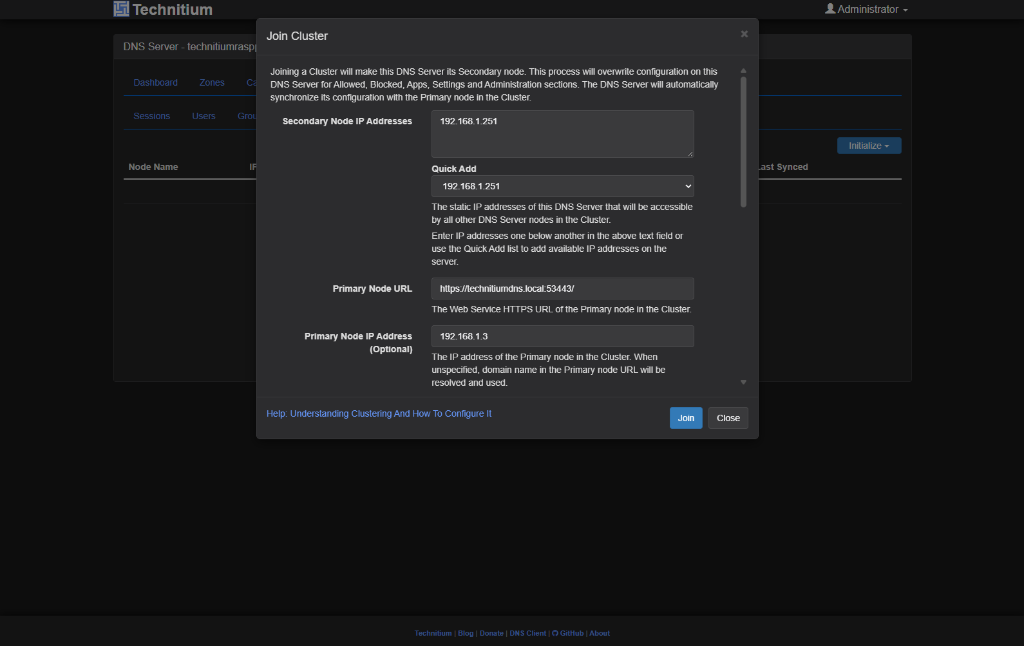
- Click Initialize and choose Join Cluster from the dropdown menu.
- Fill in the Join Cluster dialog as follows:
- Secondary Node IP Addresses: Select your Raspberry Pi's static IP address from the Quick Add dropdown (
192.168.1.251in our setup). - Primary Node URL: Enter the HTTPS cluster URL shown on your Primary server:
https://technitiumdns.local:53443/(make sure to includehttps://and port:53443/). - Primary Node IP Address (Optional): Enter
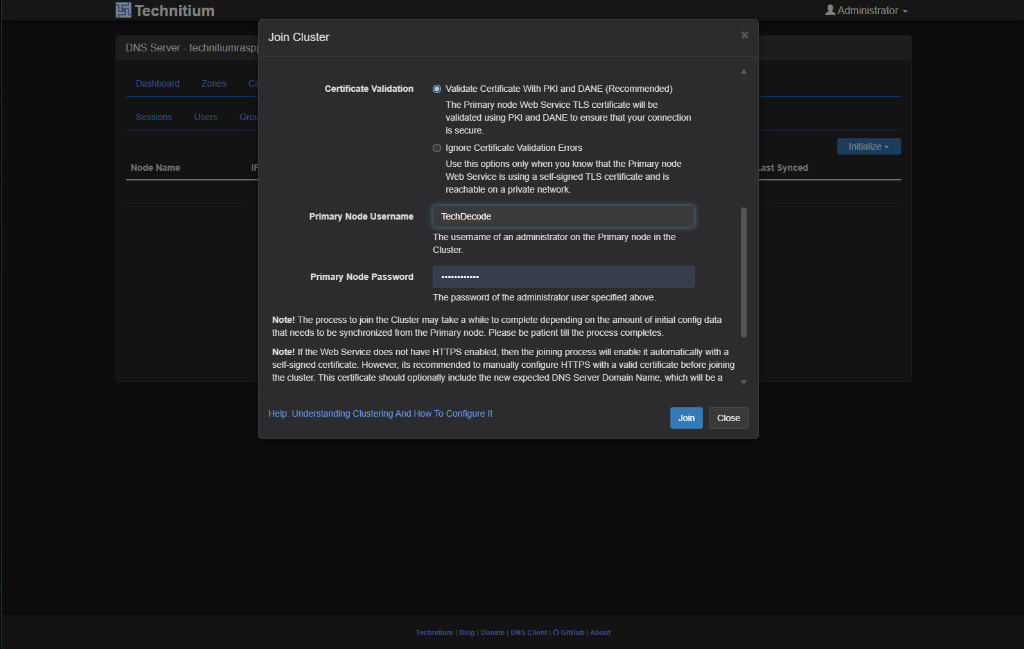
192.168.1.3. Although labelled optional, you should always fill this in when joining a home cluster: because the Raspberry Pi does not yet know how to resolvetechnitiumdns.local, supplying the IP address tells the Raspberry Pi to ask192.168.1.3directly during the initial handshake. - Certificate Validation: Keep
Validate Certificate With PKI and DANE (Recommended)selected. Because we provided the Primary Node IP Address above, the Raspberry Pi can query the Primary node for its DANE (DNS-Based Authentication of Named Entities)TLSArecord and cryptographically verify the Primary server's self-signed TLS certificate without needing a commercial SSL certificate. - Primary Node Username: Enter the administrator username of your Primary (Proxmox) Technitium server (
TechDecodein our setup, oradminif you kept the default username). - Primary Node Password: Enter the administrator password of your Primary (Proxmox) Technitium server.
- Secondary Node IP Addresses: Select your Raspberry Pi's static IP address from the Quick Add dropdown (
- Click Join.
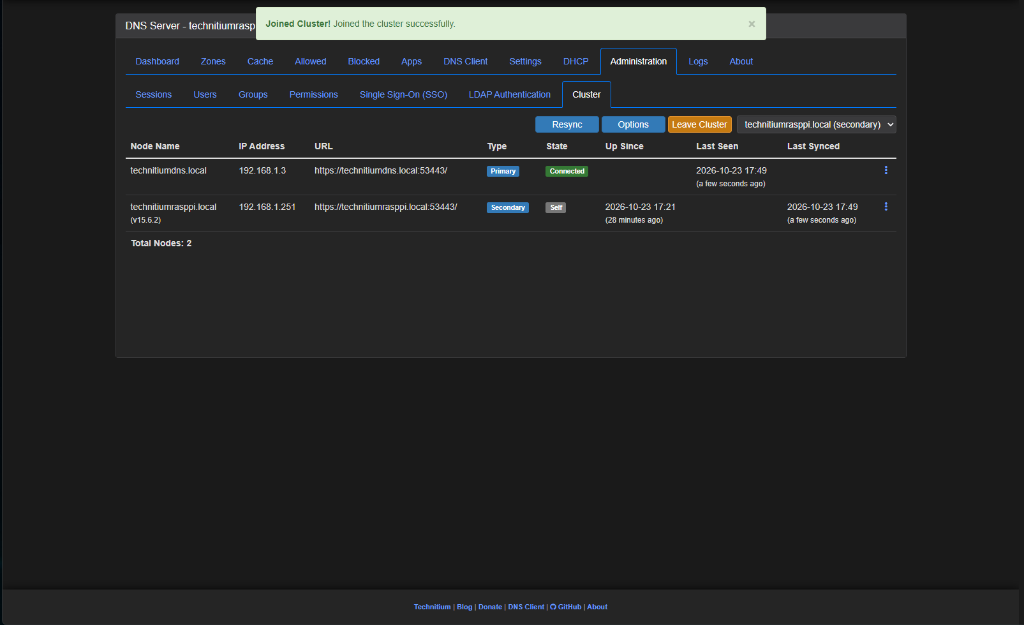
Within a few seconds, a green Joined Cluster! Joined the cluster successfully. banner appears at the top of the screen. The Cluster table now shows Total Nodes: 2:
technitiumdns.local(192.168.1.3) as Primary with stateConnected.technitiumrasppi.local(192.168.1.251) as Secondary with stateSelf.
Even better, because the cluster synchronizes administrator accounts and settings from the Primary node, you can now manage both servers directly from your Primary web console using the node selector dropdown in the top-right corner.
Step 5: Sync Your Existing Zones via the Cluster Catalog
When you link two Technitium servers into a cluster, global settings, Allowed lists, Blocked lists, and blocklist URLs synchronize automatically. However, authoritative DNS zones (the custom domain records you created for your homelab) are only replicated to Secondary nodes when they are enrolled in a special Catalog Zone named cluster-catalog.local.
A Catalog Zone (standardized in RFC 9432) acts like a master checklist of zones: whenever you add a Primary zone to cluster-catalog.local on your Primary node, every Secondary node in the cluster automatically creates a matching Secondary zone and pulls all of its records.
Let's check our zones on the Primary node and enroll any existing zones that are not yet in the catalog:
- In your Technitium web console, make sure the top-right node selector is set to
technitiumdns.local (primary), then click the Zones tab in the top navigation bar. - Look at the list of zones:
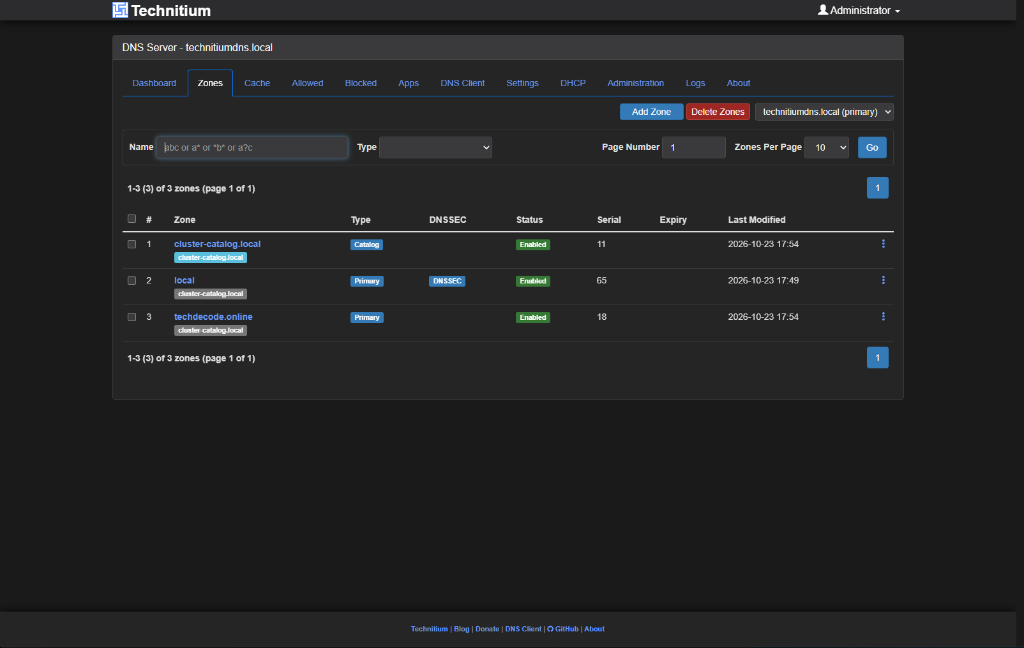
cluster-catalog.local(Catalog): Created automatically when we initialized the cluster.local(Primary): Notice that it already has the greycluster-catalog.localbadge underneath it! Because we named our Cluster Domainlocalin Step 3, Technitium automatically enrolled our existinglocalzone (from Part 5) into the cluster catalog during initialization.techdecode.online(Primary): If you created additional custom zones (such as the local domain zone we set up in Part 30: Custom Domain Usage and Setup), notice that it does not have thecluster-catalog.localbadge yet.
- To sync
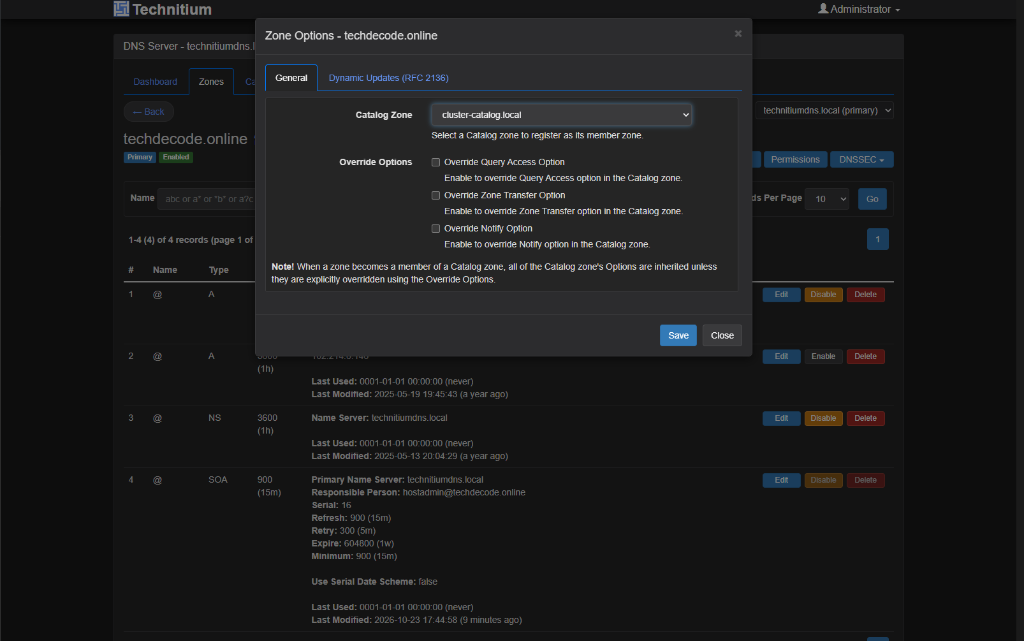
techdecode.online(or any other custom Primary zone) to the Raspberry Pi:- Click on the zone name (
techdecode.online). - Click the Options button in the top toolbar to open Zone Options.
- Under the General tab, click the Catalog Zone dropdown and select
cluster-catalog.local. - Click Save.
- Click on the zone name (
- Click Back to return to the Zones list on the Primary node. Both
localandtechdecode.onlinenow display thecluster-catalog.localbadge. - Finally, click the node selector dropdown in the top-right corner and switch from
technitiumdns.local (primary)totechnitiumrasppi.local (secondary). You will immediately seecluster-catalog.local(Secondary Catalog),local(Secondary), andtechdecode.online(Secondary) replicated on the Raspberry Pi!
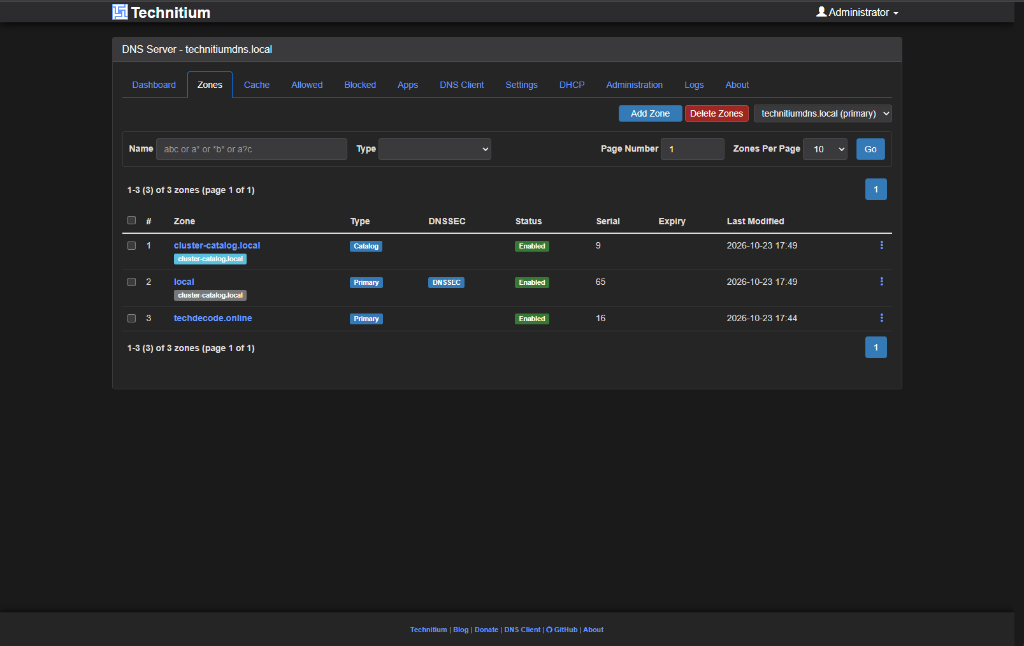
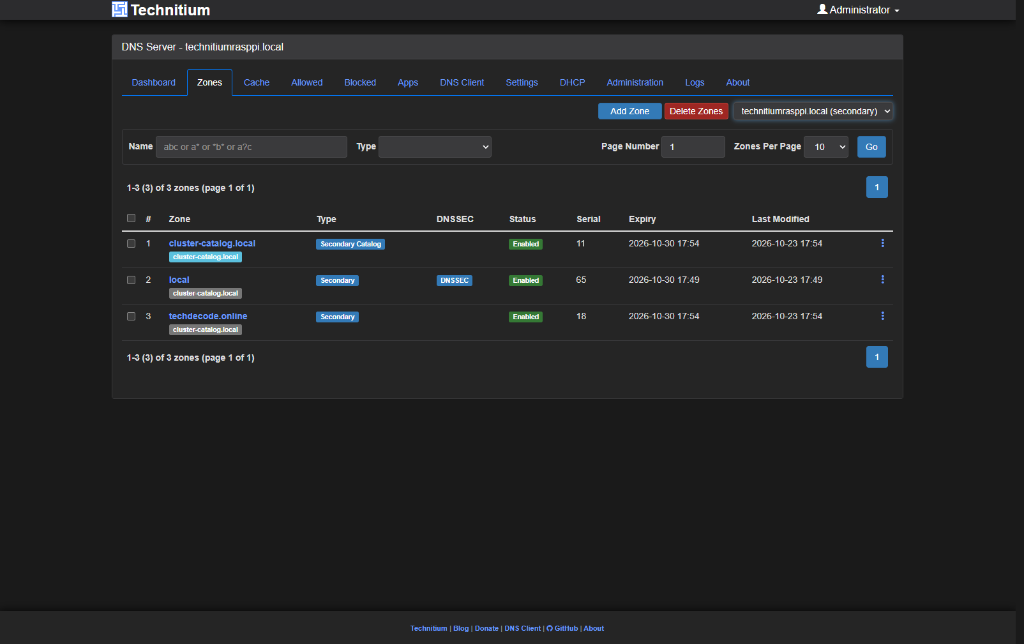
From this point onward, any new record you add to local or techdecode.online on the Primary server is pushed to the Raspberry Pi within seconds. Just remember that if you create a brand-new zone in the future, you should select cluster-catalog.local as its Catalog Zone when creating it so the Raspberry Pi receives it too.
Step 6: Point Your Router's Secondary DNS to the Raspberry Pi
Our two Technitium DNS servers are now linked and serving identical records, but devices on our home network will only use the Raspberry Pi if our router's DHCP server tells them about it.
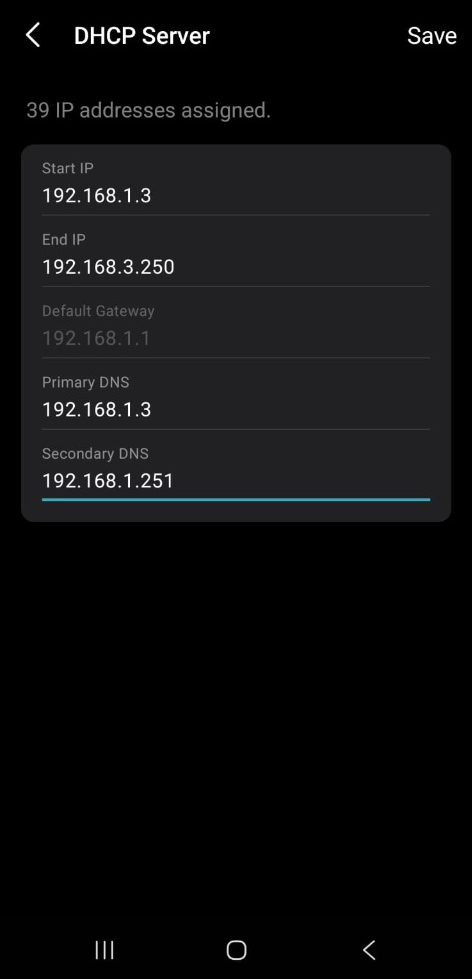
- Open your router's administration interface or mobile app. On our TP-Link Deco mesh system, open the Deco app and navigate to More > Advanced > DHCP Server.
- Set the two DNS fields to your two Technitium servers:
- Primary DNS:
192.168.1.3(our Proxmox Technitium LXC) - Secondary DNS:
192.168.1.251(our Raspberry Pi Technitium server, replacing8.8.8.8)
- Primary DNS:
- Tap Save in the top-right corner.
Verify That Both DNS Servers Answer Queries
Because devices on your network only refresh their DHCP settings when they reconnect or when their lease renews, toggle Wi-Fi off and back on (or unplug and reconnect Ethernet) on your computer or phone.
You can also test the Raspberry Pi directly from a terminal on your computer using nslookup to prove that it resolves both public websites and your private homelab zones:
nslookup wordpress.local 192.168.1.251
nslookup techdecode.online 192.168.1.251
Both commands should return your internal homelab IP addresses immediately from 192.168.1.251.
Optional After the Walkthrough: How Clustering, Failover and Recovery Work
Setting up a two-node DNS cluster is straightforward, but understanding what happens under the hood will save you from surprises during future homelab maintenance:
| Feature or Data | Synchronized Across the Cluster? | What You Should Know |
|---|---|---|
| Settings, Forwarders & Blocklist URLs | Yes (Automatic) | Changes made on the Primary node replicate to all Secondary nodes automatically. |
| Allowed & Blocked Domain Lists | Yes (Automatic) | Manual allow/block entries sync across the cluster. |
Authoritative Zones (local, custom domains) |
Yes (via cluster-catalog) |
Enroll each Primary zone into cluster-catalog.<cluster-domain> under Zone Options so Secondary nodes replicate it. |
| DNS Cache & Query Logs | No (Independent per node) | Each server caches the queries it personally resolves and keeps its own local query log. |
| Built-in DHCP Server Scopes | No (Not part of DNS Clustering) | If you use your router for DHCP (like our TP-Link Deco), no extra action is needed. Technitium's DNS clustering does not synchronize DHCP leases. |
- Why the Raspberry Pi sees traffic even when Proxmox is online: Operating systems such as Windows, macOS, Android, iOS, and Linux do not treat the Secondary DNS IP address as a strictly last-resort fallback. Clients periodically query the Secondary DNS server during normal operation to measure response times or balance lookups. Because both
192.168.1.3and192.168.1.251now hold identical zones and blocklists, every query gets the same accurate answer regardless of which server a device asks. - What happens when Proxmox reboots or is shut down: While your Proxmox host (
192.168.1.3) is offline, devices automatically fall back to the Raspberry Pi (192.168.1.251). Lookups for external websites and internal homelab records continue working without interruption. While the Primary node is unreachable, the Secondary node runs in a read-only configuration state: it continues answering all DNS queries normally, and as soon as Proxmox comes back online, the two nodes reconnect automatically. - Promoting the Secondary node during extended downtime: If your Proxmox server ever suffers a hardware failure and will be offline for days while you need to edit DNS records, you can open the Raspberry Pi's console (
http://192.168.1.251:5380/), go to Administration > Cluster, and use the Promote to Primary option. For ordinary reboots and updates, leave the roles as they are. - Backups still matter: High availability is not a substitute for an offline configuration backup. If you accidentally delete a zone on the Primary node, that deletion will immediately sync to the Secondary node too. Export a configuration backup periodically from Settings > Backup & Restore and store it safely off the DNS hosts.
Further reading: Technitium's official clustering guide, RFC 9432: DNS Catalog Zones, and our Beginner's Guide to Technitium DNS.
Conclusion
By pairing your Proxmox Technitium container with a lightweight Raspberry Pi and linking them through Technitium's native clustering, you have removed one of the most annoying single points of failure in a homelab. You can now reboot or update your Proxmox server at any time without knocking your household offline, and your local domain names will resolve reliably on every device without leaking internal lookups to a public fallback resolver.