We have installed quite a few LXC container services as part of our Build your own Homelab series, but as time goes on, we need to start thinking of keeping those containers and their services up to date. This article will focus on the two different ways we can update LXC containers that were installed via helper-scripts.com. This will not include any services that were installed on a VM, but with a VM, one would probably need to update services via their official update processes. As for an LXC container, we have two ways of updating the service. But before we look at those, we have the most important step to follow
Step 1: Backup your LXC container
We will go into a lot more detail about backing up your LXC containers and VMs in Proxmox in the future, but for now we do need to backup our LXC container. The beauty of a backup is that if something goes wrong, we can just restore and we are back where we started. This makes the backup step crucial. Please also remember to take a backup, and not a snapshot. We will go into more detail about these two later, but for now we need to get our backup sorted.
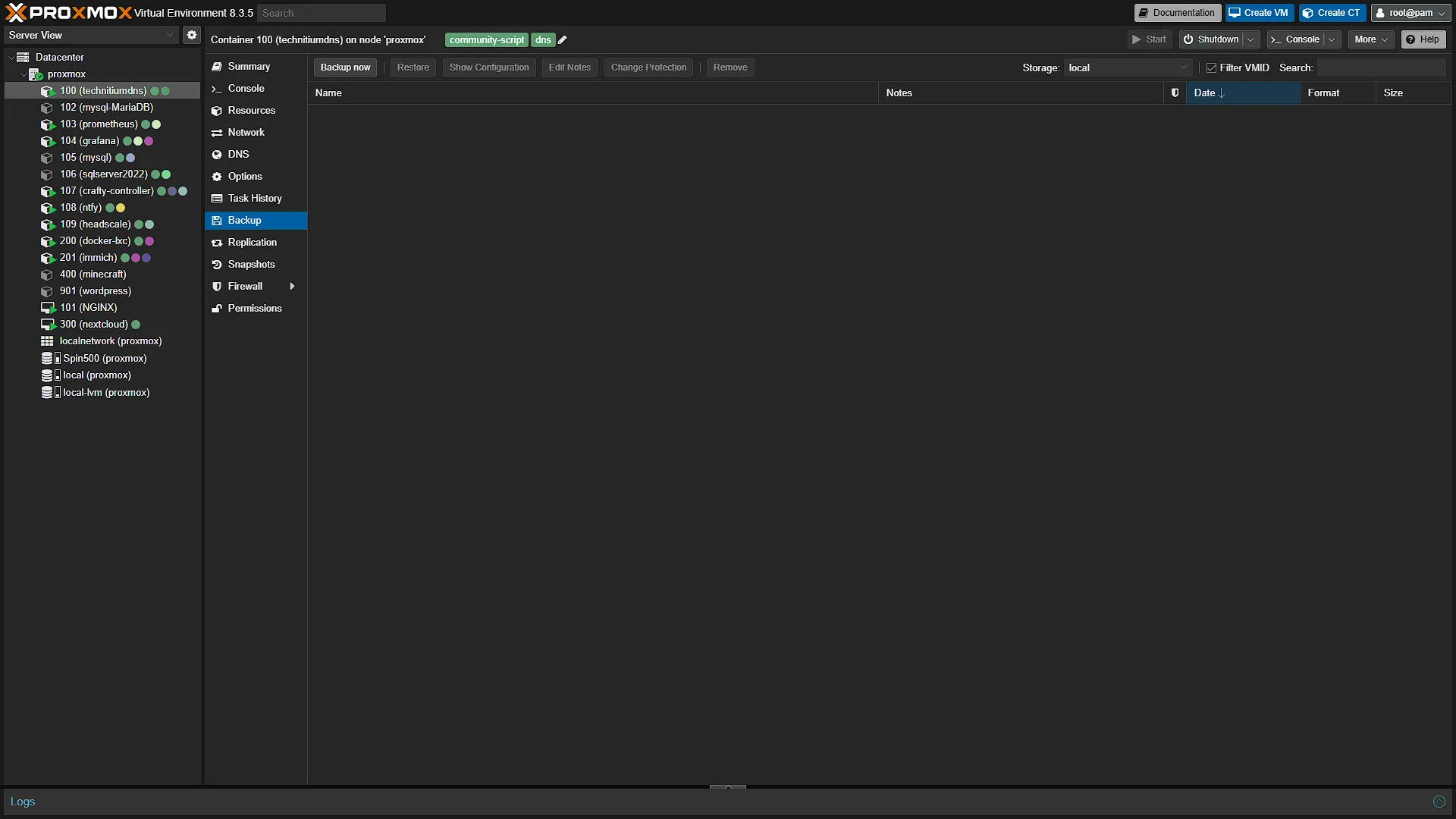
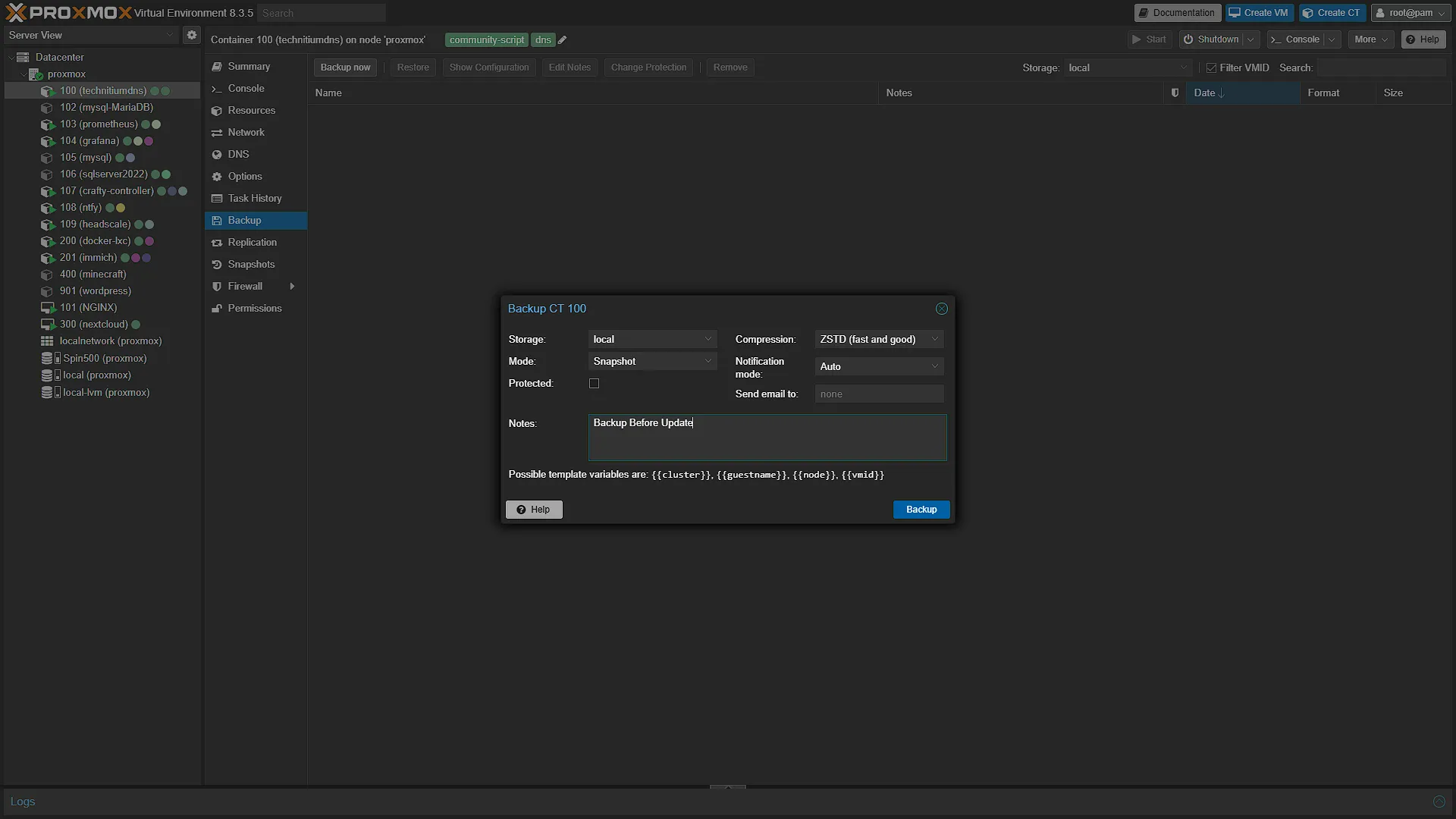
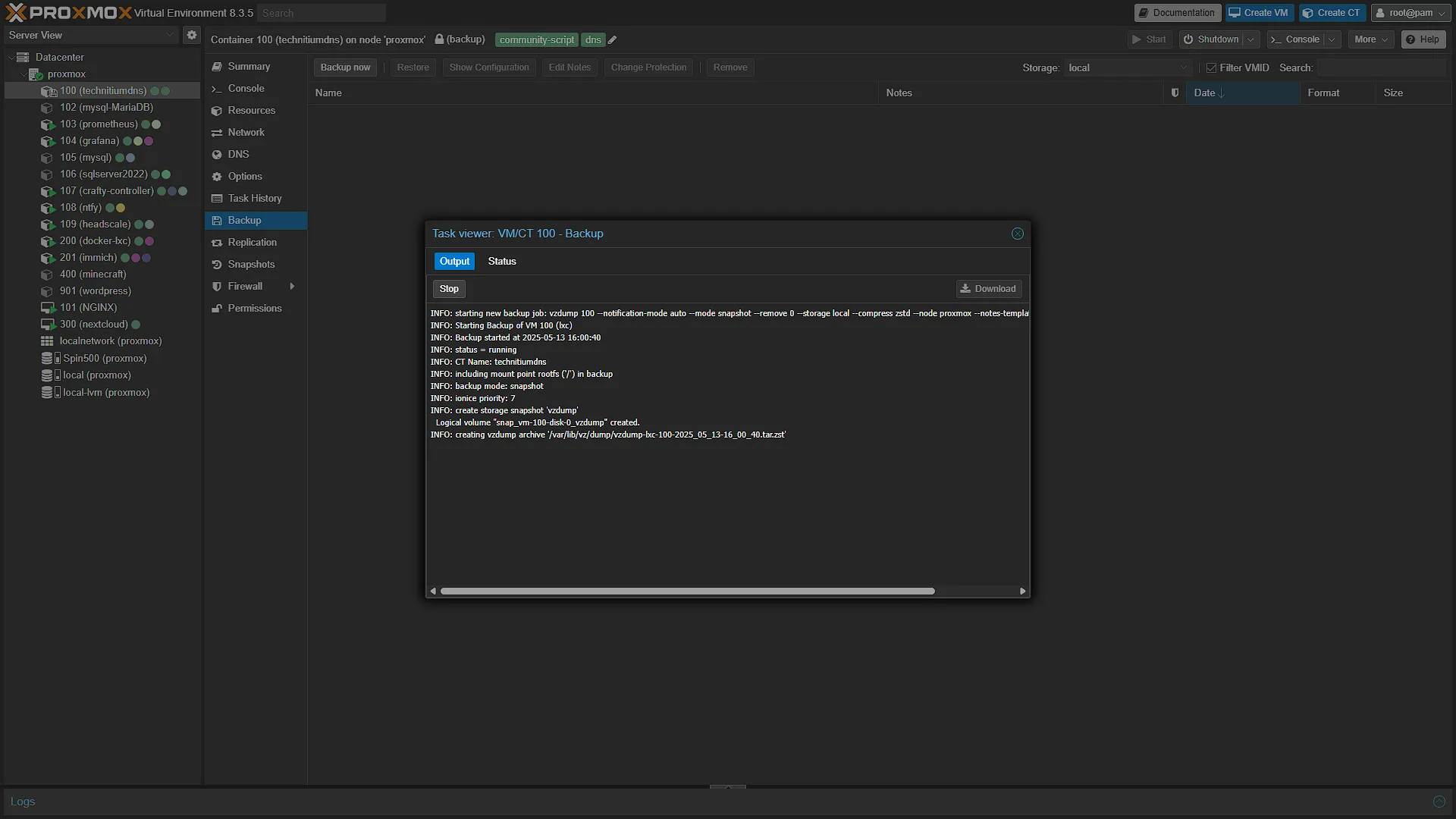
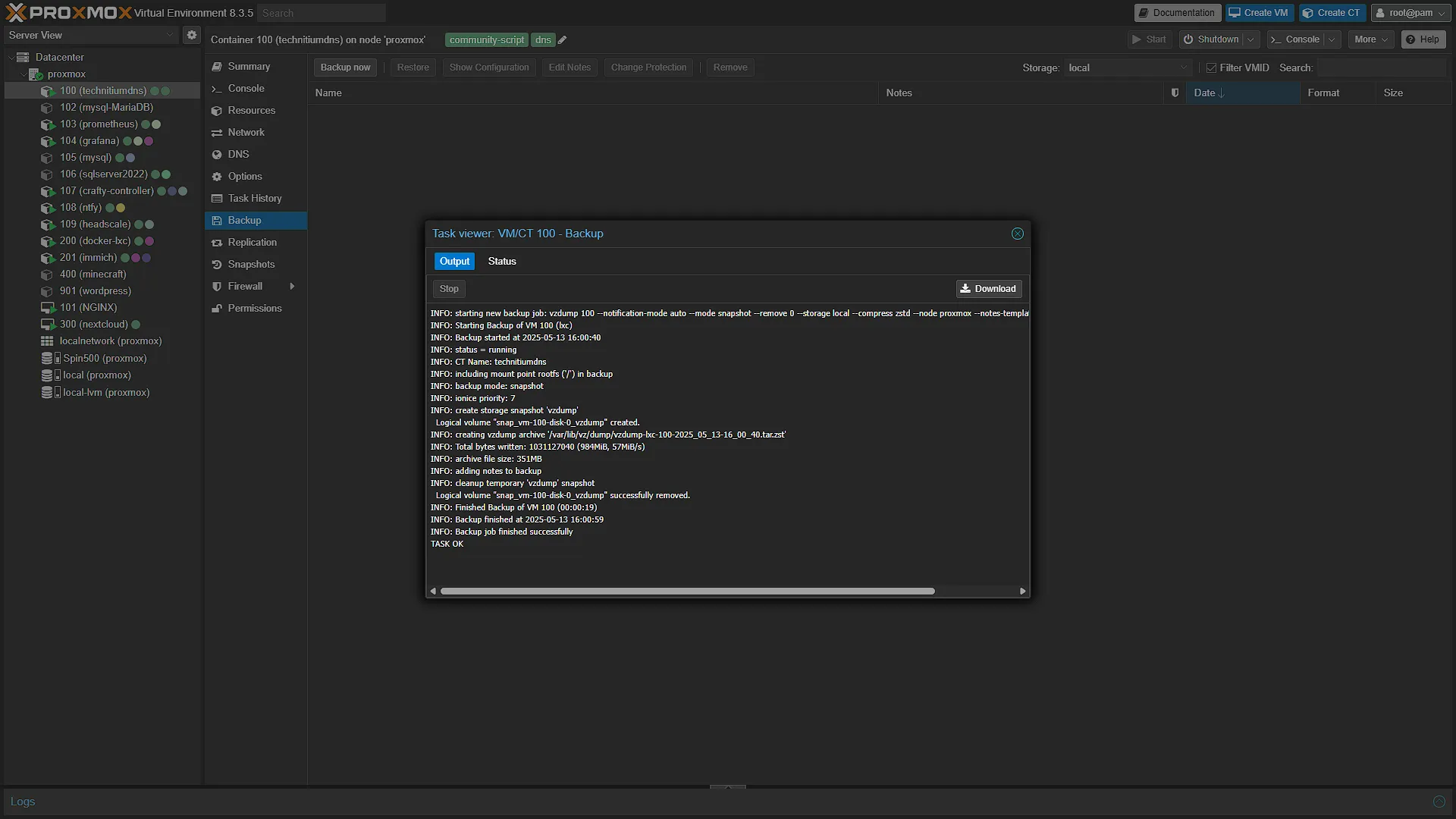
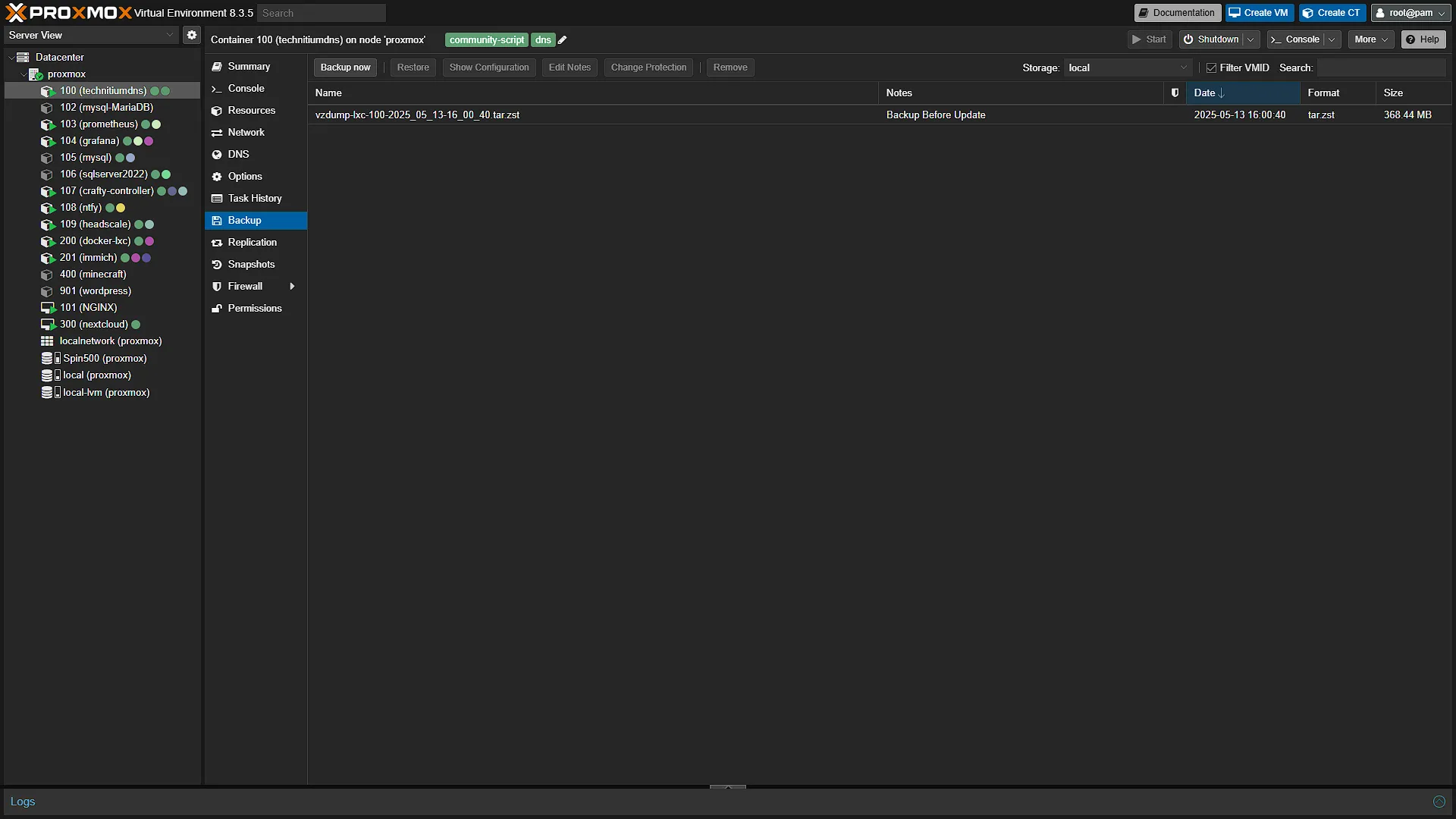
If you are not in your Proxmox window yet, please open Proxmox and log in. Once logged in, expand Datacenter in the left navigation pane, then expand the Proxmox node we have updatable LXC containers in. Select the container we want to update and in the middle navigation pane, select Backup. From the window that opens, select Backup Now to create a new backup. Give it a description that would make sense for you and create the backup. Depending on the size of the container, this might take a few minutes. Once completed we are ready to update the container in one of two ways.
Option 1: Full Install Script
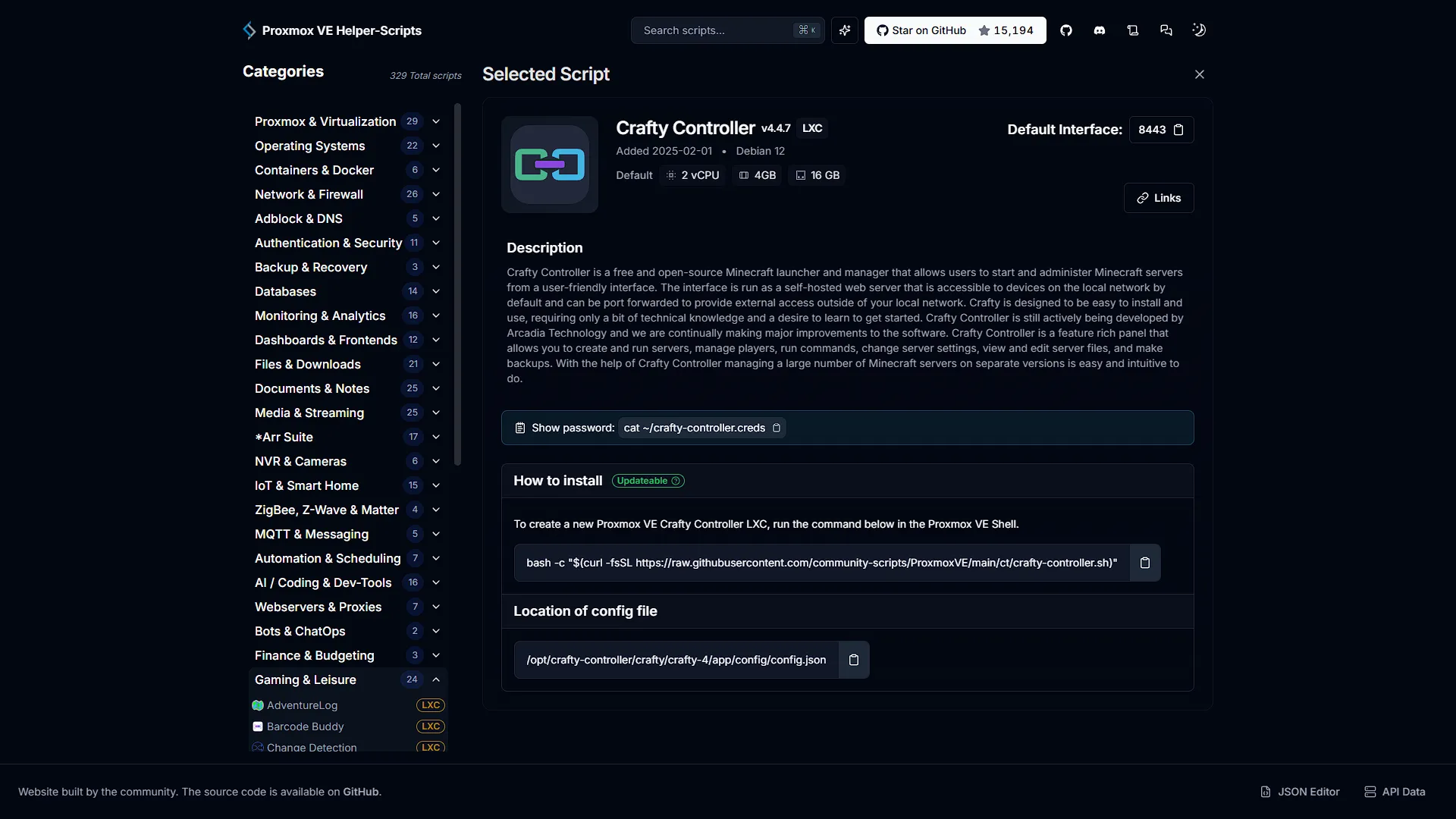
For this option, we first need to get the full install script command again. We are going to update our Crafty Controller Minecraft Server LXC container, so we need to visit helper-scripts.com and search for Crafty Controller. Here we can get the full install command again: bash -c "$(curl -fsSL https://raw.githubusercontent.com/community-scripts/ProxmoxVE/main/ct/crafty-controller.sh)"
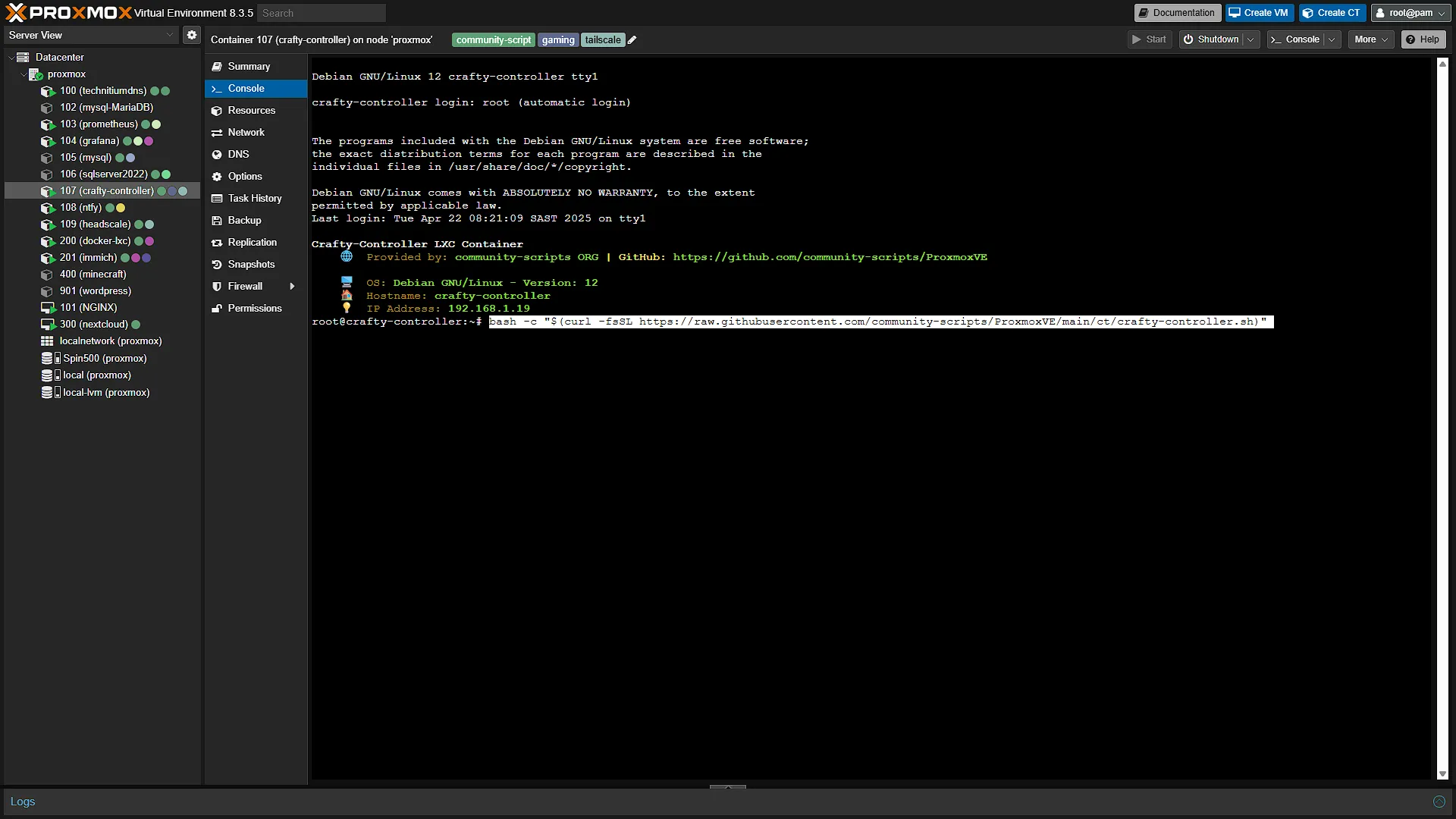
Back in Proxmox, open the Console for the LXC container we want to update. Normally, when installing a new LXC, you would open the Shell of the Proxmox node, but for updating we need the console of the installed LXC Container. Paste the command and press enter.
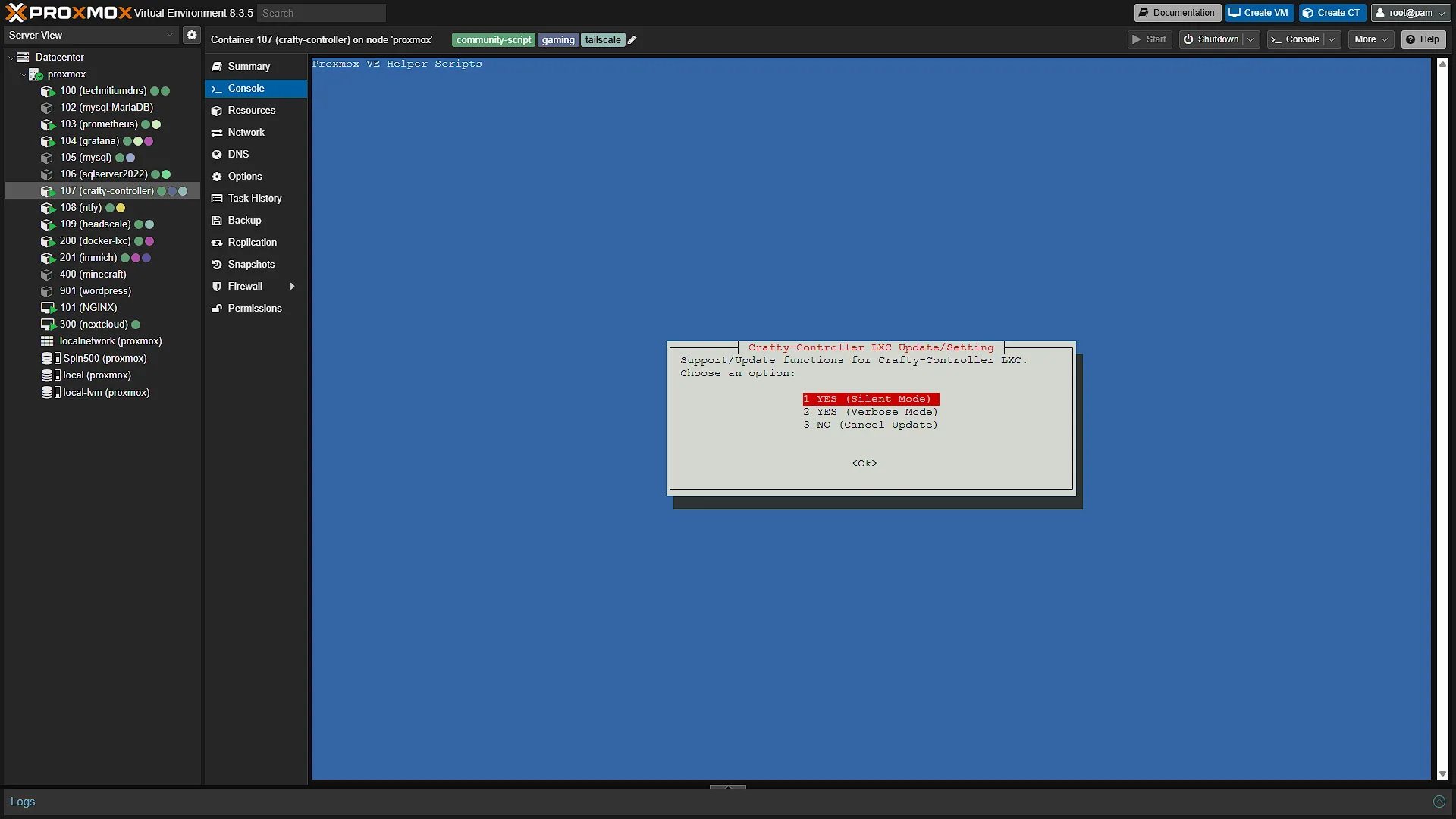
A confirmation will be shown with three options. Either select Yes (Silent Mode) or Yes (Verbose Mode) to update the service. Verbose mode will show you more information as the update continues and is the preferred and recommended way. This way, should one part fail, you will be aware of it and can roll back to your backup.
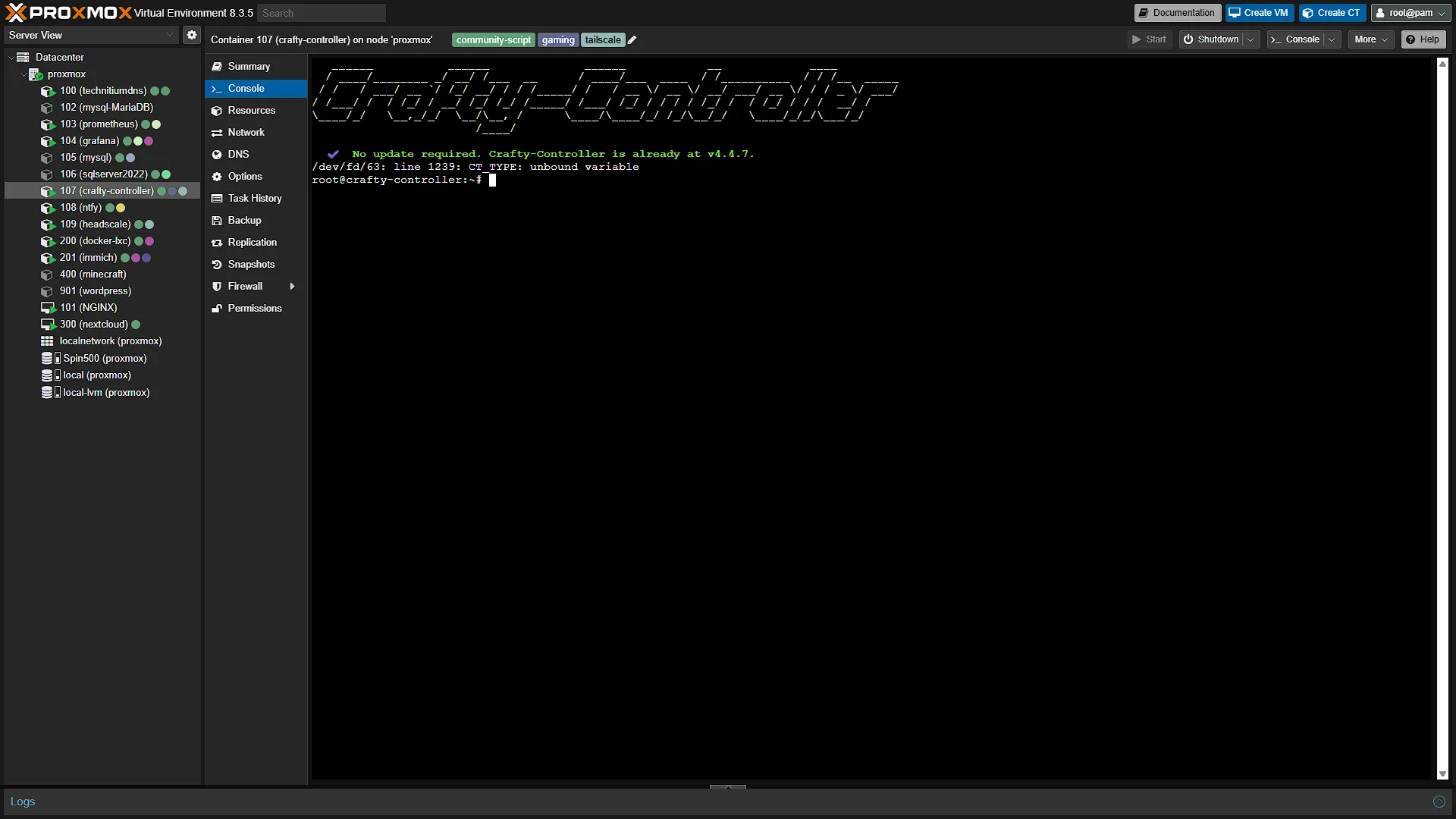
The update will complete in a timely manner, depending on the size and complexity of the service.
Option 2: The short, easy command
The other option might be a bit easier. Again log in to the console of the updateable LXC container. But this time, instead of getting the full install command, just type update and press enter. Yes, that's it.
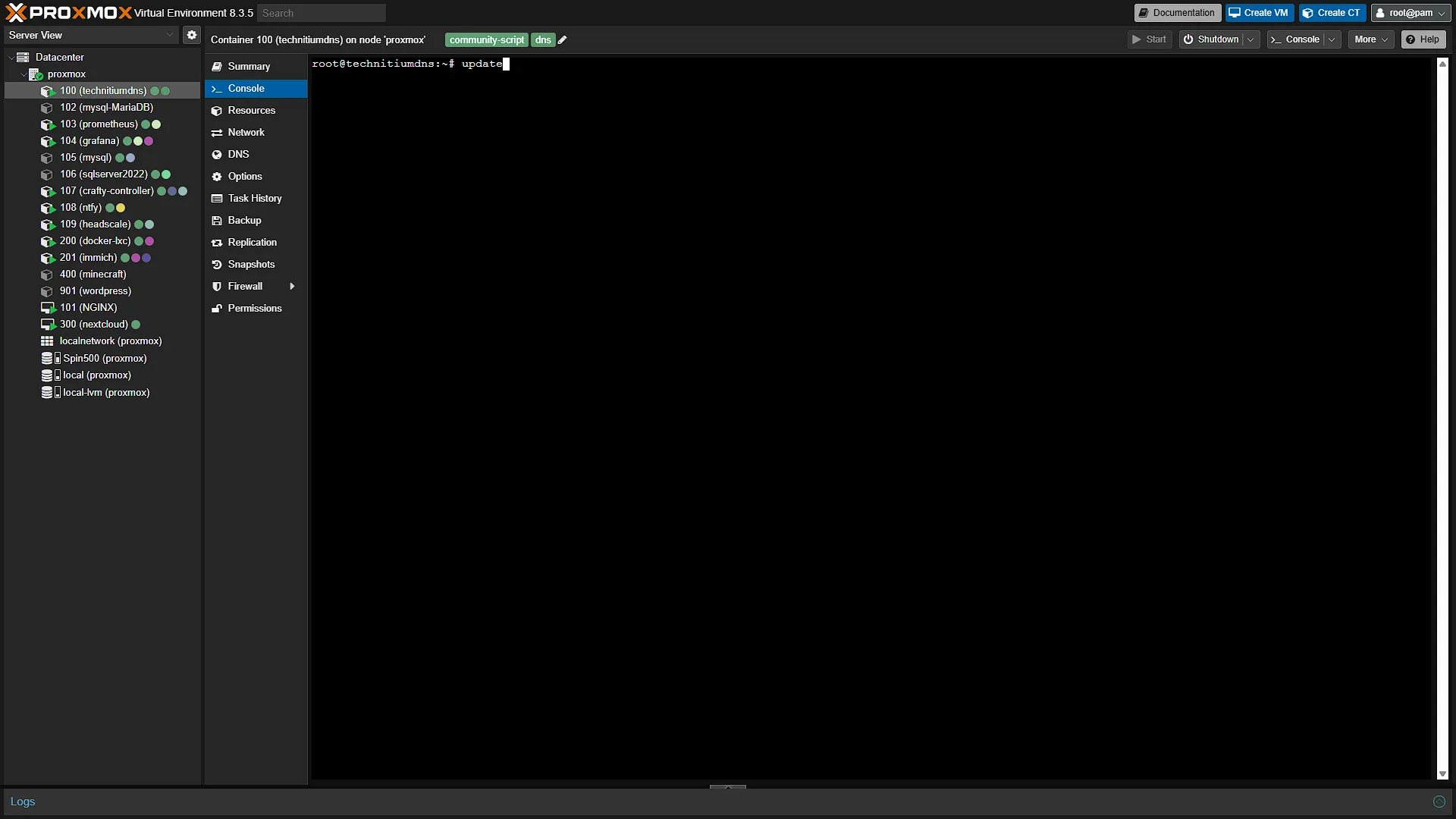
The same update confirmation will appear:
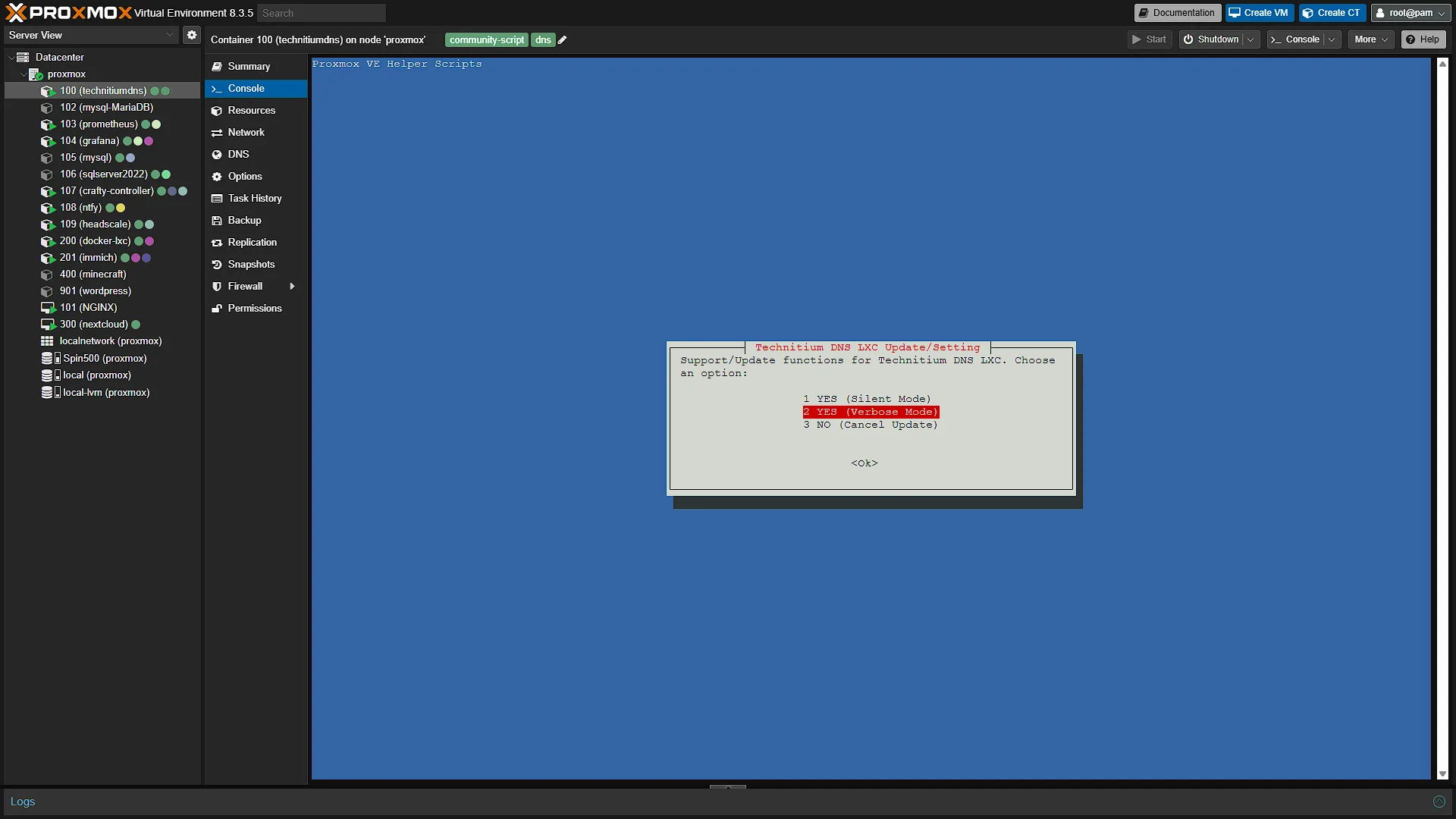
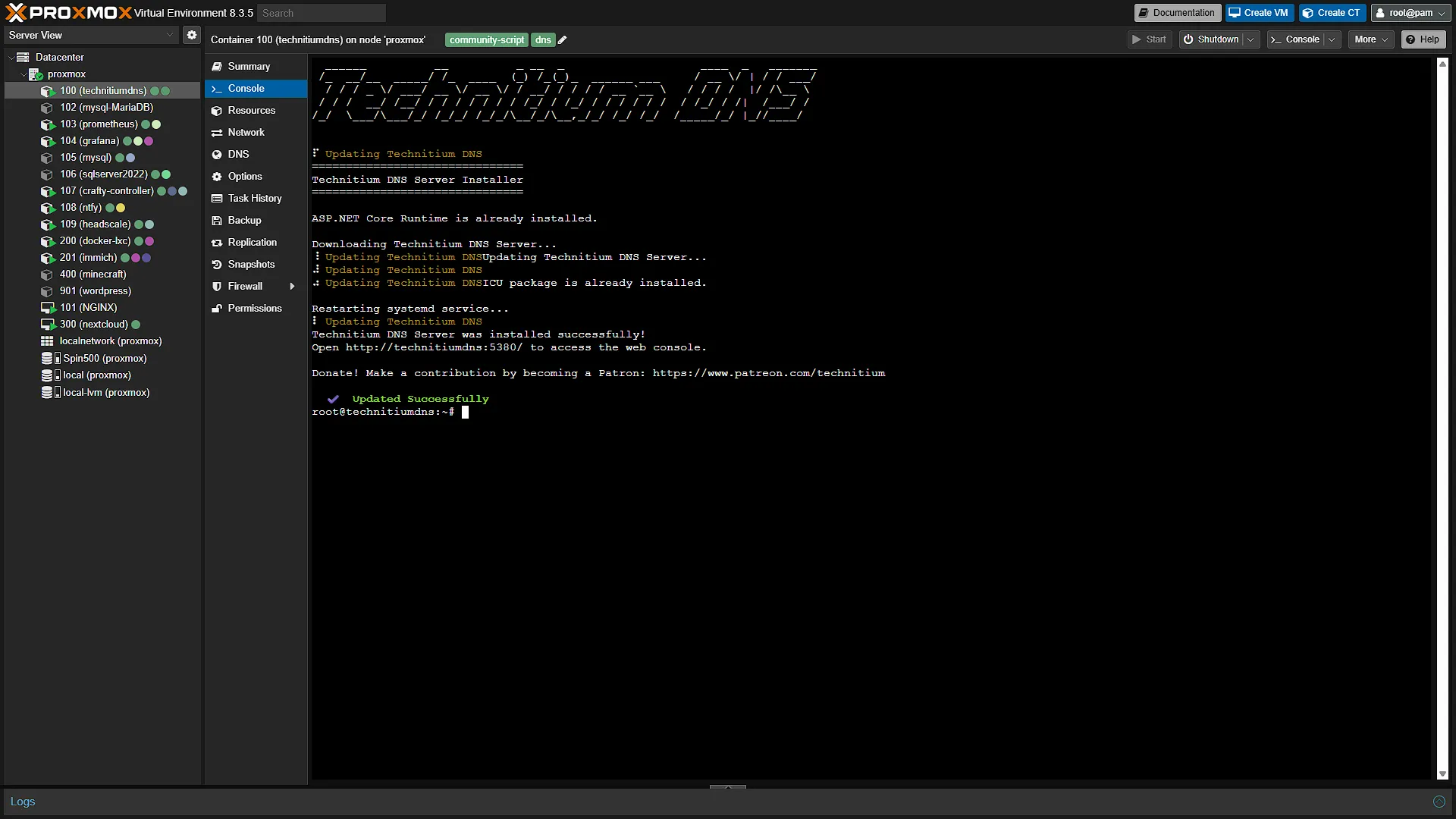
We are again going with the Verbose Mode as this gives us a bit more information. Once completed you will be shown all the relevant information about the update:
Optional After the Walkthrough: Update Scope and Recoverability
Keep the backup-first, per-container helper update procedure above. The Proxmox node shell and an LXC console are different execution contexts. A command intended for one should not be pasted into the other simply because both show a Linux prompt. Check the helper page for the specific installed service and read its current update behaviour before running it.
Bulk guest-package updating is optional and has a different scope from updating every application. An apt upgrade inside an LXC does not necessarily update a Docker image, a manually installed application or its database schema. Plan those changes through the service's own supported process and verify one guest before scheduling a lab-wide batch.
A snapshot is a convenient point-in-time rollback on supported storage; a backup is a separate recovery artifact. Neither automatically includes every external dependency. Proxmox bind mounts and device mounts need their own backup planning, and storage-backed mount points have specific backup options. Inspect the guest's actual mounts and the resulting backup contents.
For a database service, arrange a consistent recovery copy and confirm which binary/schema versions can use it. Returning to an old application image after a database migration may not be a valid rollback. Keep configuration, data and version information together, and practise restoration on a separate guest.
After updating, check the service log, direct endpoint, proxy endpoint and a small real operation. Record whether a reboot is required and verify the application after that reboot as well. Keep the recovery copy until those checks pass. A fast completed package command is not proof that every service survived the change. Note the service version before and after, the backup location and the result of the same acceptance test. These details make a future failed update easier to compare and recover.
Further reading: Proxmox backup and restore, Community helper source.
Conclusion
And as easy as that we can update our services running in LXC containers in our Proxmox environment, provided they were installed via helper-scripts.com. Although updating services running in VMs is not as quick and easy, a VM can run multiple services in one instance. Yes, an LXC container can also run multiple services in one container, but normally we run one service that contains many underlying services. Whichever way you pick to update your LXC (or VM), please remember to create a backup before updating!