You are creating a virtual machine in Proxmox and reach a setting called Machine. The choices include i440fx and q35. Neither name explains what it does or whether your choice could cause trouble later.
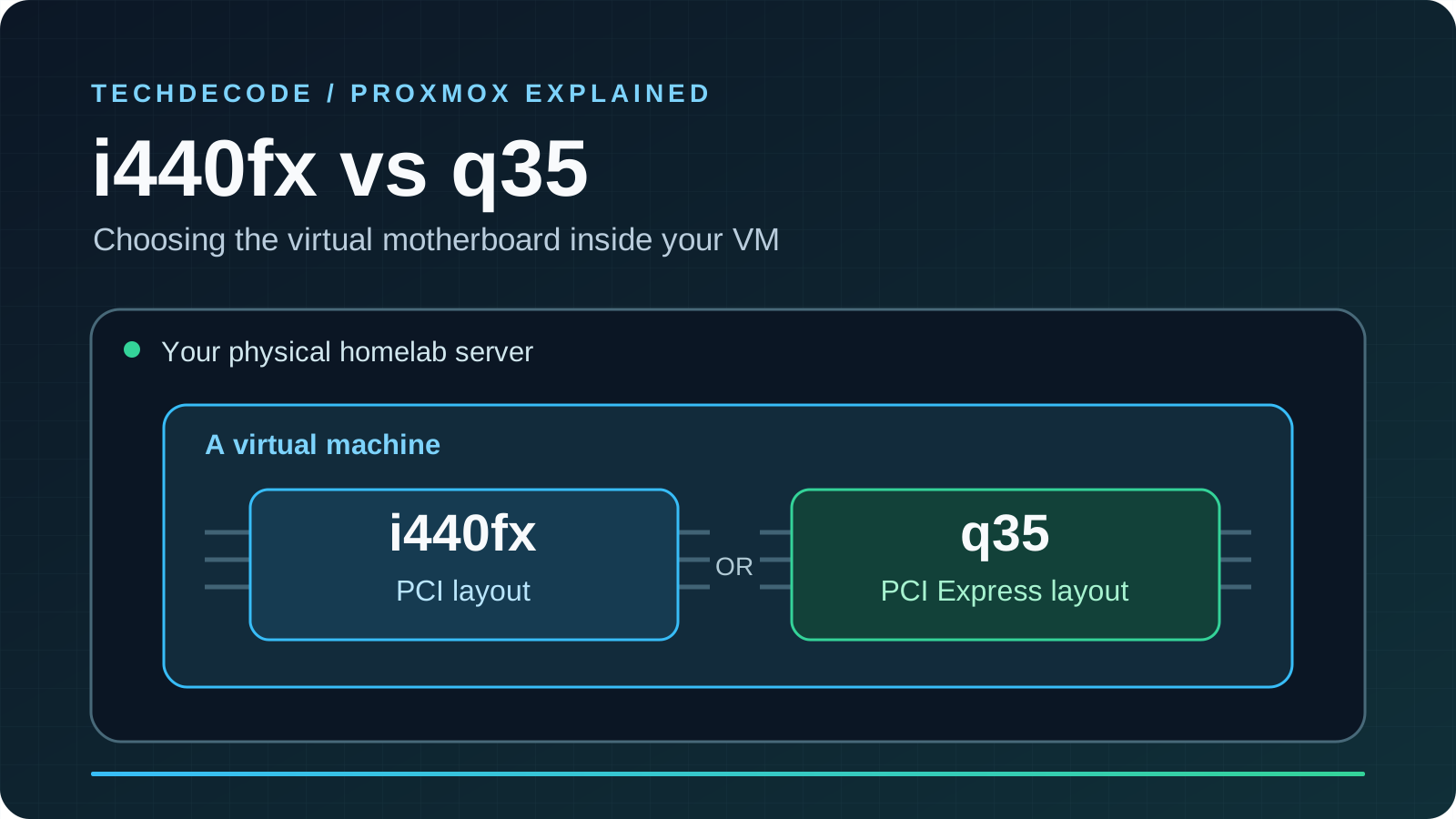
Machine type chooses the layout of your VM's virtual motherboard. It is one part of the pretend computer that Proxmox presents to the operating system you install inside it.
For a straightforward home-server VM, compatibility with your operating system and the guide you are following matters. When you need a virtual PCI Express connection, q35 becomes important. A working i440fx VM does not need changing simply because another option sounds newer.
Your VM has a virtual motherboard
A virtual machine, or VM, is a computer created in software. Your physical server is the host; the operating system inside the VM is the guest. For a broader introduction, start with our beginner's guide to Proxmox.
Inside a physical computer, the motherboard connects the processor, memory, storage controllers and expansion devices. A chipset helps organise those connections. QEMU, the software Proxmox uses for its VMs, supplies virtual equivalents of computer hardware.
Think of building a small computer inside your server. You decide how much memory and processing capacity to give it, but you also need a plan for how its devices fit together. The machine type supplies that plan.
It does not replace the motherboard in your server. Choosing q35 does not install a new physical component, and choosing i440fx does not turn your processor into an old CPU. These are descriptions of the hardware the guest sees.
What do i440fx and q35 mean?
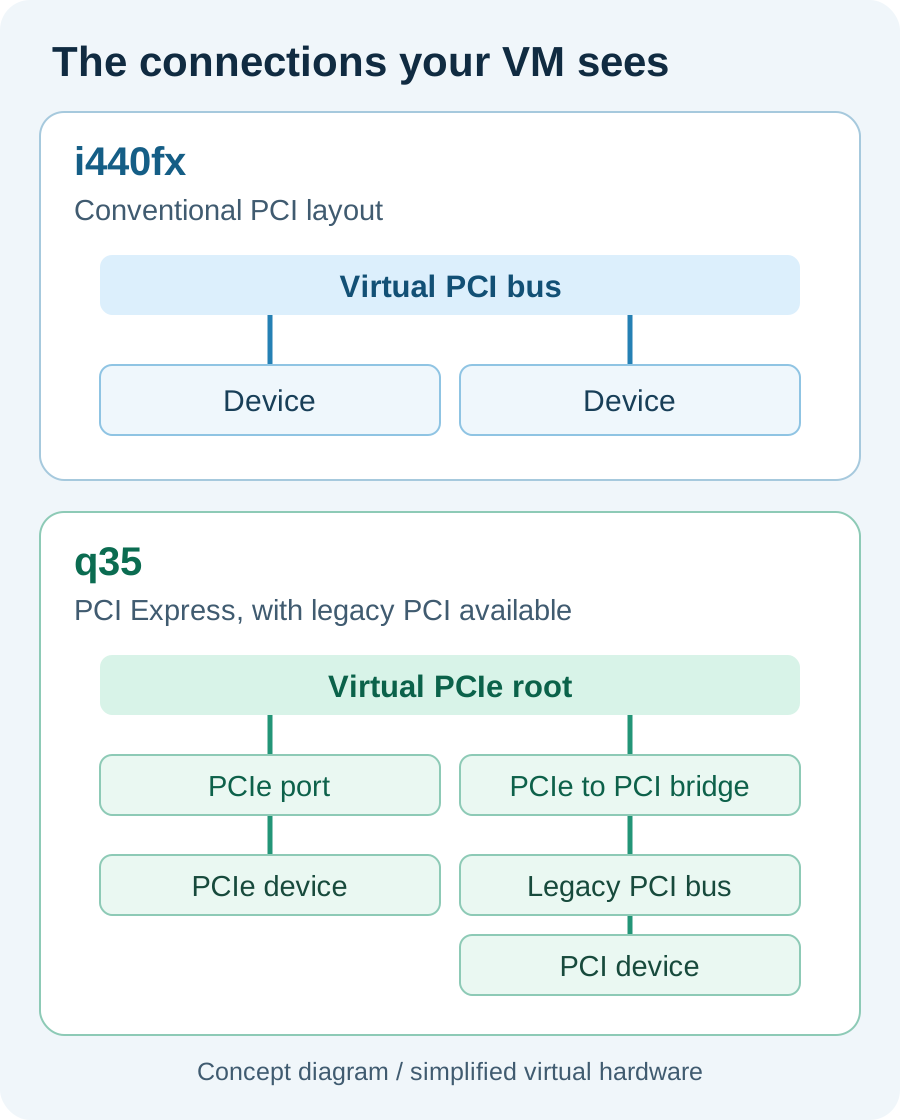
Both names come from Intel chipset designs that QEMU models in software. i440fx represents an older PC platform with conventional PCI connections. q35 represents a later platform with a virtual PCI Express bus. Neither is a promise to reproduce every feature of a current physical motherboard.
PCI and PCI Express, usually shortened to PCIe, are ways devices connect inside a computer. You might recognise PCIe from the slot used by a graphics card. Inside a VM, the equivalent connections are virtual, although some can be used to present real hardware to the guest.
QEMU's PCIe guidelines describe this layout. A bus is a communication path. The PCIe root is the starting point of its connections, while a bridge links different sections, including legacy PCI devices.
On small screens, swipe sideways inside the table.
| Question | i440fx | q35 |
|---|---|---|
| What layout does the guest see? | An older PC layout based on PCI | A PCI Express layout, with legacy PCI support available |
| Can it run an ordinary server VM? | Yes, with a compatible guest and device configuration | Yes, with a compatible guest and device configuration |
| Can Proxmox present a passed-through device as PCIe? | No; its passthrough presentation is PCI | Yes |
| Does selecting it guarantee faster applications? | No | No |
| What deserves attention? | Guest compatibility and any PCIe requirements | Guest compatibility and the devices you intend to attach |
Machine, CPU and BIOS are separate choices
Several Proxmox settings sound like they might describe the same thing. Each answers a different question:
- Machine type: What virtual motherboard layout will the guest see?
- CPU type: Which processor model and features will be exposed to the guest?
- CPU cores and memory: How much processing capacity and RAM will this VM receive?
- BIOS or UEFI firmware: What software starts the virtual computer and begins booting its operating system?
- Disk and network controllers: How will the guest communicate with its virtual disks and network connection?
SeaBIOS supplies traditional BIOS firmware. OVMF supplies UEFI firmware, the newer approach used by many operating systems. Machine type and firmware are separate settings; selecting q35 is not itself a conversion of an existing installation to UEFI.
You may also see VirtIO, a family of virtual devices designed to work efficiently with virtualisation. Its drivers and controller choices are separate from the i440fx/q35 decision. QEMU's CPU-model documentation likewise treats the processor model as its own configuration choice.
For example, a Linux server's slow disk transfers deserve investigation of its storage and controller setup. Changing its machine type alone is not a diagnosis of the cause.
When does PCIe passthrough matter?
Most of the time, a VM uses virtual devices: a virtual network adapter, for example, rather than exclusive control of a physical network card.
Hardware passthrough gives a VM direct control of a real device in the host. A graphics card used for video processing is one example. Passing through a physical network adapter is another. That device is then generally unavailable to the host and other VMs while assigned this way.
There is an important distinction: Proxmox supports PCI passthrough with both i440fx and q35, while PCIe passthrough requires q35. Presenting a PCIe-capable card as a PCI device does not automatically reduce it to the speed of an old physical PCI slot. Device presentation and actual performance are different questions. Proxmox explains this distinction in its passthrough documentation.
For GPU passthrough, that documentation recommends q35, OVMF and PCIe for best compatibility, with an important qualification: using OVMF requires a GPU with UEFI-capable firmware. An older card may need a different approach.
Selecting q35 alone does not complete passthrough setup. The host needs suitable hardware support, commonly called IOMMU, which helps control a device's access to memory. Device grouping, drivers and the guest's requirements also matter. Treat passthrough as its own configuration task.
Three everyday examples
A Linux VM running Docker
Imagine an Ubuntu VM hosting a dashboard, document manager and several small Docker services. Those applications run inside Linux; they usually interact with the virtual disks and network supplied to that VM.
For this example, there is no PCIe-specific requirement just because Docker is involved. Follow compatible operating-system guidance and choose the virtual devices and resources the workload needs. Either machine family can be suitable.
If you followed Homelab Part 16: Docker in a VM, its demonstrated i440fx selection does not become unsuitable solely because q35 exists. For the difference between the VM and container approaches, see LXC containers versus virtual machines.
An older or imported VM
Suppose you have a working VM brought over from an existing installation. Its operating system has already recognised a particular set of virtual devices.
Preserving a compatible layout is a sensible starting point. Check what the guest was built for before changing the machine family, firmware or disk controller. An old operating system may also need devices or drivers that differ from those used by a modern Linux guest.
A VM using a physical graphics card
Now imagine a VM that needs a real GPU for a supported video-processing application. The guest's view of that card matters, so q35 and PCIe become part of the hardware plan.
Use the guest and GPU's documented requirements alongside Proxmox's passthrough guidance. A successful ordinary VM installation does not demonstrate that a particular GPU combination will work; the assigned device needs its own verification.
Which should you choose?
Start with the purpose of the VM and the operating system's requirements. This is a practical decision guide rather than a ranking of the two names:
| Your situation | A useful starting point |
|---|---|
| A new VM with a documented PCIe requirement | Choose q35 and follow the guest/device guidance. |
| A new general-purpose Linux server with no PCIe requirement | Either can fit; follow supported guest guidance and a consistent configuration. |
| An existing i440fx VM that works and has no new hardware requirement | Keep its layout unless there is a specific compatibility, support or feature reason to change it. |
| A legacy guest or imported VM | Preserve or reproduce its compatible layout first. |
| GPU passthrough | Start with Proxmox's q35/OVMF/PCIe recommendation, then check the actual GPU and guest requirements. |
Write down the reason for your choice. “This VM needs PCIe presentation for its assigned device” is useful when maintaining it later. “The option sounded newer” tells you much less.
Where to find the setting
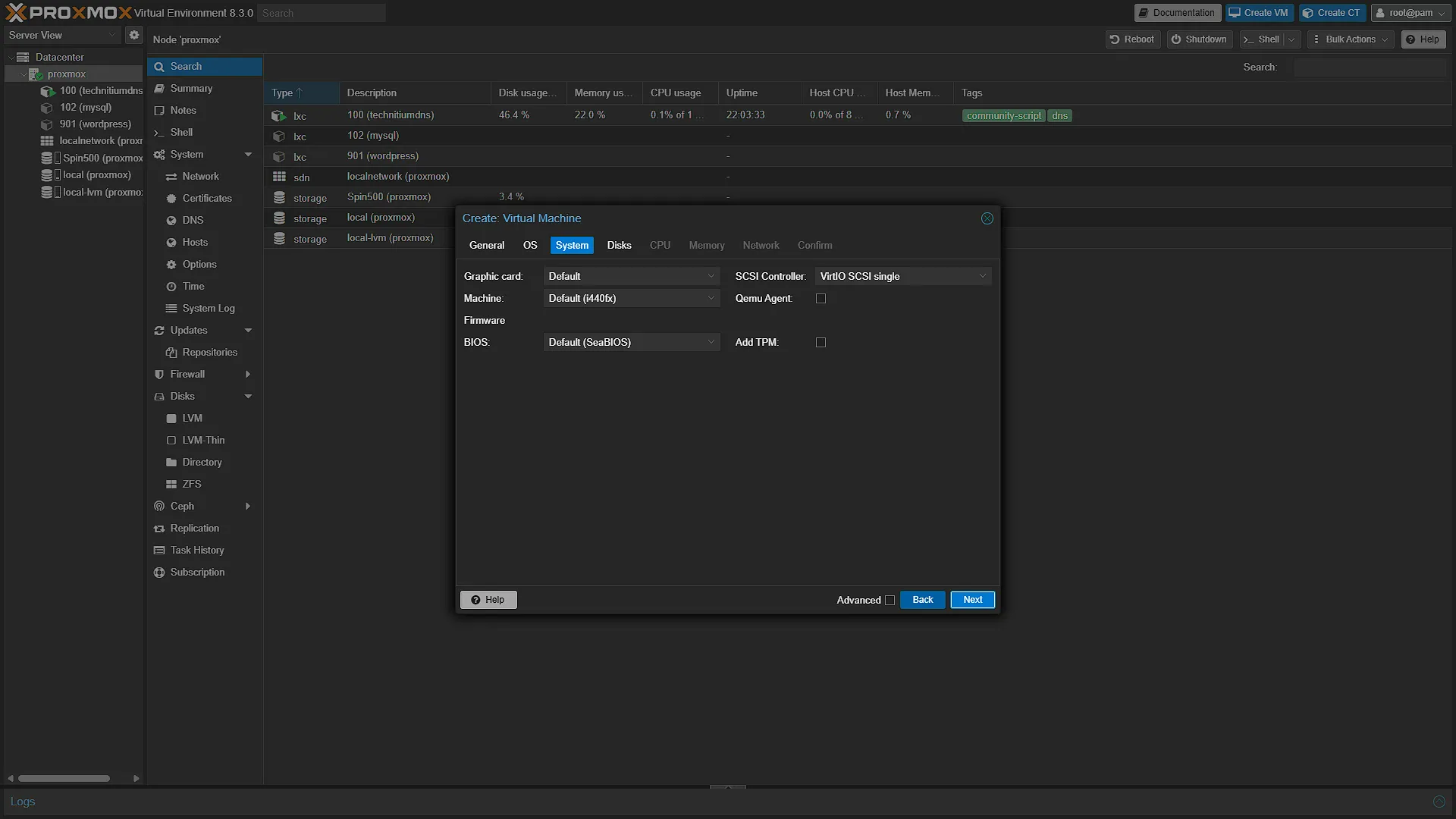
When creating a VM through the Proxmox web interface, look in the System tab for Machine. The BIOS field is shown separately. For an existing VM, select the VM and open Hardware to inspect its Machine and BIOS entries. Inspecting the values does not require changing them.
The helper used in Part 16 offered the same machine-family choice through a text menu:
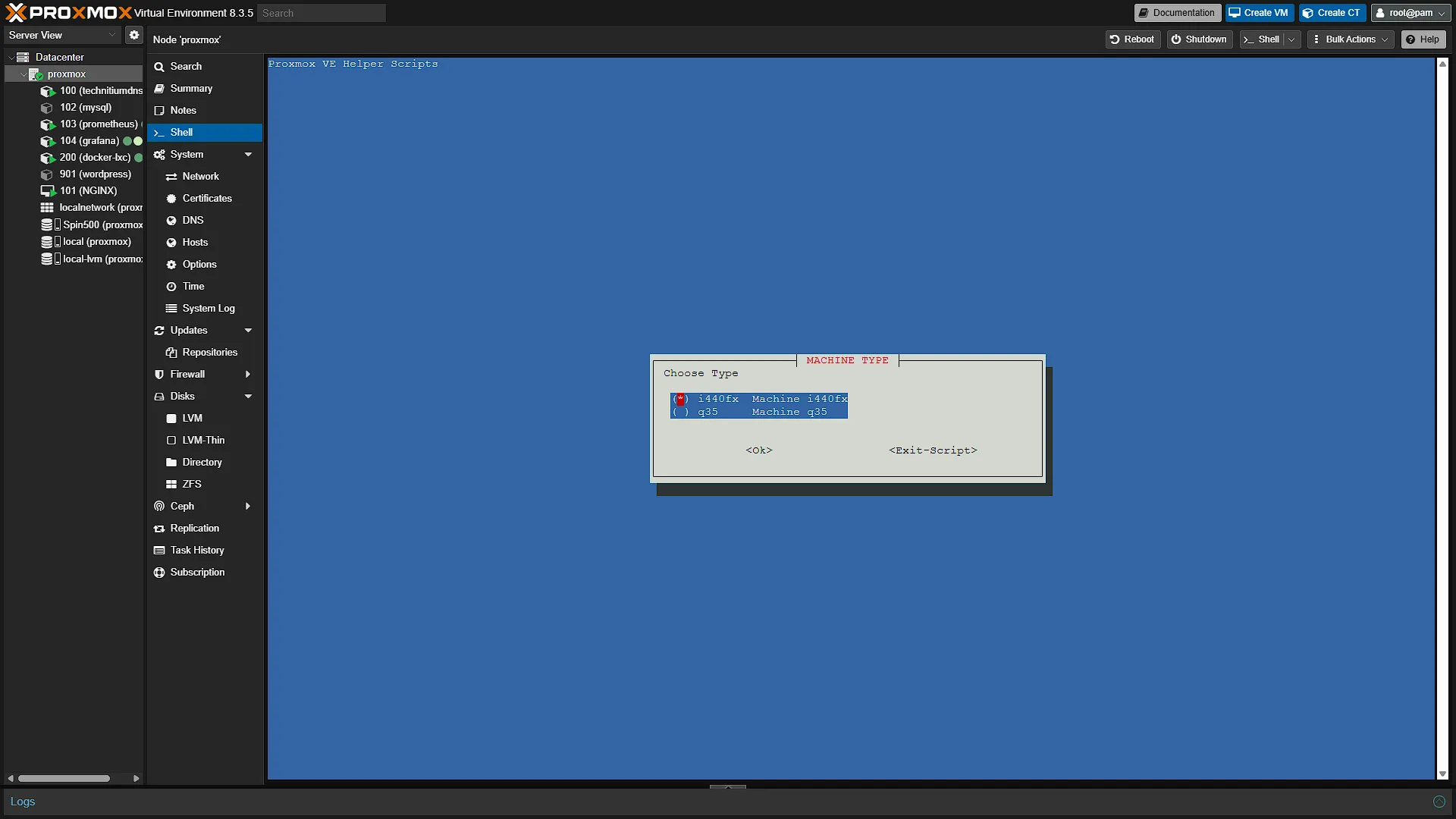
These are historical screenshots of the original setups, preserved as published. If you are new to the full creation process, Homelab Part 10: Our First Virtual Machine provides the surrounding walkthrough.
What about the number after the machine type?
You may encounter a name such as pc-q35-9.2. Read it in two parts: q35 is the machine family; 9.2 identifies a version of its virtual hardware model. That example is not a recommendation to select version 9.2 on every host.
The version of QEMU installed on the host and the machine version used by a VM are related but different. QEMU can support older machine models to preserve compatible hardware behaviour. Its backwards-compatibility documentation explains why matching that virtual hardware matters when moving a running VM between hosts.
A Latest choice follows the newest model supported by the installed QEMU after the VM is fully stopped and started again. A fixed version keeps that particular model selected while the host still supports it. Neither choice means “ignore future upgrade notices.”
Keep the difference clear: updating a numbered q35 version stays within that family; changing i440fx to q35 changes families. Both deserve compatibility checks. If Proxmox warns that an old machine version will lose support, plan an update with a working backup and guest checks instead of leaving the warning indefinitely.
Should you change a working VM?
Have a reason first: a needed device feature, a documented compatibility fix or a machine-version support warning. Then record the current configuration and arrange a backup whose recovery process you understand.
Test a proposed change on an isolated copy where practical. Keep that copy from conflicting with the original machine's network identity. Check booting, disks, networking and the actual application before considering the change successful. A graphics workload also needs its assigned hardware checked.
Changing several settings together makes a failure harder to explain. Treat machine family, firmware and storage-controller changes separately, with a way to recover the previous setup. This article explains the choices; it does not demonstrate an in-place conversion or a particular passthrough installation.
Common questions
Will q35 make my VM faster?
The name alone does not promise that. Resources, storage, virtual-device drivers and the application all influence performance. Choose q35 for an applicable hardware or compatibility requirement, and investigate the actual bottleneck when performance is the problem.
Do these Intel-derived names require an Intel host?
No. They describe emulated chipset layouts, rather than a requirement to buy that physical Intel motherboard or processor. The x86 VM's CPU configuration and the capabilities of your Intel or AMD host remain separate considerations. This comparison concerns x86 PC VMs.
Does q35 automatically enable UEFI or GPU passthrough?
No. Firmware is a separate setting, and hardware passthrough needs host, device and guest configuration. Choose those parts together according to the requirements of the VM you are building.
The practical takeaway
Think of i440fx and q35 as two available layouts for your virtual computer. Understand the guest and device requirements, then choose the layout that fits. q35 supplies PCI Express support; i440fx remains a valid choice for compatible configurations without that requirement.
For an existing homelab, useful maintenance starts with knowing why a setting was selected. Keep working configurations documented, address genuine support warnings and test changes for a clear purpose.