I recently looked at buying a new laptop. My requirements seemed straightforward: at least 32GB of RAM, a backlit keyboard, enough performance for coding, and something that could handle games while I travelled. At least, that is what I thought the requirements were, but unknowingly I assumed that it would mean an HDR screen by default and reliable wireless connectivity. I also wanted to experiment with local AI models, so I wanted hardware with a decent amount of TOPS (trillions of operations per second - a measure of AI performance). Apparently, asking one machine to be an office, a games console and a tiny research lab is my idea of keeping things simple...
My shortlist included an MSI Cyborg 17 with an RTX 5070, a Lenovo LOQ 15IRX10 with an RTX 5060, and a cheaper MSI Cyborg 15 with an RTX 5060. After having some issues with my Bluetooth headset when unplugged and on Wi-Fi, I researched the issue and it seemed that it is "normal" for a Realtek/MediaTek Wi-Fi card to have some... hiccups. Anyway, from the initial lineup, the 17-inch MSI caught my eye. Bigger screen (17"). Bigger GPU number (Note I didn't say faster GPU). Intel wireless. What was not to like?
Quite a lot still needed checking, apparently.
The more I compared, the more I realised that the most useful details often live below the headline specifications. These are the twelve checks I would take into my next laptop purchase. If you are still choosing between a portable computer and a fixed setup, start with our desktop-versus-laptop guide.
1. Start with the work, then set the requirements
For me, 32GB was the minimum for my development workload. That does not make it the minimum for everybody. In fact, for most users, 16GB is a solid number and probably more than enough. However, I checked memory use during a normal busy session, with my actual projects and applications open, and realised 16GB was just not going to cut it for me. Yes, we are in the AI crunch and an extra 16GB of RAM really hurts the budget, but I decided to cut back on other parts.
I separate essentials from preferences. A backlit keyboard was essential (especially seeing as I work in a dimly lit environment or at night fairly often). A larger screen was desirable. Those belong in different columns, particularly when the budget starts negotiating back after paying for that 32GB of RAM.
Think about where the machine will work, too. Coding at a desk, gaming beside a power socket and working through a long journey place different demands on it.
My check: Write down the tasks, must-haves and complete spending limit before browsing deals.
2. Find out exactly which configuration you are buying
A product name can describe a whole family. I want the full model number, regional variant and configuration on the quote. My Lenovo listing, for example, identified 83JE003GSA, which is more useful than simply saying “Lenovo LOQ”. Something I only learned after purchasing is to check regional specs. I was under the impression I would get a 245W charger but ended up getting a 170W.
Then I compare the retailer's description with the manufacturer's documentation. A family page might list several screens or keyboards without saying which one is in my basket. “Up to” deserves particular attention as it can cover a surprisingly large distance.
Retailer upgrades need another check. If a shop supplies 32GB RAM or a larger SSD, I want to know what it installs, whether existing parts are replaced, and who supports those additions (MSI offers a two-year warranty and Lenovo a three-year warranty in my region - but if a retailer replaces an SSD with a larger model with only a one-year warranty, that needs to be known beforehand). A factory specification and an upgraded retail package can both be accurate while describing different machines.
My question: Can the seller confirm the exact screen, installed components, free slots and warranty for this configuration? Can I find the relevant information on a region-specific spec sheet?
3. Give CPU and GPU power limits some attention
This was the detail that made me stop treating GPU numbers as a finishing order. The graphics processor, or GPU, needs a power budget and cooling to do its work. The laptop manufacturer's implementation matters.
Here is what the manufacturers document for the relevant model families:
| Laptop configuration | GPU | Listed graphics power |
|---|---|---|
| MSI Cyborg 17 B13WGKG | RTX 5070 Laptop | 60W maximum, including Dynamic Boost |
| Lenovo LOQ 15IRX10 with RTX 5060 | RTX 5060 Laptop | 100W TGP |
| MSI Cyborg 15 B13WFKG | RTX 5060 Laptop | 55W maximum, including Dynamic Boost |
Sources: MSI Cyborg 17, Lenovo LOQ and MSI Cyborg 15. This power spec was not listed on the retail page, but then again, I don't think I've ever seen it outside a manufacturer's spec sheet.
TGP means total graphics power. Dynamic Boost provides additional power headroom under supported conditions; it is not a promise that the GPU always draws the maximum. These figures explain why I would investigate performance, but they do not prove which machine wins a particular game. More watts do not translate into proportionally more frames, but the difference between 55W and 100W is a MAJOR difference and can make a world of difference in performance. In the end, the 60W 5070 and 100W 5060 will perform pretty much the same, with the 100W 5060 outperforming in some cases.
The CPU deserves the same attention. Intel explains that laptop manufacturers set power and current limits. A processor's brief burst speed tells me less about a long build than the performance the complete laptop can sustain. A deliberately low power limit is also different from slowing down because of excessive temperature (called thermal throttling).
I have a useful example from my own work: the Core i7-14700HX laptop takes 40 seconds to compile an Angular project that takes 50 seconds on my Core i7-11700 desktop, with both machines running at full power. That is ten seconds less waiting, or a 20% reduction in elapsed time. My desktop has been very professional about this development and I never thought a measly laptop with its mediocre power draw would ever even match my desktop monster... I am still trying to get the egg off my face.
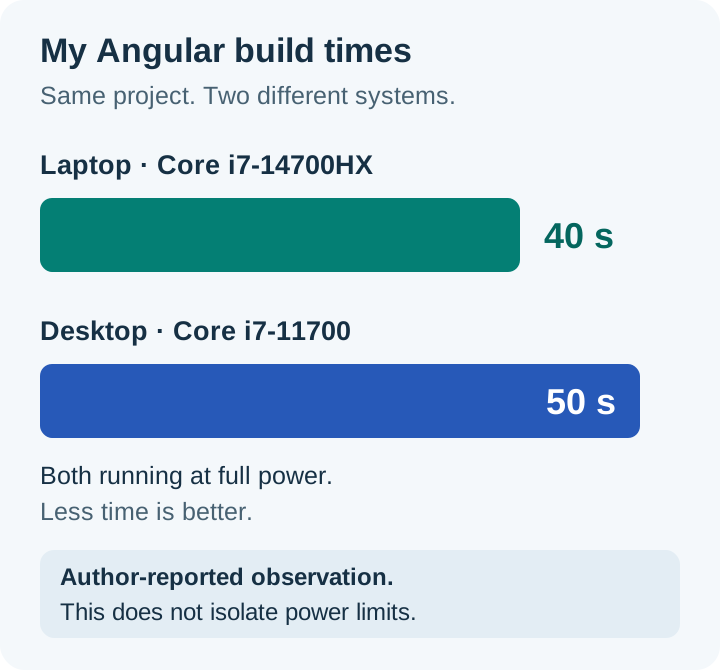
That comparison cannot attribute the difference to power alone. The processors are different generations and designs, and memory, storage and build settings can matter. Angular's build cache can affect timings too. The useful lesson is to consider the processor together with its power allowance, cooling and actual workload, rather than assuming “desktop” automatically wins.
I did, however, have to double-check this result. I ended up running a Cinebench R23 multicore benchmark. Desktop best: 14,327; laptop best: 21,648 (!!). Even when unplugged (running in power-saving mode), I got over 17,000.
My check: Look for sustained tests of the exact laptop, including noise, power mode and plugged-in conditions. For gaming comparisons, match resolution and settings, including upscaling and generated frames.
4. Check what an upgrade will really involve
“32GB RAM” answers the capacity question. It does not answer what happens when I need more.
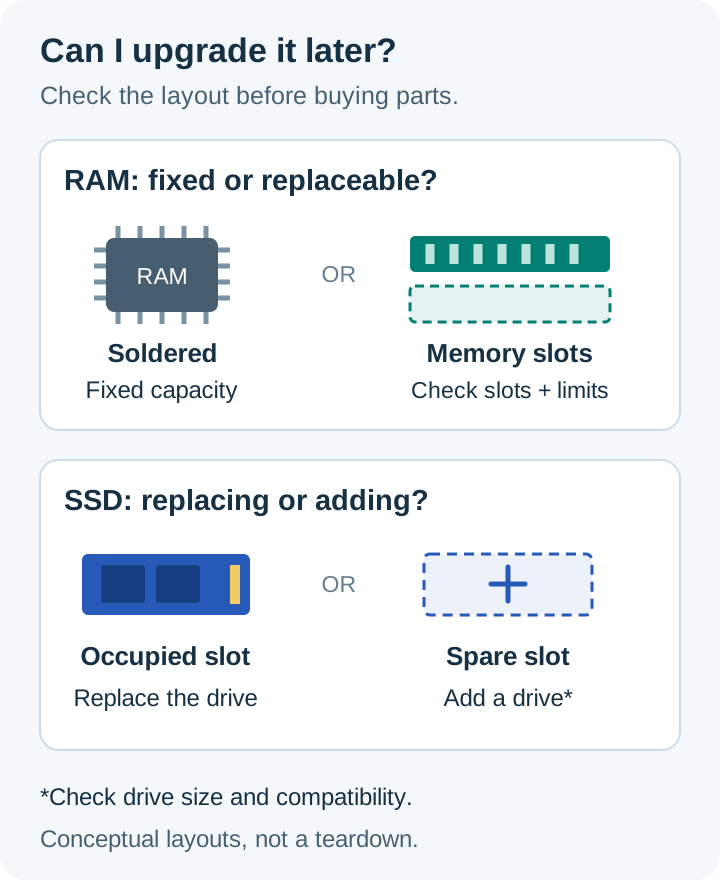
I want to know whether memory is soldered down or replaceable, how many slots exist, which are occupied, and what capacities the complete laptop supports. Two 16GB modules and one 32GB module can mean different upgrade purchases. The processor's theoretical maximum is not confirmation that the laptop supports it. If you get one 32GB module, upgrades are substantially easier and cheaper, but out of the box your machine is running memory in single-channel mode - leaving copious amounts of performance on the table.
Storage needs a separate inspection. An extra SSD slot can make expansion convenient; a single occupied slot means replacing the existing drive and moving its contents. I would check the supported drive type and physical length, too. It doesn't help that 2280 drives are more readily available but they won't fit as a second or replacement drive. (2280 means 22 x 80mm and is the most common size.)
Our RAM guide explains compatibility in more detail. I would also check installation costs and warranty terms before assuming a cheap upgrade stays cheap.
My question: Can I add the capacity I need, or must I replace components I have already paid for? In the age of AI, having to replace memory modules is extremely expensive. And not having upgradability when the AI bubble (hopefully) bursts can mean your current expense is a waste.
5. Look beyond screen size and refresh rate
I still like a large screen. My eyes have never asked for a smaller spreadsheet or less space for my coding.
But a 17.3-inch and a 15.6-inch screen running at 1920 × 1080 have the same pixel count. The larger one makes those pixels physically bigger; it does not automatically fit more code. Resolution, aspect ratio and comfortable text scaling determine how useful the workspace feels. Also take into account how far you are going to sit from the screen (and how good your eyes are). A 15.6-inch screen running 4K (without scaling) at a fair distance will be VERY difficult to read.
I would also check brightness, reflections, colour coverage and response times. A 144Hz refresh rate describes how often the screen refreshes, not every aspect of how clearly it displays moving objects. Similarly, colour coverage and text sharpness describe different things. Brightness also has a (sort-of) link to HDR capabilities. If HDR is not something you need or want, great. Not everyone feels that HDR adds value when working; some people can't live without it. (I noticed IMMEDIATELY that the new laptop's screen's HDR was off. And then I realised I can't switch it on... because it didn't have an HDR-capable screen).
For long writing or coding sessions, I would try the actual panel if possible. If it is OLED, I would also check text rendering, care guidance and the manufacturer's coverage for image retention or burn-in.
My check: Find a review of the actual panel option, rather than assuming all screens in the range are identical.
6. Weigh the charger and question the battery claim
A laptop's advertised weight rarely describes everything in my bag. The charger, cables and adapters come along for the ride. Sometimes the power brick seems to be training for its own bodybuilding competition. Luckily I only got a 170W charger. Great for weight, but horrible for charging or sustained heavy computing sessions.
I would compare battery tests that resemble my work. Video playback at low brightness is useful information, but it is not a prediction of how long a development build or game will run. Lenovo's own battery figures and qualifications illustrate how much the test conditions matter.
Check performance on battery as well as runtime, and whether a compact travel charger can support the intended workload.
So for my predicament: My GPU uses 100W and my CPU uses 55W. That leaves 15W on my 170W charger for RAM, motherboard, drives and... screen! What effect does this have? Well, if everything is running at 100% and it needs more than 170W, it will start using battery... while being plugged in at the wall. If we don't use everything maxed, but I am gaming and using, for example, 150W total, I will only be able to charge a depleted battery at 20W, taking FOREVER.
My question: What does the complete travel kit weigh, and how long will it run the tasks I actually do? Is the power supply sufficient?
7. Treat ports and wireless as compatibility questions
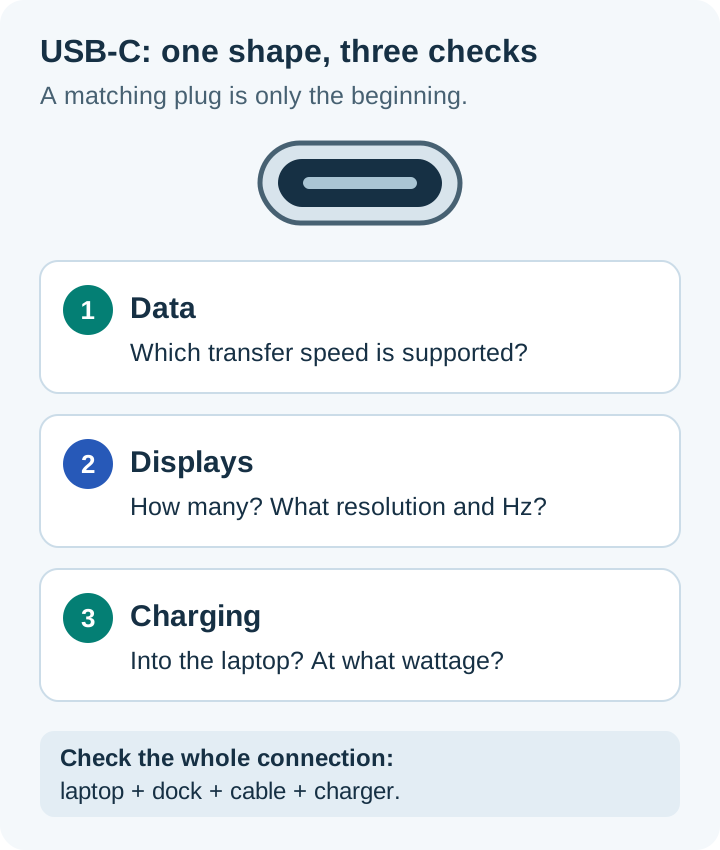
USB-C looks reassuringly simple. Its capabilities require more reading. And yes, even USB Type-C has multiple different speed ratings for the same port.
The USB Implementers Forum distinguishes the connector from data speeds and Power Delivery. I check charging input (if any), supported wattage, display output and data speed separately. Something to consider is whether a port supports Power Delivery and has always-on/sleep-and-charge capability. That means it can charge a device, like a mobile phone, while the laptop is switched off. I never thought it would be useful, but on a long flight, it is amazing to be able to charge your mobile phone without having to switch on the laptop first (and thus wasting precious battery life). A dock also needs to support my intended monitors, resolution and refresh rate, with an appropriate cable.
My preference for Intel wireless belongs in the comparison, but the badge alone cannot establish reliability. I would check the exact adapter, drivers and operating-system support. Intel's 6GHz guidance also makes clear that router and regional support matter, but even if 6GHz (Wi-Fi 6E) is not a concern, the stability and reliability should matter.
My check: Verify the setup I intend to connect. Our USB-C and Thunderbolt guide helps decode the labels.
8. Remember the parts you use all day
I required a backlit keyboard seeing as I normally work in dimly lit environments or at night. I would still check the keyboard's layout, arrow keys, brightness controls and typing feel. A keyboard can have impressive backlighting and still be awkward to use. As an example, my previous laptop had the End key mapped on the numpad, but you needed to turn off Num Lock first. You would be surprised how much you need the End key when you can't have it anymore...
The touchpad, hinges, palm-rest temperature and fan noise deserve attention too. For calls, I would listen to microphone samples and look at webcam footage instead of judging by megapixels alone.
Brand reputation is a starting point for research. It cannot tell me how every model behaves. I would seek evidence for the particular chassis and configuration, including whether the reviewer used a quiet or maximum-performance mode, as well as the thermals.
Lastly, something a lot of consumers miss, but take it into account: does the keyboard layout have a numpad? If not, do you need one?
My check: Try typing and using the touchpad, or find a review that spends time on everyday use as well as benchmarks.
9. Check your software before admiring the hardware
For a work laptop, my required software is mostly software that can run on any operating system, but it does require some thought in terms of the operating system version.
I would check development tools, virtualisation, containers, VPN software and peripherals against the operating system and architecture. An Arm-based alternative deserves particular attention: Microsoft documents that Windows application emulation does not extend to drivers. Compatibility needs checking at the application and device level.
For Linux, I would look for exact-model reports covering wireless, graphics, sleep and external displays. For gaming, I would check the games and any anti-cheat requirements. I would also confirm whether my work needs features from a particular OS edition before paying for an upgrade. Most entry-level machines come with Windows 11 Home. If you need to join a domain, that is a bit of a problem. If you want to run Docker Desktop without having to install WSL, you need Windows Pro (or use the new Docker VMM).
My question: Will my essential tools work on this exact configuration without an expensive workaround?
10. Optional: buy local AI hardware around the model
Local AI was part of my shopping list, so dedicated graphics memory, or VRAM, mattered alongside system RAM. Yes, AMD has amazing AI CPU chips now, but don't let the price and name fool you - it is all about the actual performance. And a GPU outperforms by multiples. As an example, the AMD Ryzen AI Max+ 395 processor delivers up to 126 TOPS while a fully powered RTX 5060 Laptop GPU is rated for 572 TOPS.
All three configurations I considered were advertised with 8GB of VRAM. That does not mean every laptop with those GPU names has the same capacity: NVIDIA's current comparison lists both 8GB and 12GB RTX 5070 Laptop configurations.
I would check the model I want to run, its quantisation (a way of reducing the memory used to store its weights), and the conversation length I need. Ollama documents that longer contexts require more memory. Moving some work to the CPU can change both memory requirements and speed.
An “AI” sticker is therefore the beginning of my questions, not an answer.
My check: Verify the intended model, settings and runtime support. Our local AI RAM and VRAM guide goes deeper.
11. Read the warranty and price the complete setup
The three-year warranty on my Lenovo shortlist appealed to me compared with the two years advertised for the MSI options. I would still read what those years buy, as well as what the two or three years entail. It does not help that I have a "three-year warranty" but it is broken down into three years for the screen and one year for everything else.
Also, who handles the claim? Is service on-site or carry-in? Are batteries covered for the same period? What happens to retailer-installed upgrades? Can I obtain service while travelling? These are questions for the actual regional purchase, with answers worth keeping in writing.
I would also check replacement battery and charger availability, repair access, return conditions and the retailer's defective-pixel policy. The charger in particular is important seeing as I got an "underpowered" power supply. However, I prefer two in any case - one for travelling and one at home. The latter stays stored neatly out of sight with the least amount of cable visible. This means it is a PAIN to get it unplugged and packed up when I need to be mobile.
Finally, I add required RAM, storage, dock, adapters and any OS upgrade to the price. A discount has not saved me money if I immediately spend it correcting an unsuitable configuration or upgrading the existing configuration components (like more RAM or more storage space).
My check: Compare complete, usable setups and documented support, rather than headline prices and warranty lengths alone.
12. Keep a short checklist for checkout and delivery
Before paying, I would keep a comparison like this beside the quotes:
| Check | What I want confirmed |
|---|---|
| Identity | Exact model, region and installed configuration |
| Performance | Power limits and relevant sustained tests |
| Expansion | Installed RAM/SSD arrangement and supported upgrades |
| Daily use | Screen, keyboard, noise and complete travel weight |
| Connections | Required monitors, dock, charging and wireless support |
| Ownership | Warranty provider, return terms and final total cost |
Once it arrives, I would verify the delivered configuration and warranty record, then try my normal work, games, keyboard, screen, ports, wireless and sleep/wake behaviour promptly within the applicable reporting or return period. Keep the invoice and the seller's written answers.
My takeaway from this search is that the best laptop is the one whose compromises I understand and can live with. I still enjoy a bigger screen and a shiny GPU number. I just give the small print a seat at the table now. And in the end, after a week or two with the "underdog" Lenovo laptop, I can confidently say I definitely made the right choice. I would have never guessed that I would choose this machine over the other options, but I am extremely glad I did.