Let us get the confession out of the way first: we know we are late to the OpenClaw party. Back in late January 2026, when a self-hosted AI project with a bright red space-lobster mascot went viral across GitHub and homelab forums while changing its name twice in seventy-two hours, we held off on writing about it. In the self-hosted world, fast-moving AI projects often burn bright for a weekend and vanish a month later. Waiting to see whether people still use a tool once the excitement cools down is usually the smartest move.
Nine months later, the dust has settled, and OpenClaw is still standing. In fact, it has quietly turned into one of the most practical self-hosted projects you can run on a home server, stewarded by the independent non-profit OpenClaw Foundation and backed by an active open-source community under the MIT license.
If you have seen the lobster logo floating around Proxmox and homelab communities and wondered what OpenClaw actually does, why people are running it at home, and whether you need a massive graphics card to try it, this guide breaks the whole thing down in plain English. At the end, we will also walk through a clean, safe way to install it on Proxmox VE in about ten minutes.
Why It Changed Names Three Times (And Why Everyone Talks About a Lobster)
If you searched for OpenClaw earlier this year, you might have stumbled across three different names for the exact same project: Clawdbot, Moltbot, and OpenClaw. That naming rollercoaster is a big part of how the project became internet famous.
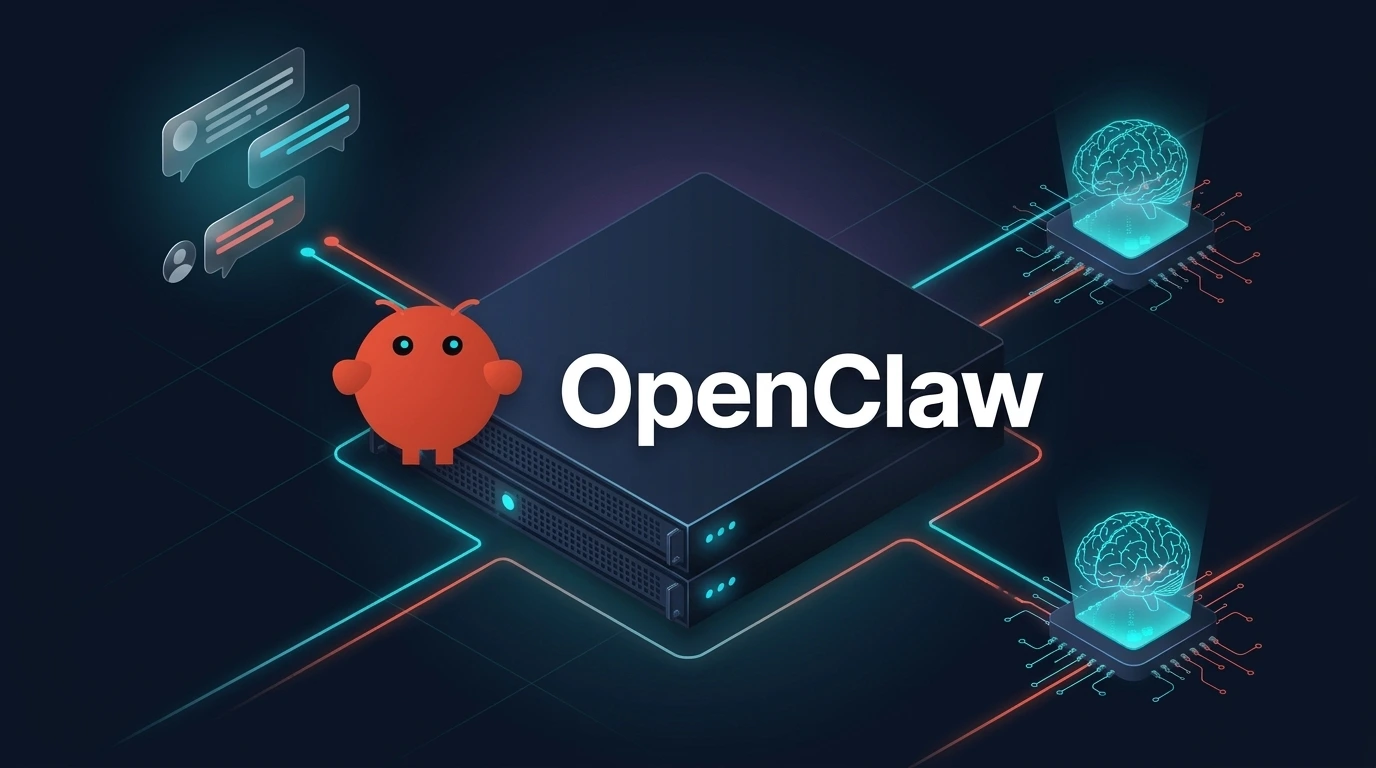
Developer Peter Steinberger originally built a small WhatsApp bridge called Warelay in late 2025 so he could message an AI assistant from his phone. As the community grew around its mascot, a friendly space lobster named Molty, the project became known as Clawd and Clawdbot. Look closely at the spelling of "Clawd" and you can probably guess what happened next: in late January 2026, Anthropic's legal team sent a polite email asking the project to change its name so people would not confuse it with Anthropic's Claude models.
Because lobsters grow by shedding their shells, the team joked that the bot was "molting" and renamed it Moltbot on 27 January 2026. Three days later, on 30 January 2026, it shed its shell one final time and settled permanently on OpenClaw. The playful lobster theme stuck around (including its Doctor Who inspired motto, "EXFOLIATE! EXFOLIATE!"), but underneath the humour sits a seriously well-thought-out piece of software.
What Is OpenClaw, in Plain English?
To understand OpenClaw, think about how most people use AI today. Usually, you open a browser tab or a dedicated phone app such as ChatGPT, Claude, or a self-hosted interface like Open WebUI. You type a question, read the answer, and close the tab. The AI cannot message you first, it does not live inside the family or work chat apps you already use, and it generally cannot do anything outside that single browser window.
OpenClaw flips that model around. Instead of being another website you have to remember to visit, OpenClaw is a self-hosted personal AI assistant gateway that runs 24/7 on your own computer or home server. You talk to it directly inside the messaging apps you already have open every day, including WhatsApp, Telegram, Discord, Signal, Slack, Microsoft Teams, iMessage, Google Chat, Matrix, or its built-in WebChat page.
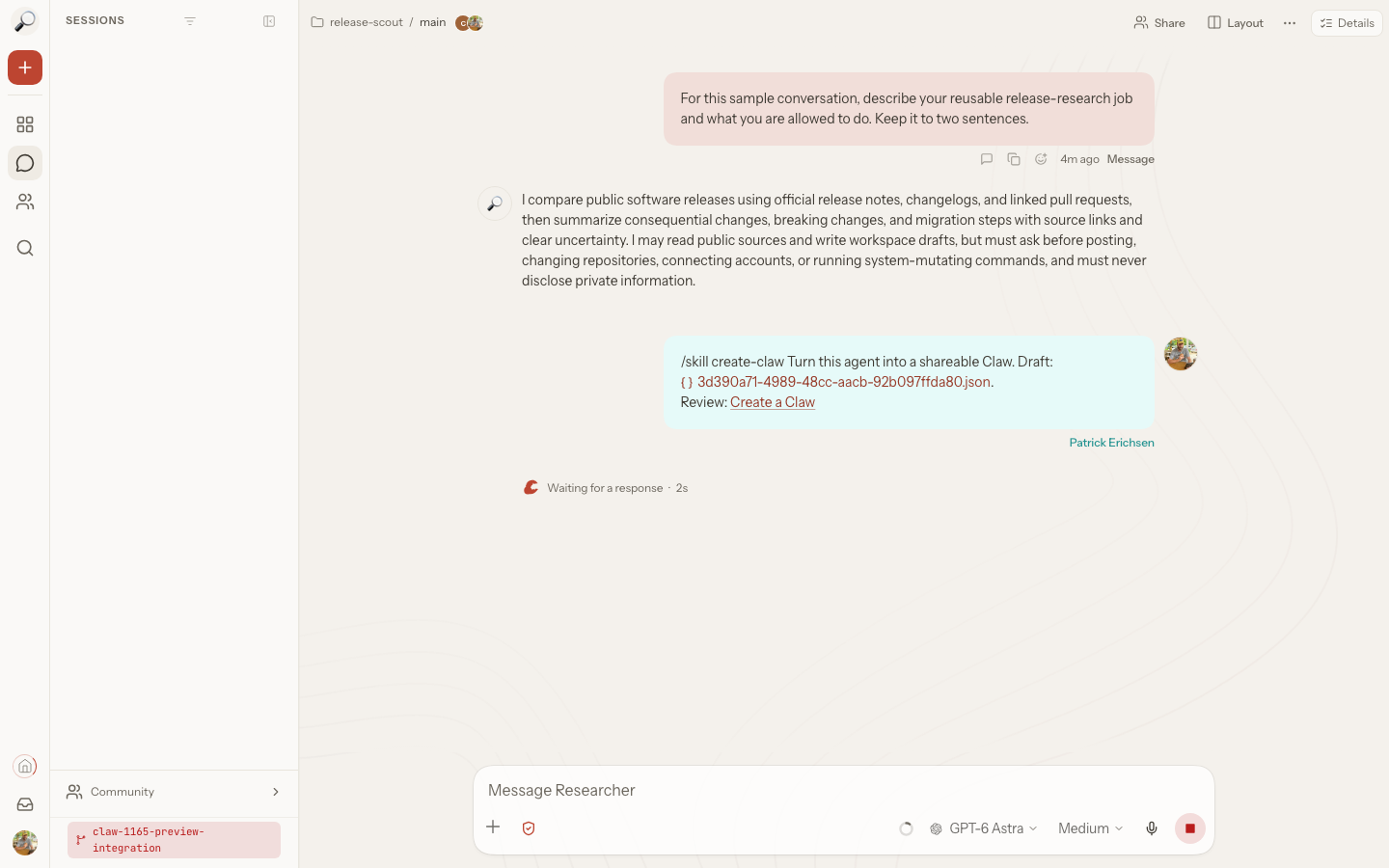
/skill, and switching AI models. Source: OpenClaw documentation (MIT License).More importantly, OpenClaw is an AI agent, not just a text box. In everyday terms, a regular chatbot can only talk about a task, whereas an agent can use approved tools (which OpenClaw calls skills) to carry out actions on your behalf. Depending on what you allow it to do, OpenClaw can:
- Remember context over time: Because its database lives on your own storage drive, it keeps long-term notes, preferences, and conversation history across all your devices without locking your memory inside a single cloud vendor's subscription.
- Work in the background on a schedule: You can ask it in plain English to check a website, summarise your morning calendar and weather at 07:00, or remind you about a bill on Friday, and it will message you on Telegram or WhatsApp when the time comes.
- Use skills and tools: It can search the web, read and summarise documents you send it in chat, manage markdown notes, interact with home automation webhooks, or run diagnostic commands inside an isolated sandbox.
How the Pieces Fit Together (And Why You Do Not Need a Big GPU)
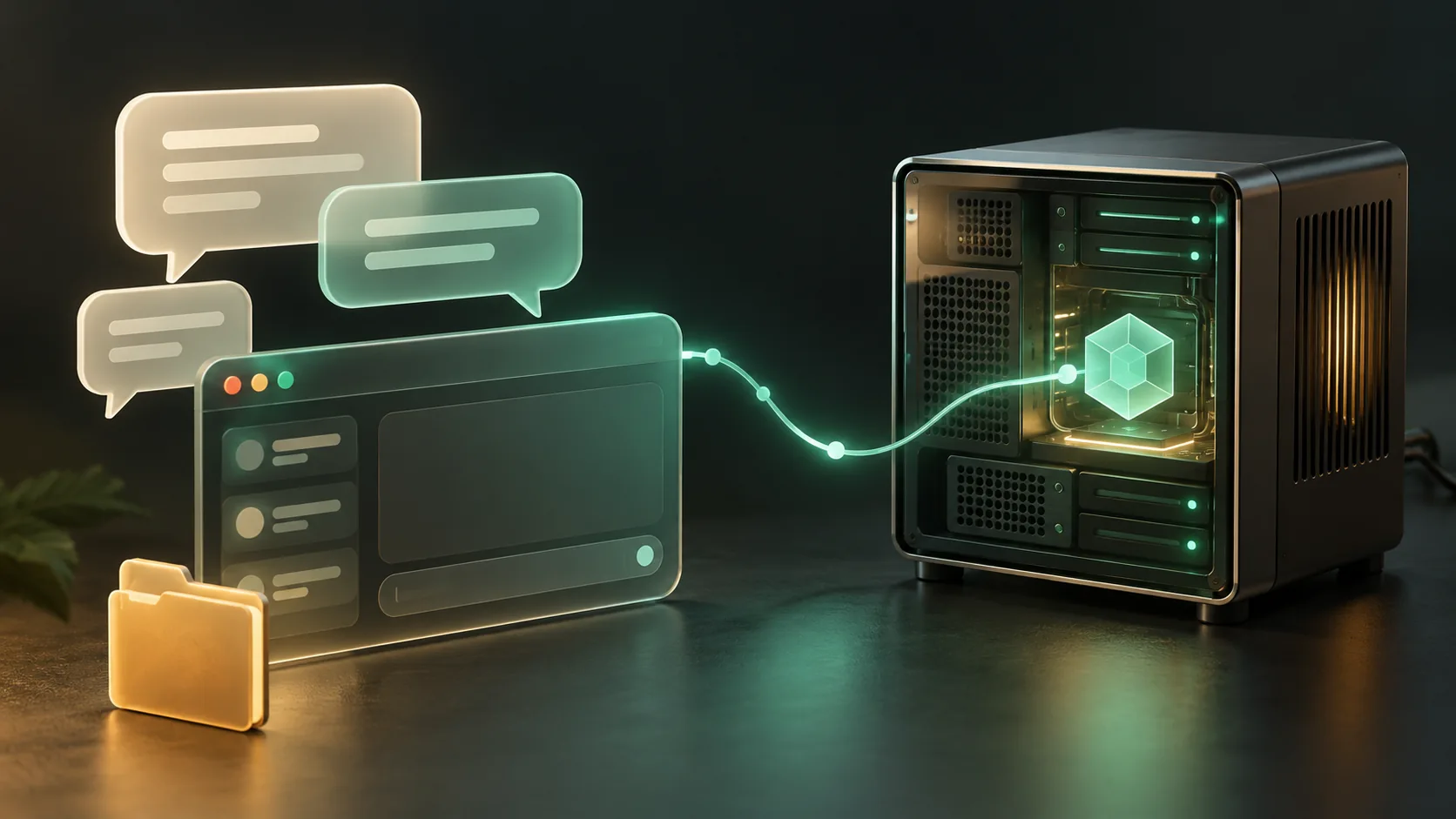
One of the most common misconceptions among beginners is thinking that installing OpenClaw means downloading a massive artificial intelligence model that requires an expensive graphics card. OpenClaw is not an AI language model itself. Instead, it is the coordinator (the "body" and "memory") that connects your chat apps to whichever AI model ("the brain") you choose to plug into it.
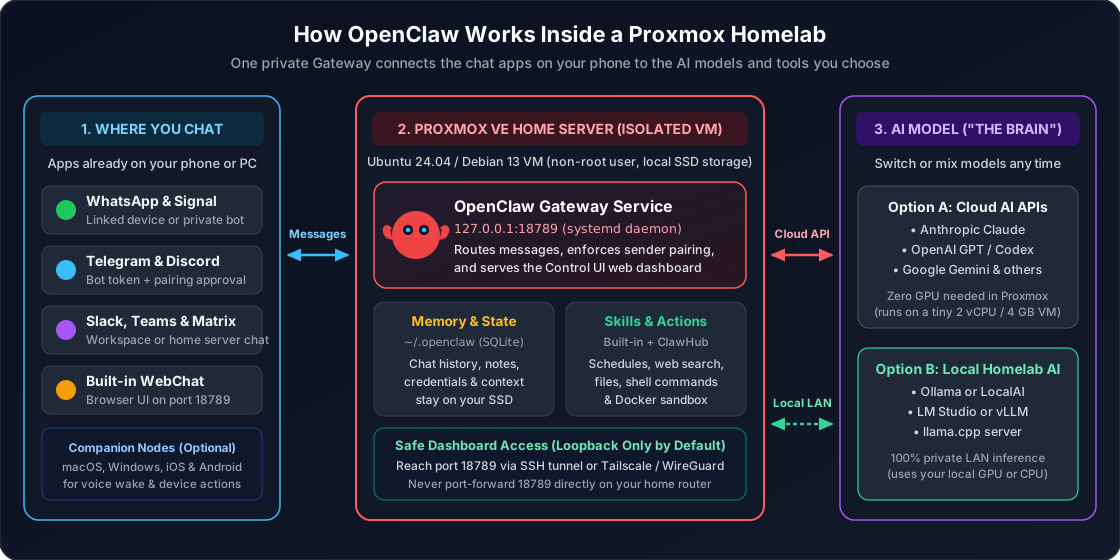
As the diagram above shows, an OpenClaw setup has three simple layers:
- Where you chat (Channels): The apps on your phone or laptop. You can message your assistant on Telegram while walking the dog, continue the conversation in Discord or WebChat at your desk, and optionally pair companion apps ("nodes") on macOS, Windows, iOS, or Android if you want voice wake words or device-specific actions.
- The OpenClaw Gateway (Your Proxmox VM): A single, lightweight background service listening on port
18789(127.0.0.1:18789by default). The Gateway stores your chat history, credentials, and memory in a local SQLite database under~/.openclaw, enforces security pairing so strangers cannot talk to your bot, runs scheduled tasks, and serves the web-based Control UI. - The AI Brain (Model Providers): You choose where the actual language processing happens:
- Cloud AI APIs (Zero homelab GPU needed): You can connect an API key or existing login from Anthropic Claude, OpenAI GPT, Google Gemini, or other providers. Because the heavy math happens in the cloud, your Proxmox VM barely uses any CPU or RAM at all.
- Local Homelab AI (100% private on your LAN): If you already run Ollama, LocalAI, LM Studio, or
llama.cppon a machine with enough RAM or VRAM, OpenClaw can point directly at your local OpenAI-compatible server with no cloud account required. You can even mix both approaches, using a fast local model for routine tasks and a cloud model for complex reasoning.
Why Would You Actually Install OpenClaw in Your Homelab?
If you are not a software developer, you might still wonder what makes self-hosting OpenClaw worth the ten minutes of setup compared to just using a free chatbot app on your phone. In practice, four big benefits stand out once you live with it for a few days:
1. It Meets You Where You Already Are
Instead of installing yet another AI app on every phone, tablet, and laptop in the house, you connect OpenClaw to a private Telegram bot, a Signal number, or a family Discord server. Sending a voice note, a photo of a receipt, or a quick question from Telegram feels completely natural because you are already in that app all day.
2. Your Memory and Workflows Belong to You
When you build habits around a commercial AI app, your saved memories, custom prompts, and conversation history are locked inside that company's walled garden. If you decide to switch from OpenAI to Anthropic Claude or to a local model running on your own hardware next month, you start from scratch. With OpenClaw, your memory and skills stay in your ~/.openclaw folder on your own SSD. You can swap the underlying AI model in two clicks while keeping the exact same assistant, chat history, and scheduled routines.
3. Proactive Scheduled Tasks (Instead of Passive Chat)
Most chatbots only speak when spoken to. Because OpenClaw runs continuously on your Proxmox server with a built-in scheduler (cron), it can work asynchronously. You can tell it: "Every weekday at 07:30, check the local weather forecast and my reminders, and send me a short briefing on Telegram."
4. Extending It With Skills and ClawHub
Out of the box, OpenClaw includes practical built-in skills, and the community shares additional plugins and workflows on ClawHub. Before enabling any third-party skill, treat it just like a browser extension or Docker container: stick to skills you actually need and review what permissions or commands they use.
OpenClaw vs Open WebUI vs LocalAI: Which One Do You Need?
Because homelab AI tools often get mentioned in the same breath, it helps to see how OpenClaw compares to two other popular self-hosted projects we have covered on TechDecode: Open WebUI and LocalAI. They do not actually compete with each other; each one solves a different piece of the puzzle.
| Feature | OpenClaw | Open WebUI | LocalAI / Ollama |
|---|---|---|---|
| Main role | Personal AI assistant, multi-chat gateway, and action agent | ChatGPT-style browser workspace for chatting with models | Local AI inference engine that runs model weights on your CPU/GPU |
| How you talk to it | WhatsApp, Telegram, Discord, Signal, Slack, iMessage, plus built-in WebChat | Web browser interface (desktop and mobile browser) | API backend (used through OpenClaw, Open WebUI, or other frontends) |
| Proactive schedules & messaging | Yes, built-in cron scheduler and instant chat notifications | No, designed for interactive browser sessions | No, waits for API requests from a frontend |
| Proxmox hardware needed | Tiny (2 vCPU, 4 GB RAM, 20 GB SSD) when using cloud APIs or an existing LAN model server | Lightweight web container (needs a model backend) | Heavy (requires strong CPU/RAM or Proxmox GPU passthrough) |
| Can they work together? | Yes, OpenClaw can use LocalAI or Ollama as its local AI brain | Yes, Open WebUI can also connect to LocalAI or Ollama | Powers the local models behind both OpenClaw and Open WebUI |
Quick Proxmox Installation Setup Guide
Wait: if you usually install homelab apps using the popular Proxmox VE Community Scripts collection, you might go looking for a one-click OpenClaw LXC helper script there first. As of October 2026, there is no official OpenClaw script in community-scripts/ProxmoxVE, and that is actually for the best.
Why? Because OpenClaw is an AI agent capable of running tools, scripts, and browser automation, an isolated Ubuntu or Debian virtual machine (VM) is the safest place to run it. If you have read our breakdown of LXC vs Virtual Machines in Proxmox, you know that a full VM gives you complete kernel isolation from your Proxmox host, and it also makes optional Docker tool sandboxing effortless later on. (You can run OpenClaw inside an unprivileged LXC container if you prefer, as long as you run it as a non-root user, but a lightweight VM is the cleanest recommendation.)
Step 1: Create a Lightweight Ubuntu or Debian VM in Proxmox
Create a standard virtual machine in Proxmox using Ubuntu 24.04 LTS or Debian 13 (if you are new to creating guests in Proxmox, see our Proxmox VE beginner's guide or our Docker VM setup walkthrough):
- CPU: 2 vCPUs
- Memory (RAM): 4 GB RAM is plenty for the standard installer or pre-built containers. (Note: if you ever plan to compile OpenClaw's Docker image from source yourself, allocate at least 6 GB of RAM so the image build does not run out of memory.)
- Disk: 20 GB on local SSD/NVMe storage (
local-lvmorlocal-zfs). Do not place your~/.openclawfolder on an NFS or SMB network share, because SQLite database locking over network file shares can cause database corruption. - User account: Create a normal, non-root Linux user (for example,
openclawor your own username) withsudoaccess.
Step 2: Run the Official OpenClaw Installer
Log into your new VM over SSH as your non-root user and make sure curl and git are installed:
sudo apt update && sudo apt install -y curl git
Next, run the official OpenClaw Linux installer script from docs.openclaw.ai/install:
curl -fsSL https://openclaw.ai/install.sh | bash
What does this script do behind the scenes? OpenClaw requires a modern Node.js runtime (Node.js 24.16+ or Node.js 26.1+). If your fresh Ubuntu or Debian VM does not have a supported Node version yet, the official installer automatically sets up Node 24 LTS and installs the latest stable openclaw command-line package (v2026.10.5 at the time of writing).
(Security tip: if you prefer to inspect shell scripts before piping them to bash, download the file first with curl -fsSL https://openclaw.ai/install.sh -o install-openclaw.sh, read it with less install-openclaw.sh, and then run bash install-openclaw.sh.)
Step 3: Run the Onboarding Wizard and Enable the Background Service
Once the installer finishes, launch OpenClaw's interactive onboarding wizard and tell it to install the background systemd user daemon:
openclaw onboard --install-daemon
The terminal wizard walks you through three friendly choices:
- Choosing your AI model provider: Paste an API key for Anthropic, OpenAI, or Gemini, or point it to a local Ollama / LocalAI URL on your home network.
- Gateway settings: Leave the Gateway bound to loopback (
127.0.0.1) on the default port18789. - Connecting your first chat channel: You can link a Telegram bot token, Discord bot, or WhatsApp session right away, or skip and configure channels later in the web dashboard.
Because your Proxmox VM runs headlessly without a desktop monitor staying logged in, run one extra Linux command so your user's background service keeps running even after you close your SSH window:
sudo loginctl enable-linger "$USER"
Step 4: Open the Control UI Safely From Your Desktop
By design, OpenClaw binds its Gateway and Control UI to 127.0.0.1:18789 inside the VM. That is an important safety feature: it prevents other devices or guests on your network from reaching your AI assistant's control panel without authentication. Never port-forward port 18789 directly on your home router to the public internet.
To open the Control UI dashboard from your regular desktop or laptop on your home LAN, open a terminal (or PowerShell on Windows) on your computer and create a quick SSH tunnel to your Proxmox VM's IP address (replace user and 192.168.1.50 with your VM's username and IP):
ssh -N -L 18789:127.0.0.1:18789 [email protected]
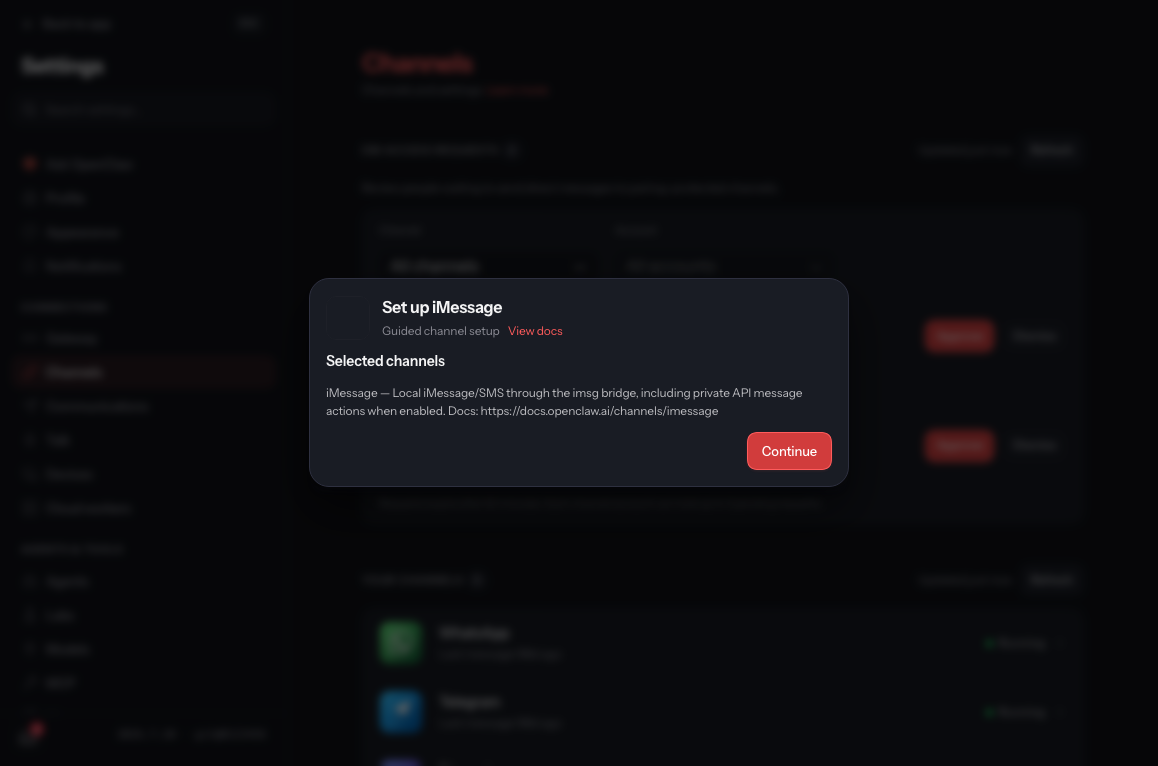
Leave that terminal window open and visit http://127.0.0.1:18789/ in your desktop web browser. You will land directly in the Control UI dashboard, where you can chat via WebChat, add messaging channels, and approve pairing codes. If you want effortless access from your phone or laptop outside your home without manual SSH tunnels, you can combine your homelab with Tailscale or a self-hosted WireGuard VPN.
Step 5: Run the Built-In Health and Security Checks
Before you start relying on your assistant every day, run OpenClaw's built-in diagnostic commands inside your VM to confirm that the service, permissions, and channel policies are healthy:
openclaw --version
openclaw doctor
openclaw gateway status
openclaw security audit
That last command, openclaw security audit, is one of our favourite parts of the project. It checks your configuration for common mistakes, such as accidentally exposing the Gateway to an untrusted network or leaving direct-message pairing open (dmPolicy="open" instead of the safe default dmPolicy="pairing", which requires a short approval code before any new phone number or username can talk to your bot).
Three Essential Habits for Running an AI Agent Safely at Home
Because an AI assistant holds chat history, API tokens, and optional tool permissions, treating it with the same care as your password manager or NAS pays off:
- Keep DM pairing enabled: Leave OpenClaw's default pairing protection turned on for Telegram, WhatsApp, Discord, and Signal so only approved accounts can message your assistant.
- Use
openclaw backup createfor application backups: All of OpenClaw's state lives in~/.openclaw. Never copy raw.sqlite,-wal, or-shmdatabase files withcporrsyncwhile the Gateway is running, or you risk a corrupted database. Instead, runopenclaw backup create(which safely snapshots the live SQLite state into an archive) and combine that with scheduled VM snapshots in Proxmox Backup Server. Because backups contain your auth tokens and chat logs, store them somewhere private and encrypted. - Optional privacy tweak for version checks: Your conversations and memories stay on your hardware (and only go to the model provider you explicitly configure). By default, OpenClaw checks once a day for new releases. If you want a completely silent setup that never phones home even for update checks, set
update.checkOnStart: falsein your configuration.
Final Thoughts: Worth the Wait
Being nine months late to the OpenClaw party turned out to be a blessing in disguise. What started as a viral weekend experiment with a funny lobster mascot has matured into a thoughtful, genuinely useful piece of homelab infrastructure. Whether you connect it to a cloud model from a tiny 4 GB Proxmox VM or pair it with a local model server on your own graphics card, having a private AI assistant that lives inside your existing chat apps and remembers context on your own storage feels like a glimpse of how personal computing is supposed to work.