You start playing a film on your media server, the processor fans spin up, CPU usage climbs toward 100%, and your graphics hardware sits completely idle. Or maybe you spin up a local AI tool or camera recorder in Proxmox, tick a GPU option, and find that everything is still running slowly on the CPU. When that happens, the missing piece is almost always the path between your application and the physical hardware.
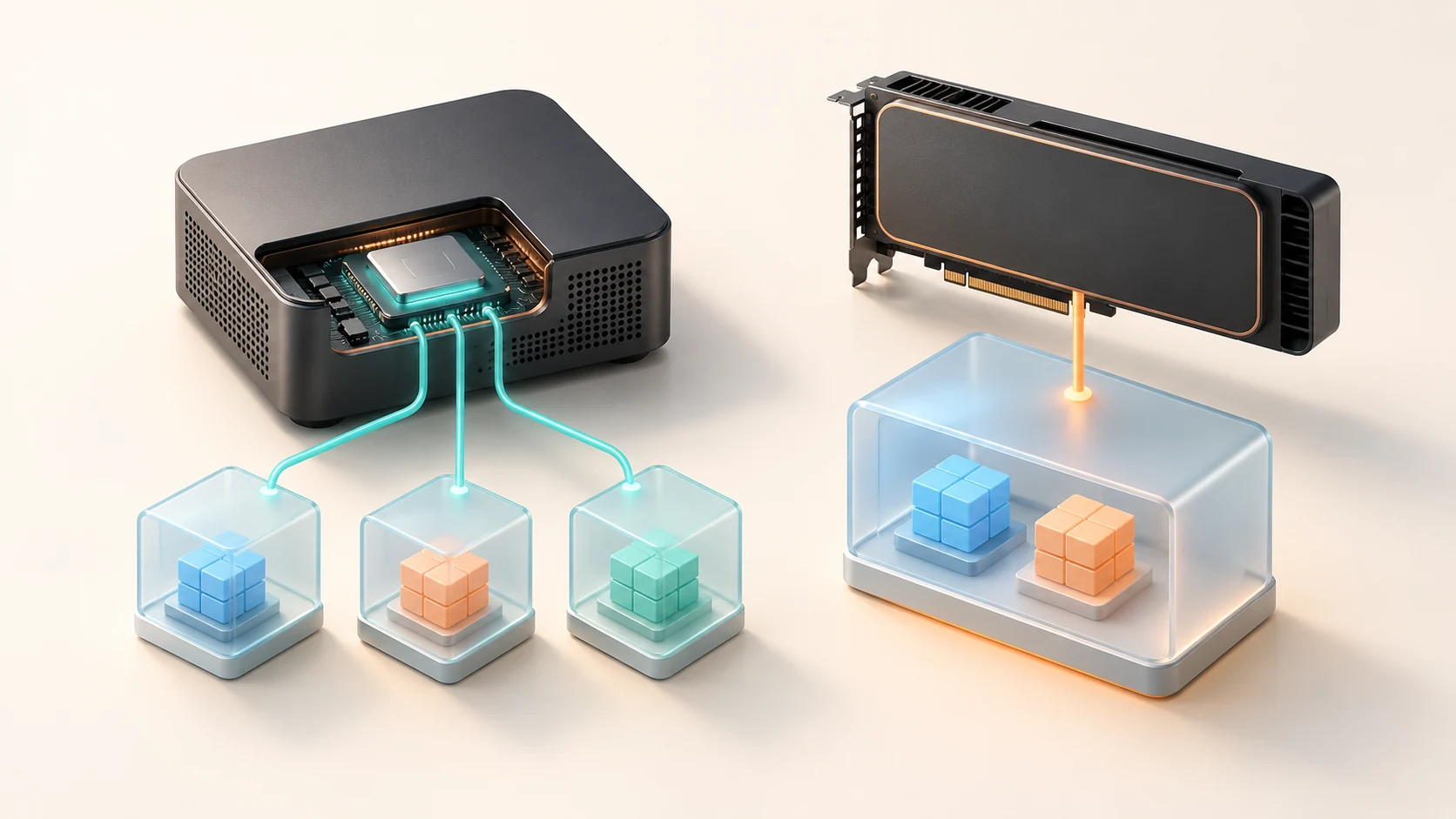
Part of the confusion is that people in the Proxmox community use the phrase GPU passthrough to describe two very different setups. In the first setup, an LXC (Linux container) guest shares a graphics chip through the Proxmox host's own Linux driver. In the second setup, a virtual machine (VM) takes exclusive control of a whole physical GPU through PCI passthrough, which hands the real hardware device directly to that guest. Picking between those two routes changes who owns the device, where you install the graphics driver, and how backups or migrations behave later.
The easiest way to make the right choice is to start with the application you actually want to speed up. A video transcoder, a camera object detector, a photo face-recognition job, and a local language model ask very different things of a graphics chip, even when they sit on the exact same server.
What the GPU is actually accelerating
Before changing any Proxmox settings, it helps to separate the two types of graphics hardware you will meet in a homelab. An integrated GPU (iGPU) is built straight into the processor package and normally borrows a portion of your regular system RAM. A discrete GPU is a separate graphics processor (usually on a PCIe expansion card) with its own dedicated video memory, called VRAM. How much memory is available, and whether your software supports that specific chip family, matters far more than having "GPU" on the spec sheet; our local AI RAM and VRAM guide walks through how those memory budgets work in practice.
When you are dealing with video, you also want to distinguish decoding (reading a compressed video file or camera stream) from encoding (compressing a new video stream to send to a phone, browser, or TV). On Intel processors, Quick Sync Video (QSV) is the dedicated hardware block that handles video work, while VA-API is a standard Linux interface that applications use to talk to it. Because hardware support changes from one chip generation to the next, a processor that can decode a newer format like AV1 or 10-bit HEVC might not be able to encode that same format in hardware. When in doubt, check your exact processor family and Linux driver against Intel's media-driver capability tables.
AI inference is a completely different job: it means running a trained machine-learning model to recognize a face, spot a person on a driveway camera, or generate text. Instead of using the video encoder, inference relies on a supported compute backend such as OpenVINO, SYCL, CUDA, ROCm, or Vulkan, depending on your software and GPU vendor. Just because a mini-PC has an excellent Quick Sync video engine for Jellyfin does not mean that same chip will run a large language model quickly.
Two ways to give an application GPU access
With LXC device access, the Proxmox host keeps ownership of the GPU and loads the normal Linux graphics driver itself. You then allow a container to open a special device file on the host, typically /dev/dri/renderD128, so the container can send rendering or compute jobs to the chip. In Linux, render nodes are designed specifically for this: they let applications run video and compute tasks on the GPU without handing over control of the physical display output.
Because the host driver stays in charge, multiple compatible LXC containers can share the same iGPU or GPU at the same time. Keep in mind that they are all drawing from the same pool of processing power and memory; sharing a render node does not carve out a guaranteed slice of performance for each container. LXC containers also share the Proxmox host's Linux kernel, which gives them a lighter footprint than a VM but much less isolation. If you are weighing up those trade-offs more broadly, see our guide on LXC versus virtual machines in Proxmox.
With whole-device PCI passthrough, you hand the entire physical GPU over to a single virtual machine. With standard PCIe passthrough, once that VM boots and claims the card, the Proxmox host and your other guests cannot use it at the same time. Instead, the operating system inside the VM loads its own full GPU driver, just as if it were installed on bare metal. That does not mean the card is locked to a single app, though: if you run Docker inside that VM, several Docker containers inside that same VM can still share the GPU through the guest's driver.
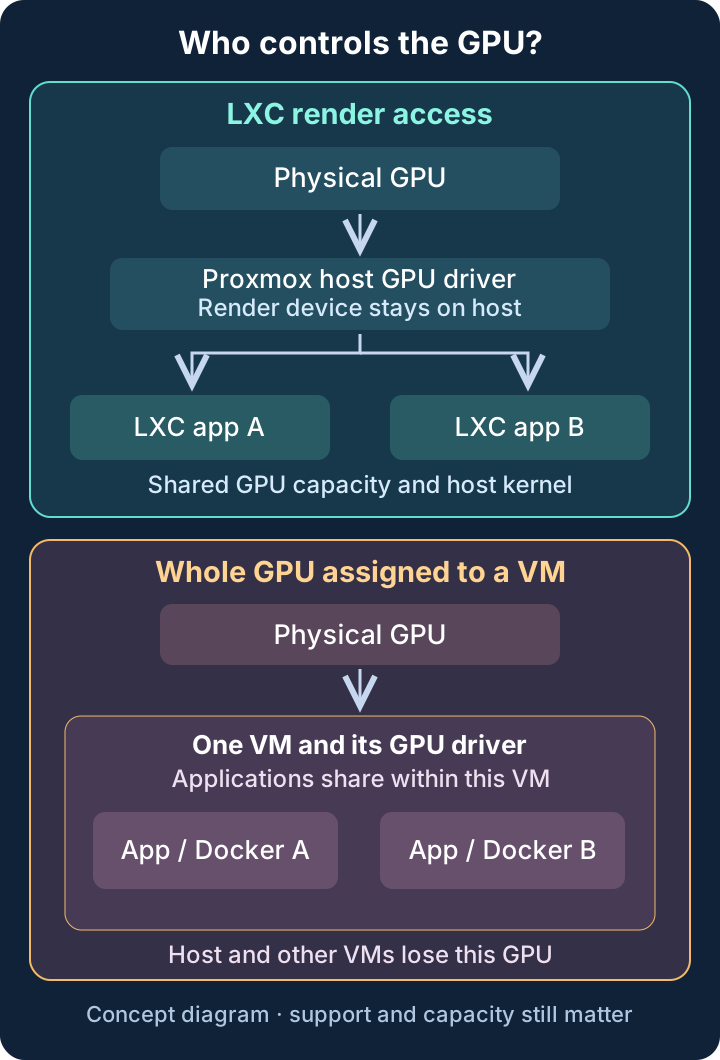
On a small screen, scroll the comparison table horizontally.
| Question | LXC render access | Whole GPU assigned to a VM |
|---|---|---|
| Where is the kernel driver? | On the Proxmox host | Inside the VM for the assigned GPU |
| Who can share it? | Allowed host/container clients, subject to support and capacity | Applications inside that VM |
| Main checks | Device path, permissions and application runtime | Hardware isolation, assignment, guest driver and runtime |
| Maintenance concern | Dependence on the host kernel and device mapping | Dependence on physical hardware and device reset behavior |
You may occasionally read about virtual GPUs (vGPUs) or SR-IOV, which can split a single physical card into multiple virtual functions on supported hardware. Those setups require specific processor generations, motherboards, drivers, and sometimes commercial licenses; ordinary /dev/dri render-node sharing in LXC does not create an isolated vGPU for each guest.
Sharing an Intel iGPU with an LXC container
If you run Linux media or photo services on an Intel mini-PC or home server, sharing the host's render device with LXC containers is often the simplest way to let more than one service use the iGPU. Before you start changing device permissions, check whether your application officially supports running in LXC. Also bear in mind that running Docker inside an LXC container adds a second container layer with its own permission rules, so it does not behave identically to running Docker inside a VM.
Start by checking what hardware and driver the Proxmox host actually sees. Run these read-only inspection commands in the Proxmox host shell (not inside the application container):
pveversion -v
uname -r
lspci -nnk
ls -l /dev/dri
Those four commands tell you your exact Proxmox and kernel versions, which PCI graphics device is installed, which kernel driver is bound to it, and which device files exist under /dev/dri. Treat /dev/dri/renderD128 as a common example rather than a guaranteed name: if your server has a second GPU, an onboard motherboard graphics chip, or a different detection order, your target card might show up as renderD129 instead. If no renderD* file appears on the host at all, stop and fix the BIOS setting, kernel driver, or Intel firmware on the Proxmox host first, because no container setting can invent a device the host itself cannot see.
In Proxmox VE 8.2 and newer, you do not have to hand-edit container configuration files to pass a render device into an LXC guest. When logged into the web interface as root@pam, you can select your container, open Resources, and add a Device Passthrough entry (which Proxmox stores in the LXC configuration schema as dev0, dev1, and so on, complete with the /dev path and optional numeric ownership or permission mode). As the Proxmox Resources UI code shows, this control is restricted to root@pam, and it creates a hardware device entry rather than a folder mount point for your media library.
One version detail is worth knowing when you read third-party tutorials. Proxmox's 8.2 release announcement notes that the web UI Device Passthrough button was added in Proxmox VE 8.2, following initial command-line and API support in 8.1. When you follow Jellyfin's Intel LXC guide, you will notice it groups these steps under a broad "Proxmox VE 8 or Newer" heading alongside legacy Proxmox 7 lxc.cgroup2 instructions, so make sure you are on 8.2 or newer if you are looking for that button in the web interface.
Once the device is attached to a Debian-based LXC guest running Jellyfin directly, open a shell inside that container and check how the permissions line up:
ls -l /dev/dri
getent group render
id jellyfin
Compare the group that owns /dev/dri/renderD128 inside the container with the groups listed for the jellyfin service user. Remember that Linux permissions work on numeric group IDs (GIDs) under the hood, while group names like render or video are just human-readable labels. Copy-pasting a GID number from someone else's forum post can easily map the device to the wrong group on your system. Whenever the application supports it, stick with an unprivileged container and match the specific device GID cleanly; making /dev/dri world-writable (0666) or converting everything to a privileged container just masks the real permission mismatch.
Finally, passing the /dev/dri file into the container is only half the job: the guest still needs the user-space graphics libraries that know how to talk to that hardware (such as Intel's VA-API and Quick Sync runtime packages on Debian or Ubuntu). If you run an application inside Docker, official container images like jellyfin/jellyfin usually bundle those user-space libraries for you, but you must pass both the /dev/dri device and the matching numeric group ID through the Docker configuration as well. Otherwise, the LXC guest or VM will see the GPU, while the containerized app inside it still cannot touch it.
When a whole GPU belongs in a VM
Passing an entire GPU to a virtual machine makes much more sense when your workload needs its own independent kernel, when you are using a discrete NVIDIA or AMD card with vendor-specific drivers, or when the application's authors explicitly recommend a VM over LXC. Behind the scenes, Linux uses a framework called VFIO (Virtual Function I/O) to make this safe. Your processor and motherboard use an IOMMU (Input-Output Memory Management Unit, called VT-d on Intel and AMD-Vi on AMD) to control which memory regions each PCIe device can reach, and hardware is divided into IOMMU groups that can only be isolated and handed over as a complete unit. Having a CPU that supports IOMMU does not guarantee that your motherboard separates every PCIe slot into its own clean group.
Before assigning a GPU to a VM, check every function on that card (most graphics cards expose both a VGA/3D controller and a companion HDMI/DisplayPort audio controller) and verify that nothing else the Proxmox host needs to stay alive (such as your network card or boot NVMe controller) is sharing the same IOMMU group. You may see forum posts suggesting kernel workarounds such as pcie_acs_override or allow_unsafe_interrupts to force stubborn groups apart, but do not treat those as routine beginner fixes; they weaken hardware isolation and can cause system instability. Also, make sure you have working SSH and web-interface access over the network before passing through the only GPU connected to your server's physical monitor, because the host's local screen output will stop updating as soon as the VM claims that chip.
On the virtual-machine side, Proxmox's PCI passthrough documentation recommends combining the q35 machine type, OVMF (UEFI) firmware, and PCI Express (PCIe) presentation for modern GPUs. In plain terms, q35 gives the VM a virtual PCI Express motherboard layout (whereas the older i440fx default emulates a conventional PCI bus), and OVMF boots the VM using modern UEFI firmware instead of legacy SeaBIOS. Note that OVMF passthrough expects your physical GPU's onboard ROM to support UEFI, and simply changing the Machine dropdown on an already-installed VM neither attaches a GPU nor converts a legacy BIOS guest installation to UEFI.
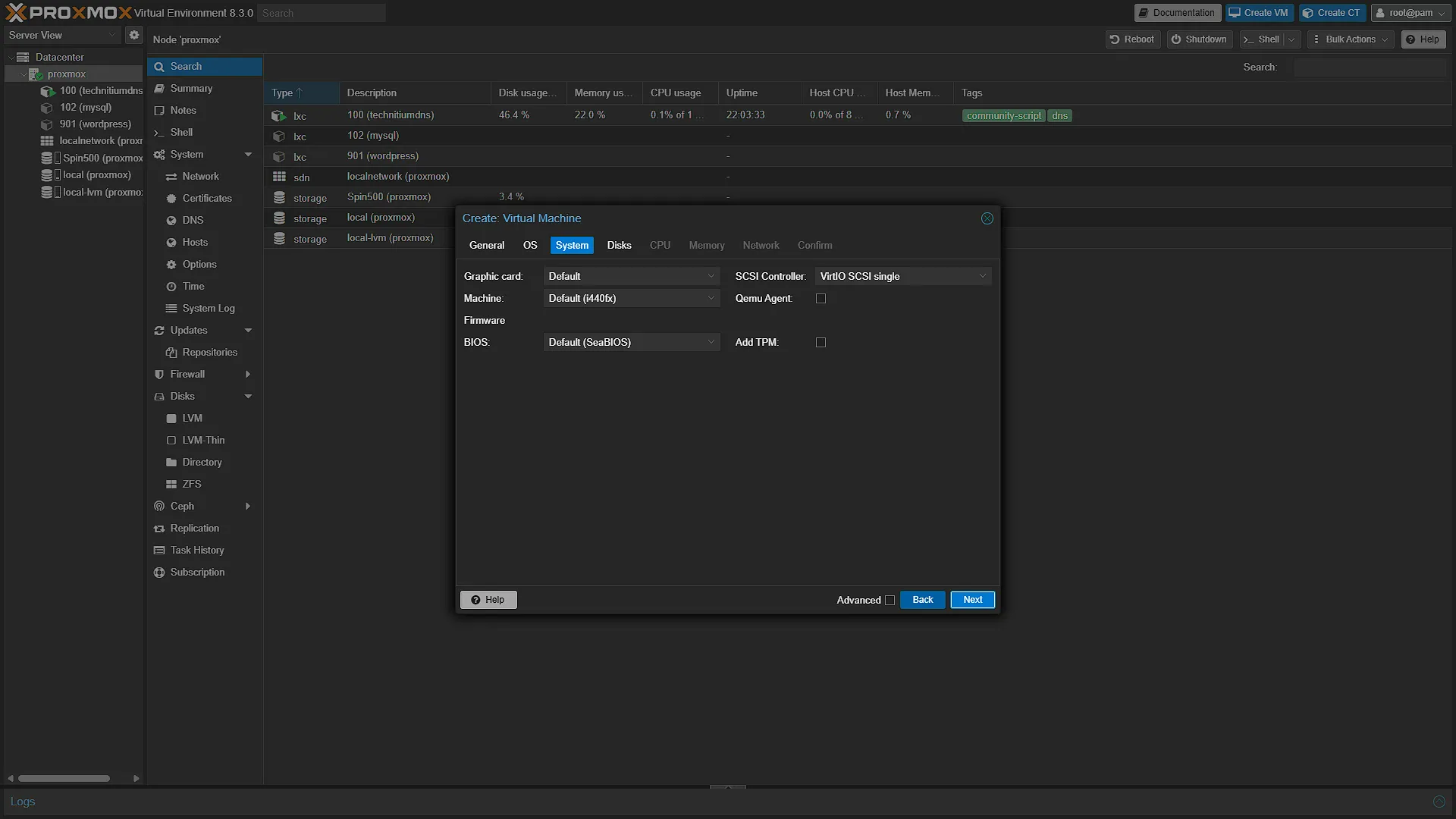
To complete a VM passthrough setup, you follow the host preparation steps for your specific hardware, attach the PCI device under the VM's Hardware tab in Proxmox, and install the normal GPU driver inside the guest OS. When a GPU is prepared for whole-device passthrough, the Proxmox host binds it to the vfio-pci placeholder driver so the host kernel leaves the card alone. Because of that, never mix VM passthrough tutorials with LXC render-sharing tutorials: blacklisting the host graphics driver or binding your iGPU to vfio-pci removes the /dev/dri render node that LXC containers rely on.
One detail catches almost every first-time builder off guard: once a VM takes over a real GPU, its video output goes to the physical HDMI or DisplayPort connectors on that graphics hardware, not into Proxmox's built-in noVNC web console. Seeing a black or frozen noVNC window after the guest driver loads does not mean your GPU compute or transcoding failed. If the VM only uses the card in the background as a headless accelerator for Docker services, you do not need a display output at all; if you want an interactive desktop, Proxmox recommends plugging a monitor into the card or running remote-desktop software inside the guest.
Match the accelerator to the application
Jellyfin video transcoding
In Jellyfin, the first thing to check during playback is whether the server is using Direct Play (sending the original media file straight to your client device because your TV or phone already supports that format) or actively transcoding the video into a new format or bitrate. If your GPU shows 0% usage while a film is playing smoothly, Jellyfin may simply not need to convert anything.
On supported Intel hardware, Jellyfin can use Intel Quick Sync (QSV) or VA-API for hardware transcoding. After pointing Jellyfin at your render device and ticking only the codecs your chip actually supports, start a test stream, force a lower quality setting in the video player to trigger a real transcode, and check Jellyfin's transcoding log alongside your GPU utilization tool. Keep in mind that HDR-to-SDR tone mapping and burning image-based subtitles into the video frame add extra work beyond basic codec decoding and encoding, as detailed in Jellyfin's official Intel acceleration guide.
If you are shopping for a compact home server, look at the exact codecs, resolutions, and subtitle habits in your own media library rather than relying on a generic stream count from a review. Our Intel N150 versus N100 comparison explains why two processors with similar names can still behave very differently depending on what you ask them to transcode.
Frigate decoding and object detection
A camera recorder like Frigate has two completely separate jobs that can use hardware acceleration: decoding continuous H.264 or H.265 video streams from your cameras, and running object-detection models to tell whether motion was caused by a person, a car, or a swaying tree. In Frigate's config file, the video-decoding settings choose the FFmpeg hardware decoder preset, while the object-detector settings separately configure an AI backend such as OpenVINO on supported Intel GPUs. Getting hardware video decoding working does not automatically switch your object detector off the CPU, and plugging in a dedicated AI detector does not remove the need to decode the camera streams.
Placement in Proxmox matters here too. Frigate's official Proxmox installation guidance recommends running Frigate in a QEMU virtual machine and states explicitly that LXC installations are not officially supported. The documentation also advises disabling memory ballooning on that VM, especially when passing through a GPU. While you will find community guides running Frigate inside Docker inside an LXC container so the host can share its iGPU, know that choosing that route puts you outside Frigate's supported configuration and adds nested-container permission complexity. Conversely, if you follow Frigate's recommendation and pass a physical GPU into a VM, remember that the VM will lose the ability to live-migrate seamlessly between Proxmox nodes.
Immich search and face recognition
Immich can use a GPU in two separate places: transcoding uploaded videos, and running machine-learning jobs such as Smart Search (CLIP text-to-photo search) and facial recognition. Its machine-learning hardware acceleration guide supports OpenVINO on compatible Intel GPUs (such as Iris Xe and Arc) alongside CUDA, ROCm, and ARM backends, while noting that the feature is still experimental and that integrated GPUs carry extra compatibility and system-RAM considerations.
Enabling GPU video transcoding in the main Immich server container does not accelerate photo indexing. To accelerate machine learning, you have to switch the immich-machine-learning container to the matching backend image tag (such as -openvino or -cuda) and pass the device into that service. When you run a facial-recognition or Smart Search job, check the immich-machine-learning container logs to confirm that it loaded the expected execution provider (for example, OpenVINOExecutionProvider or CUDAExecutionProvider) while watching GPU activity.
LocalAI and language models
With LocalAI, hardware acceleration depends on matching your exact GPU architecture, container image, and model format to a supported compute backend. LocalAI's GPU acceleration documentation covers Intel SYCL (oneAPI), cross-vendor Vulkan, NVIDIA CUDA, and AMD ROCm paths. Pulling a GPU-capable container image is only step one; the container still needs access to the underlying device nodes and a model configuration that actually offloads layers to the GPU.
Whenever you test a language model, read LocalAI's startup and model-loading logs while a prompt is running. LocalAI can detect your GPU at startup and still end up running the model mostly on the CPU if layer offloading is not enabled or the model does not fit in memory. Remember that total memory usage includes the active context window and compute buffers on top of the model file's size on disk, so check our RAM and VRAM guide before assuming that a shared mini-PC iGPU or an older low-VRAM graphics card will outrun your CPU.
Verify the complete path
Getting hardware acceleration working reliably means four separate layers have to agree with each other in order: the Proxmox host, the LXC or VM guest, the application runtime, and the actual workload. Checking them in sequence from the bottom up saves hours of guesswork, and jotting down your working kernel, driver, and app versions gives you a clean baseline if a future update changes behavior.
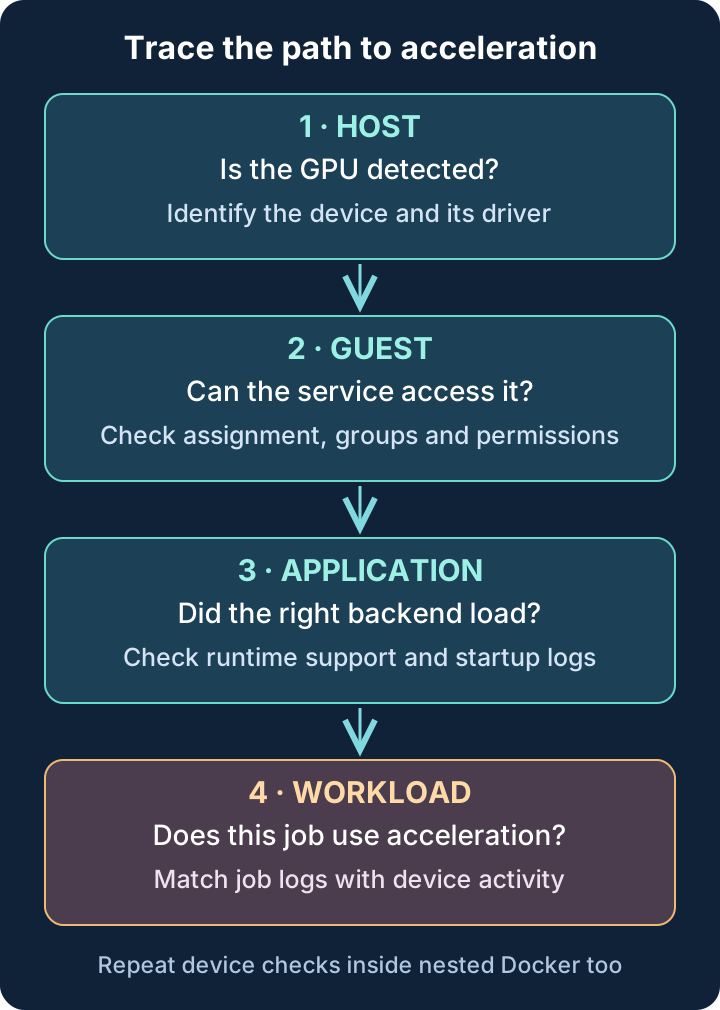
When you test whether a change helped, repeat the exact same video file, camera stream, or AI prompt each time, and verify that the test actually triggers the hardware feature you configured. Test one application on its own before running several heavy workloads at once. Because a host-level GPU monitor (like intel_gpu_top or nvtop) only shows total activity across the chip, always pair that graph with the specific application's own logs so you know which service is doing the work.
For instance, if you play a movie in Jellyfin that happens to Direct Play without conversion while Immich is quietly indexing new photos in the background, a spike on your GPU graph comes from Immich rather than Jellyfin. In the same way, switching from a 1080p H.264 video to a 4K HDR HEVC file, or swapping to a differently quantized AI model between test runs, changes the workload so much that raw speed numbers are no longer comparable.
Backups, migration and recovery
Before relying on a GPU-accelerated service every day, make sure your backup and recovery plan covers both the guest configuration and your application data. Proxmox's guest backup documentation (vzdump) backs up virtual disks and guest configuration files cleanly, but backing up a disk image is not the same thing as freezing and restoring the live hardware state of a physical PCIe graphics card; do not assume a live RAM snapshot can capture an assigned GPU mid-job.
For LXC containers, pay close attention to where your media libraries, AI model weights, and databases are stored. As Proxmox's container documentation (pct) explains, standard container backups include Proxmox storage-backed mount points by default, but they skip host bind mounts and device mounts (dev0). If you restore that container onto a fresh server later, you will need to restore any external bind-mounted folders separately and make sure the new host exposes the matching /dev/dri render device and group IDs.
If you assign an ordinary consumer GPU to a virtual machine, plan on shutting the VM down before moving it to another Proxmox node (offline migration) rather than expecting seamless live migration. The Proxmox VM documentation (qm) explains that local PCIe devices tie a running VM to that physical host, with live migration of passed-through devices remaining an experimental feature limited to specific hardware and drivers. Proxmox's cluster-wide Resource Mappings are very handy for letting a VM find the equivalent PCIe address on a second node after shutdown, but they do not make an ordinary graphics card live-migratable on the fly.
Whenever you change a passthrough setting or restore a guest, test a complete stop and start of the VM or container (and, when testing host kernel parameters, a clean host reboot) rather than just an in-guest restart. Some GPUs work fine on the first boot after power-on but struggle to reset cleanly when a VM stops and starts again, so catching reset issues early is much better than discovering them during an outage.
Troubleshoot the failing layer
No host render node for LXC sharing: Start on the Proxmox host and verify that the iGPU or GPU is enabled in the motherboard BIOS, detected by lspci -nnk, and bound to its normal Linux graphics driver with firmware loaded. Changing container permissions will never fix a device file that is missing on the host. By contrast, if you intentionally set up whole-device VM passthrough, a GPU bound to vfio-pci on the host is supposed to hide its host render node; in that case, confirm vfio-pci binding on the host and then check inside the Linux VM for the guest driver and /dev/dri device instead of trying to reload the host graphics driver.
The device exists, but the service gets permission errors: Check the numeric group ID (ls -ln /dev/dri) and the service account's groups (id <username>) at the exact layer throwing the error. If you are running Docker inside an LXC container or VM, run that check inside the Docker container too. Fix the specific group mapping or group_add setting rather than making device nodes world-writable.
The app sees a GPU but still uses the CPU: Open the application's startup and job logs while a task is running. Confirm that you pulled the GPU-enabled container image variant, enabled hardware acceleration in the application's settings, and chose a codec or model format that your specific GPU generation actually supports. Make sure you are not mistaking a normal Direct Play video stream or an unsupported codec fallback for a broken passthrough setup.
Performance drops when another app starts: Test each service by itself first, then run them together while watching both GPU memory usage and individual hardware engines (such as the Video engine versus the Render/3D or Compute engine). When several containers or Docker apps share one iGPU, heavy tone mapping, camera detection, and photo indexing can easily saturate shared memory bandwidth even if overall GPU utilization looks moderate. Stagger background indexing jobs or trim unnecessary transcoding before blaming the Proxmox device setup.
A VM works once and fails after restarting: Compare the Proxmox host kernel log (dmesg / journalctl) and guest logs across a full VM Stop followed by a fresh Start. Some graphics cards have well-known PCIe reset quirks or require specific motherboard BIOS and UEFI ROM settings. Save a copy of your working VM configuration before troubleshooting, and change only one variable at a time: randomly flipping machine type, BIOS, driver versions, and kernel boot flags all at once makes it much harder to tell what fixed or broke the setup.
Choose the arrangement you can maintain
For a compact Intel home server running Linux services like Jellyfin, sharing the host's /dev/dri render node with supported LXC containers is often the cleanest path: the Proxmox host keeps its standard driver, multiple compatible services can use Quick Sync without dedicating the whole chip to one guest, and backups stay lightweight. Just remember that those containers share the same hardware budget, and verify each application's acceleration logs separately. On the other hand, when an application needs its own kernel, relies on dedicated discrete GPU drivers, or explicitly recommends a virtual machine (as Frigate does on Proxmox), assigning the GPU to a VM is the more dependable starting point.
Whichever route you pick, leave yourself a short note in the guest's Proxmox Notes panel recording which device node or PCI address is attached, which numeric group ID or driver it uses, and which log line proves acceleration is working. Six months later during a Proxmox upgrade, those three lines of notes will save you far more time than any single checkbox labelled "GPU enabled."