With Sleep, a little electricity keeps your open work in memory, ready for a quick return. Hibernate writes a copy of what’s open to the drive. It takes a little longer to bring your windows back, but once the copy is complete, even a flat battery won’t erase it.
Which button should I choose?
- Sleep when you’re leaving for lunch and want the same windows waiting when you get back.
- Hibernate if you want to pick up tomorrow and won’t have a charger handy. It uses about as little power as shutting down. Some PCs leave this choice out of the menu.
- Shut down when you're finished for the week. Save the files you want to keep and let the computer close your apps.
- Restart when Windows asks to finish an update or a device is acting up. Save your work before Windows starts again.
- Lock when you need to step away while photos upload. Keep the computer awake until the transfer finishes.
On a shared Windows PC, press the Windows key + L to lock it with your apps open. Choose Sign out when you’ve finished with your account. That closes your apps and leaves the computer available for the next person. Microsoft’s guide to account actions
If you already know which option you want, go straight to the laptop lid settings.
Where does an unsaved sentence go?
Suppose you’ve saved a letter, then typed “I’ll bring the spare key.” With autosave off, the drive still holds the earlier letter. The extra sentence is in RAM, the computer’s working memory. How RAM differs from storage
Sleep keeps the sentence in memory
In traditional Sleep, the processor stops running the editor and much of the hardware powers down. RAM still gets the small amount of electricity it needs to hold its contents. When you wake the machine, the processor and other devices start working again. The editor can carry on using the copy already in memory. There's no need to open the file and find your paragraph again.
If the power cuts out, a laptop with charge left has its own electricity supply. A desktop plugged straight into the wall can lose the spare-key sentence if its only copy was in RAM. The earlier letter is still on the drive. If you’re unplugging a desktop to move it, save your work and wait for it to finish shutting down or hibernating before pulling the plug.
Some desktops have hybrid sleep enabled. They write a spare copy of the working session to the drive before going to sleep. With power available they wake from memory as usual. After an outage they can recover from that spare copy. Microsoft’s guide to system power states
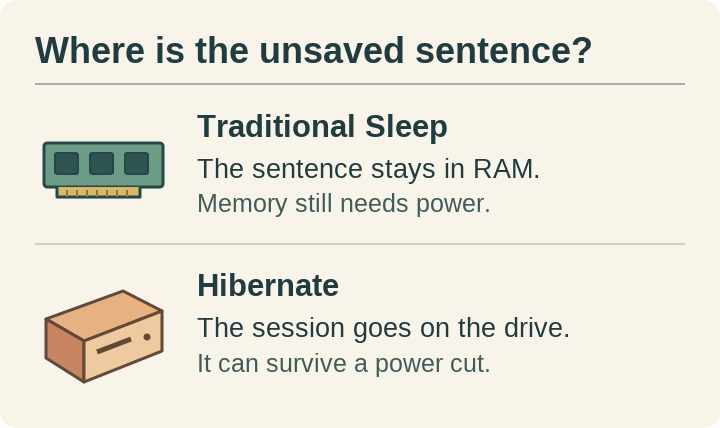
Hibernate writes the open session to the drive
When you choose Hibernate, Windows tells apps and devices to prepare, compresses the contents it needs from memory and writes them to a hibernation file. That includes the running editor with the spare-key sentence still in it. Once Windows finishes writing the file, RAM can lose power.
When you turn the computer back on, Windows finds the hibernation file, expands its contents back into RAM and starts the devices again. Reading that file is one reason this takes longer than waking from Sleep. Your sentence is back in the editor. You still need to press Save if you want the sentence in the document you'll send to someone. Microsoft’s description of the hibernation and wake sequence
Why a sleeping laptop can lose charge overnight
Some Windows PCs use Modern Standby when you choose Sleep. The machine spends most of its time idle, though Windows can briefly wake parts of it for jobs such as system maintenance. So the lid can stay closed all night and the battery can still be lower in the morning. The amount depends on the machine and what wakes it. Microsoft on Modern Standby
Why Restart can help after a shutdown
With Fast Startup enabled, shutting down a Windows PC closes your apps and signs you out. Windows saves its core, called the kernel, to the drive so it can start more quickly next time. Restart loads that core afresh. If a device is still acting up after you shut down last night, or an update says Restart required, save what you’re doing and choose Restart. Microsoft on Fast Startup · Windows Update FAQ
Why does my computer show different options?
Windows. Some PCs support Hibernate but leave it out of the power menu. Search Start for Control Panel, then open System and Security → Power Options → Choose what the power buttons do. Select Change settings that are currently unavailable. Under Shutdown settings, tick Hibernate if it's listed, then select Save changes. You can now choose it from Start → Power. Availability varies by PC. Microsoft’s instructions for enabling Hibernate
Mac. Choose Sleep from the Apple menu or, on a MacBook, normally just close the lid. Apple calls the automatic protection on its laptops safe sleep. It saves the open session so a MacBook can recover it if the battery runs down during sleep. There’s no extra Hibernate button you need to press for that. Apple’s sleep and wake guide · Safe sleep on Mac
Chromebook. Closing the lid normally puts it to sleep. If yours stays awake, open Settings → System preferences → Power and check Sleep when lid is closed. To shut down or restart, select the time in the corner, then open the power menu. Google’s Chromebook power guide
Linux. If your desktop uses GNOME, look for Suspend. It leaves your documents open and uses a little power to keep them in memory. Some Linux systems also offer Hibernate, depending on the hardware and how the system was set up. GNOME’s Suspend guide · Linux sleep and hibernation support
Bonus guide to closing the laptop lid
At the kitchen table you might close the lid because you’re done until dinner. At a desk with a separate monitor, keyboard and mouse, you might close it as soon as you start work. Windows can handle both habits.
Open Control Panel → System and Security → Power Options → Choose what the power buttons do. Find When I close the lid, set On battery and Plugged in separately, then select Save changes. For short breaks, Sleep in both columns is a good starting point. If your laptop often spends the night unplugged and you want your windows back, try Hibernate in the battery column if it's offered. You can also leave Sleep as your everyday setting and pick Hibernate from the power menu on that particular night. Microsoft’s guide to lid settings
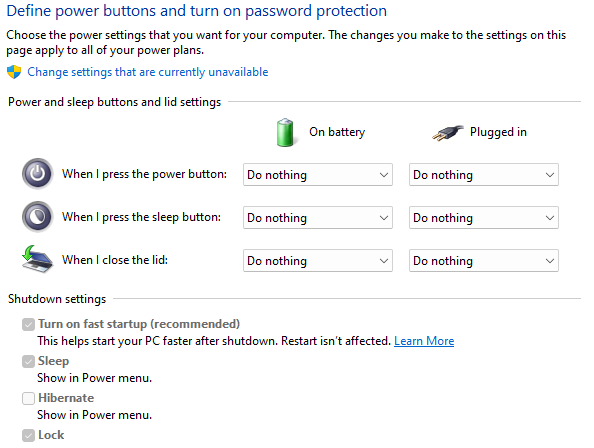
At a desk, Do nothing in the Plugged in column lets you keep working on the external screen with the lid closed, provided your model supports that setup. Leave its vents clear. When it's time to pack up, remember the lid may already be closed while the laptop is still running. Use the power menu before you put it in a bag and follow the maker's transport instructions. Dell, for example, advises shutting its laptops down fully before carrying them. Windows lid actions · Dell’s laptop care guide
Let the screen go dark first
In Windows 11, open Settings → System → Power & battery and look for Screen, sleep, & hibernate timeouts. On some versions it’s labelled Screen and sleep. The screen timer controls when the display goes dark. The sleep timer controls when the computer pauses ordinary work. As a starting point on battery, try 3 minutes before the screen goes dark and 10 minutes before the computer sleeps. Plugged in, try 5 and 15 minutes. If the screen goes dark while you're reading a page, lengthen the screen timer. ASUS’s guide to the earlier Windows 11 layout
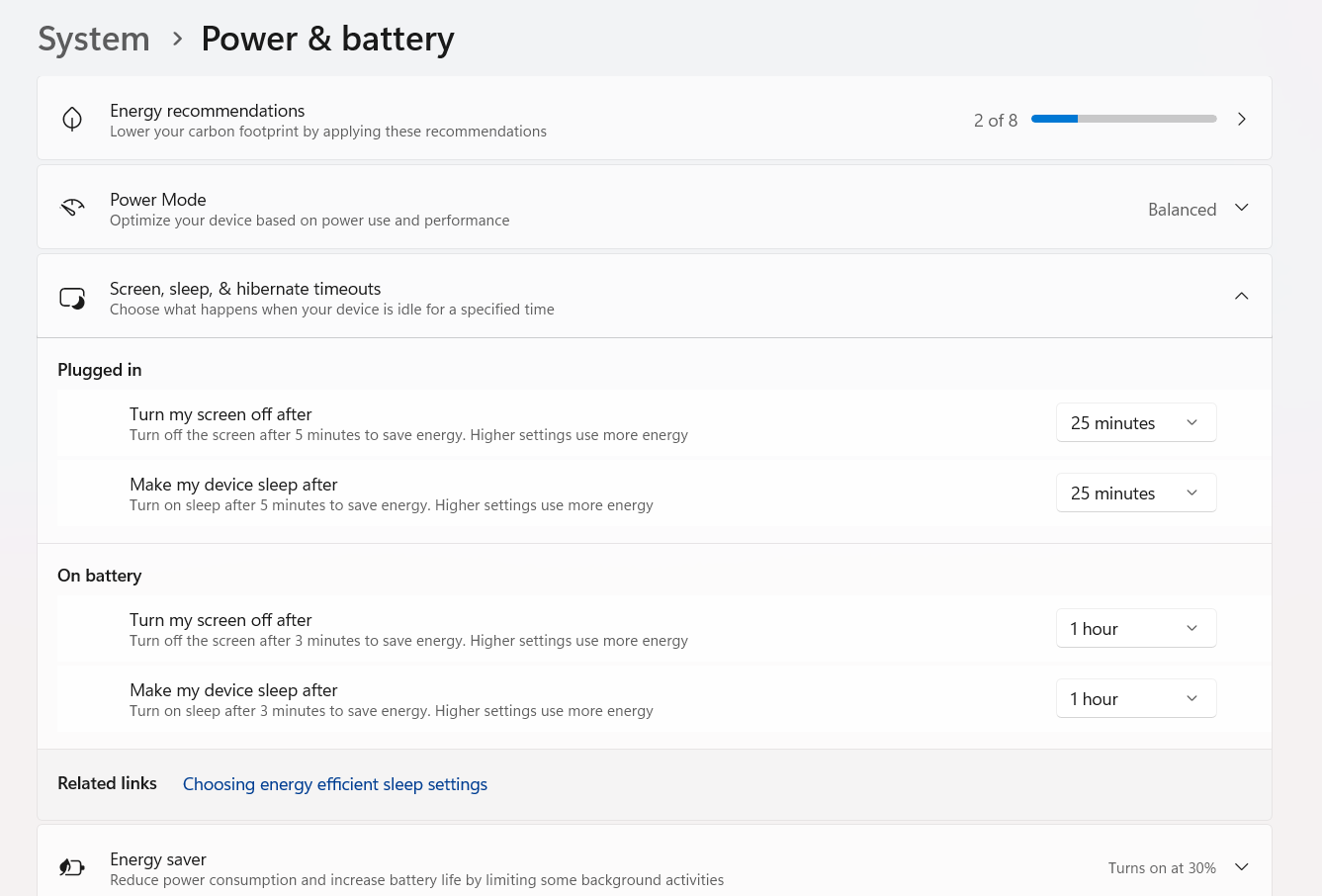
For a long upload, let the screen turn off, lock the computer, and delay sleep until the files arrive. Put the usual timer back afterwards. For more time away from the charger today, lower the brightness to a comfortable level or turn on Energy saver. It can dim the screen and limit background activity while you carry on using the laptop. Windows 11 power settings
How to keep a laptop battery healthy for longer
A battery that says 100% can still hold less charge than it did when it was new. The percentage tells you how full it is today. Heat and charging habits influence how much capacity the battery will keep over the years.
At a desk most days? Look for the maker’s smart charging or charge-limit setting. On a supported Windows laptop it can hold the charge below full during long stretches on mains power. The controls vary by manufacturer. On a MacBook, Optimized Battery Charging can pause at around 80% when it expects you’ll stay plugged in. Also give the laptop room to shed heat. A duvet can cover its vents, so use a firm surface when charging. Microsoft on smart charging · Apple’s charging options
Before a long day out, charge to full if you’ll need the extra hours. For ordinary use, Microsoft suggests keeping the battery roughly between 20% and 80% when convenient. There’s no need to run it flat before plugging it in. Doing that regularly can wear the battery faster. Microsoft’s battery-care guidance
Putting a spare laptop away for months? Leave it around half charged, shut it down and store it somewhere cool and dry. Microsoft suggests 40–60% for storage. For its own devices, Apple recommends bringing the charge back to about half every six months during extended storage. Microsoft’s storage advice · Apple’s storage guidance