You bought RAM advertised as DDR5-6000, but your computer reports 4800 MT/s. Is something broken, or did the shop send the wrong memory?
One possible explanation is that the RAM has started with its standard settings rather than an optional performance profile. XMP and EXPO are saved sets of memory settings that a compatible computer can load through its motherboard setup screen.
They simplify a technical adjustment, but the fastest profile is still a setting to check and test. Here is how to understand the choice without having to become a memory-tuning expert.
Why RAM can run below the speed on its box
RAM is your computer's temporary working space. Its capacity, measured in gigabytes, describes how much work it can hold. Its data rate describes how quickly it can transfer information. If those basics are new, start with Understanding RAM.
Memory contains a small information store called SPD, short for Serial Presence Detect. The motherboard reads it to learn which settings the module offers. Standard settings follow specifications from JEDEC, the organisation that develops memory standards. An optional overclocking profile can describe a different operating point.
Consider one real example: Kingston's KF560C30BBE-16, a 16 GB DDR5 module. Its manufacturer datasheet lists a standard setting of 4800 MT/s, CL40, at 1.1 V and both XMP and EXPO settings of 6000 MT/s, CL30, at 1.4 V.
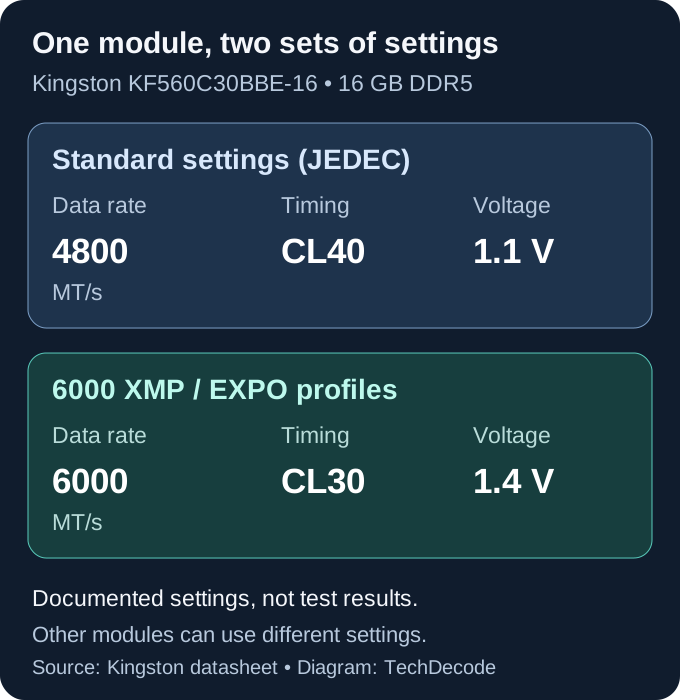
That explains why its advertised 6000 rating may require selecting a profile. It does not mean every DDR5 module starts at 4800, or that every standard-speed kit needs overclocking. Read the exact part number's specification rather than treating this example as a rule.
MT/s means millions of data transfers per second. MHz measures clock cycles. DDR transfers data twice per clock cycle, so a utility showing a 3000 MHz memory clock can be consistent with 6000 MT/s. Our RAM speed guide explains the numbers in more detail.
What XMP and EXPO actually change
XMP stands for Intel Extreme Memory Profile. EXPO stands for AMD Extended Profiles for Overclocking. Think of either as a recipe stored with the RAM: the motherboard reads a prepared combination instead of asking you to enter every ingredient.
EXPO is AMD's counterpart to XMP in purpose: both load prepared memory-overclocking settings. They use different profile formats, so the names are not interchangeable.
The main ingredients are:
- Data rate: the transfer-rate setting, such as 6000 MT/s.
- Timings: waiting intervals between memory operations. CL, or CAS latency, is one of these, measured in memory clock cycles. Compare it alongside the data rate.
- Voltage: an electrical operating setting. Use the documented supported profile rather than copying another kit's numbers.
Intel and AMD describe these as memory overclocking technologies. A profile is not the same setting as increasing your CPU cores' clock speed. However, the processor's built-in memory controller, which manages communication with RAM, is involved. Leaving CPU-core settings unchanged does not make memory overclocking irrelevant to the processor.
See Intel's XMP overview and AMD's EXPO explanation for their definitions and platform context.
XMP versus EXPO: check the generation and the computer
The names identify different profile systems. They are useful compatibility clues, but a logo alone does not prove that a particular computer can load every profile.
On a small screen, swipe sideways inside the table.
| Profile | Memory context | What to check |
|---|---|---|
| Earlier XMP | Found on compatible DDR3 systems | The older board's manual and exact RAM |
| XMP 2.0 | DDR4 | Motherboard and processor support |
| XMP 3.0 | DDR5 | Supported profiles for your exact platform |
| EXPO | DDR5, developed for AMD AM5 systems | Exact kit and motherboard support |
Intel confirms that XMP 3.0 is for DDR5, while DDR4 uses XMP 2.0. In Homelab Part 1, our older DDR3 machine uses XMP. EXPO is not an upgrade option for that DDR3 setup.
What about AM4 and its memory profiles?
AM4 and AM5 are different AMD processor-socket platforms. AM4 uses DDR4; AM5 uses DDR5. AM4 already supported loading memory profiles, commonly through D.O.C.P. on ASUS or A-XMP on MSI, using compatible XMP memory. MSI's B550-A PRO specifications show AM4, DDR4 and A-XMP support together.
EXPO itself came later. AMD's 29 August 2022 announcement introduced it as a new DDR5 overclocking technology for Ryzen 7000 and AM5. ASUS's compatibility table lists EXPO as unavailable before AM5, while showing D.O.C.P. for XMP memory. An AM4 profile button therefore does not mean the system uses EXPO.
On suitable DDR5 systems, cross-platform support depends on the board and firmware. Some AMD boards can use XMP memory; some Intel boards can use EXPO memory. Some modules, including the Kingston example above, store both. ASUS may show DOCP when loading a profile associated with the other platform. Check the manual instead of assuming the option must have a particular name.
What determines whether a profile will work?
Check the whole combination before buying or changing anything:
- Exact RAM part number: similar packaging can hide different capacity, timings or profiles. A kit sold together is the starting point for its specified configuration.
- CPU memory support: the controller has supported configurations. A kit's advertised overclock is not a promise from the CPU manufacturer.
- Motherboard and BIOS: the board must support the memory generation, configuration and profile. BIOS is the familiar name for its firmware setup; modern systems generally use UEFI firmware.
- Module count and capacity: adding sticks changes the configuration. A profile working with two modules does not prove it will work with four, or with larger modules.
Look for the board's QVL, or Qualified Vendor List: memory configurations the manufacturer has tested. Match the part number, capacity, supported module count and relevant CPU generation. A listed kit is useful evidence; an unlisted kit is not automatically incompatible, and a list entry is not a guarantee for every variation.
Avoid treating two separately purchased kits as one validated larger kit, even when their labels match. Kingston's gaming-memory FAQ covers profile support and combining kits. Office desktops and laptops may also omit profile controls entirely; check the computer manufacturer's documentation.
Warranty matters: Intel says operating outside its frequency or voltage specifications may void processor warranty coverage. AMD says operating outside its published specifications voids the applicable AMD product warranty. Check the terms for your actual hardware; a RAM profile does not establish warranty coverage for the entire computer.
How to approach enabling a profile
These are general checks, not a universal motherboard walkthrough. Back up important work, record your current settings and read the board's recovery instructions before changing them. For an always-on server, arrange downtime and ensure you can reach its setup screen locally if it stops booting.
First confirm that the computer works reliably at its current supported settings. Record detected capacity, rate and BIOS version. Follow the manual's recommended memory slots if you are installing a kit; slot order varies by board.
Restart into the firmware setup using your computer's documented method. Find its memory-profile control and select a supported profile. Do not also change unrelated tuning options. Review the proposed settings before saving, particularly the rate and voltage; the screenshot values below belong to different example hardware.
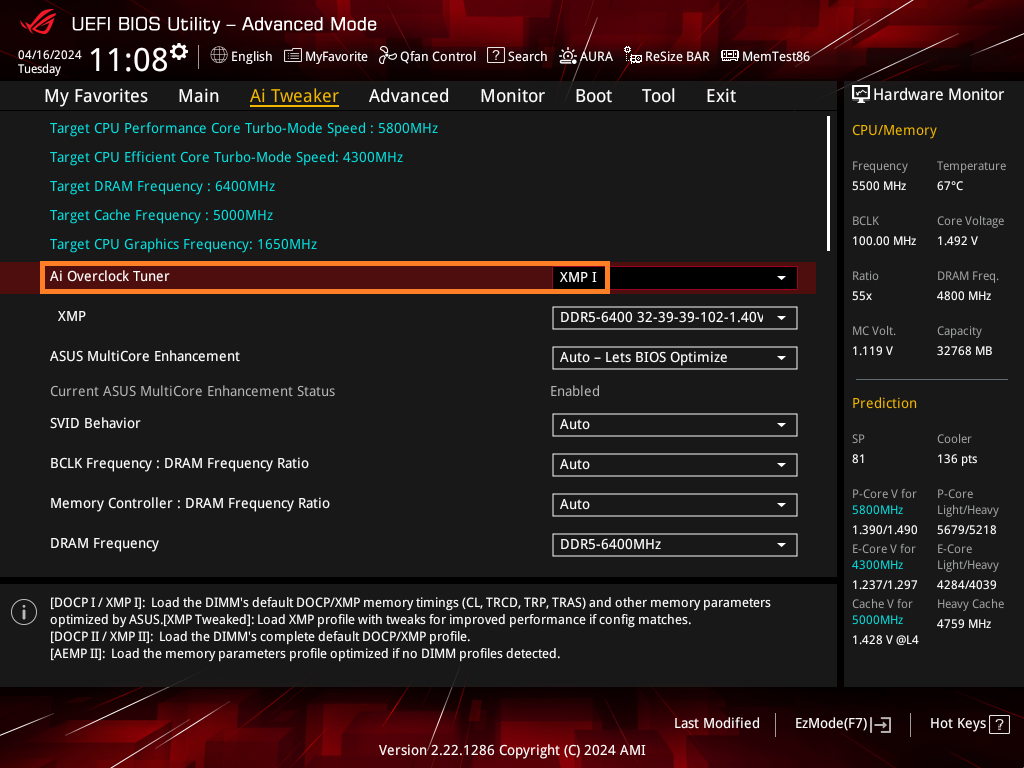
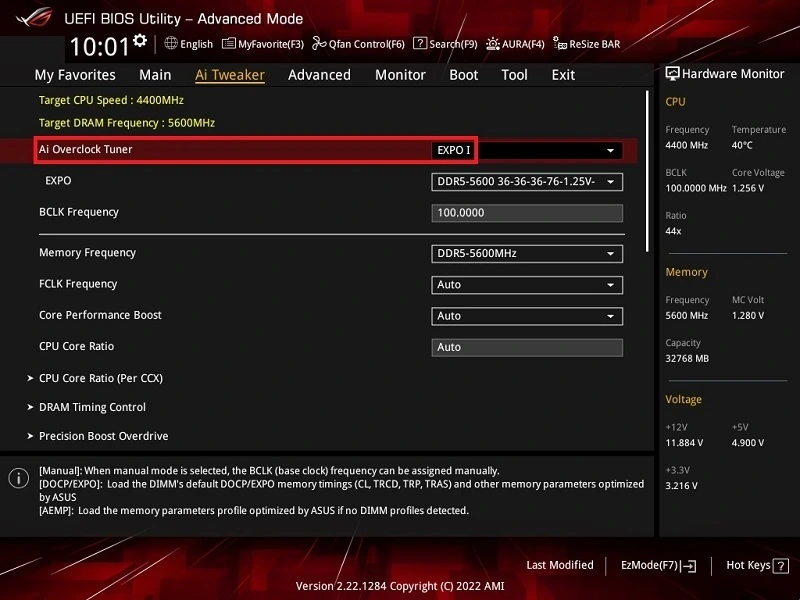
Screenshot context: ASUS supplies these examples in its profile-setting guide. Menus and options vary with motherboard and BIOS version. Its XMP I and XMP II choices use different approaches to some settings; read your manual. XMP Tweaked adds further tuning and is outside this beginner procedure.
After saving, allow the documented startup process to finish. Memory training is the firmware working out how to communicate reliably with the installed memory, and a first start after a change can take longer. MSI documents an initial memory self-check; there is no single waiting time for every board. Avoid repeatedly interrupting startup, and follow the manual's troubleshooting guidance if it fails to complete.
Once it boots, confirm the capacity and operating rate again. BIOS information or Windows Task Manager's Memory page can help. Check whether the displayed number is MT/s or a clock in MHz before deciding that a profile failed.
Stability: a successful boot is only the start
Run a suitable memory diagnostic, such as MemTest86, following its official instructions, and then try representative workloads. Include the games, applications or home-server services you actually depend on. A test that passes cannot guarantee every future workload, but reaching the desktop alone is a weak check.
MemTest86's troubleshooting guide explains that errors can involve the CPU, motherboard or configuration as well as the memory module. Do not immediately conclude that one stick is defective. Genuine errors need investigation because unstable memory can damage data.
If problems began after enabling a profile:
- Return the memory-profile control to its documented default and retest.
- If you cannot reach setup, follow the exact board's recovery procedure. Clearing CMOS, the stored firmware settings, can reset other options too. Have your recorded boot/storage settings available; do not follow a random jumper or battery-removal instruction.
- Check kit compatibility, slot population and the manufacturer's BIOS notes. Treat a firmware update as a separate maintenance task with its own instructions.
- Seek vendor guidance if errors remain at supported defaults. Avoid guessing manual voltages as a beginner fix.
Should you use it on a PC or a homelab server?
For a gaming PC, a supported profile is worth considering when you have time to test it. Compare the same game and settings before and after. Do not expect one fixed percentage improvement: a workload limited by another component may change little.
For browsing and ordinary office work, enough RAM to keep your applications comfortable may matter more than a higher rate. A profile does not add gigabytes or turn a slow internet connection into a fast one.
For a Proxmox host, NAS or other always-on machine, make reliability the first goal. Schedule changes when services can be stopped, test before trusting important data to the new configuration, and keep backups. Staying at supported standard settings is a reasonable choice when a profile offers no useful benefit for your work. This article does not report a hardware benchmark or promise lower power use.
Quick answers and a final checklist
Do I need a profile for the computer to work? No. Compatible memory can run at supported standard settings; enabling a profile is a separate choice.
Can XMP turn DDR4 into DDR5? No. These are different memory generations with different platform requirements. Comparing RAM explains those distinctions.
Should I choose the largest speed number? Choose a supported combination you can validate. The fastest listed profile is not automatically the best setting for your particular computer.
Before keeping a profile enabled, check that you have the exact supported kit, understand the warranty terms, recorded the baseline and recovery method, confirmed the applied settings, and tested representative work without errors. If those checks are incomplete, keep the known working configuration while you investigate.
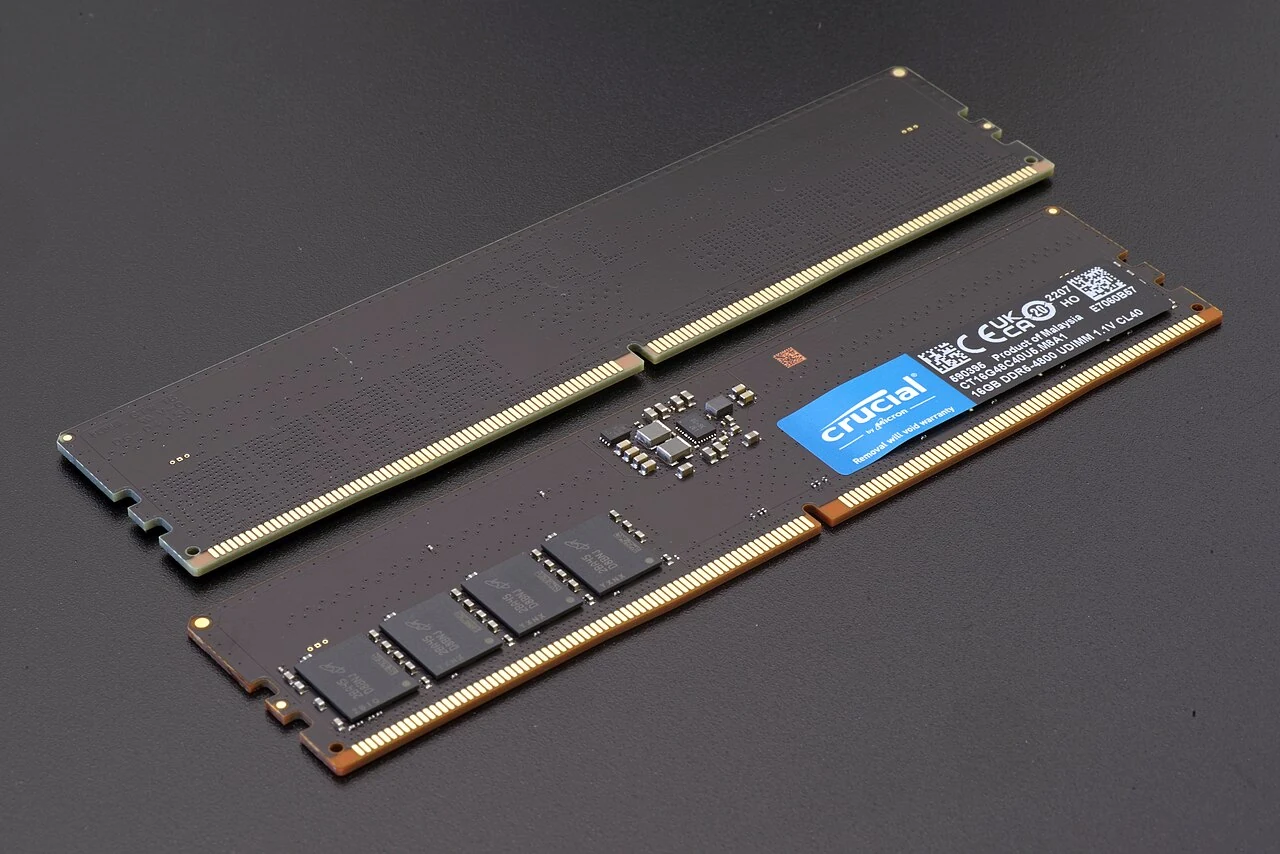
Hero photo: Crucial DDR5 modules photographed by Rainer Knäpper (Smial), used under the Free Art License 1.3. Wikimedia thumbnail converted to WebP; original composition retained. It illustrates physical RAM and is separate from the Kingston specification example.