AI can explain an unfamiliar error us humans might not be able to understand, help write a configuration file (or debug an existing one) and turn a maintenance chore into an automated script. It also makes adding services so easy that the work of looking after them seems so trivial that you want to add even more services to your portfolio.
A healthy homelab is defined as being understandable, recoverable and enjoyable to maintain. These ten quick habits and tips, using Proxmox for the main examples (with XCP-ng, TrueNAS, Unraid and Docker relevant as well), will help put your homelab in a much better position for maintenance and usability with help from AI and AI-focused tools. They cover both using AI for maintenance and running models locally. You can benefit from a local assistant or a cloud-based one. Options such as Hermes Agent and OpenClaw are valid too. Our first-time homelab tips cover your initial homelab setup and what you will use it for.
1. Use AI to understand problems before changing anything
When you experience a problem with one of your self-hosted services, start with the symptom: can you reach Proxmox, is the virtual machine (VM) running, and can another device reach the application? The VM or LXC container running does not prove that the service that runs on it is in a working state.
Give your assistant the software versions, recent changes and a short log excerpt. Remove passwords, access tokens, private keys and personal content. Keep useful timestamps and error codes, using consistent placeholders for sensitive names. Use the template as an example prompt.
This application stopped responding after [change]. It runs in [VM or container] on [platform and version]. Here are sanitised logs. Separate facts from possible explanations, suggest checks that do not change the system, and explain what each result would tell us.
Review every proposed command, including which machine it belongs on. A command for a guest can have different consequences on the Proxmox host. Ask for official documentation and check its version assumptions yourself. OWASP's agent guidance supports protecting sensitive inputs and validating outputs. Ask why a check helps so that troubleshooting also improves your understanding. Remember, learning is one of the most rewarding outcomes of running your own home lab.
2. Create a few alerts you will actually act on
Start with unavailable services, failed or overdue backups and storage filling up. Leave temperature monitoring and performance measurement for a later step. Choose thresholds around your workload and recovery needs. Brief spikes during a scheduled job may need no intervention, whereas constant unnecessary notifications make important warnings easier to miss.
Check what users need to do and make sure the service does what it is supposed to do. A successful ping does not prove a web application works, and a web (HTTP) response does not prove someone can log in or use the service for its intended purpose. Uptime Kuma covers availability checks; Beszel and Prometheus with Grafana offer resource monitoring. After defining what counts as working, rather than just running, pick the smallest useful combination.
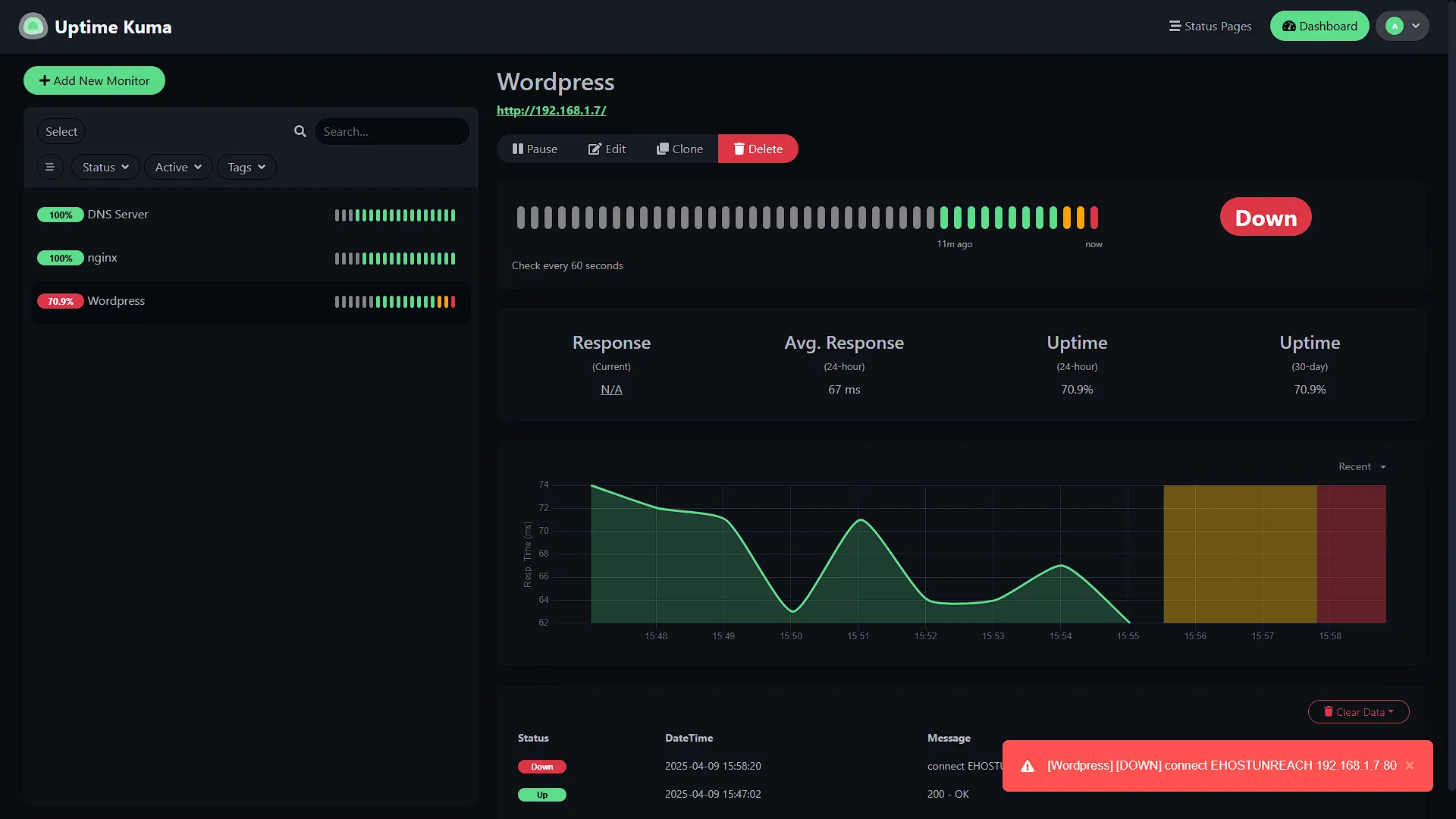
Test notification delivery to your phone, as the Prometheus alerting guide recommends. Consider another device or external check to notice when the main host, including its monitor, goes offline.
Once you have proper logging, an AI agent connected to log-search tools can query relevant records across multi-gigabyte datasets and summarise the results. An agent that also receives notifications can help you define which problems are critical and which routine checks can wait. Review its classifications and keep urgent alerts working independently.
3. Prove that your backups can restore a working service
Decide how much recent data you can afford to lose and how long each important service can remain unavailable. Those answers guide backup frequency and recovery planning. Keep independent copies, including a protected offsite copy for failures affecting the whole home. Snapshots and drive redundancy help with particular failures but cannot replace independent backups.
Proxmox Backup Server provides backup verification, but integrity checks do not prove an application will recover successfully. Test a restore into a new guest, isolated before booting so it cannot duplicate addresses or run jobs against live systems. Check the application and its data, then record recovery steps and timing.
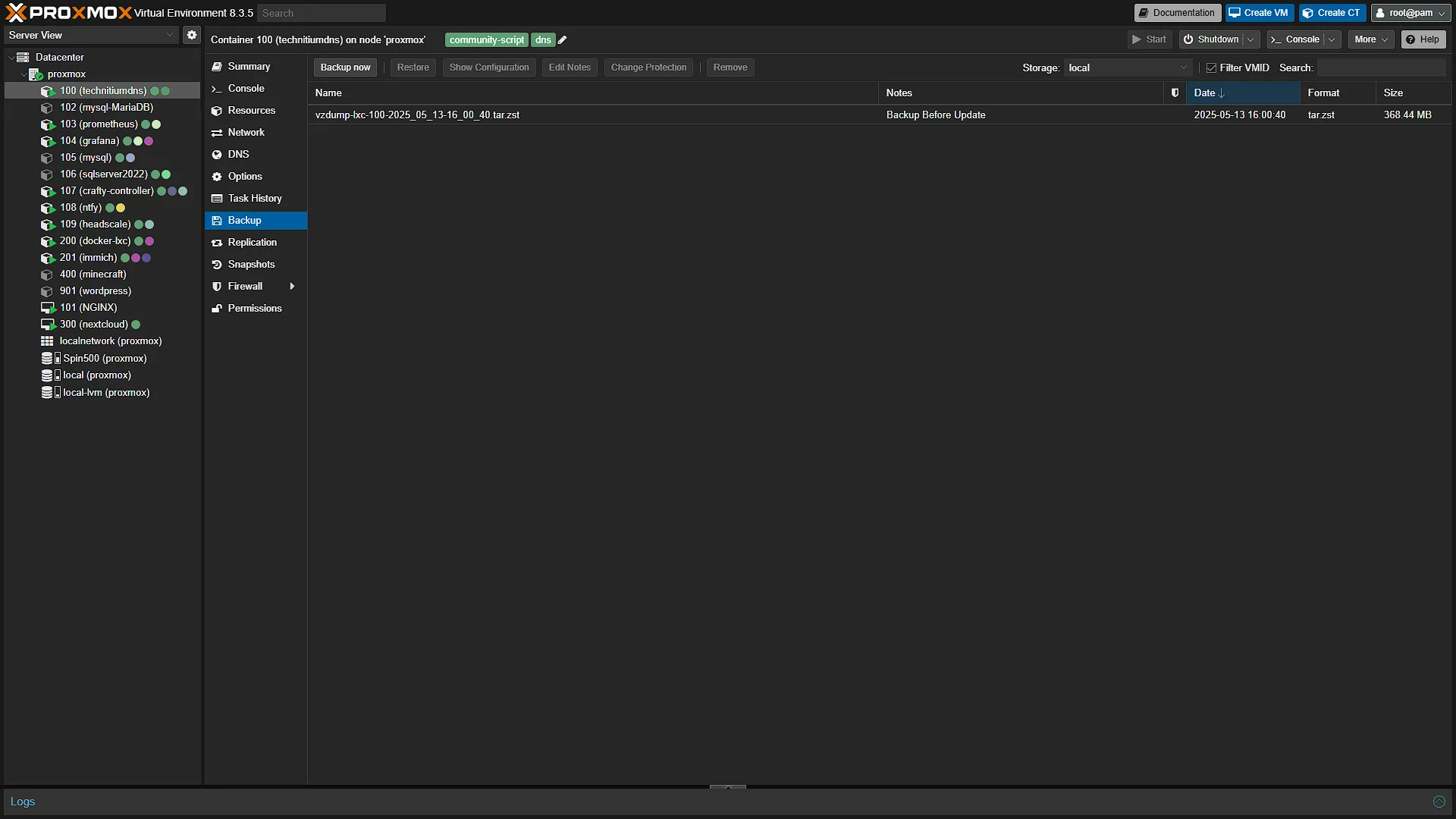
Check backup coverage: Proxmox container backups require the backup option for additional volume mount points and exclude device and bind-mount contents. A bind mount exposes an external directory inside the container; a photo library stored there needs separate protection. Follow the application's database-backup instructions too.
For XCP-ng, Xen Orchestra health checks can restore and start a VM and optionally run a checking script. The boot check requires guest tools, software inside the VM that reports its status. AI can draft your checklist or explain errors; a working restore provides the evidence.
4. Make updates small, planned and recoverable
Your hypervisor, the software managing VMs, its guest operating systems and their applications have separate update needs. Keep an inventory, prioritise relevant security fixes and read release notes. Give AI the actual changelog and installed versions when asking it to identify breaking changes.
For planned maintenance, confirm a usable backup, record the current version and choose an acceptable interruption window. Update one service or related group, then test normal actions such as signing in and opening a file. Check logs before continuing. Urgent security fixes may need attention sooner than the next routine window.
Plan recovery for application data as well as software. A database migration can make simply reverting an application image insufficient. A supported snapshot can supplement a separate backup, but follow the application's recovery instructions.
Use the official Proxmox update procedure for the host. Keep major upgrades and firmware changes out of an unreviewed AI-generated maintenance script.
5. Turn repetitive maintenance into reviewed automation
Choose a chore you understand, such as reporting disk usage, checking backup age or warning about an expiring certificate. Ask AI to draft the script and explain every file it changes, service it contacts and permission it needs. Keep real credentials out of prompts and source code.
Test on a disposable guest or a narrowly selected set of targets. Save working versions in Git so changes can be reviewed and reversed. Include clear failure reporting, timeouts and bounded retries; an unreachable host must not produce a reassuring empty report.
Ansible can apply repeatable configuration across several systems. Its check and diff modes help preview supported tasks, but check mode is a simulation and tasks can explicitly bypass it. Diff output can expose secrets.
Once tested, schedule the reviewed script and keep a clear way to disable it. If you add automatic repairs later, define exactly what they may change and when they must stop and notify you.
6. Give AI tools only the access their job requires
An AI agent can act through connected tools. Decide which actions its task needs before connecting it to your lab. For status reporting, use a dedicated Proxmox account and a privilege-separated API token, a credential for software, with narrowly scoped read-only access. Proxmox's PVEAuditor role and token permissions are covered in its permissions documentation.
Enforce limits through accounts and tool configuration. Asking an assistant to be careful does not reduce its credential's powers. Review consequential changes, retain activity records and know how to revoke access. OWASP's excessive-agency guidance explains the risks of unnecessarily broad functionality and permissions.
Treat retrieved webpages, configurations and logs as untrusted: they can contain instructions intended to manipulate the assistant, called prompt injection. Read-only access can still disclose private data. Keep management interfaces behind controlled private access, use strong authentication, and remove unused tokens and integrations. Local inference does not automatically make connected tools private or safe.
7. Leave room for everyday services when running local AI
Measure local models under realistic workloads. Download size alone does not establish memory needs. RAM is system working memory; VRAM is the memory of a graphics processor (GPU). Longer context and simultaneous requests can require more memory, as the Ollama FAQ explains. Our local AI memory guide covers the trade-offs.
On Proxmox, give experiments a separate guest with suitable processor (CPU) and memory allocations, leaving headroom for the host and everyday services. Monitor those services during AI work. Separation helps contain changes, but cannot guarantee availability: physical resources, storage and power remain shared.
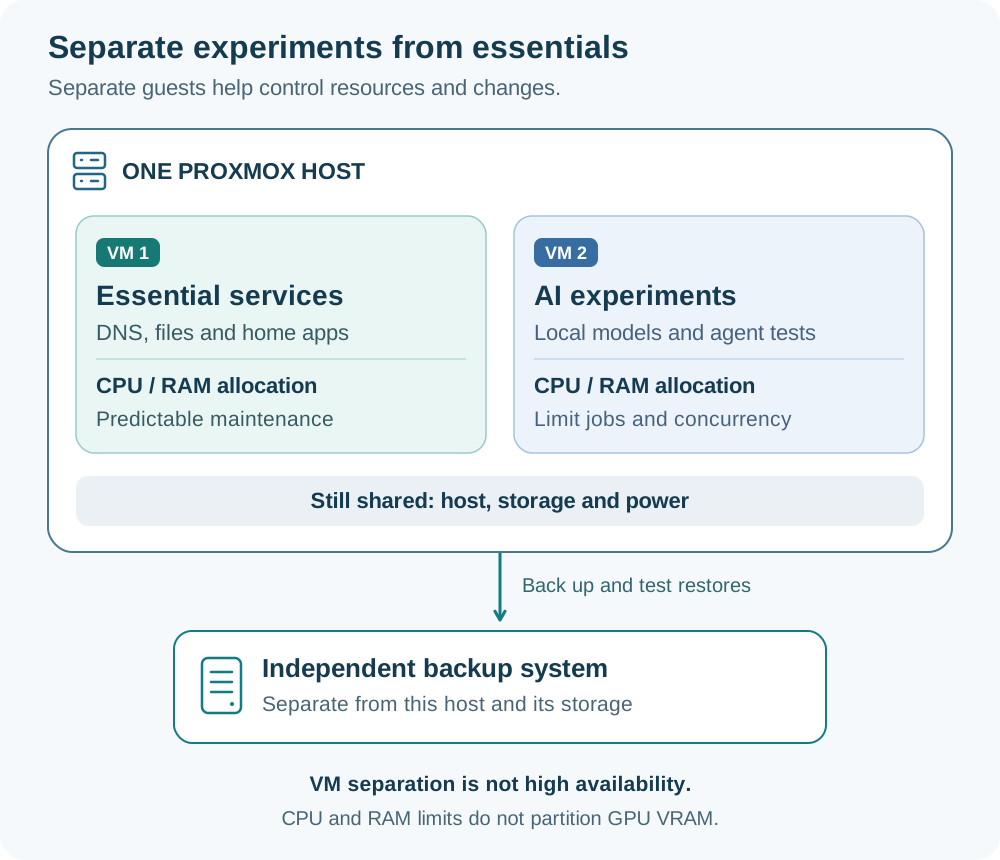
On Docker hosts, configure appropriate limits because containers have no resource constraints by default. Memory exhaustion can affect other processes. Ordinary processor and RAM limits do not partition GPU memory; check your graphics hardware and inference software's sharing support.
Watch model downloads, logs and indexed documents for storage growth. Remove unused models through supported tools after checking dependencies, and schedule heavy indexing away from backups and busy household hours.
8. Keep checking disks, cooling and power
Inspect airflow, dust, fans and connections during planned maintenance, following the manufacturer's cleaning and power-down instructions. Check temperatures under representative load against the component's limits. Avoid opening power-supply or UPS enclosures for routine cleaning.
Review storage alerts and SMART drive-health information, where supported. SMART is a drive's self-monitoring system, and a healthy status cannot guarantee against failure. With the ZFS file system, review scrub schedules and results: scrubs check integrity and can repair damage when valid redundant data is available. Keep separate backups.
A UPS, or uninterruptible power supply, provides temporary battery power. Extra AI workload can reduce runtime, so verify that equipment can shut down before the battery runs out. Network UPS Tools and TrueNAS UPS settings support shutdown planning. Follow the equipment and software's documented test procedure in a maintenance window. Our graceful-shutdown guide explains the dependencies.
9. Keep an operating manual outside your AI conversations
Keep a short runbook, meaning operating and recovery instructions, with service locations, versions, persistent-data paths, backup destinations and startup dependencies. For example, an application may need its storage and DNS name-lookup service available first. Include how to reach the machine directly if its web interface fails.
Store credentials in an appropriate password manager and document how to recover authorised access without copying secrets into the manual. Keep a secure offline copy accessible when the main host or internet connection is unavailable.
After a change, ask AI to turn your sanitised notes into a concise runbook update. Verify names, paths and versions, and distinguish completed actions from suggestions. After an outage, record the symptom, evidence-supported cause, fix and one preventive improvement. This gives your next investigation a useful starting point.
10. Keep your homelab enjoyable and manageable
Before adding another service, ask whether you will use it, where its data belongs and whether you are willing to maintain it. Temporary experiments can stay temporary. Retire unused guests after checking dependencies and preserving wanted data.
Agree on maintenance windows for household essentials such as the password manager or photo library. Track electricity, storage and paid AI usage; use spending controls where available and limit automated retries. Leave yourself time to understand changes and practise recovery.
Google's guidance on reducing repetitive operational work offers a useful principle: identify recurring chores, then automate them or simplify what creates them. Keep the hobby sized to the time and budget you enjoy spending on it.
Start this week by restoring one important service in isolation, testing one notification end to end and saving an offline recovery guide. Those three checks provide a practical foundation for whatever you build next.