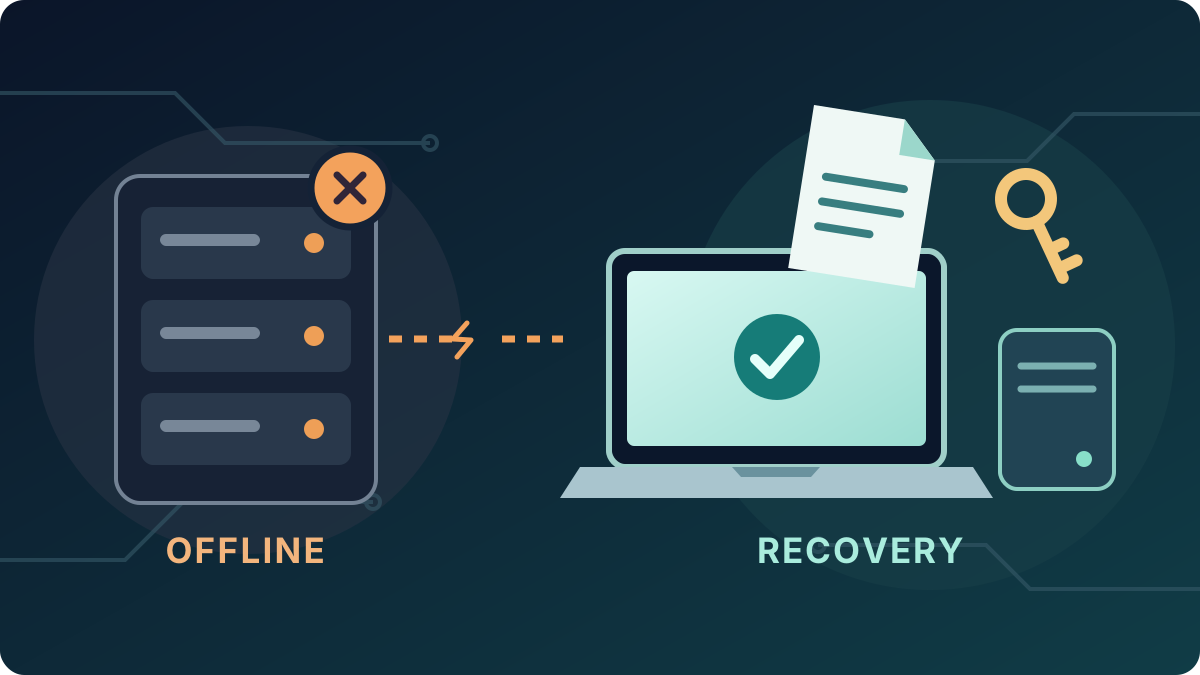
Microsoft's November 2026 outage interrupted work across the world. When email and calendars disappeared, people at businesses large and small had to find another way to organise the working day. For anyone running a homelab, it also raised a question many homelab owners would rather put off. What happens when the machine hosting everything stops working? What can you still reach if your internet provider goes down?
Self-hosting gives you control over your services and data. That's a big part of its appeal, but you're also the one who has to get those services back online. Microsoft's outage is a reason to plan for that day while everything still works. Start by asking which services would fail together and whether you'd still have the tools to recover them.
What happened to Microsoft 365
Microsoft's preliminary incident report, dated 15 November, describes a failure in networking gateways that handle connections to several Microsoft 365 services. Exchange Online, the service behind hosted business email, suffered most. In Teams, Copilot and other products, the impact varied with the feature people were trying to use. Features that depended on Exchange were particularly affected.
Three conditions combined: a dormant bug in a gateway-specific software change deployed from July, extra traffic after Teams was moved onto those gateways, and nearly 14% of gateway capacity already being offline. The perfect storm. Redirected traffic overwhelmed more servers, spreading the failure. At the worst point, over 80% of gateway servers were unresponsive. When restarted servers began accepting traffic again, waiting requests could overwhelm them. Proper server and service recovery required a fix and carefully managed restoration. Just "turning it off and back on again" was not enough in this scenario. In a homelab, the first question is where the failure happened. If your internet provider is down, restarting your server won't restore remote access through that connection. Services on your home network may still work locally.
Microsoft records active impact from 16:20 UTC on 12 November to 16:10 UTC on 13 November, almost 24 hours. Backlog recovery and monitoring continued, with final customer updates issued on 14 November. Microsoft listed 20 November as the expected date for its final incident report.
Find out what fails together
Imagine a small server running your DNS service, password manager, document library, home automation and recovery wiki. DNS translates names such as website addresses into the network addresses devices use, example: homeauto.local pointing to your Home Assistant container, or in our Build Your Homelab Series dns.local pointing to the DNS server... hosting that very DNS record. A wiki stores the instructions you wrote so you would not have to remember everything.
If that server fails, several apparently separate applications disappear together. If it also provides the only DNS service your devices can use, ordinary browsing may fail even while the internet connection itself still works. The wiki explaining how to fix the problem has joined the outage. This is why we added a secondary DNS on a Raspberry Pi (read the guide here).
Containers and virtual machines let you run applications in separate environments on one physical host. They still depend on that host. Two DNS containers on that host cannot protect you from its power supply failing. Two hosts using one storage system can share a different weakness.
Sketch your own setup, starting with the applications people use. Under each one, list the host, storage, network equipment and any services it needs to function. Include authentication, the process that checks who can sign in. Follow each dependency far enough to see what else disappears when it fails.
This exercise also prevents wasted troubleshooting. If five applications become unavailable together, investigate what they share before reinstalling five unrelated services. Our DNS at home explainer provides background if name resolution is unfamiliar.
Choose what your household needs first
A media library can probably wait while you repair a server. Essential documents, household connectivity or a frequently used password manager may need a quicker fallback. Your priorities depend on how people actually use and access your services. A priority list is amazing to help you focus on the essentials first.
For each important application, write down two tolerances: how long you can manage without it, and how much recent data you could afford to lose. A photo library might tolerate a day offline while still needing strong protection for irreplaceable images. A temporary game server may have a different balance. This will affect your backup strategy, so keep that in mind as well.
Then choose a fallback proportionate to the problem. That could mean an independently available DNS service, a protected offline copy of essential documents, or manual controls for home automation. Check that the fallback works in the failure you are planning for. Another device on the same power supply does not solve a power failure. Remember that external factors exist, like an ISP failure, so plan accordingly for an outage that cannot be solved by yourself. One lesson I learned the hard way is to check how long replacement hardware would actually take to arrive.
You can also decide that a service is useful but not worth operating yourself. Control, maintenance time, cost and recovery effort all belong in that decision. Adding more machines creates more equipment to maintain, so begin with the dependencies that would cause the most disruption.
Keep the recovery tools outside the outage
The most awkward dependency is needing a broken service to repair itself. An encrypted backup is little help if the only decryption key is on the failed host. Proxmox's backup documentation explicitly warns about this situation.
Keep a small recovery kit that you can access from another device. It should contain your network layout, management addresses, service locations, backup destinations and recovery order. Record where essential credentials and encryption keys are securely held, without copying secrets into an ordinary shared document. Keep the necessary recovery material separately protected and accessible without the failed server. A securely stored external drive or USB stick works well for this.
Do not assume a password-server outage necessarily removes every saved password. Bitwarden documents read-only offline access for unlocked apps. However, a new device or a logged-out app is a different situation. Check your actual client's behaviour and keep an independent emergency access method appropriate to your setup.
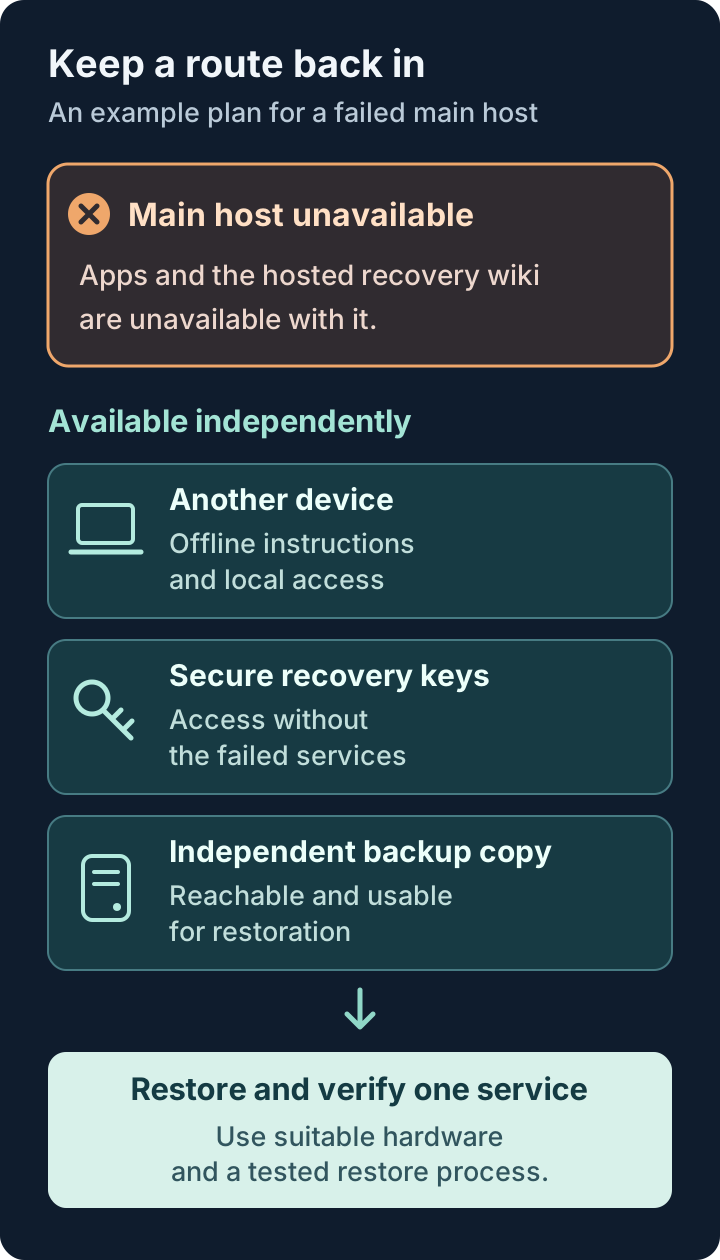
Also document a supported local management route if your usual application address or central sign-in service is unavailable. This might be a physical console or a separately protected local administrator account. Plan and test it while everything works; avoid improvising by exposing management interfaces to the internet.
Make backups prove their usefulness
A backup answers whether you have another copy of the data. Recovery asks whether you can turn that copy into a working service with the equipment and time available.
Start by checking where the backup lives. A copy on the same disk as the original will not survive that disk failing. A separate device helps with some failures, while a protected copy away from home addresses risks that affect the whole location. Include application configuration and databases as well as obvious files, following each application's backup guidance.
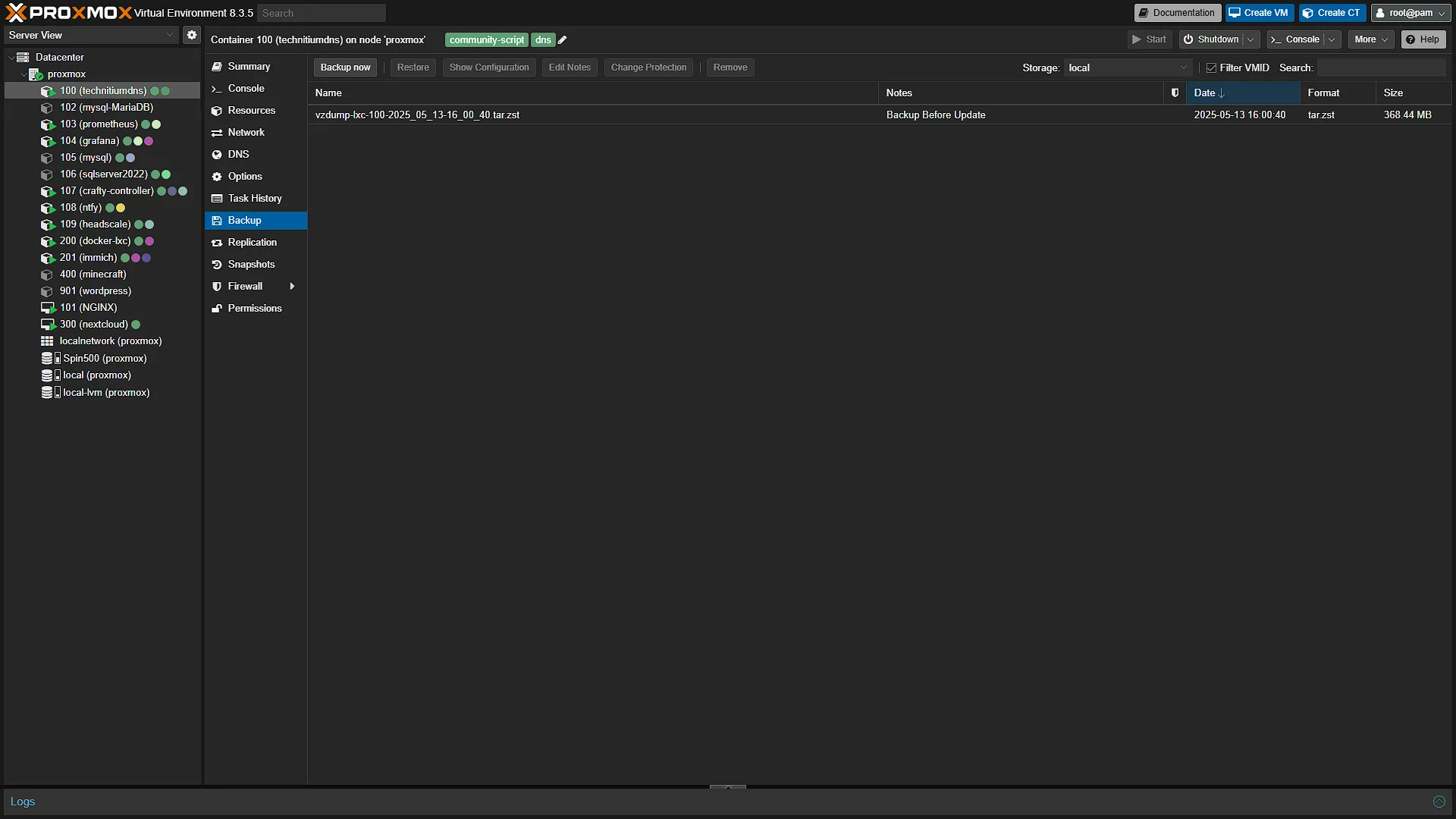
Proxmox Backup Server verification checks backup integrity. Add a practical restore test to establish whether the application starts, its data is present and you can sign in. Restore into a separate test destination, keeping it isolated before starting it so duplicate addresses, scheduled jobs or automations cannot affect your working services.
Measure the whole process, including locating instructions, obtaining keys, transferring data and checking the result. If your acceptable downtime is two hours but recovery takes an afternoon, you have a specific gap to address. Perhaps you need clearer instructions, a faster restore source or access to replacement hardware. Our Proxmox Backup Server overview explains the platform in more detail.
Bring services back in a deliberate order
Write a startup order based on your dependency map. Network access, storage, DNS, authentication and applications may need to return in stages, but the order depends on where you run them. A DNS service inside a virtual machine needs its host and storage available first. Avoid a circular arrangement where the host needs a service that cannot start until the host is ready.
Once basic access works, restore the services people need most. Let each settle before bringing back optional workloads such as media indexing or large background jobs. Leave enough memory, processor and storage capacity for recovery work itself.
Google's discussion of cascading failures explains how overload and retries can make a struggling service harder to recover. For a homelab, the practical application is to understand why a service is failing before repeatedly restarting everything. Keep recent configuration changes and known working settings documented so you can make a controlled correction.
For power interruptions, an uninterruptible power supply, or UPS, can provide time for an orderly shutdown. It has finite battery capacity and addresses a different problem from a software fault. Our UPS and graceful shutdown guide covers that planning separately.
Make sure the alert can reach you
A monitoring dashboard on the main host cannot report its own complete disappearance without something else noticing. Likewise, an alert sent through the email service that just failed may never reach you when needed.
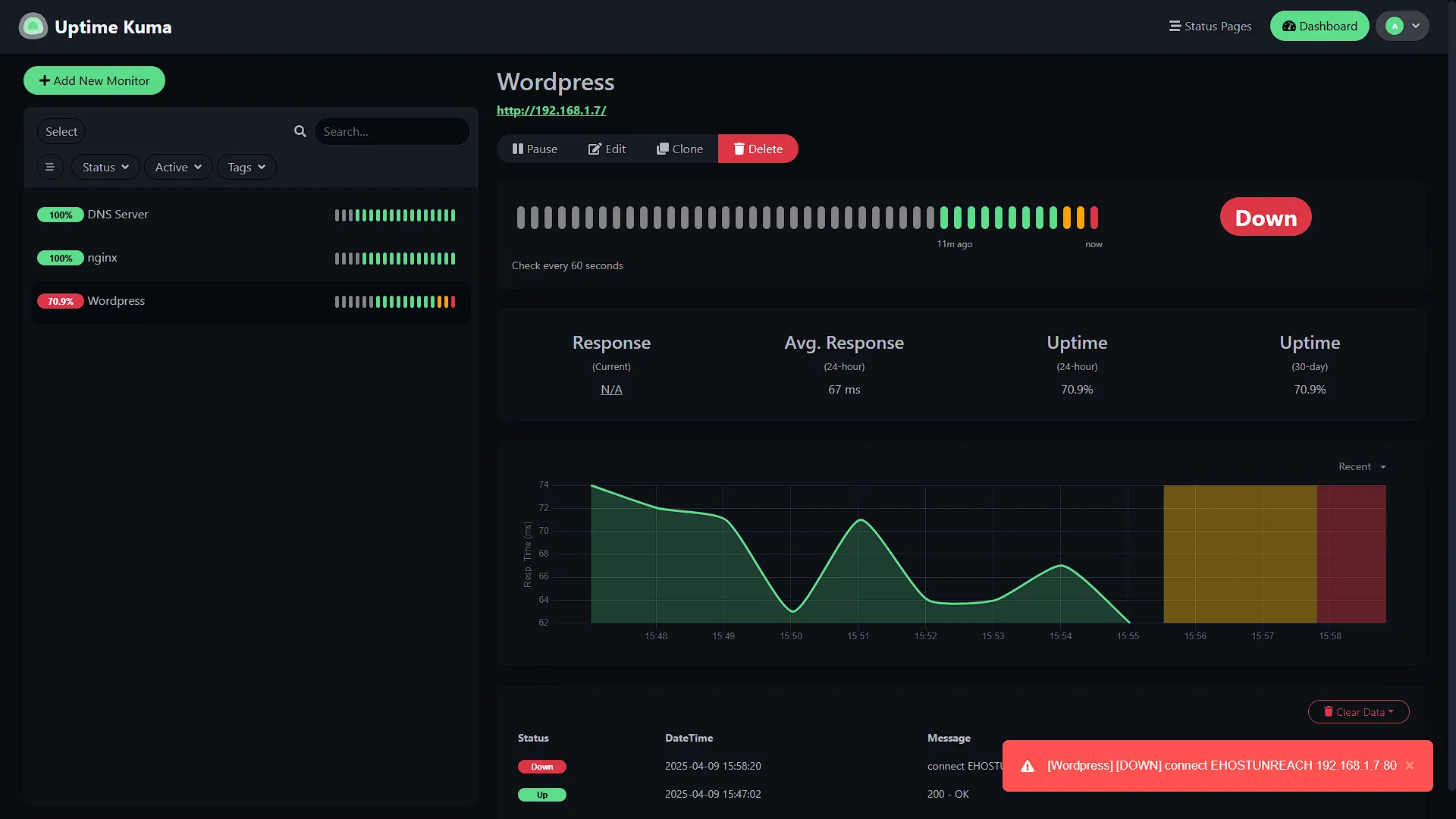
Consider a check from another machine for host failures, or an external heartbeat service that expects regular messages from your lab and alerts when they stop. A separate device at home still shares some risks, including power and connectivity. Choose the arrangement according to what you want to detect, and keep administrative interfaces private.
Check an outcome that matters, such as opening a document or reaching the application's sign-in page. A responding machine does not prove its application works. Follow Prometheus's alerting guidance by testing the notification path all the way to the person who needs to act. Keep alerts few enough that important ones receive attention.
Try a recovery exercise before the next outage
Begin with a walkthrough that leaves your running services alone. Use another device and assume your main host is unavailable. Work through these steps without opening anything hosted on it:
- Find the recovery instructions and the supported way to reach management controls.
- Locate an independent backup and the protected credentials and keys needed to use it.
- Identify where you could restore the most important service, including available storage and compatible software.
- Write its dependency order and how you would check that it works for a user.
- Note every step that relies on the failed host, a missing file or something only you remember.
Fix those gaps, then schedule an isolated restore test with enough time to investigate problems. Tell anyone relying on the lab before any later exercise that could affect availability. Pulling the power abruptly is unnecessary for this first check.
Self-hosting remains rewarding because you can understand and shape the system yourself. Once other people rely on it, that understanding needs to include failure and recovery. Start with one essential service and make sure you can bring it back while the rest of the lab is unavailable.